How to fix
KB5019959 fails to install
on Windows
Resolve KB5019959 installation issues in Windows 10 quickly and efficiently. Expert-tested solutions ensure your updates are fixed in minutes.

What causes How to fix KB5019959 fails to install in Windows 10?
- System File Corruption
- Damaged System Components
- BSOD Errors
- DLL Errors
- Common Update Issues
Repairs Windows system files, removes malware, and restores a clean OS state — without reinstalling.
Hi, I have launched a Windows update KB5019959, and it didn't get through. Instead, I received an error that said that the update process failed. Is there anything that can be done to fix it? The answer is much appreciated.
When Windows 10 was introduced back in 2015, it was upgraded to a service level, entailing Microsoft to deliver updates at a predetermined frequency. Users should routinely look forward to new features, security vulnerability[ref en-3] patches, improvements to existing features, and bug fixes.
KB5019959 (along with KB5019966) was released on November 8, 2022, as a part of its Patch Tuesday[ref en-2] routine. They consist of cumulative updates for OS build 19042.2251, 19043.2251, 19044.2251, and 19045.2251 and were designed for Windows 10 versions 22H2, 21H2, 21H1, and 20H2.[ref en-1]
KB5019959 is another important update from Microsoft that is meant to fix numerous security vulnerabilities, twenty bugs, and other performance issues. This is one of the main reasons why users are keen to install it, although this process is not always successful, as some reported the update failing.
Windows update errors and update installation failures are relatively frequent occurrences, which many are accustomed to. On the other hand, some users rarely encounter update issues. We have previously discussed installation failures of KB5018410, KB5018418, KB5018499, and many others. While the updates differ, the circumstances they fail at are similar, more or less, although sometimes they may be update-specific.
If you're having trouble installing KB5019959, our solutions below might help. To fix the issue, we recommend scanning your system with a powerful repair tool [d1] that can find and automatically repair damaged system components - resolving BSODs, DLL errors, and common problems alike.
Solution 1. Repair damaged system files
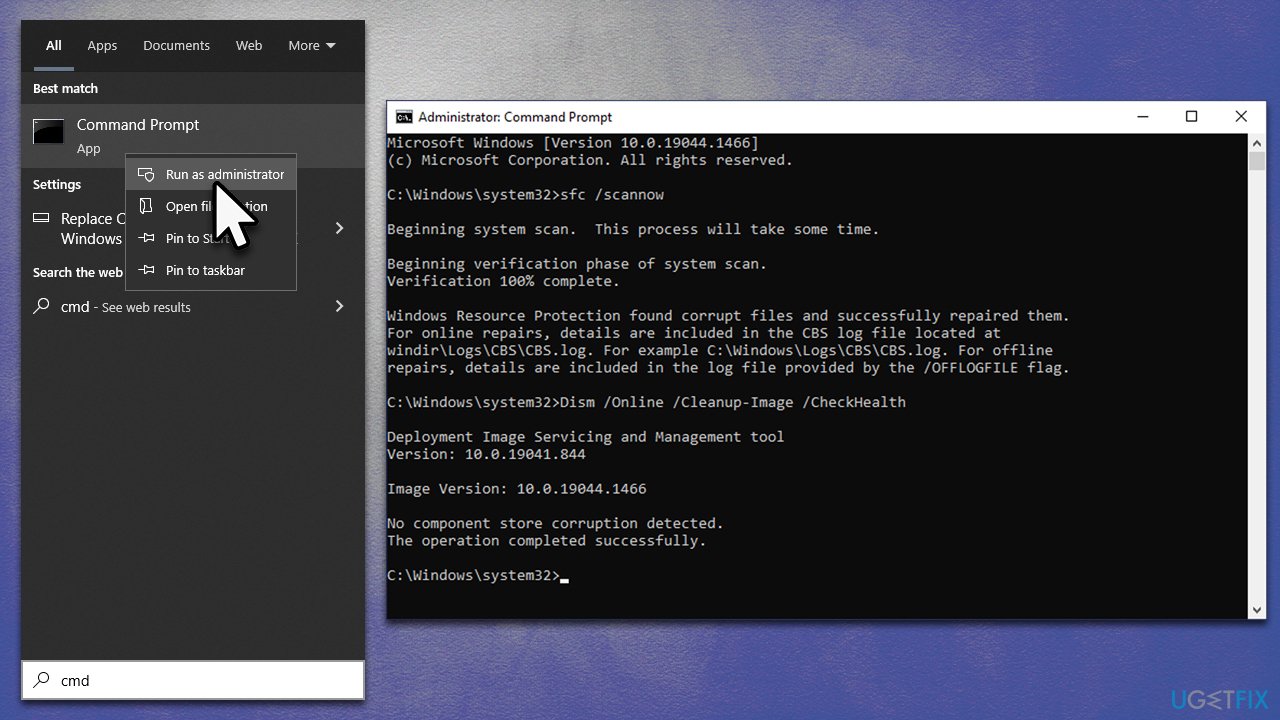
System file corruption is among the most common reasons for Windows update installation failures, so we recommend attempting to repair these issues first if they exist. In order to check the PC for system file integrity, you should run some commands via the elevated Command Prompt:
- Type cmd in Windows search
- Right-click on Command Prompt and pick Run as administrator
- When User Account Control shows up, click Yes
- Use the following command lines, pressing Enter after each:
sfc /scannow
DISM /Online /Cleanup-Image /CheckHealth
DISM /Online /Cleanup-Image /ScanHealth
DISM /Online /Cleanup-Image /RestoreHealth - Restart your computer.
Solution 2. Disable or uninstall security software
Many users who encountered difficulties installing Windows updates concluded that the presence of third-party security software on the system interfered with the procedure's success. An overly aggressive anti-malware program may occasionally tamper with connections to Microsoft servers and stop the update from being applied.
Furthermore, anti-malware software makes a plethora of changes to your system that could potentially cause problems. Because of this, we recommend temporarily uninstalling or disabling your security software and then attempting to download the update again.
Solution 3. Troubleshoot
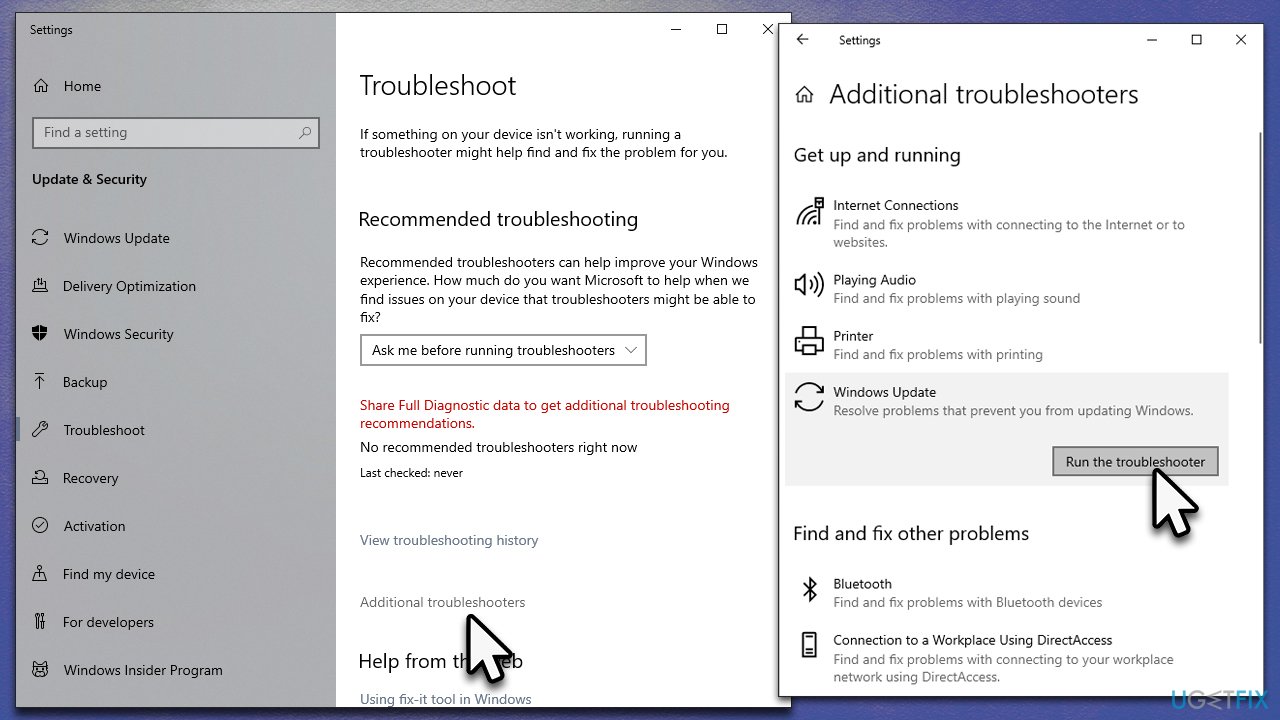
If you haven't yet run the built-in Windows Update troubleshooter, you should definitely do it as follows:
- Type Troubleshoot in Windows search and press Enter
- Choose Additional troubleshooters
- Locate Windows Update in the list
- Click it and select Run the troubleshooter
- Once the troubleshooter finishes its scan, apply the fixes suggested and restart your device.
Solution 4. Check relevant services
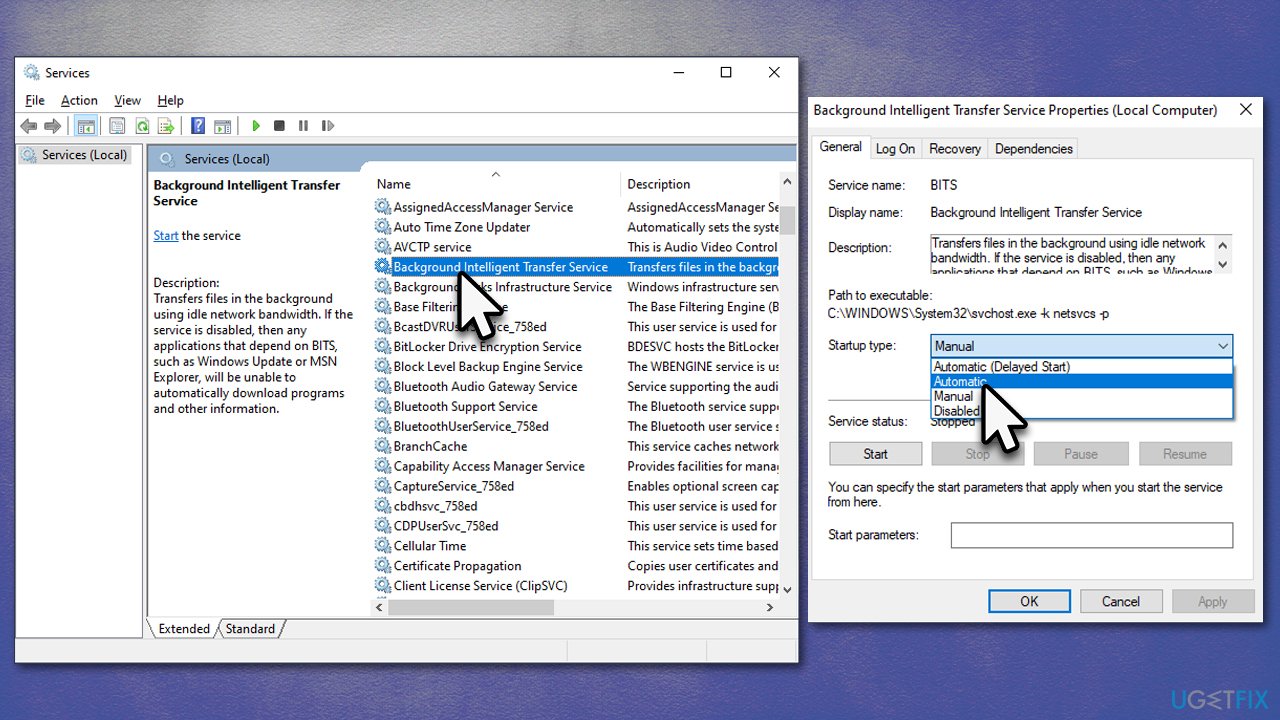
In order for the update process to run smoothly, BITS (Background Intelligent Transfer Service) and Windows Update Services need to be active. If these services are not working, restarting them may help.
- Type in Services in Windows search and press Enter
- Locate Background Intelligent Transfer Service (BITS)
- If it is already running, right-click and select Restart
- if the service is not running, double-click it, select Automatic under the Startup type from the drop-down menu
- Click Start, Apply, and OK
- Locate Windows Update Service and repeat the process above.
Solution 5. Install manually
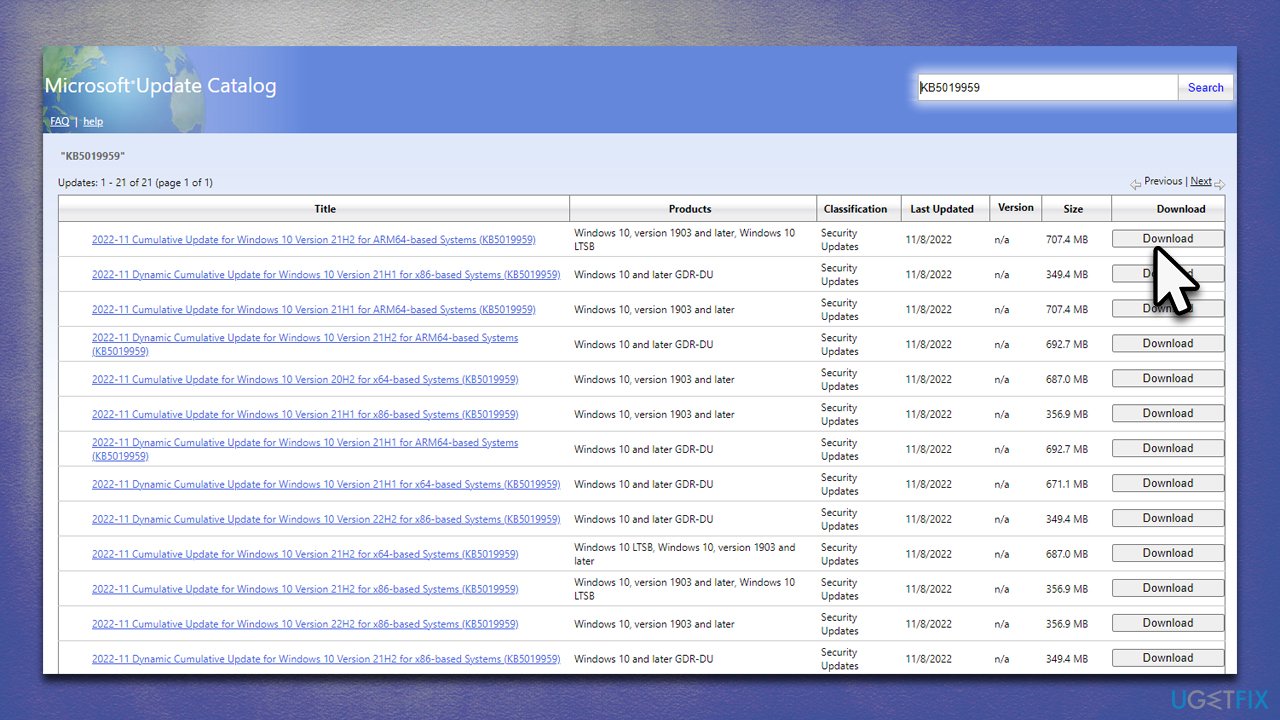
- Go to Microsoft Update Catalog
- Here, type in the KB5019959 number and click Search or press Enter
- Select the version that is compatible with your operating system (ignore updates for the server) and click Download
- Proceed with on-screen instructions and restart your system once complete.
Solution 6. Use Media Creation Tool
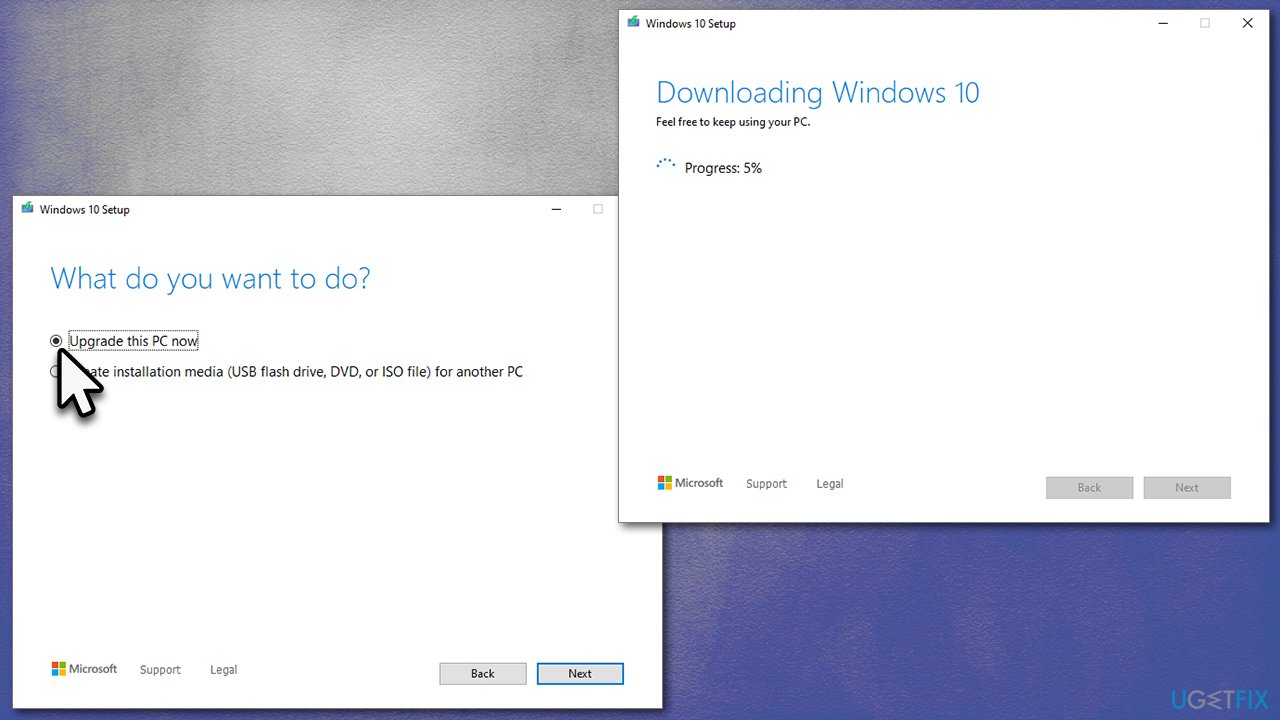
If the methods provided above did not help, we recommend using the Media Creation Tool. Disconnect all unnecessary external devices, such as printers, and make copies of your personal files as a precautionary measure. Also, uninstall any third-party security applications that may interfere with the process.
- Visit the official Microsoft website and download Windows 10 installation media
- Double-click the installer and select Yes when UAC shows up
- Agree to the terms and click Next
- Select Upgrade this PC now and click Next
- Wait till Windows downloads all the necessary files
- Restart your PC once finished.
Bottom line
To fix the KB5019959 installation failure, you should first attempt to repair any damaged system files using the Command Prompt. If issues persist, consider using a powerful repair tool to address various system problems. If none of these solutions work, further troubleshooting may be necessary.
Frequently asked questions
First, try running the Windows Update Troubleshooter to detect and resolve any issues. If that doesn't work, consider downloading the update manually from the Microsoft Update Catalog.
Yes, common error codes include 0x800f0988 and 0x8007000d, which indicate issues with the update files or system corruption. You can find more details by checking the Windows Update logs.
You can verify if the update is installed by going to Settings > Update & Security > Windows Update > View update history. If you notice performance issues or error messages after installation, it may be related to this update.




Report an issue
What's wrong with this guide? We review every report and update or remove content.
Report received — thank you. We'll review and fix it.
You need a free account to submit a report.
Be the first to comment