How to fix
KB5021255 fails to install
on Windows
Resolve the KB5021255 installation error in Windows 11 effortlessly. Get expert-tested solutions and tips to fix the issue in minutes.

What causes How to fix KB5021255 fails to install in Windows 11?
- Network issues
- Power outages
- Incorrectly configured services
- System file corruption
- Update process errors
Repairs Windows system files, removes malware, and restores a clean OS state — without reinstalling.
Hello everyone. I have an issue with the latest updates - KB5021255 fails to install on Windows every time I try. I rebooted the system but to no avail. Are there any tips you could provide me, please?
Windows updates are among the most important things to maintain on your operating system if you want to keep it secure and stable. They address plenty of security vulnerabilities,[ref en-2] improve performance, fix bugs, and provide a lot of other benefits for users. Usually, the updates are shipped on every second (or sometimes third) Tuesday of the month, known as a Patch Tuesday.
On December 13, 2022, Microsoft released the KB5021255 cumulative update (build 22621.963) for Windows 11 versions 21H2 and 22H2.[ref en-1] It includes plenty of security vulnerability fixes and addresses twenty-nine bugs and performance issues. As usual, many people were looking forward to installing the update, but unfortunately, not everyone was able to do so because the update simply failed.
Unfortunately, KB5021255 is not the only update that users can't install - we have already talked about plenty of others, including KB5019157, KB5021866, KB5020035, and many others. While some people receive an error code just before the update process finishes, others claim that there is no indication of any code present, and Windows says it will try again later, which does not resolve the issue.
Update failures can be caused by a variety of factors, including network issues, power outages, incorrectly configured services, system file corruption, and others. When a windows update fails, you may see error messages or experience problems with your system, such as it crashing or running slowly. It is important to address update failures as soon as possible to avoid further issues with your computer.
Even if you see no significant issues related to KB5021255 failing to install, you should resolve the matter sooner rather than later, as there could be underlying issues on your system. [d1] is a great tool to check for such inconsistencies and remediate those related to the system problems automatically for you. Alternatively,
Method 1. Ensure BITS and Windows updates services are running
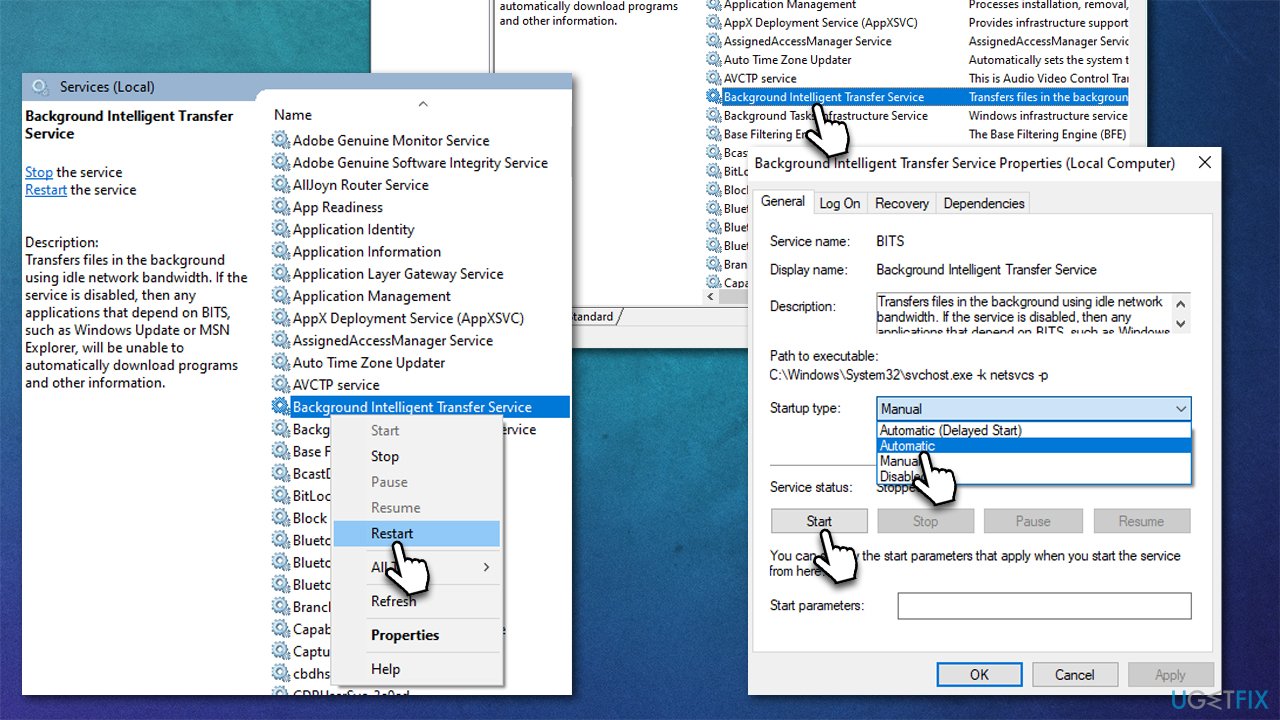
For Windows updates to go through smoothly, certain services need to be running in the background. If related services are already running, you should benefit from restarting them:
- In Windows Start search, type in Services and press Enter
- When the new window opens, scroll down a bit to find Background Intelligent Transfer Service (BITS)
- If the service is already running, right-click and select Restart
- Otherwise, double-click the service and select Automatic under the Startup type
- Click Start, Apply, and OK
- Do the same with the Windows update service.
Method 2. Run SFC and DISM
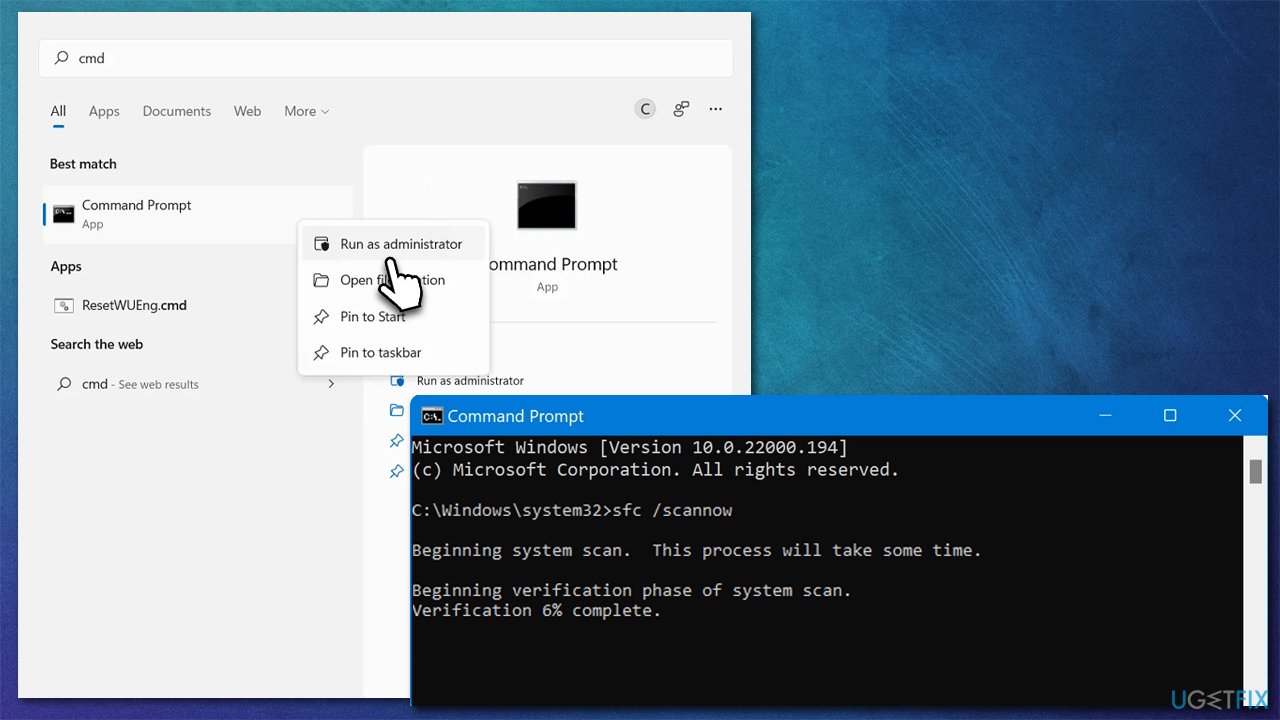
System file corruption can be addressed by running certain commands via an elevated Command Prompt. Follow these steps:
- Type cmd in Windows search
- Right-click on Command Prompt and pick Run as administrator
- User Account Control will ask whether you allow it to make changes - click Yes
- Use the following command lines, pressing Enter after each:
sfc /scannow
DISM /Online /Cleanup-Image /CheckHealth
DISM /Online /Cleanup-Image /ScanHealth
DISM /Online /Cleanup-Image /RestoreHealth - Restart your device.
Method 3. Run Windows Update Troubleshooter
Windows troubleshooters are excellent tools when dealing with various issues, as they can detect problems and resolve them automatically in some cases.
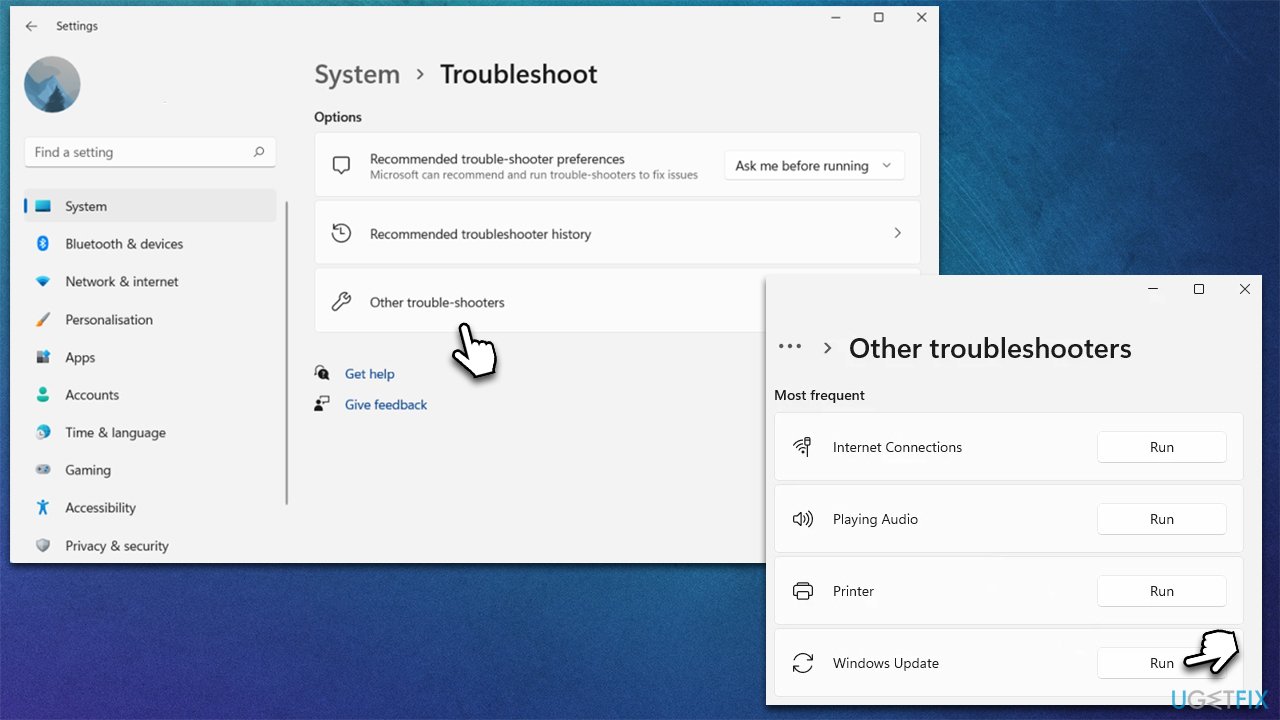
- In Windows search, type in troubleshoot and press Enter (you can also go to Start > Settings > System > Troubleshoot)
- Pick Other troubleshooters
- From the list, locate Windows Update
- Click Run
- Apply the suggested fixes and restart your device.
Method 4. Disable anti-malware from third parties
Having robust security software running on the system at all times is not only recommended but mandatory for any user who does not want their systems to be affected by dangerous malware such as ransomware. There is plenty of choices when it comes to security apps, and while some users are happy with the performance of Microsoft Defender, others opt for more comprehensive protection with third-party tools.
Unfortunately, some of such apps might cause issues, as they operate on the kernel[ref en-3] level and have the highest permissions available. This can cause them to clash with Windows components and sometimes even prevent Windows updates from going through. Usually, such issues are resolved by the software provider with a patch, although it may take some time, so we recommend temporarily disabling the security tool if you have one and trying to update Windows again.
Method 5. Reset Windows Update components
- Open Command Prompt as administrator again
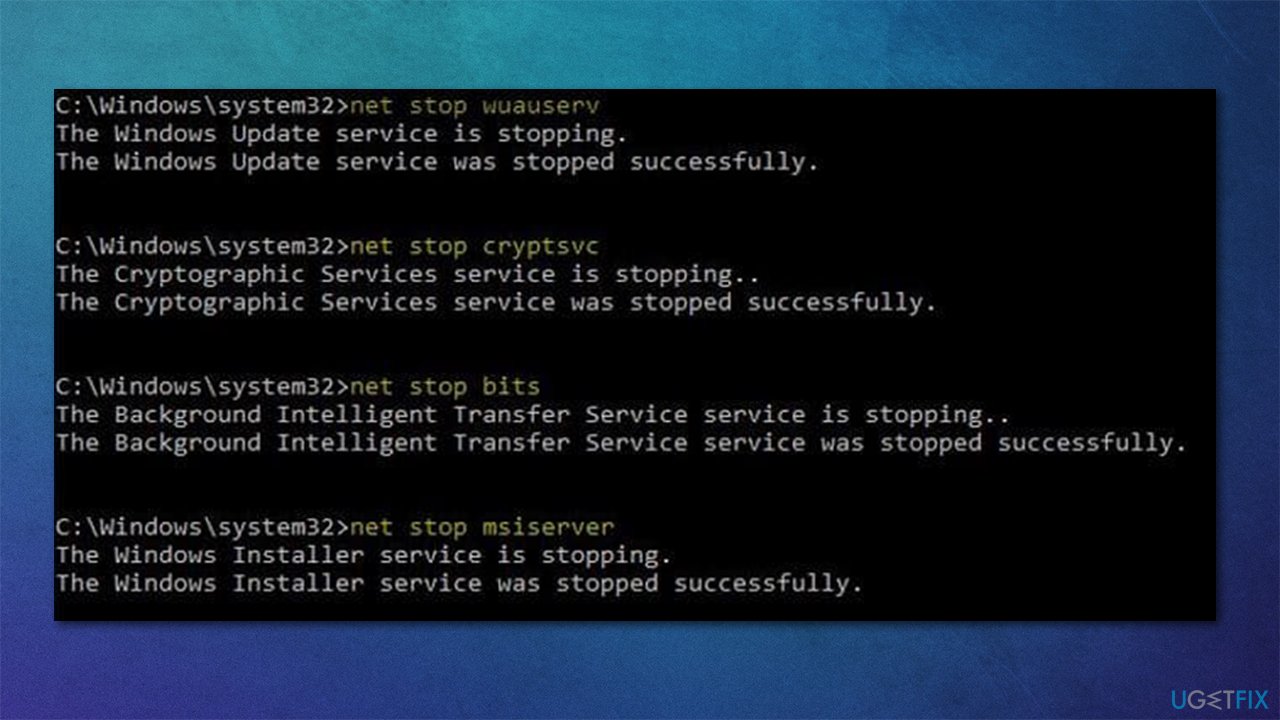
- In the new window, copy and paste each of these commands, pressing Enter every time:
net stop bits
net stop wuauserv
net stop appidsvc
net stop cryptsvc
Del "%ALLUSERSPROFILE%\Application Data\Microsoft\Network\Downloader\*.*"
rmdir %systemroot%\SoftwareDistribution /S /Q
rmdir %systemroot%\system32\catroot2 /S /Q
regsvr32.exe /s atl.dll
regsvr32.exe /s urlmon.dll
regsvr32.exe /s mshtml.dll
netsh winsock reset
netsh winsock reset proxy
net start bits
net start wuauserv
net start appidsvc
net start cryptsvc - Restart your device and try updating again.
Method 6. Install manually
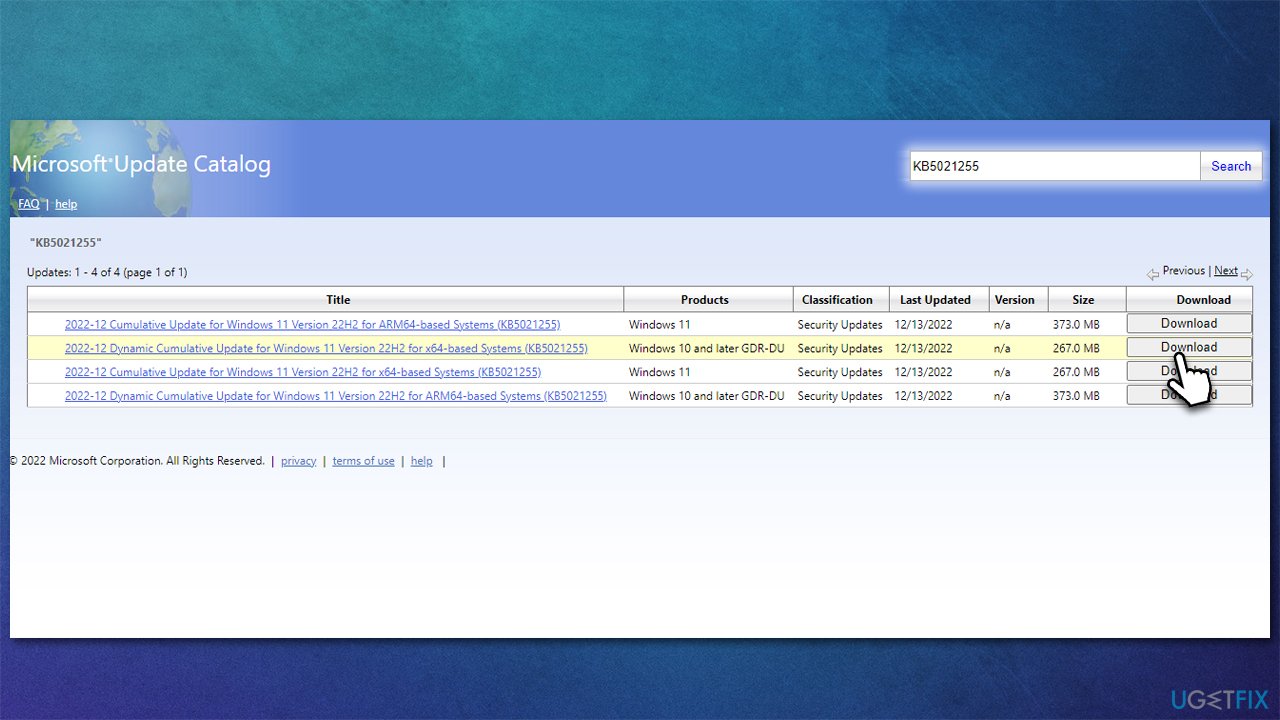
- Go to Microsoft Update Catalog
- Here, type in KB5021255 and click Search or hit Enter
- Pick the version that is compatible with your operating system (ignore updates for the server) and click Download
- Follow the on-screen instructions and restart your computer.
Method 7. Use Media Creation Tool
You can try using a special Windows tool to download and install the latest version of the OS.
- Visit the official Microsoft website and download the Windows installation media
- Double-click the installer and click Yes when prompted
- Agree to the terms and click Next
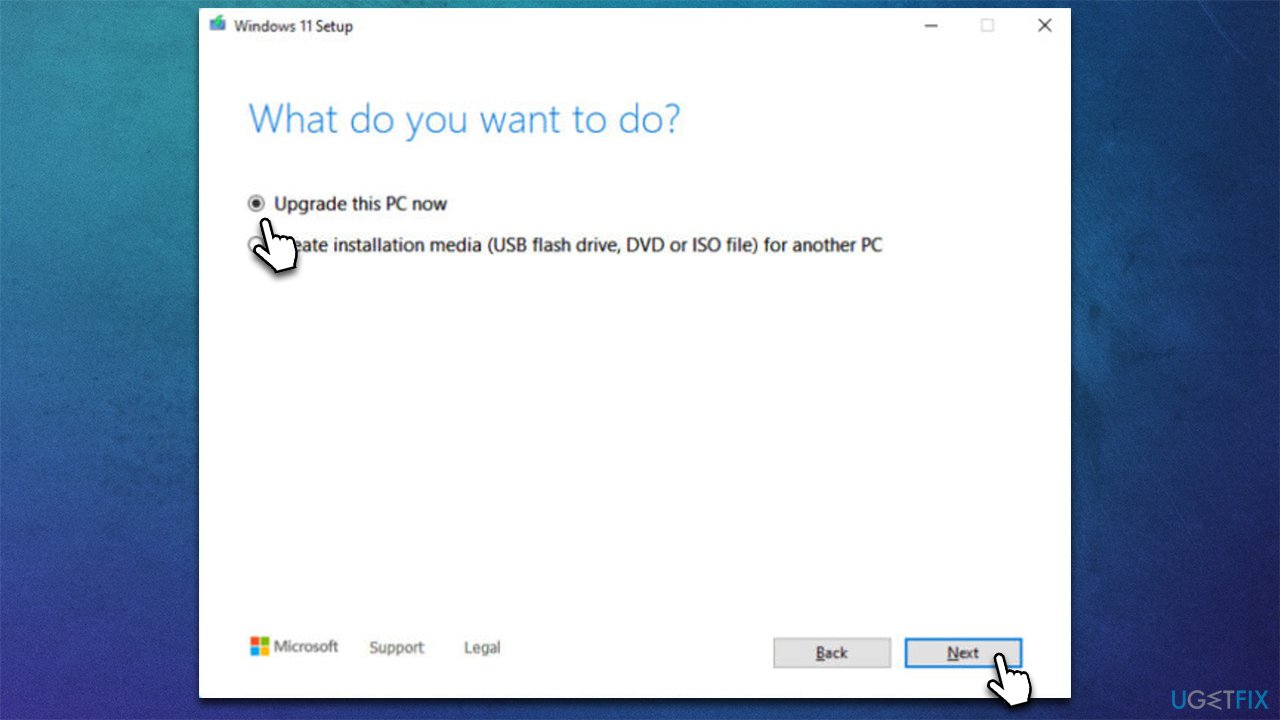
- Select Upgrade this PC now > Next
- Windows will now download all the necessary files – wait till it is finished
- Agree to terms once again and click Next
- Before installing, make sure that you are happy with your choices (otherwise, you can click Change what to keep option)
- Click Install to begin the upgrade process.
Bottom line
To fix the KB5021255 installation failure, check for network issues, ensure your system services are correctly configured, and run a system file check to address any corruption. If these steps do not resolve the issue, consider using a dedicated tool to identify and remediate system inconsistencies.
Frequently asked questions
First, ensure that your Windows 11 is fully updated by checking for other available updates. If the issue persists, try running the Windows Update Troubleshooter from Settings to diagnose and fix potential problems.
Yes, you can manually download the KB5021255 update from the Microsoft Update Catalog website and install it directly. Make sure to choose the correct version that matches your system architecture.
Yes, common error codes include 0x800f0988 and 0x800f081f, which indicate issues with missing components or corruption. You can use the DISM and SFC tools to repair system files before attempting to install the update again.




Report an issue
What's wrong with this guide? We review every report and update or remove content.
Report received — thank you. We'll review and fix it.
You need a free account to submit a report.
Be the first to comment