How to fix
KB5022282 fails to install
on Windows
Resolve the KB5022282 installation issue on Windows 10 effortlessly. Get expert-tested solutions to keep your system running smoothly. Fixed in minutes!

What causes How to fix KB5022282 fails to install in Windows 10?
- Third-party security software blocking the update
- VPN interference
- Firewall settings preventing installation
- Insufficient system resources
- Corrupted update files
Repairs Windows system files, removes malware, and restores a clean OS state — without reinstalling.
Hi, KB5022282 was released today, and I am not able to install it, as it fails every time. Rebooting did not help the situation, so I wonder why I'm receiving the same "Updates failed" message over and over again. Please help.
Windows Update is a feature released by Microsoft that provides customers with the latest security and software updates available for their Windows operating system. Through Windows Update, they can easily install any new patches, bug fixes, and security upgrades released by Microsoft. This ensures that their computer remains safe and secure from any malicious attacks or viruses that could be present in the wild.
Additionally, updates help users keep their systems up to date with the latest versions of popular software programs and drivers used on Windows PCs. This ensures optimal performance and compatibility with different hardware components and peripherals. Finally, regular use of Windows Update can help maintain a healthy PC, as it provides important updates to improve the system's stability, security, and performance.
Microsoft releases Windows updates on the second or third Tuesday of every month (this process is widely known as Patch Tuesday), and each update is marked with the KB number.
KB5022282 is a security update that rolled out on January 10, 2023, and some users reported that it failed to install for them. Update failures are not uncommon and are usually marked with an error code such as 0x8007065e, 0x80070008, 0x800f8011, and many others.
These codes could sometimes hint at why the update failed, although Windows does not always produce them. As a result, it might be difficult to determine the cause of the problem and, ultimately, the solution. Luckily, there are several solutions that should help users to fix the KB5022282 not installing issue.
As it is common, the KB5022282 update might be blocked by third-party security software, so the first thing you should do is disable it or uninstall it and see if that works. Note that this applies to any other software that could meddle with connections, including VPN or Firewall.
In addition, you should check whether you have enough space on your system, as some updates are pretty large. Besides these, we provide several other tips that could help you resolve the issue below. We recommend running an automatic PC repair tool [d1] before proceeding, as it can provide easy troubleshooting for you quickly and efficiently when it comes to Windows errors, crashes, and similar issues.
Fix 1. Disable or uninstall third-party anti-malware
After facing problems while trying to install Windows updates, many users have reasoned that third-party security programs installed on the system may be disrupting the process' effectiveness. It is possible that an overactive anti-malware solution can interfere with communication between Microsoft's servers and prevent any updates from being applied properly. Thus, you should either disable or uninstall your security software temporarily and try updating Windows.
Fix 2. Run the troubleshooter
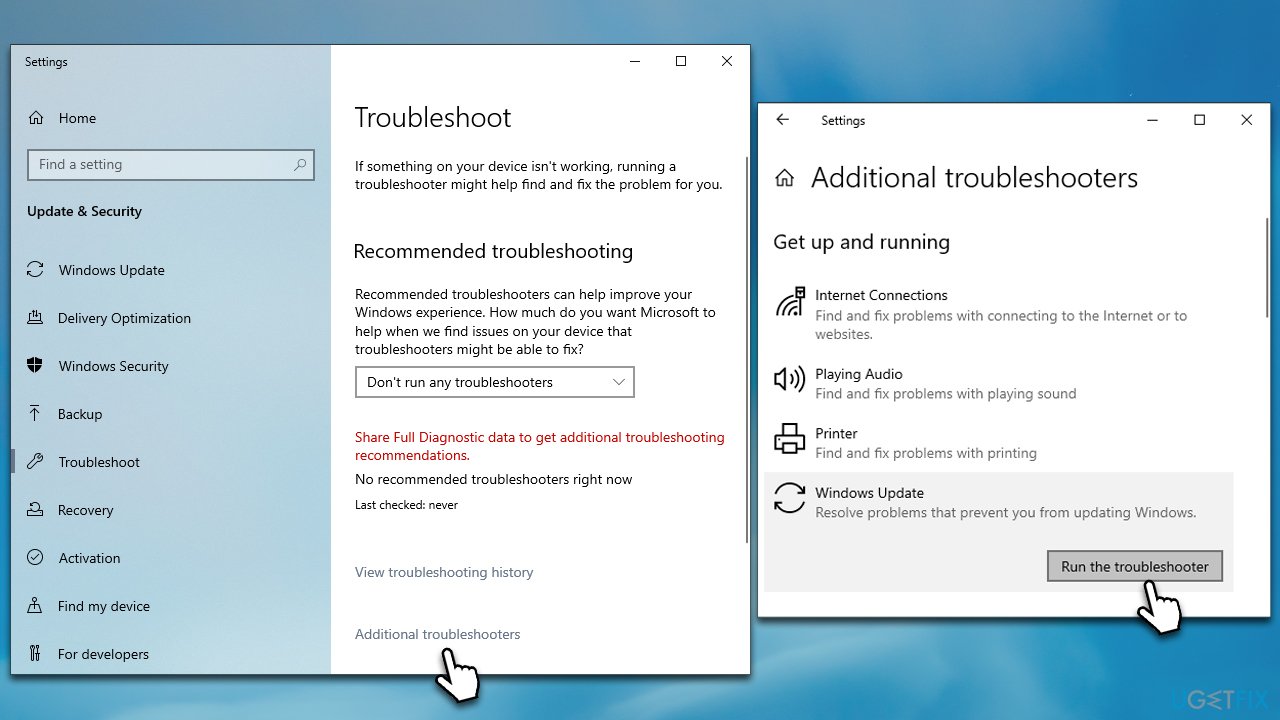
Running the troubleshooter, while not always, can be useful, as it can fix the causes of the problem for you in some cases.
- Type Troubleshoot in Windows search and hit Enter.
- Click Additional troubleshooters.
- Scroll down to find Windows update and click it.
- Click Run the troubleshooter.
- Apply the offered fixes and restart your device.
Fix 3. Perform Disk Cleanup
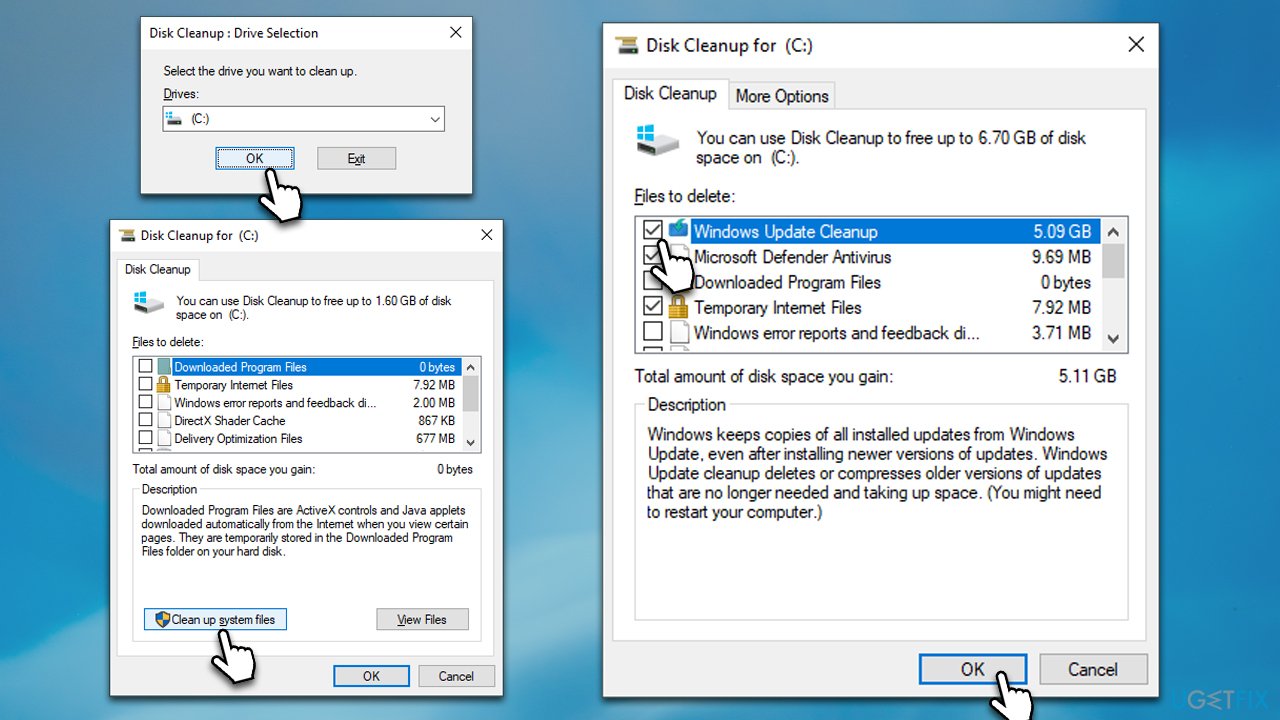
insufficient disk space can prevent KB5022282 Windows update from installing. Performing Disk Cleanup should free up some space.
- Type Disk Cleanup in Windows search and press Enter.
- Select your main drive (C: by default).
- Click Clean up system files and select your main drive again.
- Here, pick the sections you want to clear - Temporary Internet Files, Windows Update Cleanup, and Delivery Optimization Files are among the largest ones.
- Click OK.
Fix 4. Install the update manually
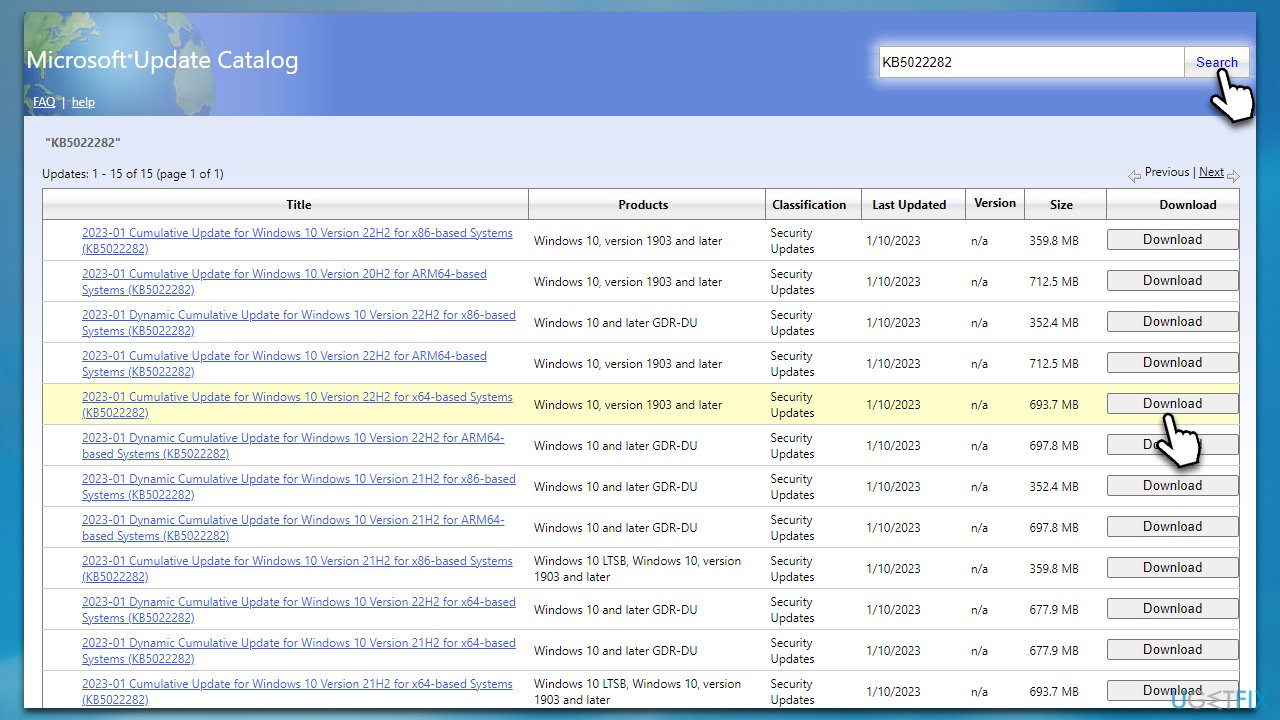
- Open your browser and go to Microsoft Update Catalog
- Type KB5022282 into the search box and click Search
- Find the correct version of the update for your operating system (to check this, right-click on Start and pick System. Under Device specifications and check the System type) and click Download
- Use on-screen guidelines to finish the installation process and restart your device.
Fix 5. Reset Windows Update Components
- Type cmd in Windows search.
- Right-click on Command Prompt and select Run as administrator.
- In the new window, copy and paste the following commands, pressing Enter every time:
net stop bits
net stop wuauserv
net stop appidsvc
net stop cryptsvc
Del "%ALLUSERSPROFILE%\Application Data\Microsoft\Network\Downloader\*.*"
rmdir %systemroot%\SoftwareDistribution /S /Q
rmdir %systemroot%\system32\catroot2 /S /Q
regsvr32.exe /s atl.dll
regsvr32.exe /s urlmon.dll
regsvr32.exe /s mshtml.dll
netsh winsock reset
netsh winsock reset proxy
net start bits
net start wuauserv
net start appidsvc
net start cryptsvc - Close down Command Prompt, restart your device, and try updating again.
Fix 6. Try Media Creation Tool
Make backups of your personal files, just in case. Also, disconnect any peripherals that are not necessary - leave just mouse and keyboard attached.
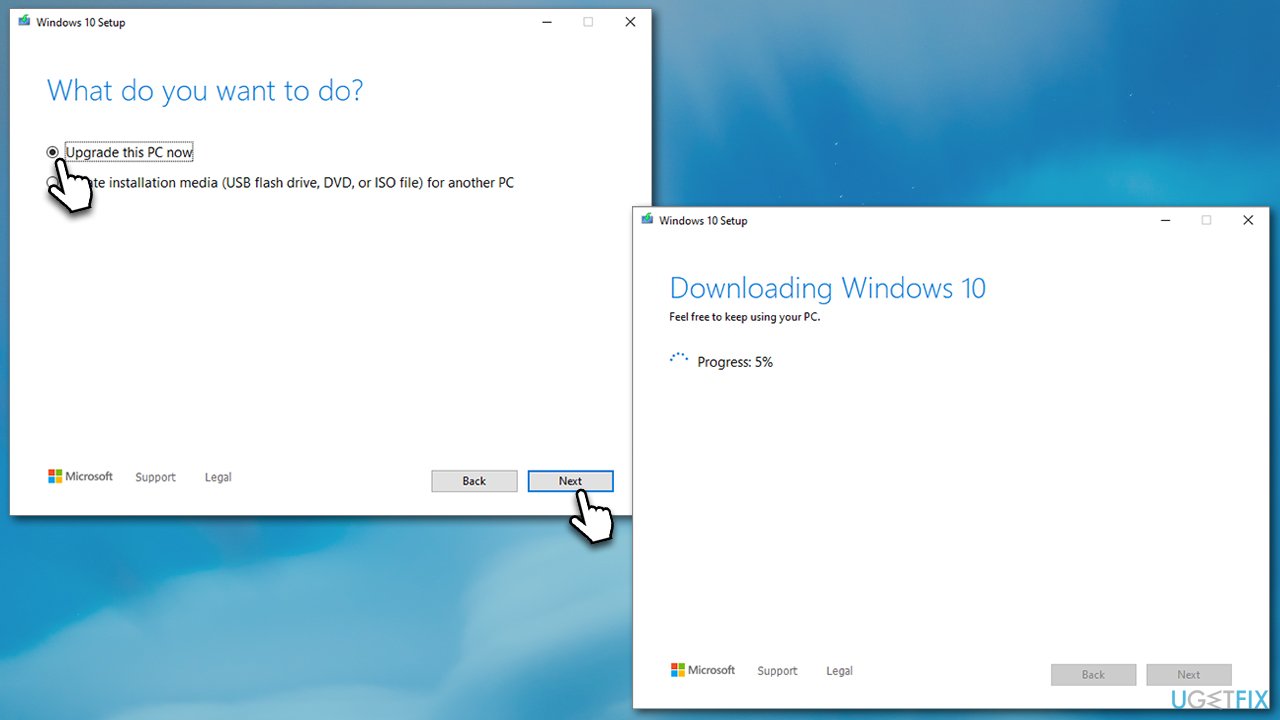
- Visit the official Microsoft website and download Windows 10 installation media
- Double-click the installer and select Yes when UAC shows up
- Agree to the terms and click Next
- Select Upgrade this PC now and click Next
- Wait till Windows downloads all the necessary files
- Restart your computer once finished.
Bottom line
To fix the KB5022282 installation issue, try disabling or uninstalling third-party security software, as well as checking VPN and Firewall settings. If the problem persists, consider checking for corrupted update files or ensuring sufficient system resources are available. If none of these solutions work, further troubleshooting may be necessary.
Frequently asked questions
First, try running the Windows Update Troubleshooter to automatically detect and fix issues. If that doesn't work, consider resetting the Windows Update components manually.
Yes, corrupted system files can prevent updates like KB5022282 from installing properly; running the System File Checker (sfc /scannow) can help fix these issues.
Common error codes include 0x800f0922 and 0x8007000d, which indicate different underlying problems that may need to be addressed.




Report an issue
What's wrong with this guide? We review every report and update or remove content.
Report received — thank you. We'll review and fix it.
You need a free account to submit a report.
Be the first to comment