How to fix
KB5023778 fails to install
on Windows
Resolve the KB5023778 installation failure in Windows 11 with our expert-tested solutions. Get back on track in minutes!

What causes How to fix KB5023778 fails to install in Windows 11?
- Conflicts with other software
- Corrupted system files
- Issues with internet connection
- Incorrectly set services
- Lack of sufficient disk space
Repairs Windows system files, removes malware, and restores a clean OS state — without reinstalling.
Hello. I've been trying to update my Windows 11 recently with KB5023778, but it keeps failing with the error 0x800f0922. Any things I can do to resolve this? I never had issues with installing Windows updates before...
Regular updates are an important part of maintaining a stable and secure operating system. Microsoft puts special effort into delivering new bug fixes, vulnerability patches, and other improvements on a regular basis. These updates are usually released on the second Tuesday of every month and are designed to improve the overall performance and security of the system.
On March 21, 2023, Microsoft released the KB5023778 update for Windows, which was a routine update including various fixes and improvements, such as notifications for the Start menu, enhancements to Microsoft Defender and Endpoint, and fixes related to various Microsoft apps. However, some users have reported issues with installing this update.
KB5023778 may fail to install with no further clarification or error messages, making it difficult to determine the root cause of the issue. In some cases, users may receive error codes such as 0x800f0922 or 0x80070002, which provide some insight into the cause of the problem.
The most common cause of the KB5023778 update failing to install is conflicts with other software or corrupted system files. These conflicts may prevent the update from being installed correctly or may cause the update process to fail. Additionally, some users have reported issues with their internet connection or incorrectly set services.
To ensure that your system remains secure and up-to-date, it is important to address any issues with installing the KB5023778 update promptly. Before proceeding with manual steps, we highly recommend you run an automatic PC repair tool [d1], which can promptly locate corrupted system files and repair them for you, resolving BSODs, DLL errors, registry corruption, malware-caused damage, and more.
1. Run troubleshooters
- In Windows search, type in troubleshoot and press Enter (you can also go to Start > Settings > System > Troubleshoot).
- Pick Other trouble-shooters (in Windows 10, pick Additional troubleshooters).
- Scroll down to locate the Windows Update option and click Run.
- Wait until the scan is finished, apply the changes, and try running the update process again.
2. Disable security or other software
Disabling third-party security software can sometimes resolve Windows update errors because these types of programs can interfere with the Windows update process. Third-party security software, such as antivirus programs, can sometimes mistakenly identify Windows updates as a security threat and block them from being installed. This can result in Windows update errors and prevent updates from being installed on your system.
Firewalls, VPNs, and other network-related apps can also cause issues with Windows updates by blocking connections or interfering with network settings. To resolve these issues, temporarily disabling or uninstalling these apps may be necessary. This will allow the Windows update process to proceed without interference and ensure your system remains up-to-date, and KB5023778 will finally be installed.
3. Check the services
Windows Services are software programs that run in the background of a Windows operating system, providing functionality that can be accessed by other software programs or the operating system itself. Windows Services are often used for critical functions such as security, networking, or system management. Windows updates might sometimes fail when BITS, Windows Update, or Cryptographic services are not running.
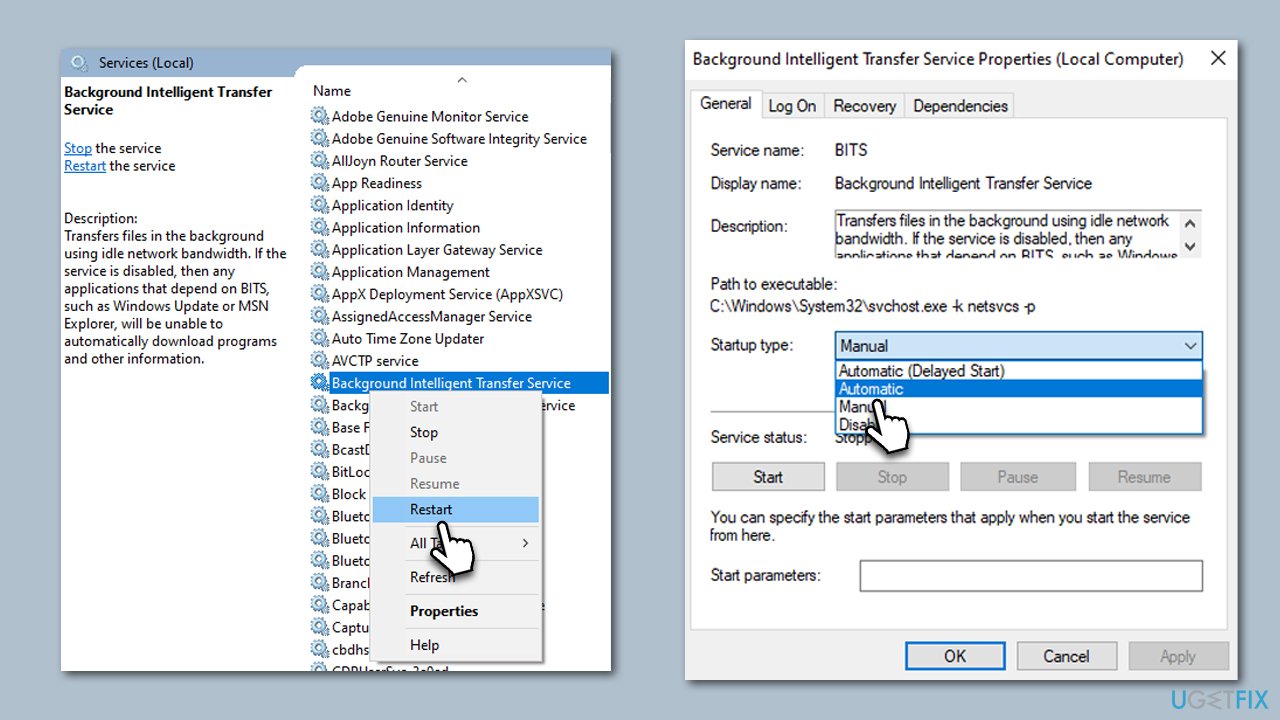
- Type in Services in Windows search and hit Enter.
- Scroll down a bit to find Background Intelligent Transfer Service (BITS).
- If it is already running, right-click and select Restart.
- If the service is not running, double-click it, pick Automatic under the Startup type drop-down menu.
- Click Start, Apply, and OK.
- Repeat this process for Windows Update and Cryptographic services.
4. Check for corrupted files
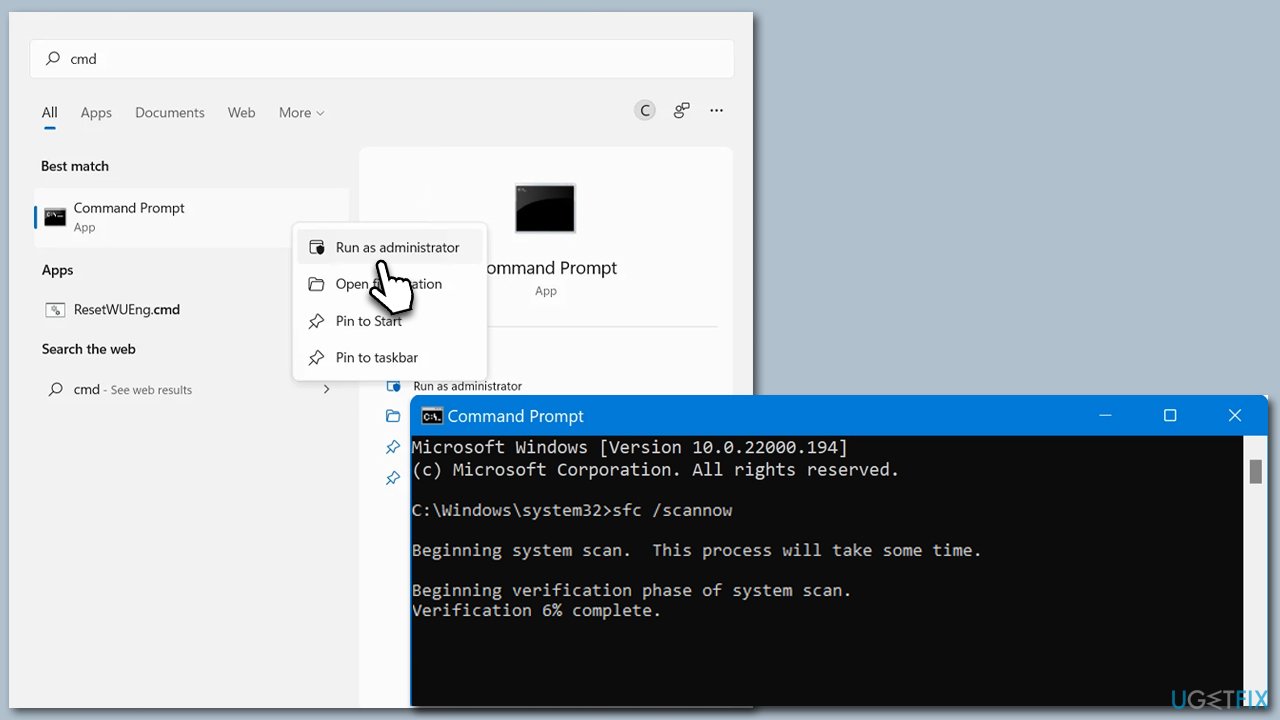
- Type cmd in Windows search.
- Right-click on the Command Prompt result and select Run as administrator.
- UAC (User Account Control) will ask whether you want to allow changes - click Yes.
- Next, type in the following command and press Enter:
sfc /scannow - When done, run the following commands as well:
dism /online /cleanup-image /scanhealth
dism /online /cleanup-image /checkhealth
dism /online /cleanup-image /restorehealth - Restart your system.
5. Reset Windows Update Components
- Open Command Prompt as administrator again
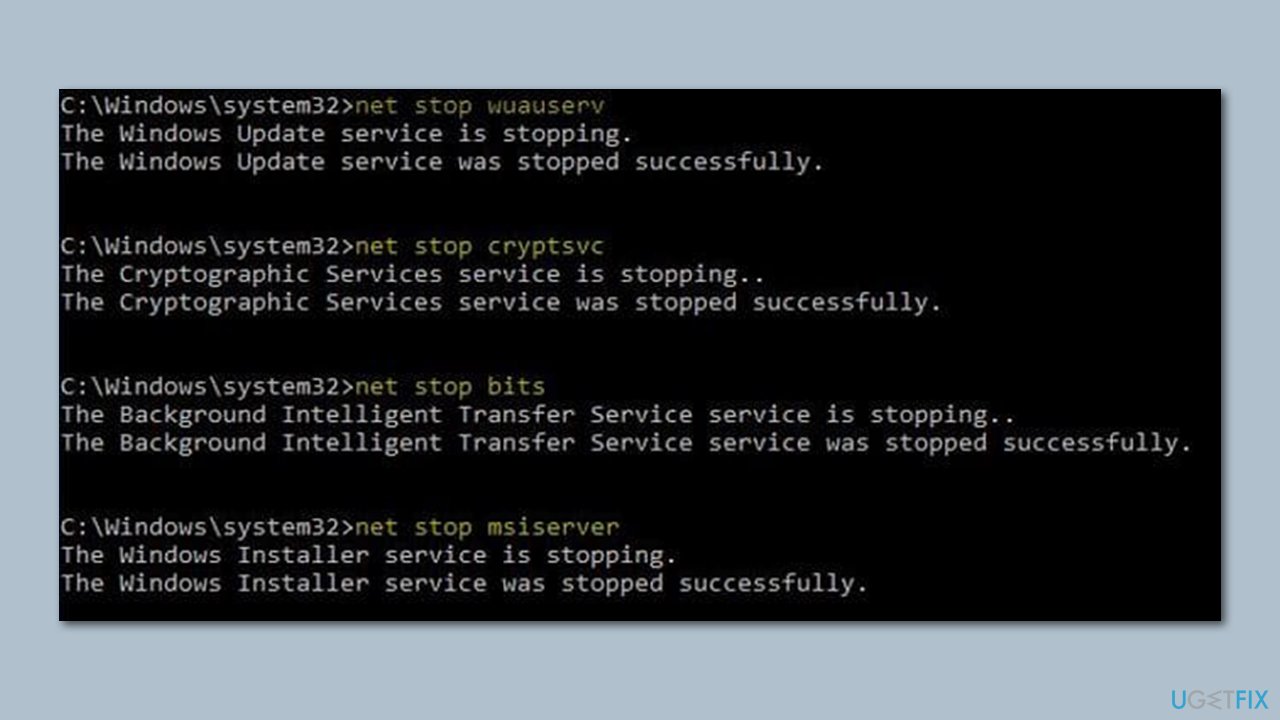
- In the new window, paste in each of these commands, pressing Enter every time:
net stop bits
net stop wuauserv
net stop appidsvc
net stop cryptsvc
Del “%ALLUSERSPROFILE%\Application Data\Microsoft\Network\Downloader\*.*”
rmdir %systemroot%\SoftwareDistribution /S /Q
rmdir %systemroot%\system32\catroot2 /S /Q
regsvr32.exe /s atl.dll
regsvr32.exe /s urlmon.dll
regsvr32.exe /s mshtml.dll
netsh winsock reset
netsh winsock reset proxy
net start bits
net start wuauserv
net start appidsvc
net start cryptsvc - Restart your device.
6. Run network troubleshooter
- Click the Start button and select Settings.
- Go to Network & Internet section.
- Here, locate the Advanced network settings section.
- Click the Network troubleshooter to run it.
- Wait for the scan to finish, and apply the recommended fixes.
Bottom line
To resolve the KB5023778 installation failure, you can run troubleshooters, use an automatic PC repair tool, and ensure your system settings are correctly configured. If these steps do not work, consider seeking further assistance or checking for additional updates.
Frequently asked questions
Try running the Windows Update Troubleshooter to automatically detect and fix issues related to the update installation.
Yes, you can manually download the update from the Microsoft Update Catalog website and install it on your Windows 11 system.
Common reasons include insufficient disk space, corrupted system files, or conflicts with third-party software affecting the update process.




Report an issue
What's wrong with this guide? We review every report and update or remove content.
Report received — thank you. We'll review and fix it.
You need a free account to submit a report.
Be the first to comment