How to fix
KB5027538 fails to install
on Windows
Resolve KB5027538 installation issues in Windows 10 with our easy-to-follow solutions. Get it fixed in minutes, expert-tested for your convenience.

What causes How to fix KB5027538 fails to install in Windows 10?
- Software conflicts
- Limited disk space
- Corrupted update files
- Incorrectly configured services
Repairs Windows system files, removes malware, and restores a clean OS state — without reinstalling.
Hi, I have a problem I hope you can help me with. Since yesterday, I've been trying to install the latest KB5027538 update on my Windows PC, but to no avail. I tried several times today, but it just keeps failing. Any tips on how to deal with this?
Windows updates are essential components of the Microsoft operating system, providing necessary security patches, bug fixes, and feature enhancements to ensure the smooth running of your device. Typically, these updates are released by Microsoft on the second Tuesday of every month, a day colloquially known as "Patch Tuesday." Each update comes with a unique Knowledge Base (KB) number, which allows for easy identification and reference.
However, as is the case with any software, not every update goes as planned. Some users have recently reported that the KB5027538 update for Windows 10 is failing to install. While occasionally an error code, such as 0x800700c1, may be displayed, in some instances, there are no error messages at all, leaving users puzzled about the cause of the failure.
The KB5027538 is a Cumulative Update for .NET Framework 3.5 and 4.8.1 for Windows 10 versions 21H2 and 22H2, released on June 13, 2023. As a cumulative update, it's an aggregation of all previously released updates combined with new fixes and improvements. The .NET Framework is a software development framework that provides a broad range of services and solutions for building and running applications, particularly on Windows devices.
Update failures can occur due to several reasons, such as software conflicts, limited disk space, corrupted update files, or incorrectly configured services. Understanding the exact cause of the failure can be challenging, requiring detailed troubleshooting.
To assist with this, detailed information on how to fix the KB5027538 installation failure can be found below this article. Whether you're a seasoned tech expert or a novice user, the guide provides step-by-step instructions to help you resolve this issue, ensuring your system stays up-to-date and secure.
Finally, there's a tool that can come in handy during the troubleshooting process: [d1] PC repair tool. This software is specifically designed to assist in fixing a wide range of computer problems, including Blue Screen of Death (BSOD) errors, corrupted files, registry issues, DLL errors, and more. It's a valuable ally for ensuring your Windows 10 system runs smoothly, even when facing tricky update issues like the one with KB5027538.
Fix 1. Run the troubleshooter
- Type Troubleshoot in Windows search and hit Enter.
- Select Additional troubleshooters.
- Find Windows Update from the list and select Run the troubleshooter.
- Wait till the scan is finished - you will be provided with potential causes so you can proceed with fixes.
- If no suggestions were given, proceed with the solutions below.

Fix 2. Check services
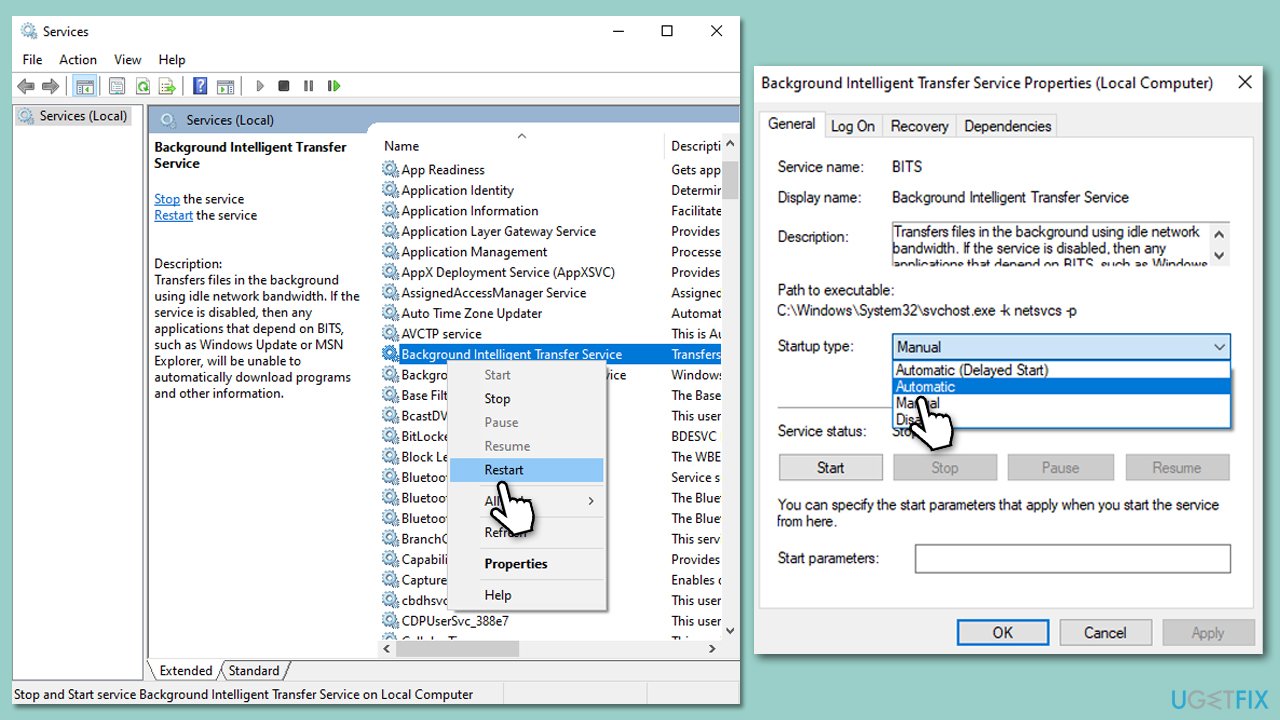
If certain services are not running, Windows updates may fail. Restarting or starting these services might resolve KB5027538 installation failures.
- Type in Services in Windows search and press Enter.
- Locate Background Intelligent Transfer Service (BITS).
- If it is already running, right-click and select Restart.
- If the service is not running, double-click it, and select Automatic under the Startup type from the drop-down menu.
- Click Start, Apply, and OK.
- You should perform the same steps with Windows Update service, Cryptographic service, Windows Installer service, Windows Modules Installer service, and Windows Update Medic Service.
Fix 3. Free up some space
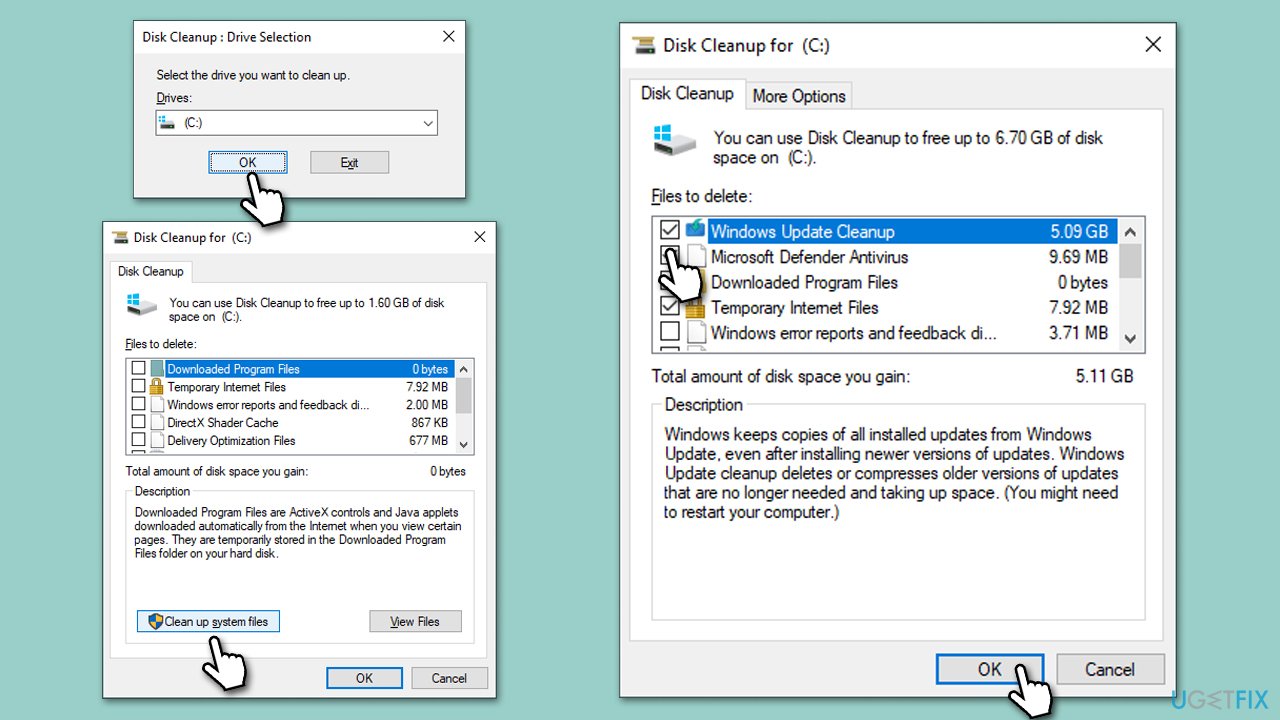
Some Windows updates might be quite bulky, so if you've run out of space, the updates can fail. Try using the Disk Cleanup available as a built-in tool:
- Type Disk Cleanup in Windows search and hit Enter.
- If your Windows is installed on drive C, pick it from the list (it should be by default) and press OK.
- Click Clean up system files.
- Select your main disk again and click OK.
- Here, select the largest portions of the data used - these typically include Temporary Internet Files, Windows Update, Temporary Files, Recycle Bin, Delivery Optimization Files, and others.
- Click OK - the process should be finished shortly.
Fix 4 Check for corrupted files
Corrupted system files, encompassing registry entries, can lead to a host of problems when operating Windows systems, update errors among them. To mend these files, adhere to the following steps:
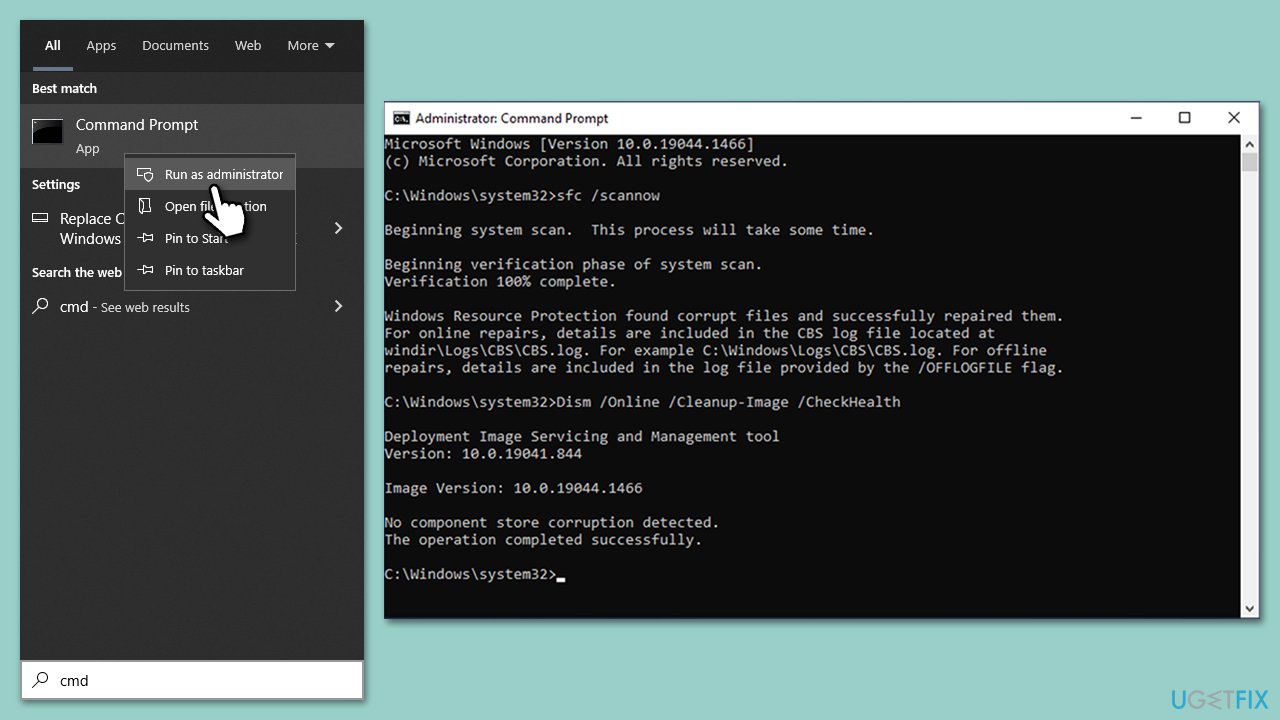
- Type cmd in Windows search.
- Right-click on Command Prompt result and select Run as administrator.
- When User Account Control shows up, click Yes.
- Paste the following command into the new window:
sfc /scannow - Press Enter and wait till the scan is finished
- Once done, run this set of commands, pressing Enter each time:
DISM /Online /Cleanup-Image /CheckHealth
DISM /Online /Cleanup-Image /ScanHealth
DISM Online /Cleanup-Image /RestoreHealth
(Note: if you get an error executing this last command, add /Source:C:\RepairSource\Windows /LimitAccess to it and try again). - Restart your device.
Fix 5. Reset Windows update components
- Open Command Prompt as administrator.
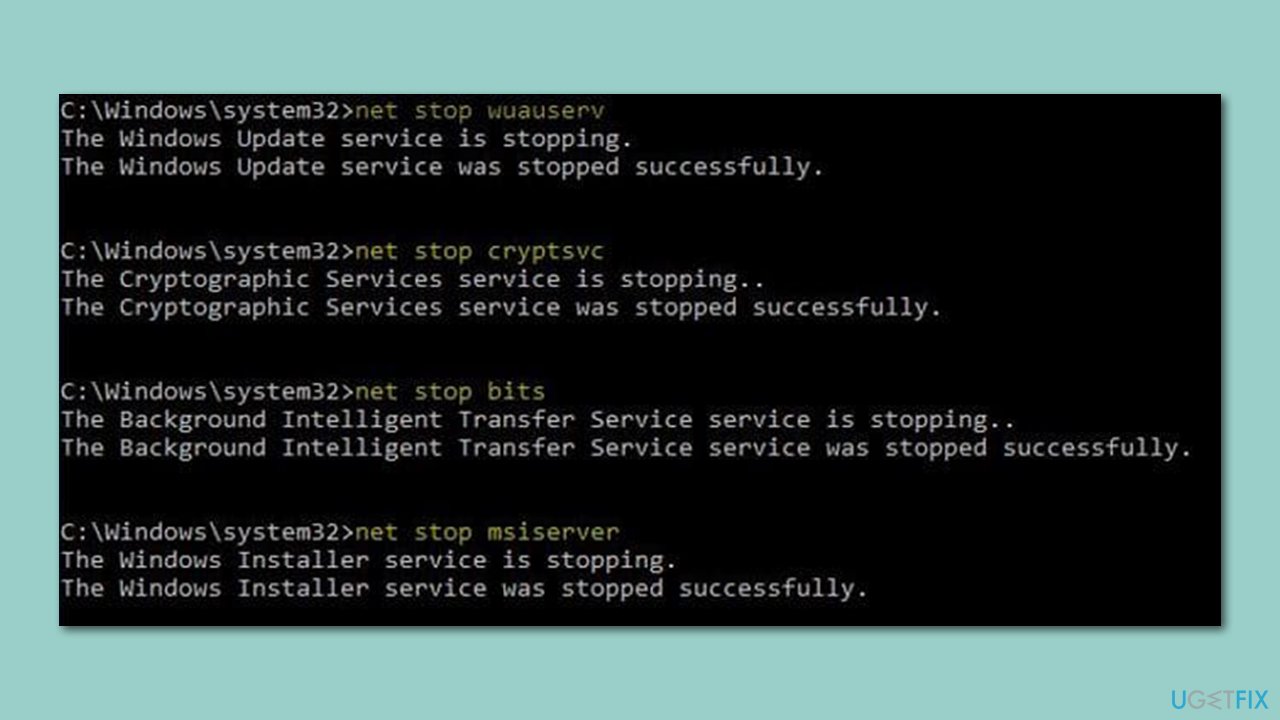
- Stop the Windows Update-related services by running the following commands one at a time, pressing Enter after each one:
net stop wuauserv
net stop cryptSvc
net stop bits
net stop msiserver - Rename the SoftwareDistribution and Catroot2 folders by running the following commands:
ren C:\Windows\SoftwareDistribution SoftwareDistribution.old
ren C:\Windows\System32\catroot2 Catroot2.old
Note: If your Windows installation is not on the C drive, replace "C" with the appropriate drive letter. - Restart the Windows Update-related services by running the following commands:
net start wuauserv
net start cryptSvc
net start bits
net start msiserver - Restart your device.
Fix 6. Use Media Creation tool
Media Creation Tool can be employed to mend your Windows installation and upgrade it to the most recent build. Prior to initiating this process, it's advisable to deactivate any third-party security applications and disconnect superfluous peripherals like USB drives or printers.
- Visit the official Microsoft website and download Windows 10 installation media.
- Double-click the installer and select Yes when UAC shows up.
- Agree to terms.
- Select Upgrade this PC now and select Next.
- Windows will now download all the necessary files – it might take a while.
- Agree to the terms once again and click Next.
- Before installing, ensure you are happy with your choices (otherwise, you can click the Change what to keep option).
- Click Install to begin the upgrade process.

Related:
Bottom line
To fix the KB5027538 installation failure, you can try troubleshooting steps such as checking for software conflicts, ensuring sufficient disk space, and repairing corrupted update files. If these solutions do not resolve the issue, consider using the PC repair tool for further assistance.
Frequently asked questions
Try running the Windows Update Troubleshooter to automatically detect and fix issues related to Windows updates. You can access it by going to Settings > Update & Security > Troubleshoot > Additional troubleshooters.
Visit the Microsoft Update Catalog website, search for KB5027538, and download the appropriate version for your system architecture. After downloading, run the installer to apply the update manually.
Yes, common error codes like 0x800f0831 or 0x800f0922 indicate issues with the update process, which may require further troubleshooting steps such as checking system files or ensuring sufficient disk space.




Report an issue
What's wrong with this guide? We review every report and update or remove content.
Report received — thank you. We'll review and fix it.
You need a free account to submit a report.
Be the first to comment