How to fix
KB5034441 fails to install
on Windows
Troubleshoot and resolve the KB5034441 installation issue on Windows 10 effortlessly. Get expert-tested solutions for a hassle-free update experience.


What causes How to fix KB5034441 fails to install in Windows 10?
- Update KB5034441 fails to install due to insufficient disk space in the recovery partition.
- Error code 0x80070643 is commonly encountered during installation.
- Error code 0x8024200B may also occur when installation fails.
- Recent changes in how Microsoft updates PCs running WinRE may affect installation success.
Repairs Windows system files, removes malware, and restores a clean OS state — without reinstalling.
One of the recent Windows security updates, KB5034441, fails to install for me. it does download but is then stuck at 70% of installation. All the other updates went through with no issues. Any idea of what is going on?
KB5034441 is one of the updates that was shipped by Microsoft on January's Patch Tuesday. Released on January 9, along with KB5034123 and KB5034122 updates, its main purpose was to patch a serious security vulnerability CVE-2024-20666,[ref en-1] which allowed the attackers to bypass BitLocker encryption when Windows Recovery Environment (WinRE) is used under certain circumstances.
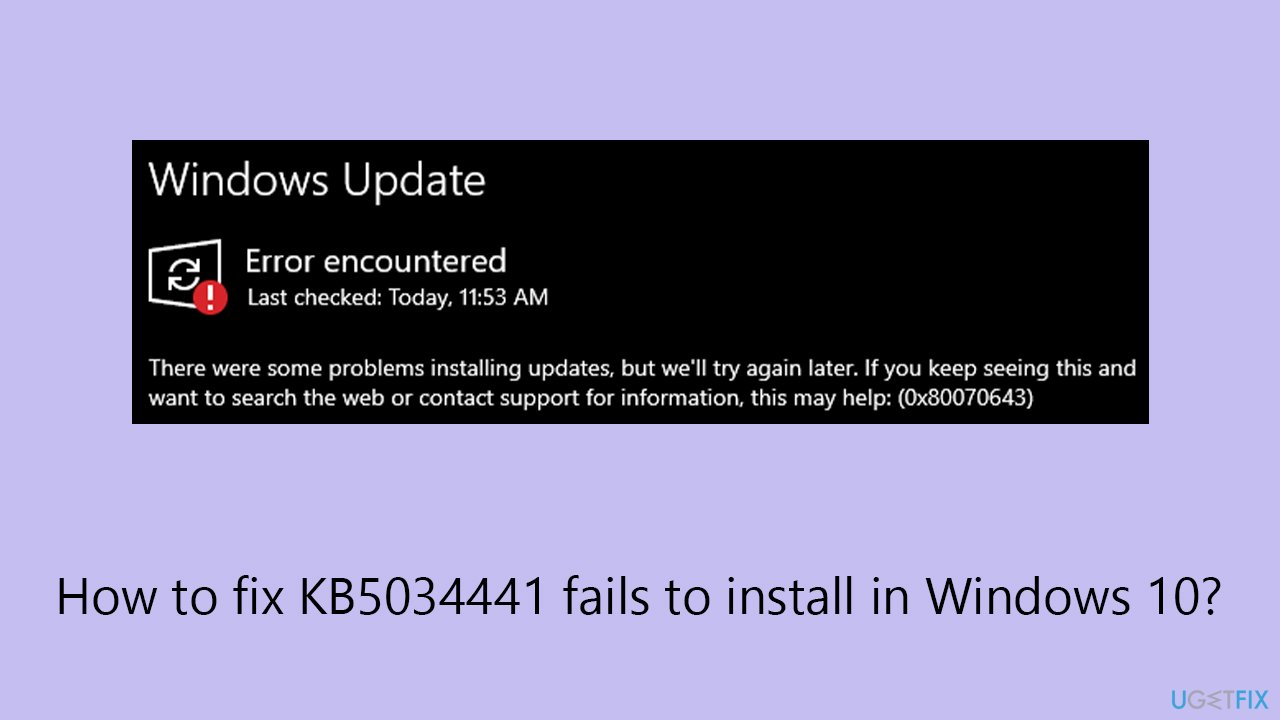
While security updates are critical to any operating system to stay protected, a copious number of users reported that KB5034441 is failing to install for them. The download itself works well, but as soon as the installation begins, they are often faced with an error code, such as 0x80070643 (most commonly) or 0x8024200B.
Microsoft recently changed the way it updates PCs running WinRe (cumulative updates are now used for this process), which might result in some users not being able to install such updates due to a lack of space in the recovery partition. They might then receive the following error message:
Windows Recovery Environment servicing failed.
(CBS_E_INSUFFICIENT_DISK_SPACE)
To bypass this issue, you need to increase the size of your partition used for recovery. While Microsoft recommends increasing it by 250MB, many users said it is far from enough, with some even opting for 1GB of space. This needs to be done manually using commands via an elevated Command Prompt, although third-party software might also be useful
For your other issues related to Windows, we recommend trying a powerful PC maintenance and repair tool [d1], which can automate numerous fixes for you.
How to fix KB5034441 fails to install in Windows 10?
Resize your recovery partition manually as follows:
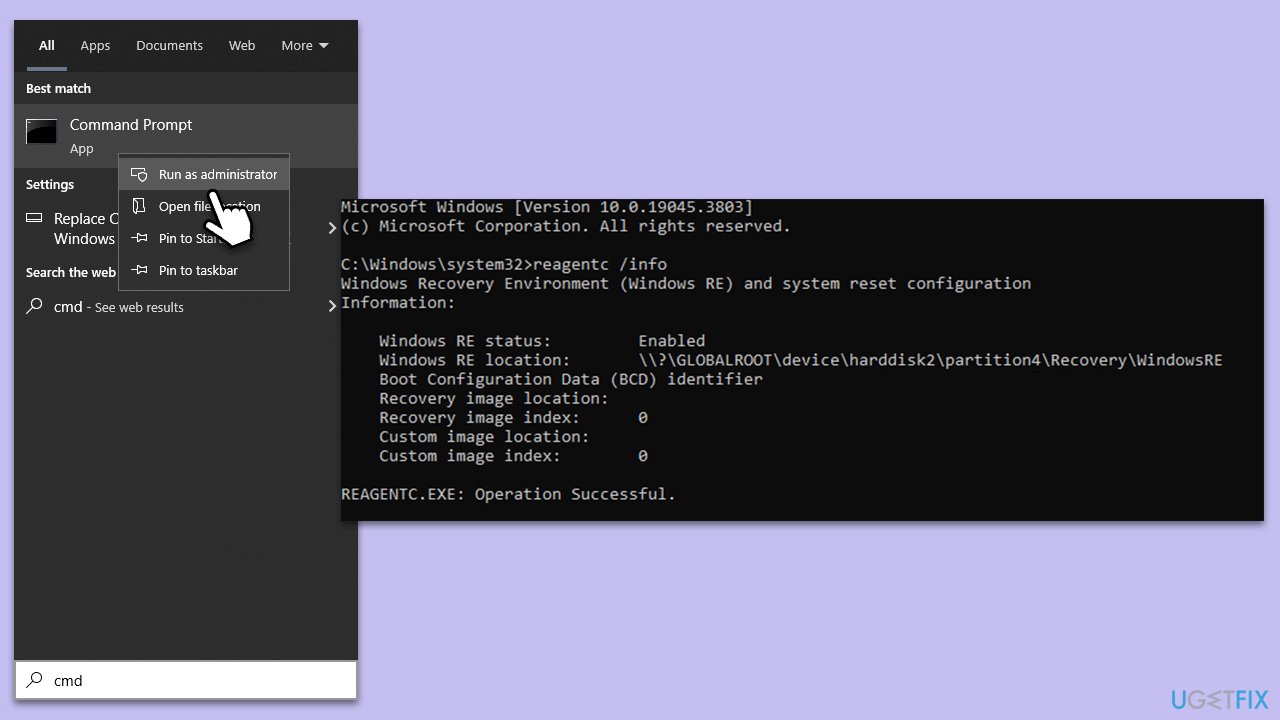
- Type cmd in Windows search.
- Right-click on Command Prompt and select Run as administrator.
- When UAC shows up, click Yes.
- Now you'll have to execute a set of commands, pressing Enter after each. Start with the following:
reagentc /info - You should be provided with a location and path of the WinRe directory. For example: \\?\GLOBALROOT\device\harddisk2\partition4\Recovery\WindowsRE. where the number after "harddisk" is the index (in this case, 2), and the number after "partition" is the partition (in this case, 4). This will be needed later.
- Next, use the following commands:
reagentc /disable
diskpart
list disk
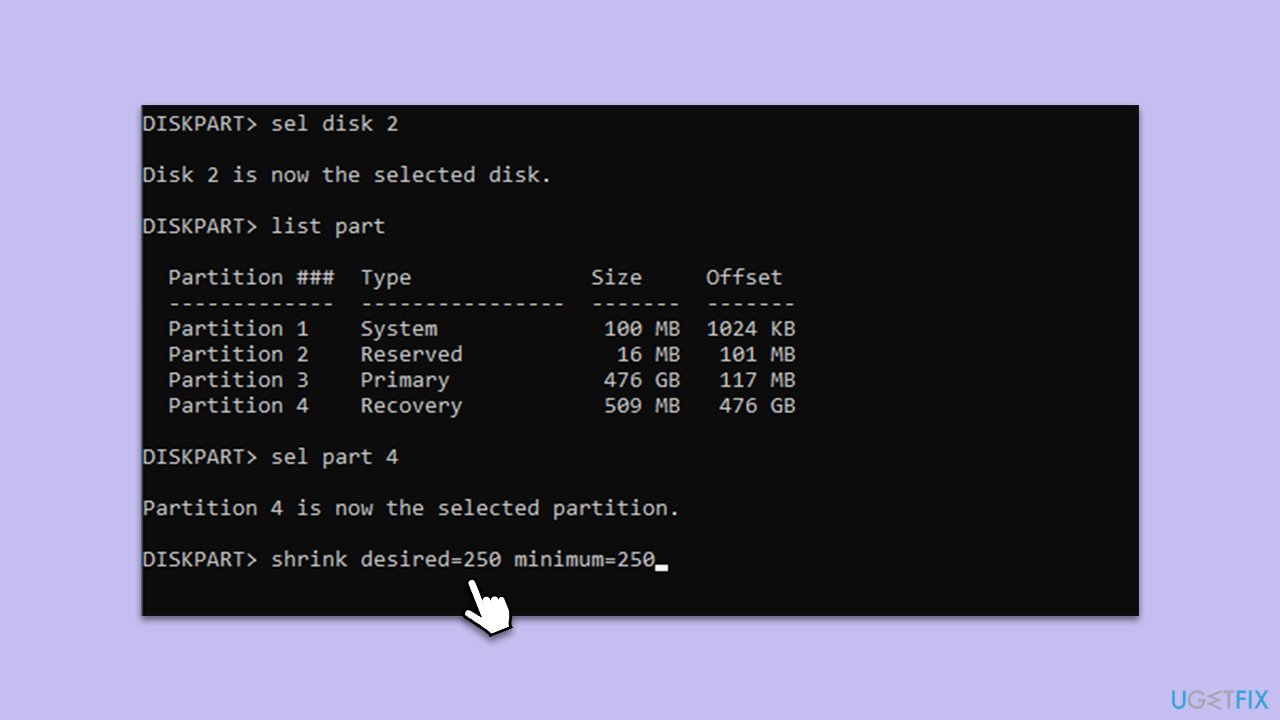
sel disk DISK INDEX (replace DISK INDEX with OS disk index, for example, 2)
list part
sel part PARTITION INDEX (replace PARTITION INDEX with OS partition index, for example, 4)
shrinkdesired=250 minimum=250 - The next step is to increase the partition size of WinRe. Use these commands:
sel part WINRE PARTITION INDEX (replace appropriately)
delete partition override
With the old WinRe partition deleted, you now need to create a new, larger partition. Use these commands to do it:
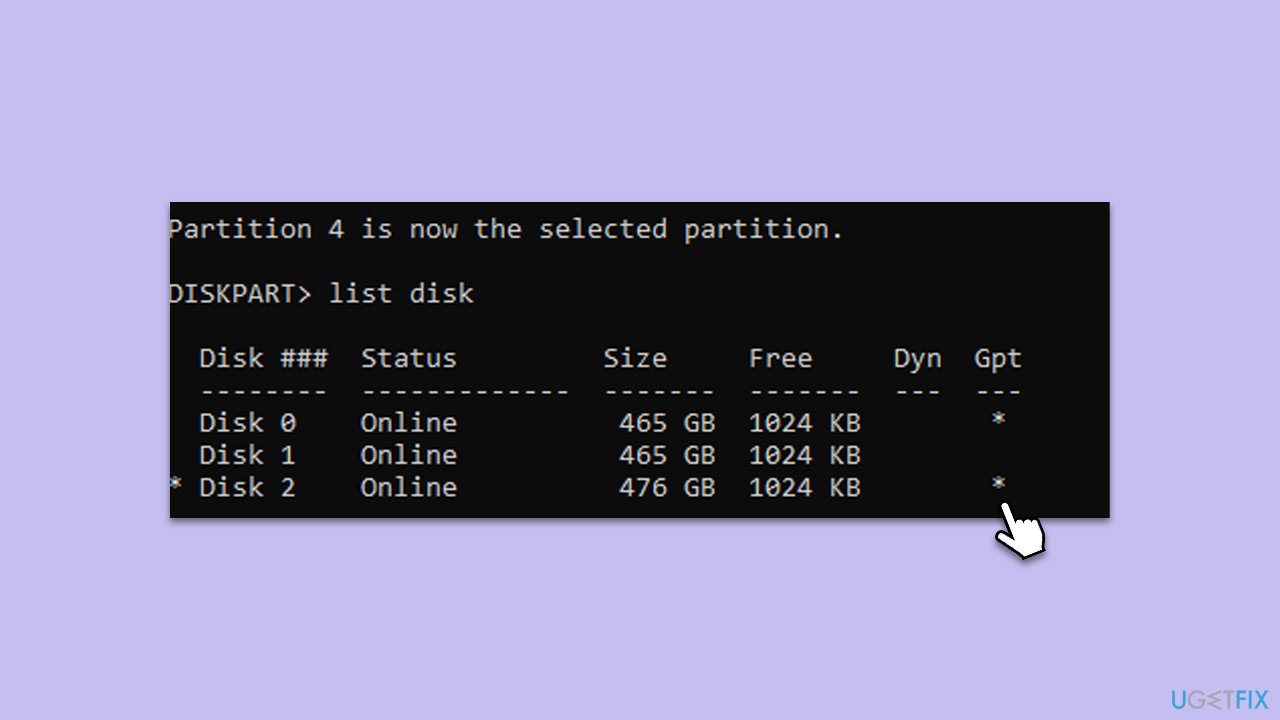
- First, check the disk partition type with the following command:
list disk - At the end of the table, you should either see an asterisk (*) or not. If the Gpt column is empty, your disk type is MBR, and if an asterisk is present, then it is GPT.
- If your disk is MBR, use the following command:
- create partition primary id=27
- If your disk is GPT, use the following command:
gpt attributes =0x8000000000000001 - Format the newly created partition next:
format quick fs=ntfs label=”Windows RE tools” - Check that the partition has been successfully created:
list vol - If everything is fine, use the following:
exit
reagentc /enable
reagentc /info - Close down everything and restart your device.
- Try installing the Windows update again.
Alternative solution
Since there are a large number of people who can't install KB5034441 successfully, Microsoft responded to the issue. According to the official support post,[ref en-2] if the recovery partition is absent from your system, you should not bother installing this update and it can be safely ignored. It was also noted that the issue is being worked upon, so the resolution should follow soon.
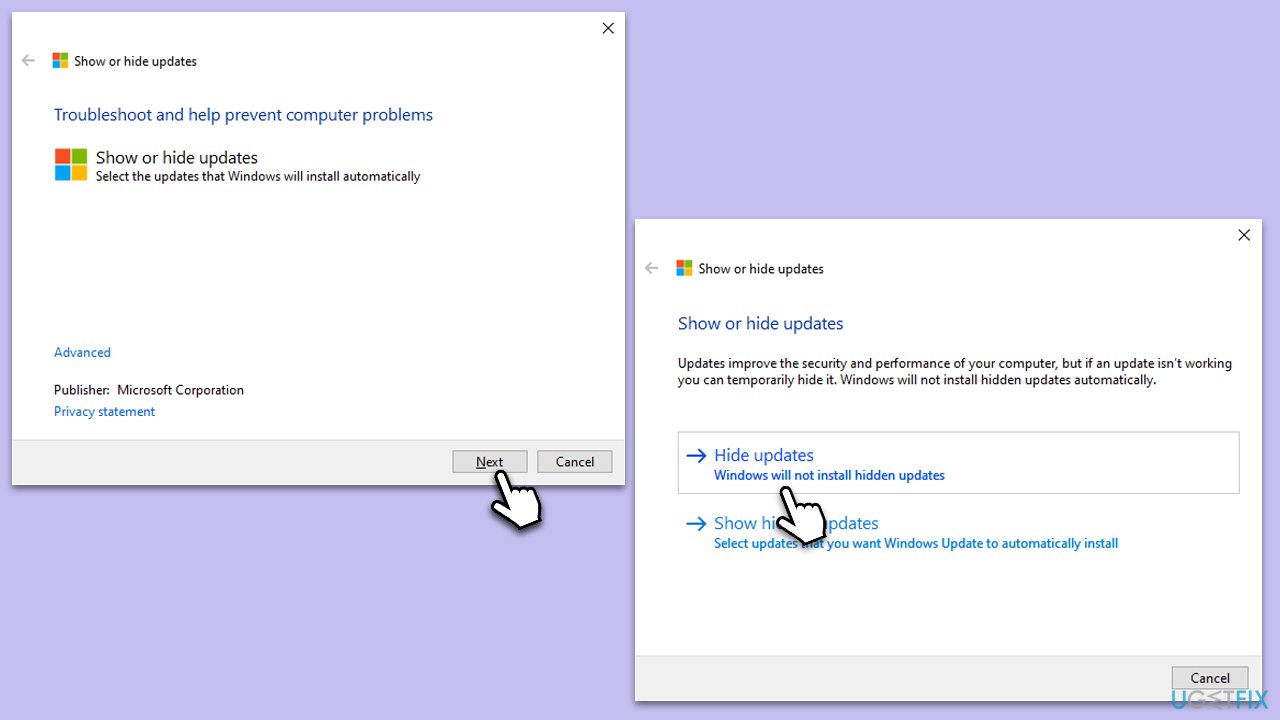
In the meantime, there is a way to get rid of the 0x80070643 error with the help of a Show or hide updates troubleshooter as follows:
- Download the Show or Hide Updates Troubleshooter from the Microsoft website [direct download link].
- Launch the wushowhide.diagcab file to begin the installation.
- Select Advanced and then Apply updates automatically, clicking Next after.
- Pick Hide updates, select KB5034441 from the list, and click Next.
- Apply changes and click Close.
Bottom line
To fix the installation issue for KB5034441, you can manually resize your recovery partition to increase available space. It is recommended to increase the partition by at least 250MB, though some users suggest 1GB for better results. If these steps do not resolve the issue, consider using a powerful PC maintenance and repair tool.
Frequently asked questions
You can try running the Windows Update Troubleshooter, which can identify and fix common issues that may prevent the update from installing.
Visit the Microsoft Update Catalog website, search for KB5034441, download the appropriate version for your system, and install it manually.
Yes, you can reset Windows Update components by running a series of commands in Command Prompt with administrative privileges.




Report an issue
What's wrong with this guide? We review every report and update or remove content.
Report received — thank you. We'll review and fix it.
You need a free account to submit a report.
Be the first to comment