How to fix
KB5039895 fails to install
on Windows
Resolve the KB5039895 installation error on Windows 11 quickly and efficiently. Trust our expert-tested solutions for a hassle-free fix!

What causes How to fix KB5039895 fails to install in Windows 11?
- Corrupted or missing system files
- Inadequate storage capacity on the main drive
- Network issues
- Conflicts with active VPN connections
- Conflicts with Windows Update server
Repairs Windows system files, removes malware, and restores a clean OS state — without reinstalling.
Hey, I was hoping you could help me with a problem I'm facing. This morning, Windows dropped a message saying that updates had failed. The update number is KB5039895 and I'm using Windows 11.
The KB5039895 update for Windows 11 is focused on improving the .NET Framework versions 3.5 and 4.8.1 for the 22H2 and 23H2 versions. Despite its goal of enhancing performance and security, a number of users have reported facing problems with installing the update.
KB5039895 installation may fail for certain users due to various reasons, with some being more prevalent than others. For instance, corrupted or missing system files are frequently to blame. Consequently, users might come across error codes like 0x80073712 or 0x800f081f, signaling problems with system file integrity or clashes with current updates. Another potential cause is inadequate storage capacity on the main drive, although this is less probable if the device has plenty of free space.
Network issues or conflicts with active VPN connections can also impede the update process. To fix these issues, consider resetting the network settings or temporarily disabling VPN connections. There might also be conflicts with Windows Update server, so pause and resume updates or manually download and install from Microsoft Update Catalog.
If the initial solutions fail to resolve the issue, individuals have the option to utilize troubleshooting tools such as the Windows Update troubleshooter or the Deployment Image Servicing and Management (DISM) tool to rectify corrupted system images. The System File Checker (SFC) scan is another effective method to mend damaged files that could be hindering the update process. Additionally, clearing storage space by deleting temporary files can sometimes help in facilitating a successful update process.
In cases of ongoing problems, certain users have achieved positive results by carrying out a fresh installation of Windows 11 or utilizing third-party repair software. These utilities are effective in pinpointing and resolving fundamental system issues that conventional troubleshooting techniques may overlook. Notably, tools such as the [d1] repair application are recognized for their ability to address a range of Windows issues, potentially resolving issues with update installations.
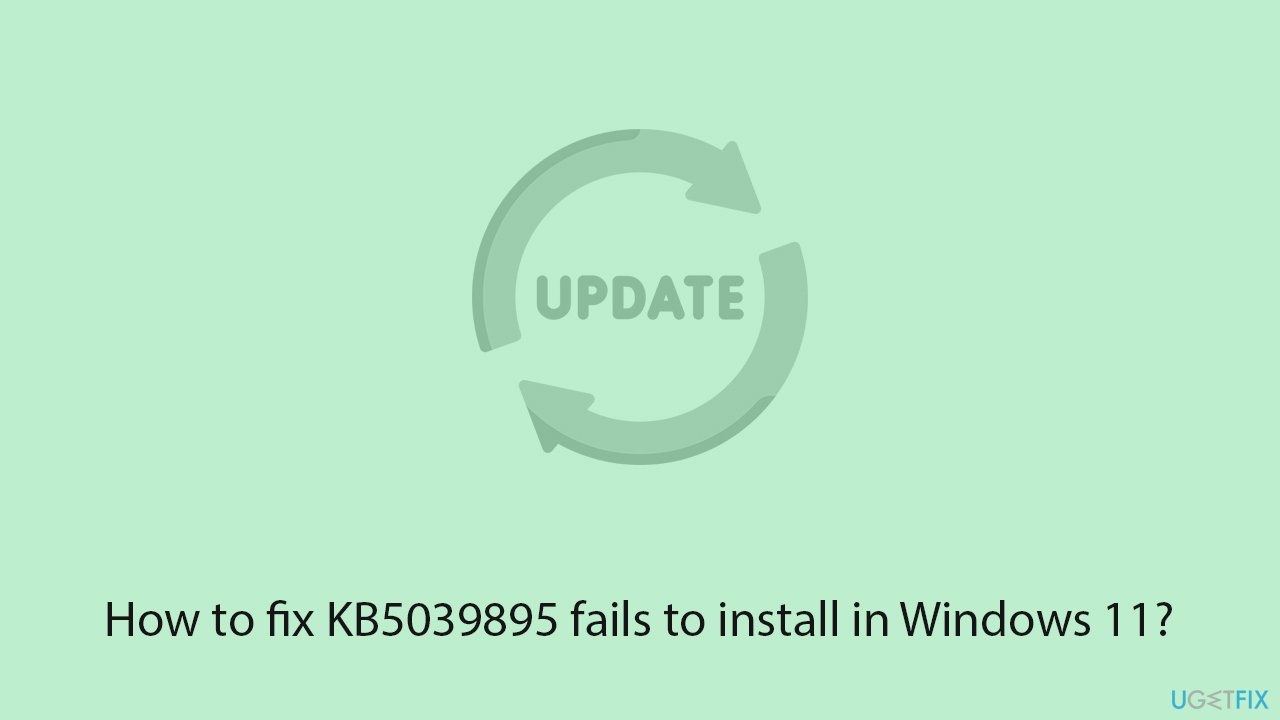
Fix 1. Clear temporary files
Clearing temporary files can free up space and remove potentially corrupted files that might be blocking the update.
- Type Disk Cleanup in Windows search and hit Enter.
- If your Windows is installed on drive C, pick it from the list (it should be by default) and press OK.
- Click Clean up system files.
- Select your main disk again and click OK.
- Here, select the largest portions of the data used - these typically include Temporary Internet Files, Windows Update, Temporary Files, Recycle Bin, Delivery Optimization Files, and others.
- Click OK - the process should be finished shortly.
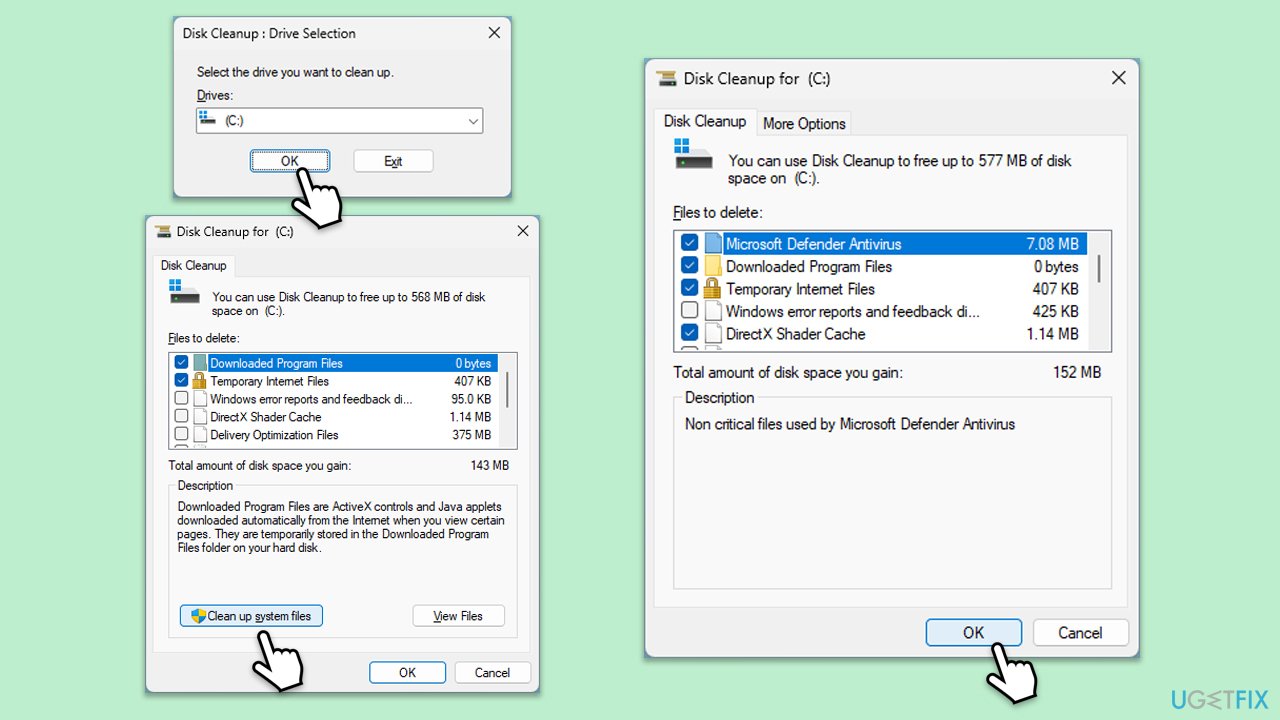
Fix 2. Reset network settings
Resetting network settings can resolve connectivity issues that may prevent the update from downloading or installing properly.
- Right-click on Start and pick Settings.
- Go to Network & Internet.
- Under Advanced network settings, click Network reset.
- Click Reset Now.
- Confirm the action and then restart your system.
Fix 3. Run Windows Update troubleshooter
The Windows Update troubleshooter can automatically detect and fix common issues with the update process.
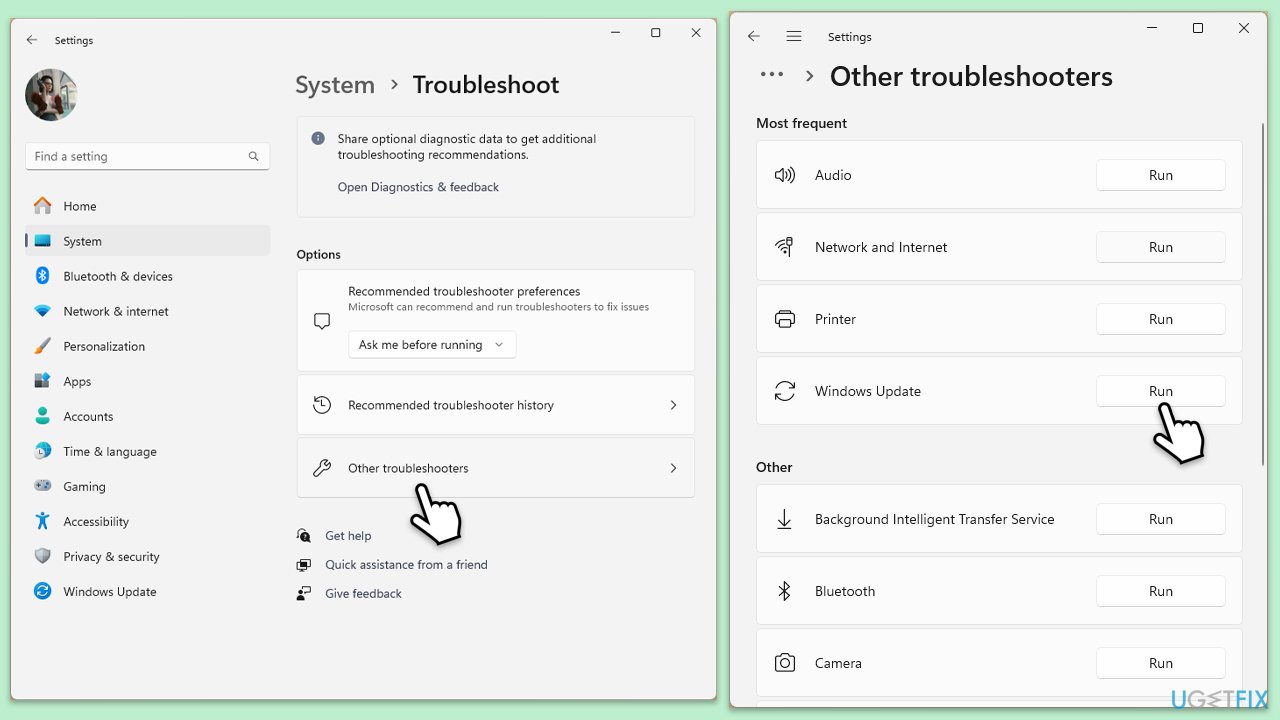
- Type Troubleshoot in Windows search and press Enter.
- Select Other troubleshooters.
- Find Windows Update from the list.
- Click it and select Run.
- Restart your computer when the update process finishes.
Fix 4. Use DISM and SFC tools
These tools can repair corrupted system files that might be causing the update to fail.
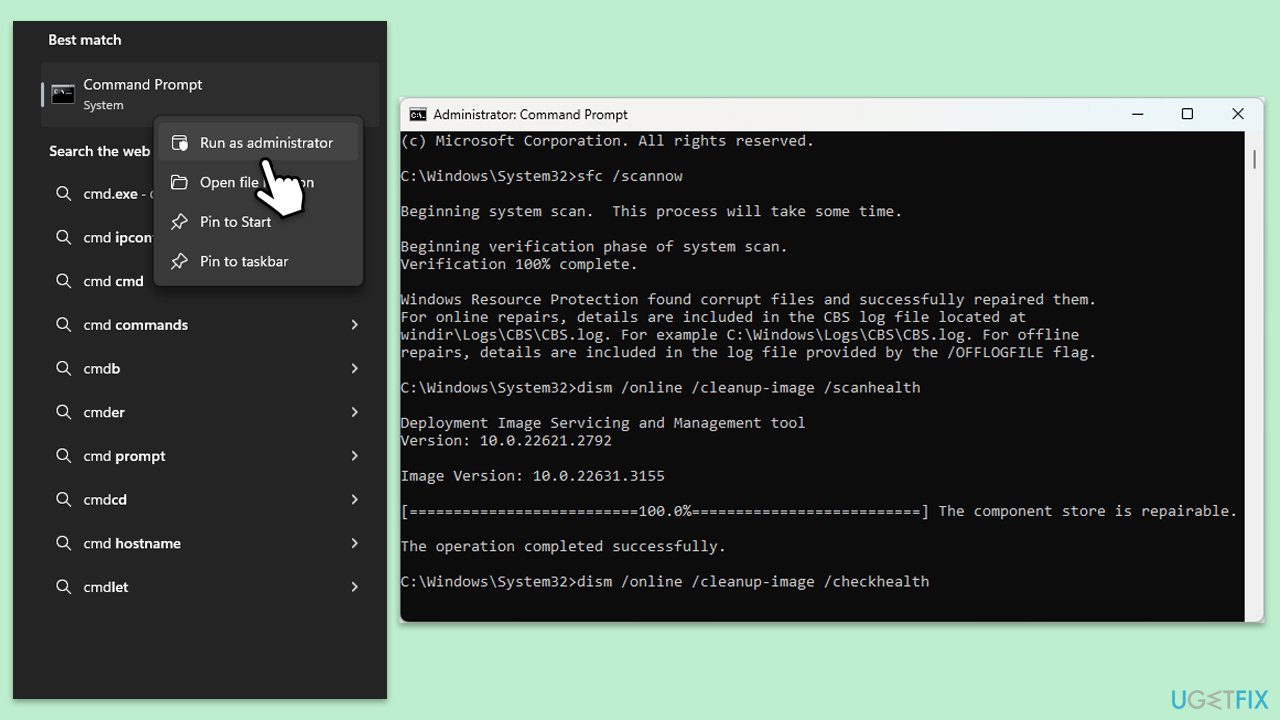
- Type cmd in Windows search.
- Right-click on Command Prompt and pick Run as administrator.
- When UAC asks you whether you want to make changes, agree by pressing Yes.
- Next, copy and paste the following commands, pressing Enter each time:
sfc /scannow
DISM /Online /Cleanup-Image /CheckHealth
DISM /Online /Cleanup-Image /ScanHealth
DISM /Online /Cleanup-Image /RestoreHealth
(Note: if you get an error executing the last command, add /Source:C:\RepairSource\Windows /LimitAccess to it and try again.) - Restart your computer.
Fix 5. Pause and resume updates
Pausing and then resuming updates can refresh the update process and resolve download issues.
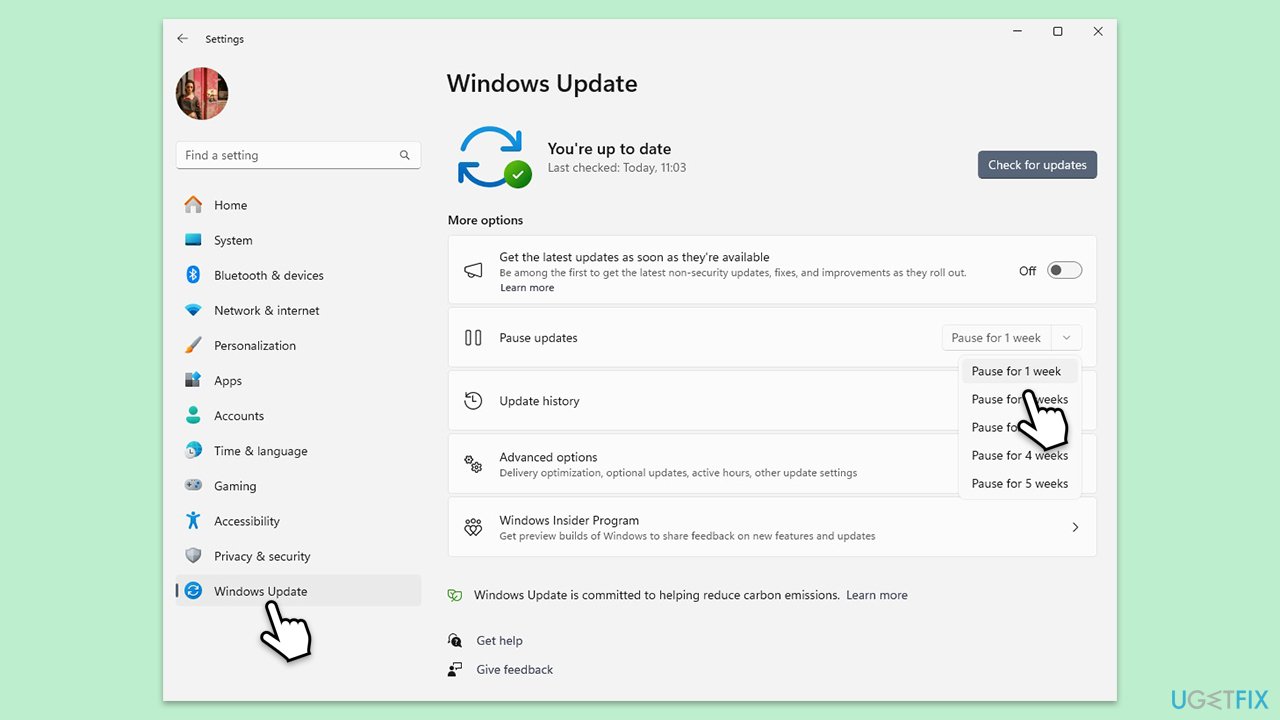
- Open Settings.
- Click on Windows Update.
- Click on the drop-down menu and select Pause updates for 1 week (or another time period).
- Restart your computer.
- Go back to Windows Update and click Resume updates.
Fix 6. Manually install the update
Downloading and installing the update manually can bypass issues with the automatic update process.
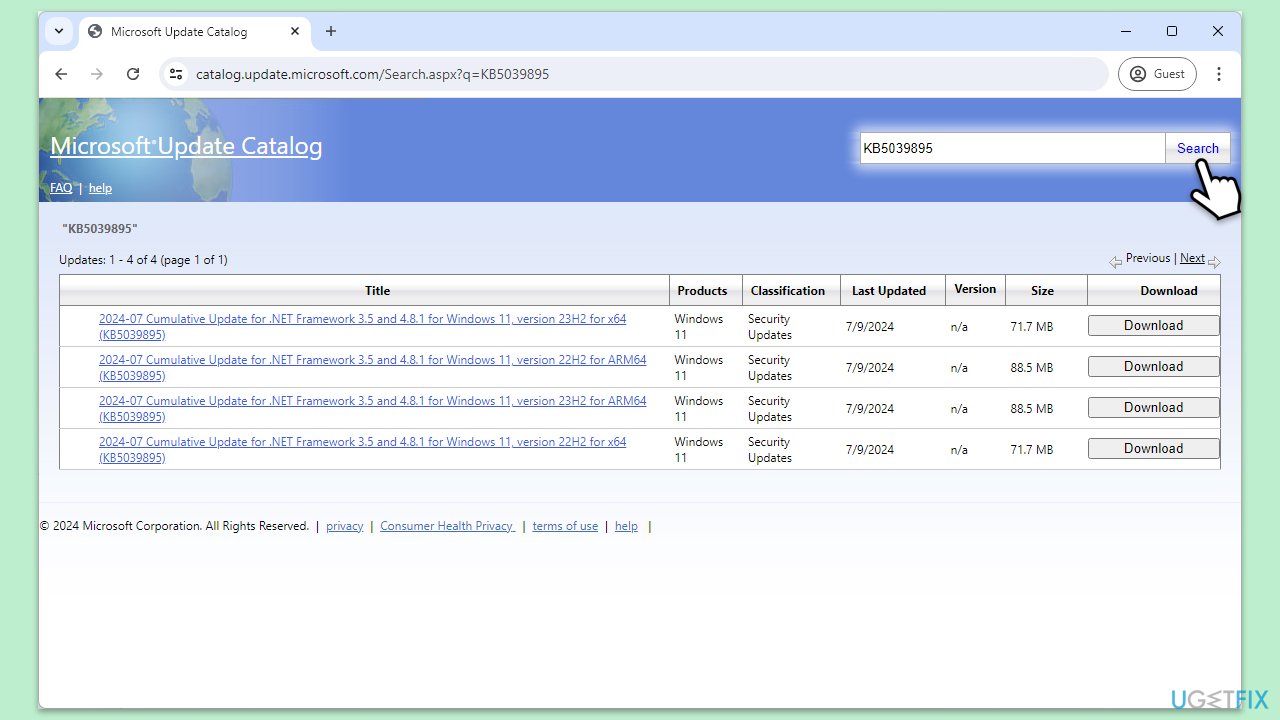
- Open your browser and go to Microsoft Update Catalog.
- In the search box, type in KB5039895 and press Search.
- Find the correct version of the update for your operating system (to check this, right-click on Start and pick System. Under Windows specifications, check the Version) and click Download.
- Follow on-screen guidelines to finish the installation process and restart your computer.
Fix 7. Disable third-party antivirus software
Temporarily disabling antivirus software can prevent conflicts that may block the update installation.
- Open the main window of your antivirus software.
- Find the option to temporarily disable protection.
- Try updating Windows again.
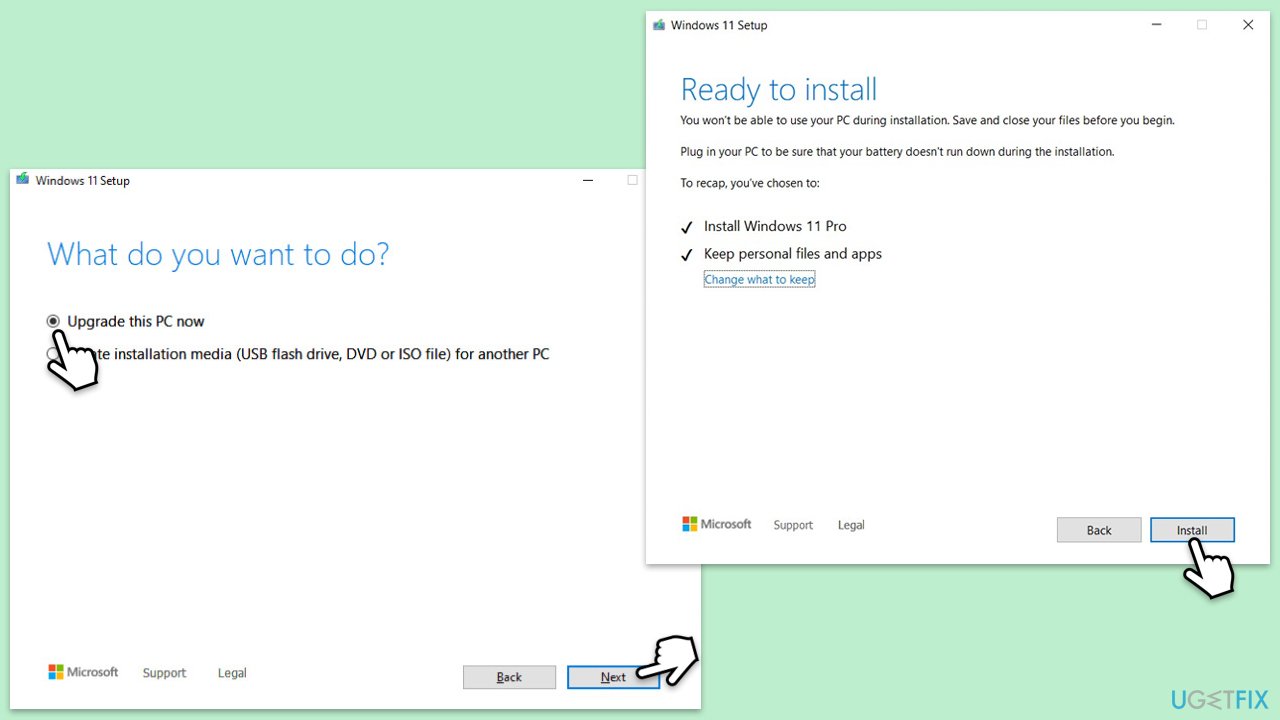
Fix 8. Use Media Creation Tool
This tool can help you replace Windows files with new ones, repairing the installation, and updating Windows to the latest version. Make sure you back up your files, uninstall security software, and disconnect all unnecessary peripherals.
- Visit the official Microsoft website and download Windows 11 installation media.
- Double-click the installer and select Yes when UAC shows up.
- Agree to terms.
- Select Upgrade this PC now and click Next.
- Windows will start downloading the needed files.
- Agree to the terms once again and click Next.
- Before installing, make sure that you are happy with your choices (otherwise, you can click Change what to keep option).
- Finally, click Install to begin the upgrade process.
Bottom line
To resolve the installation failure of KB5039895, consider resetting network settings, disabling VPN connections, or manually downloading the update from the Microsoft Update Catalog. Additionally, using troubleshooting tools like the Windows Update troubleshooter, DISM, or SFC scan can help fix corrupted files. If these solutions do not work, a fresh installation of Windows 11 or third-party repair software may be necessary.
Frequently asked questions
You can try running the Windows Update Troubleshooter by going to Settings > Update & Security > Troubleshoot > Additional troubleshooters, then select Windows Update. If that doesn't work, consider performing a system file check using the command 'sfc /scannow' in the Command Prompt.
Visit the Microsoft Update Catalog website, search for KB5039895, and download the appropriate version for your system. After downloading, run the installer to manually apply the update.
Common reasons include insufficient disk space, corrupted system files, or conflicts with third-party software. Ensure you have enough space and try disabling any antivirus programs before attempting the update again.




Report an issue
What's wrong with this guide? We review every report and update or remove content.
Report received — thank you. We'll review and fix it.
You need a free account to submit a report.
Be the first to comment