How to fix
Local Security Authority missing
on Windows
Resolve the Local Security Authority issue in Windows 10/11 quickly and effectively. Expert-tested solutions ensure zero traces left on your system.

What causes How to fix Local Security Authority missing in Windows?
- Local Security Authority Protection is turned off
- Missing LSA feature in Core Isolation menu
- Known bug within the Windows operating system
- Outdated Windows system
- Lack of CPU virtualization support
Repairs Windows system files, removes malware, and restores a clean OS state — without reinstalling.
I kept getting warnings about Local Security Authority Protection being turned off, so I tried to enable it. I then noticed that I'm missing the LSA feature in the Core Isolation menu, so there's no way for me to enable it. Any tips on what to do now?
Local Security Authority (LSA), an essential component of the Windows operating system, plays a significant role in managing the security policies of a system. It is responsible for verifying and authenticating users as they log in, enforcing local security policies, and generating access tokens. By doing so, it ensures that users are who they claim to be, and only have access to resources that they are authorized to use. However, at times, users encounter an issue where the Local Security Authority Protection is missing, leaving the system in a vulnerable state.
This omission is a known bug within the Windows operating system, and Microsoft has recognized and addressed it. Thus, regularly updating your Windows system might fix the issue for many users. Yet, despite this fix, several people continue to face this challenge. If you're among those affected, there are several measures you can undertake to restore the missing Local Security Authority Protection.
One approach is to enable the LSA through the Group Policy, a built-in feature that allows administrators to manage the working environment of user accounts and computer accounts. Another method is to modify the Windows Registry, a database where low-level settings for the Windows operating system and applications that opt to use the Registry are stored. In addition, running certain commands through an elevated PowerShell, a task-based command-line shell and scripting language designed especially for system administration, has proven successful for many users.

Further, it is essential to enable CPU virtualization, a technology that allows a single processor to act as multiple separate processors. This feature is a requisite for the Local Security Authority to operate efficiently. It's worth mentioning that each of these potential solutions requires a certain level of technical knowledge, and it's essential to tread carefully to avoid causing additional issues.
Detailed instructions for implementing these fixes can be found in the subsequent sections of this article. Additionally, it is worth considering the use of the [d1] PC repair tool. While it may not directly solve the missing LSA issue, it is beneficial when managing a multitude of Windows problems, helping maintain the system's optimal performance and stability.
Before proceeding with the instructions below, please make sure you are logged in as an administrator.
Fix 1. Install the latest Microsoft Defender update
Installing the latest Microsoft Defender update ensures your system is equipped with the latest security patches. This fix works by potentially addressing any underlying issues that may have caused the Local Security Authority Protection to go missing.
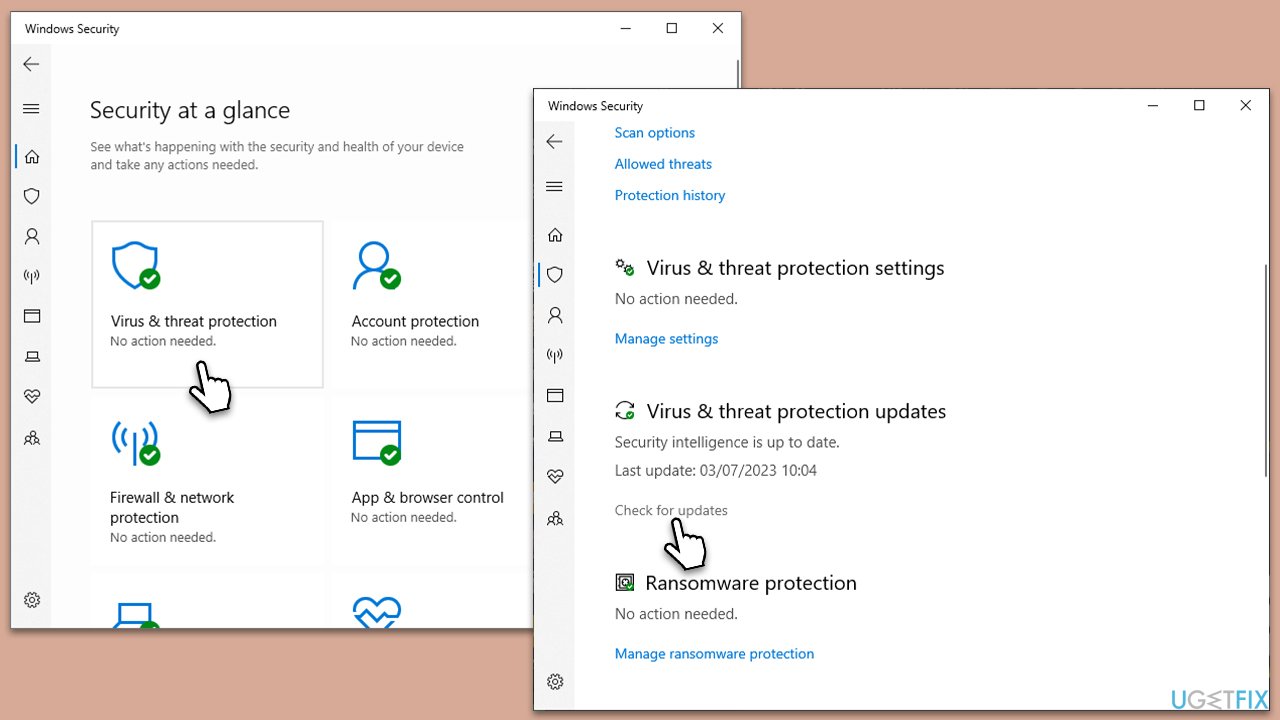
- Type Windows Security in Windows search and press Enter.
- Select the Virus & threat protection section.
- Scroll down to the Virus & threat protection updates section and click Check for updates.
- Wait for Windows to install all available updates.
- Restart your system once done.
Fix 2. Edit Group Policy
The Group Policy feature allows you to manage the working environment of user accounts. Adjusting the LSA settings here may restore the missing protection.
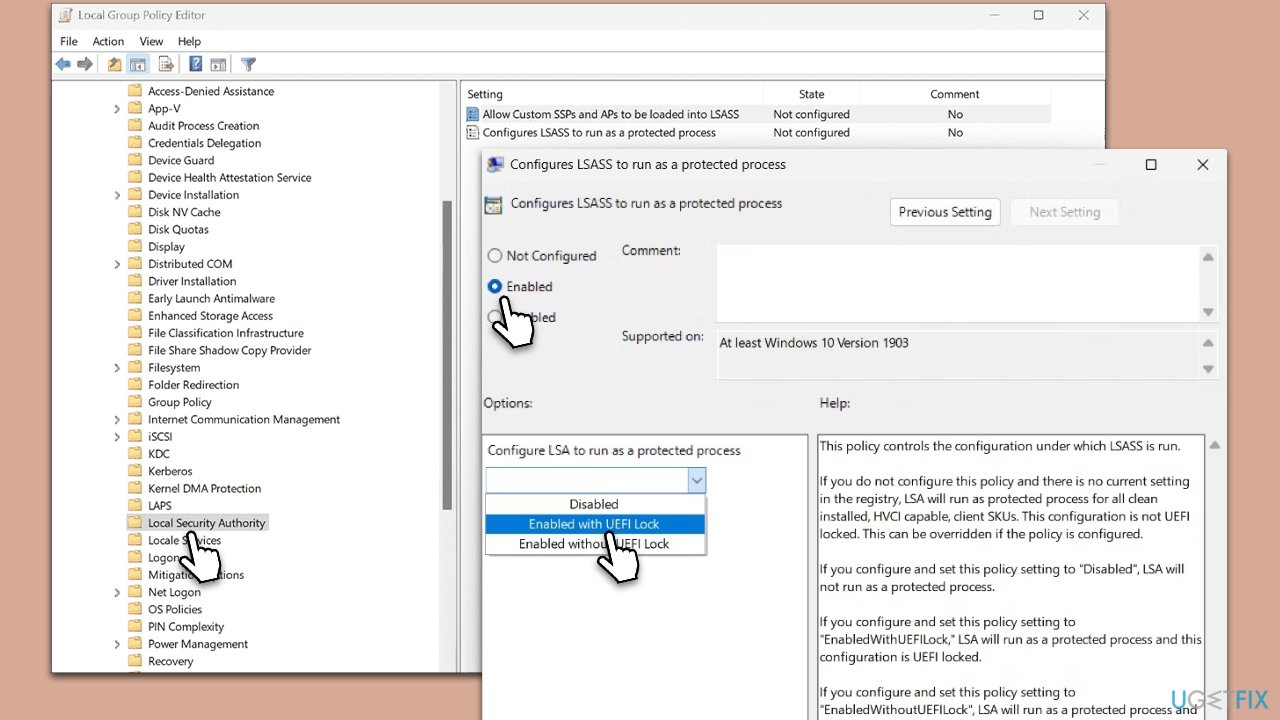
- Type Group Policy in Windows search and press Enter.
- Navigate to the following location:
Computer Configuration > Administrative Templates > System > Local Security Authority - Look at the right pane and double-click the Configure LSASS to run as a protected process option.
- First, make sure you click Enabled from the top options.
- Below, you will find the Configures LSA to run as a protected process section - make sure that the Enabled with UEFI lock option is picked from the drop-down menu.
- Click Apply and OK.
If Local Security Authority Policy is missing for you, please refer to our article to address that.
Fix 3. Modify RunAsPPL value in the Registry
Before proceeding, make sure you back up your registry, as incorrect modifications could cause damage to your system.
- Type regedit in the Windows search and press Enter.
- When UAC shows up, click Yes.
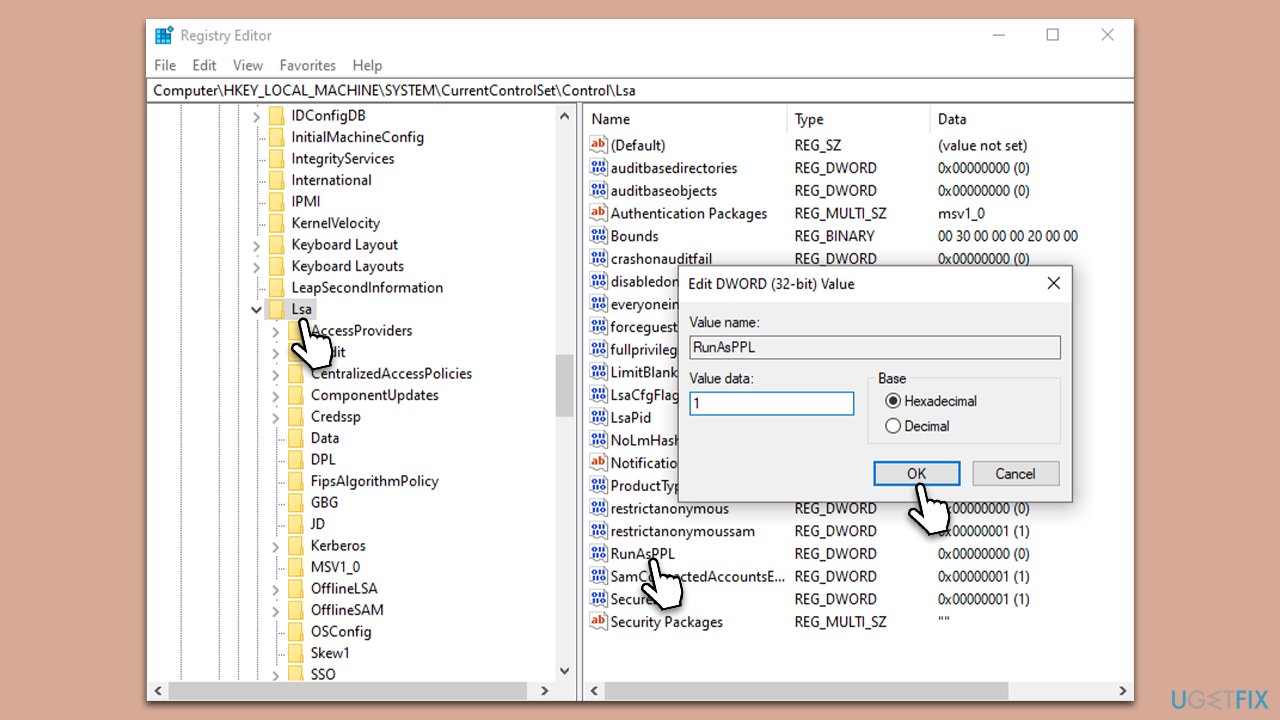
- Go to the following location:
Computer\HKEY_LOCAL_MACHINE\SOFTWARE\Policies\Microsoft\Windows Defender - On the right side of the window, you should find the RunAsPPL entry - double-click it and set its value to 1, then click OK.
- If you can't find RunAsPPL, you will have to create it as follows:
- In the right pane, right-click on an empty space and select New > DWORD (32-bit) Value - name it RunAsPPL.
Fix 4. Add a registry key via elevated PowerShell
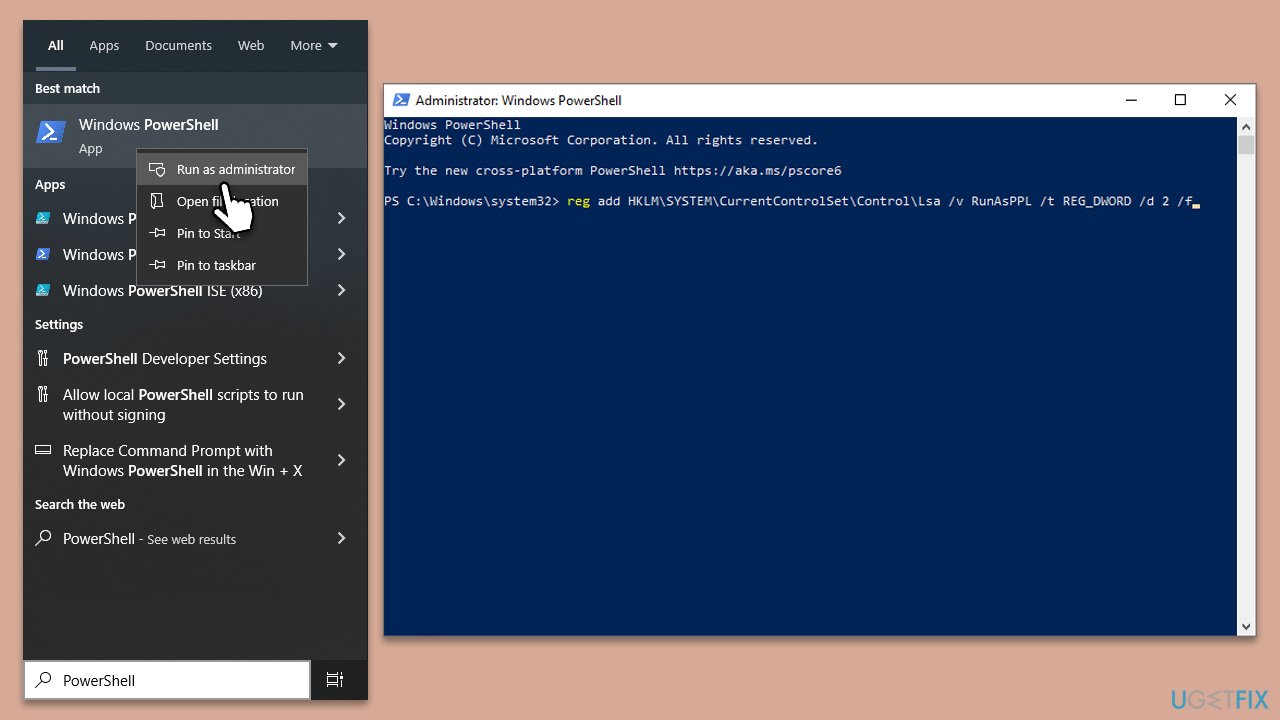
Using PowerShell to add a registry key is another solution to restoring the LSA. This works by directly affecting system configurations.
- Type PowerShell in Windows search.
- Right-click on the result and select Run as administrator.
- When UAC shows up, click Yes.
- In the new window, copy and paste the following commands and press Enter:
reg add HKLM\SYSTEM\CurrentControlSet\Control\Lsa /v RunAsPPL /t REG_DWORD /d 2 /f
reg add HKLM\SYSTEM\CurrentControlSet\Control\Lsa /v RunAsPPLBoot /t REG_DWORD /d 2 /f - Close down everything and restart your device.
Fix 5. Enable CPU virtualization
Enabling CPU virtualization allows your processor to function as multiple separate processors. This improves system performance and enables LSA to work more efficiently.
- Restart your computer and enter the BIOS setup during boot (usually by pressing a function key like F2, F10, F12, or Del, depending on your system).
- Look for a setting named something like "CPU virtualization," "Intel VT-x," "AMD-V," or "Virtualization Technology."
- Enable this setting.
- Save and exit the BIOS setup.
Other related topics:
Bottom line
To fix the missing Local Security Authority Protection, you can enable it through Group Policy, modify the Windows Registry, or run specific commands in an elevated PowerShell. Additionally, ensure that CPU virtualization is enabled for optimal operation. If none of these solutions work, consider seeking further assistance or checking for additional updates.
Frequently asked questions
The Local Security Authority can be missing due to system file corruption, misconfigured security settings, or issues following a Windows update.
You can restore the Local Security Authority by running the System File Checker tool (sfc /scannow) in Command Prompt to repair corrupted system files.
Yes, you can try repairing Windows using the installation media or performing a system restore to revert to a previous point when the Local Security Authority was functioning.




Report an issue
What's wrong with this guide? We review every report and update or remove content.
Report received — thank you. We'll review and fix it.
You need a free account to submit a report.
Be the first to comment