How to fix
Mail app error 0x801901f5 when adding account
on Windows
Resolve Mail app error 0x801901f5 on Windows 10 or 11 effortlessly. Follow our expert-tested guide for a quick fix, with screenshots for clarity.

What causes How to fix Mail app error 0x801901f5 when adding account?
- General Mail application glitches
- Cache accumulation
- Corrupted system files
- Incorrect account information
- Connectivity issues
Repairs Windows system files, removes malware, and restores a clean OS state — without reinstalling.
Hello. I added my Google account to Mail but my Contacts and Calendar fail to sync. I also receive an error code 0x801901f5. How do I solve the problem?
The Mail and Calendar apps help people stay up to date on their email, manage their schedules, and stay in touch with friends and colleagues. The apps were designed to suit both home and work users. It supports Office 365, Exchange, Outlook.com, Gmail, Yahoo!, and other popular accounts. There is no doubt that these are very handy applications for Windows users.
However, sometimes people run into issues when trying to use it. We previously wrote about the Error Code 0x8019019a in Mail app, Mail & Calendar Update Error, Mail App prints small, and many other malfunctions. Recently, users started complaining that their contacts and calendar fail to sync. People also report seeing this message:
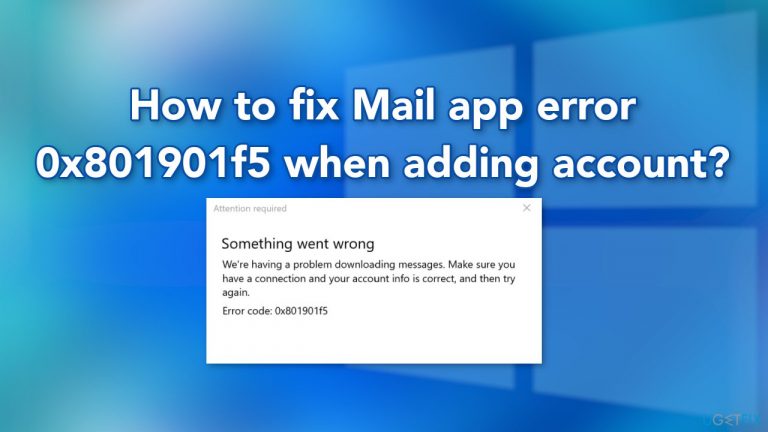
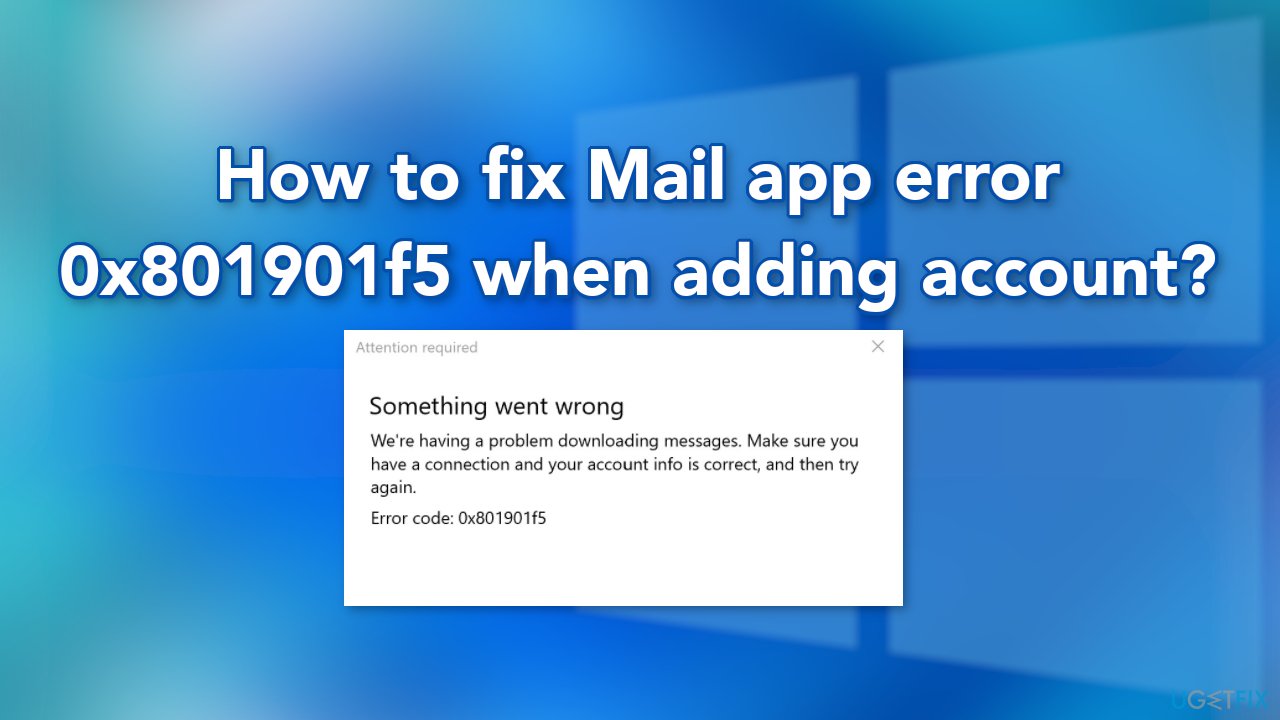
We're having a problem downloading messages. Make sure you have a connection and your account info is correct, and then try again.
Error code: 0x801901f5
While it is not completely clear why exactly this error occurs, it may be caused by general Mail application glitches, or cache accumulation. In this guide, you will find 4 methods that could help you fix the Mail app error 0x801901f5 when adding an account.
However, the manual troubleshooting process can be lengthy, so you can also use a maintenance tool like [d1] that can fix most system errors, BSODs,[ref en-1] corrupted files, and registry[ref en-2] issues. It can also automatically clear cookies[ref en-3] and cache which are often the culprits behind many system malfunctions. Otherwise, follow the steps provided below.
Solution 1. Fix Corrupted System Files
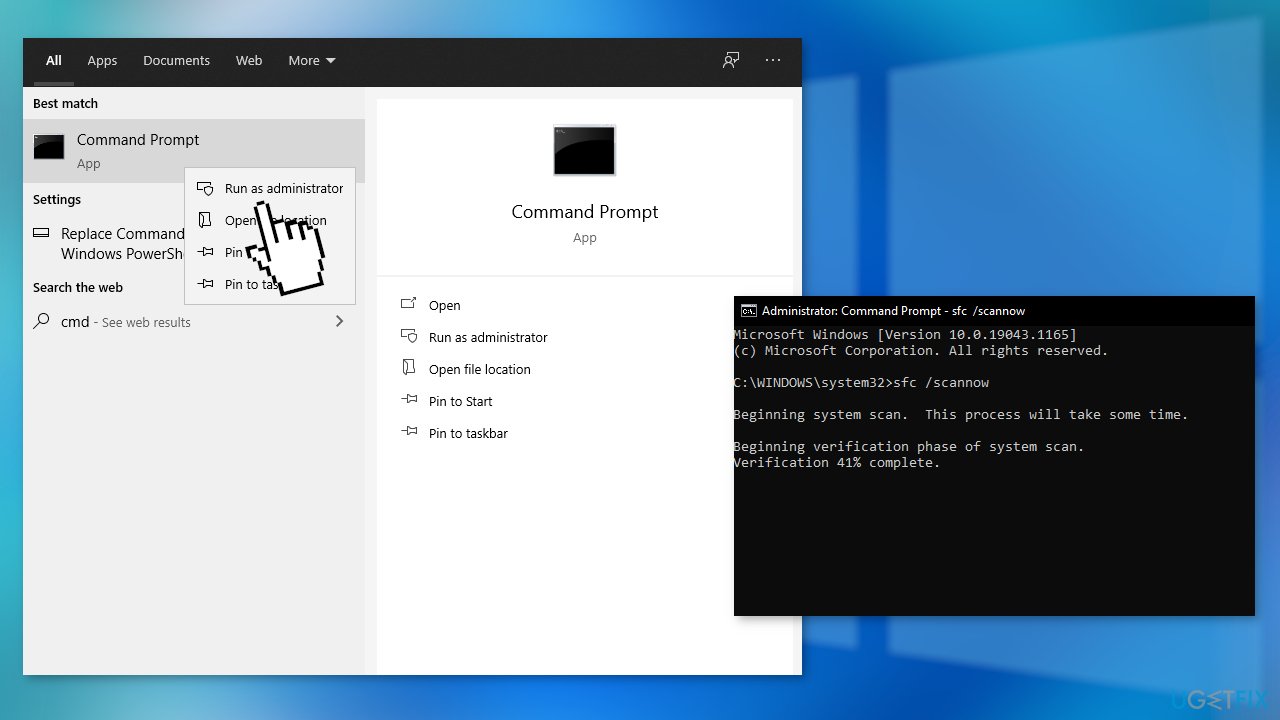
Use Command Prompt commands to repair system file corruption:
- Open Command Prompt as administrator
- Use the following command and press Enter:
sfc /scannow
- Reboot your system
- If SFC returned an error, then use the following command lines, pressing Enter after each:
DISM /Online /Cleanup-Image /CheckHealth
DISM /Online /Cleanup-Image /ScanHealth
DISM /Online /Cleanup-Image /RestoreHealth
Solution 2. Re-enter the Account
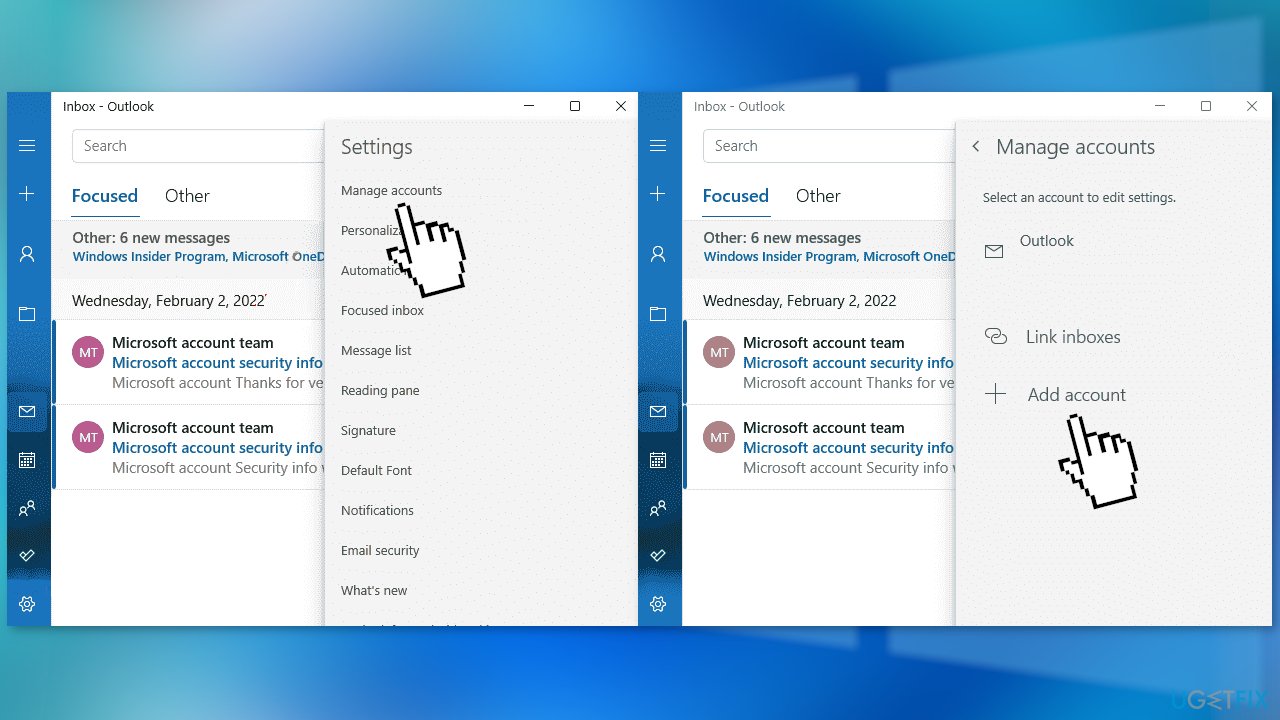
- Open the Mail app
- Click on the gear icon from the bottom left
- Select Manage accounts
- Choose the account you want to remove
- Click on Delete account from this device
- After removing the account, go back to Manage accounts
- Click on the Add account option
- Select which account you want to add
- Provide correct credentials to add the account
- Log in and check if the issue persists
Solution 3. Reset Windows Mail and Calendar
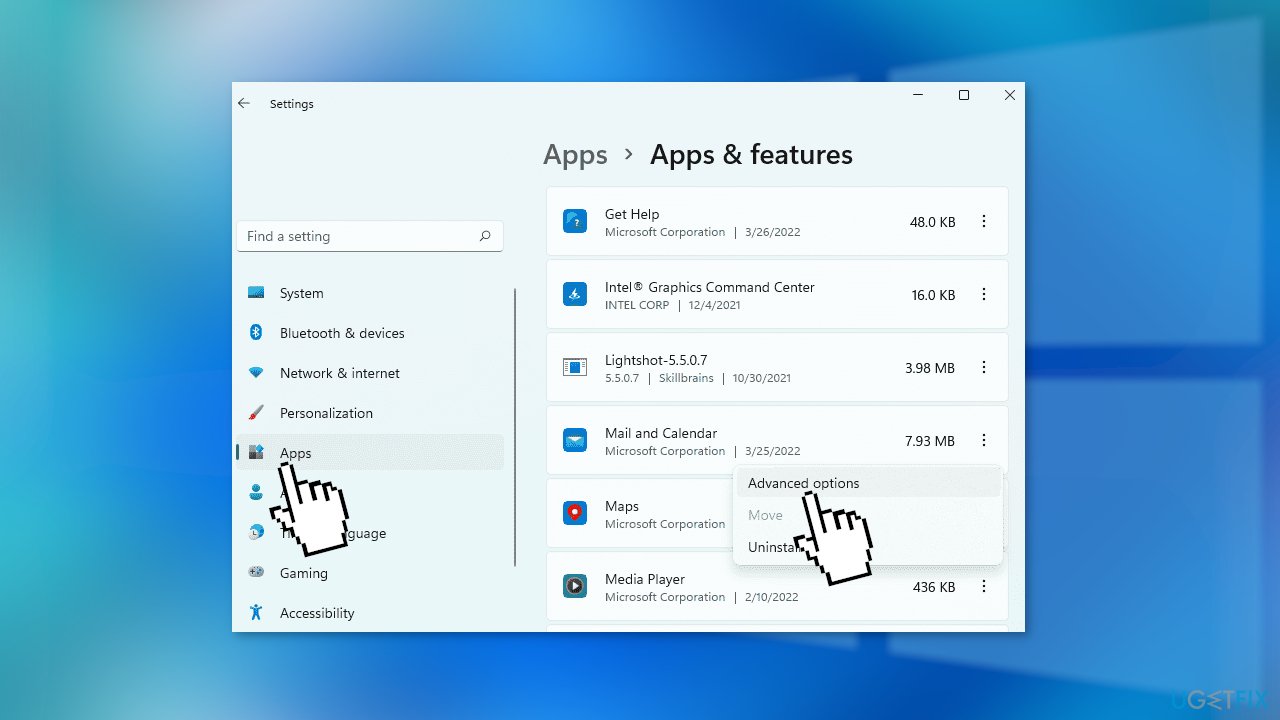
- Right-click on the Start button, and select Settings
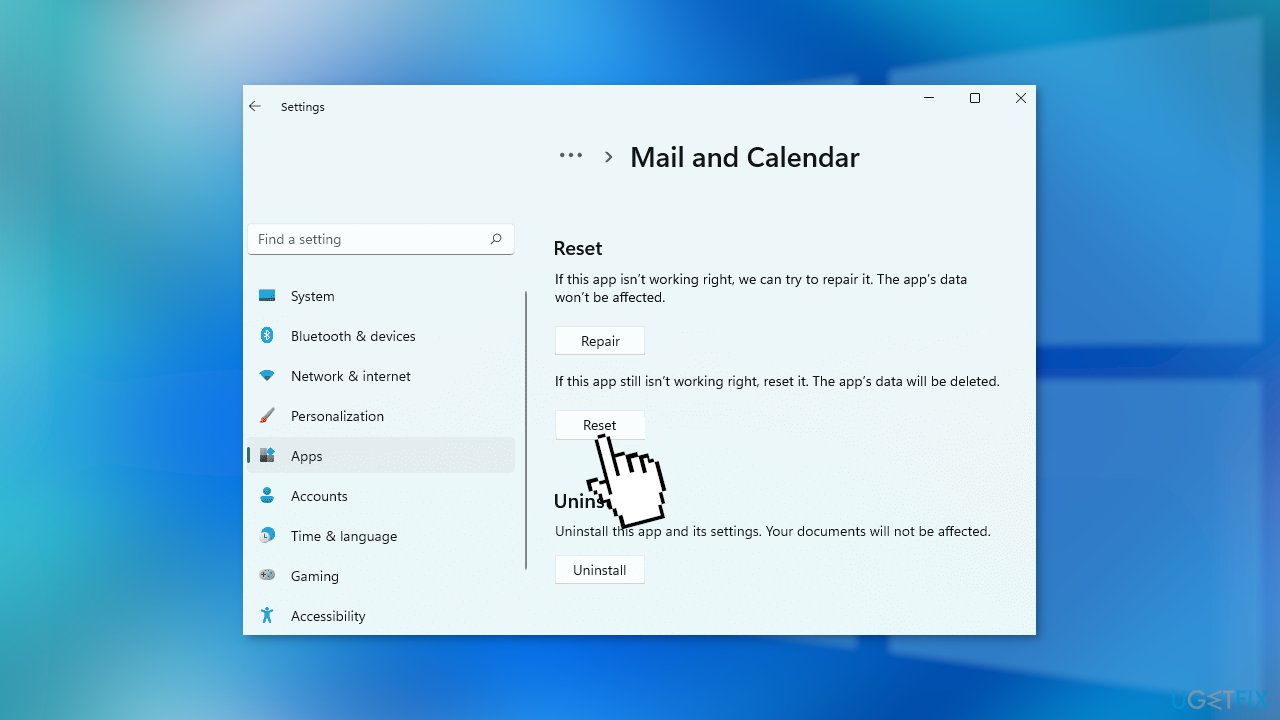
- Select Apps, click Mail and Calendar and choose Advanced options
- Click Reset, then Confirm
Solution 4. Clear Windows Store Cache
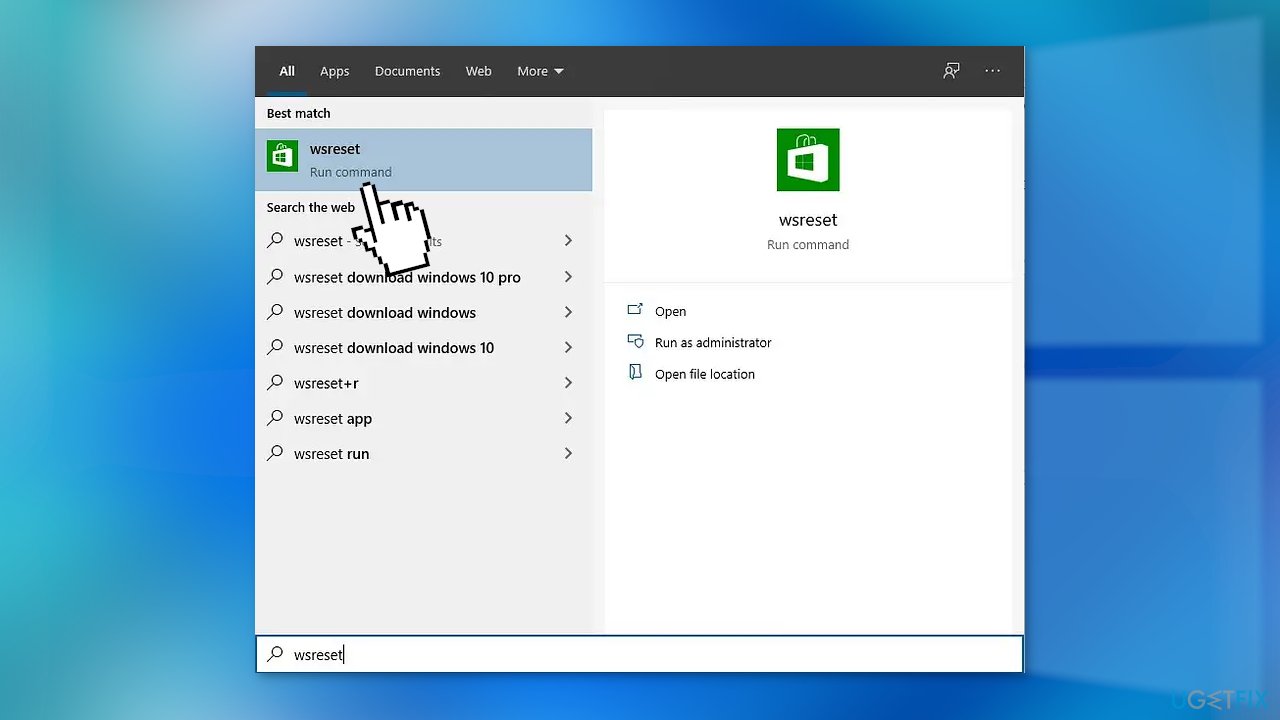
- Open the Start menu
- Type wsreset.exe and press Enter
Bottom line
To fix the Mail app error 0x801901f5, you can repair corrupted system files using Command Prompt, re-enter your account in the Mail app, and ensure your internet connection is stable. If these solutions do not resolve the issue, consider using a maintenance tool to address system errors.
Frequently asked questions
This error typically occurs due to issues with internet connectivity, incorrect account settings, or problems with the Mail app itself.
Try resetting the Mail app via Settings > Apps > Apps & features, then select Mail and click on 'Advanced options' to reset it.
Yes, ensuring that your Windows 10 or Windows 11 is up to date can resolve compatibility issues that might be causing the error.




Report an issue
What's wrong with this guide? We review every report and update or remove content.
Report received — thank you. We'll review and fix it.
You need a free account to submit a report.
Be the first to comment