
How to fix memory management error?
Prefer to fix it yourself? The manual steps follow.
6 methods in this guide
Hello, I am experiencing a recurring Blue Screen of Death, which returns memory management error. After a restart, it tries to boot into Windows but fails - the only way to get back into the computer is to restart the PC manually and wait a few minutes. This issue is really frustrating. Are there any ways I could fix memory management error? Any help would be appreciated.
Memory management error is a Blue Screen of Death error that results in a computer reboot. BSODs are considered to be critical errors that prevent damage to the system, and are typically fixed after a restart. However, in many cases, the issue is recurring and can result in a variety of problems, including information loss due to an unexpected restart. Additionally, if memory management error occurs often, it means that there is an underlying issue that needs to be addressed.
Thus, what is causing memory management BSOD? Memory management is a process that helps the computer to assign memory blocs to particular tasks or applications when needed. For example, if you launch an app on a computer, the process will allocate a particular amount of memory for it to be used. If these tasks fail for one reason or another, you can encounter Memory management error.
There are several different reasons why the memory management error might show up on your system, although, as the name suggests, it is always related to memory issues. For example, there might be not enough memory installed on your computer, or you are trying to launch an app that demands too much of it.
In most cases, users encounter Memory management BSOD when trying to launch an application or when it is running. Quite often, such cases are related to high memory consumption tasks, such as playing video games. Suddenly, the screen goes blank and users see a blue screen which states:
Your PC ran into a problem and needs to restart. We're just collecting some error info, and we'll restart for you.
0% complete
If you call a support person, give them this info: Stop Code MEMORY_MANAGEMENT
As you can see, Windows suggests that you could contact a support person who would help you fix memory management BSOD. However, Microsoft might be difficult to reach in some cases, and third-party services can be costly. Do not worry, however, as we will provide several solutions that would help you fix memory management error by yourself.
Fix 1. Run the built-in Windows Memory Diagnostic tool
Memory management BSOD can be related to issues with computer's RAM (Ransom Access Memory) sticks. Typically, the bigger capacity is installed on the system, the faster and better memory processing is. However, if RAM is malfunctioning, it can cause errors and various other issues. To check your memory sticks, use a built-in Windows tool:
- Type in Windows Memory Diagnostic in Windows search bar and press Enter
- Click on Restart now and check for problems (recommended)
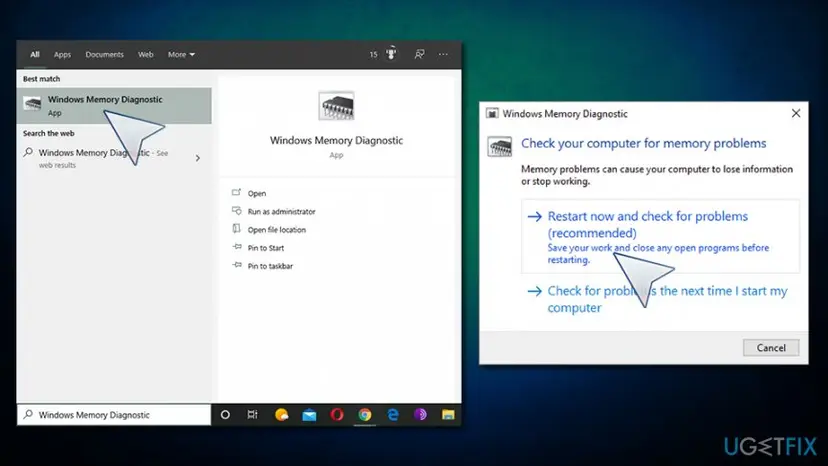
How to fix memory management error run memory diagnostic - Be aware that the computer will restart without further warnings, so make sure you save your work
- After a restart, wait till Windows scans the memory for issues are reports findings to you
Fix 2. Update drivers
Drivers are vital parts of any computer - they allow hardware and software to communicate with each other. If the driver gets corrupted, it can lead to all types of issues, including the Memory management error. Therefore, you should make sure that your drivers are up to date, and no errors are present:
- Right-click on Start and select Device Manager
- Once the Device Manager opens, check for yellow exclamation marks
- If any are present, right-click on the driver and pick Update driver
- Pick Search automatically for updated driver software
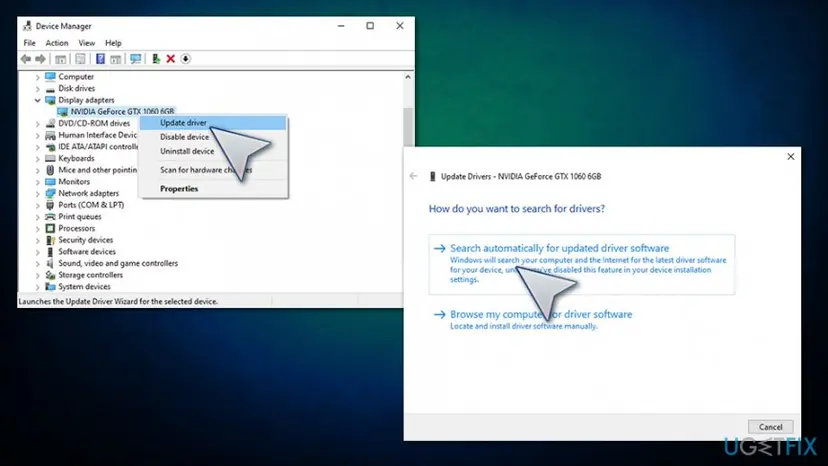
How to fix memory management error update drivers - Wait till driver updates and reboot your system
Fix 3. Run disk check
In some cases, memory management errors can be caused by disk issues. Here's how to check its integrity:
- Type in cmd into Windows search
- From search results, right click on Command prompt and select Run as administrator
- In the new window, type in the following command and hit Enter:
chkdsk /f /r
- Command Prompt will inform that the scan cannot be done immediately - type in the letter Y and press Enter
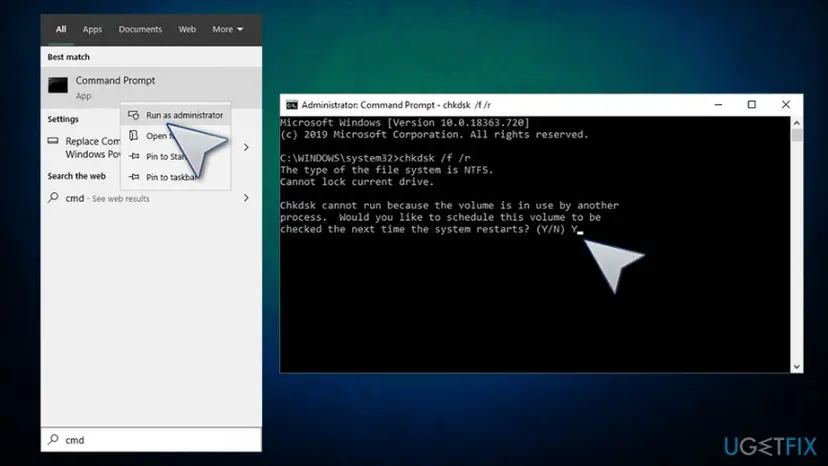
How to fix memory management error run check disk - Close down Command Prompt and reboot the PC - a scan should start after a restart
Fix 4. Run SFC scan
System File Checker scan is a great way to check a system for corruption. For that, access elevated Command Prompt once again:
- Start up Command Prompt with admin's rights as explained above
- Type in the following command and press Enter:
sfc /scannow
- Wait till Windows performs a scan reports errors found
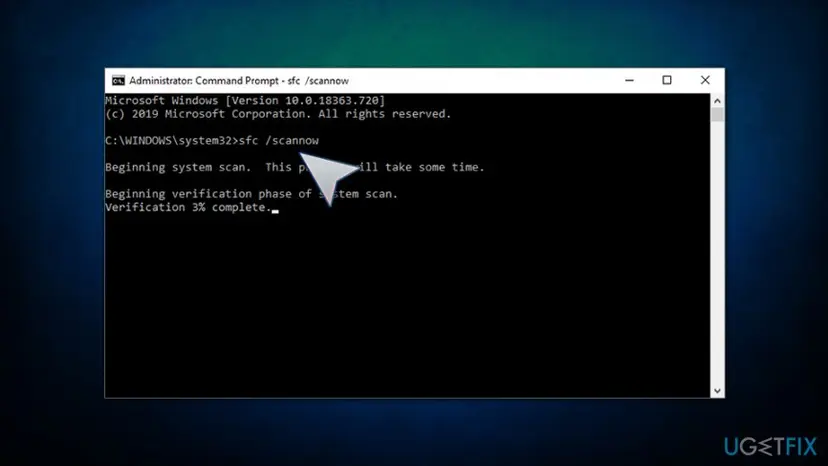
How to fix memory management error run sfc scan
Fix 5. Scan your computer for malware
Malware can cause all sorts of computer issues, including BSODs. Thus, you should ensure that no malicious software is present on your device. For that, scan it with a third-party anti-virus or employ Windows Defender:
- Type in Security into Windows search and select Windows Security
- Click on Virus & Threat protection
- Choose Scan options
- Pick Full scan and then select Scan now
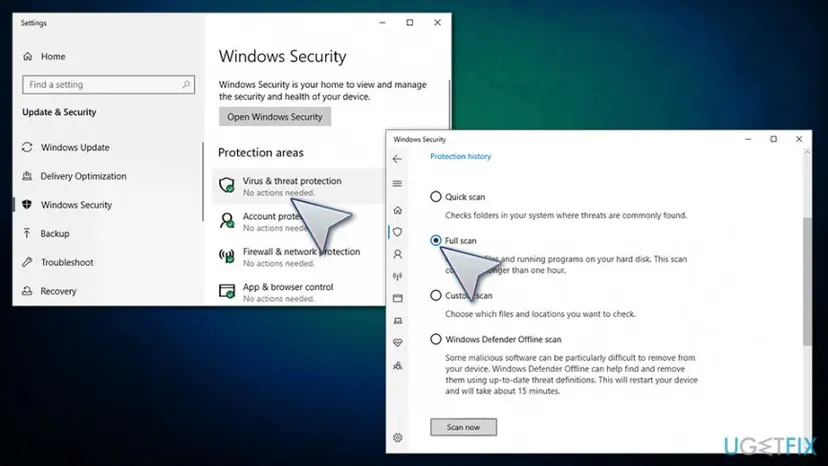
How to fix memory management error scan computer for malware
Fix 6. Employ disk cleanup
If you are running low on space, Disk cleanup can help you improve the situation. Here's how:
- Type in Disk Cleanup into Windows search and press Enter
- In the newly opened window, pick items you want to delete, such as Temporary Internet Files
- Select OK
- When the confirmation prompt shows up, click Delete Files
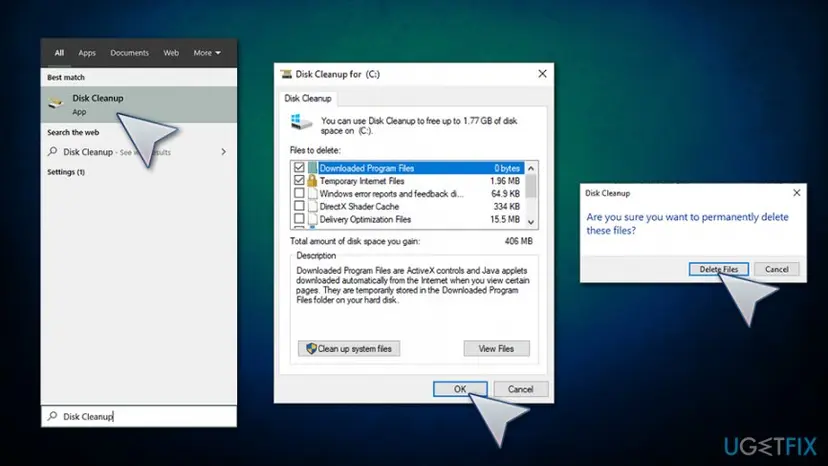
How to fix memory management error use disk cleanup
Did this fix work?
One click, no account. It tells the next reader which guides are worth their time.
Questions and experiences: fix memory management error
Still broken, or found a fix we did not cover? Ask here: members and our editors answer. Reading is open; writing needs a free account.
…