How to fix
Microsoft Flight Simulator won’t launch – the icon not working
on Windows
Resolve Microsoft Flight Simulator launch issues on Windows 10 and 11 effortlessly. Get expert-tested solutions that fix your game in minutes.


What causes How to fix Microsoft Flight Simulator won’t launch – the icon not working?
- Minimum system requirements not met
- Corrupted video card drivers
- Issues after a game patch
- Generic launch failure without error codes
- Black screen during launch attempt
Repairs Windows system files, removes malware, and restores a clean OS state — without reinstalling.
Hi, Microsoft Flight Simulator won't launch. Before I went away for a few days, everything was working fine. Now, every time I click the shortcut icon, nothing happens at all - it just does not start, and I can't play the game. Any suggestions?
Microsoft Flight Simulator was a long-anticipated video game that was finally released in August 2020 by Microsoft. In the game, players are able to fly anywhere they want while piloting top-notch aircraft in a relatively realistic environment. MFS was generally well-received and over 2 million players[ref en-1] within a few months of a release.
However, the technical side of the game suffered from many missteps, as users reported they were unable to download/install the game from Microsoft Store or were receiving errors when trying to launch it. This time, we tackle the issue where Microsoft Flight Simulator does not launch at all.
In most cases, error codes are useful helpers that could guide users and help them find the solution for a problem they are facing on a Windows 10 computer. In this case, however, there are no errors displayed, and the problem is very generic. As soon as players install the game, they attempt to launch it, and nothing happens. Some users reported that they could see their screens going black for a few seconds, but the launch sequence was then aborted.
Some people claimed that they were unable to start the game even after downloading it for the first time. In the meantime, there were plenty of reports of the behavior only occurring after a patch for the game was applied.
As evident, there could be countless reasons why Microsoft Flight simulator doesn't start. For example, if minimum system requirements are not met or video card drivers[ref en-3] are corrupted. Sometimes it might be difficult to find the culprit, so we strongly recommend you run a scan with a PC repair tool [d1] - it can quickly solve the most common underlying issues on Windows systems automatically.
1. Install the latest Windows updates, along with pending ones
First of all, make sure that all the available updates are installed on your Windows:
- Type Updates in Windows search
- Click Check for updates
- Wait till Windows downloads and installs all the necessary files
- Do not forget to Download and install the pending updates as well
- Restart your PC.
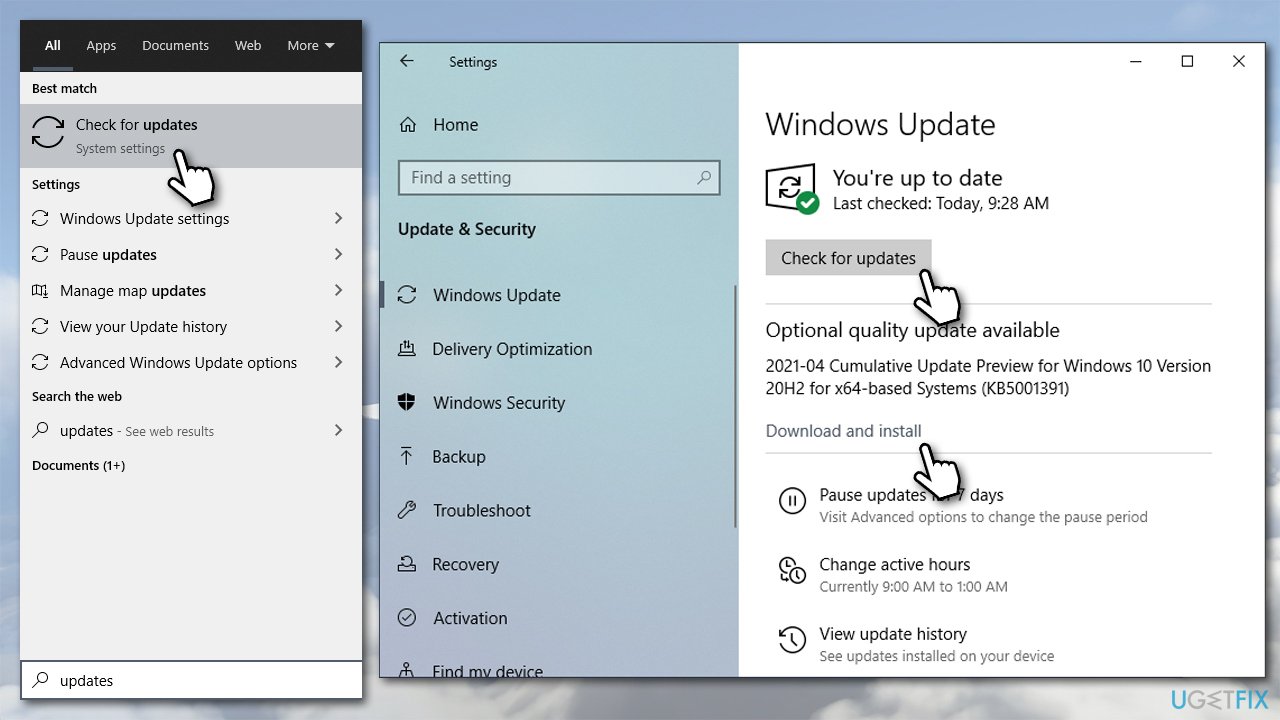
Fix microsoft flight simulator wont launch install all updates
2. Make sure you meet minimum requirements
It is not a secret that graphically the game is impressive, hence it requires a quite powerful computer hardware. If MS Flight Simulator doesn't launch the first time after you have installed it, it might be that you simply do not meet the minimum requirements for the game to be playable. Here they are:[ref en-2]
- Video card: Radeon RX 570 or GeForce GTX 770 or better
- CPU: Intel Core i5-4460 or AMD Ryzen 3 1200 or better
- RAM: 8GB
- VRAM: 2048 MB
- Disk space: 150 GB
- OS: Windows 10
If any of these requirements are not met, you might not be able to launch the game. Unfortunately, you would have to upgrade your hardware in such case.
3. Update your GPU drivers
Try updating your video drivers. While you can do that via the Device Manager, it might not be efficient enough, as it commonly fails to find relevant updates automatically. Therefore, you should visit your GPU manufacturer's website and get the latest driver from there:
If you want to save time and update all drivers at once, we strongly recommend you employ an automatic driver updater [rev id="DriverFix"]. This way, you will never have to bother about driver problems in the future, as the app can also provide reliable backups in case something does wrong.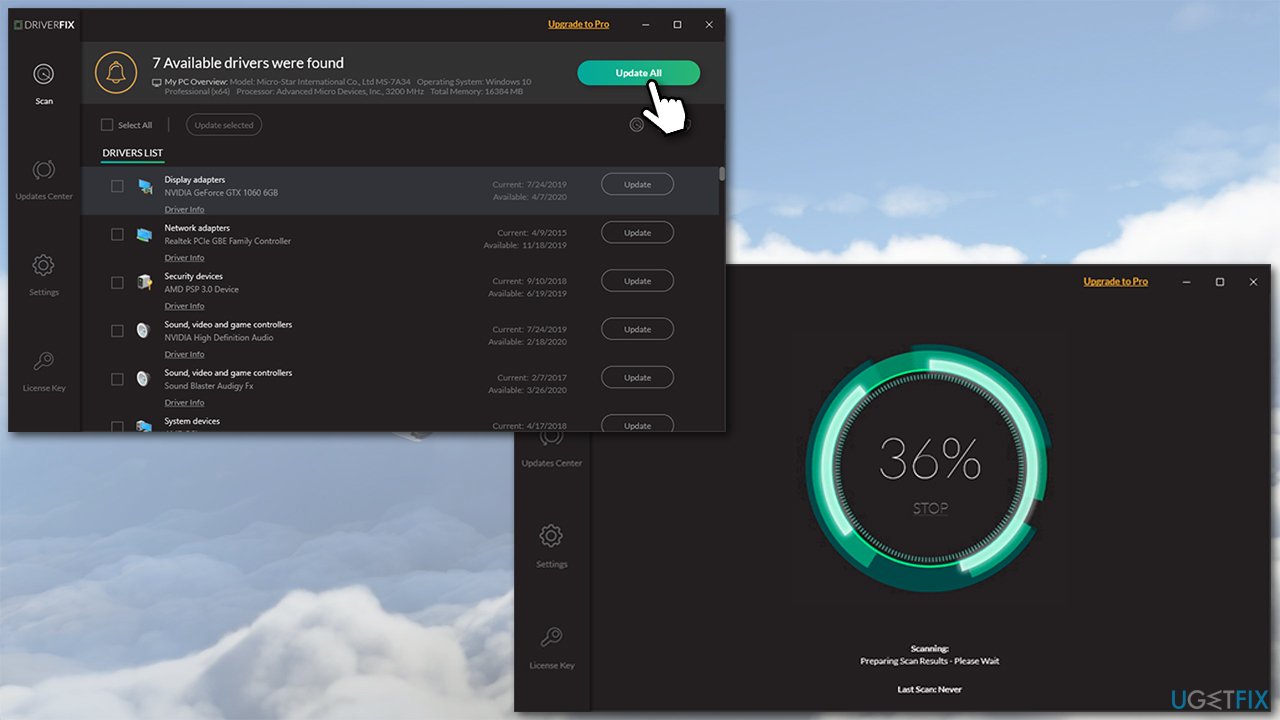
4. Check the game in MS Store
Some users said that accessing MS Store and allowing necessary files to be downloaded helped them fix the issue.
- Open Microsoft Store
- Click on Menu (three horizontal dots at the top-right corner) and select My Library
- Locate MS Flight Simulator from the list
- If you see Install button, click it
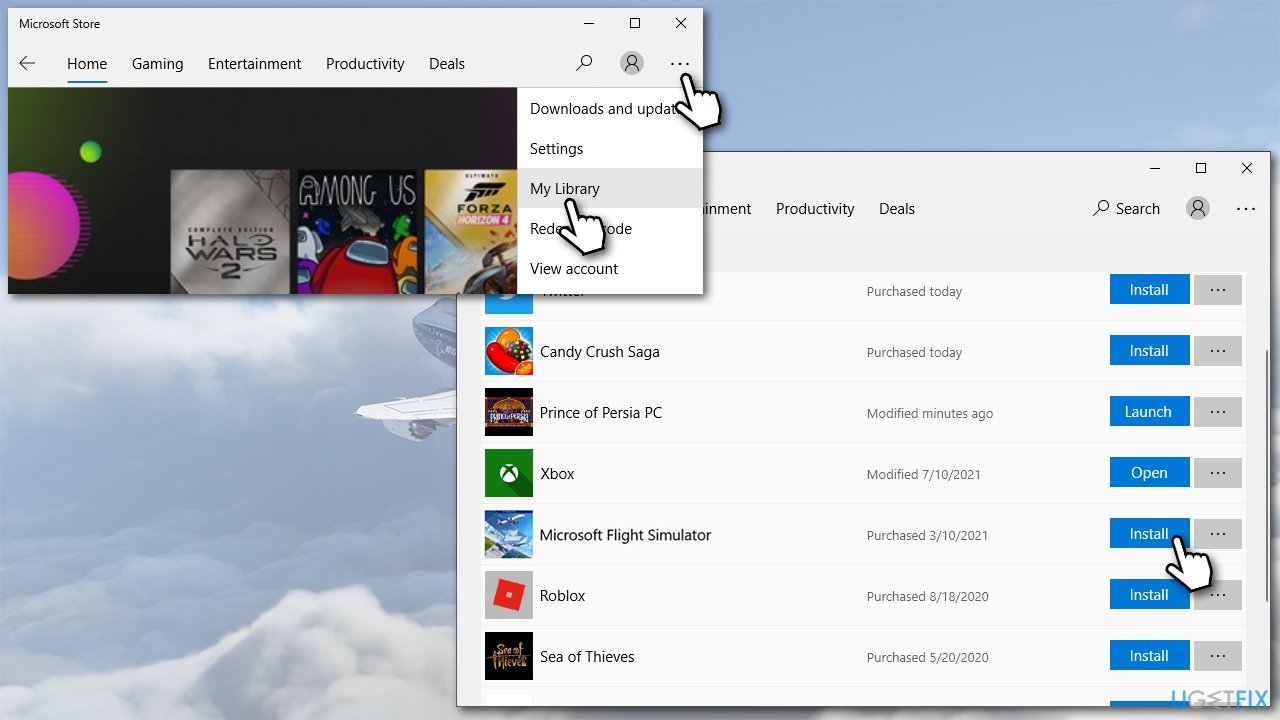
Fix microsoft flight simulator wont launch check the game via ms store - Wait till the required components are installed and try launching the game.
5. Reset the game installation
- Right-click on Start and pick Apps and Features
- Scroll down until you find Microsoft Flight Simulator
- Select Advanced options
- Scroll down, click Terminate and then click Reset.
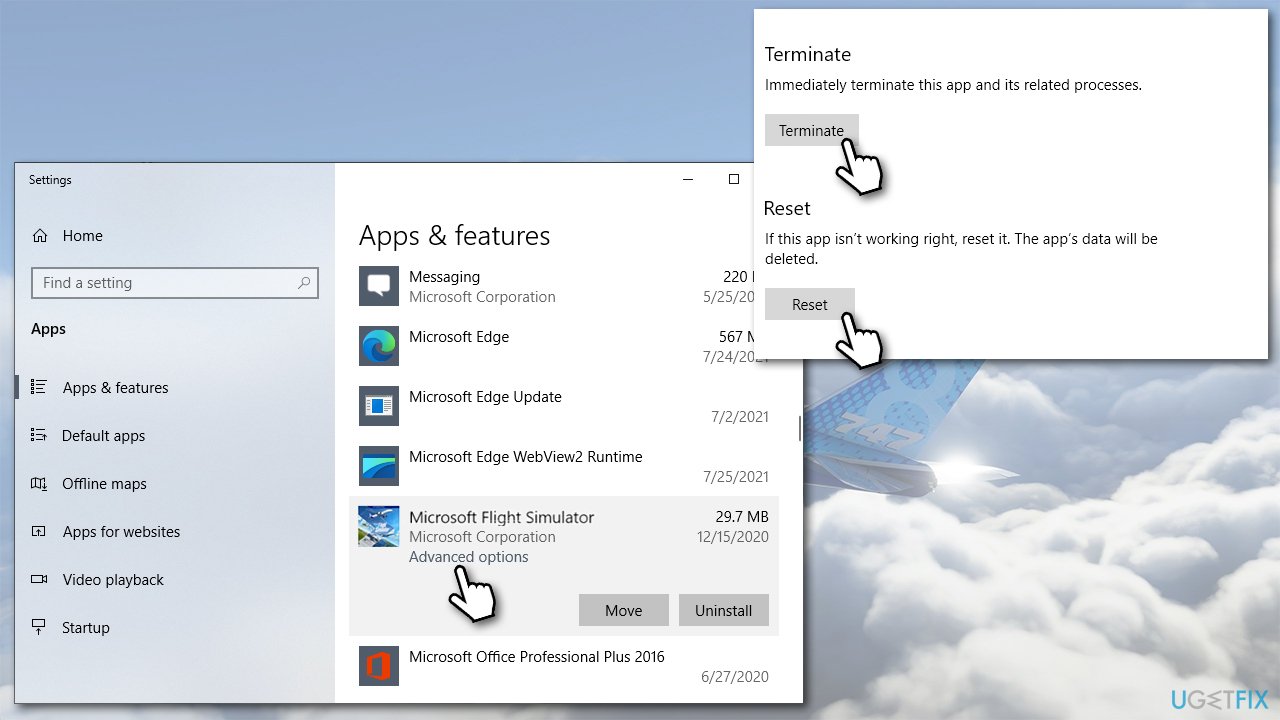
Fix microsoft flight simulator wont launch reset mfs
6. Clean-install the game
If none of the steps above helped you, you should try reinstalling the game. This can be a major inconvenience, especially for those who do not have fast internet speeds (the game is as large as 150GB), although this method did help many people to solve the problem.
This can be done in numerous ways - via your Xbox app, Programs & Features, Control Panel, Steam, MS Store, etc. Here's one of the options if you need help with that:
- Type Microsoft Flight Simulator in Windows search
- On the right, select Uninstall
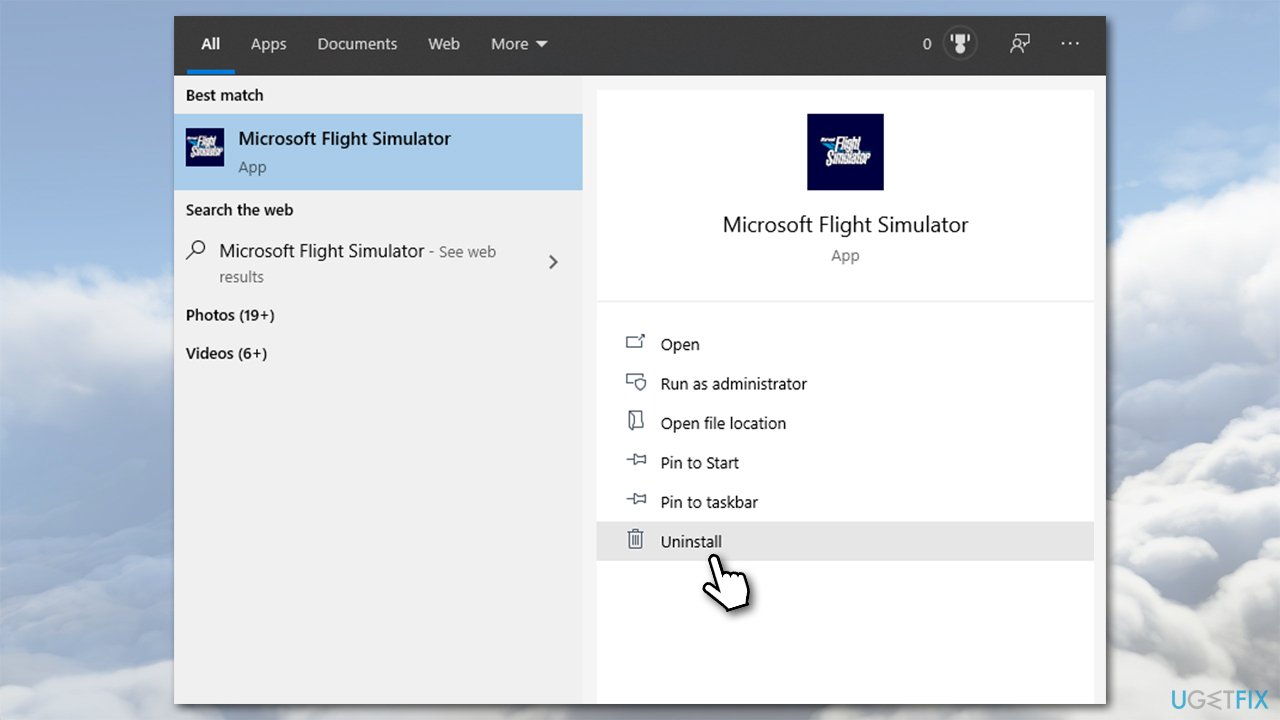
Fix microsoft flight simulator wont launch resintall the game - Proceed with on-screen instructions
- Once done, press Win + E to open File Explorer
- Go to the following location and ensure that the folder is empty:
C:\\Users\\(username)\\AppData\\Local\\Packages\\Microsoft.FlightSimulator_8wekyb3d8bbwe - Restart your PC and reinstall the game.
You should also check your solutions for the most common problems with newly purchased games.
Bottom line
To fix the issue of Microsoft Flight Simulator not launching, ensure that you have installed the latest Windows updates and check your video card drivers for corruption. If the problem persists, consider running a scan with a PC repair tool to identify and resolve underlying issues.
Frequently asked questions
Try running the game as an administrator by right-clicking the icon and selecting 'Run as administrator'. If that doesn't work, verify the game files through the Microsoft Store or Xbox app.
Ensure that your graphics drivers are up to date, as outdated drivers can cause launching issues. Additionally, check if the game is properly installed and not missing any essential files.
Yes, you can perform a clean boot of Windows to eliminate software conflicts, or reset the game settings from the Xbox app, which often resolves launch issues.




Report an issue
What's wrong with this guide? We review every report and update or remove content.
Report received — thank you. We'll review and fix it.
You need a free account to submit a report.
Be the first to comment