How to fix
Microsoft Store error 0x80131505
on Windows
Resolve Microsoft Store error 0x80131505 in Windows 10 and 11 effortlessly. Our expert-tested solutions ensure a hassle-free experience with zero traces…

What causes How to fix Microsoft Store error 0x80131505 in Windows?
- Cache problems
- App malfunctions
- Account sign-in issues
- Corrupted files
- Registry issues
Repairs Windows system files, removes malware, and restores a clean OS state — without reinstalling.
Hello. Whenever I want to open the Microsoft Store it loads for quite a long time and then the message shows up "error code: 0x80131505." What could be the problem?
Microsoft Store is a digital distribution platform where people can download various apps. It is a very convenient application that lets users install, update their programs all at once. The apps that get listed have to go through an extensive review process so Windows users finally have a place where they can safely install apps and not worry about PUP,[ref en-1] and malware infections.
However, the store was released not that long ago, for Windows 8, and users continue to have problems with it. We previously wrote about the Microsoft Store error 0x803F800A, 0x800B010FI, 0x87E10BCF, and many more. Recently, users started experiencing the 0x80131505 error. Usually, the Windows Store malfunctions because of cache[ref en-2] problems, and app malfunctions.
If you are running into issues when trying to launch the Microsoft Store, the first thing you should try is to sign out of your account and then sign in again. Sadly, this action fixes the problem for a small number of people, so you might have to apply more complicated troubleshooting methods.
In this guide, you will find 5 steps that could fix the Microsoft Store error 0x80131505 in Windows. You will learn how to use the built-in troubleshooter and manually repair common causes of the error. If you want to avoid going through the guide, you can use a maintenance tool like [d1] that can save a lot of time. This powerful software can fix common Windows problems, like system errors, corrupted files, BSODs,[ref en-3] and registry issues.
If you are ready to follow the instructions, make sure to do so carefully:
Solution 1. Run Windows Store Apps Troubleshooter
A Troubleshooter is a tool that could help you resolve various issues on your Windows PC.
- Type Troubleshoot in Windows search and press Enter
- Click Additional troubleshooters if you can't see them listed
- Scroll down to find Windows Store Apps
- Click and select Run the troubleshooter
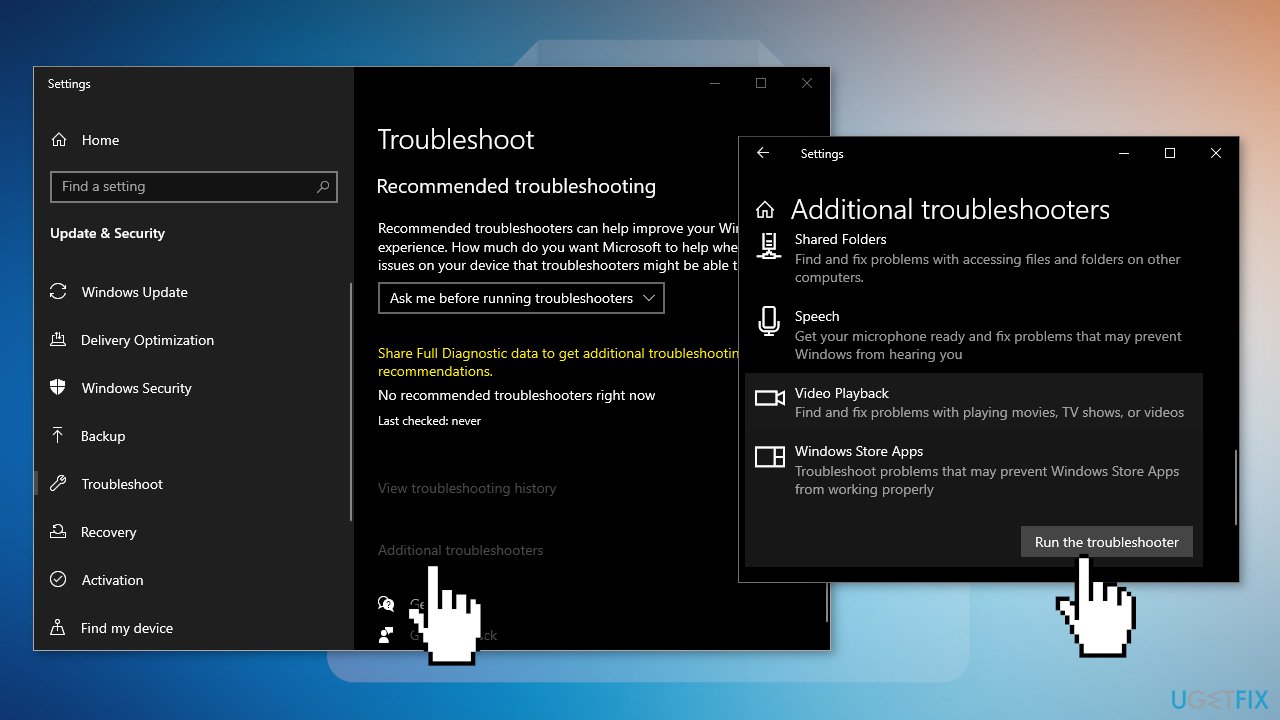
- Wait till the scan is over and the suggested fixes are applied
Solution 2. Set Windows Services to Automatic
- Press Windows Key + R to open the Run box
- Type services.msc and press Enter
- Locate Background Intelligence Transfer in the list
- Double-click and ensure the Startup type is set to Automatic and the service is running
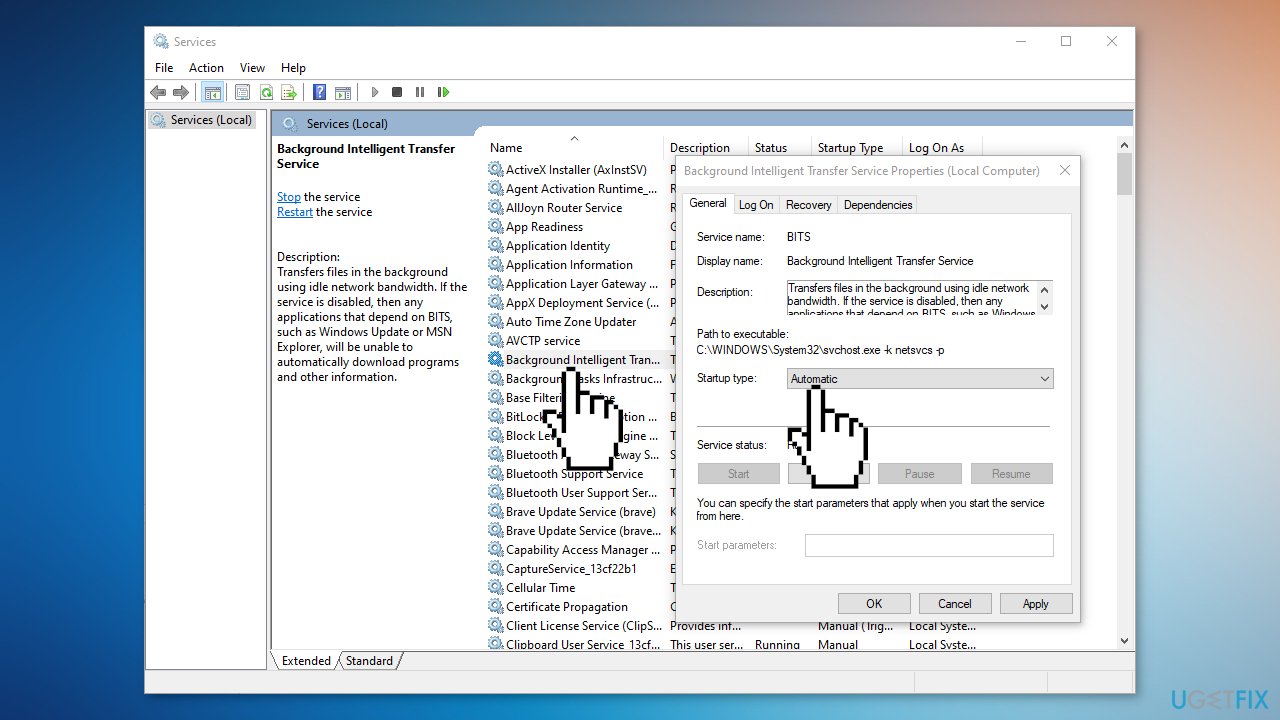
- Do the same for Windows Update service as well
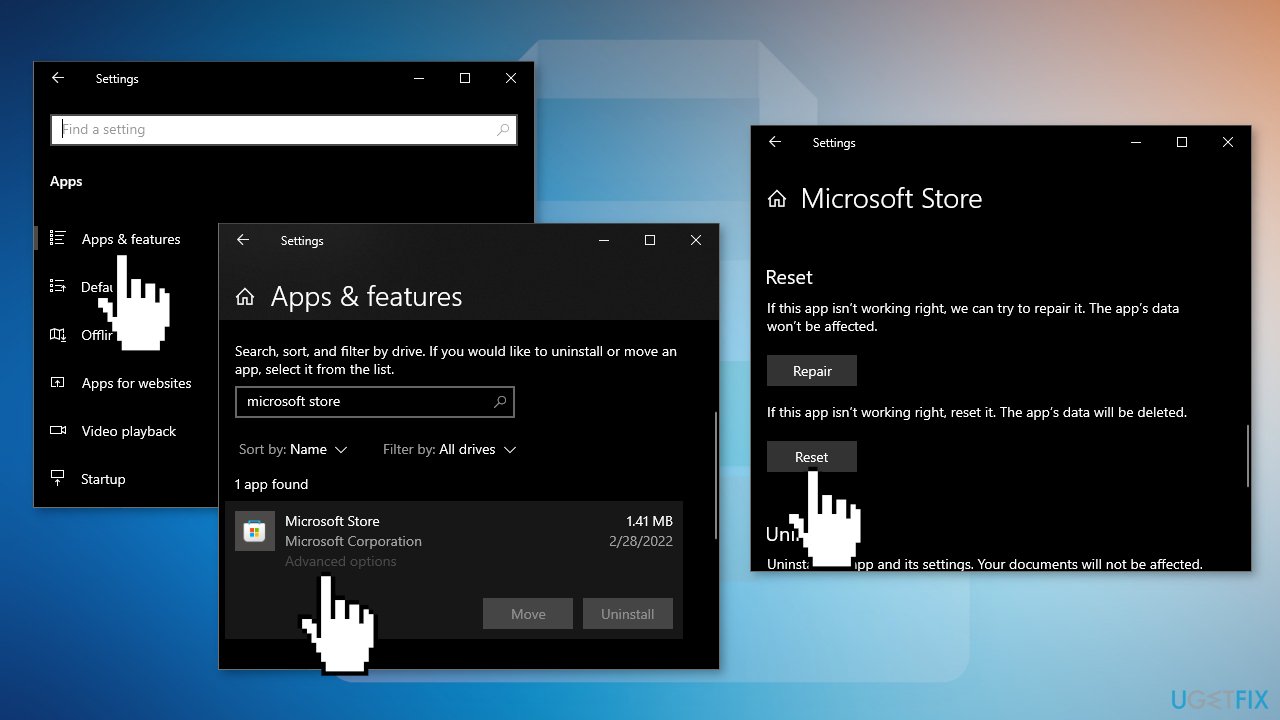
Solution 3. Reset Microsoft Store
- Press Windows + I keys to bring up Windows Settings
- Go to Apps and click on Apps and features
- Search for Microsoft Store in the search bar
- Click on the Advanced options and press Reset
Solution 4. Re-register All Store Apps
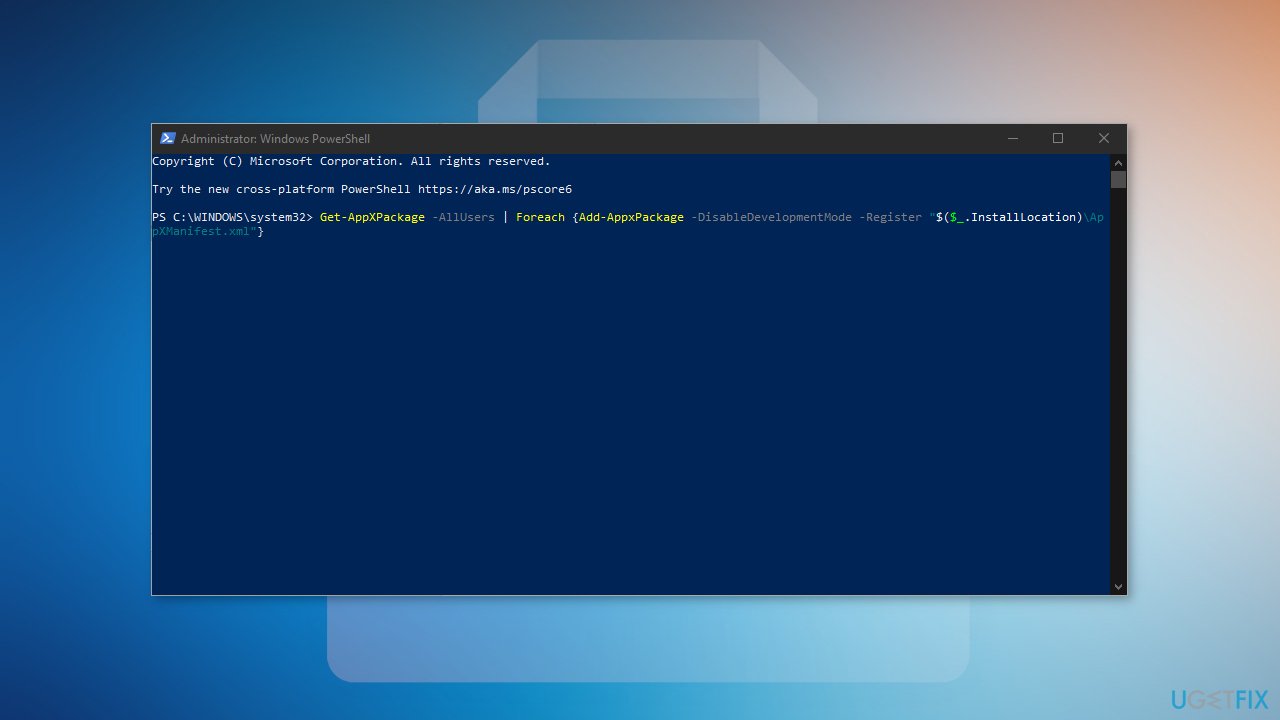
- Press Windows + X keys
- Click Windows PowerShell (Admin)
- Type the following command and hit Enter:
Get-AppXPackage -AllUsers | Foreach {Add-AppxPackage -DisableDevelopmentMode -Register "$($_.InstallLocation)\\AppXManifest.xml"}
- Restart your PC
Solution 5. Reinstall Microsoft Store
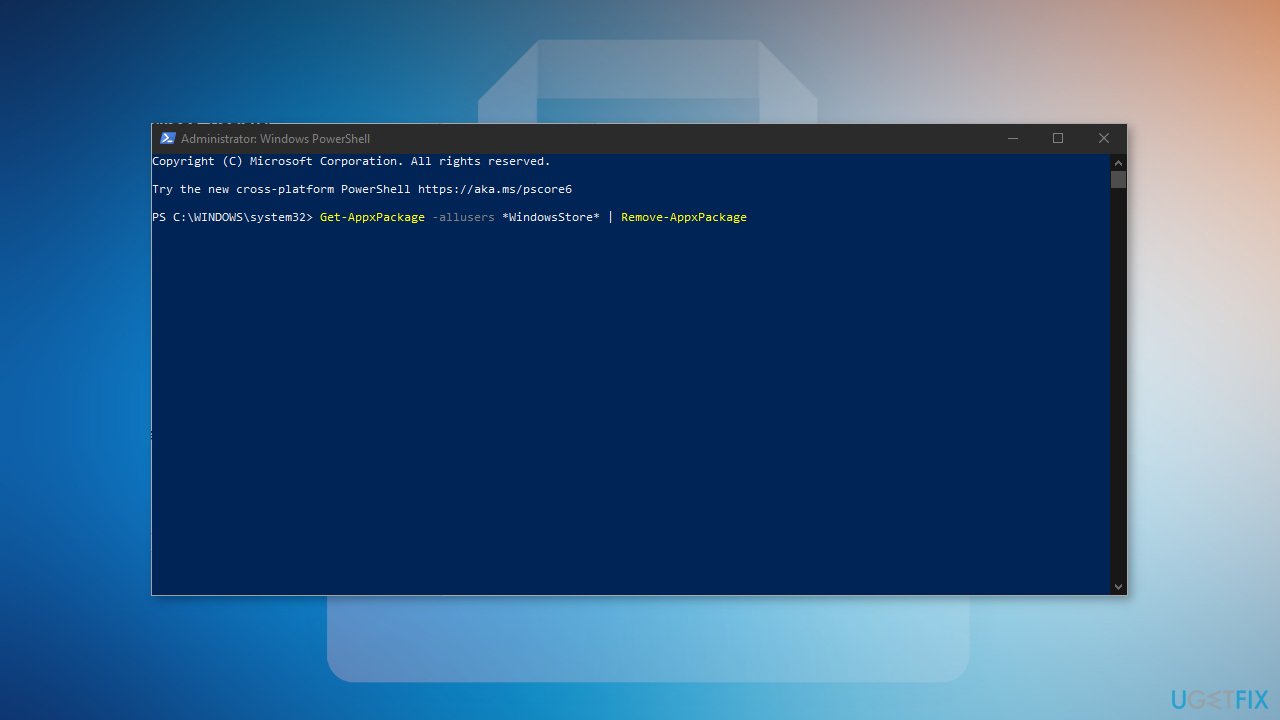
- Press Windows + X keys
- Click Windows PowerShell (Admin)
- At the prompt, type the following commands and hit Enter:
Get-AppxPackage -allusers *WindowsStore* | Remove-AppxPackage
Get-AppxPackage -allusers *WindowsStore* | Foreach {Add-AppxPackage -DisableDevelopmentMode -Register “$($_.InstallLocation)\\AppXManifest.xml”}
- Restart your PC
Bottom line
To fix the Microsoft Store error 0x80131505, you can try signing out and back into your account, running the Windows Store Apps Troubleshooter, and using maintenance tools to address common Windows problems. If these solutions do not resolve the issue, consider applying more complicated troubleshooting methods.
Frequently asked questions
The error 0x80131505 typically occurs due to issues with the Windows Store cache, corrupted system files, or problems with your internet connection.
You can reset the Microsoft Store by pressing Win + R, typing 'wsreset.exe', and hitting Enter, which will clear the cache and may resolve the error.
Yes, you can run the 'sfc /scannow' and 'DISM /Online /Cleanup-Image /RestoreHealth' commands in Command Prompt to repair any corrupted system files affecting the Microsoft Store.




Report an issue
What's wrong with this guide? We review every report and update or remove content.
Report received — thank you. We'll review and fix it.
You need a free account to submit a report.
Be the first to comment