
How to fix Microsoft Store error 0x803fb107?
Prefer to fix it yourself? The manual steps follow.
7 methods in this guide
Hello, I would like some help with the 0x803fb107 error in Microsoft Store. Whenever I try downloading apps or games from the Store, the process always fails with the mentioned error code. Any advice on this, please?
The Microsoft Store is a digital marketplace that allows users to browse and download apps, games, and media content for Windows, Xbox, and Surface devices. It provides a central location for users to find and download the latest software - they don't need to visit other - possibly dangerous places - to do so.
Despite its usefulness, it may sometimes malfunction, and the most common issues related to it are download and installation errors, such as 0x803fb107. This particular error has been around for years, and users are still looking for answers to this day. Luckily, there are several ways to fix it, and you have come to the right place if you want to deal with it once and for all.
0x803fb107 is a Microsoft Store error that can occur whenever users attempt to download or update already installed apps. It can also show up whenever players are trying to download games from the Windows Xbox app. In this case, the problem appears in both Microsoft Store and Xbox apps.
Microsoft Store app installation errors can occur due to various reasons, including bugged caches, related services not being configured properly, account issues, corrupted system files, and much more.
It can also help you clean the system from leftover files, browser caches, and other junk, making your system run smoothly.
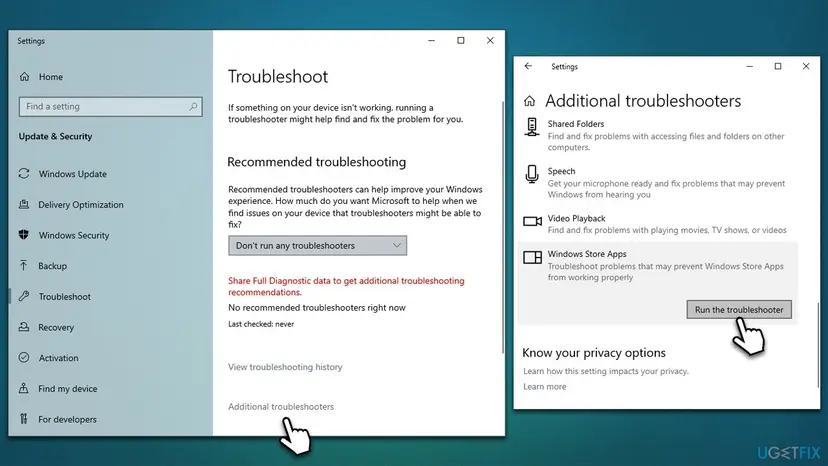
Fix 1. Run the troubleshooter
- Type Troubleshoot in Windows search and press Enter.
- On the right side, click Additional troubleshooters/Other troubleshooters.
- Scroll down to find the Windows Store Apps entry.
- Select it and click Run the troubleshooter/Run.
- Wait till the scan finishes and apply the suggested fixes, then reboot your system.
Fix 2. Relog into the Store
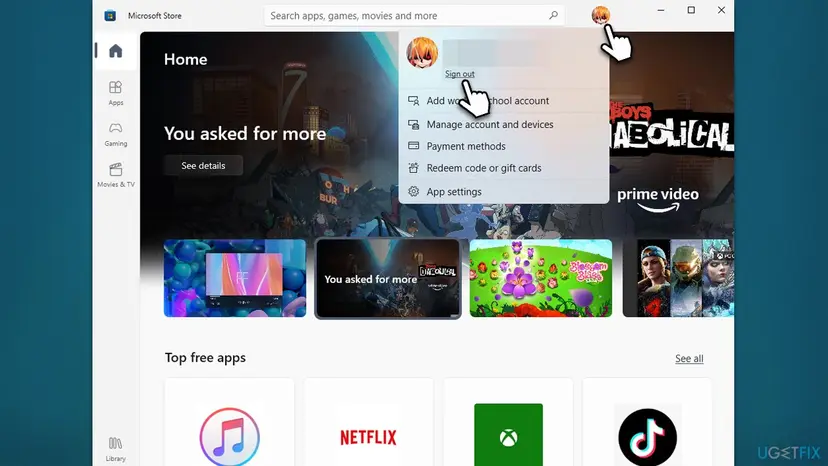
- Open the Microsoft Store.
- Click on your Profile picture and select Sign out.
- Restart your computer.
- After restarting, open the Store again.
- Click on the user icon and select Sign in.
- Enter your username and password to see if the error has been resolved.
Fix 3. Reset the Store cache
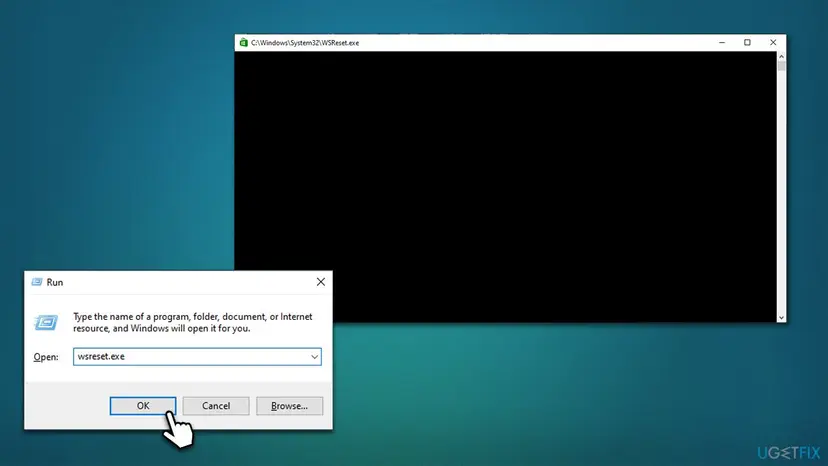
- Press the Windows key + R to open the Run dialog box.
- Type wsreset.exe and press Enter.
- This will open a command prompt window and reset the Microsoft Store app's cache.
- After the process is finished, the Microsoft Store app will automatically open.
Fix 4. Check for corrupted system files
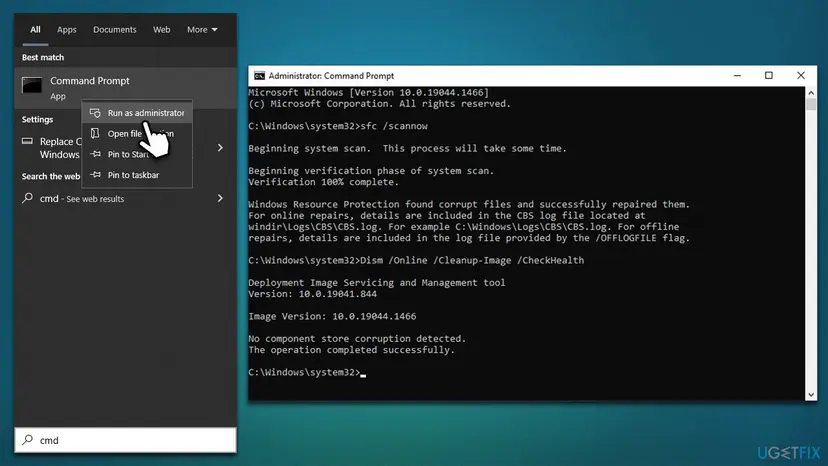
You can repair damaged system files by running commands via Command Prompt:
- Type cmd in Windows search.
- Right-click on the Command Prompt result and select Run as administrator.
- User Account Control (UAC) window will ask whether you want to allow changes to your computer - click Yes.
- Next, copy and paste the following commands, pressing Enter after each:
sfc /scannow
How to fix windows error 0x800701e1 run sfc scan
DISM /Online /Cleanup-Image /CheckHealth
DISM /Online /Cleanup-Image /ScanHealth
DISM /Online /Cleanup-Image /RestoreHealth - Restart your computer once done.
Fix 5. Reregister the app via PowerShell
- Press the Windows key + X and select Windows PowerShell (Admin).
- When User Account Control shows up, click Yes.
- Type the following command and press Enter:
Get-AppxPackage -Name Microsoft.WindowsStore | Foreach {Add-AppxPackage -DisableDevelopmentMode -Register "$($_.InstallLocation)\AppXManifest.xml"} - Close down Command Prompt.
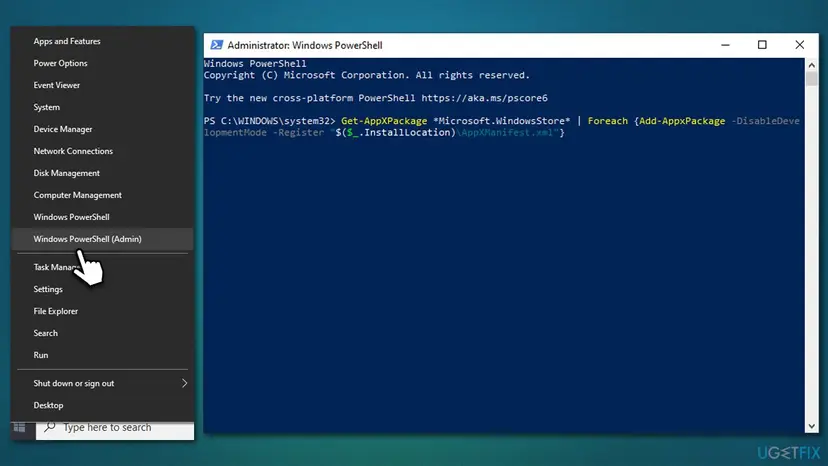
This will repair and reset the Microsoft Store app to its default settings and might be able to help you fix the 0x803fb107 error. Please note that doing this will remove any temporary files and reset any settings to their default values, so you may have to sign in again or reconfigure some settings after resetting or repairing the app.
Fix 6. Enable Microsoft Store Install Service
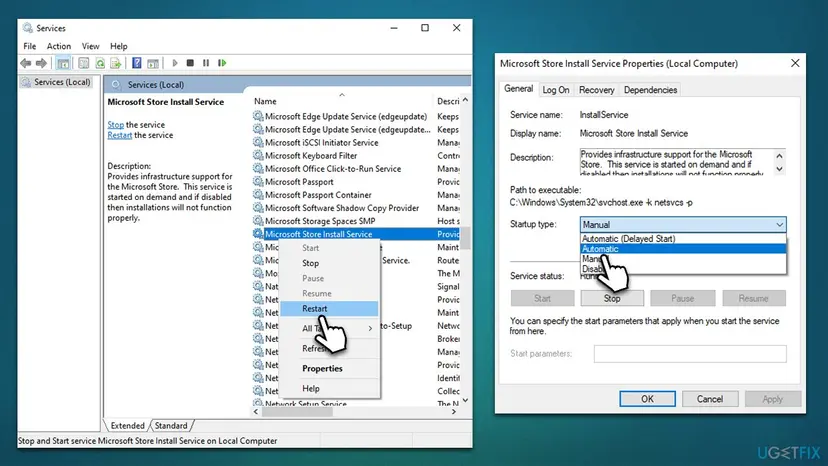
- Type Services in Windows search and hit Enter.
- Locate Microsoft Store Install Service.
- If it is already running, right-click and select Restart.
- if the service is not running, double-click it, and pick Automatic under the Startup type from the drop-down menu.
- Click Start, Apply, and OK.
Fix 7. Reinstall Windows
There are several ways you can do this, but we recommend using Media Creation Tool, which would download and install files from Microsoft Server directly. Before proceeding, disable or uninstall third-party security software and disconnect any unnecessary peripherals, such as printers. Also, for the best result, we recommend copying all personal files from the main drive and wiping them all instead of keeping them.
- Visit the official Microsoft website and download Windows 10 installation media (Windows 11 version).
- Double-click the installer and select Yes when the User Account Control (UAC) prompt appears.
- Agree to the terms and conditions.
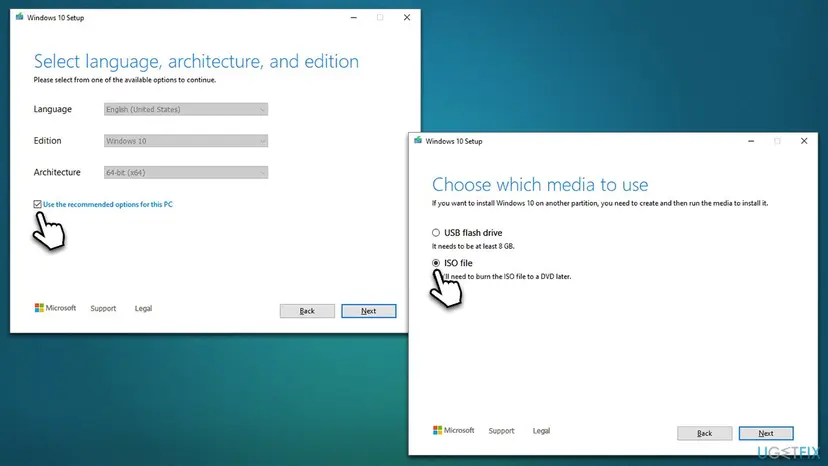
- Select the Create installation media (USB flash drive, DVD, or ISO file) for another PC option and click Next.
- Check the Use recommended options for this PC checkbox and click Next.
- Choose the ISO file option and click Next.
- Once the ISO file is prepared, insert it into the malfunctioning PC.
- Restart the machine and press F8, F10, F12, Del, or another button that will take you to the BIOS.
- In the BIOS, go to the Boot section and set the boot priority to Flash drive.
- Restart the system.
- When prompted, pick the Delete everything option.
- Follow the on-screen instructions to reinstall Windows.
Did this fix work?
One click, no account. It tells the next reader which guides are worth their time.
Questions and experiences: fix Microsoft Store error 0x803fb107
Still broken, or found a fix we did not cover? Ask here: members and our editors answer. Reading is open; writing needs a free account.
…