How to fix
Microsoft Store error 0x8D050002
on Windows
Resolve Microsoft Store error 0x8D050002 on Windows 10 or 11 quickly and effortlessly. Get back to browsing apps in minutes, expertly tested solutions a…

What causes How to fix Microsoft Store error 0x8D050002 in Windows?
- Incorrect Internet settings
- Outdated Microsoft Store
- Corrupted files
- Registry issues
- Cookies and cache accumulation
Repairs Windows system files, removes malware, and restores a clean OS state — without reinstalling.
Hello. I cannot download some apps from the Microsoft Store because I receive an error 0x8D050002. How can I fix it? Thank you in advance.
The Microsoft Store is a built-in program for all devices with the Windows operating system. It provides a way for users to conveniently install various applications and update them all at once. Since the app store was introduced, users do not need to install apps from unofficial sources and risk downloading PUPs[ref en-1] or malware. Apps that get listed on the Windows Store go through a lengthy review process.
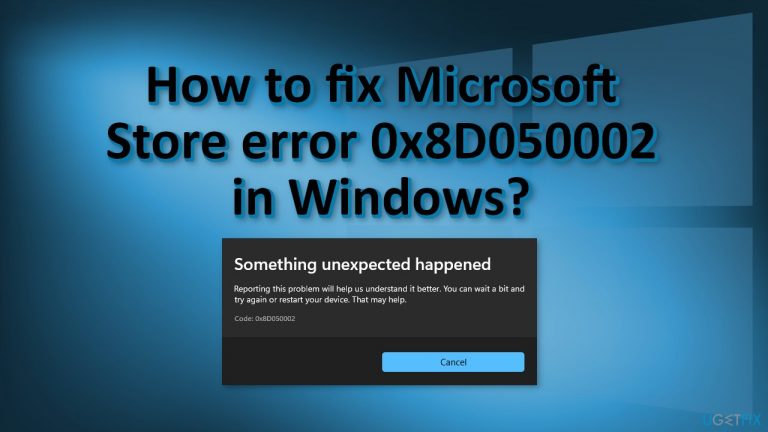
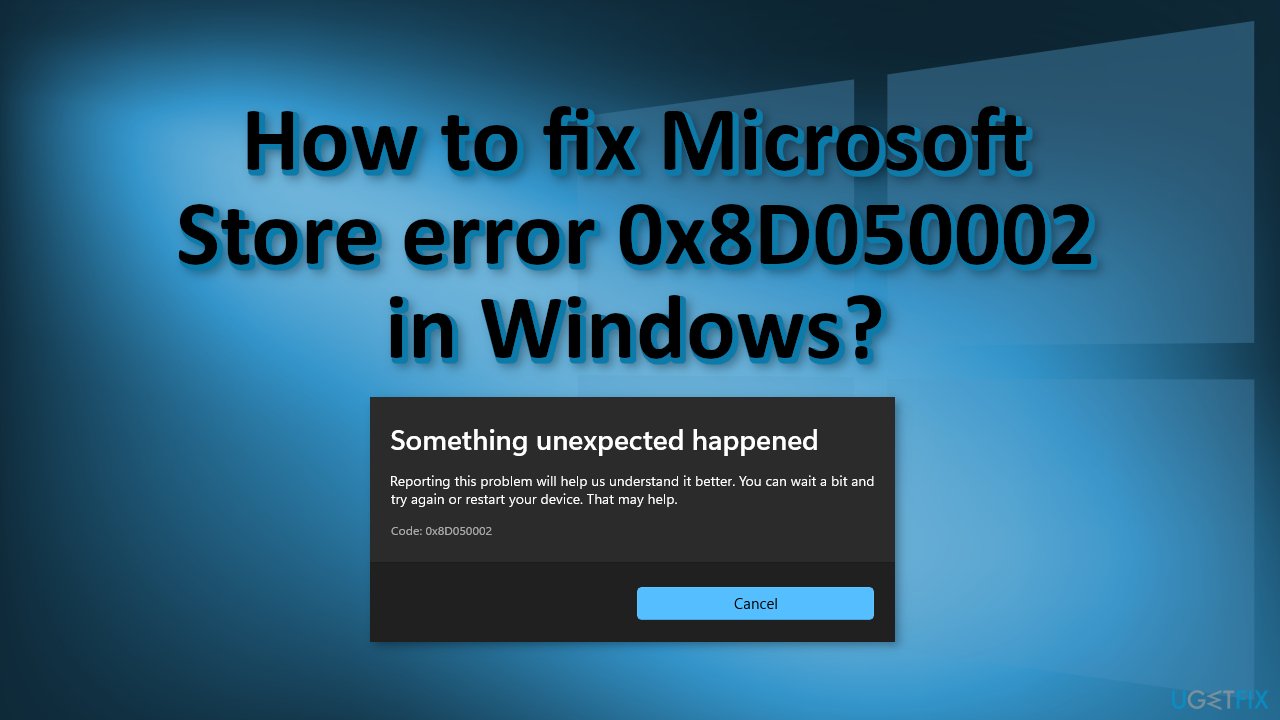
However, some users are unsuccessful when they try to download applications like Discord or PowerToys from the Windows App Store. They report receiving an error code 0x8D050002 with a message:
We can't install this app right now. In the Library, check for updates from the Microsoft Store, then try again.
Unhappy users have flooded the online forums asking for help. If you experience this error, we assume that you have already tried updating the Microsoft Store and it did not help, so we did not include this step in our guide. We have previously written about other Microsoft Store errors like 0x80D02017, 0x80073D12, and 0x8013153B so you can look for additional fixes.
Even though it is unknown what exactly causes the 0x8D050002 error, some suspect that it could appear due to incorrect Internet settings. If you want to avoid going through all the possible solutions, we strongly recommend using a maintenance tool [d1] that can fix a lot of the system errors, like BSoDs,[ref en-2] registry issues, corrupted files, etc. The tool can also clear your machine from cookies[ref en-3] and cache which should help with the process.
If you are ready for the manual removal process, make sure to follow the steps carefully and in an orderly manner. However, if you are unsuccessful in repairing the issue, you can always use official developer websites to install the desired software.
Solution 1. Run the Windows Store Apps Troubleshooter
- Press Windows key + R to open the Run box
- Type ms-settings:troubleshoot and press Enter to open up the Troubleshooting tab of the Settings tab
- Go to the Find and Fix other problems, then click on Windows Store apps and select Run the troubleshooter
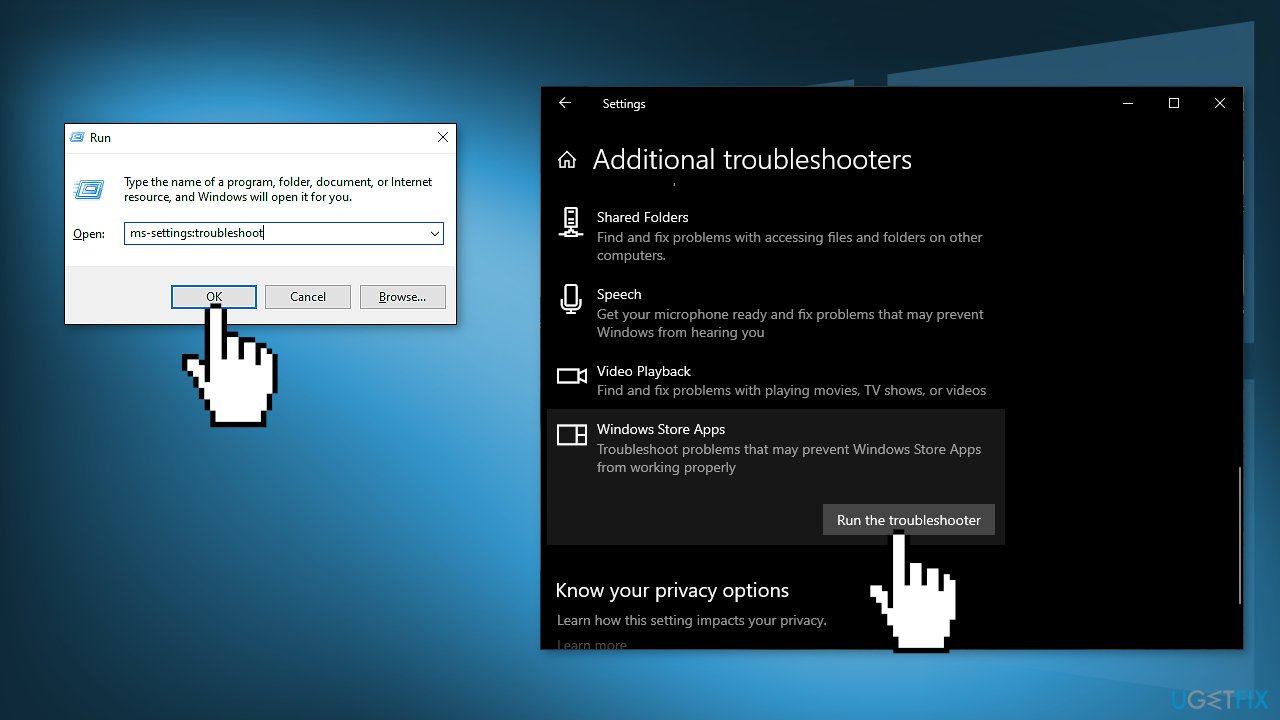
- Wait until the scan is complete, then follow the on-screen prompts to apply the repair strategy that is recommended
- Restart your computer
Solution 2. Uninstall Third-Party Antivirus Software and VPNs
- Press Windows key + R to open up a Run dialog box
- Type appwiz.cpl and press Enter
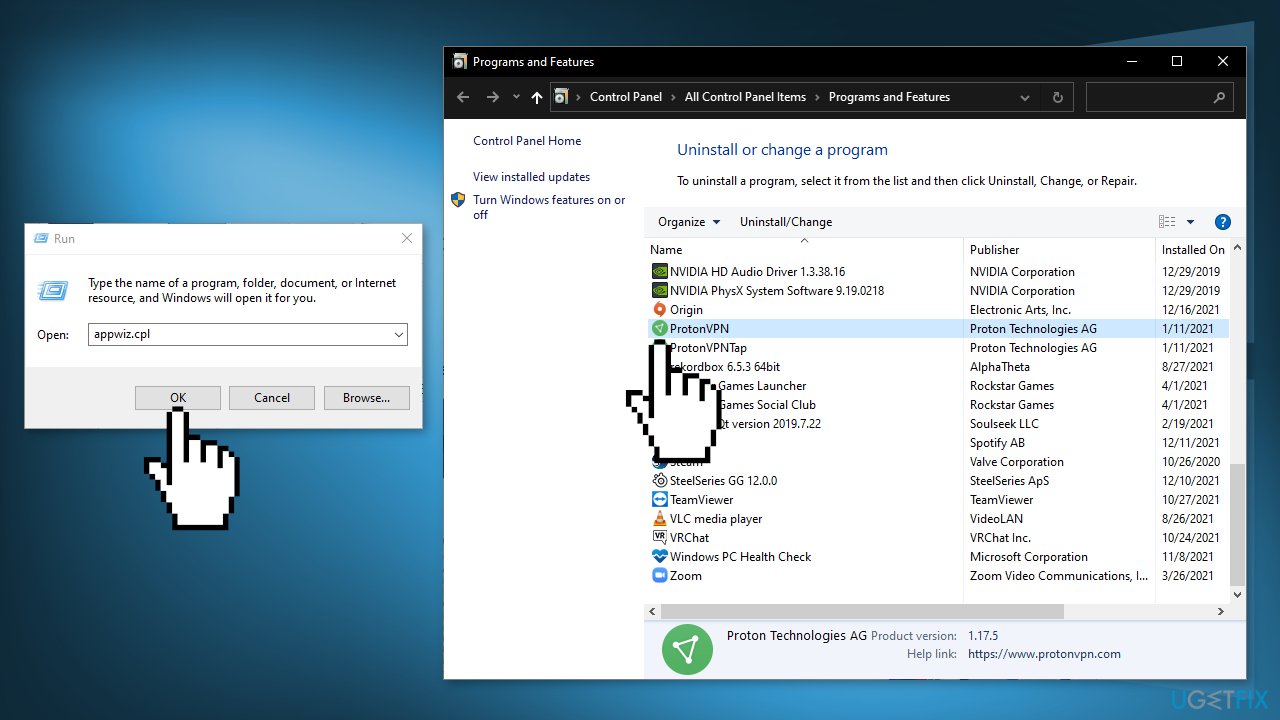
- Scroll down through the list of installed applications and locate your 3rd party firewall or VPN client
- Once you see it, right-click on it and choose Uninstall
- Follow the on-screen prompts from the next screen to complete the uninstallation
- Restart your PC
Solution 3. Reset Windows Socket Catalog
- Press Windows + X keys to start Windows PowerShell (Administrator)
- Type in the following command and press Enter:
netsh Winsock reset
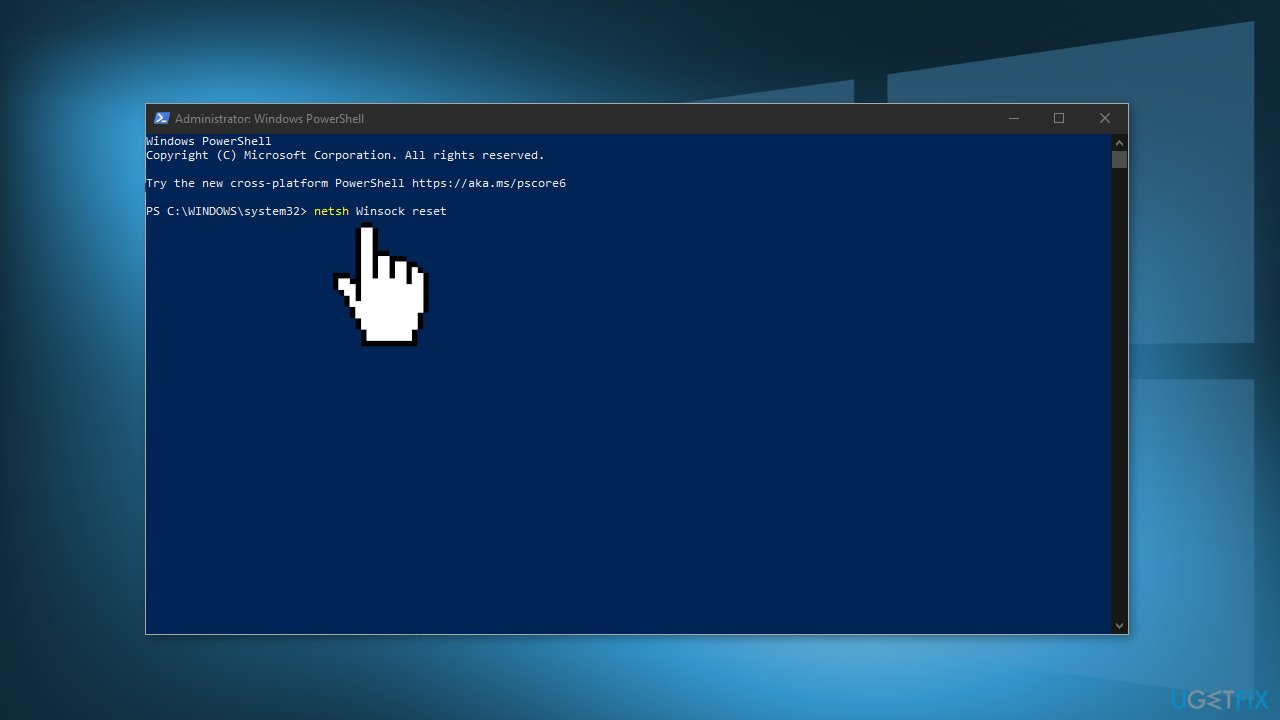
- Restart your PC
Solution 4. Clear Microsoft Store Cache
- Open the Start menu and type in PowerShell
- Choose Run as administrator
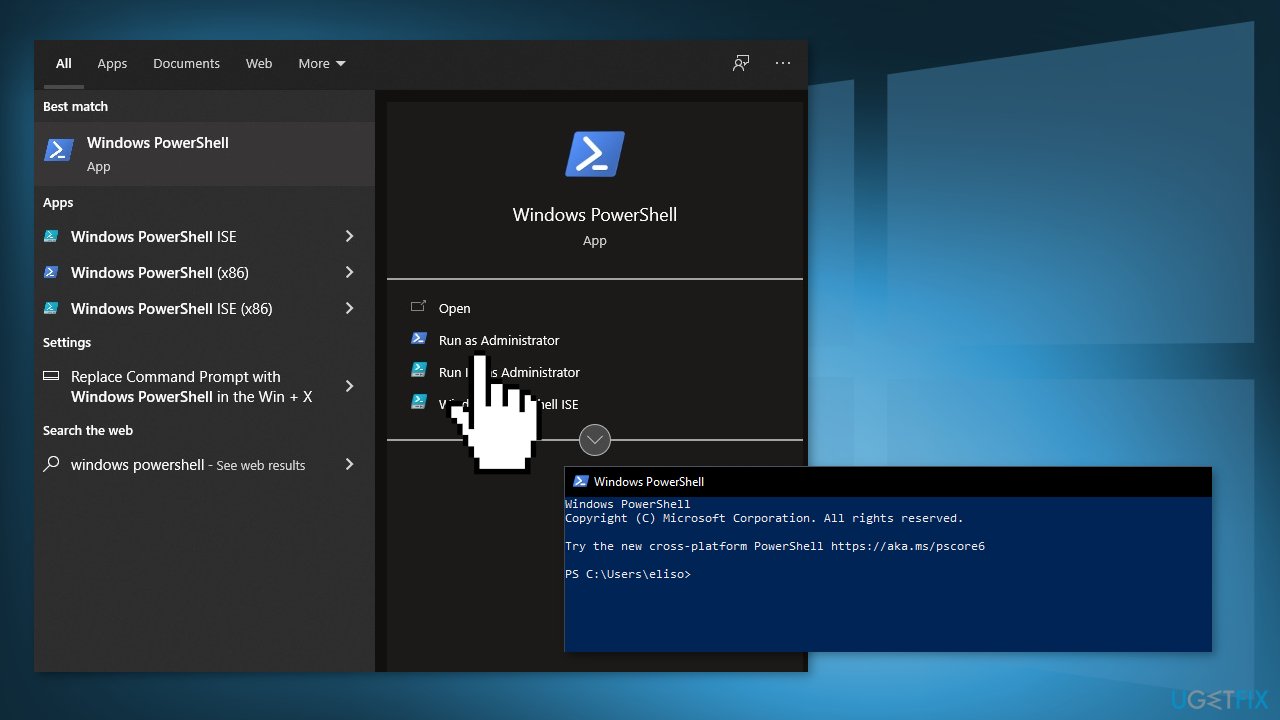
- Type in wsreset.exe and press Enter
Solution 5. Reset the App Store
- Press Windows key + R to open the Run dialog box
- Type in powershell and press Ctrl + Shift + Enter to open an elevated Powershell prompt
- Click Yes to grant administrative privileges to the Powershell window
- Type or paste the following command to reset the Windows Store app:
Get-AppXPackage *WindowsStore* -AllUsers | Foreach {Add-AppxPackage -DisableDevelopmentMode -Register "$($_.InstallLocation)\\AppXManifest.xml"}
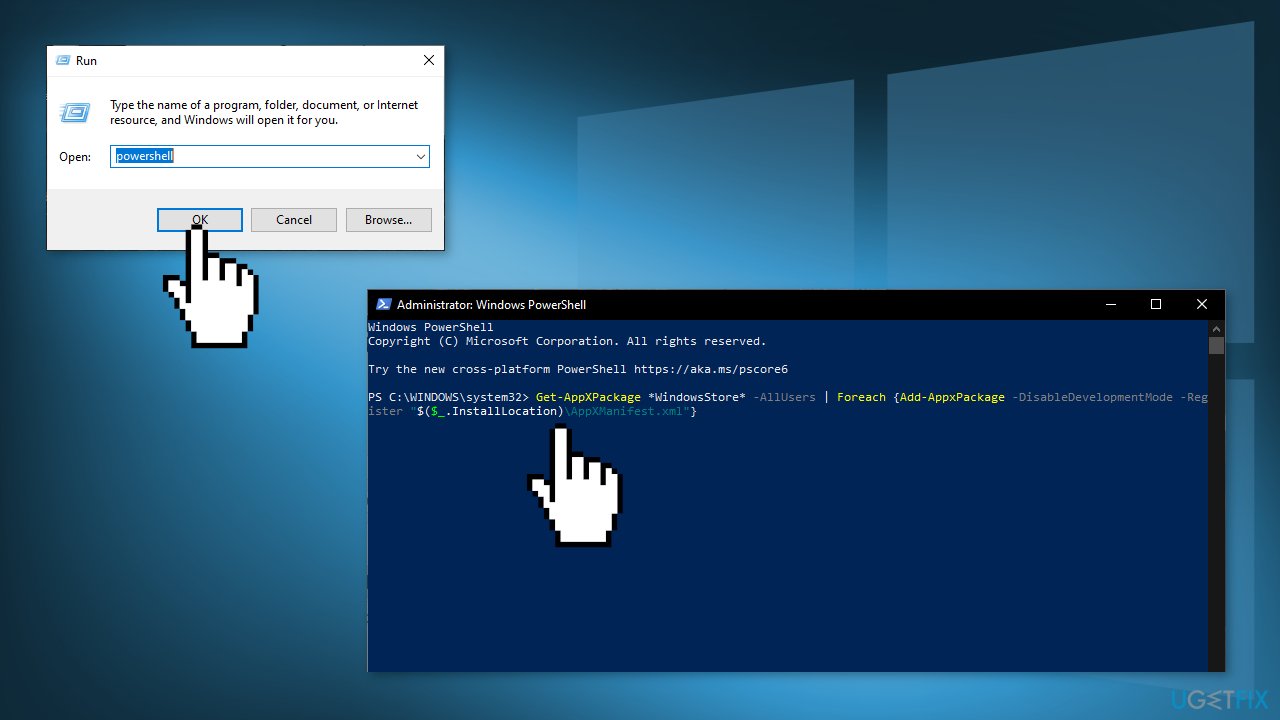
- Restart your computer and see if the issue is resolved
Solution 6. Change DNS Settings
- Access Network Connections by right-clicking the Windows logo in the right bottom corner
- Right-click on your active Network connection and choose Properties
- Choose Internet Protocol Version 4 (TCP/IPv4) and click Properties.
- Under Use the following DNS server addresses option set these values:
Preferred DNS Server: 8.8.8.8
Alternate DNS Server: 8.8.4.4
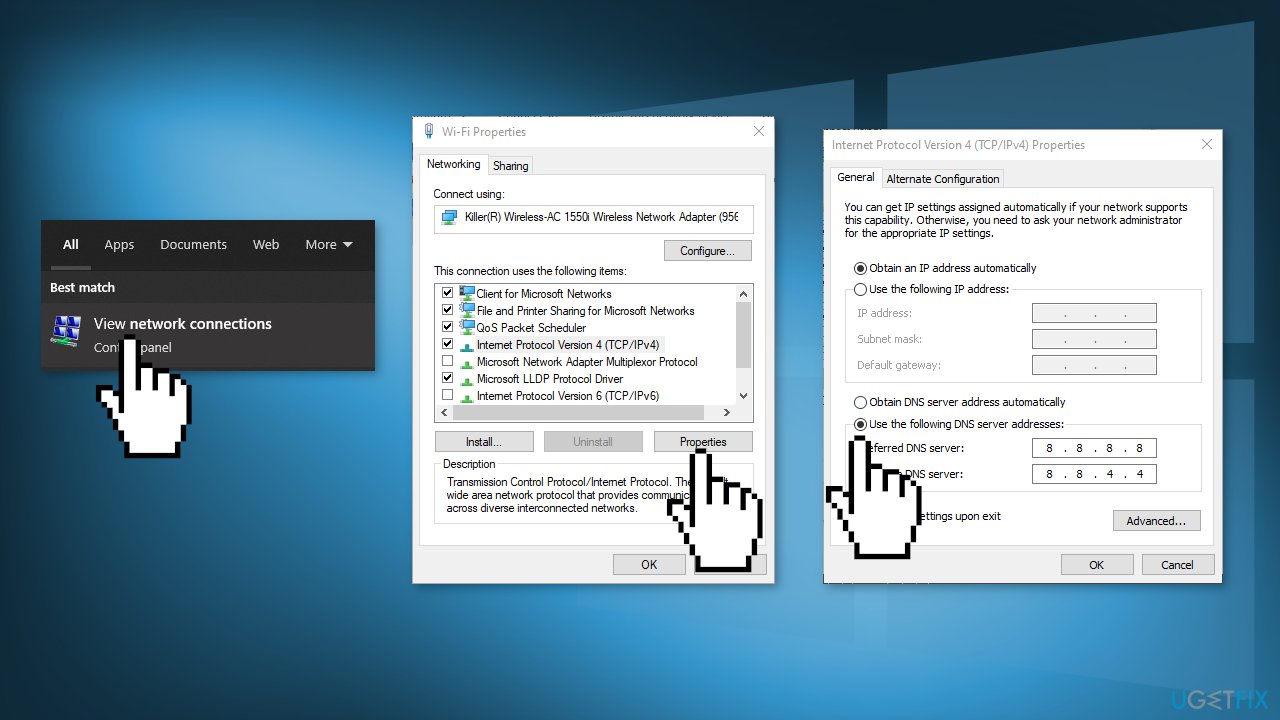
- Click OK to save the changes
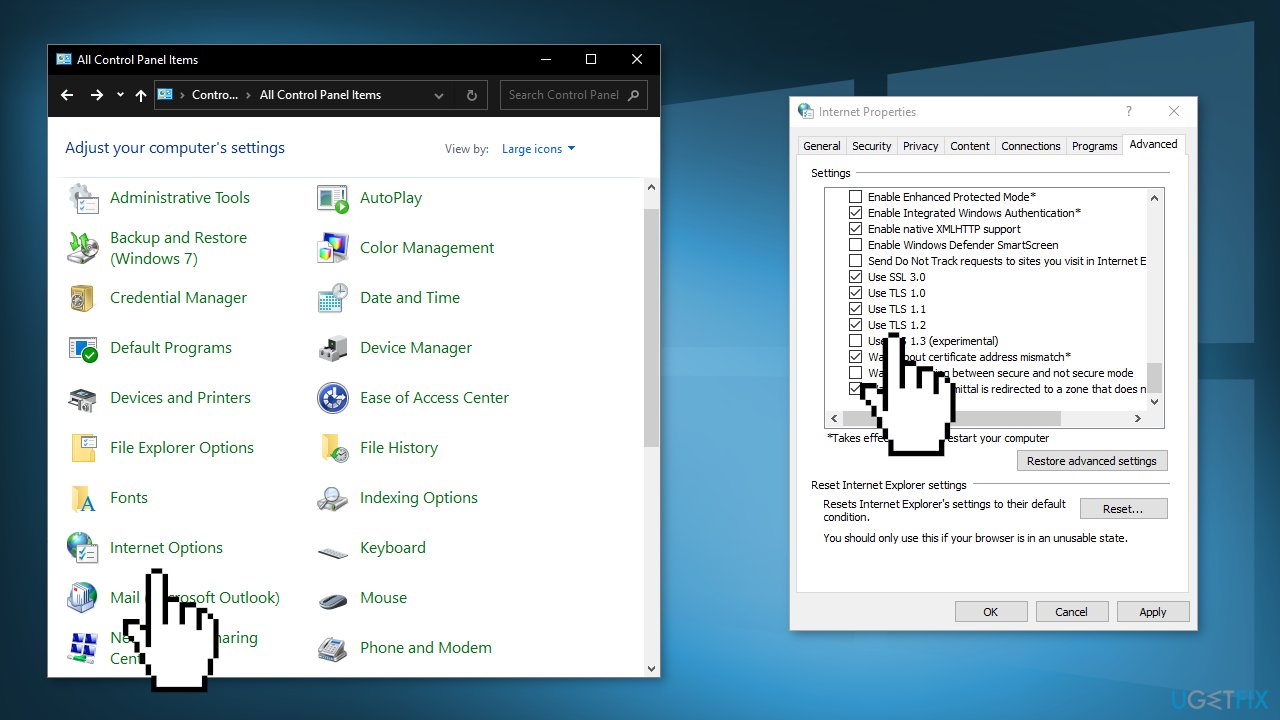
Solution 7. Adjust Internet Options
- Open the Control Panel, and select Internet Options
- Go to the Advanced tab, check the boxes on Use SSL 3.0, Use TLS 1.0, Use TLS 1.1, Use TLS 1.2
- Click OK and restart the device
Bottom line
To fix the Microsoft Store error 0x8D050002, you can run the Windows Store Apps Troubleshooter, use a maintenance tool to address system errors, or manually check for updates. If these solutions do not resolve the issue, consider downloading the desired software from official developer websites.
Frequently asked questions
This error typically occurs due to network connectivity issues, corrupted cache, or problems with your Microsoft account settings in Windows.
You can clear the cache by pressing Win + R, typing 'wsreset.exe', and pressing Enter, which will reset the Microsoft Store cache.
Yes, ensuring your Windows 10 or Windows 11 is up-to-date can help resolve compatibility issues that may trigger this error.




Report an issue
What's wrong with this guide? We review every report and update or remove content.
Report received — thank you. We'll review and fix it.
You need a free account to submit a report.
Be the first to comment