
How to fix Microsoft Teams error 8018001C in Windows?

Prefer to fix it yourself? The manual steps follow.
7 methods in this guide
Every time I try to log in to MS Teams I get an error code 8018001C. After clicking Done, I can then log in but since it's my work PC I need to do this every day, and every time this error message pops up.
Although Microsoft Teams is a popular tool used in business and home environments, it occasionally has problems, and one error you might encounter is 8018001C. It usually arises during the sign-in procedure, prohibiting users from accessing and utilizing their Teams account's capabilities.
Users generally encounter error code 8018001C when they try to sign in to Microsoft Teams. This error can occur on both personal and work accounts, often appearing suddenly and disrupting the workflow. The error message indicates a problem with the sign-in process, and users are unable to proceed without resolving it.
The causes of error code 8018001C are usually straightforward but important to address. This error can be due to issues with account credentials, problems with device compliance policies, or conflicts with organizational security settings. Additionally, network issues or temporary glitches with the Teams service can also trigger this error.
It is crucial to confirm your account credentials, make sure your device complies with all compliance regulations, and look for any inconsistencies with corporate security settings in order to fix error code 8018001C. Resolving network problems and making sure the Teams service is operating correctly can also aid in resolving this error.
This tool can help diagnose and fix problems when the underlying cause is difficult to pinpoint.
Fix 1. Clear Teams credentials
- Lof off from Microsoft Teams.
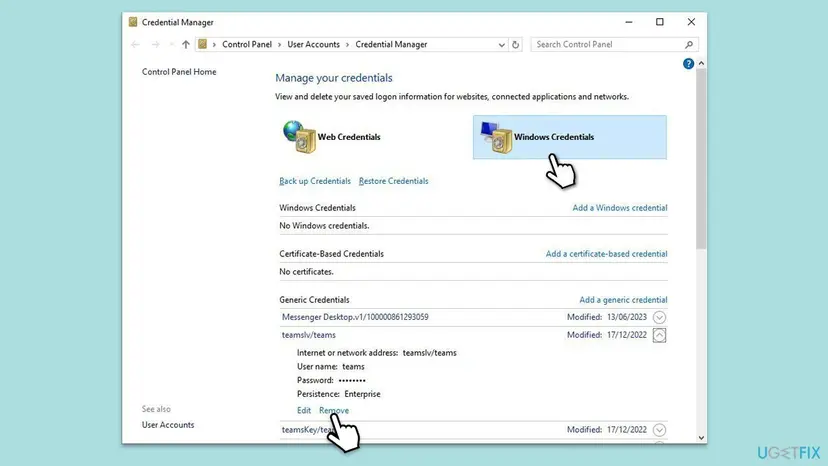
- Type Credential Manager in Windows search and press Enter.
- Select Windows Credentials.
- Locate and remove any stored credentials related to Microsoft Teams.
- Restart Teams and re-enter your login details.
Fix 2. Update Windows
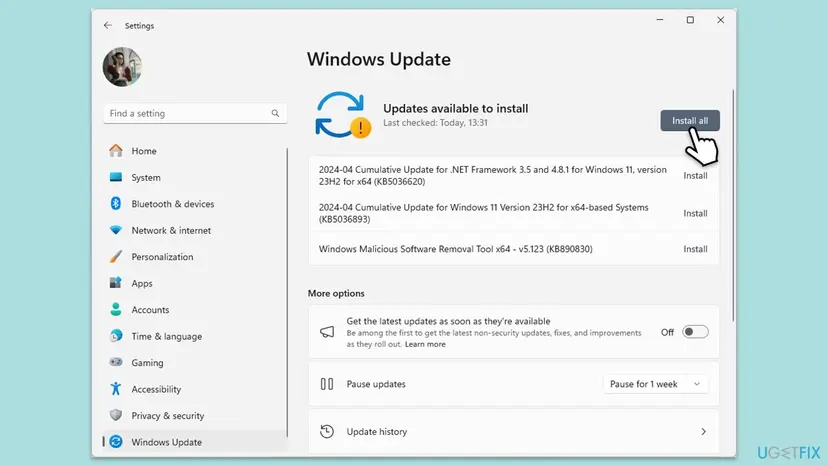
- Type Updates in Windows search and hit Enter.
- If updates are available, click Install updates.
- Otherwise, click Check for updates.
- If optional updates are available, install them as well.
- When all the update processes are complete, restart your computer.
Fix 3. Clear Teams cache
- Close down Microsoft Teams.
- Press Win + E to open File Explorer.
- Ensure Hidden files are visible.
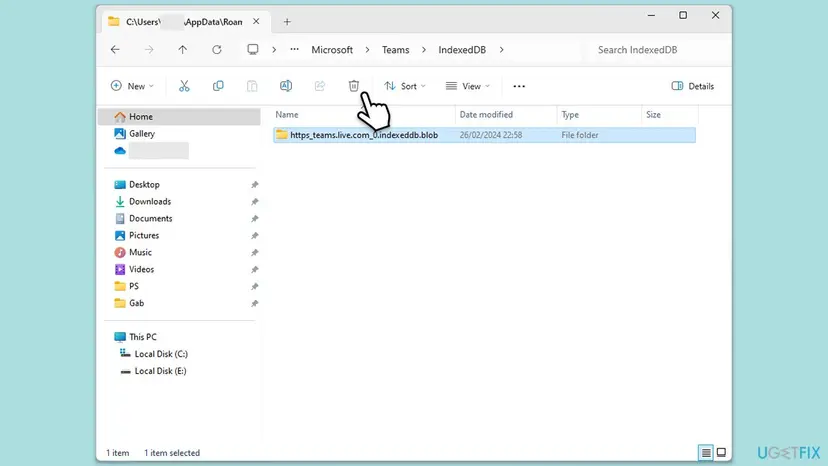
- In the address bar, type in %appdata%\Microsoft\teams and press Enter.
- Delete the contents of the following folders:
%appdata%\Microsoft\teams\application cache\cache
%appdata%\Microsoft\teams\blob_storage
%appdata%\Microsoft\teams\Cache
%appdata%\Microsoft\teams\databases
%appdata%\Microsoft\teams\GPUcache
%appdata%\Microsoft\teams\IndexedDB
%appdata%\Microsoft\teams\Local Storage %appdata%\Microsoft\teams\tmp - Make sure you empty the Recycle Bin (or use Shift + Del combination to delete these files).
- Restart your computer.
Fix 4. Reinstall Microsoft Teams
Reinstalling Microsoft Teams can fix corrupted files that might be causing error 8018001C.
- Type Control Panel in Windows search and press Enter.
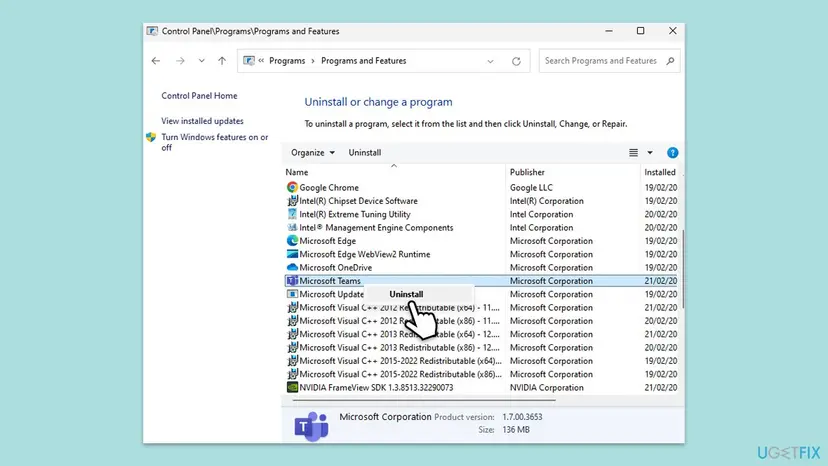
- Go to Programs > Uninstall a program.
- Find Microsoft Teams, right-click, and select Uninstall.
- Follow the prompts to remove the app.
- Once done, press Win + E to open File Explorer.
- In the View tab at the top of the window, enable Hidden Files.
- Go to C:\Program Files\WindowsApps location.
- Scroll down to find the Microsoft Teams folder and delete it (alternatively, you can rename it).
- Now type %AppData% in Windows search and press Enter.
- Delete the Teams folder.
- Finally, restart your device and reinstall the app.
Fix 5. Disable antivirus/firewall temporarily
Sometimes, antivirus or firewall settings can interfere with the sign-in process. Temporarily disabling them can help.
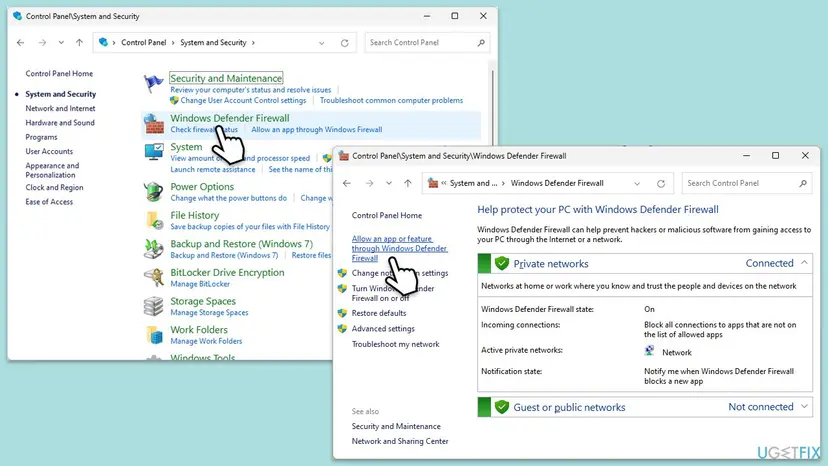
- Open the Control Panel and navigate to System and Security > Windows Defender Firewall.
- Select Allow an app or feature through Windows Defender Firewall.
- Click Change settings and enter your administrator password if prompted.
- Find Microsoft Teams in the list and check both the Private and Public boxes.
- Click OK to save your changes.
Fix 6. Use a different device or browser
- Try signing in to Microsoft Teams on another device.
- Alternatively, open a different web browser.
- Go to the Microsoft Teams website and attempt to sign in.
Fix 7. Create a new user account
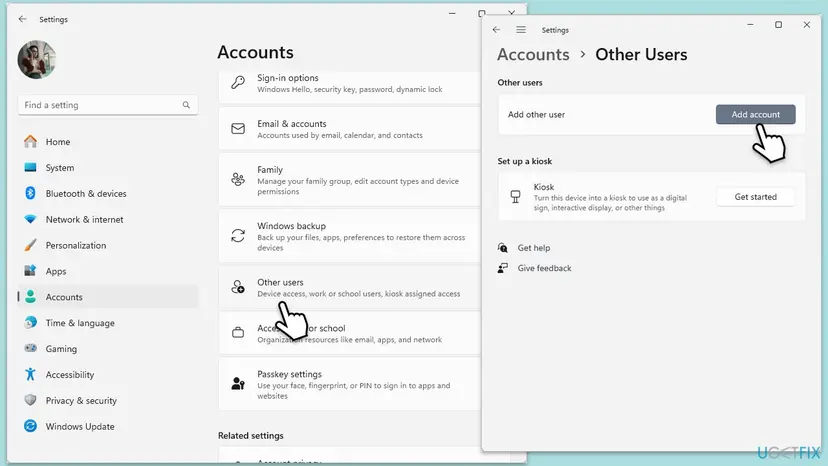
- Open Windows Settings.
- Go to Accounts then Family/Family & other users.
- Under Other users, click Add account/Add someone else to this PC.
- Follow the prompts to create a new user account. If you don't have Microsoft account details, you can choose I don't have this person's sign-in information followed by Add a user without a Microsoft account.
- Assign a username and password for the new account and complete the setup.
- Then go back to the Accounts section. Under Family/Family & other users, select the newly created account and click Change account type.
- Under Account type, pick Administrator and click OK.
Did this fix work?
One click, no account. It tells the next reader which guides are worth their time.
Questions and experiences: fix Microsoft Teams error 8018001C in Windows
Still broken, or found a fix we did not cover? Ask here: members and our editors answer. Reading is open; writing needs a free account.
…