
How to fix mouse if it’s clicking by itself on Windows 10?
Prefer to fix it yourself? The manual steps follow.
5 methods in this guide
I’ve recently noticed that my mouse clicks itself on random occasions. At first, I thought that the mouse itself is dying, so first of all I’ve changed the batteries, but that did not help. Then I changed my mouse, but the same irritating clicks continue. In fact, I can’t use my PC normally because the clicks happen accidentally and, which is why stuff I don’t really want opening is launched. This is quite annoying. Could you please tell me what this issue could be related to? Thanks! By the way, I’m running Windows 10 1809 version.
Windows 10 brought lots of issues related to keyboard and mouse for some reason. While some people claim that the keyboard doesn’t work after upgrading to Win 10, the others are facing problems, such as an uncontrollable mouse.
This time, one of the devoted Windows 10 users reported being unable to use the mouse since it’s clicking by itself all the time. As a consequence, he cannot take control over his computer as the uncontrolled mouse clicks trigger random files, apps, software to open.
Mouse clicking by itself bug may occur on all Windows types but prevails on Windows 10 OS these days. It’s natural as more and more people are upgrading older Windows versions to Windows 10. Not to mention, after performing research related to this mouse bug, we have found that not only wireless/wired mouse can get uncontrollable, but also touchpad as well.
While some of the users report that their mouse pointer is moving in the vertical direction, the others complain about the mouse clicking by itself, the last group of people experiences these inconveniences simultaneously. Some experts claim that mouse clicking by itself issue is triggered by external factors, such as dust, a piece of food leftovers stuck inside the mouse, and similar.
Nevertheless, mouse pointer bug may also be caused by driver failures. Thus, if your mouse clicks itself, try to perform the following steps.
Fix 1. Check for hardware issues
In some cases, the uncontrollable mouse can be a result of a simple hair or a speck of dust that is stuck inside of it. Thus, open your mouse and clean it with pressurized air. Do not forget the USB port itself - it can also cause the mouse to click by itself. Also, you can try using a different USB port.
Also, every mouse button has a predetermined amount of clicks before it breaks. Therefore, you should swap your clicks to make sure that it is a problem. Do the following:
- Right-click on the Start button and pick Settings
- Go to Devices
- Click on Mouse in the left pane
- Under Select your primary button, pick Right
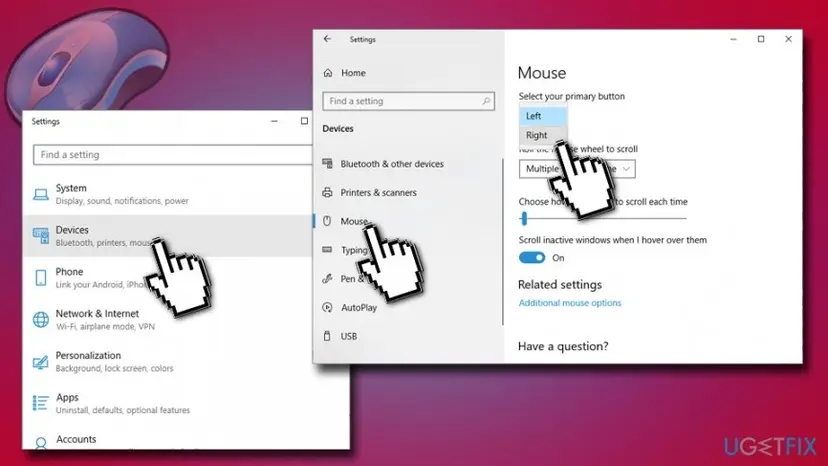
Mouse clicking by itself select default mouse click
If the mouse stopped clicking by itself, it means that you need to purchase a new one, as the left button is broken.
Fix 2. Update mouse driver via Device Manager
Device drivers are vital parts of the hardware because they allow the device to work appropriately. Thus, corrupted or outdated drivers might cause mouse clicking by itself. To update your mouse drivers, perform the following:
- Right-click on Start and pick Device Manager. You can do the same by opening search, typing Device Manager and clicking on it
- Expand Mice and other pointing devices option by clicking on it (on the left pane)
- Right-click on the mouse and pick Update Driver
- Select Search automatically for updated driver software and wait for the system to finish the update automatically
- Reboot your PC
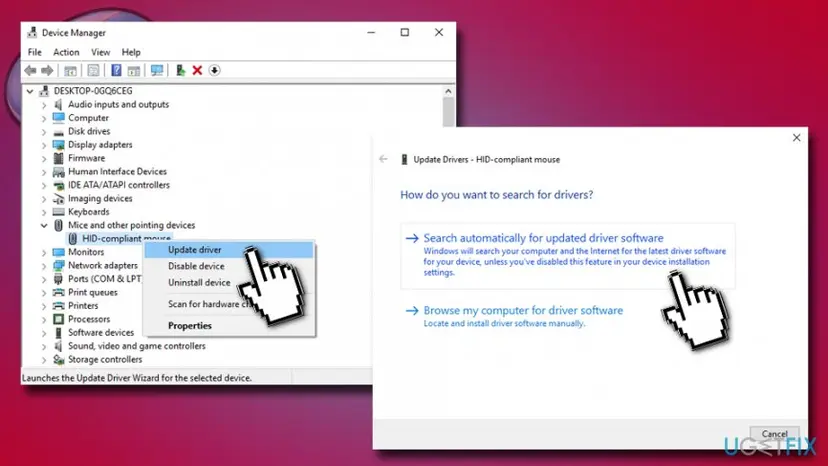
Mouse clicking by itself update mouse driver
Fix 3. Disable Click Lock
Click Lock might be a useful feature for some users, but it might cause the mouse clicking by itself issue. Therefore, you should try to disable this feature:
- Go to Settings and pick Devices
- In the left pane, select Mouse
- Under Related settings, click Additional mouse options
- Untick the marker next to Turn on Click Lock and press OK
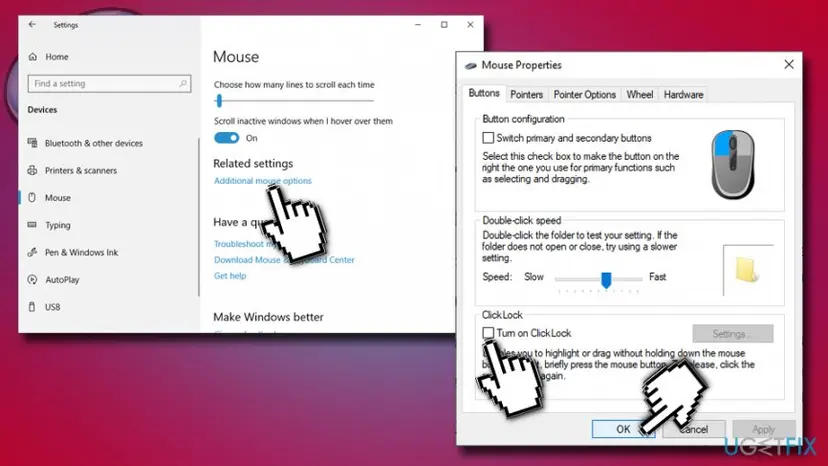
Mouse clicking by itself disable click lock
Fix 4. Scan your device for viruses in order to fix mouse clicking by itself
In our practice, several instances had occurred when people experienced mouse clicking by itself bug because their PC was controlled remotely. You should complete the scan in Safe Mode in order to make sure the malware is disabled:
- Go to Settings > Update & Security > Recovery
- On the right pane, locate Advanced startup and pick Restart now
- After Windows restarts choose the following options: Troubleshoot > Advanced option > Startup Settings
- Select Enable Safe Mode and click on Restart
Fix 5. Disable Remote Desktop connection
Be aware that ransomware such as Ryuk, Everbe, VACv2, or others can be introduced to your PC via the RDP. We advise users to turn off the remote desktop feature:
- Right-click on Start button and select System
- On the left pane, scroll down to select Remote Desktop
- Under Enable Remote Desktop, click the switch to set it Off
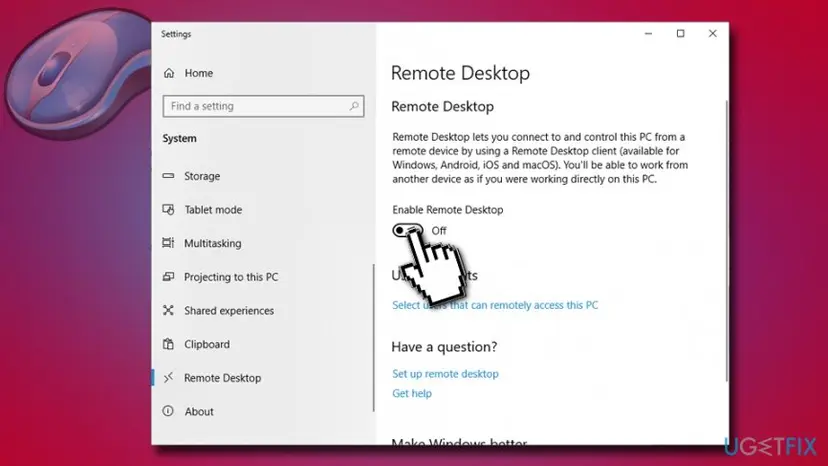
Mouse clicking by itself disable remote desktop
Did this fix work?
One click, no account. It tells the next reader which guides are worth their time.
Questions and experiences: fix mouse if it’s clicking by itself on Windows 10
Still broken, or found a fix we did not cover? Ask here: members and our editors answer. Reading is open; writing needs a free account.
…