How to fix
Msedgewebview2.exe high CPU usage
on Windows
Resolve high CPU usage from Msedgewebview2.exe on Windows 10 and 11 effortlessly. Follow expert-tested solutions for smoother performance today!


What causes How to fix Msedgewebview2.exe high CPU usage in Windows?
- System file corruption
- Malware infections
- General bugs
- Widgets loaded from Edge
- High resource usage of background processes
Repairs Windows system files, removes malware, and restores a clean OS state — without reinstalling.
Hello, I have recently updated Windows, and I have noticed in the Task Manager that the Msedgewebview2.exe process is consuming way too much CPU power. I am not sure why it is using so much of my CPU. Any help would be appreciated.
In order to operate properly, Windows has several components that support its functions. Background processes are necessary for many built-in systems aspects to operate properly. They usually employ a process name that is powered by a correlating EXE file. In order to run, processed needs to consume a particular amount of system resources, such as CPU,[ref en-2] Memory, Disk, or GPU - it all depends on the type of process we are talking about.
Usually, processes' resource usage spikes when they are actively being used, for example, Antimalware Service Executable, can spike whenever Microsoft Defender is performing a full system scan. However, when processes are on constant high resource usage, it means that something is not running correctly.
Msedgewebview2.exe is another process that users complained about using too much CPU power. While it does not spike to extreme heights, users reported that it constantly sits at 30% or even more in some cases, which is definitely abnormal.
In order to understand how to fix Msedgewebview2.exe high CPU usage, one must first understand what the process stands for, so that appropriate troubleshooting steps could be undertaken. The process name of this executable is Microsoft Edge Webview2, which is a component of the Microsoft Edge web browser.

It was introduced with the release of Windows 11 to allow developers to implement various web technologies (e.g., HTML, JavaScript,[ref en-1] CSS) directly into native apps. To be more precise, it allows other applications and widgets to integrate Edge into them. Usually, high CPU usage is caused by widgets that are loaded from Edge.
Processes might start malfunctioning due to many different reasons, including system file corruption, malware[ref en-3] infections, general bugs, etc. Below we will provide several methods that should help you fix Msedgewebview2.exe high CPU usage on Windows, although we first recommend running a scan with an automatic PC repair tool [d1].
Fix 1. Repair damaged system files
We recommend starting by fixing damaged, corrupted system files.
- Click on the Start button, type cmd in Windows search
- Right-click on Command Prompt and pick Run as administrator
- When User Account Control shows up, click Yes
- Use the following command lines, pressing Enter after each:
sfc /scannow
DISM /Online /Cleanup-Image /CheckHealth
DISM /Online /Cleanup-Image /ScanHealth
DISM /Online /Cleanup-Image /RestoreHealth - Restart your system once done.
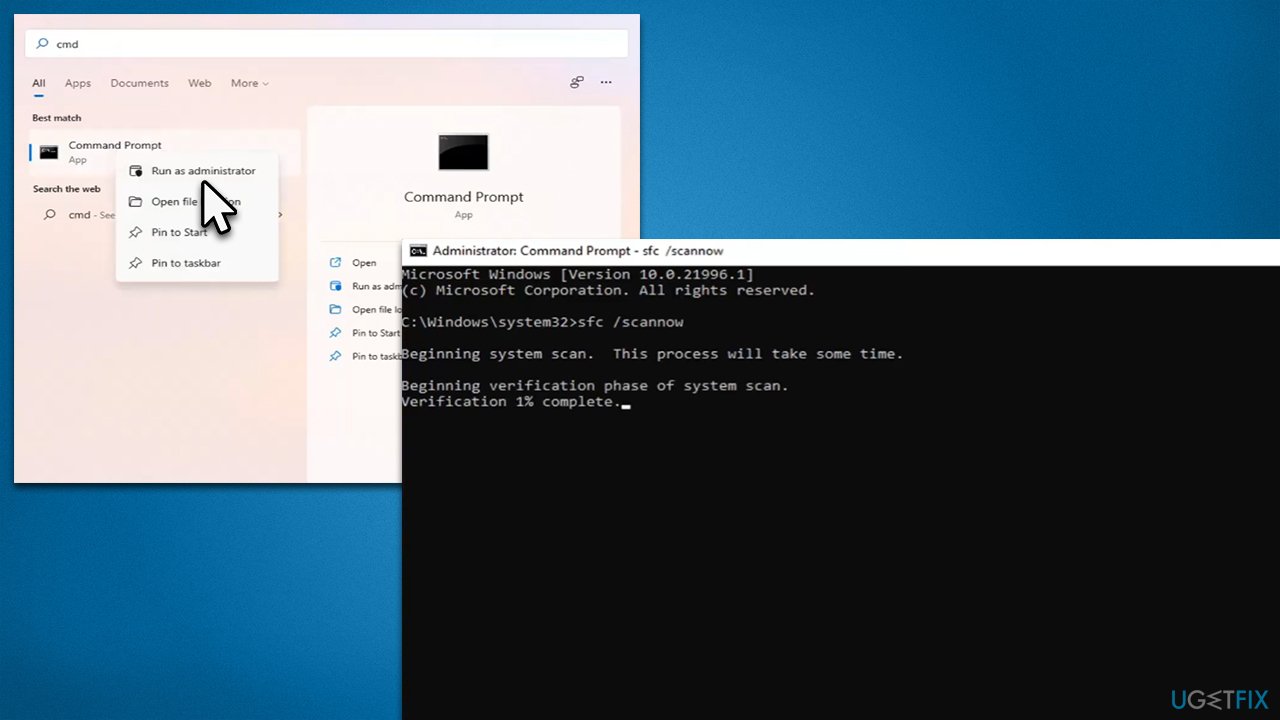
How to fix msedgewebview2 exe high cpu usage in windows run sfc dism
Fix 2. Check your disk for corruption
Damaged sectors in your disk might be the reason for the unexplained spike in resource usage.
- Open Command Prompt as administrator as explained above
- In the new window, type in the following command and press Enter after:
chkdsk c: /f
(Note: use chkdsk c: /f /r /x command if you are using SSD as your primary partition)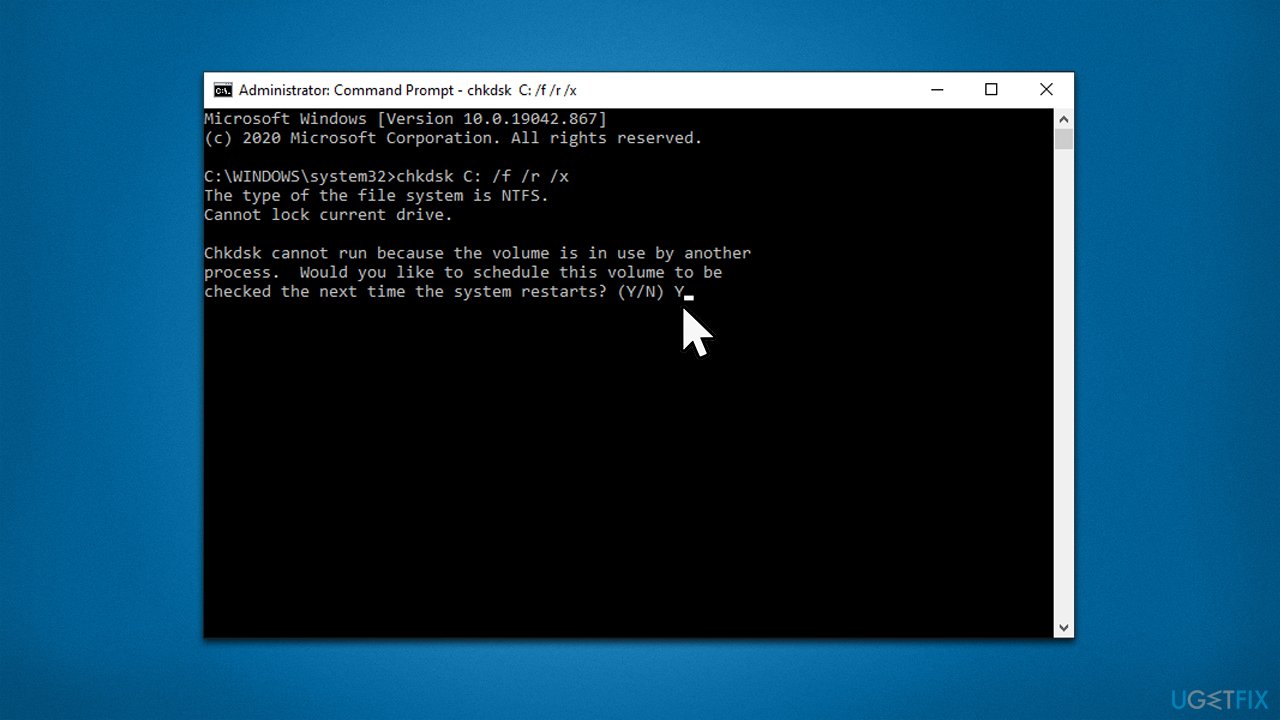
How to fix msedgewebview2 exe high cpu usage in windows run checkdisk - If you receive an error, type in Y, close down Command Prompt and restart your computer
- The scan will take a while and the results will be displayed when the computer starts up.
Fix 3. Repair Microsoft Edge Webview2 component
You can try to repair the responsible complement as follows:
- Click on Start and pick Settings
- Go to Apps > Apps & Features
- Find the Microsoft Edge Webview2 entry
- Select More options and select Modify
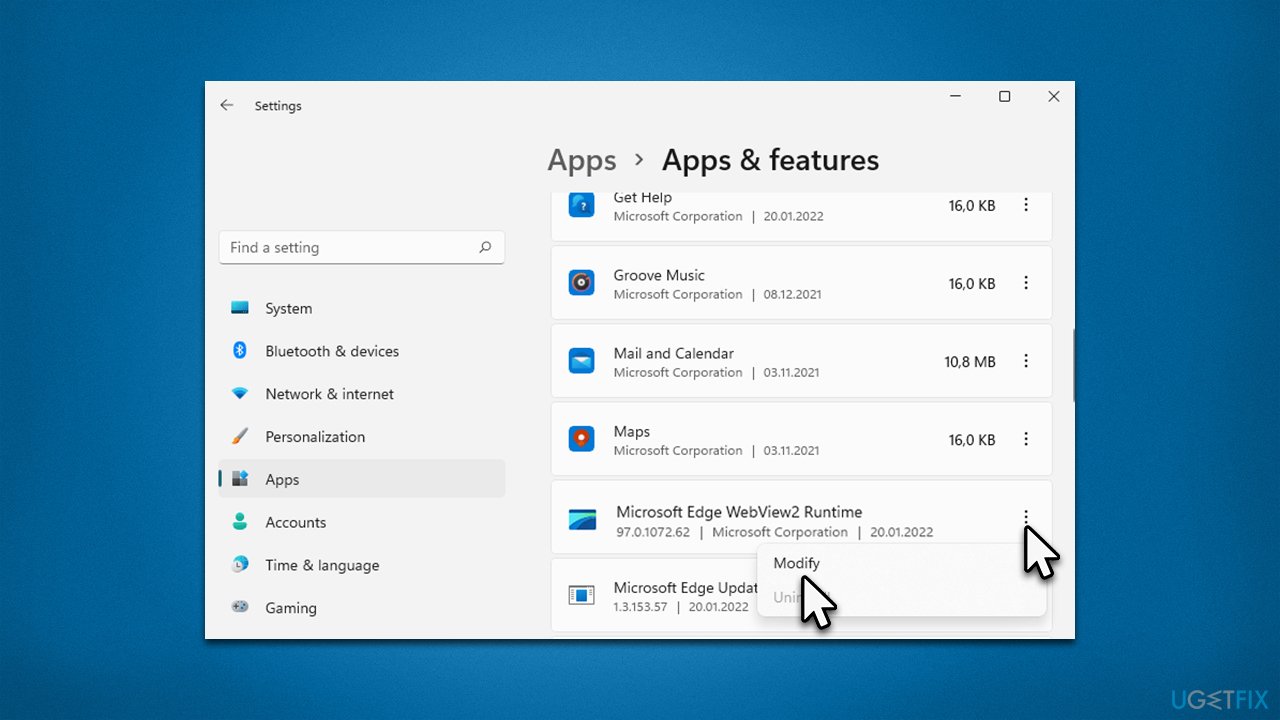
How to fix msedgewebview2 exe high cpu usage in windows repair msedgewebview2 - Click the Repair button.
Fix 4. Scan your system with anti-malware
Just as any other executable, Msedgewebview2.exe might get hijacked or replaced by malware. Therefore, we strongly recommend you run a scan with robust security software to ensure it is not the case. You can employ the built-in Microsoft Defender for the job, although it is recommended to perform a secondary scan with a third-party tool.
If you already have a third-party antivirus installed, try uninstalling it and see if the situation changes.
Fix 5. Try Clean Boot
- Type msconfig in Windows search and press Enter
- Select Services tab
- Check the Hide all Microsoft services box and pick Disable all
- Go to the Startup tab and select Open Task Manager
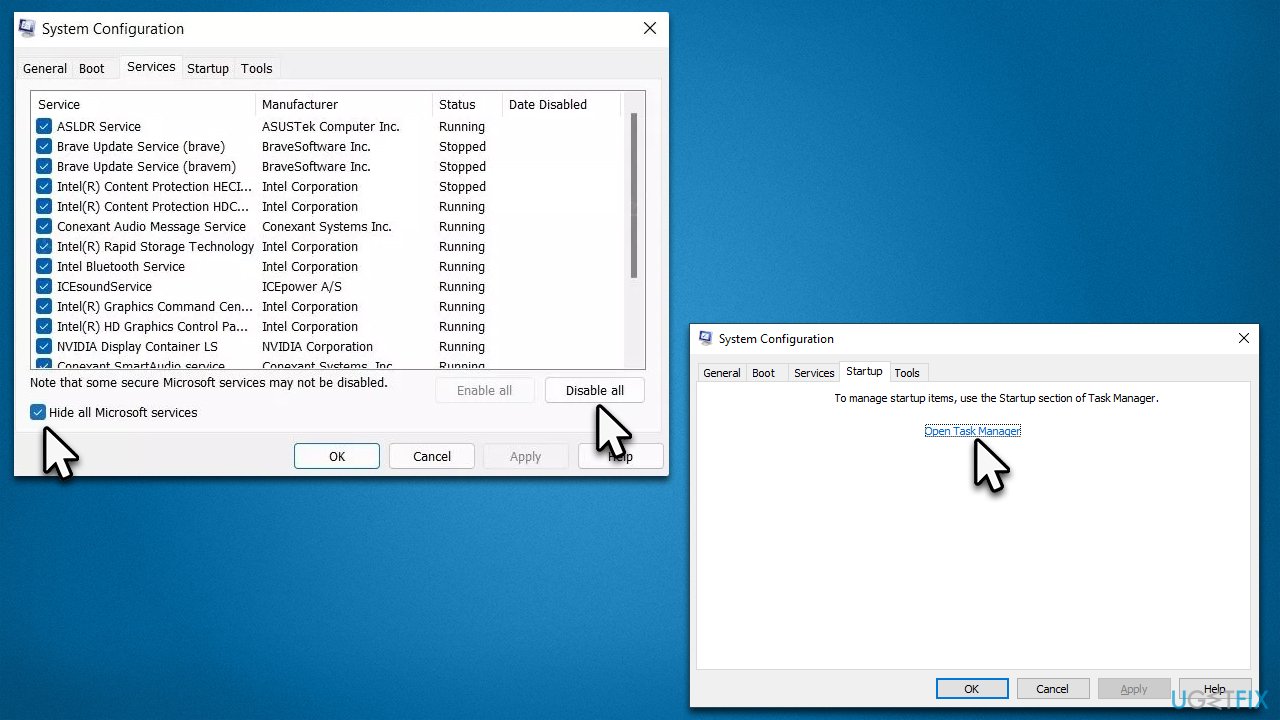
How to fix msedgewebview2 exe high cpu usage in windows try clean boot - In the Task Manager, right-click on every entry and select Disable, then close the Task Manager
- Go to the Boot tab, tick Safe Boot, then click Apply and OK.
If the problem is gone within the Safe boot environment, it means that third-party software is causing the issue. To find the app in question, open the Task Manager and enable each of the startup entries one by one.
Fix 6. Disable widgets
While you can't disable the component anywhere initially, you can use a registry edit instead. Please backup your registry before editing it just in case (click File > Export in Registry Editor)
- Press Win + R, type in regedit, and press Enter
- When User Account Control shows up, click Yes
- Now go to the following location:
HKEY_CURRENT_USER\Software\Microsoft\Windows\CurrentVersion\Explorer\Advanced - On the right side of the window, location TaskbarDa and double-click it
- In the Value data field, type in 0 and click OK.
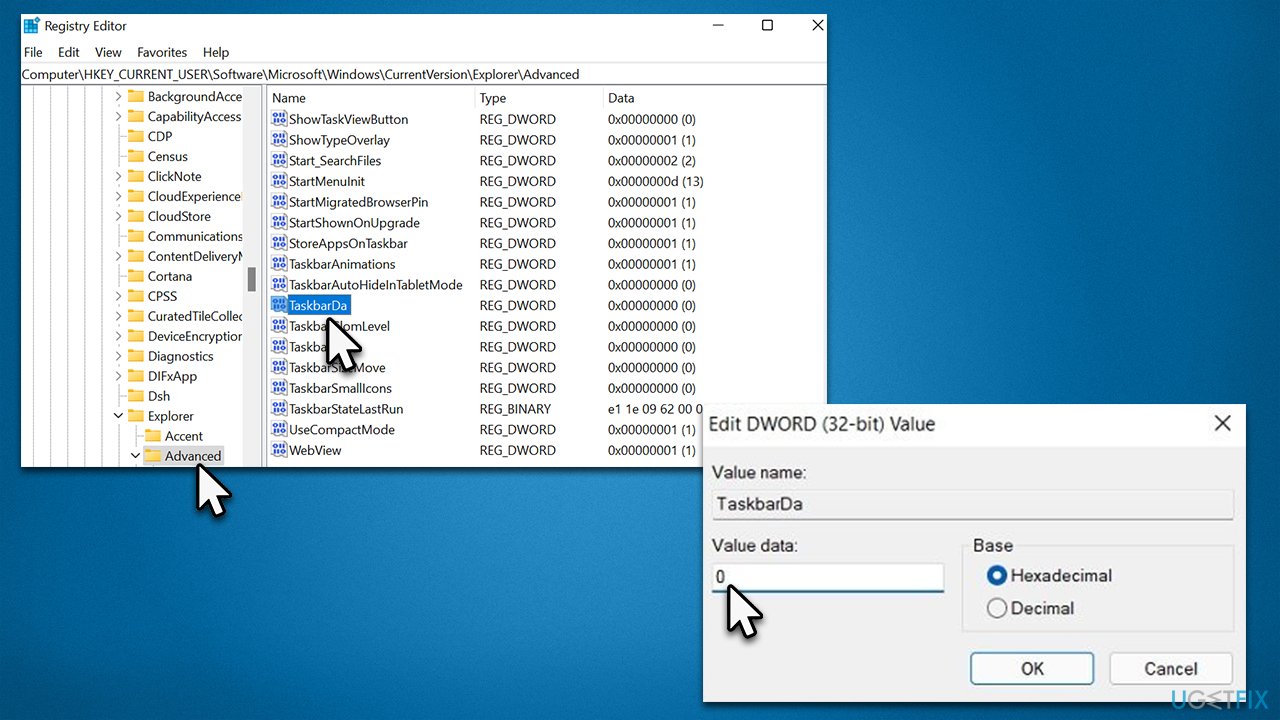
How to fix msedgewebview2 exe high cpu usage in windows modify registry
Bottom line
To fix Msedgewebview2.exe high CPU usage, you can run a scan with an automatic PC repair tool, check for malware, and troubleshoot any widgets that may be causing the issue. If these methods do not resolve the problem, further investigation into system files and processes may be necessary.




Report an issue
What's wrong with this guide? We review every report and update or remove content.
Report received — thank you. We'll review and fix it.
You need a free account to submit a report.
Be the first to comment