How to fix
“MSVCP110.dll is either not designed to run
on Windows
Resolve the "MSVCP110.dll not designed to run" error on Windows 10 or 11 effortlessly. Get expert-tested solutions to fix it in minutes.

What causes How to fix “MSVCP110.dll is either not designed to run on Windows or it contains an error”?
- Important system files are corrupted
- Failed installation of an update
- Corrupt installation of a program
- Error after a Windows 10 update
- Missing MSVCP110.dll file
Repairs Windows system files, removes malware, and restores a clean OS state — without reinstalling.
Hello. I have encountered an "MSVCP110.dll is either not designed to run on Windows or it contains an error" BSOD message. What could have caused it?
Windows is one of the most successful operating systems in the world developed by Microsoft. It is widely used in offices and in homes. People love it for its user-friendly interface, built-in troubleshooters, and customization abilities. However, the system relies on thousands of processes to keep it running smoothly. So if one of them malfunctions, users can experience crashes, bugs, and performance issues.
Some users have been encountering an "MSVCP110.dll is either not designed to run on Windows or it contains an error" message either on a blue screen of death or when trying to launch certain applications. Missing DLL errors are not uncommon and many users can say they experienced them throughout their time of using Windows. We have previously written about MSVCR80.dll, gdi32full.dll, StartUpCheckLibrary.dll, and many others.
A DLL (Dynamic-Link Library)[ref en-1] contains code and data that can be used by more than one program at the same time. You may see the MSVCP110.dll error because important system files are corrupted and are causing the system directory to be unable to find this file. The error can also appear after an attempted installation of an update that failed or a corrupt installation.
Some users report that MSVCP110.dll after a Windows 10 update. The error may prevent users from using certain apps and services. If you receive the message when you are trying to launch a specific program, first try to reinstall it. It may fix the issue. If not, we have a 5 step guide that could help you fix it.
If you want to avoid going through all the possible troubleshooting options, we recommend you use a maintenance tool like [d1]. It can fix various system errors, corrupted files, registry[ref en-2] issues, BSoDs[ref en-3] automatically so you do not have to. If you already tried that, and it did not work or you want to solve this manually, proceed to the guide below:
Method 1. Update Windows
- Type Updates in Windows search and press Enter
- In the new window, click Check for updates
- Install everything available (including optional updates)
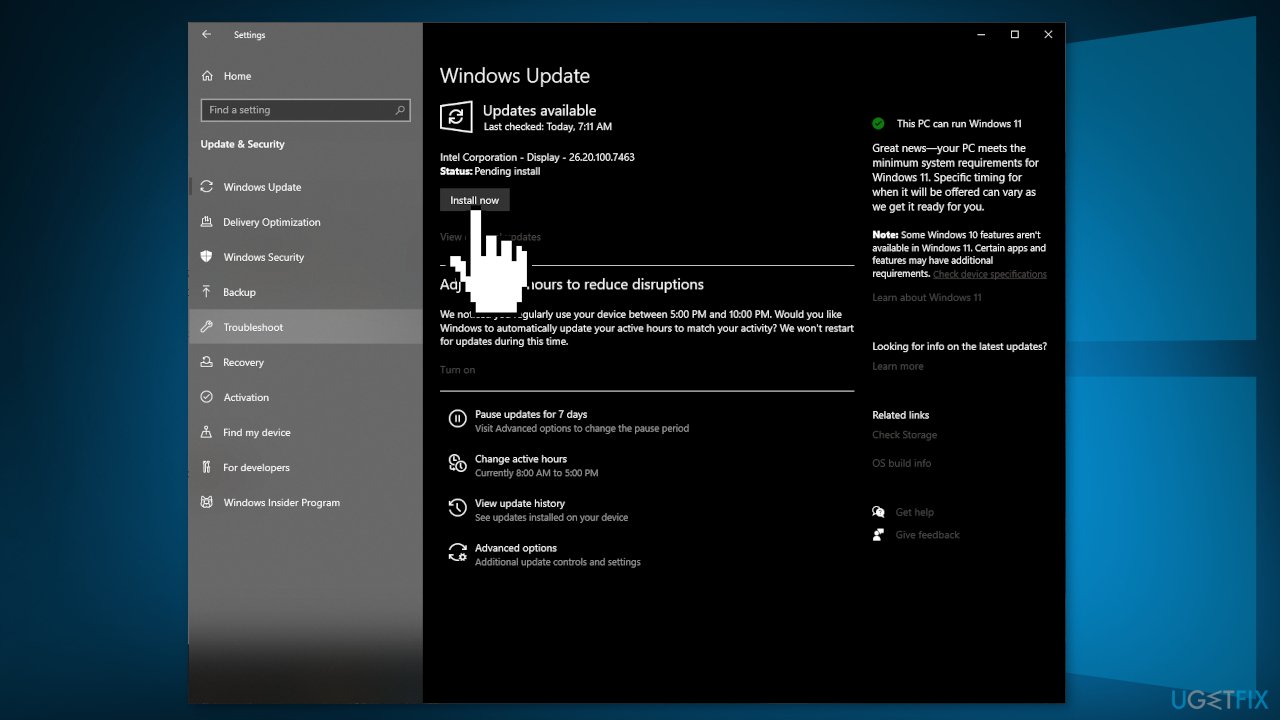
- Reboot your system
Method 2. Re-register msvcp110.dll
- Press Windows + R from the keyboard to open the Run box
- Type regsvr32 /u msvcp110.dll and click OK
- Close the Run command window
- Press Windows + R to open the Run box again
- Type regsvr32 /i msvcp110.dll and press OK
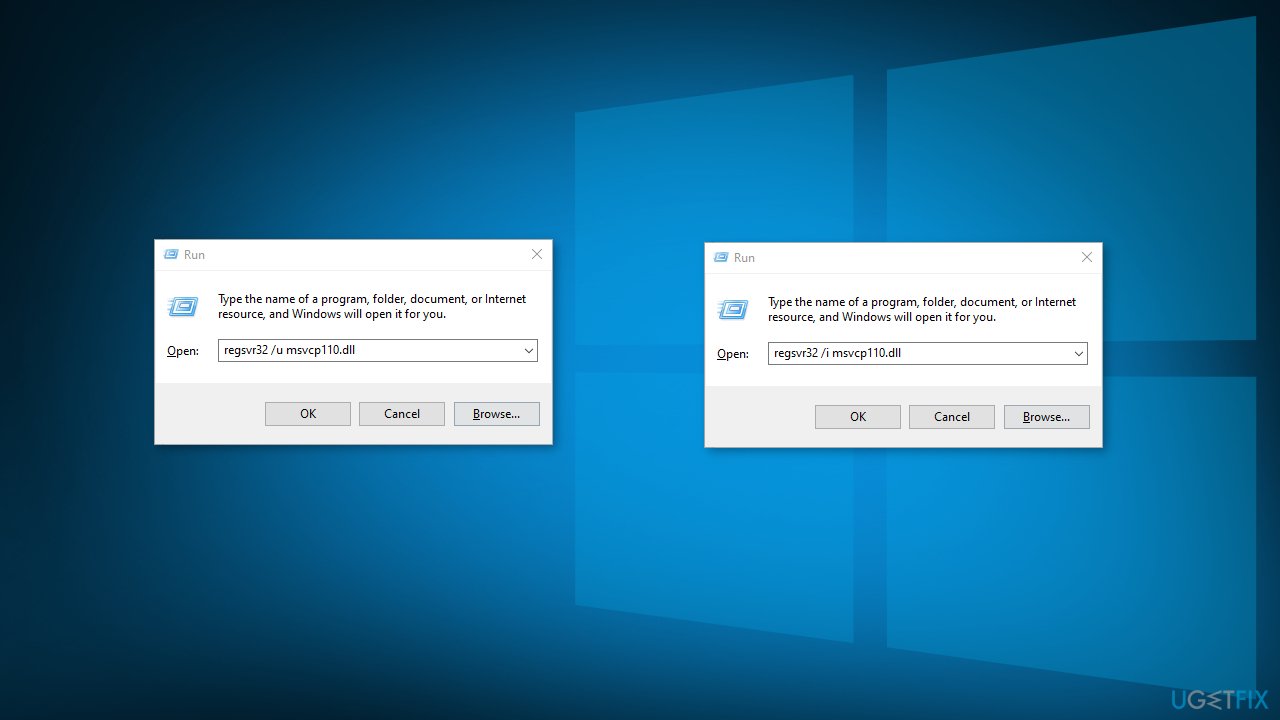
- Close the Run command window and check if the issue persists
Method 3. Repair Visual Studio
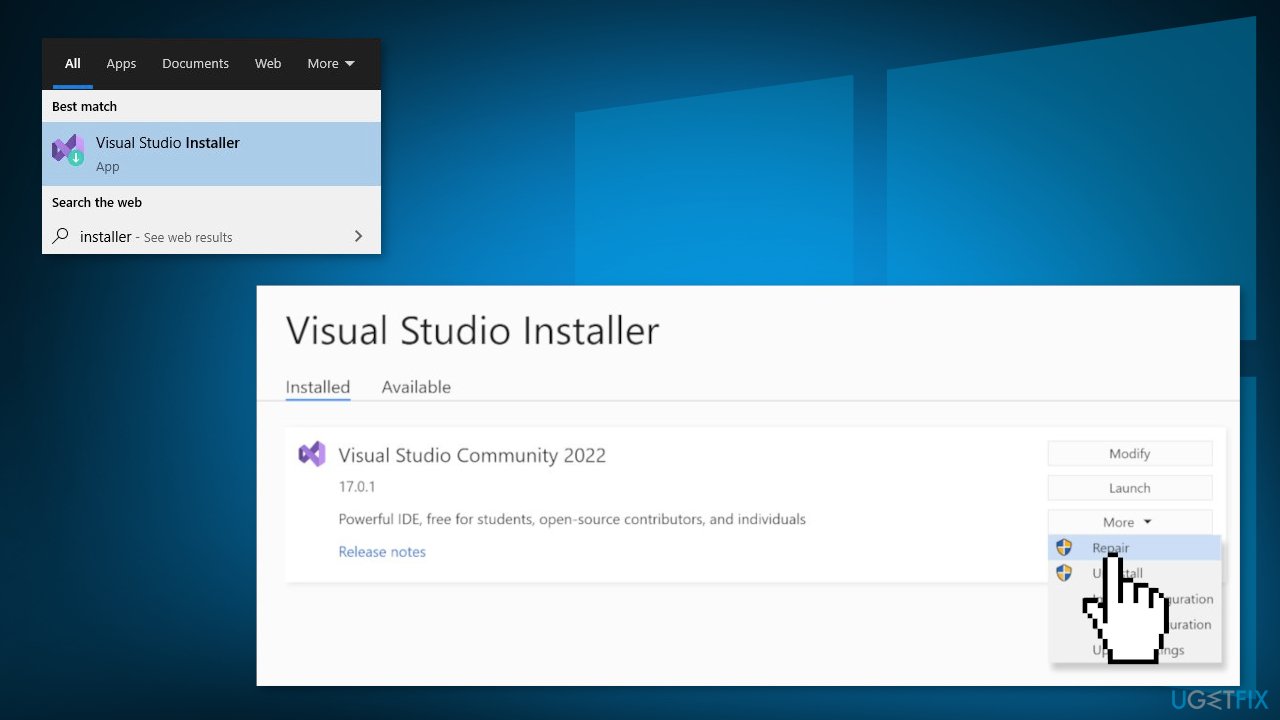
- Find the Visual Studio Installer on your computer
- In the Visual Studio Installer, look for the installation of Visual Studio that you want to repair. Then choose Repair from the More dropdown menu
Method 4. Install Visual C++
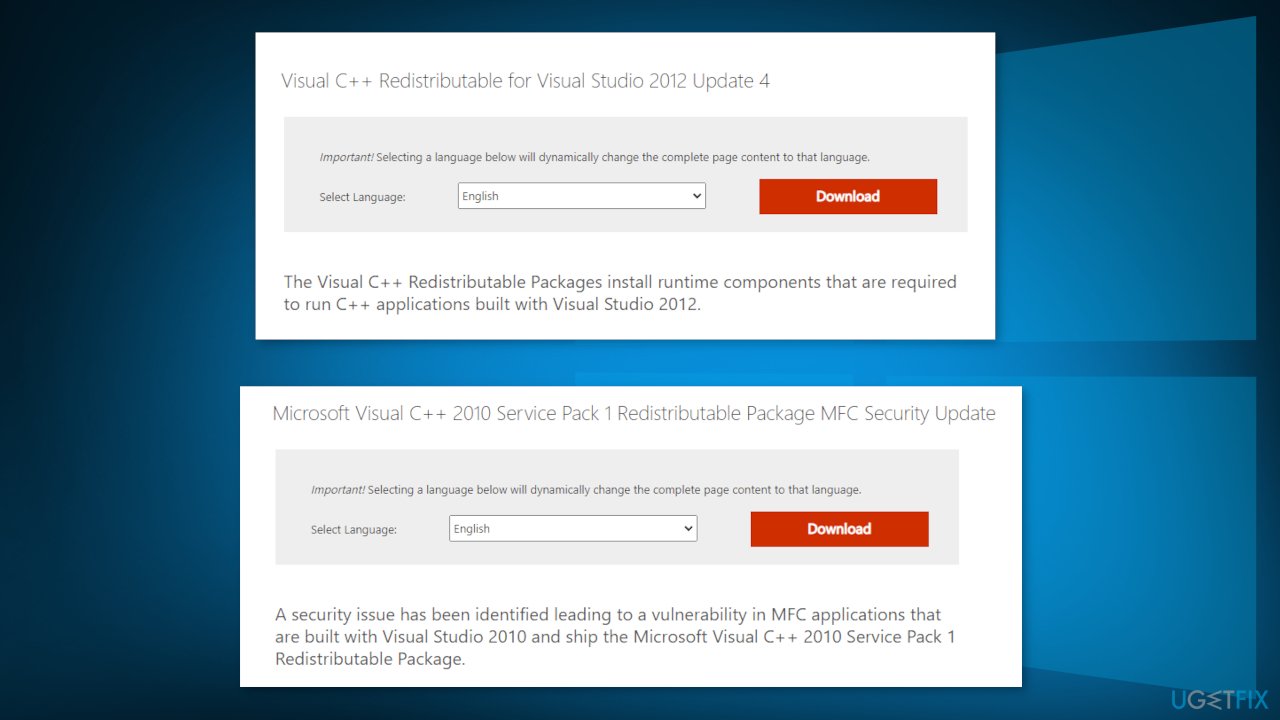
- Download Visual C++ Redistributable for Visual Studio 2012 Update 4
- Download Microsoft Visual C++ 2010 Service Pack 1 Redistributable Package MFC Security Update
Method 5. Upgrade Install
- Download Windows 10 installation media from the official page
- Once installed, run the tool with administrator privileges
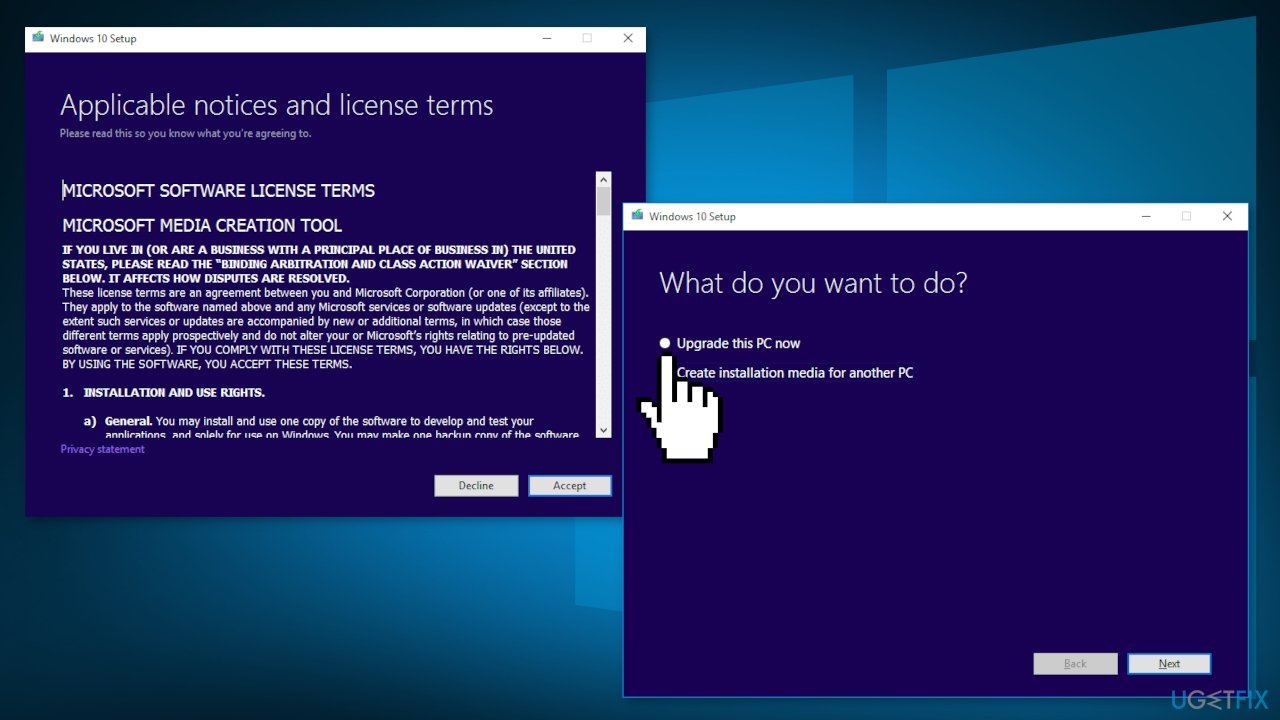
- On the License terms page, select Accept
- On the What do you want to do? page, select Upgrade this PC now and then select Next
- Wait for the upgrade to finish
Bottom line
To fix the 'MSVCP110.dll is either not designed to run on Windows or it contains an error' message, you can try reinstalling the specific application that triggers the error. Additionally, updating Windows and using a maintenance tool may resolve the issue. If these methods do not work, follow the detailed troubleshooting guide provided.
Frequently asked questions
This error typically occurs due to a corrupted or missing MSVCP110.dll file, which is part of the Microsoft Visual C++ Redistributable package. It can also be triggered by a conflict with other software or outdated system files.
To resolve the MSVCP110.dll error on Windows 11, try reinstalling the Microsoft Visual C++ Redistributable package, as this can restore the missing or damaged DLL file. Additionally, running a system file check (SFC) can help identify and repair corrupted files.
No, downloading DLL files from third-party websites is not recommended as it can introduce malware or compatibility issues; it's best to obtain the file through official Microsoft sources.




Report an issue
What's wrong with this guide? We review every report and update or remove content.
Report received — thank you. We'll review and fix it.
You need a free account to submit a report.
Be the first to comment