
How to Fix Not Working Calendar App on Windows 10?
Prefer to fix it yourself? The manual steps follow.
8 methods in this guide
I have a problem with Windows 10 Calendar app. It stopped working all of a sudden but returned no error messages. It simply doesn’t open. When I click on Calendar app available on the Start menu from my own account, it doesn’t start, but I’ve found out that it successfully opens when the system is logged into the other account on this PC.
Calendar app is one of the default Windows apps. Compared to the earlier Windows Calendar app versions, Windows 10 and 11's latest versions offer many innovations that allow people to plan their schedule, stay up-to-date on email, add several accounts to connect all upcoming events, etc.
It’s important to note that the Calendar app works only with online accounts and that it’s integrated with the Windows Mail app. Therefore, to use the Calendar app, you’ll have to sign in with Microsoft account. If you want to add several accounts, open Settings -> Accounts -> Add account.
However, in this post, we will not concentrate on the Windows 10 Calendar app tips & tricks. Actually, we’d like to provide a couple of fixes that may help in case the Calendar app won’t open, as so many people have reported having this problem. In fact, it has been around for many years, and users still can't find the ultimate answer to the issue.
The calendar app might not work in Windows due to outdated software, compatibility issues, corrupted files, firewall or security software, or configuration issues. We address all of these issues below, so follow the instructions until you find a solution that works for you.
A Guide on How to Fix Not Working Calendar App on Windows 10
A corrupted Calendar app may ruin the PC owner’s day. Such a scenario is not very possible if the owner is not accustomed to using Calendar and does not create a day schedule on it. Otherwise, not working Calendar app may be a big problem. Luckily, the problems that trigger Calendar app errors are usually not that big, so they can be fixed quite easily.
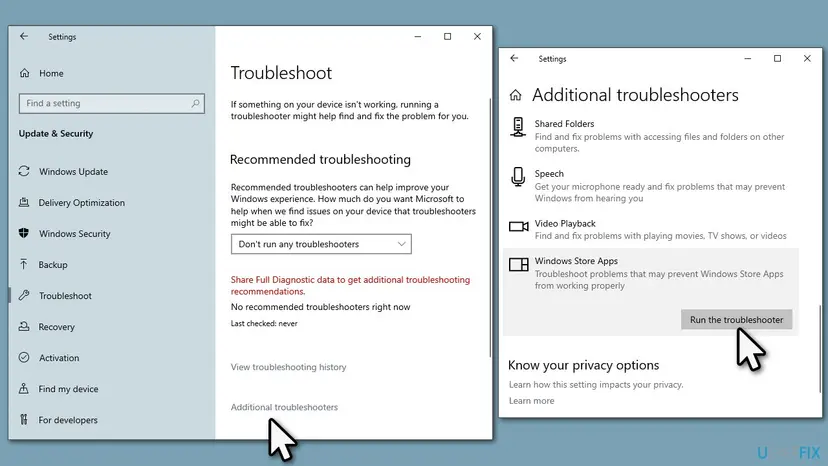
Method 1. Run Windows App Troubleshooter
- In Windows search, type troubleshoot and press Enter.
- Select Additional troubleshooters/Other troubleshooters, depending on the Windows version.
- Scroll down and pick Windows Store Apps.
- Click Run the troubleshooter/Run.
- After that, reboot the system.
Method 2. Enable Windows Update Service
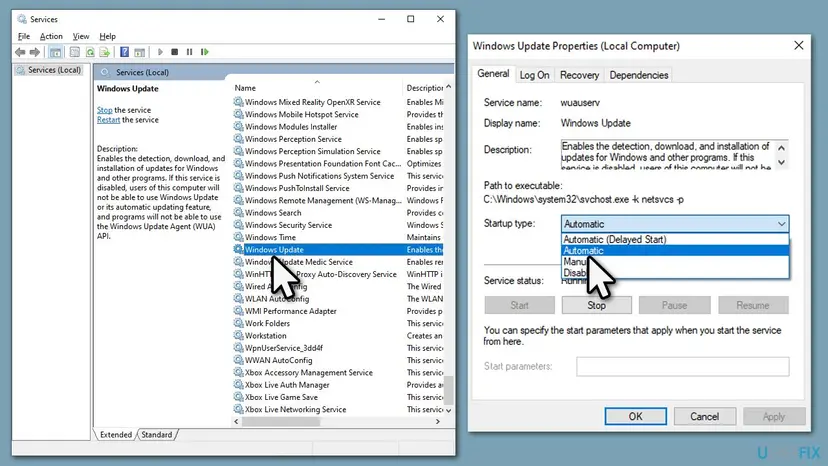
If you remember disabling the Windows Update service, we recommend enabling it because turning off this useful function might have triggered the Calendar app launch failure.
- Press Windows key and type services.
- Click on the Services option and find the Windows Update service.
- Double-click it to open Properties.
- Set Startup type to Automatic.
- Click Apply and OK to save the changes.
Method 3. [Workaround] Use Outlook for Windows instead
Some users reported that, while their Calendar app wouldn't open, it did work fine via the Outlook app.
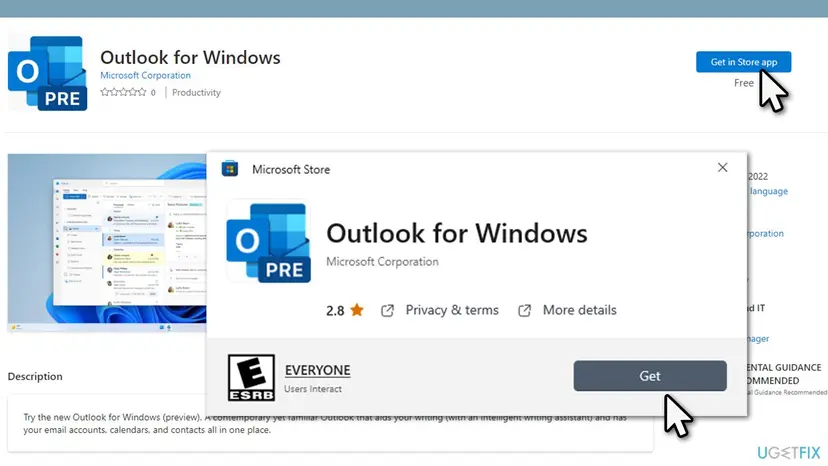
- Go to the official Microsoft web store for Outlook for Windows.
- Click Get in Store app.
- Select Open in Microsoft Store.
- Finally, click Get.
- Try using the app and see if the problem is resolved.
Method 4. Install all Windows updates
General bugs can be easily fixed by applying the latest Windows updates, so make sure you do so.
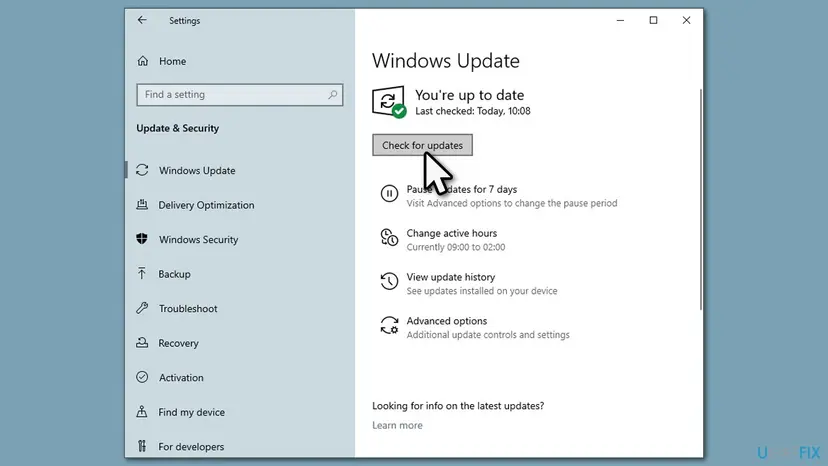
- Type Updates in Windows search and hit Enter.
- Here, click Check for Updates.
- If optional updates are available, install them as well.
- Restart your PC.
Method 5. Clear Windows Store cache
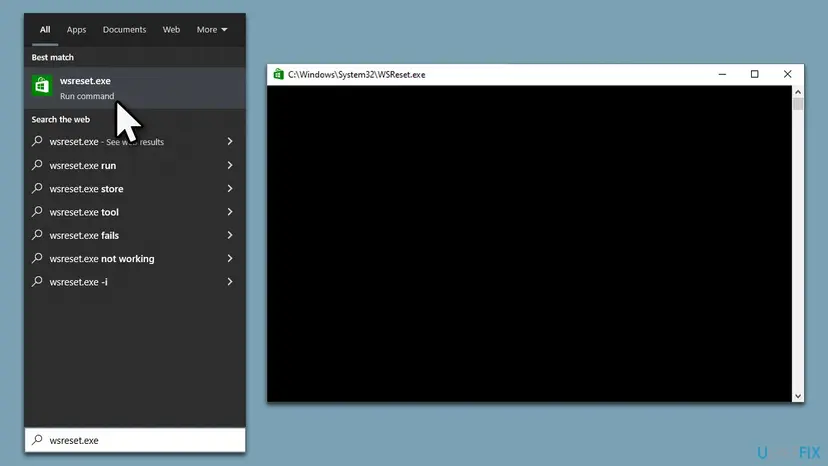
- Press Windows key + R, type wsreset.exe, and hit Enter.
- Now you should wait for Microsoft Store window to open. This means that the cache has successfully been cleared.
Method 6. Reset the Calendar app
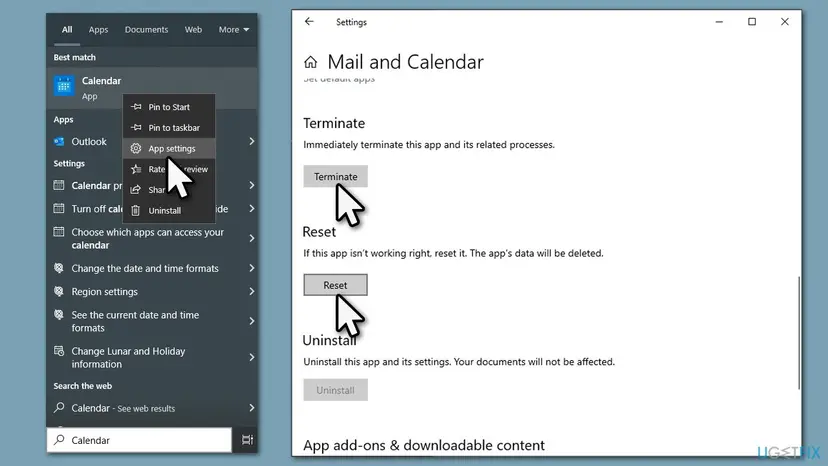
- Type Calendar in Windows search.
- Right-click and select App settings.
- Scroll down and click Terminate.
- Click Reset.
- Close down the window and check if the app is working fine again.
Method 7. Run SFC and DISM
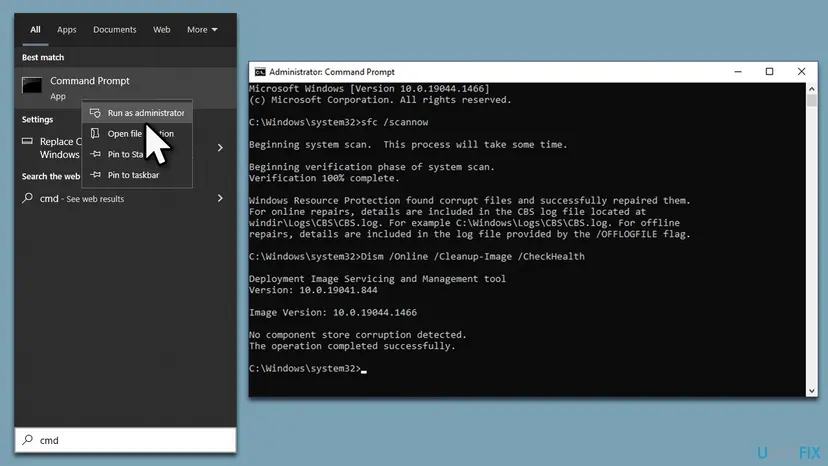
- Type cmd in Windows search
- Right-click on Command Prompt and pick Run as administrator
- When User Account Control shows up, click Yes
- Use the following command lines, pressing Enter after each:
sfc /scannow
DISM /Online /Cleanup-Image /CheckHealth
DISM /Online /Cleanup-Image /ScanHealth
DISM /Online /Cleanup-Image /RestoreHealth - Restart your computer.
Method 8. Reinstall the Calendar app
If none of the fixes helped you to fix Calendar app not working, we would recommend reinstalling it. However, it’s important to stress that reinstalling inbuilt apps is not as simple as selective apps. To do so, you’ll have to access an elevated Powershell and execute several commands on it.
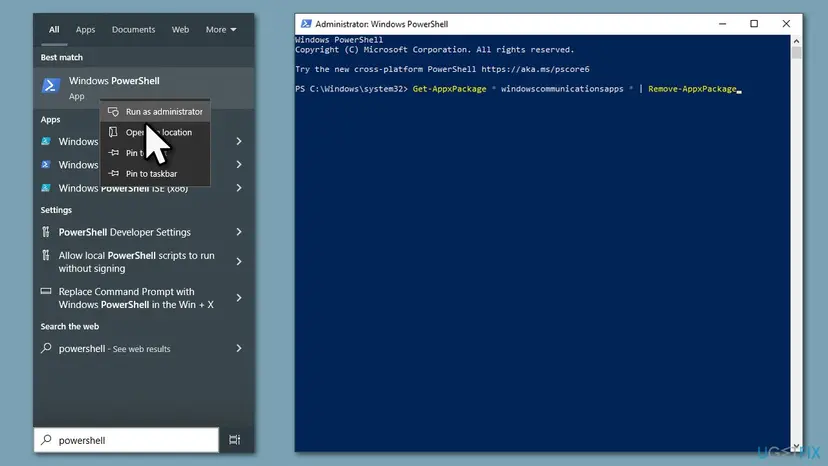
- Type PowerShell in Windows search.
- Right-click and select Run as administrator.
- When UAC shows up, click Yes.
- In the new window, copy and paste the following command, pressing Enter after:
Get-AppxPackage * windowscommunicationsapps * | Remove-AppxPackage - Close down PowerShell and restart your PC.
- Once booted, download and install the Calendar app from Microsoft Store.
Did this fix work?
One click, no account. It tells the next reader which guides are worth their time.
Questions and experiences: Fix Not Working Calendar App on Windows 10
Still broken, or found a fix we did not cover? Ask here: members and our editors answer. Reading is open; writing needs a free account.
…