How to fix
Not Working Safe Mode
on Windows
Discover effective solutions to fix Safe Mode issues on Windows 10 quickly and easily. Get expert-tested tips to troubleshoot like a pro!

What causes How to Fix Not Working Safe Mode on Windows 10?
- Virus infection
- Important system changes
- Malware presence
- Corrupted system files
- Failed system updates
Repairs Windows system files, removes malware, and restores a clean OS state — without reinstalling.
I don’t know what happened, but when I try to boot into Safe Mode via Startup Settings, the PC gets stuck in a loop. I tried to reboot the system and repeat the Safe Mode enabling steps, but in vain. I need a piece of advice because I cannot access my desktop.
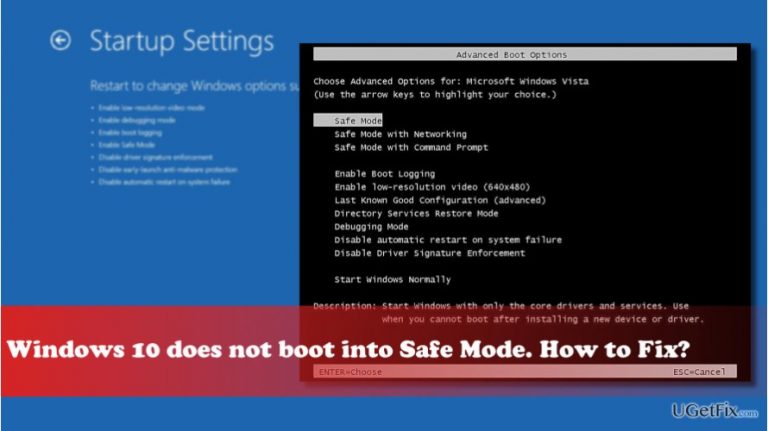
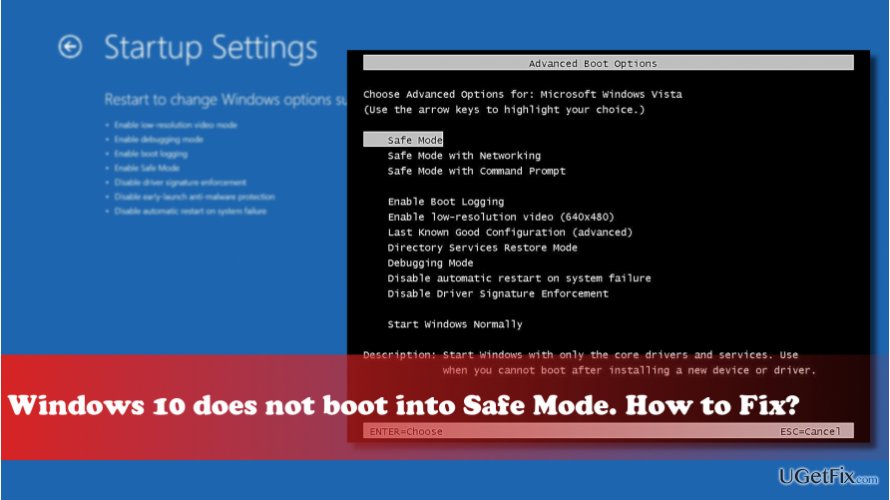
All Windows versions unexceptionally provide the special configuration settings during startup, including Last Known Good Configuration, Low-Resolution Video-Display Mode, and Safe Mode. These startup options have been developed by Microsoft to work around Windows boot problems, including BSOD, boot loop, freezes or virus infections. Usually, if Windows cannot start and gets stuck at startup, specialists recommend booting the system into Safe Mode. It’s a diagnostic startup mode built into Windows operating systems and avaiable on the Advanced Boot Options. Safe mode exploits minimum set of drivers and system functions, which means that the system bypasses the malfunctioning parts and boots up normally. It is also advisable to boot into Safe Mode when the system needs some maintenance, for instance, removing a virus. The problem is that Safe Mode sometimes fails to function booting either into Advanced Boot Options or normal mode. In this case, you should fix broken Safe Mode in the first place and then start the analysis of other system problems.
Fixing not Working Safe Mode:
According to professional IT technicians, Safe Mode usually stops working due to virus infection or important system changes. Therefore, in case of Safe Mode error, try checking the system for malware and then enabling the System Restore Point or Reset the system. We’ll explain these two methods in details down below. If you can start Windows normally, except that it does not boot into Safe Mode, we would strongly recommend the following methods:
Nr 1. Run a scan with anti-malware
Cyber infections are not predictable. The targets and symptoms vary. Therefore, if problems, like unresponsive Safe Mode start happening all of a sudden, run a scan with [d1] or another professional anti-malware.
Nr 2. Run sfc / scannow and DISM tools
- Click Win key + X and select Command Prompt (Admin).
- Type sfc /scannow and press Enter.
- Type the following commands and press Enter after each of them:
DISM.exe /Online /Cleanup-image /Scanhealth
DISM.exe /Online /Cleanup-image /Restorehealth - Close Command Prompt and reboot the system.
Safe Mode may stop working if some of the crucial Windows files get damaged or missing. Therefore, running the sfc/scannow and DISM tools should automatically fix these files and restore Safe Mode alongside.
Nr 3. Use System Restore Point or Reset Windows
If you have initiated some important system changes, for example, removed a driver or installed a new Windows build, it might be that these changes have caused Safe Mode malfunctions. To fix that, you should try to enable a System Restore Point or Reset Windows without removing personal files.
If you cannot boot the system normally because it gets stuck on the Advanced Boot Options window, try to perform a System Restore from the Advanced Startup Options:
- Reboot your PC.
- Press Shift key repeatedly at boot and select Repair your computer.
- Select Troubleshoot and click Advanced options.
- Click System Restore and wait for the process to be executed.
If none of these methods helped to fix a non-working Safe Mode, the last thing you can try is to create a bootable Recovery Drive and boot the system from it.
Bottom line
To fix the issue with Safe Mode not working, you can run a scan with anti-malware software and use the sfc /scannow and DISM tools to repair system files. If these methods do not resolve the problem, consider enabling the System Restore Point or resetting the system.
Frequently asked questions
First, try accessing Safe Mode through the Advanced Startup Options by restarting your PC and holding the Shift key while clicking Restart. If that doesn't work, you may need to run a system file check using the Command Prompt.
Yes, the troubleshooting steps are quite similar; access the Advanced Startup Options and use the Command Prompt to run system checks. Additionally, ensure your drivers are up to date, as outdated drivers can cause issues.
You can restore Safe Mode functionality by performing a system restore to a point when Safe Mode was working or by resetting Windows 10 while keeping your files.




Report an issue
What's wrong with this guide? We review every report and update or remove content.
Report received — thank you. We'll review and fix it.
You need a free account to submit a report.
Be the first to comment