How to fix
Ntkrnlmp.exe BSOD
on Windows
Resolve the Ntkrnlmp.exe BSOD on Windows 10 quickly and easily with expert-tested solutions. Get back to smooth performance in minutes!

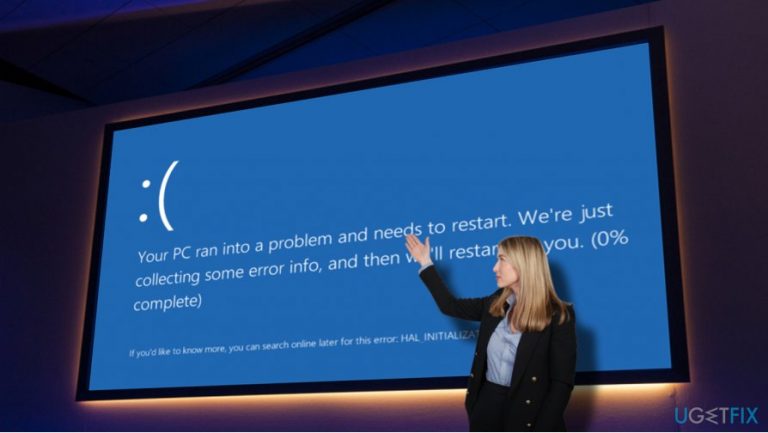
What causes How to fix Ntkrnlmp.exe BSOD on Windows 10?
- Outdated graphics card drivers
- CPU and GPU overclocking
- Wrong BIOS settings
- Malware infection
- Issues during Windows 10 updates
Repairs Windows system files, removes malware, and restores a clean OS state — without reinstalling.
How can I fix ntkrnlmp.exe BSOD on Windows 10? It shows up at boot and says APC_INDEX_MISMATCH. Thanks a lot!
Ntkrnlmp.exe is one of the Microsoft Windows Operating System files, which is often referred to as Kernel Image. It is responsible for multiple system's services, including, but not limiting to hardware virtualization, memory management, and execution of other processes. Therefore, the regularly running Ntkrnlmp.exe files should not be removed or modified in any way.
However, this file is a rather common culprit of Windows 10 BSOD. Many people reported Ntkrnlmp.exe BSOD with the following technical references:
- APC_INDEX_MISMATCH
- STORE_DATA_STRUCTURE_CORRUPTION
- SYSTEM_SERVICE_EXCEPTION
These are the main BSOD types that the Ntkrnlmp.exe file triggers, but the list is not definite. For some people, the problem happens when installing Windows 10 updates (KB4056892 in particular). The others encounter it during Windows 10 setup and receive the following error message: "Ntkrnlmp.exe Could Not Be Loaded. The Error Code Is 7." There are many instances when Ntkrnlmp.exe BSOD may occur, but there are not many reasons why it does so.
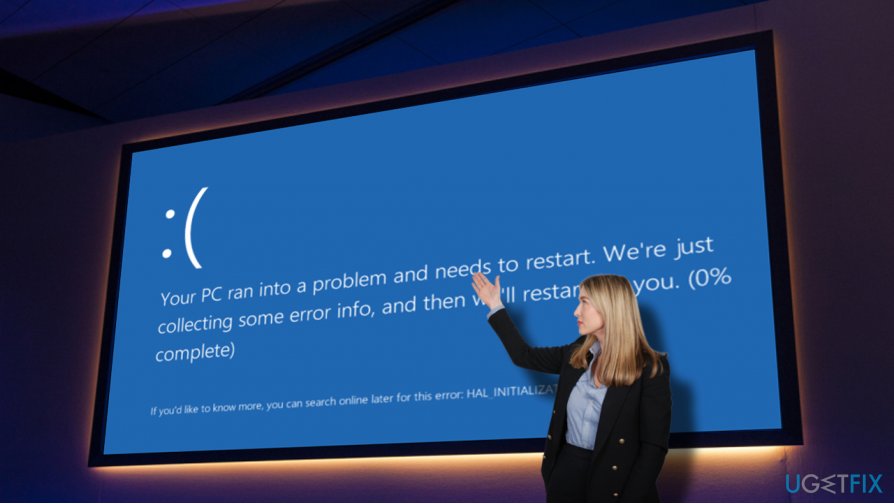
Cybersecurity experts from 2-Spyware[ref en-1] point out that legitimate Windows OS files and processes are often a target for hackers. Therefore, if a Ntkrnlmp.exe blue screen showed up unexpectedly, you should check the system for malware. Typically, this file can be found in the Win32 folder. If you detected it in another location, it's very likely that a virus, Trojan,[ref en-2] Spyware or another infection is hiding on your PC. For fix that, you should run a scan with [d1] or another reliable security tool.
However, most frequently anti-malware scan does not help to fix the Ntkrnlmp.exe error because its culprit is outdated graphics card drivers, CPU, and GPU overclocking,[ref en-3] wrong BIOS settings, and similar. Thus, if you scanned your PC with an optimization tool, but that did not work, try the following Ntkrnlmp.exe BSOD fixes.
Fix 1. Update graphics card drivers
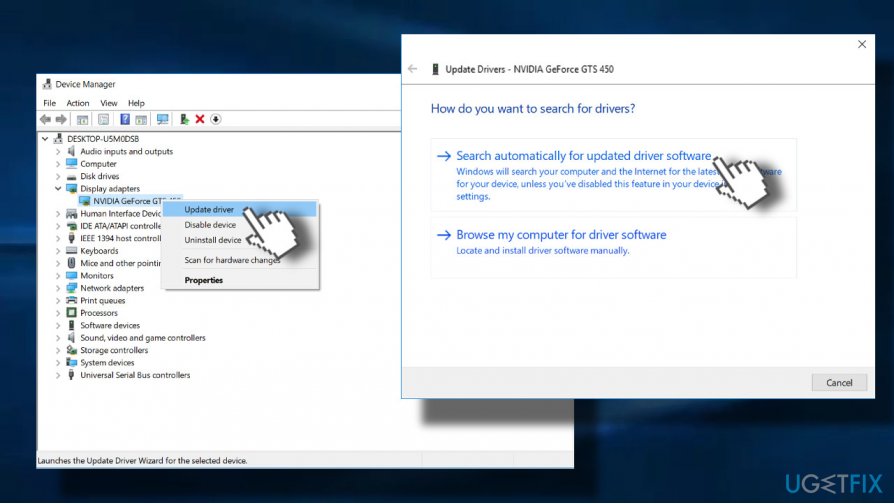
- Right-click on Windows key and select Device Manager.
- Expand Display adapters.
- Right-click on your graphics card driver and select Update driver.
- Click Search automatically for updated driver software and wait for the process to be finished.
- Once done, reboot your PC.
Fix 2. Run Driver Verifier
If the update for graphics driver was not sufficient to fix the Ntkrnlmp.exe error, you could run driver verifier, which administrates Windows kernel-mode drivers and graphics drivers and protect them from unauthorized changes. The scan will show if your system contains corrupted drivers that may be causing problems:
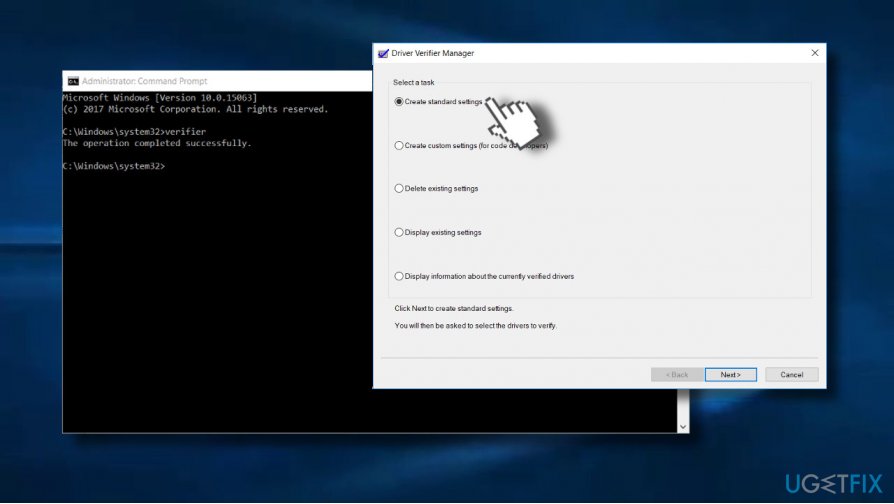
- Press Windows key + X and select Command Prompt (Admin).
- Click Yes on the UAC.
- Type verifier and press Enter to execute the command.
- On the new window, select Create standard settings and then click Next.
- Click Automatically select all drivers installed on this computer.
- Finally, click Finish button to start the verification process. You should get a report about the status of the drivers, so follow the instructions to fix all problems.
Fix 3. Disable overclocking
According to experts, Ntkrnlmp.exe blue screen is often triggered by CPU or GPU overclocking. Therefore, if none of the previous methods work, you should try to disable overclocking or at least reduce the clocking frequency. For this purpose, you will have to enter BIOS settings and change the overclocking frequency or set it to auto.
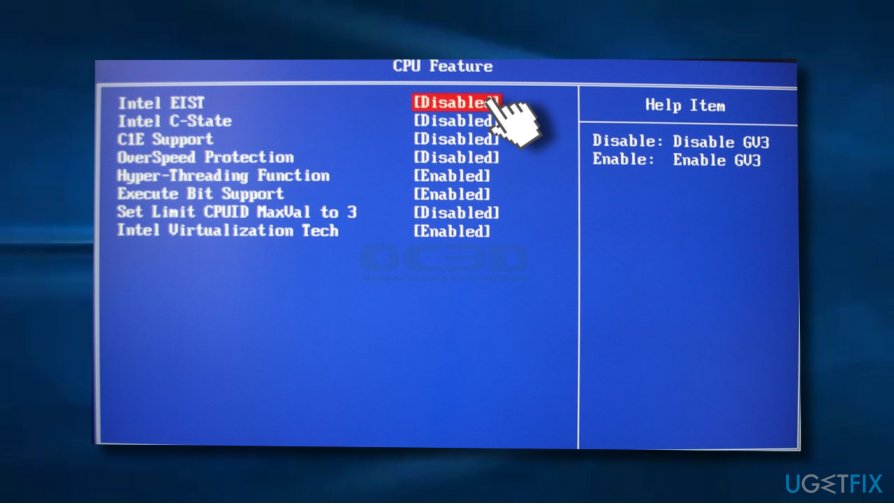
Fix 4. Disable C-states and EIST from BIOS
Changing BIOS settings in any way is a procedure that requires extreme carefulness. Therefore, perform the following steps attentively and if Ntkrnlmp.exe BSOD remains, after all, change the settings to the previous state.
- The next time when the system returns the Ntkrnlmp.exe error, press and holds Ctrl + Alt + Del buttons. Now the system should reboot. To switch to BIOS setup, press F12 for several times.
- When Setup written box occurs, press Enter.
- Access Advanced Menu and select CPU configuration.
- Now click CPU Power Management.
- Finally, set C-states and EIST to disabled.
- Save the changes and reboot the system.
Fix 4. Enable System Restore Point
If you have a System Restore Point created back in time, you can try to fix the Ntkrnlmp.exe error by enabling one of the created points:
- Go to Start menu and enter system restore in Windows search box.
- Select Create a Restore Point.
- Click on System Restore button and click Next.
- Select the system restore point that was created before Ntkrnlmp.exe bug started interrupting you and select Next.
- In case you see only one restore point available, mark Show more restore points check box.
- Select the restore point and click Next.
- Restart your computer to finish your system restore.
Bottom line
To fix the Ntkrnlmp.exe BSOD, you can update your graphics card drivers, check for malware, and adjust your BIOS settings. If these solutions do not resolve the issue, further investigation into hardware or system configurations may be necessary.
Frequently asked questions
The Ntkrnlmp.exe BSOD error in Windows 10 is often caused by faulty drivers, corrupted system files, or hardware issues. Running a system file check or updating drivers may resolve the issue.
To troubleshoot the Ntkrnlmp.exe BSOD, you can start by booting into Safe Mode and uninstalling any recently added hardware or software. Additionally, using the Windows Memory Diagnostic tool can help identify memory-related problems.
To prevent the Ntkrnlmp.exe BSOD, ensure your Windows 10 is up-to-date and regularly check for driver updates. Keeping your system free from malware and performing routine maintenance can also help.




Report an issue
What's wrong with this guide? We review every report and update or remove content.
Report received — thank you. We'll review and fix it.
You need a free account to submit a report.
Be the first to comment