
How to fix the nvhda64v.sys blue screen (BSOD) in Windows

Prefer to fix it yourself? The manual steps follow.
- 6methods
- 5 to 40 minutes
- Intermediate
Applies to Windows 11 and Windows 10 PCs and laptops with an NVIDIA GeForce or RTX graphics card and the NVIDIA HD Audio driver installed
6 methods in this guide
My Windows computer has been running completely fine with no issues whatsoever until very recently, when I started receiving strange Blue Screen crashes. The BSOD always comes with the Nvhda64v.sys file marked as the culprit. Please help me resolve this. It is really frustrating to deal with when the PC crashes in the middle of a conference call.
nvhda64v.sys is the NVIDIA High Definition Audio driver, the part of the NVIDIA graphics driver that sends sound to an HDMI or DisplayPort screen. When a blue screen names it, that audio driver crashed, not the graphics driver itself. If you do not use the monitor's or TV's speakers, turn the device off first.
nvhda64v.sys belongs to NVIDIA High Definition Audio, which plays sound through the graphics card over HDMI or DisplayPort. The crash comes from that audio driver. If your monitor or TV speakers are not in use, disable NVIDIA High Definition Audio in Device Manager (Fix 1), then reinstall the NVIDIA driver without the audio part (Fix 2). If the crashes began after an update, roll the driver back (Fix 3).
| Error | A blue screen with What failed: nvhda64v.sys. The stop code above it is often SYSTEM_THREAD_EXCEPTION_NOT_HANDLED; crashes on wake from sleep have shown INTERNAL_POWER_ERROR. |
|---|---|
| Where it appears | At any time, but users report it most around sleep and wake, when a monitor, TV or receiver is switched off, or right after a new NVIDIA driver. |
| Main cause | A bug in the NVIDIA HD Audio driver version installed with the graphics driver. |
| Fastest fix | Disable NVIDIA High Definition Audio in Device Manager if you do not use HDMI or DisplayPort sound (Fix 1). |
| Also written as | nvhda64v, Nvhda64v.sys, nvhda64v sys, the driver service NVHDA. |
| Who makes it | NVIDIA. It comes in the same package as the GeForce graphics driver and shows under Sound, video and game controllers as NVIDIA High Definition Audio. |
| Affects | Windows 11 and Windows 10 with an NVIDIA graphics card, desktops and laptops. Windows 10 left support on 14 October 2025. |
| Vendor status | We found no NVIDIA note that names nvhda64v.sys or a driver version that fixed it, checked 15 October 2026. |
| Where the cause is logged | C:\Windows\Minidump, one .dmp file per crash, and the System log in Event Viewer. |
| Time to fix | 5 minutes to disable the device, about 20 minutes for a clean driver install. |
Facts checked on 15 October 2026. Steps written for Windows 11 (25H2 and 26H2) and Windows 10 22H2.
What nvhda64v.sys is and why it crashes Windows
The name reads as NVIDIA High Definition Audio, 64-bit. Every NVIDIA graphics card has a small sound device built in, so that a monitor, TV or AV receiver on HDMI or DisplayPort can play sound. nvhda64v.sys is the driver of that sound device. It is installed together with the graphics driver unless you tell the installer to skip it.
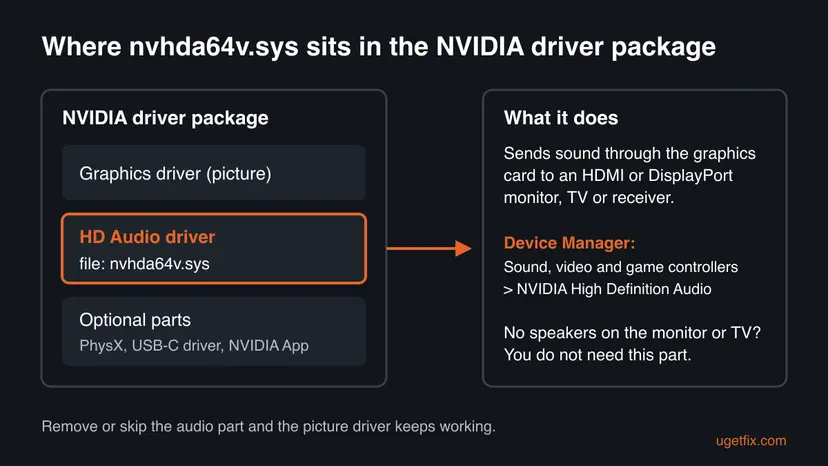
So the blue screen does not mean that the graphics card is failing. It means the audio driver did something the Windows kernel could not handle, and Windows stopped to protect your data. Microsoft's advice for a crash that names a driver is short: disable or remove that driver, or get an update from its maker.
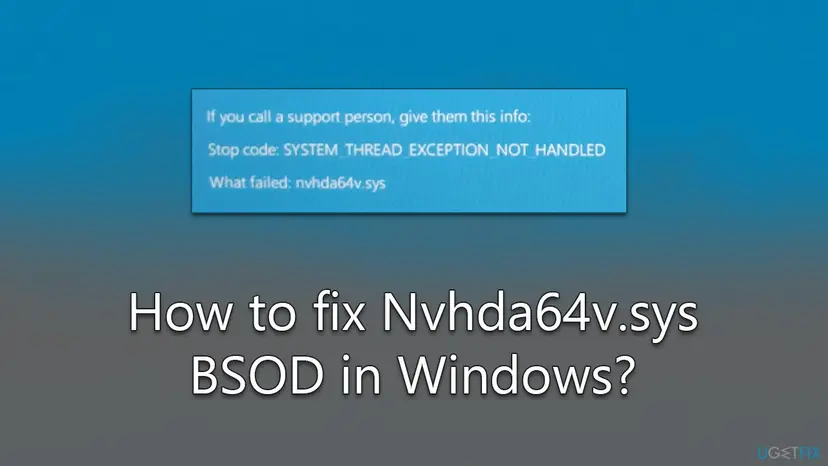
| What you see | What it means |
|---|---|
| Stop code: SYSTEM_THREAD_EXCEPTION_NOT_HANDLED | Bug check 0x7E. A system thread raised an error that nothing caught. The driver named below it is the one to deal with. |
| INTERNAL_POWER_ERROR | Bug check 0xA0. Seen with this driver when a PC went to sleep: the audio driver asked for a power change that Windows could not set up. |
| What failed: nvhda64v.sys | The NVIDIA HD Audio driver was running when Windows stopped. |
| NVHDA | The driver's service name, shown in crash dump analysis and some Event Viewer entries. |
nvhda64v.sys is a signed NVIDIA driver in C:\Windows\System32\drivers. Deleting the file by hand leaves a broken device behind. Disable the device or install the driver package without it, as shown below.
Why nvhda64v.sys crashes: the causes, most common first
In crash reports on NVIDIA's, Dell's and Sysnative's forums, the crashes stop when the NVIDIA audio device is disabled or left out of the driver install. That points at the audio driver itself, and only then at the hardware around it.
| How often | Cause | Sign | Fix |
|---|---|---|---|
| Most often | A bug in the installed NVIDIA HD Audio driver | Crashes go away as soon as NVIDIA High Definition Audio is disabled | Fix 1, Fix 2 |
| Often | A new NVIDIA driver brought a worse audio driver version | Crashes started on the day of a driver update | Fix 3 |
| Often | Sleep, wake or a screen being switched off confuses the driver | Crashes after sleep, or when the TV, monitor or receiver is turned off | Fix 1, Fix 4 |
| Less often | Old laptop or motherboard firmware (BIOS) or chipset drivers | A laptop with switchable Intel and NVIDIA graphics, crashes around power changes | Fix 4 |
| Rarely | A loose graphics card, faulty memory or other hardware | Crashes go on with the audio part removed, or name other drivers too | Fix 5 |
| Rarely | Damaged Windows system files | Several different drivers named in different crashes | Fix 6 |
Reports go back to GeForce drivers from 2017 and are still posted for laptops with RTX 30 series graphics on Windows 11. In several threads, the crashes came back with each new driver until the audio part was left out.
Check that the NVIDIA audio driver is the one crashing
One stop screen can be chance. Before you change drivers, check that the crashes really name nvhda64v.sys and see whether you use the device at all.
- Open File Explorer and go to
C:\Windows\Minidump. Each.dmpfile is one crash; the date shows when it happened. - Press Win + R, type
eventvwr.mscand press Enter. Open Windows Logs > System and look for BugCheck entries at the times of the crashes. - Right-click Start and select Device Manager. Expand Sound, video and game controllers and find NVIDIA High Definition Audio. You may see more than one entry, one per connected screen.
- Right-click the speaker icon on the taskbar, select Sound settings and check the output device. If it is your headphones, laptop speakers or a USB headset, you do not use the NVIDIA audio device.
You need it only if sound plays from the monitor, the TV or an AV receiver connected by HDMI or DisplayPort. If not, Fixes 1 and 2 cost you nothing.
How to fix the nvhda64v.sys blue screen
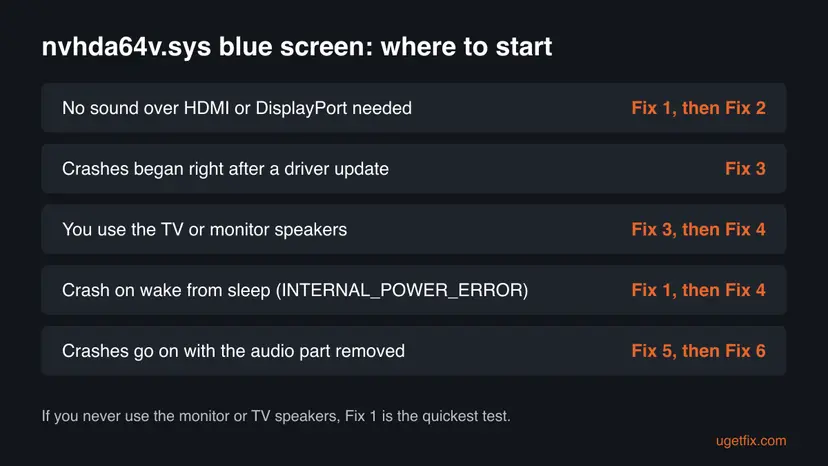
Fix 1 is a five minute test that tells you whether the audio driver is the cause. Fix 2 makes the change permanent, and Fix 3 is for readers who need HDMI sound. Fixes 4 to 6 are for crashes that go on.
| What you see | Start with | Then |
|---|---|---|
| You do not use the monitor or TV speakers | Fix 1 | Fix 2 |
| Crashes began right after an NVIDIA driver update | Fix 3 | Fix 1 |
| You need sound over HDMI or DisplayPort | Fix 3 | Fix 4 |
| Crashes on wake from sleep, INTERNAL_POWER_ERROR | Fix 1 | Fix 4 |
| Crashes go on with the audio part removed | Fix 5 | Fix 6 |
Fix 1. Disable NVIDIA High Definition Audio in Device Manager
5 minutesLow riskSound plays from your PC speakers, headphones or a headset, not from the monitor or TV.
A disabled device has no driver running, so nvhda64v.sys cannot crash the PC. The picture is not affected, because the graphics driver is a separate file. Users on the Dell and Sysnative forums report that their blue screens stopped after this.
- Right-click Start and select Device Manager.
- Expand Sound, video and game controllers.
- Right-click NVIDIA High Definition Audio and select Disable device, then Yes.
- Repeat for every other NVIDIA High Definition Audio entry in the list.
- Restart the PC and use it normally for a few days, including sleep and wake.

A new NVIDIA driver install can enable the device again. If the crashes return after a driver update, check Device Manager, then make the change permanent with Fix 2.
It worked if: The NVIDIA High Definition Audio entries show a down arrow, sound still plays from your usual speakers, and no blue screen appears for several days.
If not: If the PC still crashes and the dump still names nvhda64v.sys, remove the driver completely with Fix 2. If it names a different driver now, go to Fix 5.
Fix 2. Reinstall the NVIDIA driver clean, without the HD audio part
20 minutesLow riskFix 1 stopped the crashes, or you want the audio driver gone for good.
NVIDIA's installer has a Custom (Advanced) mode in which you choose the components and can tick Perform a clean installation. Leaving out the HD audio part means nvhda64v.sys is never installed again, and the clean option removes old settings and leftover driver files.
- Download the current driver for your card from NVIDIA's Game Ready Drivers page, or the driver from your laptop maker's support page.
- Close all programs, including GPU monitoring and tuning tools such as MSI Afterburner, browsers and video players.
- Right-click the downloaded installer and select Run as administrator. Accept the User Account Control prompt and the default folder for temporary files.
- Choose Custom (Advanced) and select Next.
- In the list of components, keep the graphics driver and untick the HD Audio driver. Untick the other optional parts you do not use, too.
- Tick Perform a clean installation and select Next.
- Restart the PC when the installer finishes.
The exact name of the audio component in the custom list has changed over the years. Look for the entry with Audio in its name and leave only the graphics driver ticked, plus the NVIDIA App if you use it.
It worked if: Sound, video and game controllers no longer lists NVIDIA High Definition Audio, the screen works at full resolution, and the blue screens stop.
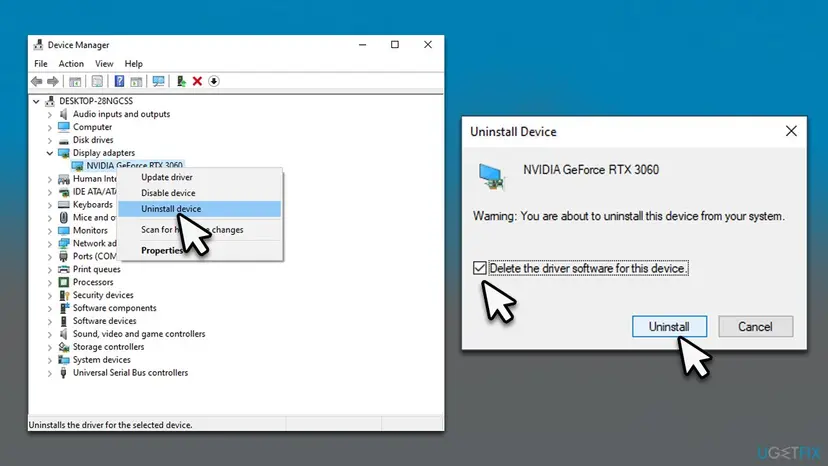
If not: If the installer fails, uninstall the graphics card in Device Manager with the driver removal box ticked, restart and run the installer again. If the crashes go on, go to Fix 4.
Fix 3. Roll back the NVIDIA driver to the version that worked
10 minutesLow riskThe crashes started after a new NVIDIA driver, or you need sound through the monitor or TV.
Each NVIDIA driver release brings its own HD Audio driver version, and users report that one release crashed while the one before did not. Returning to the earlier version keeps HDMI sound and removes the new bug.
- Right-click Start, select Device Manager and expand Sound, video and game controllers.
- Right-click NVIDIA High Definition Audio and select Properties.
- Open the Driver tab, write down Driver Version, then select Roll Back Driver, choose a reason and select Yes.
- If Roll Back Driver is greyed out, do the same under Display adapters for the NVIDIA graphics card, which rolls back the whole package.
- Restart the PC.
- If the button is greyed out there too, download the previous driver release from NVIDIA and install it as in Fix 2, with the HD audio part ticked this time.
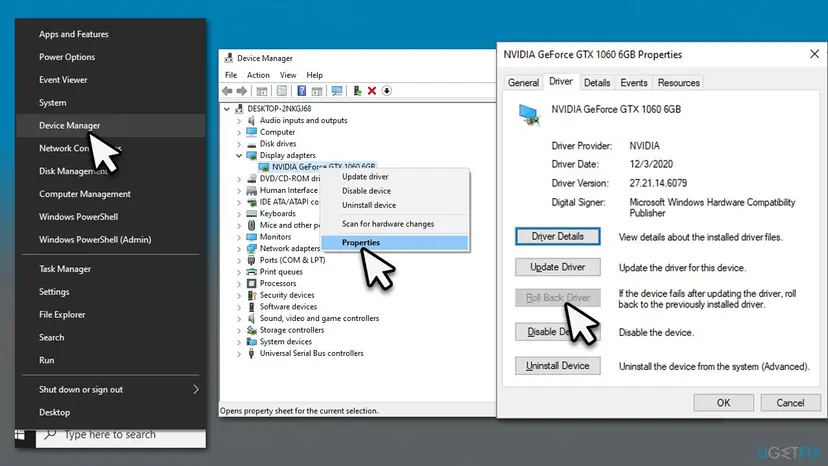
After a rollback, leave NVIDIA driver entries under Settings > Windows Update > Advanced options > Optional updates unticked until NVIDIA publishes a newer release.
It worked if: The Driver tab shows the older version, sound over HDMI or DisplayPort still works, and the crashes stop.
If not: If the older driver crashes too, try the newest release from NVIDIA instead, then Fix 4.
Fix 4. Update the BIOS and chipset drivers from your PC maker
20 to 30 minutesRead the warningThe crashes happen around sleep, wake or power changes, especially on a laptop with both Intel and NVIDIA graphics.
The audio driver asks Windows to change the device's power state, and the firmware's power tables (ACPI) take part in that. Microsoft's guidance for this kind of crash includes checking with the hardware maker for ACPI and firmware updates.
Use only the file for your exact model from your PC or motherboard maker, keep a laptop on mains power, and do not turn the PC off while it flashes. Back up your files first: Back up your files (Windows Backup, File History, Time Machine)
- Press Win + R, type
msinfo32and press Enter. - Note System Model (laptops) or BaseBoard Product (desktops), and BIOS Version/Date.
- On your PC or motherboard maker's support site, search for that model and open its drivers and downloads.
- Install the newest Chipset driver first and restart.
- If a newer BIOS is listed, read its notes, run the update as the maker describes and let the PC restart on its own.
- Install the NVIDIA driver again afterwards, as in Fix 2 or Fix 3.
It worked if: BIOS Version/Date in System Information shows the new version, and sleep and wake no longer end in a blue screen.
If not: If the crashes go on, check the hardware with Fix 5.
Fix 5. Check the graphics card, the memory and the PC maker's diagnostics
30 minutes, plus a test overnightNo riskCrashes go on with the NVIDIA audio device disabled or removed, or name different drivers each time.
When a crash continues with the driver gone, the driver was not the whole cause. Microsoft advises running the hardware diagnostics that the PC maker supplies, and a forum analyst suggested reseating the graphics card for this exact crash.
- On a desktop, shut down, unplug the power cable, then take the graphics card out and push it firmly back into its slot. Check that its power cables click in.
- Remove any overclock and run the card and memory at default speeds while you test.
- Test the memory: How to test your RAM with Windows Memory Diagnostic
- Run the diagnostics your PC maker ships, such as the one in the laptop's boot menu, and note any error codes it shows.
It worked if: The diagnostics pass and the PC runs without a stop screen, or they show a faulty part that you can have replaced.
If not: If the hardware tests pass and the crashes go on, repair Windows in Fix 6.
Fix 6. Repair Windows system files
20 minutesNo riskEvery fix above failed, or the stop screens name several different drivers.
nvhda64v.sys sits on top of the Windows audio and power stacks. They are rarely damaged, but DISM and SFC check them together with the rest of Windows and replace a broken copy.
DISM fetches clean Windows components, then SFC replaces damaged system files. Step by step with screenshots: Run DISM and SFC to repair Windows system files
In Terminal (Admin), one after the other:
DISM.exe /Online /Cleanup-Image /RestoreHealth
sfc /scannow
If the crashes began on a known date and nothing else helped, System Restore takes Windows and its drivers back to that date without touching your files: Undo recent changes with System Restore
It worked if: SFC reports no integrity violations or says it repaired them, and the blue screens stop.
If not: Collect the crash dumps and contact NVIDIA or your PC maker, as described in the next section.
Still crashing: what to check and whom to ask
Only NVIDIA can fix a bug inside nvhda64v.sys, and on a laptop the PC maker decides which NVIDIA driver it supports. Give them what they need to reproduce the crash.
- The three newest
.dmpfiles fromC:\Windows\Minidump, zipped. - The NVIDIA driver version from the graphics card's Driver tab in Device Manager.
- Your graphics card or laptop model and the monitor, TV or receiver connected to it.
- Your Windows edition and version from Settings > System > About.
- When it crashes: on wake from sleep, when a screen is switched off, or at random.
| Where to report | When |
|---|---|
| Your laptop maker's support | A laptop: they test and publish the NVIDIA driver for your model |
| NVIDIA support or the GeForce driver forum | A desktop card, or the crash happens with NVIDIA's own driver |
| The motherboard maker | The crashes happen around sleep and a BIOS update did not help |
If the crashes continue with the audio device removed and the stop codes change from crash to crash, suspect memory, storage or the power supply rather than the NVIDIA driver.
How to keep the nvhda64v.sys blue screen from coming back
- Use Custom (Advanced) for every NVIDIA driver install and untick the HD audio part if you do not need it.
- Note the driver version that works, so you can return to it.
- Get drivers from NVIDIA or your laptop maker only.
- Check Device Manager after each driver update to see whether NVIDIA High Definition Audio came back.
- Delete nvhda64v.sys by hand or replace it with a copy from a DLL site.
- Use third-party driver updater programs for graphics drivers.
- Install every optional NVIDIA component by default.
- Turn off Windows security features to make the crash stop.
Windows 10 left support on 14 October 2025. NVIDIA still publishes drivers for it, but a PC that can run Windows 11 has better odds of getting future driver fixes.
Frequently asked questions
What is nvhda64v.sys?
nvhda64v.sys is the 64-bit NVIDIA High Definition Audio driver. It drives the small sound device inside every NVIDIA graphics card, which sends audio to a monitor, TV or AV receiver over HDMI or DisplayPort. It is installed with the GeForce graphics driver and shows in Device Manager under Sound, video and game controllers as NVIDIA High Definition Audio. The file lives in C:\Windows\System32\drivers. It is a genuine NVIDIA driver, not part of Windows and not malware.
What does SYSTEM_THREAD_EXCEPTION_NOT_HANDLED with nvhda64v.sys mean?
It is bug check 0x7E: a system thread hit an error that no error handler caught, so Windows stopped. The stop code describes the kind of fault, and What failed names the driver that was running, here the NVIDIA audio driver. Microsoft's advice for this bug check is to disable or remove the named driver or to get an update from its maker. That is what Fixes 1 to 3 on this page do.
Can I disable NVIDIA High Definition Audio safely?
Yes. Disabling it only removes the option to play sound through the monitor, TV or receiver connected to the graphics card. The picture, games, video acceleration and the graphics driver keep working, because they use a different driver file. Your laptop speakers, headphones and USB headsets use other audio devices and are not affected. You can enable the device again at any time in Device Manager if you start using HDMI sound.
Why does it crash when the PC wakes from sleep?
The audio driver has to switch its device off when the PC sleeps and back on when it wakes, and it asks Windows for each power change. In one analysed case, that request failed and Windows stopped with INTERNAL_POWER_ERROR, with nvhda64v.sys on the call stack. Removing the NVIDIA audio driver ended the crashes there. Disabling the device (Fix 1) and updating the BIOS and chipset drivers (Fix 4) target this case.
Will I lose sound if I remove the NVIDIA audio driver?
Only the sound that goes out through HDMI or DisplayPort to a monitor, TV or receiver. Sound through the motherboard's audio jack, the laptop's own speakers, Bluetooth and USB headsets uses other drivers and keeps working. If you need the monitor's speakers, keep the audio part and use Fix 3 instead, which finds a driver version that does not crash on your PC.
Does a clean NVIDIA driver install fix nvhda64v.sys crashes?
Only when you leave the HD audio part out, or when the new driver carries a fixed audio driver version. A clean install with every component ticked puts the same nvhda64v.sys back, so the crash can return. In NVIDIA's installer, choose Custom (Advanced), untick the audio component and tick Perform a clean installation, as in Fix 2.
Is nvhda64v.sys a virus?
The genuine file is a signed NVIDIA driver in C:\Windows\System32\drivers, and its crashes come from bugs, not from malware. A copy in another folder, or one without a valid NVIDIA signature, would be suspicious. To check, right-click the file in File Explorer, select Properties and open Digital Signatures. If in doubt, run a Microsoft Defender scan: How to scan for malware with Microsoft Defender. A scan alone will not stop the blue screens, though.
Should I use a driver updater program to fix it?
No. Driver updater programs may pick a driver for the wrong card or from an unofficial source, and they install every component, including the audio part that crashes. The current NVIDIA driver is free on NVIDIA's own download page, and laptop makers publish theirs on their support sites. Those two places are enough for this error, and you choose exactly which components go in.
This page is about nvhda64v.sys. What about nvlddmkm.sys?
nvlddmkm.sys is the NVIDIA graphics driver itself, a different file with different causes such as display timeouts and unstable clocks. The fixes on this page that remove the audio part will not help with it. Clean driver installs and removing overclocks still apply. Our guide to Event ID 153 from nvlddmkm covers that driver.
Sources
- NVIDIA Support: How do I manually clean install the NVIDIA driver for my graphics card? (Custom (Advanced) and Perform a clean installation) (nvidia.custhelp.com)
- Microsoft Learn: Bug Check 0x7E SYSTEM_THREAD_EXCEPTION_NOT_HANDLED (learn.microsoft.com)
- Sysnative Forums: INTERNAL_POWER_ERROR, Power IRP Allocation, nvhda64v (solved, dump analysis by staff) (sysnative.com)
Did this fix work?
One click, no account. It tells the next reader which guides are worth their time.
Questions and experiences: fix the nvhda64v.sys blue screen (BSOD) in Windows
Still broken, or found a fix we did not cover? Ask here: members and our editors answer. Reading is open; writing needs a free account.
…