How to fix
OneDrive error 0x80040c82
on Windows
Resolve OneDrive error 0x80040c82 effortlessly in Windows 10 or 11. Get expert-tested solutions to fix it in minutes, leaving zero traces behind.

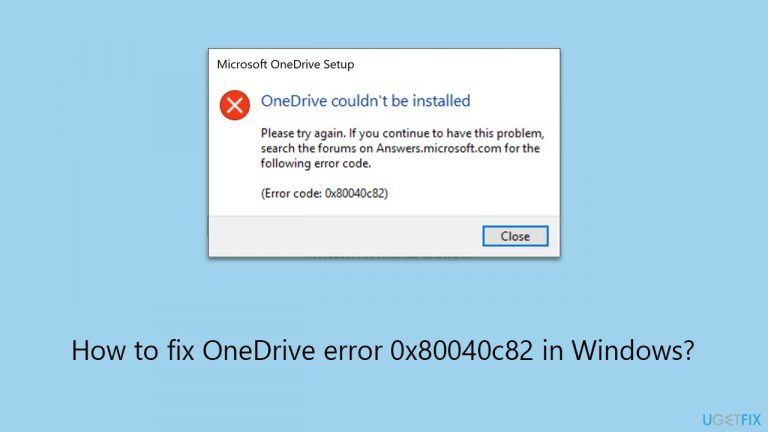
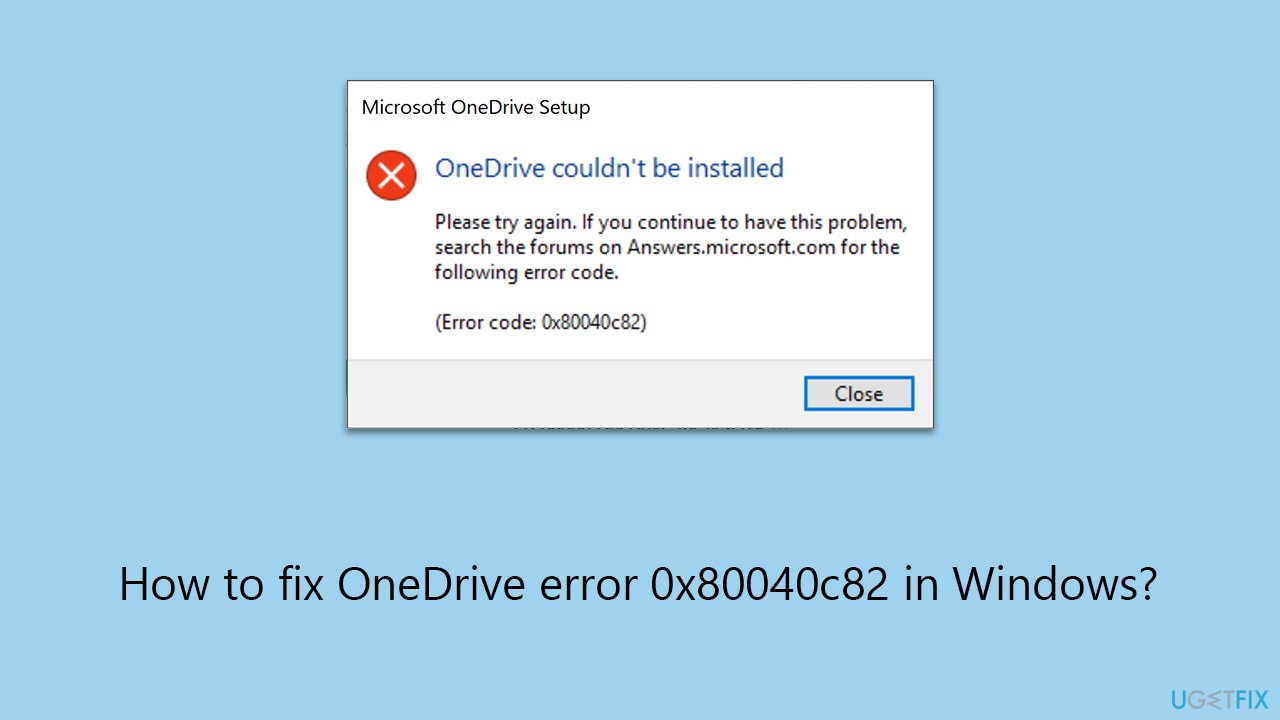
What causes How to fix OneDrive error 0x80040c82 in Windows?
- Previous version has not been uninstalled correctly
- Leftover files in cache folders
- Tasks related to OneDrive are still running in the background
- File corruption
- Conflicting third-party software
Repairs Windows system files, removes malware, and restores a clean OS state — without reinstalling.
Hello. I am trying to install OneDrive on Window but I keep getting 0x80040c82 error. What does that mean?
OneDrive is a popular online storage solution provided by Microsoft. It enables users to save private data and documents on the cloud, from which any internet-connected device can access them. Users now find it simple to share and access their files with others and from any location.
Users may conveniently save and retrieve their files from within Office 365 and other Microsoft services by integrating OneDrive with them. It provides a range of plans, including alternatives for individuals, families, and corporations, to meet various demands. Moreover, it has functions like automatic backup, real-time collaboration, and file syncing.
While it has become an irreplaceable tool for many users, they don't avoid technical issues. OneDrive error 0x80040c82 can occur whenever users are trying to install the app or reinstall it.
There are several reasons why one would need to reinstall the app, for example, after System Restore or Windows reset. In other cases, OneDrive might become slow, cause high resource usage, or malfunction in other ways.
0x80040c82 occurs because the previous version has not been uninstalled correctly, there are some leftover files in cache folders, or some tasks related to it are still running in the background.
Luckily, there are numerous ways that can help you fix OneDrive error 0x80040c82 in Windows. For example, killing its tasks, uninstalling the app in other ways, fixing file corruption or uninstalling conflicting third-party software can often help.
For a more hands-off approach, you can always try solutions such as [d1] PC repair - it's an app designed to find corrupted Windows sectors and repair them automatically, resolving DLL errors, BSODs, system file corruption, registry issues, and more. If you would like to fix the 0x80040c82 error manually, follow the instructions below.
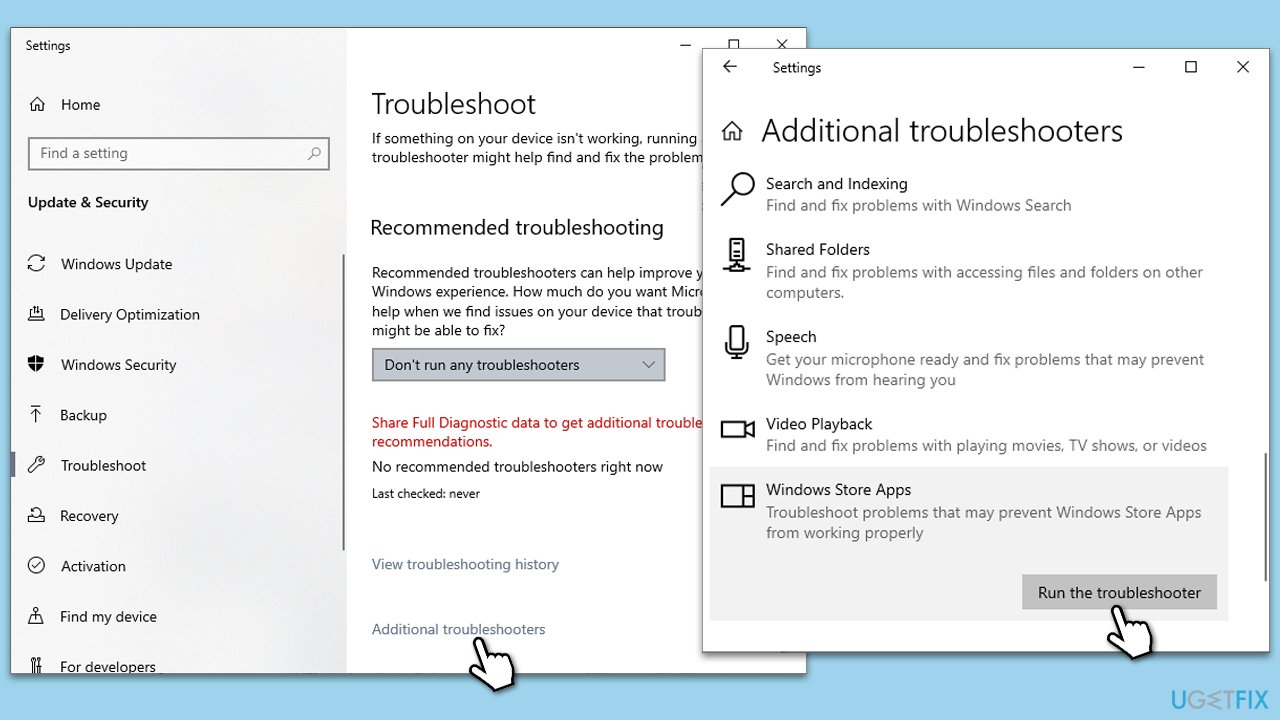
Fix 1. Run Windows Store Apps troubleshooter
The Windows Store Apps troubleshooter can help resolve issues with apps downloaded from the Windows Store, including OneDrive. It scans and automatically fixes problems related to app functionality.
- Type in Troubleshoot in Windows search and hit Enter.
- Select Additional Troubleshooters/Other troubleshooters option.
- Scroll down to find Windows Store Apps and click Run/Run the troubleshooter.
- Once done, apply the recommended fixes.
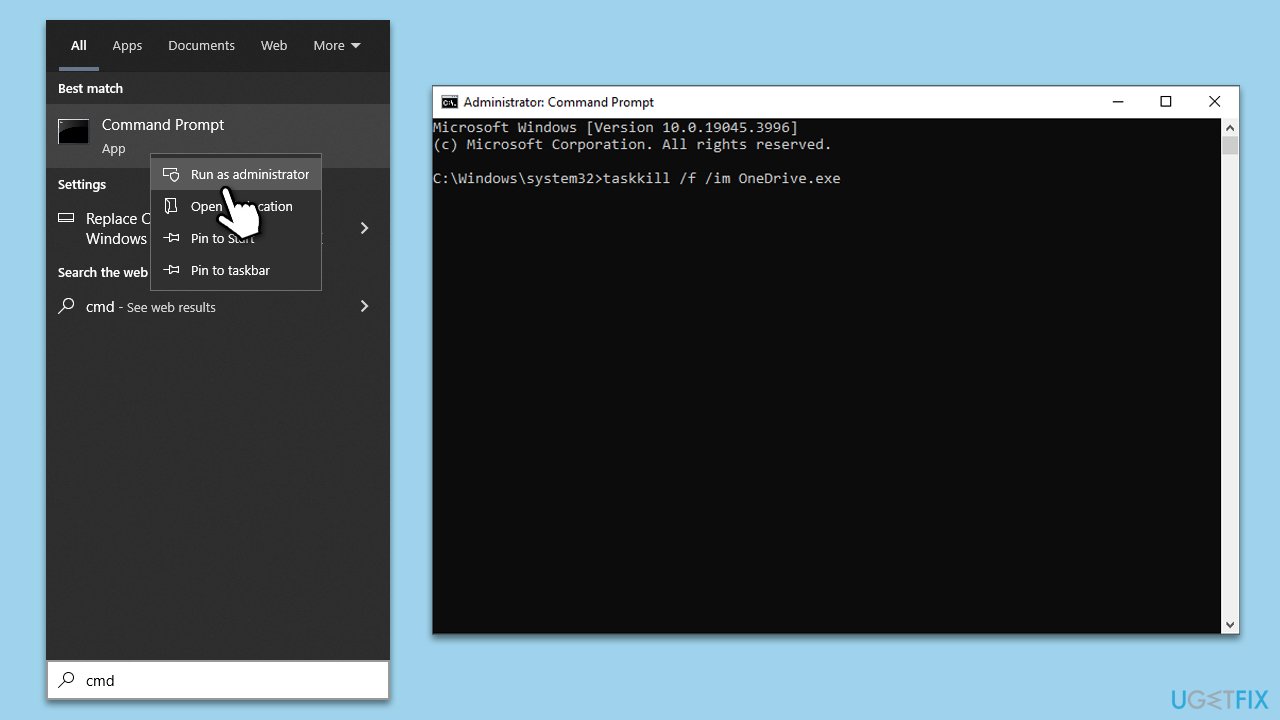
Fix 2. Use Command Prompt to uninstall OneDrive
Using Command Prompt to uninstall OneDrive can help ensure a complete removal of the app, including files that might not be deleted through the standard uninstallation process.
- Type cmd in Windows search.
- Right-click on Command Prompt and pick Run as administrator.
- User Account Control window will show up - click Yes when prompted.
- Type in the following and press Enter to terminate any leftover OneDrive processes:
taskkill /f /im OneDrive.exe - If you are using 64-bit Windows,* use the following command and hit Enter:
%SystemRoot%\SysWOW64\OneDriveSetup.exe /uninstall - If you are using 32-bit Windows,* use the following command and hit Enter:
%SystemRoot%\System32\OneDriveSetup.exe /uninstall - After that, restart your PC.
* - To check which Windows you are running, right-click on Start and pick System. Under Device specifications, check the System type section.
Fix 3. Perform Clean Boot
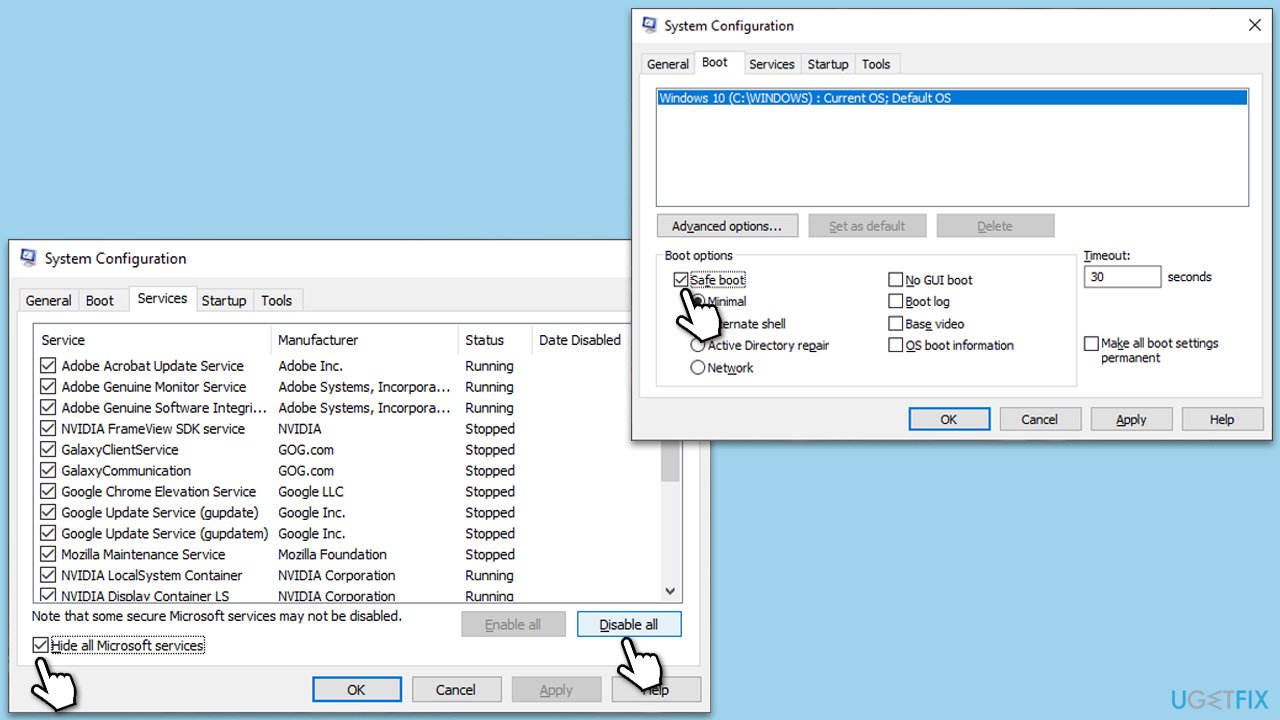
Some users noted that third-party backup applications, such as Macrium Reflect, pCloud, FBackup, and similar apps, may interfere with proper installation of OneDrive. You can temporarily uninstall these tools and install OneDrive that way. If you do not have any such apps, proceed with Clean Boot that will allow you to determine the app interfering with OneDrive:
- Type msconfig in Windows search and press Enter.
- Go to the Services tab.
- Mark Hide all Microsoft services and select Disable all.
- Go to the Startup tab and click Open Task Manager.
- In the Task Manager, right-click on each of the items and select Disable, then close the Task Manager.
- Go to the Boot tab, tick Safe Boot, then click Apply and OK.
- If the problem is gone, re-enable services and startup items one by one to identify the problematic software.
Fix 4. Try System Restore
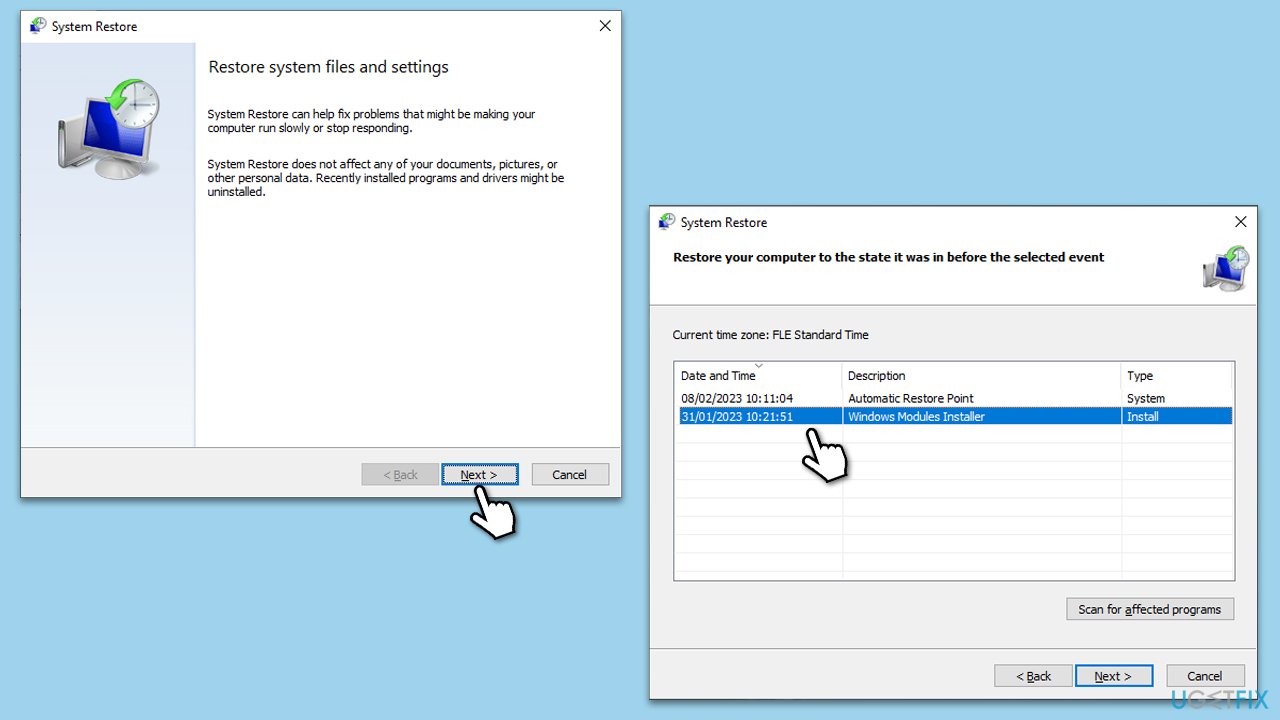
System Restore can revert your system's state to a previous point in time when OneDrive was functioning correctly. This can resolve issues caused by recent system changes.
- Type in Create a Restore point in Windows search and hit Enter.
- In the System Protection tab, pick System restore.
- Click Next.
- Click Show more restore points (if available).
- Pick the time before the problem occurred and click Next.
- Your computer will reboot.
Fix 5. Repair corrupted system files
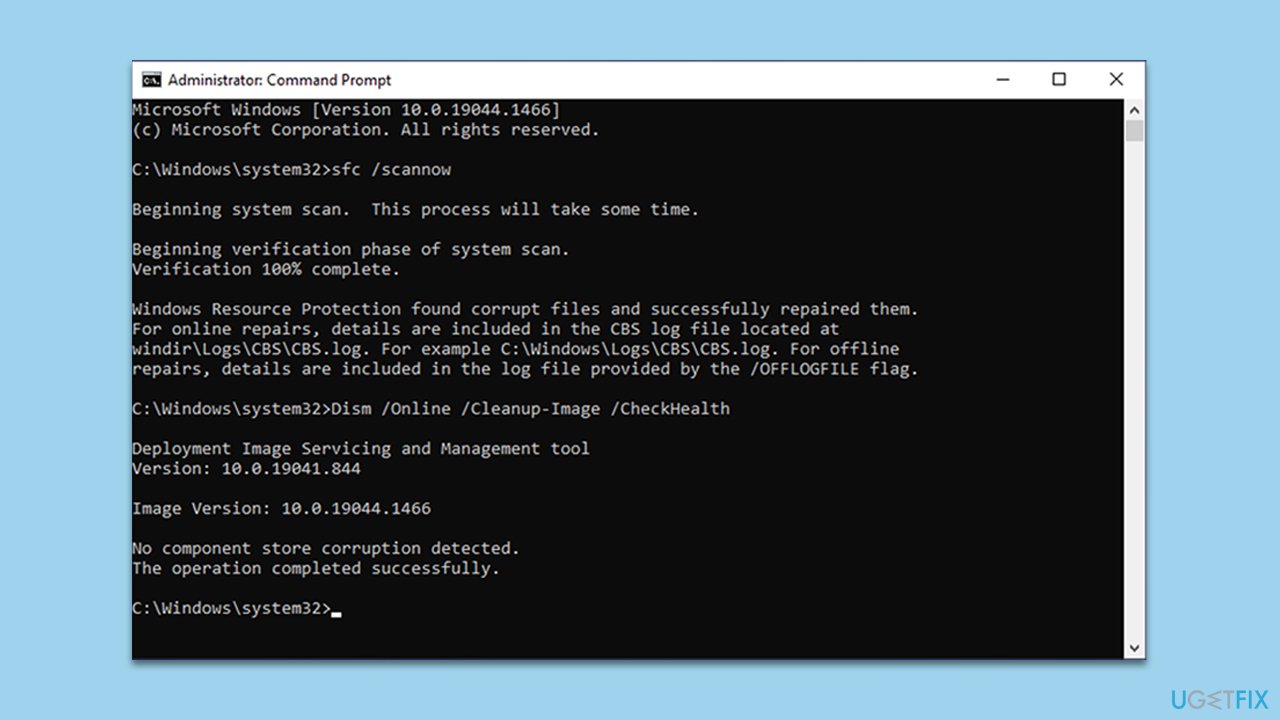
Running SFC and DISM tools can repair corrupted system files which might be causing the OneDrive issue.
- Open Command Prompt as administrator.
- Copy and paste the following command, pressing Enter after:
sfc /scannow - Wait till the scan is finished. If Windows finds system file integrity violations, it will attempt to fix them. After this, use the set of the following commands, pressing Enter each time:
DISM /Online /Cleanup-Image /CheckHealth
DISM /Online /Cleanup-Image /ScanHealth
DISM /Online /Cleanup-Image /RestoreHealth - Close down the Command Prompt and restart your device.
Bottom line
To fix OneDrive error 0x80040c82, you can try killing its tasks, uninstalling the app through different methods, or repairing file corruption. Additionally, using a PC repair app may help resolve underlying issues. If none of these solutions work, consider seeking further assistance or reinstalling Windows.
Frequently asked questions
OneDrive error 0x80040c82 typically indicates a problem with syncing files, often due to issues with account settings or corrupted files.
To fix this error, try unlinking and relinking your OneDrive account, or resetting the OneDrive app through the settings.
To prevent this error, ensure that your Windows 11 is up to date and regularly check your OneDrive settings for any synchronization issues.




Report an issue
What's wrong with this guide? We review every report and update or remove content.
Report received — thank you. We'll review and fix it.
You need a free account to submit a report.
Be the first to comment