How to fix
Origin Bad Image error
on Windows
Resolve the Origin Bad Image error on Windows 10 or 11 effortlessly. Follow our expert-tested guide to get back to gaming in no time! Fixed in minutes.


What causes How to fix Origin Bad Image error in Windows?
- Corrupted Origin installation or game files
- Interrupted download or flawed installation process
- Incompatible version of Origin for the operating system
- Missing or tainted system files
- Conflicts with third-party software
- Improperly aligned Visual C++ Redistributable
Repairs Windows system files, removes malware, and restores a clean OS state — without reinstalling.
Hi. Whenever I attempt to launch Origin to play the Sims, I receive an Origin.exe Bad Image error. As such, I can no longer play the game. How do I fix this?
Origin, developed by Electronic Arts (EA), is a digital game distribution platform. Renowned for its extensive library of video games and related content, Origin facilitates the purchase, download, and gameplay of these offerings. Additionally, it doubles as a tool for multiplayer gaming, digital rights management, and communication.
However, like all software applications, Origin is not exempt from glitches and errors. Among the challenges some users face is the "Origin.exe Bad Image" error, which frequently comes tagged with the error code 0xc000012f.
At its core, the "Bad Image" error is rooted in the Windows operating system. It manifests when Windows tries to execute files that are either corrupted or incompatible. The "Bad Image" descriptor is indicative of the affected program having one or more files that don’t align correctly with its operational needs, essentially barring the software from running smoothly.
Several factors might lead to the emergence of the Origin Bad Image error. Often, it could be due to corrupted Origin installation or game files. An interrupted download or a flawed installation process might result in certain files getting damaged. Similarly, there's the potential for users to inadvertently install versions of Origin that their operating system doesn’t support, triggering the error.
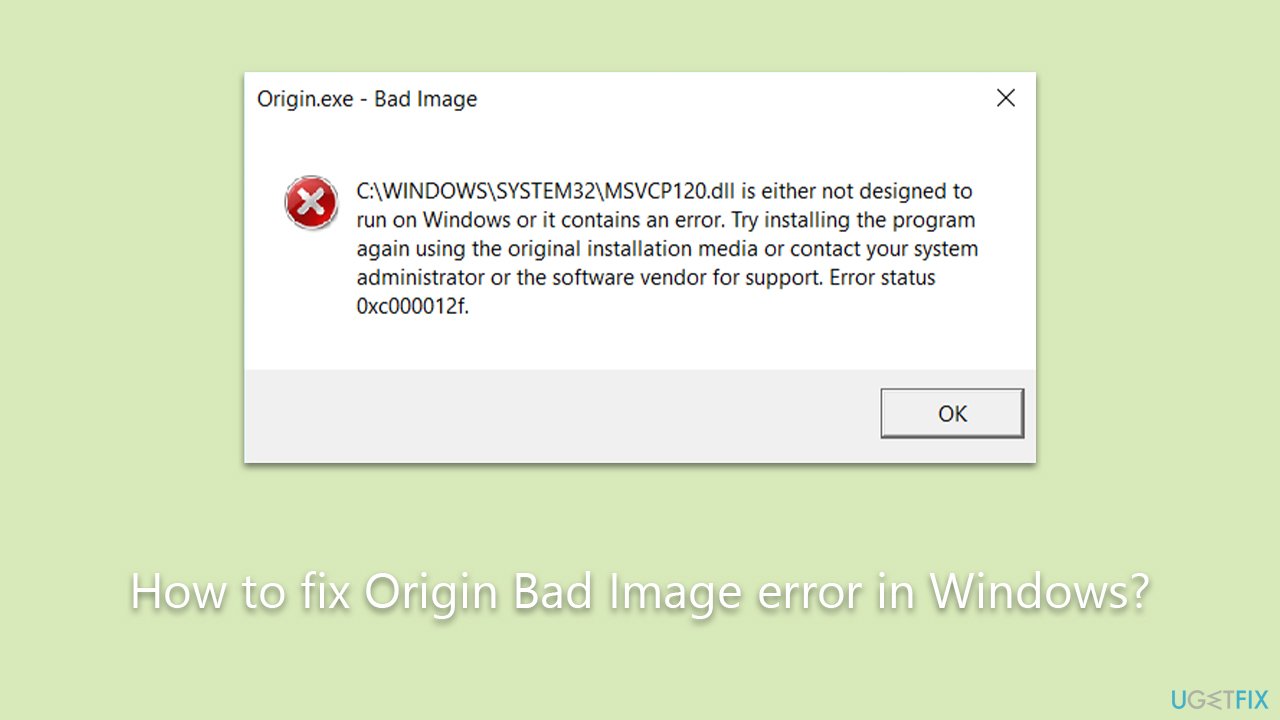
Another significant contributor to this problem is the system files that Origin hinges on. Should these system files be missing or tainted, Origin's operational capability could be compromised. Further, third-party software, particularly those modifying the behavior or visuals of other programs, can clash with Origin, producing the said error. A notable mention in this context is the Visual C++ Redistributable, which, if not properly aligned, can be a reason for the issue.
Resolving the Origin.exe Bad Image error necessitates a targeted approach, isolating the root cause and then rectifying it. Comprehensive instructions geared towards rectifying this issue will follow this article.
For broader Windows challenges, it might be beneficial to consider tools like the [d1] PC repair tool. Though not a direct solution for this particular error, it's adept at automating the resolution of numerous Windows problems.
Fix 1. Update your GPU drivers
Graphics Processing Units (GPUs) are pivotal for the seamless operation of video games and related software like Origin. Outdated or corrupted drivers can lead to compatibility issues and errors, such as the "Bad Image" error. Regularly updating GPU drivers ensures compatibility with the latest games and software updates. You can either download them manually from the official website, employ [rev id="DriverFix"] for the automatic option, or use Windows update feature:
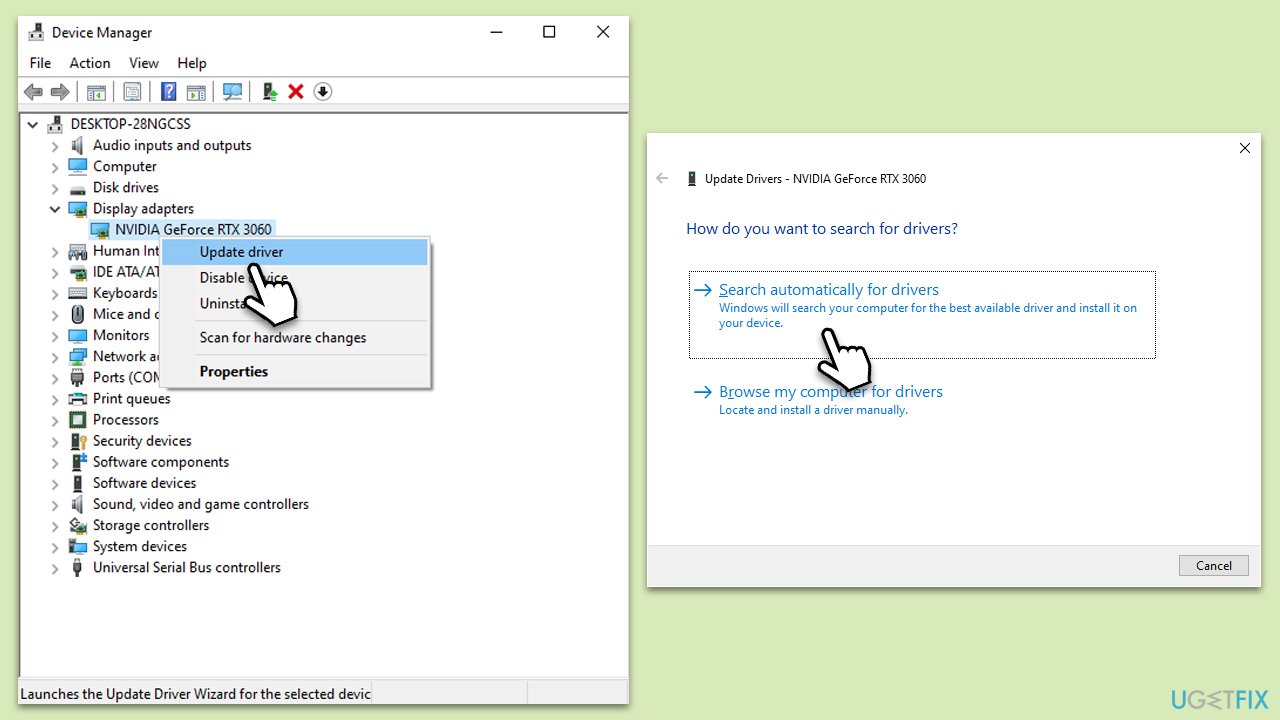
- Right-click on Start and pick Device Manager.
- Expand the Display Adapters section.
- Right-click on your graphics card and select Update Driver.
- Select Search automatically for drivers and wait.
- Once done, restart your system.
Fix 2. Run SFC and DISM
System File Checker (SFC) and Deployment Image Servicing and Management (DISM) are Windows utilities that repair corrupted system files, which might be causing errors with applications like Origin.
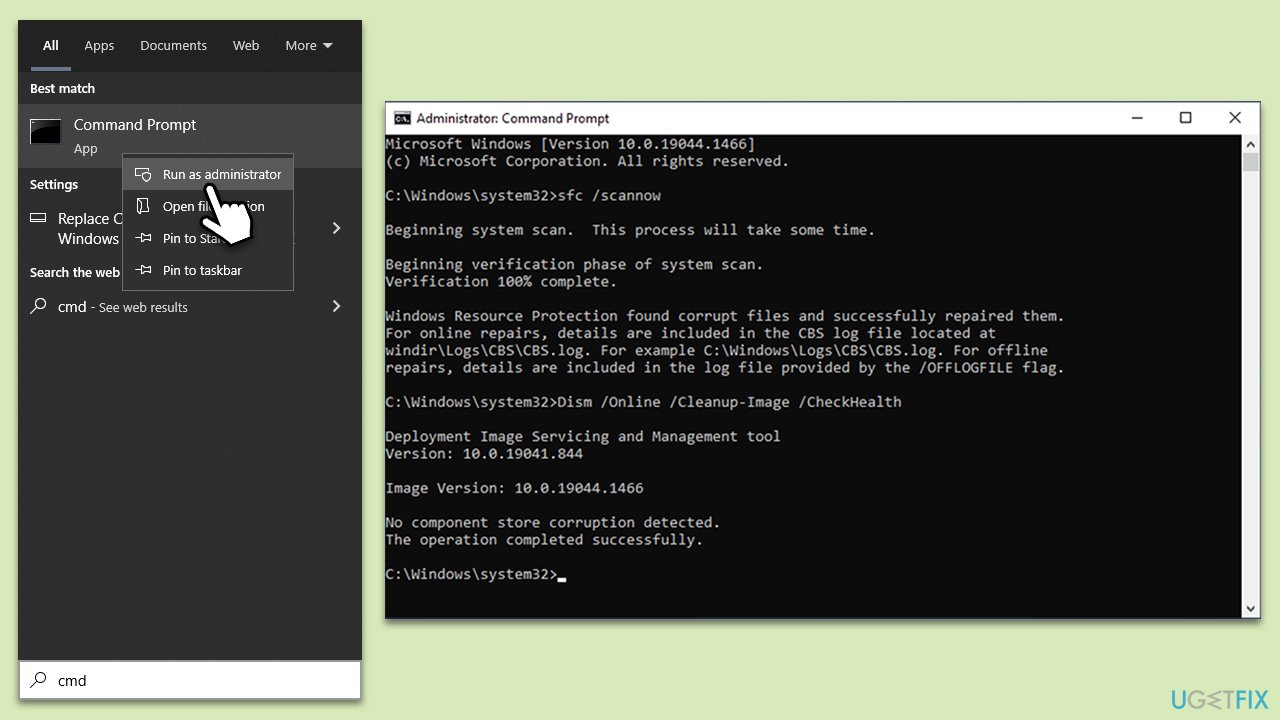
- Type cmd in Windows search.
- Right-click on the Command Prompt result and pick Run as administrator.
- User Account Control will ask you whether you want to allow changes - click Yes.
- Paste the following command into the new window:
sfc /scannow - Press Enter and wait till the scan finishes.
- When done, run this set of commands, pressing Enter each time:
DISM /Online /Cleanup-Image /CheckHealth
DISM /Online /Cleanup-Image /ScanHealth
DISM /Online /Cleanup-Image /RestoreHealth - Restart your system.
Fix 3. Run Origin as administrator
Some programs require elevated privileges to access certain system files or processes. Running Origin as an administrator might bypass potential permission issues.
- Open File Explorer with Win + E and go to the Origin's installation location.
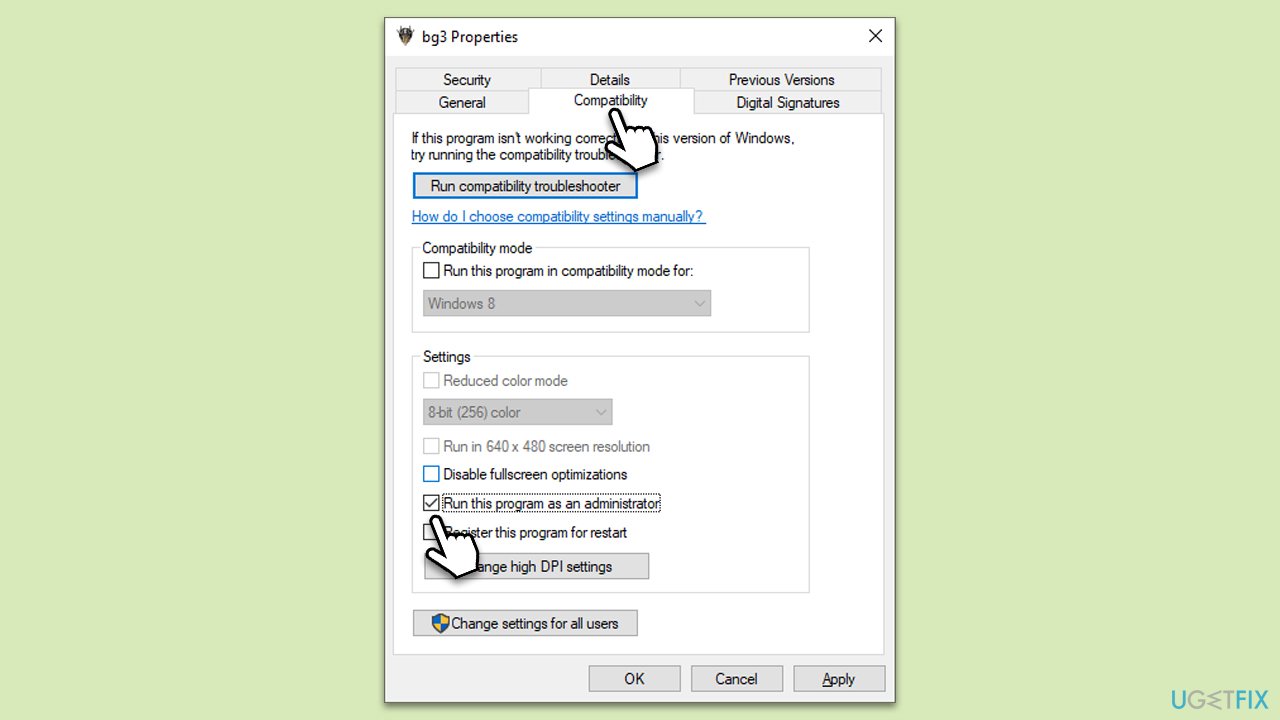
- Right-click on Origin.exe and select Properties.
- Go to the Compatibility tab.
- Under Settings, tick the Run this program as administrator checkbox.
- Click Apply and OK, then launch Origin client.
Fix 4. Re-register the DLL file
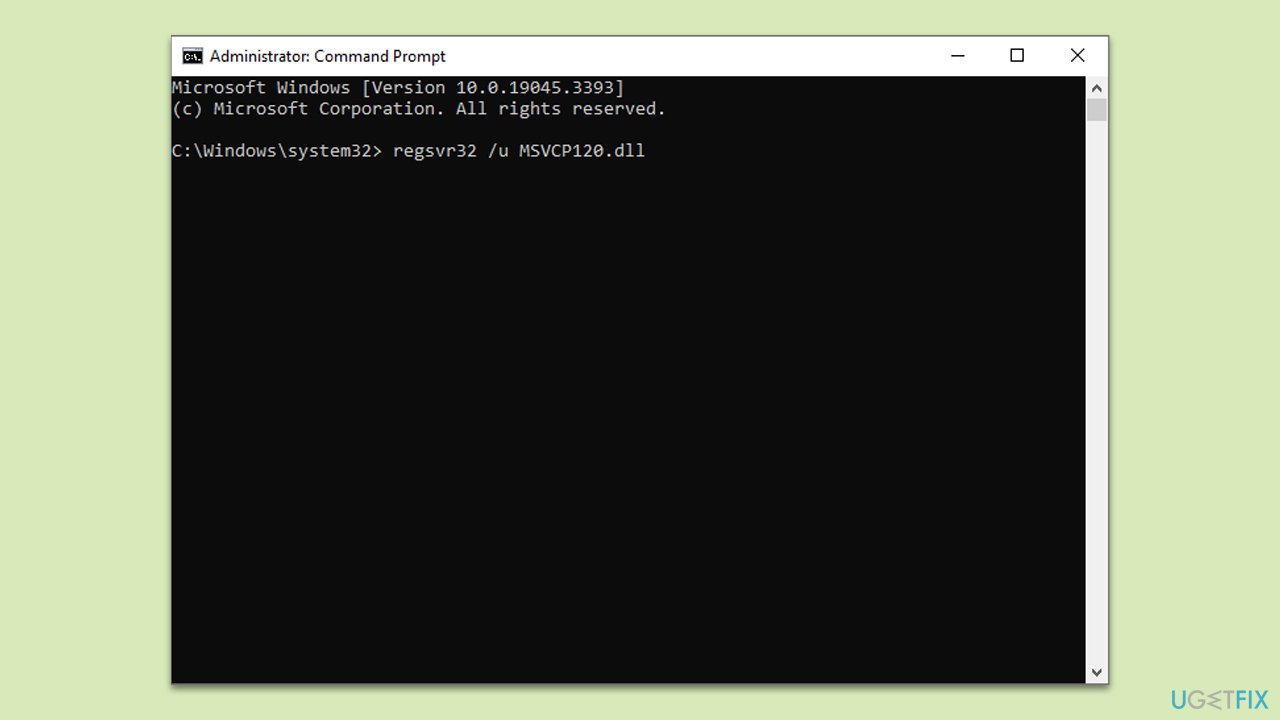
The error message often indicates a specific DLL file (like MSVCP120.dll or MSVCP140.dll) as problematic. Re-registering the DLL might resolve the issue.
- Open Command Prompt as an administrator.
- Type regsvr32 /u [DLL name] and press Enter (replace [DLL name] with the file mentioned in the error, e.g., MSVCP120.dll).
- Next, type regsvr32 [DLL name] and press Enter.
- Restart your computer.
Fix 5. Install missing Visual C++ Redistributable packages
Visual C++ Redistributable packages are essential for running applications built with Visual C++. If they're missing or corrupted, it can cause errors.
- Open the Control Panel and go to Programs > Uninstall a program.
- Here, scroll down and check the list of the installed Visual C++ versions.
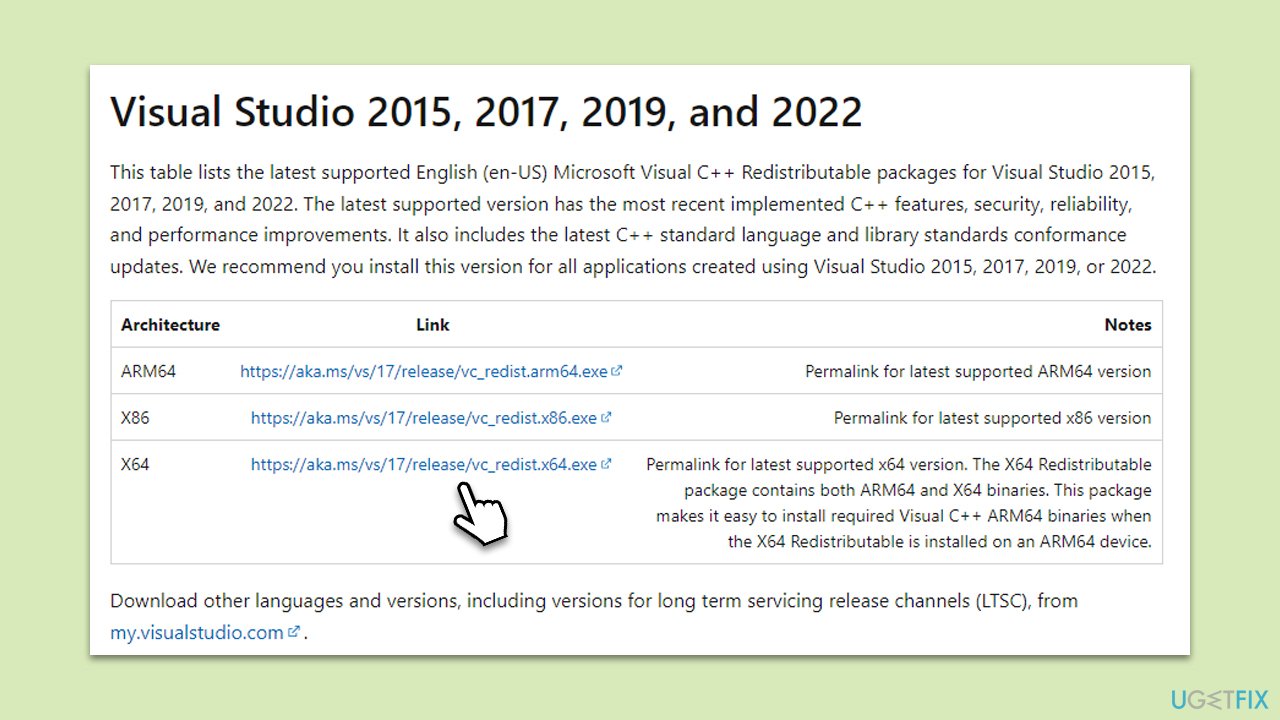
- Open your browser and navigate to the official Microsoft Visual C++ download page.
- Download and install all the missing versions (including the x84 and x64 versions) of Visual Studio.
- Once done, restart your system and see if the error persists.
Fix 6. Temporarily disable third-party security software
Sometimes, security software might misidentify legitimate software actions as threats, leading to errors.
- Access your security software's interface.
- Temporarily disable its protection features.
- Try running Origin to see if the error persists.
- If everything works fine, make sure to add Origin to the exception list of your security app.
Fix 7. Reinstall Origin
A fresh installation can often remedy corrupted files or incorrect settings in Origin.
- Type Control Panel in Windows search and press Enter.
- Go to Programs > Uninstall a program.
- Find the client, right-click, and pick Uninstall.
- Proceed with on-screen instructions.
- Once done, press Win + R on your keyboard.
- Type %ProgramData% and press Enter.
- Find the Origin folder and access it. Here, delete everything apart from LocalContent folder (this is important!).
- In the same way, access the %AppData% folder.
- Locate the Origin folder and delete it.
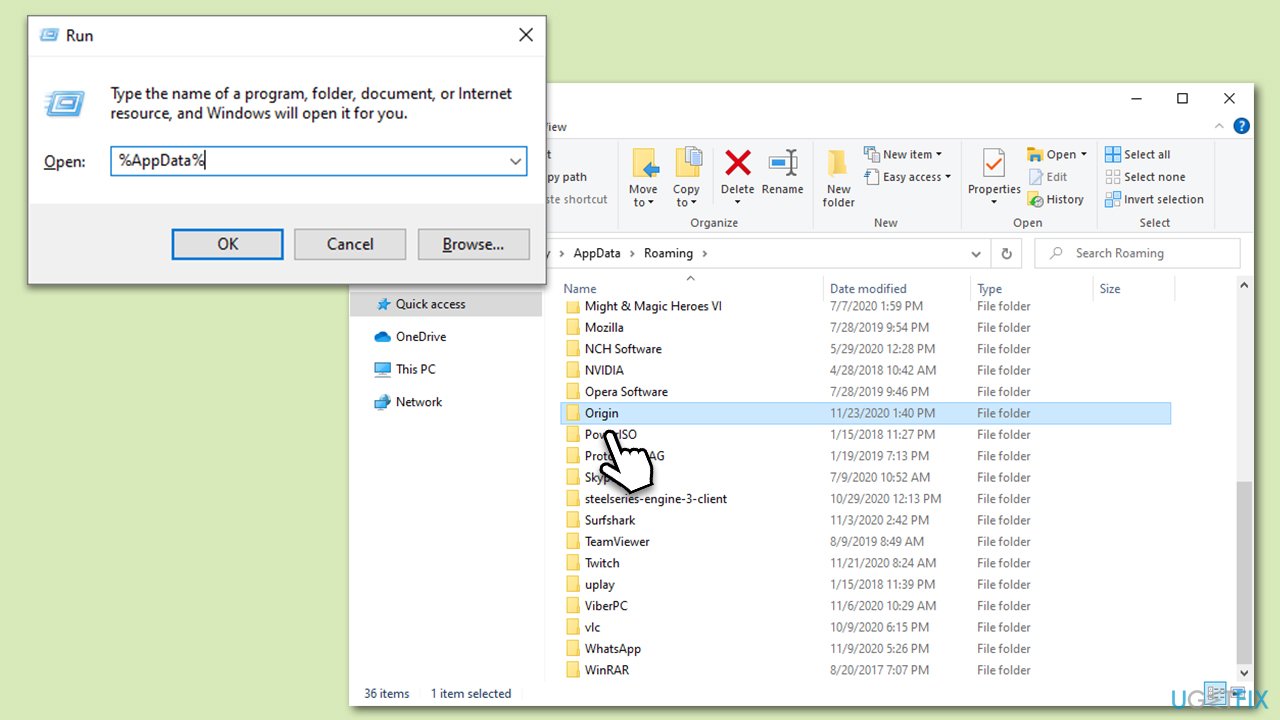
- Now, go back by pressing the up arrow at the top-left.
- Select the Local folder and double-click it.
- Delete the Origin folder there as well.
- Finally, restart your computer.
- Download the app installer from the official website.
- Right-click on the installer and select Run as administrator.
- Follow on-screen instructions to finish the installation process.
Bottom line
To fix the Origin Bad Image error, you can try reinstalling Origin, repairing the game files, or ensuring that all system files are intact. If these solutions do not resolve the issue, consider checking for conflicts with third-party software or reinstalling the Visual C++ Redistributable.
Frequently asked questions
The Origin Bad Image error is often caused by corrupted files or issues with the installation of the Origin client, which can occur after a Windows update or due to malware infections.
You can repair the Origin client by navigating to the Origin installation folder, right-clicking on the 'Origin.exe' file, selecting 'Properties', and using the 'Compatibility' tab to run the compatibility troubleshooter.
Yes, uninstalling and then reinstalling the Origin client can resolve the Bad Image error, ensuring that all files are fresh and any corrupted data is removed.




Report an issue
What's wrong with this guide? We review every report and update or remove content.
Report received — thank you. We'll review and fix it.
You need a free account to submit a report.
Be the first to comment