How to fix
Outlook high CPU usage
on Windows
Discover effective solutions to reduce Outlook's high CPU usage on Windows 10 and 11. Expert-tested tips to fix this issue in minutes!


What causes How to fix Outlook high CPU usage in Windows?
- Misconfigured settings in Outlook
- Telemetry data collection
- General bugs and software glitches
- Third-party add-ins compatibility issues
Repairs Windows system files, removes malware, and restores a clean OS state — without reinstalling.
Hi. Recently, I've noticed that whenever I launch Outlook, my PC reacts negatively, and CPU/memory usage goes up quite a bit. And I'm not sure if it's been that way all the time, but I don't think that this is how it's supposed to be. Any advice on this?
Outlook is a popular email client developed by Microsoft, widely used for managing emails, calendars, tasks, and contacts. It is part of the Microsoft Office suite and has been the go-to email solution for many businesses and individuals for years. With its robust features, seamless integration with other Office applications, and user-friendly interface, Outlook is undeniably a powerful tool in today's fast-paced digital world.
Despite its usefulness, some users have reported an alarming issue with Outlook – high CPU usage. Upon launching the application, the CPU usage spikes, and the computer's fans begin to spin at maximum capacity. This is not how an email application should behave; it should be lightweight and efficient without significantly impacting computer performance.
There are several reasons why Outlook might cause high CPU usage. Misconfigured settings in Outlook can lead to excessive resource consumption. For example, the frequency of email synchronization, the number of mailboxes connected, or the size of the PST/OST files can impact CPU usage. Adjusting these settings may alleviate the problem.
Telemetry is another possible cause of high CPU usage in Outlook. Telemetry refers to the automatic collection of data by Microsoft to improve its products and services. Although generally useful, telemetry may sometimes consume an unusually high amount of system resources, causing a spike in CPU usage.
General bugs and software glitches could also contribute to the high CPU usage issue in Outlook. Software updates are often released to address these bugs, so it is essential to keep Outlook and other Microsoft Office applications up to date.
Furthermore, third-party add-ins could be causing compatibility issues, resulting in increased CPU usage. Disabling or uninstalling problematic add-ins may resolve it. We also recommend running a potent PC repair tool [d1] to remove the possibility of any underlying Windows issues.
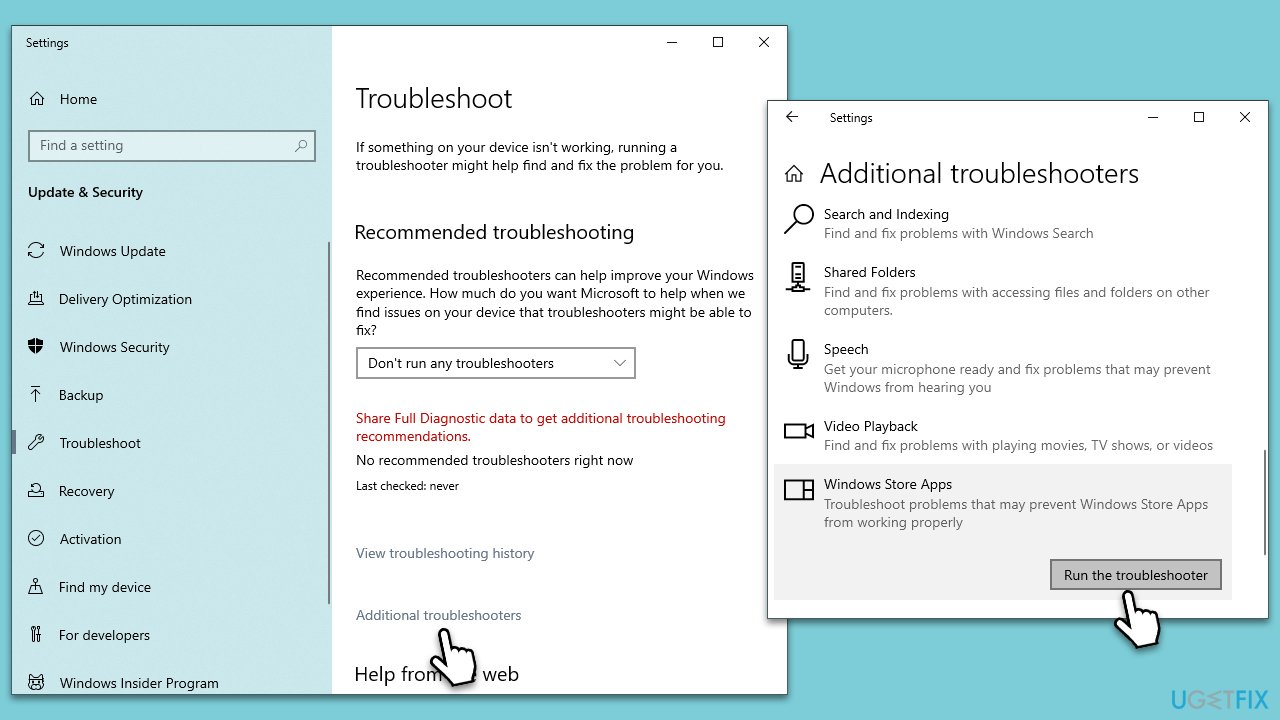
Fix 1. Run the troubleshooter
We recommend starting with Windows Apps troubleshooter.
- Type Troubleshoot in Windows search and hit Enter.
- Select Additional troubleshooters/Other troubleshooters.
- Find Windows Apps from the list and select Run the troubleshooter/Run.
- Wait till the scan is finished - you will be provided with potential causes so you can proceed with fixes.
- If no suggestions were given, proceed with the solutions below.
Fix 2. Disable add-ins
Some users said that disabling add-ins helped them to reduce the CPU usage of Outlook.
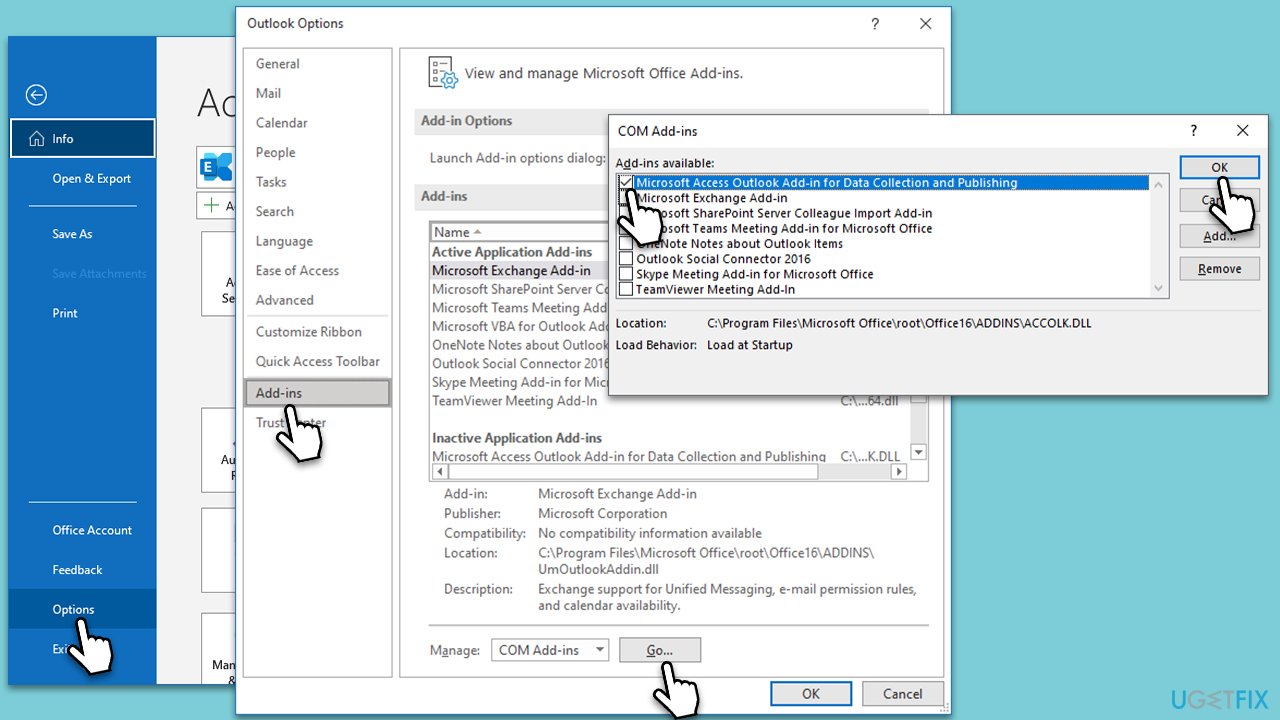
- Press Win + R to open the Run dialog.
- Type in outlook /safe and press Enter.
- If the problem does not exist in this environment, the problem is related to the add-in.
- Next, go to File > Options.
- Go to the Add-ins section.
- At the bottom, on the right side, select COM Add-ins from the drop-down menu and pick Go.
- Here, untick all the add-ins but one, and click OK.
- Check if CPU usage went down. If not, try it with the next add-in until you find the culprit.
Fix 3. Repair Office
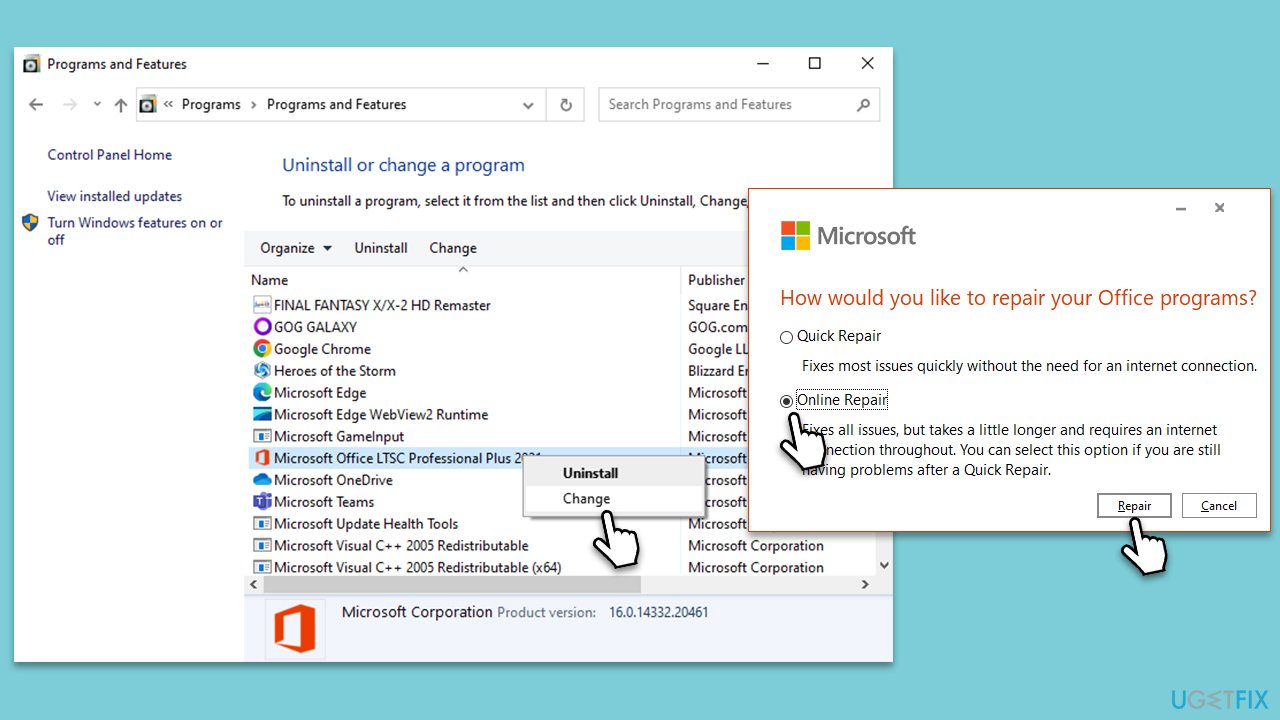
- Type Control Panel in Windows search and press Enter.
- Select Programs > Programs and Features.
- Select Microsoft Office and click on Change.
- Choose the option for Online Repair and click Repair.
- Follow the prompts to finish the process.
Fix 4. Disable features
Some users said that the only way to stop CPU issues was by disabling certain features in Outlook.
- Open Outlook and go to File > Options.
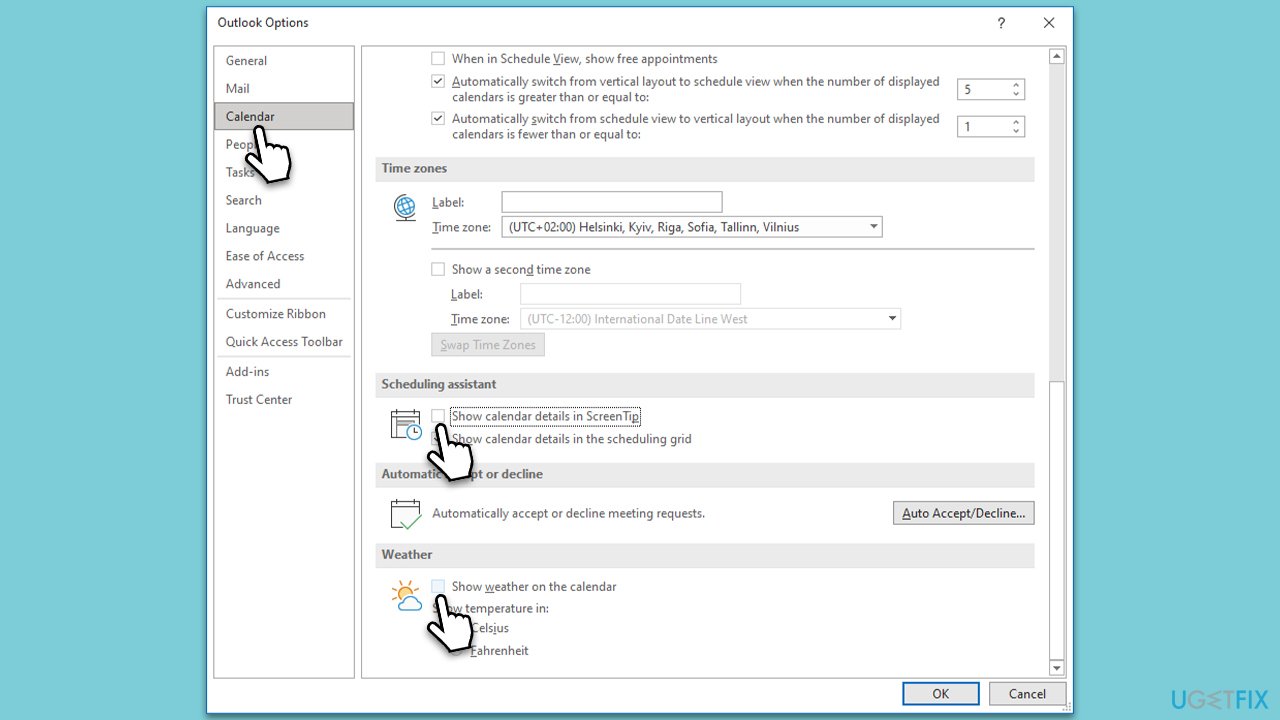
- Select Calendar on the left.
- Scroll down to Scheduling Assistant and disable Show calendar details in ScreenTip option. Under Weather, disable the Show weather on calendar option.
- Select People on the left.
- Under Online status and photographs, disable the Show user photographs when available option.
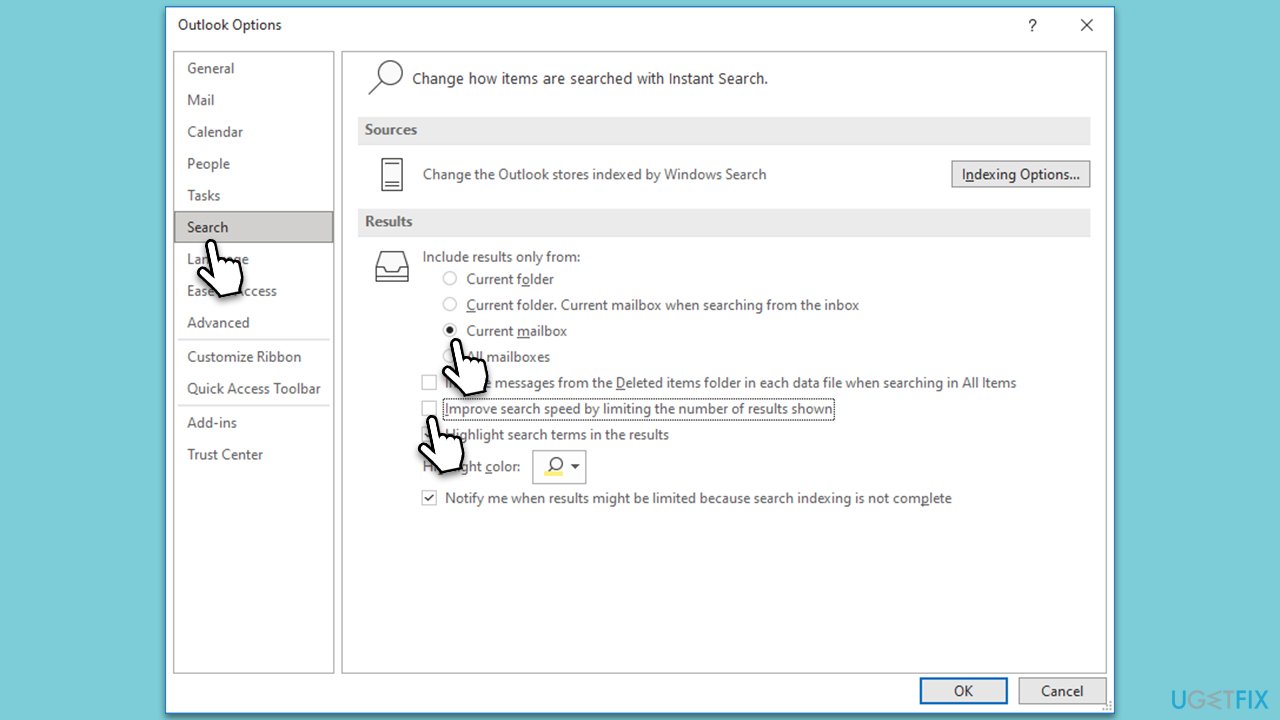
- Next, go to the Search on the left.
- Under Results, select Current mailbox. Also, untick the Improve search speed by limiting the number of results shown option.
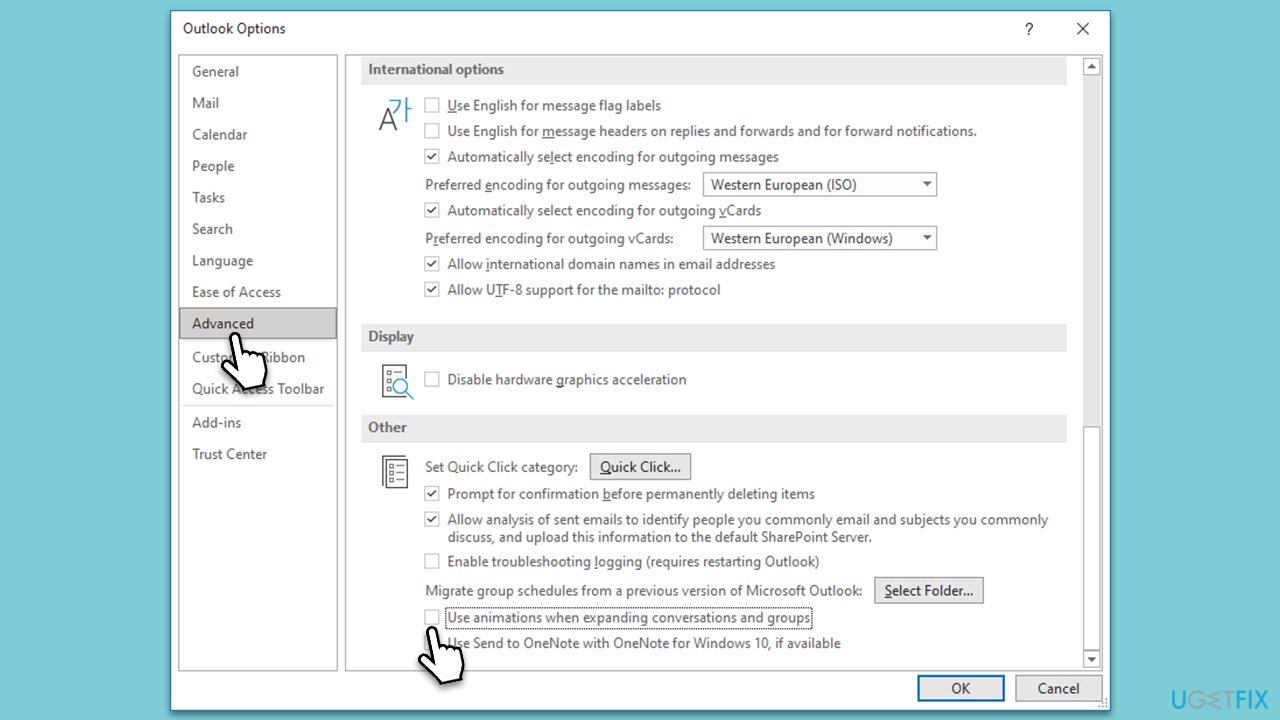
- Go to the Advanced on the left.
- Scroll down to Other and untick the Use animations when expanding conversations and groups option.
- Click OK.
Fix 5. Update Office
- Open Outlook.
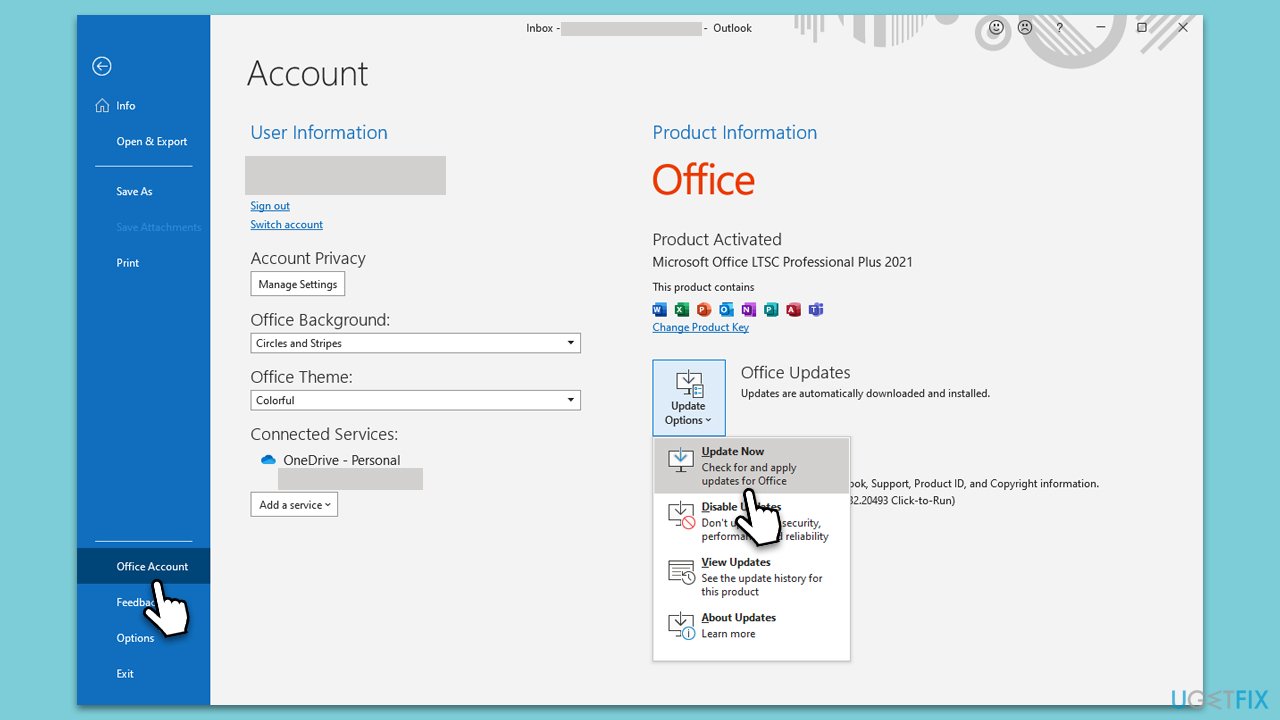
- Go to File and then select Office account on the left.
- On the right side, click on Update options.
- Select Update now from the dropdown menu.
- Wait till all the updates are installed and restart your computer.
Fix 6. Disable Telemetry
Before proceeding, please back up your registry.
- Type regedit in Windows search and press Enter.
- When UAC shows up, click Yes.
- Back up your registry by pressing File > Export and saving a copy somewhere safe.
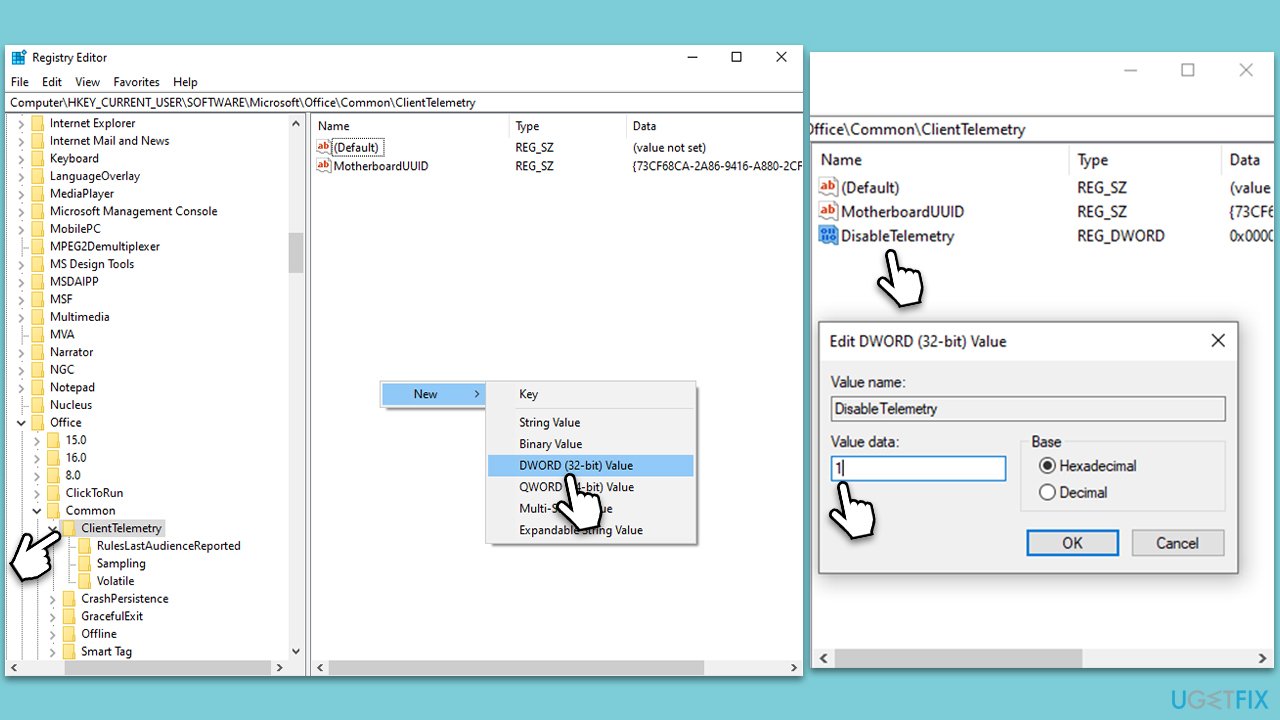
- Go to the following location:
Computer\HKEY_CURRENT_USER\Software\Microsoft\Office\Common\ClientTelemetry - On the right side, you should see the DisableTelemetry entry, although you likely won't. In that case, you need to create it.
- Right-click on empty space in the right pane and select New > DWORD (32-bit) Value.
- Name it DisableTelemetry.
- Double-click the entry and set its Value data to 1.
- Click OK and restart your computer.
Other topics that might be useful:
Bottom line
To fix high CPU usage in Outlook, consider adjusting email synchronization settings, keeping Outlook updated, and disabling problematic add-ins. If these solutions do not resolve the issue, running a potent PC repair tool may help.
Frequently asked questions
Common causes include add-ins running in the background, large mailboxes, or corrupted PST files that can lead to excessive CPU consumption.
You can disable add-ins by opening Outlook, going to 'File' > 'Options' > 'Add-ins', then selecting 'COM Add-ins' and clicking 'Go' to uncheck unnecessary add-ins.
Yes, you can repair Outlook by going to 'Settings' > 'Apps', selecting 'Microsoft Office', and then choosing 'Modify' to run a Quick Repair or Online Repair.




Report an issue
What's wrong with this guide? We review every report and update or remove content.
Report received — thank you. We'll review and fix it.
You need a free account to submit a report.
Be the first to comment