
How to fix RESULT_CODE_HUNG error in MS Edge and Google Chrome?

Prefer to fix it yourself? The manual steps follow.
- 9methods
- 5 to 20 minutes
- Intermediate
Applies to Google Chrome and Microsoft Edge on Windows 11 and Windows 10 22H2
9 methods in this guide
Hello. I have been trying to use my browser but when I type in the URL, I receive an "Aw, Snap" message with an error code RESULT_CODE_HUNG. Why does it keep happening? Any tips would be appreciated.
RESULT_CODE_HUNG is the label Chromium gives to a process that hung, which means it stopped responding and was ended. Chrome and Edge show it on the Aw, Snap! page. It is not a Windows error code, so start by finding out whether one site, one extension or the whole browser is the cause.
RESULT_CODE_HUNG is the Chromium exit code for a process that hung. Neither Google nor Microsoft names one fixed cause. Open the same page in a private window and in another browser first (Fix 1, Fix 2). If it fails only in your normal window, turn off extensions (Fix 3), free memory (Fix 4) and update the browser (Fix 5).
| Error | Aw, Snap! with the line Error code: RESULT_CODE_HUNG in Chrome. Edge shows its own problem page with the same code. |
|---|---|
| Where it appears | In a tab, usually right after you type an address or open a page. Only that tab shows the page, the rest of the browser keeps running. |
| Main cause | A browser process stopped responding. Vendors publish no ranked list of why, so the fixes below start with the cheapest tests. |
| Fastest fix | Open the page in a private window (Fix 2). If it loads there, an extension or the saved browser data is the cause (Fix 3 and Fix 6). |
| Also written as | result code hung, RESULT_CODE_HUNG error, error code hung, code hung, Kod błędu: RESULT_CODE_HUNG (Polish Chrome). |
| Affects | Chrome and Chromium-based Edge on Windows, and on other systems too, because the code comes from shared Chromium code. Windows 10 left support on 14 October 2025. |
| Vendor status | Not a known bug with a fixed version. Neither Google nor Microsoft documents this code on its help pages. |
| Not a Windows code | It has no hex value and no entry in Microsoft's error lists, so Windows tools such as SFC do not target it. |
| Time to fix | 5 minutes when a private window or an extension test finds the cause, up to 20 minutes with a repair. |
Facts checked on 16 October 2026. Steps written for Steps read against Windows 11 25H2 and Windows 10 22H2 with current Chrome and Edge. We did not reproduce the crash ourselves, because no vendor page says what makes a process hang; the meaning comes from the Chromium source and the steps from Microsoft and Google help pages..
What RESULT_CODE_HUNG means in Chrome and Edge
RESULT_CODE_HUNG is one of five exit codes in the Chromium source file content/public/common/result_codes.h. The comment next to it reads "Process hung." Chrome and Edge are both built on Chromium, so both can show it. It means a browser process stopped responding and the browser ended it.
The tab then shows the crash page. Google lists "Aw, Snap!" on its error page as "Chrome is having problems loading the page". Microsoft Edge has its own crash page, and users report that it reads This page is having a problem.
| Where you see it | What it looks like |
|---|---|
| Google Chrome | Aw, Snap! and below it Error code: RESULT_CODE_HUNG |
| Microsoft Edge | This page is having a problem with the same error code |
| Polish Chrome | Kod błędu: RESULT_CODE_HUNG. The code itself is never translated. |
| Other Chromium browsers | The same code on their own crash page, because they share the Chromium code |
The Chromium file only says the process hung. It does not say what made it hang. That is why the old advice for this code is a list of tests, and why this page puts the tests that cost least first.
We could not find a Google or Microsoft help page that names RESULT_CODE_HUNG, and Windows has no entry for it. Treat any page that claims one single cause as a guess.
What can make a browser process hang, from cheapest test to most work
Google and Microsoft publish no numbers for this code. The table follows what their own help pages tell you to check when a page crashes, ordered by how little each check costs. Each cause points to one fix.
| Possible cause | How you recognise it | Fix |
|---|---|---|
| A glitch in one tab or one page | The page loads when you reload it, or loads in a second tab. | Fix 1 |
| The website itself | Other sites open normally and only one site crashes. Google says that site might be the cause. | Fix 1 |
| An extension | The page loads in a private window but not in a normal one. | Fix 2, Fix 3 |
| Too little free memory | Many tabs, apps or downloads are open. Microsoft lists running out of memory as a reason a site cannot load. | Fix 4 |
| An old browser build or a half-finished update | The error started after an update, or the browser has not restarted for days. | Fix 5 |
| Damaged saved data in the browser | The page fails only in your normal profile. | Fix 6 |
| Security software, malware or damaged browser files | Several sites crash and a private window does not help. | Fix 7, Fix 8 |
| Slow or failing name lookups | Pages in other browsers are slow too. | Fix 9 |
Microsoft lists memory, updates, malware, third party security software and a repair as steps for a crashing Edge. Google says a single crashing site may be the cause. Neither source says which is most common for this code.
How to fix RESULT_CODE_HUNG in Chrome and Edge
Fix 1 to Fix 2 show whether the page, the site or your browser is at fault and take five minutes. Fix 3 to Fix 6 deal with the browser itself. Fix 7 and Fix 8 cover security software, malware and damaged files. Fix 9 changes the DNS provider and is a last test.
| What you see or have | Start with |
|---|---|
| The error appeared once or only on a single page. | Fix 1 |
| Only one website crashes and everything else opens. | Fix 1 |
| The page opens in a private window but not in your normal one. | Fix 3, then Fix 6 |
| You keep many tabs, apps or downloads open and the PC feels slow. | Fix 4 |
| The error started after a browser or Windows update. | Fix 5 |
| Every site crashes, in a private window too. | Fix 7 |
| Only one of the two browsers fails. | Fix 8 |
| Pages are also slow to start in other browsers. | Fix 9 |
Fix 1. Reload the page and open it in another browser
4 minutesNo riskThe error appeared once, or only one site fails.
A hung process can be a one time stall, and reloading starts the page in a fresh process. Google also says that when other sites open normally and only one site crashes, that site might be the cause, so a second browser or device tells you whether the fault is the site or your own setup.
- Click Reload on the crash page, or press Ctrl + R.
- If the same page appears, close that tab and open the address in a new tab.
- If the whole browser is frozen, close it from Task Manager and start it again. Step by step: Close a frozen app (Task Manager, Force Quit).
- Open the same address in Edge if you used Chrome, or in Chrome if you used Edge. A phone on mobile data is a second test.
- If it fails everywhere, the site has a problem. Report it to the site owner and try again later.
- If it works elsewhere, the problem is in this browser or this PC. Go on to the next fix.
It worked if: The page loads, or you learn whether the site or your browser is at fault.
If not: If it works in the other browser only, go to Fix 2.
Fix 2. Open the page in a private window
2 minutesNo riskThe page fails in your normal window but works in another browser.
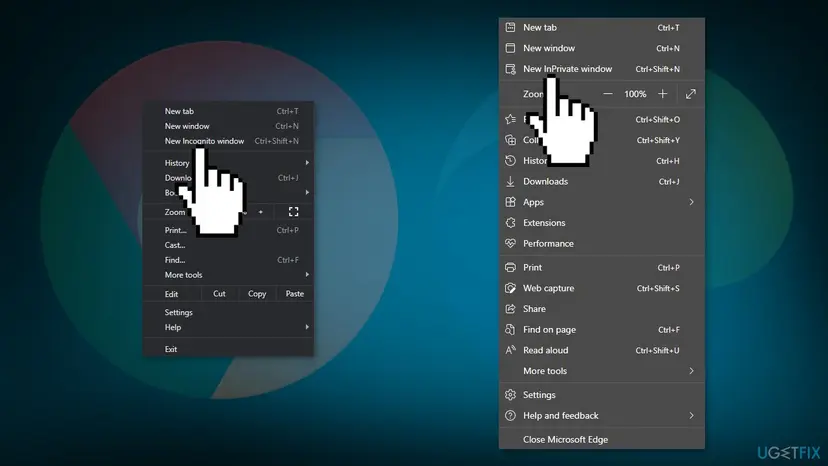
Chrome's Incognito window and Edge's InPrivate window start without your saved data and, in their default setting, without extensions. If the page loads there, the cause is something saved in your normal profile.
- In Chrome, press Ctrl + Shift + N, or select the three dots and New Incognito window.
- In Edge, press Ctrl + Shift + N, or select Settings and more and New InPrivate window.
- Type the address of the page that crashed.
- Note whether it loads.
It worked if: The page loads in the private window and fails in the normal one.
If not: If it fails in the private window too, skip to Fix 4 and Fix 5.
Fix 3. Turn off extensions and turn them on one by one
5 to 10 minutesLow riskThe page loads in a private window but not in the normal one.
An extension runs inside the page and can stall it. The private window test points to your profile, and extensions are the most common part of a profile that you can switch off in one go.
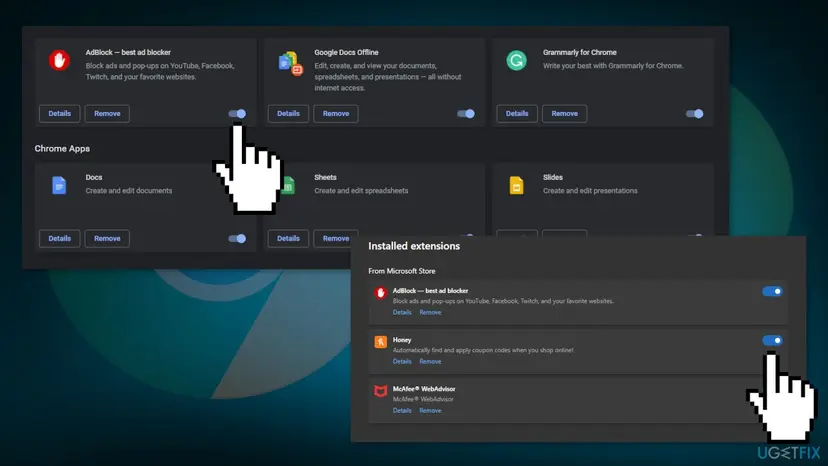
- In Chrome, type
chrome://extensionsin the address bar and press Enter. In Edge, typeedge://extensions. - Turn off the switch of every extension.
- Open the page that crashed.
- If it loads, turn the extensions back on one at a time and reload the page after each one.
- Remove or update the extension that brings the crash back.
It worked if: The page loads with extensions off, and one extension brings the crash back.
If not: If the page still crashes with every extension off, go to Fix 4.
Fix 4. Free memory and restart the PC
5 minutesNo riskYou keep many tabs, apps or downloads open, or the PC has not restarted for days.
Microsoft says the computer may have run out of memory and cannot load the site while also running your apps, extensions and programs. A restart also ends leftover background processes of the browser.
- Close every tab except the one that shows the error.
- Close other apps and pause any downloads.
- Uninstall extensions you do not need.
- Select Start > Power > Restart. Do not use Shut down, because Fast Startup can keep parts of the old session.
- Open the browser and the page again.
Microsoft names memory as a reason a site cannot load. We found no source that ties it to RESULT_CODE_HUNG in particular. It is here because it is free to test.
It worked if: The page loads with fewer tabs open and after the restart.
If not: If it still crashes, go to Fix 5.
Fix 5. Update Chrome or Edge
5 minutesNo riskThe error started after an update, or the browser has not been closed for a long time.
Microsoft lists updating Edge as a first step for a crashing browser, and Chrome updates the same way. An update only takes effect after the browser restarts.
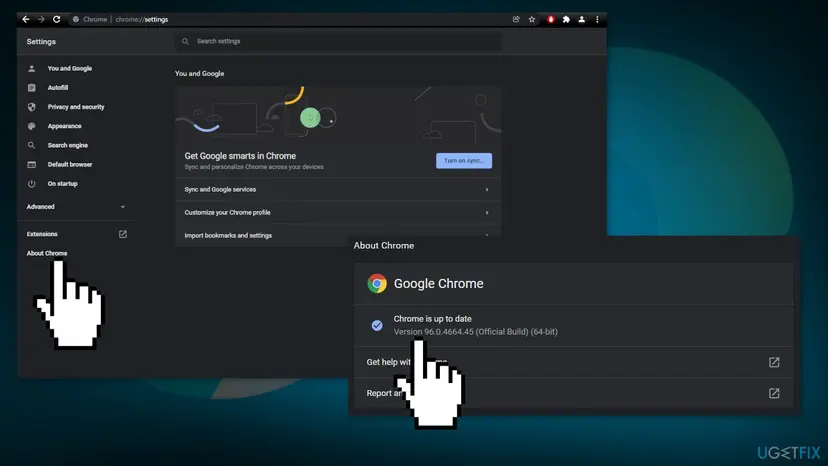
- In Chrome, type
chrome://settings/helpin the address bar and press Enter. The page checks for an update by itself. - In Edge, select Settings and more, then Settings, then About Microsoft Edge.
- If an update is offered, let it download and select Relaunch or Restart.
- Open the page that crashed.
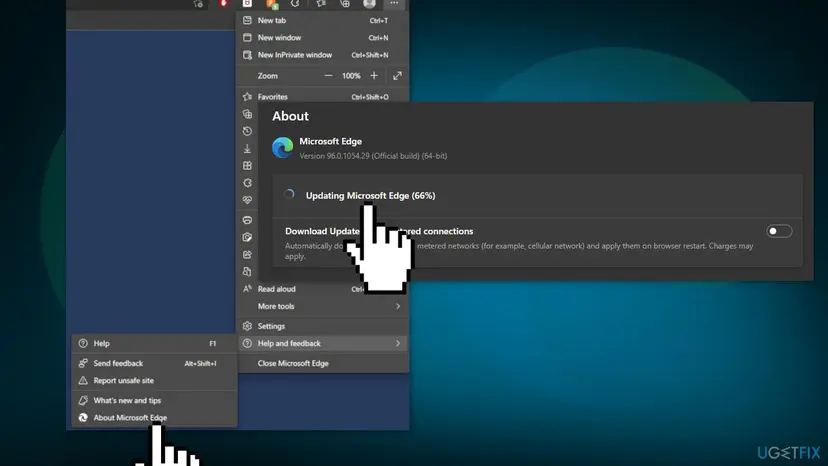
It worked if: The page says the browser is up to date, and the page loads after the relaunch.
If not: If the version is current and the crash continues, go to Fix 6.
Fix 6. Clear cache and cookies
3 minutesLow riskThe page fails only in your normal profile.
Microsoft says clearing the cache will sometimes fix page display problems. For this code it is a test, because we found no source that ties cached files to a hung process.
Step by step for Chrome and Edge: Clear the browser cache and cookies. Clearing cookies signs you out of most sites, so have your passwords ready or clear only the cache first.
- Open Delete browsing data. Press Ctrl + Shift + Delete. Or select More (the three dots at the top right) > Delete browsing data.
- Choose how far back to delete. Select a time range at the top, such as Last hour. To clear everything, open More next to the ranges and choose All time.
- Choose what to delete. Check Cached images and files. Check Cookies and other site data too if a site will not sign you in. Uncheck anything you want to keep.
- Delete the data. Select Delete from this device.
These steps were written for Chrome for Windows (screenshot: Windows 11 26H2). The full page with the other versions and what each result means: Clear the browser cache and cookies
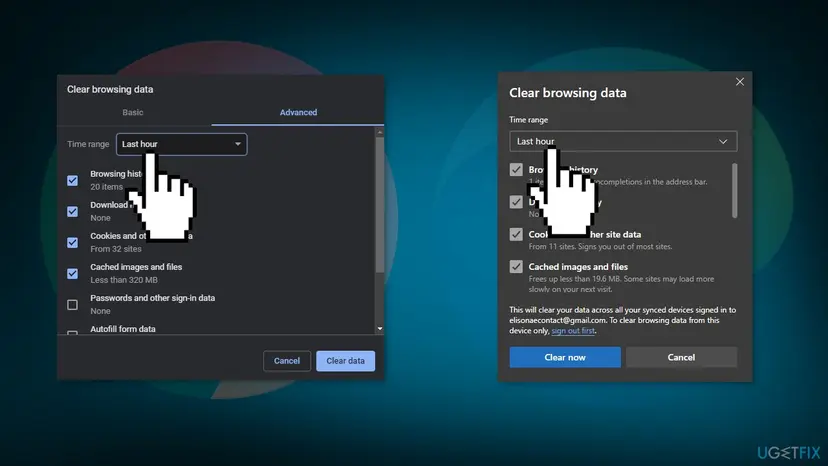
It worked if: The page loads after the cache is cleared.
If not: If it still crashes, go to Fix 7.
Fix 7. Update the security software and scan for malware
15 minutes to 2 hoursNo riskEvery site crashes, also in a private window.
Microsoft lists both steps for a crashing Edge: scan the device for malware, and check that third party security software such as Norton or McAfee is up to date. Chrome and Edge share the same process design, so both steps apply to both.
- Open your antivirus program and install every program update, not only the virus definitions.
- Restart Windows if the program asks.
- Run a full scan with Microsoft Defender as in How to scan for malware with Microsoft Defender.
- Open the browser and test several sites.
- Open Windows Security. Select Start, type Windows Security and open the app.
- Open Virus & threat protection. Select Virus & threat protection. Under Current threats you see when the last scan ran, how long it took and how many files it checked.
- Run a quick scan. Select Quick scan. If Windows Security thinks a deeper scan is needed, it tells you when the quick scan is done.
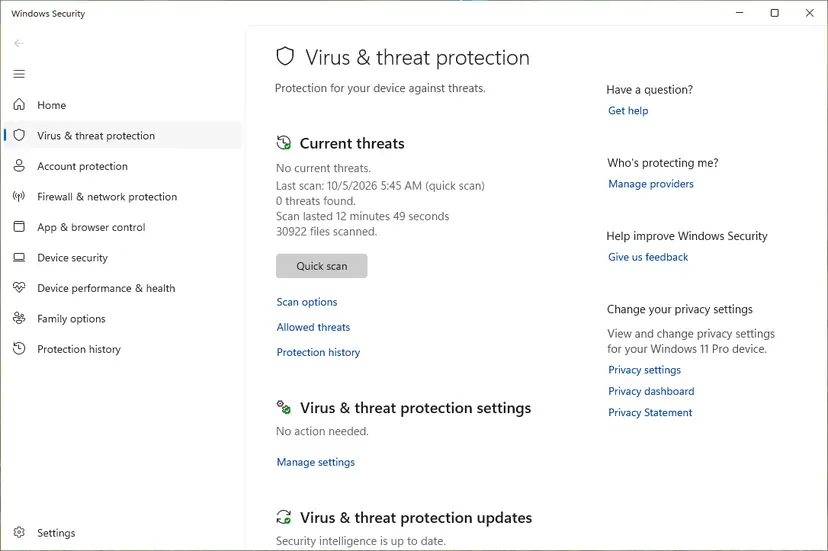
Quick scan and Scan options sit under Current threats. Screenshot: Windows 11 26H2. - Open Scan options. If the quick scan finds nothing and you still suspect an infection, select Scan options under Current threats.
- Run a full scan. Select Full scan and start it. It checks every file and program on the device, so it takes much longer than a quick scan. Leave the PC on until it ends.
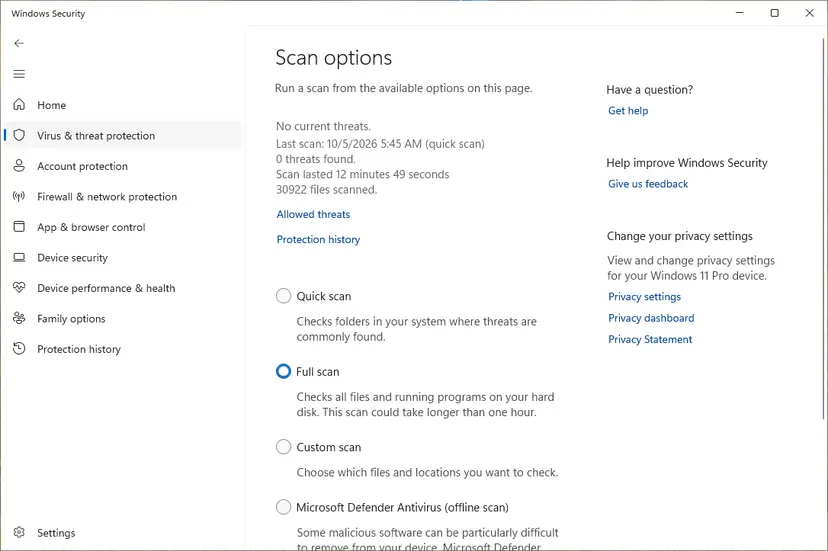
Scan options: Quick scan, Full scan, Custom scan and the offline scan. Screenshot: Windows 11 26H2. - Or scan one folder. To check only a download or a USB drive, select Custom scan in Scan options and choose the folder. You can also right-click a file or folder in File Explorer and select Scan with Microsoft Defender. On Windows 11 you may have to select Show more options first.
- Read Protection history. Go back to the first page of Windows Security and select Protection history. Select a card to expand it and see the details.
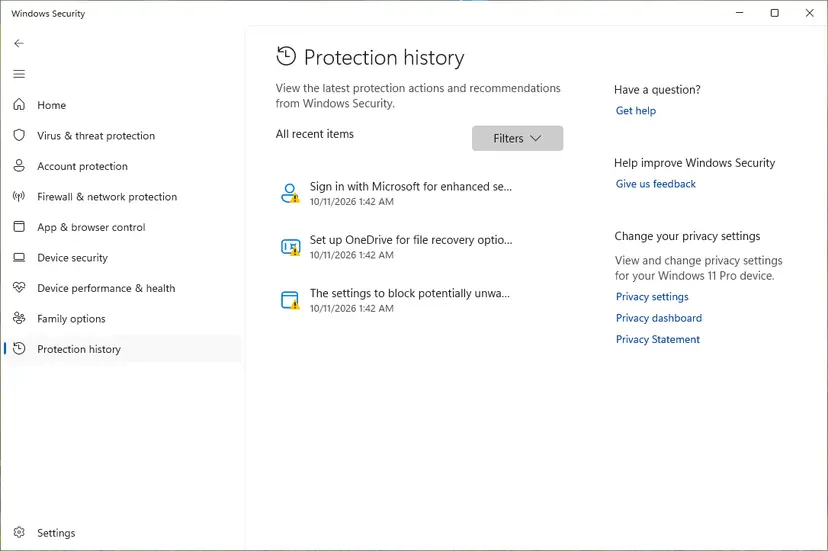
Protection history lists what Defender found and did. Screenshot: Windows 11 26H2.
These steps were written for Windows 11 25H2 and 26H2, Windows 10 22H2. The full page with the other versions and what each result means: How to scan for malware with Microsoft Defender
It worked if: The scan finds and removes a threat, or finds nothing, and the browser opens pages after the restart.
If not: If nothing changes, go to Fix 8.
Fix 8. Repair Edge or reset Chrome
10 minutesRead the warningOnly one of the two browsers fails, or every earlier fix failed.
Microsoft gives Repair as the step for an Edge that keeps crashing and says repair should not affect your browser data and settings. Chrome has no repair button, so its reset to default settings is the nearest step.
A reset changes your Chrome settings back to defaults. Read what the confirmation box says it will reset before you confirm. Sign in to your Google account first if you want sync to restore your settings afterwards.
- Edge: close every Edge window, then press Win + I and open Apps > Installed apps.
- Find Microsoft Edge, select the three dots next to it and then Modify. On Windows 10 select the entry and then Modify. If Modify is missing, your organization manages Edge, so ask IT.
- Confirm the prompt, connect to the internet and select Repair.
- Chrome: type
chrome://settingsin the address bar and press Enter. - Select Reset settings, then Restore settings to their original defaults, and confirm with Reset settings.
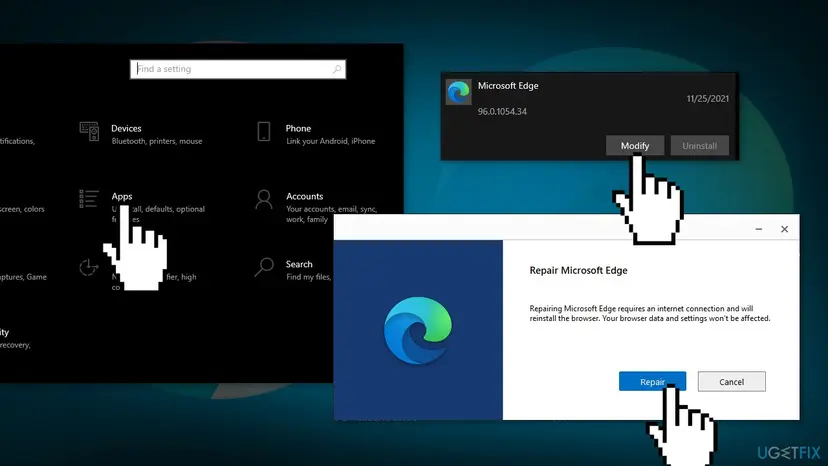
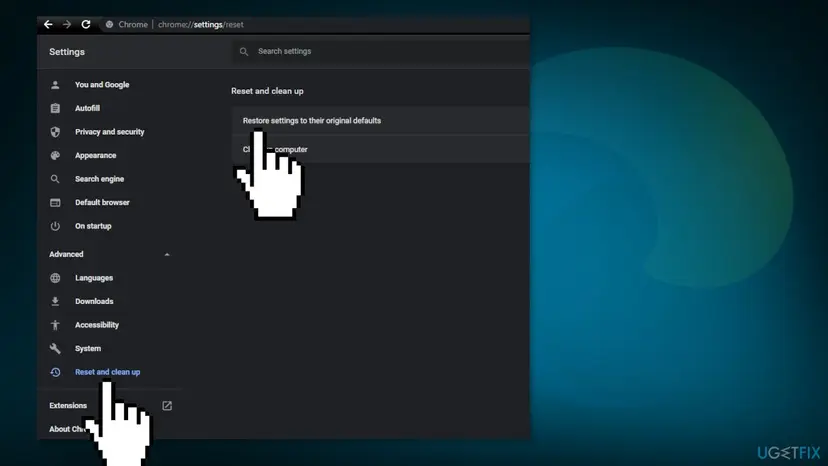
It worked if: Edge starts normally after repair, and Chrome opens the page after the reset.
If not: If a repaired or reset browser still shows the code, the cause is outside it. Go to Fix 9 and then to the section below.
Fix 9. Change the DNS provider in the browser
5 minutesLow riskPages are slow to start in other browsers too, and every other fix failed.
A browser process that waits for a name lookup can look frozen. We found no Google or Microsoft source that ties DNS to RESULT_CODE_HUNG, so treat this as a last test and undo it if it changes nothing.
- Chrome: select the three dots, then Settings > Privacy and security > Security.
- Turn on Use secure DNS, choose With, and pick Google (Public DNS) from the list.
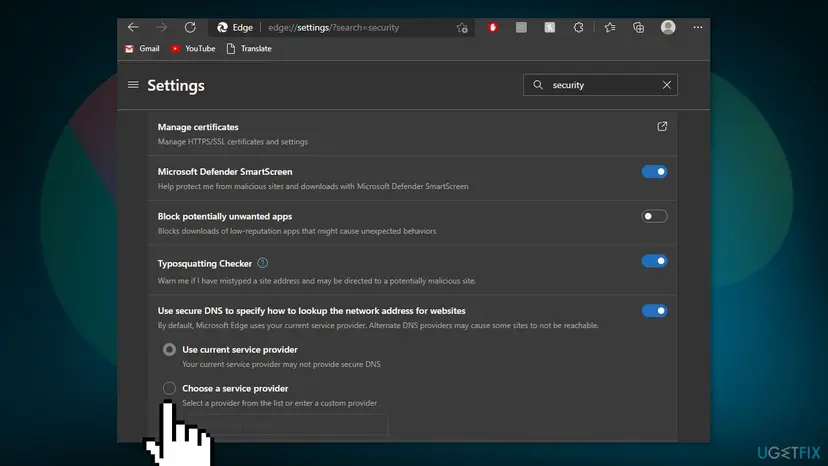
- Edge: select Settings and more > Settings > Privacy, search, and services and scroll to Security.
- Turn on Use secure DNS and choose a service provider from the list.
- Open the page that crashed.
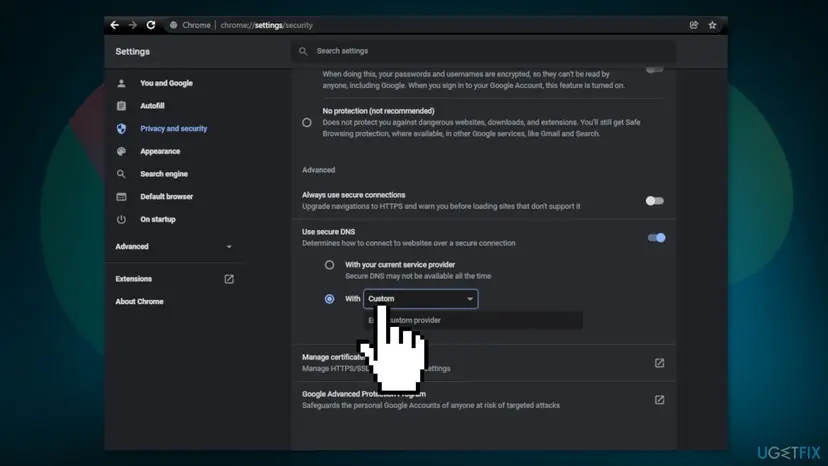
It worked if: The page loads with the new provider.
If not: Switch secure DNS back to your previous setting so the change does not stay. A work PC may block the setting.
RESULT_CODE_HUNG still appears: what to check and who can help
If the code survives every fix, collect facts before you ask anyone. A hung process is not a hardware verdict, but a PC that is short of memory or slow to respond in general is worth a look.
- Note the browser version from
chrome://settings/helpor from About Microsoft Edge. - Note whether the page fails in a private window, in the other browser and on another device.
- Write down which fixes you tried and which extensions and security programs are installed.
- In Edge, select Settings and more > Help and feedback > Send feedback. In Chrome, use the feedback link in its Help menu.
| Situation | Who can help | What to send |
|---|---|---|
| Only one site fails in every browser and device | The site owner | The address and the time of the crash |
| Only one browser fails after a repair or reset | Google or Microsoft through their feedback and help forums | The browser version and the fixes you tried |
| A work or school PC | Your IT department | The error code and the browser version |
If the whole PC is slow, apps also freeze and Windows shows low memory warnings, look at memory and the disk. Step by step: How to test your RAM with Windows Memory Diagnostic.
How to keep RESULT_CODE_HUNG from coming back
- Restart the browser now and then so updates apply.
- Keep only the extensions you use.
- Keep your security program's version current.
- Close tabs you no longer need.
- Do not add switches such as
--no-sandboxto the browser shortcut. - Do not install extensions from unknown makers.
- Do not run two antivirus programs at the same time.
- Do not keep dozens of tabs open for weeks on a PC with little memory.
Frequently asked questions
What does RESULT_CODE_HUNG mean?
It is a Chromium exit code. The Chromium source file result_codes.h describes it as "Process hung." That means a browser process stopped responding and was ended, which makes the tab show the Aw, Snap! page in Chrome or a problem page in Edge. The code does not say why the process hung, and neither Google nor Microsoft documents a single cause. Fix 1 to Fix 2 are the quickest tests to narrow it down.
Is RESULT_CODE_HUNG a Windows error code?
No. It has no hex value and Microsoft's error code lists do not contain it. It comes from the browser, not from Windows, so tools that repair Windows system files do not target it. A repair of Windows can still be worth a try when several programs misbehave, but the first steps belong to the browser: pages, extensions, memory and updates, as in Fix 1 to Fix 5.
Is it the website or my PC?
Test it. Open the same page in the other browser and on another device. Google says that when other sites open normally and one site crashes, that site might be the cause, and you should tell its owner. If the page works elsewhere and fails only in one browser, the cause is in that browser or its profile, and Fix 2 and Fix 3 are the next step.
Why does Edge show the same code as Chrome?
Both browsers are built on Chromium, and the code lives in shared Chromium code. Edge draws its own crash page, which users report as This page is having a problem, but the code at the bottom is the same. The fixes also match: Microsoft's own page for a crashing Edge lists updating, malware scans, restarting, third party security software and Repair, which are Fix 5, Fix 7 and Fix 8 here.
Should I turn off my antivirus to fix it?
No. Turning protection off is not a fix, and Microsoft's page only asks you to check that third party security software is up to date. Update the program, run a Defender scan and restart as in Fix 7. If you want to test for one minute, pause protection, test the page and turn it back on at once. Step by step: Turn off Microsoft Defender protection for a moment.
Can too many tabs or too little memory cause it?
Microsoft says a computer may run out of memory and then cannot load a site while it also runs your apps, extensions and programs. We found no source that ties this to RESULT_CODE_HUNG in particular. Closing tabs and apps and restarting the PC costs nothing, so Fix 4 is worth doing early, especially on a PC with little memory.
Will clearing the cache fix RESULT_CODE_HUNG?
Maybe, but we found no source that says so for this code. Microsoft says clearing the cache will sometimes fix page display problems, so it is a fair test. Do it after the private window test and the extension test, because clearing cookies signs you out of most websites. Fix 6 explains how and links the full steps.
Is RESULT_CODE_HUNG a virus?
Not by itself. It only says that a browser process hung. Malware that interferes with browsers can cause crashes, and Microsoft lists a malware scan among the steps for a crashing Edge, so a full Microsoft Defender scan is a sensible step when every site crashes. Fix 7 shows how. A single site that crashes in every browser is a problem of that site, not of your PC.
My Chrome shows Kod błędu: RESULT_CODE_HUNG. Is it the same error?
Yes. Kod błędu is Polish for error code, and the code RESULT_CODE_HUNG itself is not translated. Chrome in any language shows the same code. This page is in English, but the menu names in the steps match the English versions, and Chrome shows the other language's names in the same places. The fixes are the same.
Do I need to reinstall the browser?
Rarely. Try the tests and updates first. For Edge, use Repair in Installed apps, which Microsoft says should not affect your browser data and settings. For Chrome, a reset to default settings comes first. A full reinstall only makes sense when a repair or reset did not help, and Fix 8 covers the order.
Sources
- Chromium source: content/public/common/result_codes.h (RESULT_CODE_HUNG, "Process hung.") (chromium.googlesource.com)
- Microsoft Support: What to do if Microsoft Edge isn't working (updated 2026-09-14) (support.microsoft.com)
- Google Chrome Help: Get help with common error messages in Chrome (support.google.com)
Did this fix work?
One click, no account. It tells the next reader which guides are worth their time.
Questions and experiences: fix RESULT_CODE_HUNG error in MS Edge and Google Chrome
Still broken, or found a fix we did not cover? Ask here: members and our editors answer. Reading is open; writing needs a free account.
…