How to fix
Rndismp6.sys Blue Screen
on Windows
Resolve the Rndismp6.sys Blue Screen error in Windows 10 and 11 quickly with our expert-tested solutions. Fix it in minutes and enjoy a smoother experie…


What causes How to fix Rndismp6.sys Blue Screen in Windows?
- Corruption in Rndismp6.sys file
- Obsolete or incorrect device driver
- Issues with USB tethering
- Malware infection leftovers
- Damaged system files
Repairs Windows system files, removes malware, and restores a clean OS state — without reinstalling.
Hello. I get the blue screen error and the message about IQL not less or equal about the Rndismp6.sys file. What can I do to solve this problem here? I use Windows 10 on my laptop.
Rndismp6.sys Blue Screen in Windows is one of the many common errors that users still report online occasionally. The issue with system files causing BSOD errors[ref en-1] can be significant because not every time the machine reboots and works after the appearance of the message. Users[ref en-2] mainly report the issue appearing when the connection with the internet or other processes fails too.
The particular message that is placed on the error - the code for the issue indicates that Windows has stopped to keep the machine working because corruption is possible. The issue might appear on Windows 10 and Windows 11 machines and it indicates that those files with SYS extension that are included in the message had caused this failure and reboot of the PC.
Rndismp6.sys Blue Screen in Windows is common and other files like mfewfpk.sys, kbdclass.sys, ndis.sys might cause these blue screen errors. However, the particular issue is related to smartphone connection via USB port or other device connection, USB tethering. The majority of these system file issues can often be resolved by updating those SYS files.
There are issues with the specific system files that are known for functions and processes, so sometimes the Rndismp6.sys Blue Screen in Windows can appear due to the obsolete or incorrect device driver. Driver updates and replacement of outdated or corrupted drivers, and related applications can significantly help.
As for the common issues with damaged system files and leftovers of various intruders[ref en-3] from before, you might want to check the machine for affected files, malware infection leftovers, or changes that can affect the machine and performance of the computer. These applications like [d1] can possibly solve those issues with the performance and might help with the successful fix of Rndismp6.sys Blue Screen of death error.

Fix 1. Check for system corruption
- Search for CMD in the search bar at the bottom.
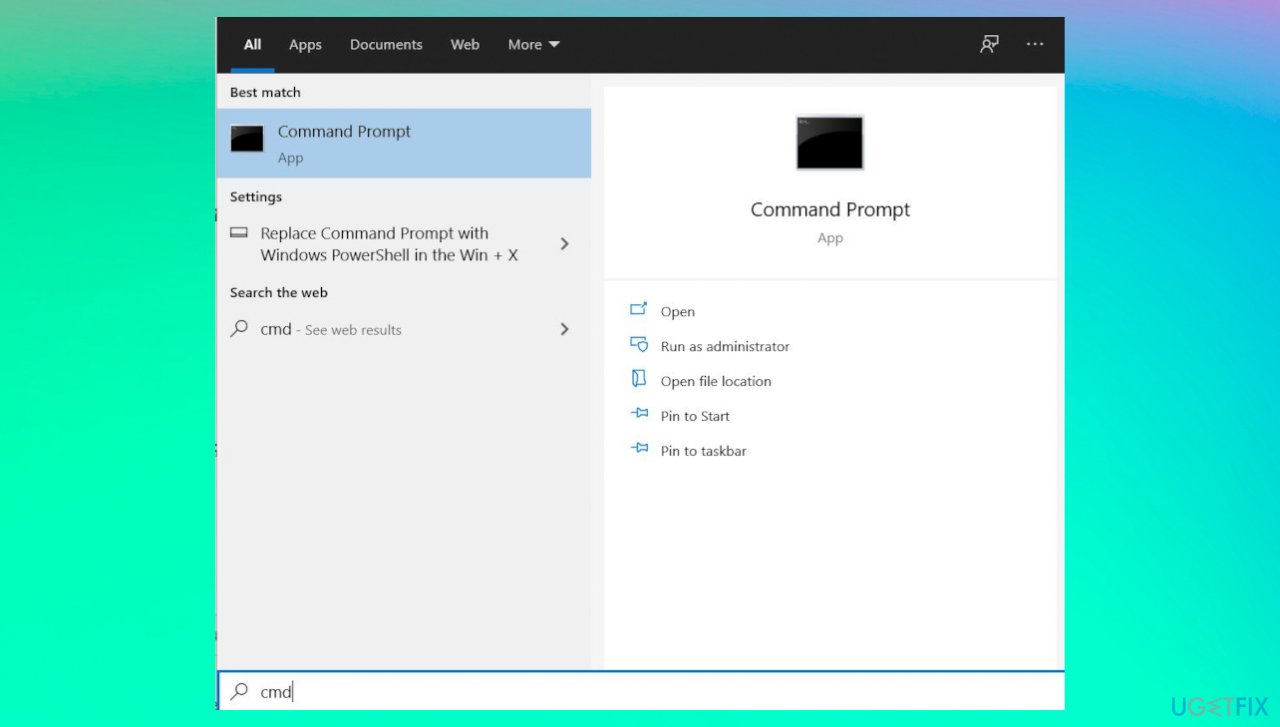
Sys blue screen error command prompt - Open Command Prompt with administrative rights and type the following commands, press Enter after each one:
chkdsk /f
sfc /scannow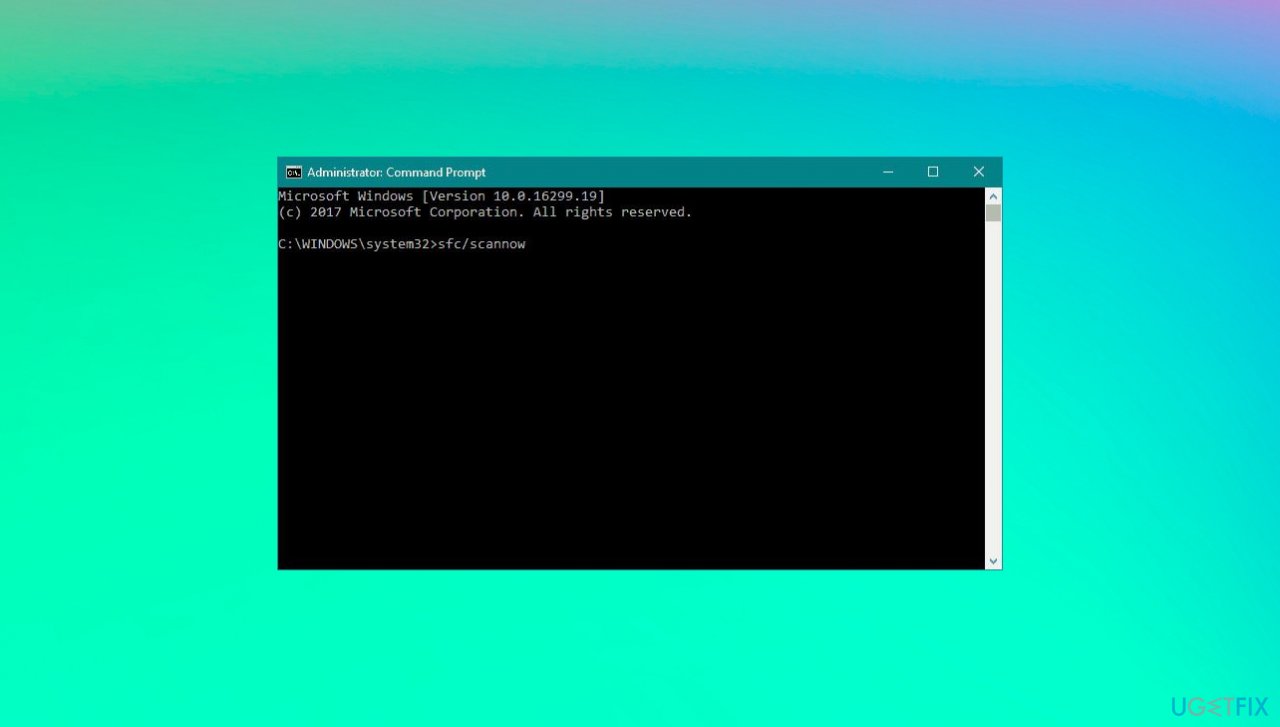
Sys blue screen error sfc - Reboot the machine after each scan.
Fix 2. Update network adapter drivers
- Click on Windows key + R to open Run box.
- Type devmgmt.msc, and press Enter.
- When the Device Manager opens, expand Network adapters section.
- Right-click on your Network Adapter and select Update Driver Software.
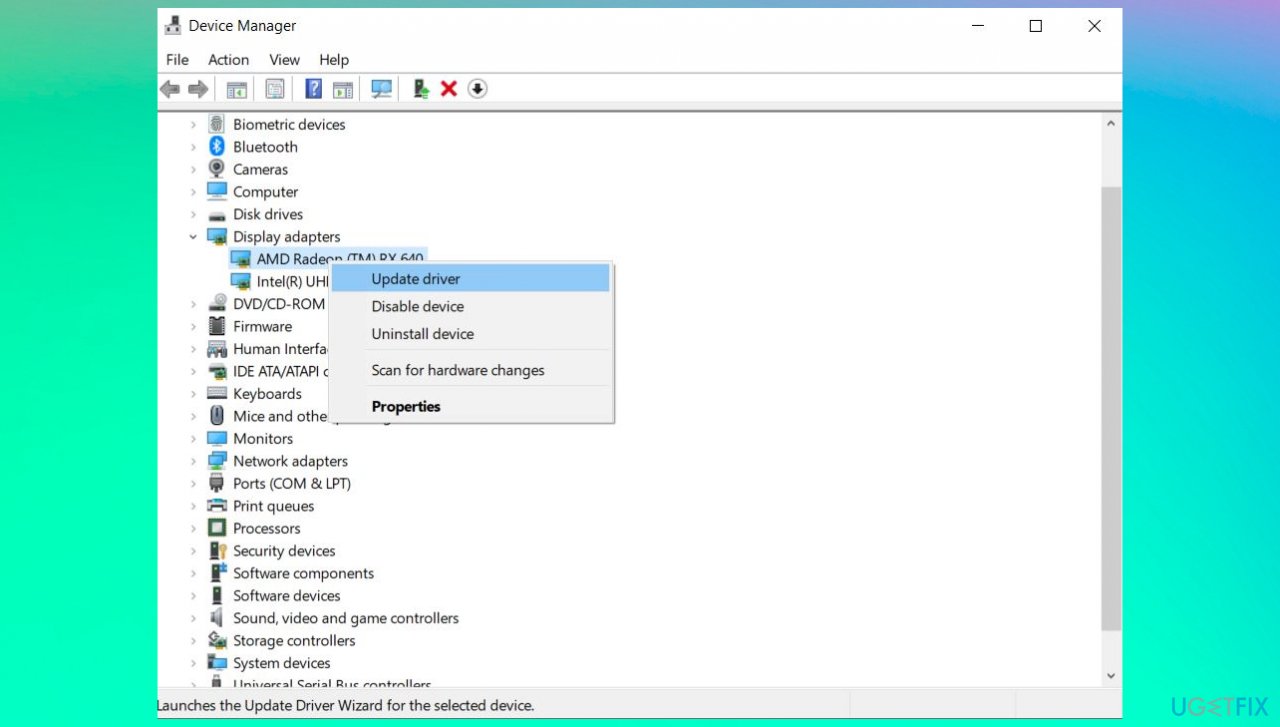
Sys blue screen error updtae driver - You might want to completely reinstall the driver if updating is not fixing the issue.
Fix 3. Reinstall drivers
- Click Win key + R, type devmgmt.msc, and press Enter.
- Expand Network adapters folder on the left pane, right-click on your network device, and select Uninstall.
- Click OK further and agree to make any changes if admin rights are required.
- Restart your PC.
- Go to the Device Manager again.
- Click Action tab on the toolbar.
- Select Scan for Hardware Changes and let the system detect and install the missing driver automatically.
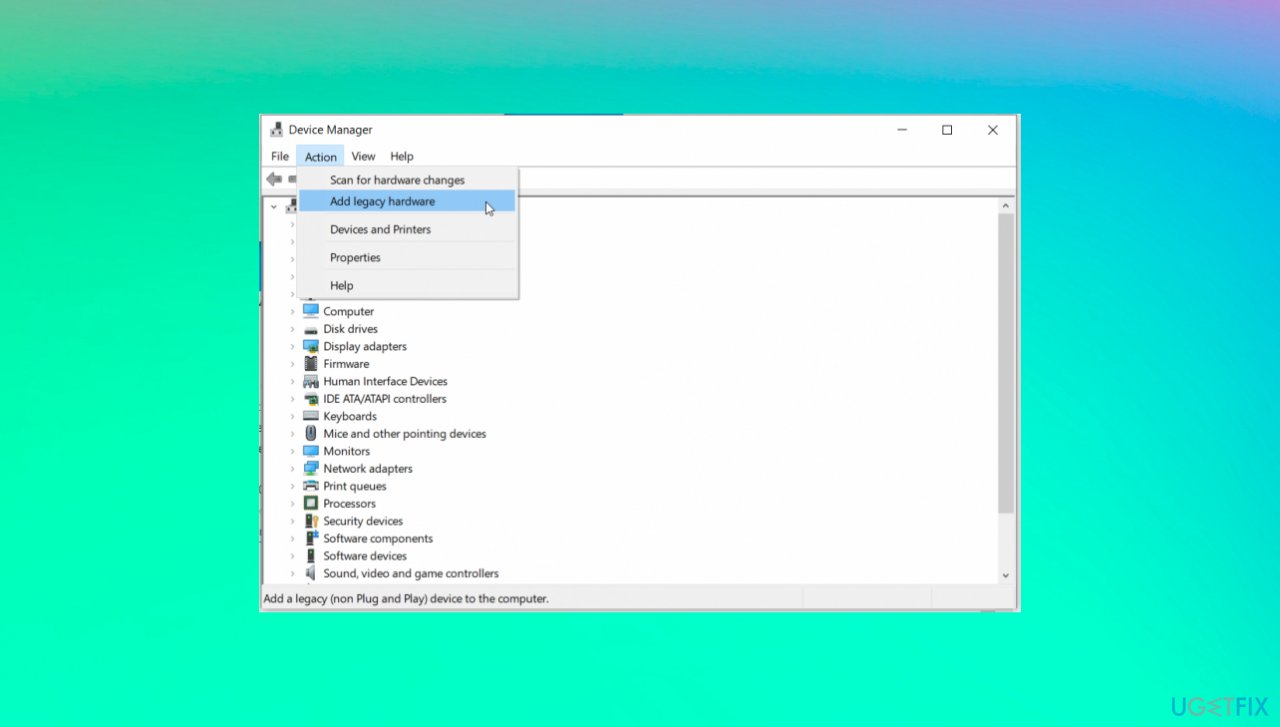
Sys blue screen error scan for issues
Fix 4. Rollback drivers
- Navigate to Device Manager.
- Click on Network adapters and select the network device from the drop-down menu.
- Right-click the device and choose Properties.
- Go to the Drivers tab and choose Roll Back Drivers.
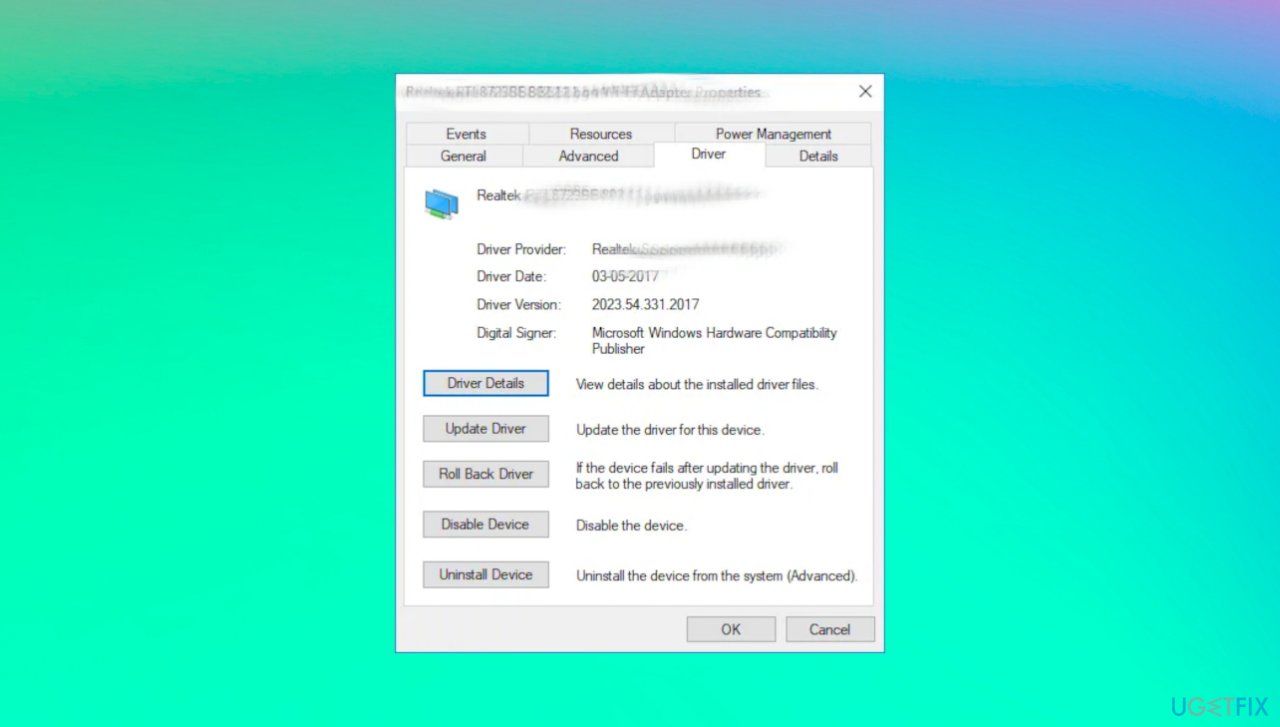
Sys blue screen error driver rollback - Confirm and reboot the PC.
Bottom line
To fix the Rndismp6.sys Blue Screen error, you can check for system corruption using CMD, update device drivers, and scan for malware. If these solutions do not resolve the issue, consider replacing outdated or corrupted drivers and applications.
Frequently asked questions
The Rndismp6.sys blue screen error is often caused by outdated or incompatible network drivers, or issues with virtual network adapters used for tethering. In some cases, corrupted system files can also lead to this error.
To update the Rndismp6.sys driver, go to Device Manager, find the network adapter, right-click it, and select 'Update driver.' You may also visit the manufacturer's website to download the latest driver version for your Windows 10 or Windows 11 system.
You can repair corrupted system files by running the System File Checker tool; open Command Prompt as an administrator and type 'sfc /scannow'. This process will scan and fix any damaged files that may be contributing to the blue screen error.




Report an issue
What's wrong with this guide? We review every report and update or remove content.
Report received — thank you. We'll review and fix it.
You need a free account to submit a report.
Be the first to comment