How to fix
Roblox Initialization error 4
on Windows
Resolve Roblox Initialization error 4 on Windows 10 or 11 with our expert-tested solutions. Get back to gaming quickly and easily! Fixed in minutes!


What causes How to fix Roblox Initialization error 4?
- Outdated game files
- Corrupted Windows files
- Problems with the internet connection
- Third-party software interference
Repairs Windows system files, removes malware, and restores a clean OS state — without reinstalling.
Hi. Yesterday, I attempted to load into the new Roblox game, and I kept receiving Initialization error 4. I stopped trying after a while, thinking that it might be some type of server issue. Today, I tried playing again, but to no avail - I still receive this error. How do I fix this? I'm using Windows 10.
Roblox is a massively multiplayer online game that has gained immense popularity over the years, especially among younger gamers. With millions of players worldwide, Roblox allows users to create their own virtual worlds and games, interact with others, and explore new adventures.
Despite the game's popularity, players often encounter issues that prevent them from enjoying the game to its full potential. One of the most common issues that players face is the Roblox Initialization error 4, which can be frustrating and annoying.
Initialization error 4 occurs when the Roblox game client is unable to communicate with the server, preventing the game from launching. The causes of this error can be varied, including outdated game files, corrupted Windows files, or problems with the internet connection.
To fix Initialization error 4, players can try several troubleshooting steps, such as updating their game client, checking their internet connection, or clearing their browser cache.
To prevent such issues in the future, players can take several precautions, such as regularly updating their game client and Windows operating system, ensuring a stable internet connection, and avoiding the use of third-party software that may interfere with the game's performance.
Below we provide a comprehensive going on how to resolve the Roblox Initialization error 4 on Windows. Keep in mind that you might have to perform several troubleshooting steps before you find a working solution for you.
If you're facing various Windows issues, including the Roblox Initialization error 4, it's recommended to use a powerful PC repair tool like [d1]. This tool can automatically detect and fix various Windows issues, ensuring smooth performance and optimal PC health.
Fix 1. Update Roblox
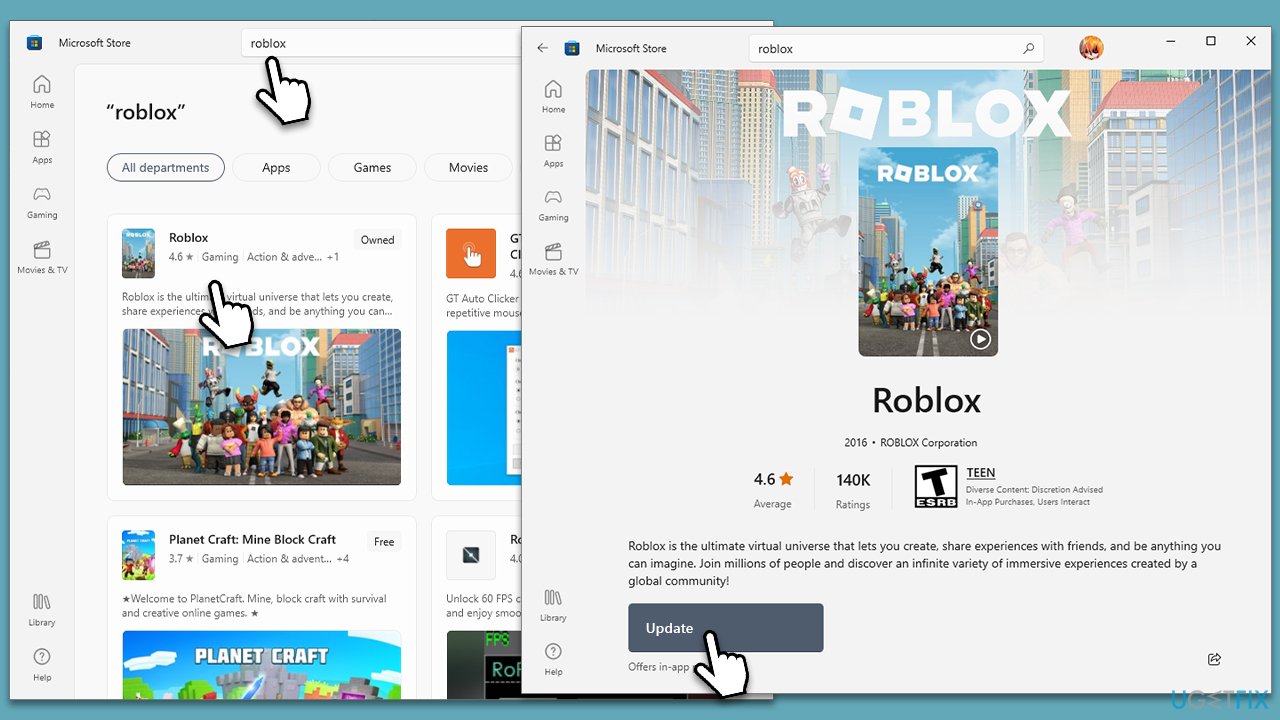
First and foremost, make sure your game is updated to the latest version. To do so, follow these steps:
- Open Microsoft Store.
- Use the search bar at the top and type in Roblox, then press Enter/Search.
- Note: you can also access the game through your Library in the app.
- On the Roblox page, click Update to install the latest game version.
Fix 2. Install all Windows updates
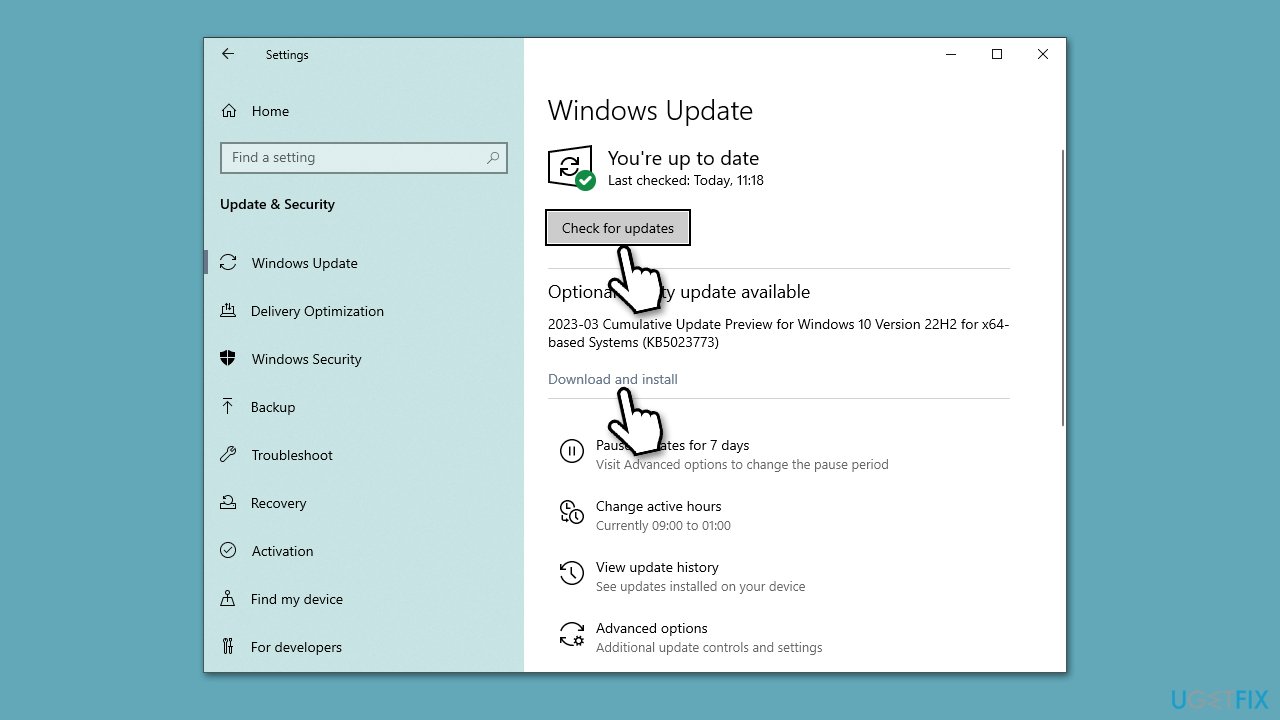
Next, you should make sure that your Windows is updated, as it can fix many of the issues.
- Type Updates in Windows search and press Enter.
- In the new window, click Check for updates.
- If optional updates are available, install them as well.
- Wait till all the files are downloaded and installed.
- Restart your system.
Fix 3. Run Windows Store Apps troubleshooter
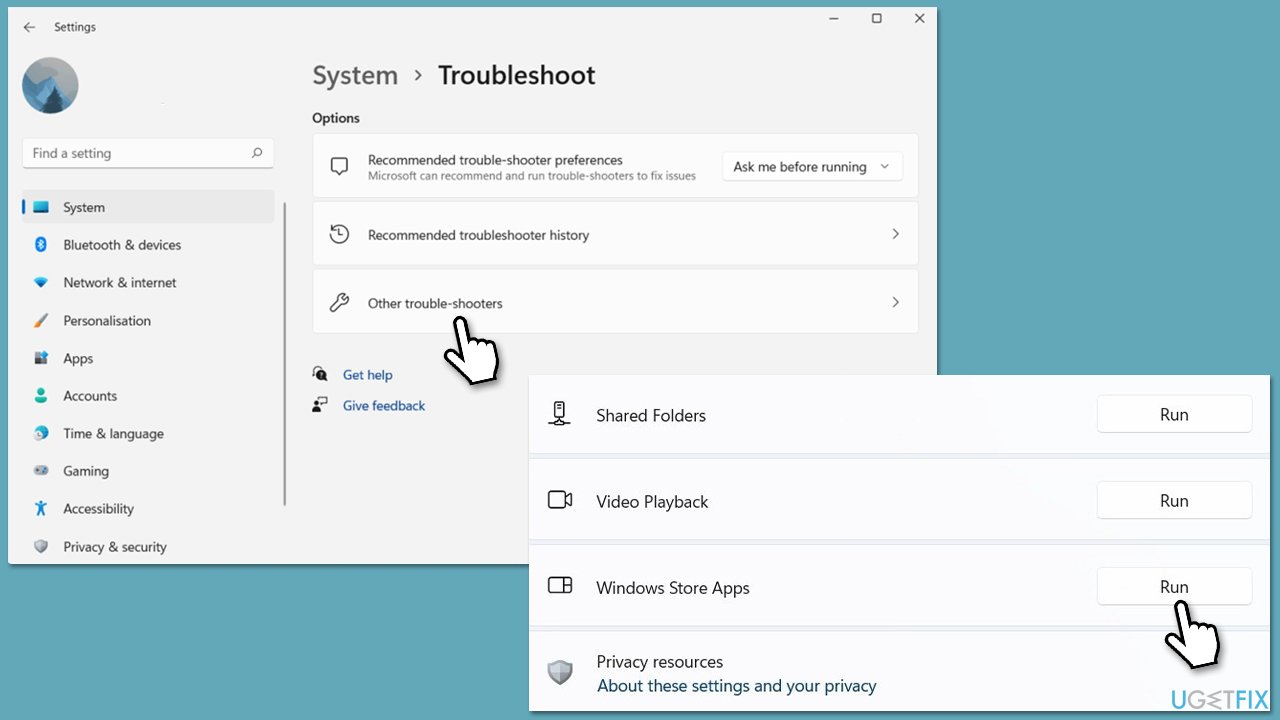
The built-in troubleshooter could help you resolve issues with Windows apps.
- Type Troubleshoot in Windows search and press Enter.
- Go to Additional troubleshooters/Other troubleshooters.
- Find Windows Store Apps from the list and click Run the troubleshooter/Run.
- The troubleshooter will automatically scan your system for potential problems and display any issues.
- Follow the on-screen instructions to apply recommendations.
Fix 4. Check your internet connection
To ensure there are no issues with your internet, run the network troubleshooter:
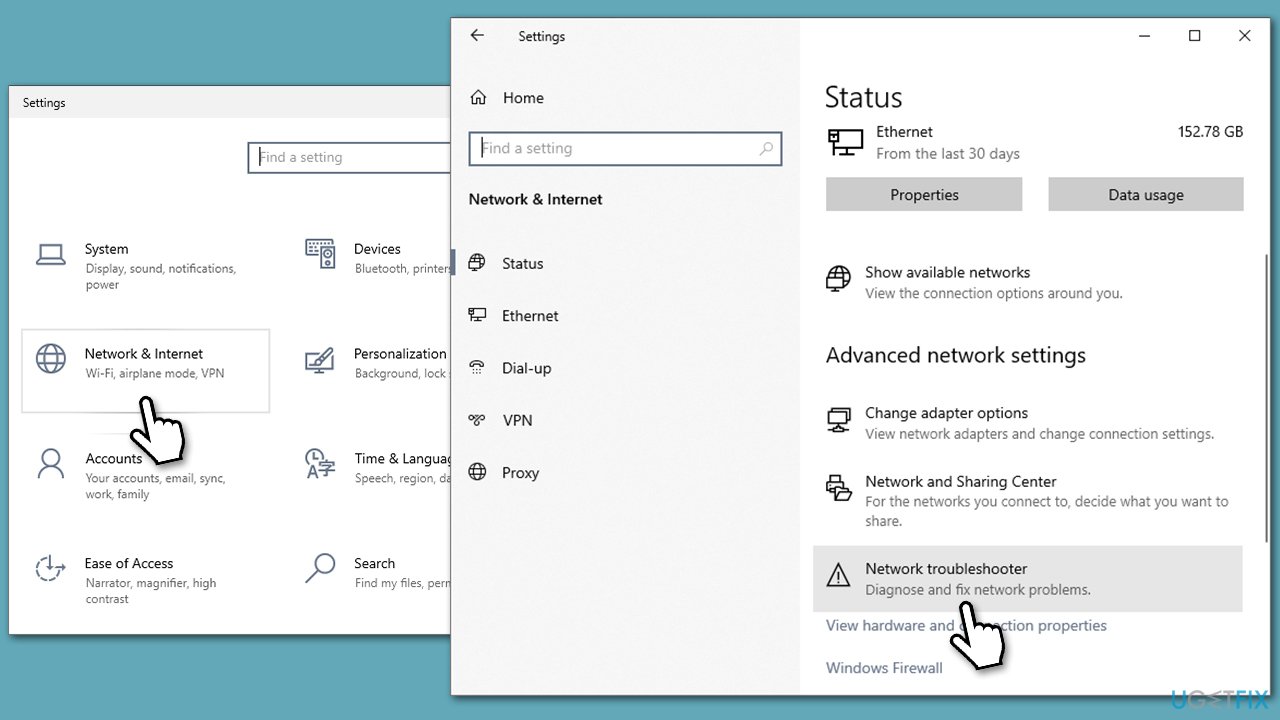
- Right-click on Start and pick Settings.
- Go to Network & Internet section.
- On the right side, find the Advanced network settings section.
- Click Network troubleshooter and wait.
- The fixes should be automatically applied.
If issues with your network can't be fixed, you can always reset it as follows (note that all your settings will be reset to default):
- Type cmd in Windows search.
- Right-click on Command Prompt and pick Run as administrator.
- When the User Account Control window shows up, click Yes.
- Copy and paste the following commands, pressing Enter each time:
ipconfig /flushdns
ipconfig /registerdns
ipconfig /release
ipconfig /renew
netsh winsock reset - Restart your system.
Fix 4. Check out antivirus and other apps
Third-party antivirus and similar software like VPN can sometimes cause Roblox Initialization error 4. These programs often include firewalls that can block Roblox's connection to its servers, preventing the game from launching. Additionally, some antivirus programs may flag Roblox's files as potential threats and quarantine them, causing the game to malfunction.
Similarly, VPNs can also interfere with the game's network settings, causing connectivity issues and preventing the game from communicating with its servers. Therefore, it's essential to ensure that any antivirus or VPN software is configured correctly to allow Roblox to run smoothly. Alternatively, you can always disable/uninstall these apps and see if that resolves the issue with the game.
Fix 5. Check for file corruption
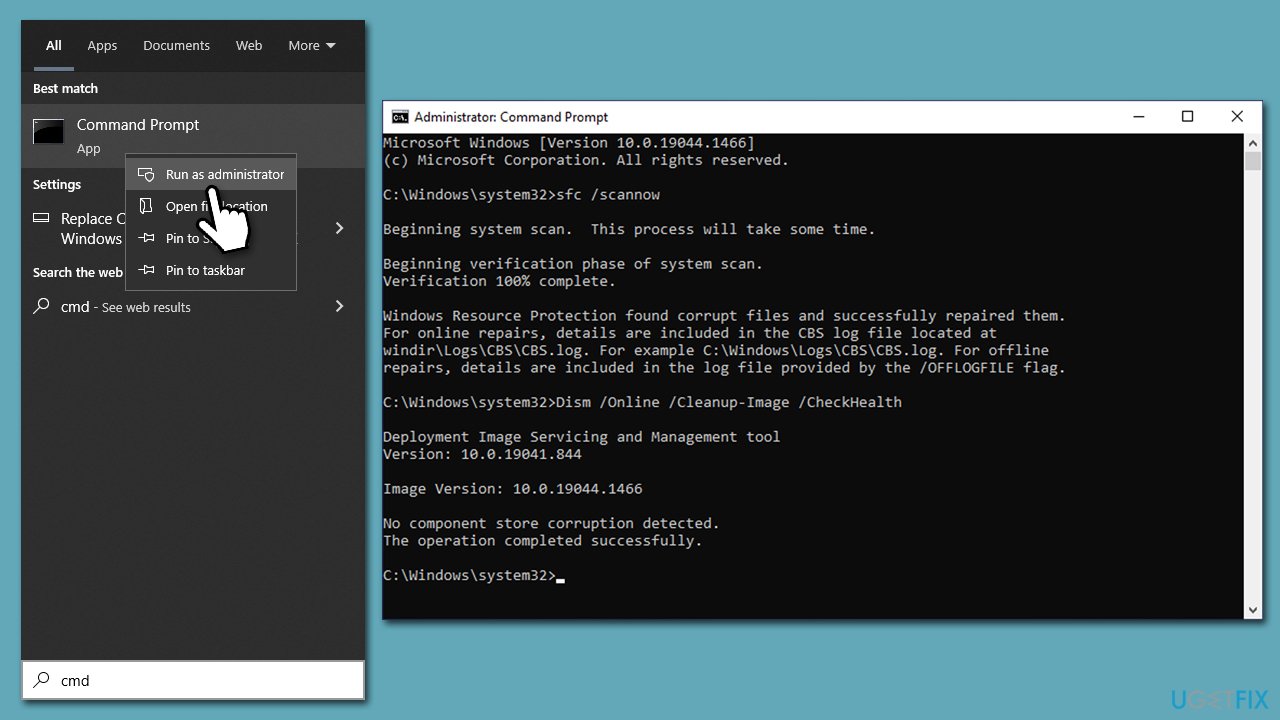
- Open Command Prompt administrator.
- Paste the following command into the new window:
sfc /scannow - Press Enter and wait till the scan is executed.
- Once done, run this set of commands, pressing Enter after each:
DISM /Online /Cleanup-Image /CheckHealth
DISM /Online /Cleanup-Image /ScanHealth
DISM /Online /Cleanup-Image /RestoreHealth - Restart your device.
Fix 6. Clear browser cache
If you are playing the game through your browser, you should clear the cached files as follows:
Google Chrome
- Click on Menu and pick Settings.
- Under Privacy and security, select Clear browsing data.
- Under time range, pick All time.
- Select Browsing history, Cookies and other site data, as well as Cached images and files.
- Click Clear data.
MS Edge
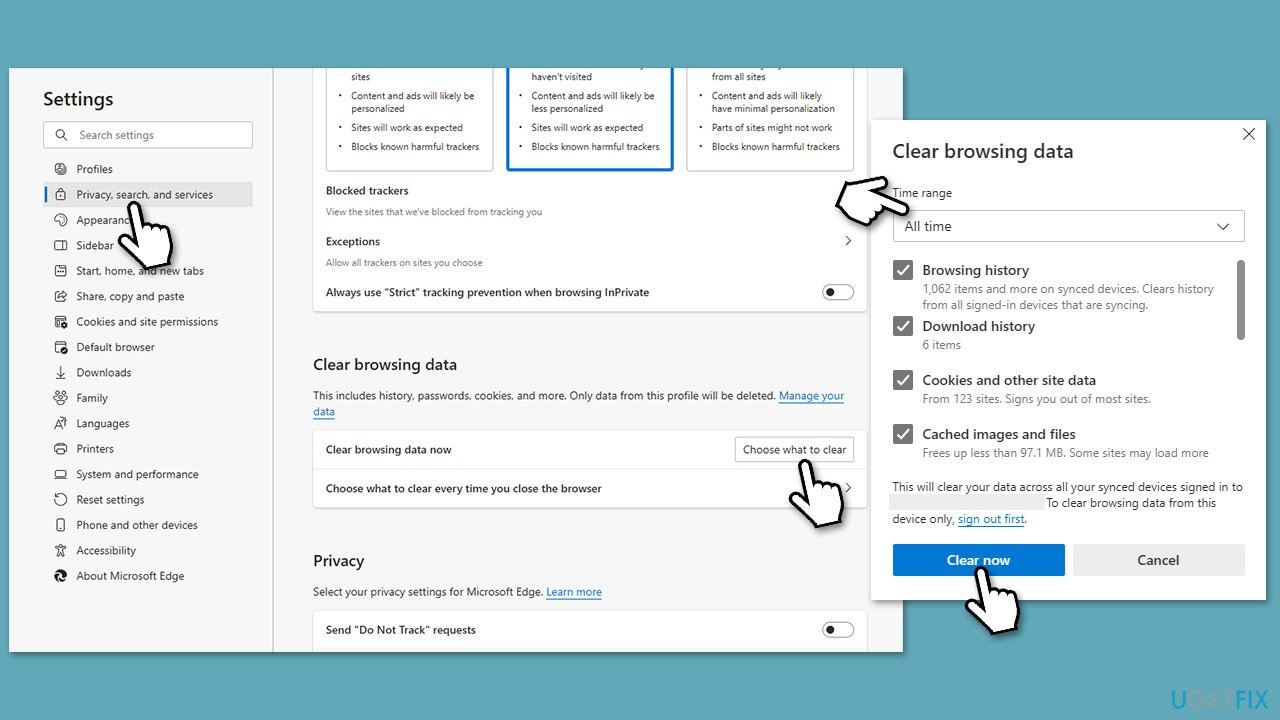
- Open Edge and click on three horizontal dots (Settings and more).
- Pick Settings.
- Click Privacy, search, and services on the left.
- On the right side of the window, scroll down to find the Clear browsing data section.
- Click Choose what to clear.
- Select All time.
- Pick all the sections and click Clear now.
Mozilla Firefox
- Open the Firefox browser and click Application menu > Settings.
- Select Privacy & Security on the left.
- Scroll down to find the Cookies and Site Data section.
- Click Clear Data.
- Select Cookies and Site Data and Cached Web Content and click Clear.
Fix 7. Reinstall Roblox
- Right-click on Start and pick Apps and Features.
- Scroll down to find Roblox from the list.
- Click Uninstall and then confirm with Uninstall.
- Follow the prompts to remove the app.
- Next, press Win + E on your keyboard to open File Explorer.
- Navigate to the following location (make sure Hidden files are visible):
C:\Users\USERNAME\AppData\Local - Access the Roblox folder, press Ctrl + A to mark everything, and then Shift + Del to delete it all.
- Restart your computer.
- Launch Microsoft Store and install the game again.
Other relevant topics:
Bottom line
To fix the Roblox Initialization error 4, players should update their game client, check their internet connection, and clear their browser cache. If these steps do not resolve the issue, consider using a powerful PC repair tool to detect and fix various Windows problems.
Frequently asked questions
Roblox Initialization error 4 typically indicates a problem with the game's installation or network configuration, preventing it from launching properly on your device.
To fix this error on Windows 11, try resetting your network settings, ensuring your firewall allows Roblox, and reinstalling the game if necessary.
Yes, on Windows 10, check your date and time settings, ensure that the Windows Firewall is not blocking Roblox, and update your graphics drivers for optimal performance.




Report an issue
What's wrong with this guide? We review every report and update or remove content.
Report received — thank you. We'll review and fix it.
You need a free account to submit a report.
Be the first to comment