
How to fix Sleep Wake failure in EFI (Failure code:: 0xffffffff 0x0000001f) on Mac?
Prefer to fix it yourself? The manual steps follow.
On this page
- How to fix Sleep Wake failure in EFI (Failure code:: 0xffffffff 0x0000001f) on Mac
- Reboot your Mac
- Reset SMC and NVRAM to fix Sleep Wake failure in EFI (Failure code:: 0xffffffff 0x0000001f)
- Disable hibernation mode
- Update your firmware to fix Sleep Wake failure in EFI (Failure code:: 0xffffffff 0x0000001f) on Mac
Hello. I suffer from an issue that repeats all the time. Can you help me fix Sleep Wake failure in EFI? The particular failure code:: 0xffffffff 0x0000001f. I have this issue on my mac for a while now and haven't found the solution yet. Help!
Sleep Wake failure in EFI (Failure code:: 0xffffffff 0x0000001f) issue is one of the many Mac errors. There is a common misbelief that Apple devices generally have no issues, so people do not pay attention to alerts about issues or particular freezes, crashes. However, macOS is not immune to malware, as well as errors or system problems.
Users report this Failure code:: 0xffffffff 0x0000001f since 2019, but this year it again started to surface in various discussion forums. This sleep-wake failure mainly occurs after a fresh installation of the macOS, so it is even more frustrating and annoying.
Most of the user complaints state that the system works fine until it shows the Failure code:: 0xffffffff 0x0000001f once woken up from sleep. Additional issues include an unresponsive keyboard, the screen still sleeping and case fans overdriving. The particular code mainly appears once the system is reset.
It is possible to fix Sleep Wake failure in EFI (Failure code:: 0xffffffff 0x0000001f) on Mac, but there are various devices that might encounter the issue, so solutions may vary. Basic troubleshooting might help at first, but you will need more in-depth steps and changes to make. We can most definitely confirm that malware has nothing to do with the failure.
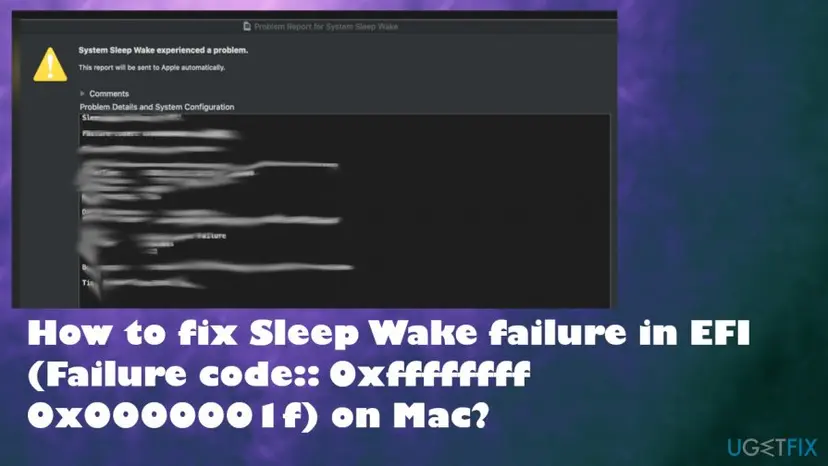
How to fix Sleep Wake failure in EFI (Failure code:: 0xffffffff 0x0000001f) on Mac
Sleep Wake failure in EFI (Failure code:: 0xffffffff 0x0000001f) on Mac started to bother people years ago, but after recent updates and discussions on Catalina vs Big Sur reports started to come again. It doesn't relate to any malware issues or cyber infections, but system check and file repair issues can be fixed. Adjusting some settings and preferences can resolve the problem. Follow all the steps and try a few methods to ensure the fix.
Reboot your Mac
- Press and hold the Power button.
- Wait until the shutdown.
- Then after a few moments Power the computer again.
Reset SMC and NVRAM to fix Sleep Wake failure in EFI (Failure code:: 0xffffffff 0x0000001f)
- Turn off the computer.
- Disconnect cable from the power source.
- Press and hold Shift + Option+ Ctrl buttons and the Power button for at least 15 seconds.
- Turn the computer on.
- Reboot the Mac again.
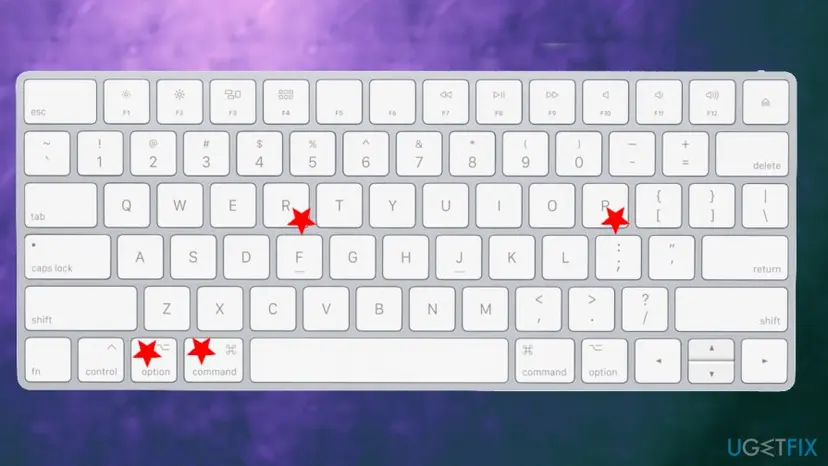
Sleep wake error fix keys - This time press and hold Command + Option + P + R for 20 seconds.
Disable hibernation mode
- Open the Terminal.
Sleep wake error fix terminal - Run these commands: sudo pmset standby 0 and sudo pmset autopoweroff 0.
Update your firmware to fix Sleep Wake failure in EFI (Failure code:: 0xffffffff 0x0000001f) on Mac
- Go to Apple menu.
- Select App Store.

Sleep wake error fix store - Input macOS and hit Enter.
- Choose the most recent macOS version and click Get.
- Open the folder of Applications and click Continue.
- Follow the steps on the screen.
Did this fix work?
One click, no account. It tells the next reader which guides are worth their time.
Questions and experiences: fix Sleep Wake failure in EFI (Failure code:: 0xffffffff 0x0000001f) on Mac
Still broken, or found a fix we did not cover? Ask here: members and our editors answer. Reading is open; writing needs a free account.
…