How to fix
Slow Wi-Fi Connection
on Windows
Discover effective tips to boost your Windows 10 or 11 Wi-Fi speed quickly. Troubleshooting made easy with expert-tested solutions. Fixed in minutes!

What causes How to Fix Slow Wi-Fi Connection on MacOS Sierra?
- Wi-Fi speed decreased after upgrading from El Capitan to Sierra
- Connection drops and re-establishes intermittently
- Potential modifications to Wi-Fi settings due to the Sierra update
- Router issues or damage
- Generic Wi-Fi troubles that need troubleshooting
Repairs Windows system files, removes malware, and restores a clean OS state — without reinstalling.
Hello. I’ve noticed that Wi-Fi speed after upgrading from elCapitan to Sierra decreased significantly. Sometimes the connection is lost and then established again. Such things did not happen earlier, so I’m interested if it’s just a coincidence or it’s a problem of Sierra?
In most cases, with new updates of the operating system come new problems. This is the issue that Windows users[ref en-1] experience as often as Mac OS device owners. With some smart features like Auto-Unlock and Universal Clipboard, Mac Sierra upgrade was one of the best upgrades of the OS. However, there is no particular way that can help to avoid issues entirely.
Slow Wi-Fi Connection is a common problem for MacOS Sierra users.[ref en-2] While such an issue may occur for other Mac OS versions, many people have started posting complaints about a decreased Wi-Fi speed soon after the release of MacOS Sierra upgrade 10.12. These Wi-Fi problems can also range from difficulties connecting to networks, dropping wi-fi connections, sluggishness and other connectivity problems with internet networks.
If you are encountering this issue, try to check if there are no problems with the router. If there is no damage or changes related to the router, then it might be that the MacOS Sierra 10.12 update modified some Wi-Fi settings due to which the speed might have decreased.
There might be a few ways to fix the networking related issues, but you need to walk through some primary problems and address them to troubleshoot the generic wi-fi troubles. You may try to update to the more latest version of Mac OS if such an upgrade is available because developers try to fix various issues as quickly as they can. Sometimes that is the only fix you need. If that is not helping - go further to methods listed below. 
How to Fix Slow Wi-Fi Connection on MacOS Sierra
Before performing any slow Wi-Fi connection fixes, it’s advisable to backup your Mac using Time Machine. If you’re ready, try to perform the following troubleshooting steps.
We would recommend scanning the system with [rev id=”Reimage”] in order to check if all system files and apps are functioning properly. Such a scan may even indicate PUPs[ref en-3] or problems causing other system issues for you. Hopefully, the following steps may help you to fix Wi-Fi Connection Problems on MacOS Sierra manually if scanning the system is not affecting the performance.
Delete Wi-Fi preferences
- Disable all running applications that are using Wi-Fi (e.g. web browsers, Skype, etc.).
- Turn off WI-Fi. For this purpose, click Wi-Fi menu bar and select Turn Wi-Fi Off.
- Launch Finder and click Command + Shift + Go to open Go To Folder.
- Enter the following path into the new window: /Library/Preferences/SystemConfiguration/.
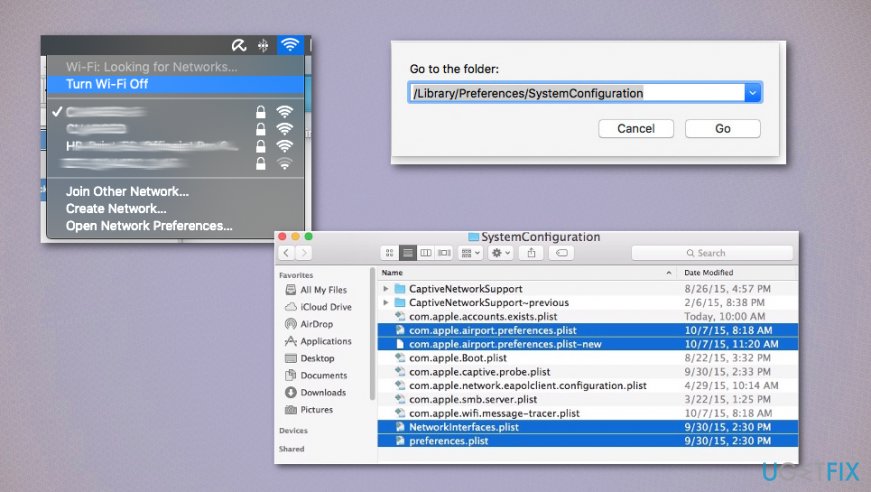
How to fix slow wi fi connection on macos sierra prefereces - Find the files listed below and select them:
com.apple.airport.preferences.plist
com.apple.network.eapolclient.configuration.plist
com.apple.wifi.message-tracer.plist
NetworkInterfaces.plist
preferences.plist - Remove those files by dragging them to Trash (but don’t empty the Trash to keep the backups of those files temporarily).
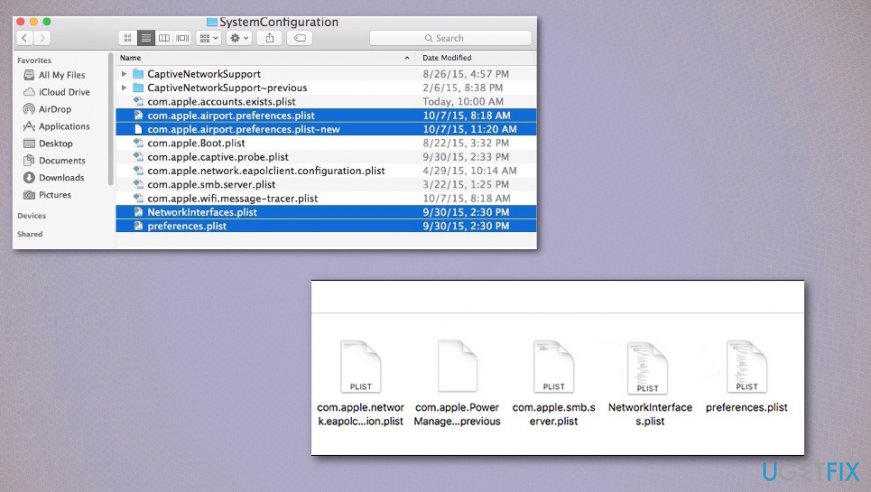
How to fix slow wi fi connection on macos sierra prefereces trash - Once matching Wi-Fi configuration files are deleted, restart your Mac.
- When the system boots up, click on Wi-Fi menu bar, and select Turn Wi-Fi On.
Reset Network Location with Custom MTU and DNS
- Go to the System Preferences and select Network.
- Select Wi-Fi using the left pane.
- Open the Location menu and opt for Edit Locations.
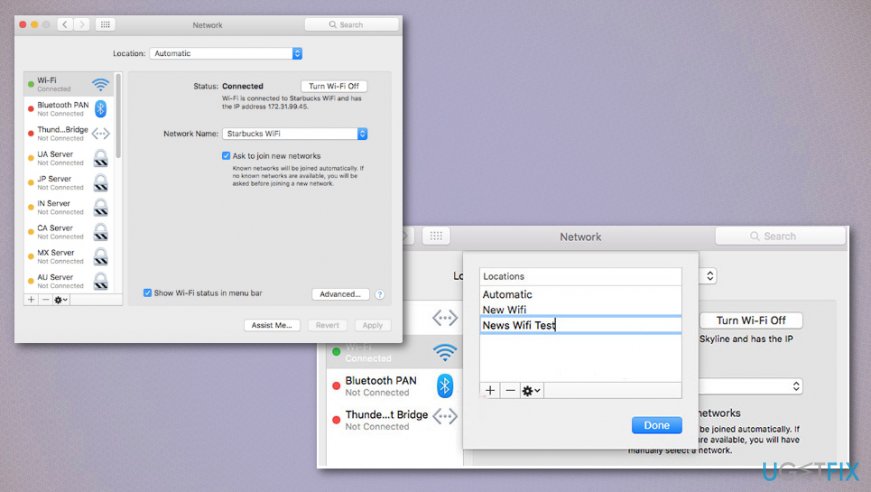
How to fix slow wi fi connection on macos sierra network - Click on the + sign to create a new network location and name, for example, Wi-Fi error Fix.
- Open the drop-down menu of Network Name and click on the Wi-Fi network you want to connect to.
- Select Advanced on the Network panel and open TCP/ IP tab.
- Select Renew DHCP Lease.
- Open DNS tab under DNS Servers and click + button.
- Add each IP onto its own entry: 8.8.8.8 and 8.8.4.4 (Google Public DNS servers).
- Select Hardware and set Configure to Manually.
- Adjust MTU to Custom and number it to 1453.
- Click OK and Apply to save the changes.
Disable automatic download to fix slow Wi-Fi connection on MacOS Sierra
- Go to System Preferences.
- Then the App Store and uncheck the option for Download newly available updates in the background.
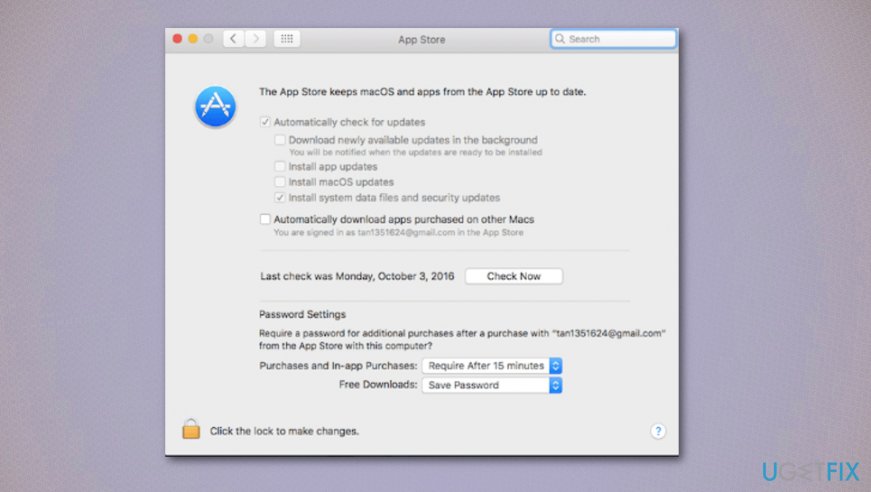
How to fix slow wi fi connection on macos sierra app store
Fix SSL certificate problem
- Click on the Wifi icon in the menu at the top.
- Select Open Network Preferences.
- Click Advanced and choose the network you use at the time.
- Select the Subtract sign and click OK.
- Stay to the same Network Preferences page and click on the Wi-Fi on the left.
- Click Subtract sign and Apply.
- Choose Addition sign and choose Wi-Fi under the Interface and Service name.
- Click Apply to save changes.
Bottom line
To fix slow Wi-Fi connection on MacOS Sierra, you should first back up your Mac using Time Machine. Then, check your router for issues and consider updating to the latest version of Mac OS. If these steps do not resolve the problem, further troubleshooting methods may be necessary.
Frequently asked questions
You can try resetting your network adapter by going to Settings > Network & Internet > Status and selecting 'Network reset.' Additionally, ensure your Wi-Fi drivers are up to date through Device Manager.
Make sure that your Wi-Fi is set to the correct band (2.4GHz or 5GHz) based on your environment, and disable any VPNs that may be affecting your connection.
Yes, changing the Wi-Fi channel can reduce interference from neighboring networks, which can improve your connection speed on both Windows 10 and Windows 11.




Report an issue
What's wrong with this guide? We review every report and update or remove content.
Report received — thank you. We'll review and fix it.
You need a free account to submit a report.
Be the first to comment