How to fix
Something went wrong – error code 0x8019001
on Windows
Resolve the error code 0x8019001 on Windows 10 and 11 effortlessly. Follow our expert-tested solutions to fix it in minutes and get back on track!


What causes How to fix Something went wrong – error code 0x8019001 in Windows?
- Corrupted files
- Third-party security programs
- Issues with Windows Update
- Corrupted system files
- Problems with Microsoft apps
Repairs Windows system files, removes malware, and restores a clean OS state — without reinstalling.
Hello. I have been trying to update my Windows 10 computer but I receive a message "Something went wrong - error code 0x8019001." Any tips would be appreciated.
Windows is the first choice for many people when trying to decide which operating system to use. People love it for its user-friendly interface, customization abilities, and built-in troubleshooters. In order to keep the system running smoothly, users are encouraged to update and upgrade their systems regularly. Updates contain new functions and important security patches.
Sometimes people fail to upgrade their Windows machines for various reasons. Some people report that they have received a message "Something went wrong - error code 0x8019001" while they were trying to update or upgrade Windows. It is unclear why this could be happening. The same error was noticed when users were trying to open certain native Windows applications.
In this guide, you will find 6 methods that could help you fix the error code 0x8019001 in Windows. Such errors may be caused by corrupted files, third-party security programs, etc. You can also try solutions like updating drivers which you can find in the article "How to easily update all drivers, and why is it needed?"
However, manual troubleshooting can be a lengthy process, so we strongly recommend using a repair tool like [d1[ that can fix most system errors, BSODs,[ref en-1] corrupted files, and registry[ref en-2] issues. It can also clear your machine from cookies and cache[ref en-3] which could be causing various malfunctions.
Method 1. Run Windows Update Troubleshooter
- Press the Windows + X keys and go to Settings
- Go to Update and Security
- Click Troubleshooter
- Select Additional troubleshooters
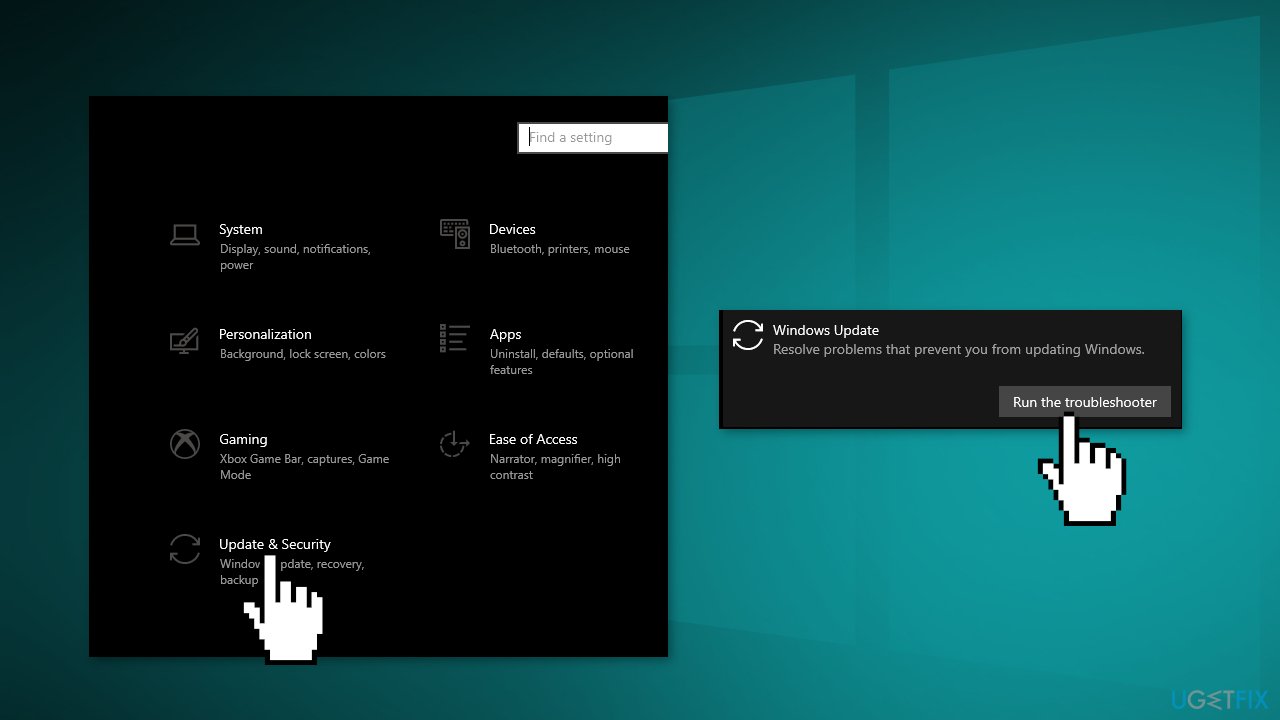
- Run the Update troubleshooter
- Restart
- You can also try running the Windows Store Apps troubleshooter if you experience the 0x8019001 error while trying to open Microsoft apps
Method 2. Repair Corrupted System Files
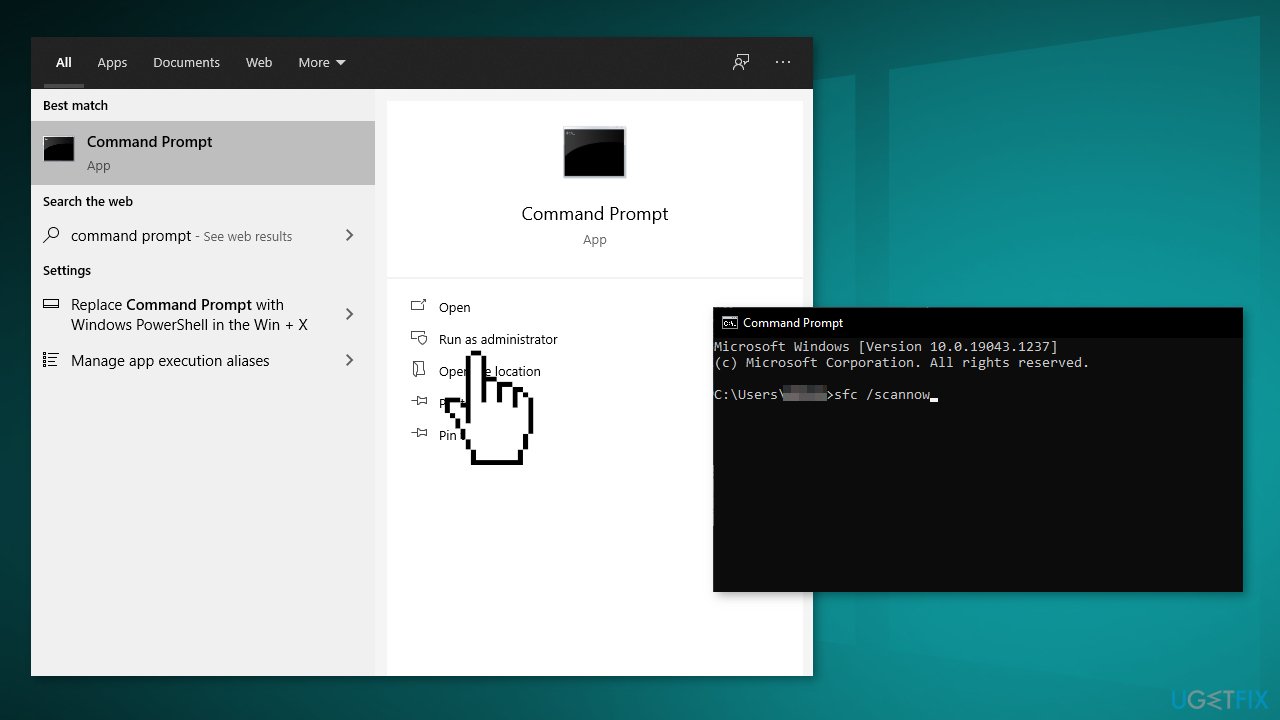
Use Command Prompt commands to repair system file corruption:
- Open Command Prompt as administrator
- Use the following command and press Enter:
sfc /scannow
- Reboot your system
- If SFC returned an error, then use the following command lines, pressing Enter after each:
DISM /Online /Cleanup-Image /CheckHealth
DISM /Online /Cleanup-Image /ScanHealth
DISM /Online /Cleanup-Image /RestoreHealth
Method 3. Disable Third-Party Antivirus Software
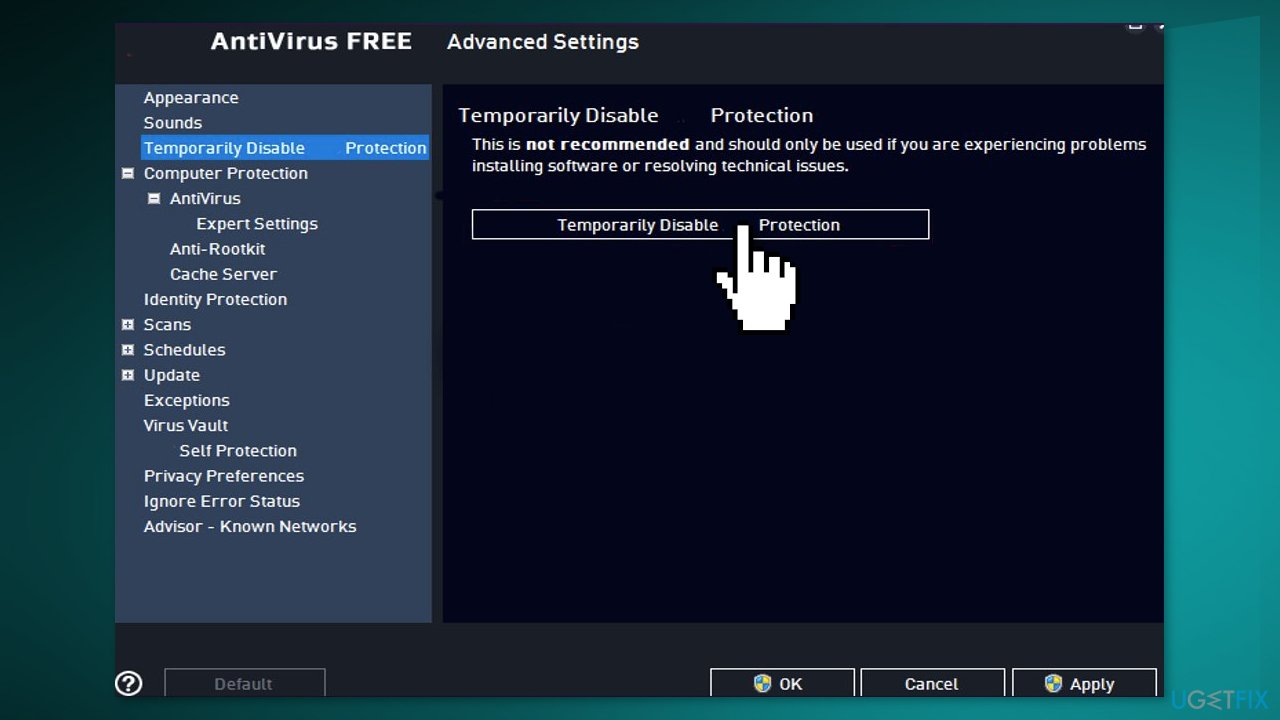
Some security programs might be conflicting with Microsoft servers and data packages that they send during the activation process, mistakenly perceiving these servers as insecure. Thus, it is known that removing AV software helped some users when trying to fix Windows errors.
- Right-click the antivirus icon and select Disable
- You can also double-click the antivirus icon and look for a Disable option there
Method 4. Delete Files in the SoftwareDistribution Folder
- Press Windows key + R to open the Run command box
- Type services.msc and click OK
- In Services control panel locate the Windows Update service
- Right-click on Windows Update service and select Stop
- Now open Windows Explorer and navigate to: C:\\Windows folder
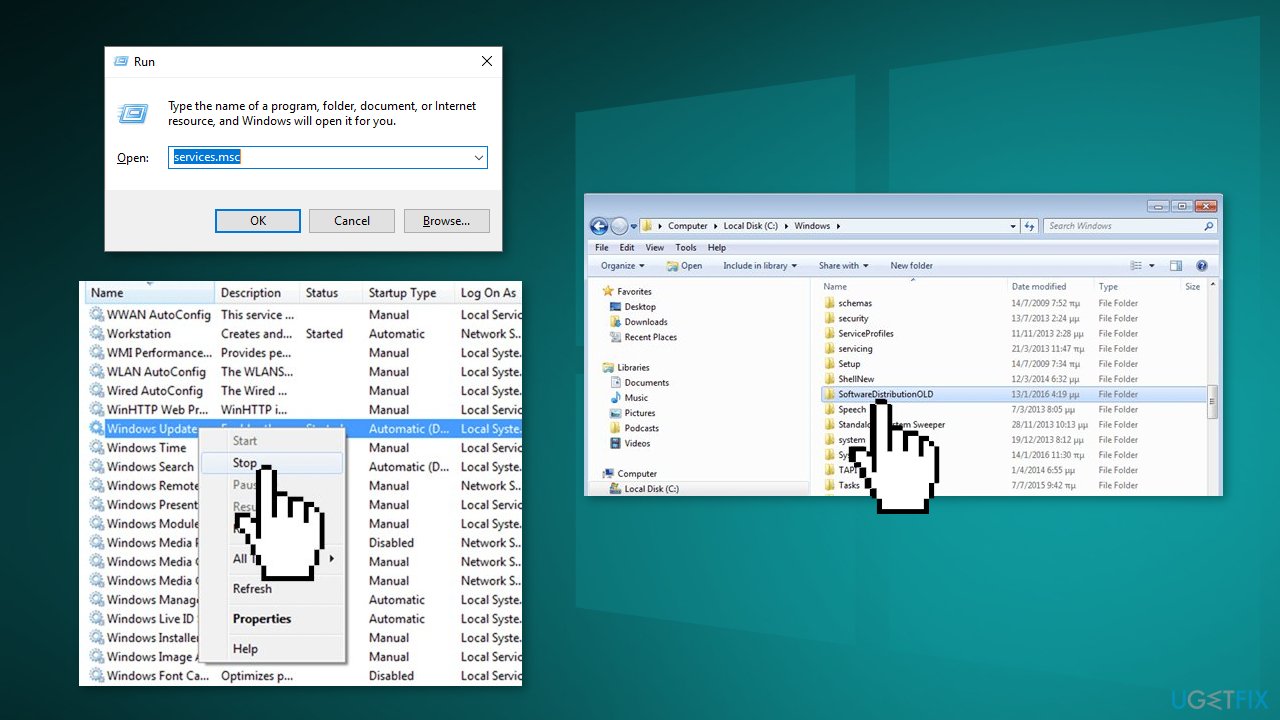
- Find the SoftwareDistribution folder and Delete its contents
Method 5. Turn Off Sync in Chrome
If you are experiencing this error while you try to gain access to the Internet, try this:
- Open Chrome and click on your account icon from the top-right section of the screen
- Click on Sync is on
- Click on the Turn Off button associated with your account
- Once Chrome syncing has been disabled, reboot your PC and see if the error is now resolved
Method 6. Update via Media Creation Tool
- Download Windows 10 installation media from the official website
- Open the tool once it installed
- Agree to license terms
- Choose Upgrade this PC now
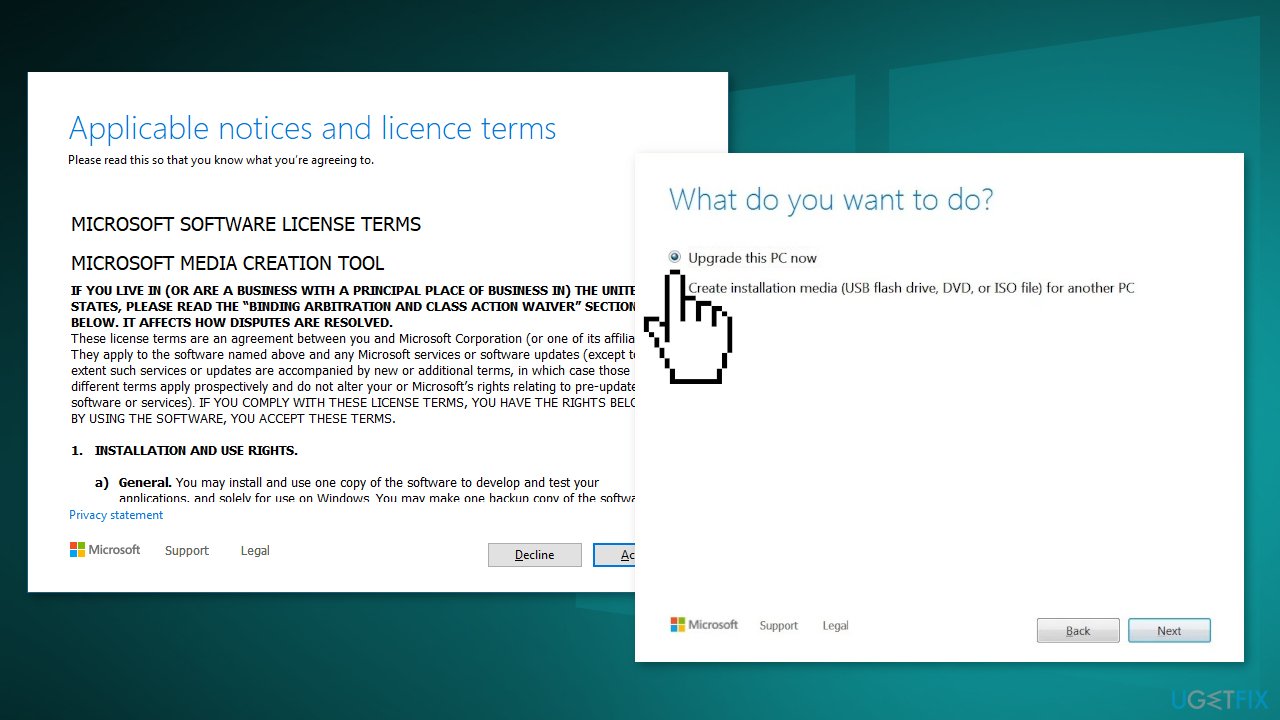
- Wait for the update to be installed
Bottom line
To fix the error code 0x8019001, you can try running the Windows Update Troubleshooter, repairing corrupted system files using Command Prompt, and running the Windows Store Apps troubleshooter. If these methods do not resolve the issue, consider using a repair tool to fix system errors.
Frequently asked questions
Error code 0x8019001 typically indicates a problem with the Windows Update service or network connectivity issues preventing updates from being installed properly.
To fix error code 0x8019001 in Windows 11, try running the Windows Update Troubleshooter and resetting the Windows Update components by executing specific commands in the Command Prompt.
To prevent error code 0x8019001 in Windows 10, ensure your system is updated regularly and check your internet connection before initiating any updates.




Report an issue
What's wrong with this guide? We review every report and update or remove content.
Report received — thank you. We'll review and fix it.
You need a free account to submit a report.
Be the first to comment