How to fix
“Sorry there is a problem displaying this folder” error in OneDrive
on Windows
Resolve the "Sorry, there is a problem displaying this folder" error in OneDrive on Windows 10 or Windows 11 with expert-tested solutions. Fixed in minu…


What causes How to fix “Sorry there is a problem displaying this folder” error in OneDrive?
- App bugging out
- Issues with OneDrive folder location
- Need to reset the app
- Reinstallation of OneDrive
- Login errors
Repairs Windows system files, removes malware, and restores a clean OS state — without reinstalling.
Hello, I have a problem with my OneDrive. I can't see the folders in the dedicated directory via File Explorer, although I can easily access them through my browser. I was first told I wasn't logged in, so I did, and right after, I got an error "Sorry there is a problem displaying this folder." If I type in OneDrive in the start menu, I get the same error.
OneDrive is a cloud storage service offered by Microsoft. It allows users to store their personal files and documents in the cloud, where they can be accessed from any device with an internet connection. This makes it easy for users to access their files from any location and to share them with others.
OneDrive also integrates with other Microsoft services, such as Office 365, so users can easily save and access their files from within those applications. OneDrive offers a variety of plans to suit different needs, including options for individuals, families, and businesses. It also includes features such as file syncing, real-time collaboration, and automatic backup.
Despite its usefulness, the application does not always operate as intended - users suffer from login errors, the icon goes missing, or it completely disappears from File Explorer after an update. In this case, users have reported that they have received the "Sorry there is a problem displaying this folder" whenever they try to open OneDrive via the system tray or access it via File Explorer.
There could be several reasons why users may experience the "Sorry there is a problem displaying this folder" error in OneDrive. Most commonly, the problem lies within the app bugging out, so users manage to solve the problem by simply resetting the app. For others, changing the OneDrive folder location or reinstalling it helped.
We recommend running a quick scan with [d1] before proceeding with fixes for "Sorry there is a problem displaying this folder" error. This tool can make sure that there are no underlying issues within Windows operating system, and if there are, they will be fixed effectively.
Solution 1. Reset OneDrive
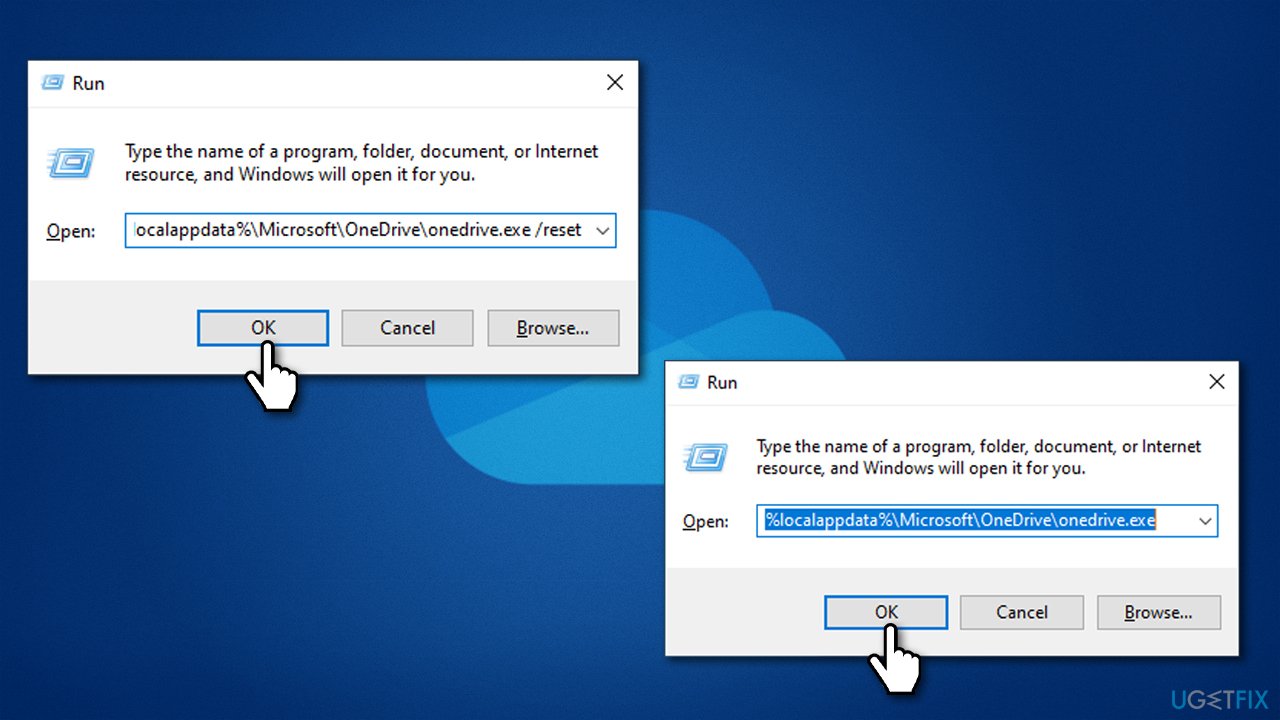
Most users managed to solve the issue by resetting the app. Please follow these steps:
- Press Win + R on your keyboard
- When the Run window opens, copy and paste the following text into it:
%localappdata%\Microsoft\OneDrive\onedrive.exe /reset - Press Enter or click OK
- After this command is executed, the app should be reset, and OneDrive should open
- If it doesn't, wait a few minutes, then open the Run window again and use the following command:
%localappdata%\Microsoft\OneDrive\onedrive.exe - Press Enter.
Solution 2. Re-link the account
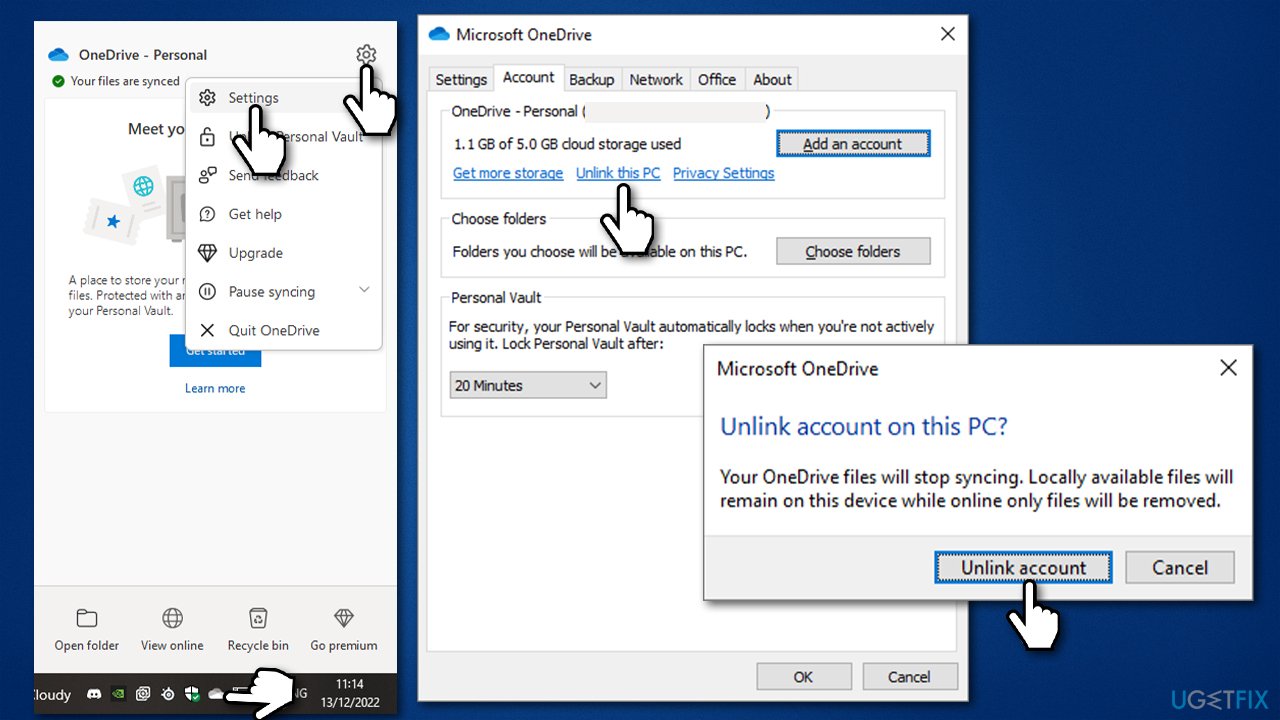
You can unlink and link back your OneDrive account as follows - it will not remove the contents within your directory.
- Right-click on the OneDrive icon within the system tray or taskbar
- Click on Help and Settings (gear icon) at the top-right of the window and pick Settings
- Click Unlink this PC
- In the warning prompt, click Unlink account
- Restart your computer
- Open OneDrive and enter your Microsoft account
- Follow on-screen instructions to finish the process.
Solution 3. Change the location of OneDrive
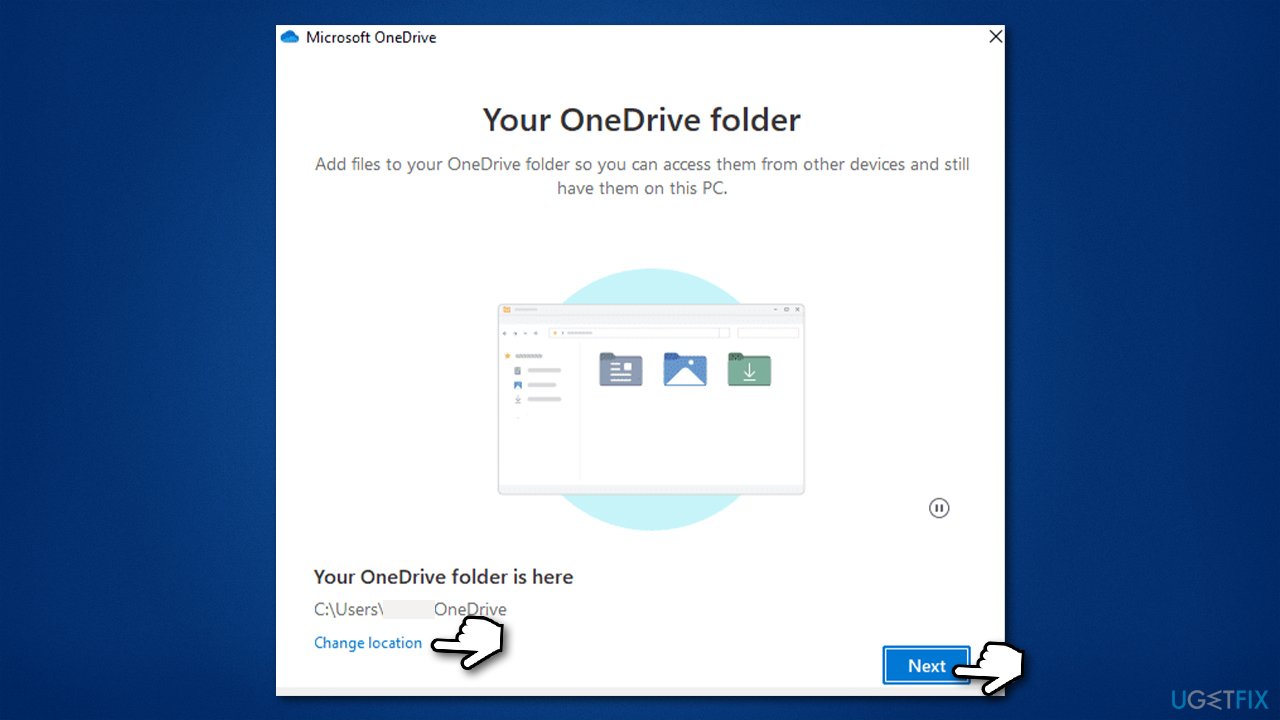
Before proceeding with this solution, you should unlink your OneDrive account, as we explain in the previous step. The default location for storing your files is C:\Users\USER\OneDrive, and your goal here is to change that.
During the setup process, you should come across a step "Your OneDrive folder is here." You can click Change location and change the location of where your OneDrive files will reside. Click Next and continue with the process.
Solution 4. Reinstall the app
If none of the solutions work, please reinstall the app altogether.
- Right-click on Start and pick Apps and Features
- Scroll down to find Microsoft OneDrive
- Click Uninstall > Uninstall
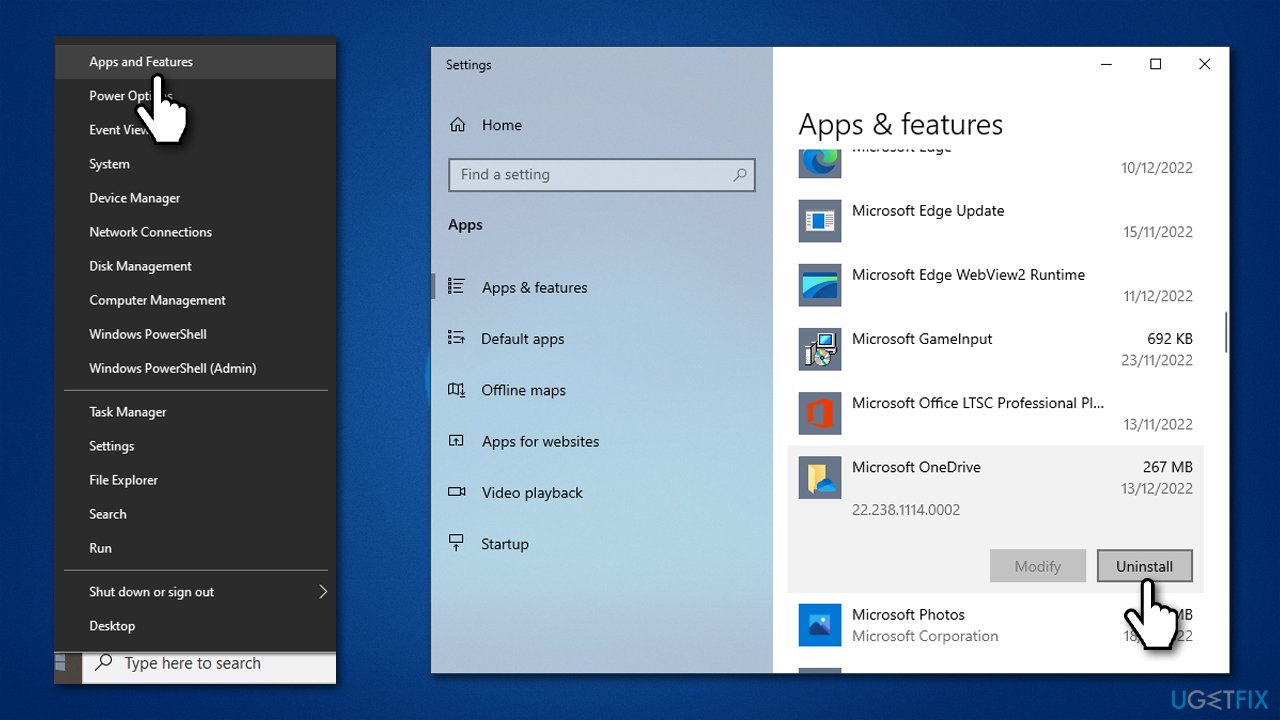
- Follow on-screen instructions to finalize the process
- Restart your system
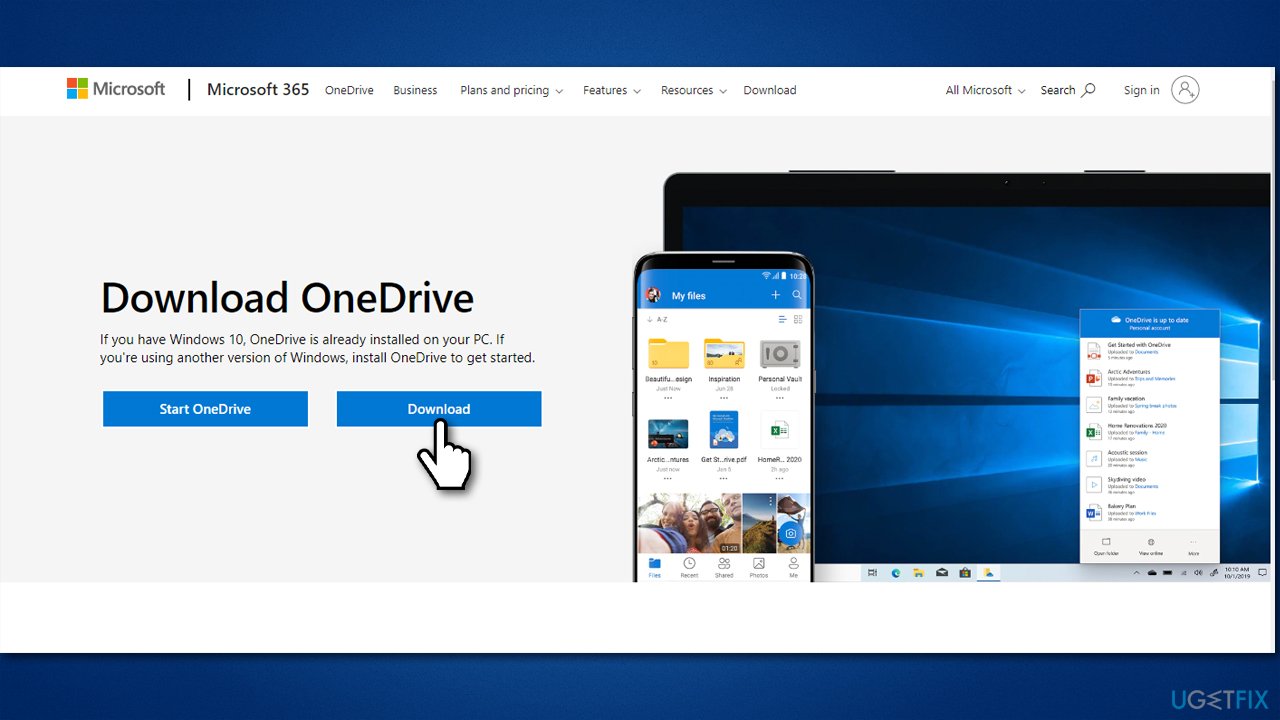
- You can then go to the official Microsoft website - OneDrive download page
- Download the app and install it as required
- See if it helped you fix the "Sorry there is a problem displaying this folder" error in OneDrive.
Bottom line
To fix the 'Sorry there is a problem displaying this folder' error in OneDrive, users can try resetting the app, changing the folder location, or reinstalling OneDrive. If these solutions do not resolve the issue, it may be beneficial to run a quick scan with a diagnostic tool to check for underlying problems within the Windows operating system.
Frequently asked questions
Try resetting the OneDrive application by running the command '%localappdata%\Microsoft\OneDrive\onedrive.exe /reset' in the Run dialog. If the issue persists, consider unlinking and relinking your OneDrive account in the app settings.
First, ensure that your Windows 11 is updated to the latest version, as updates often fix bugs. If the error continues, clear the OneDrive cache by navigating to the OneDrive settings and selecting 'Clear cache'.
Yes, you can use the built-in Windows troubleshooter for apps to help diagnose and fix common issues. Access it through Settings > Update & Security > Troubleshoot > Additional troubleshooters, then select 'Windows Store Apps'.




Report an issue
What's wrong with this guide? We review every report and update or remove content.
Report received — thank you. We'll review and fix it.
You need a free account to submit a report.
Be the first to comment