How to fix
Start button not working after installing KB5040525 update
on Windows
Resolve the Start button issue after the KB5040525 update on Windows 10 and 11 quickly and easily. Expert-tested solutions for seamless navigation.


What causes How to fix Start button not working after installing KB5040525 update in Windows?
- Start button functionality disrupted by KB5040525 update
- Potential software conflicts
- Malware infections
- Issues with system restoration
- Grayed out uninstall update option
Repairs Windows system files, removes malware, and restores a clean OS state — without reinstalling.
After installing the latest update KB5040525 in Windows, the Start button is no longer working. When clicking it, nothing happens for a sec but then the whole UI elements disappear for a bit, only to reappear soon after. How can I fix that?
While installing Windows updates is always recommended due to security vulnerability patches, bug fixes, and new features, sometimes updates can also ruin things - from simple inconveniences like the taskbar no longer being transparent to very serious issues, such as 100% Disk usage, audio inconsistencies, or even BSODs.
In this case, several users have reported on various IT forums that KB5040525 killed the Start button, i.e., it no longer functions as it should. Besides this, some also said that they encountered even more issues, such as the touchpad not working or slow bootup time.
Even though this is a relatively isolated issue and not extremely widespread, it is prevalent enough to make quite a few users unhappy, which is understandable. Luckily, there are several things you can do in order to resolve the issue where Start button is not working after installing KB5040525 Windows update.
Since this is likely a very temporary issue, you could uninstall the KB5040525 update and hide it using a special troubleshooter from Microsoft. As you might encounter difficulties (for example, you might find that the "Uninstall update" button is grayed out), you will hate to resort to alternative solutions, such as using System Restore or WinRe environment.
Below you will find detailed instructions on how to perform all of the mentioned steps and resolve KB5040525 issues, regardless of which situation you are in. Note that your system might be malfunctioning due to other reasons (software conflicts, malware infections, etc.), so we recommend scanning it with a powerful repair tool [d1].
Method 1. Uninstall the KB5040525 update
This is the method you should try first - removing the problematic update manually.
- Type Control Panel in Windows search and press Enter.
- Select Programs > Uninstall a program.
- Click on View installed updates on the left side of the window.
- Sort all the updates by date.
- Right-click on the KB5040525 update and select Uninstall.
- Proceed with on-screen instructions.
- Then, type Updates in Windows search and press Enter.
- Click Pause the updates for 7 days (in Windows 11, you can pick a different time period).
- Install updates only once the issue is addressed by Microsoft.
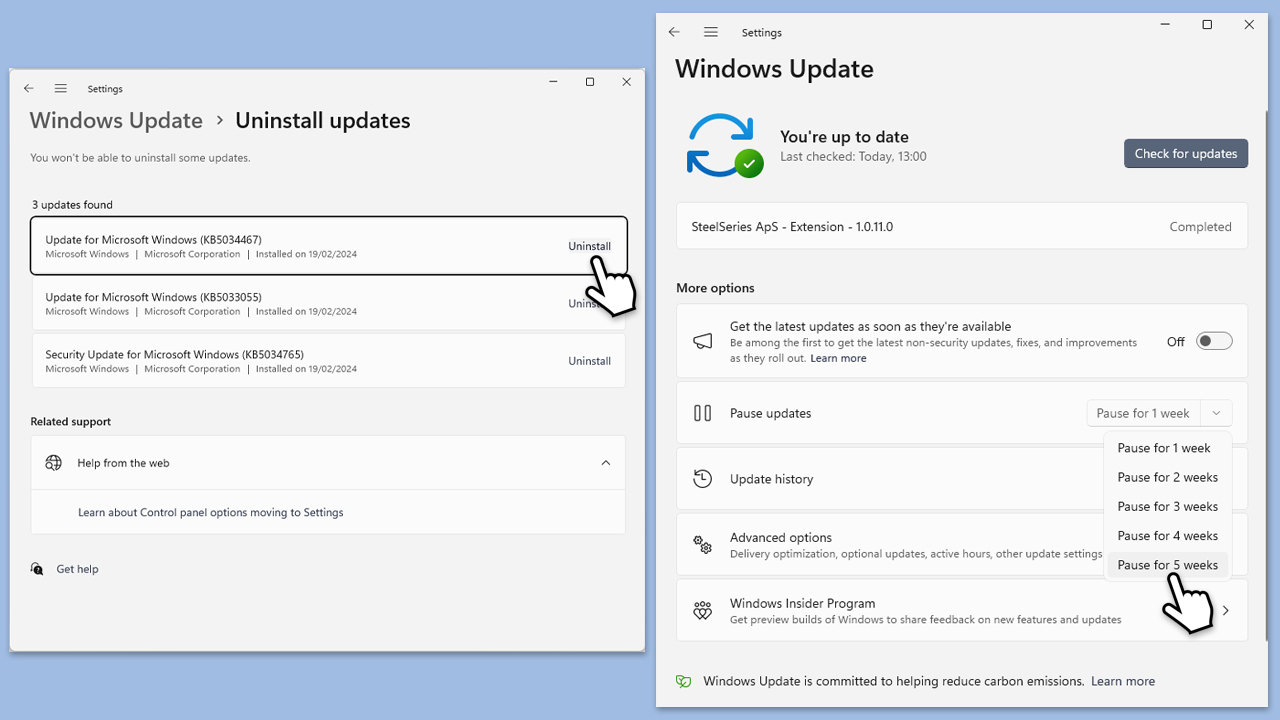
Hide the update using the troubleshooter
- Download the Show or Hide Updates Troubleshooter from the Microsoft website [direct download link].
- Launch the wushowhide.diagcab file.
- Select Advanced and then Apply updates automatically, clicking Next.
- Pick Hide updates, select the update that continues to fail, in this case, KB5040525, then click Next.
- Apply changes and hit Close.
Method 2. Use System Restore
If the "Uninstall update" button is grayed out for you, you can use System Restore. This only works if you have System Protection enabled before.
- Type Create a restore point in the Windows search bar and press Enter.
- In the System Properties window, click System Restore.
- Choose a restore point from before the issue started occurring.
- Click Next and follow the on-screen instructions to complete the system restore.
- Restart your computer after the process is finished.

Method 3. Use Command Prompt to remove KB5040525
Make sure your account has Administrator's permissions before proceeding.
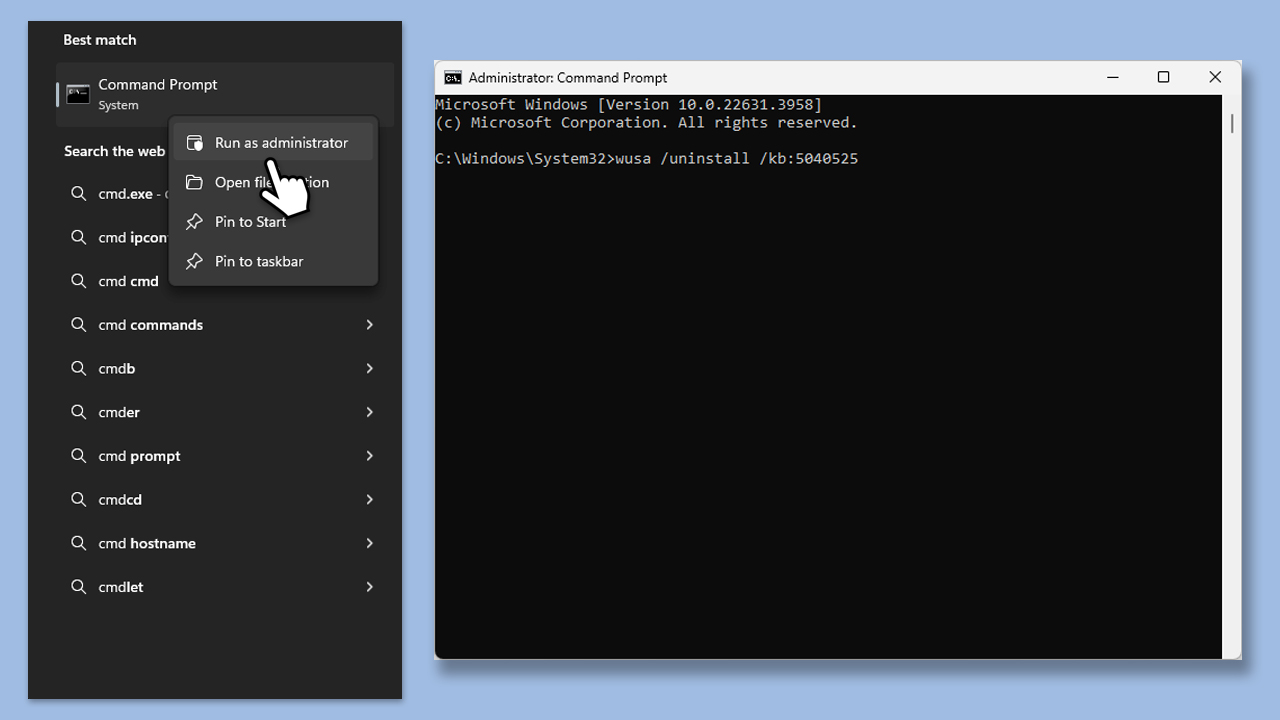
- Type cmd in Windows search.
- Right-click on Command Prompt and pick Run as administrator.
- The User Account Control window will ask whether you want to allow changes - click Yes.
- Type in the following command and press Enter:
wusa /uninstall /kb:5040525 - Restart your system.
Method 4. Try uninstalling it in the Clean Boot state
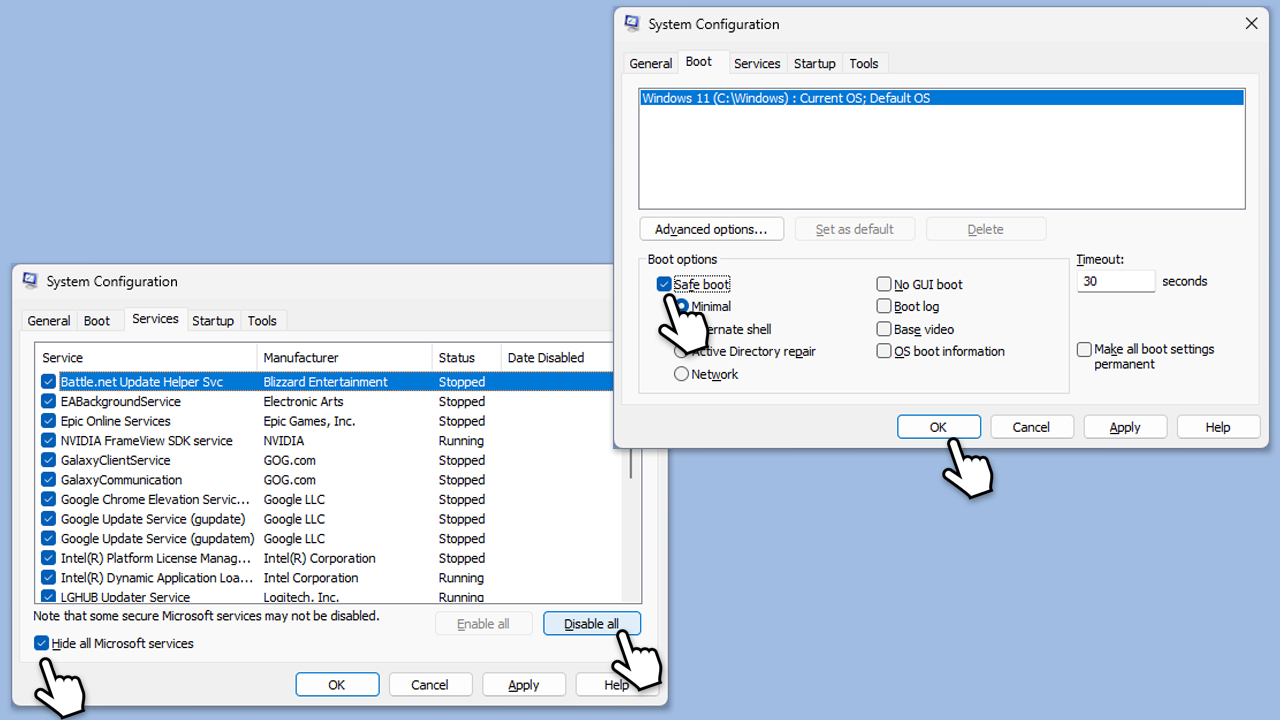
- Type msconfig in Windows search and press Enter.
- Select the Services tab and tick the Hide all Microsoft services checkbox.
- Pick Disable all.
- Go to the Startup tab and click Open Task Manager.
- Here, right-click on each of the non-Windows entries and select Disable.
- Close down the Task Manager.
- Go to the Boot tab and tick the Safe boot option.
- Once the computer is restarted, try uninstalling the update again.
- If resolved, you can start enabling services and startup items one by one (or in groups) to identify the culprit.
Method 5. Uninstall the update in Windows Recovery Environment
If none of the methods above work, access the WinRE environment and remove the update as follows:
- From the login screen, hold the Shift key on your keyboard and click Power > Restart.
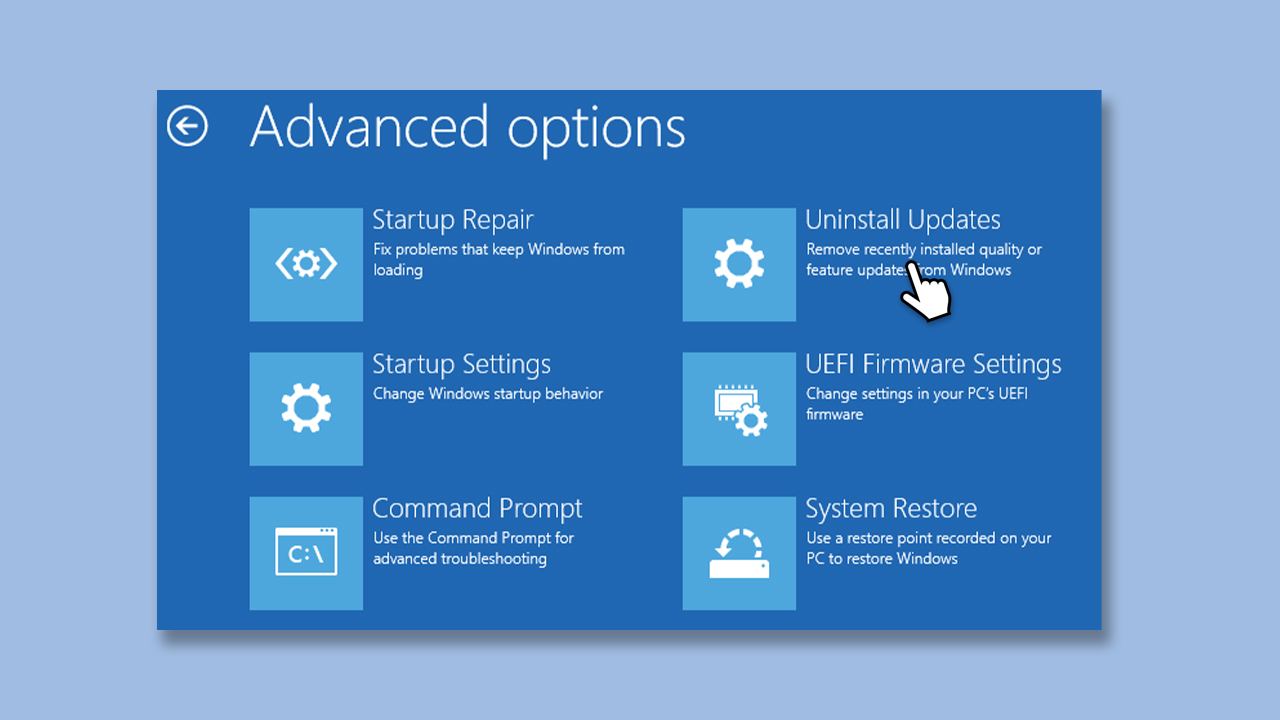
- Once you enter the recovery environment, go to Troubleshoot > Advanced options > Uninstall updates.
- Select Uninstall the latest quality update.
- Follow the prompts and restart your computer.
Bottom line
To resolve the Start button issue after installing the KB5040525 update, you can try uninstalling the update, using System Restore, or accessing the WinRe environment. If these methods do not work, consider scanning your system with a powerful repair tool to identify any underlying problems.
Frequently asked questions
Try restarting your computer to see if that resolves the issue. If not, you can run the System File Checker tool to repair any corrupted system files.
Yes, you can uninstall the update by going to Settings > Update & Security > Windows Update > View update history and selecting Uninstall updates.
You can try running the Windows Troubleshooter for Start menu issues or create a new user account to check if the problem persists.




Report an issue
What's wrong with this guide? We review every report and update or remove content.
Report received — thank you. We'll review and fix it.
You need a free account to submit a report.
Be the first to comment