How to fix
Steam sign-in error code 122
on Windows
Resolve Steam sign-in error code 122 on Windows 10 or 11 quickly and easily with expert-tested solutions and clear screenshots. Fixed in minutes!

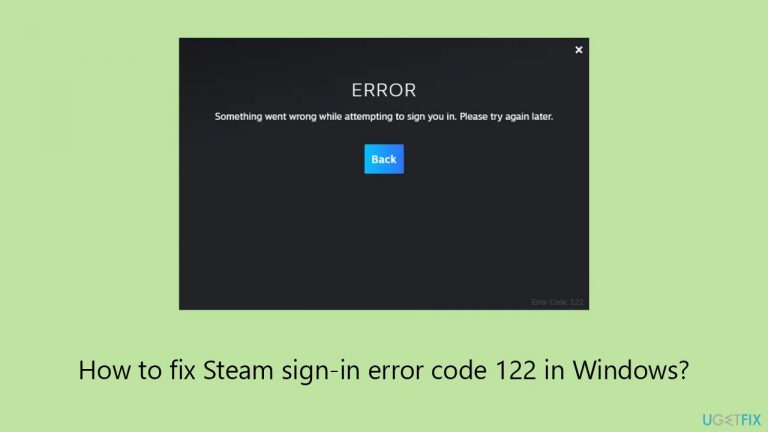
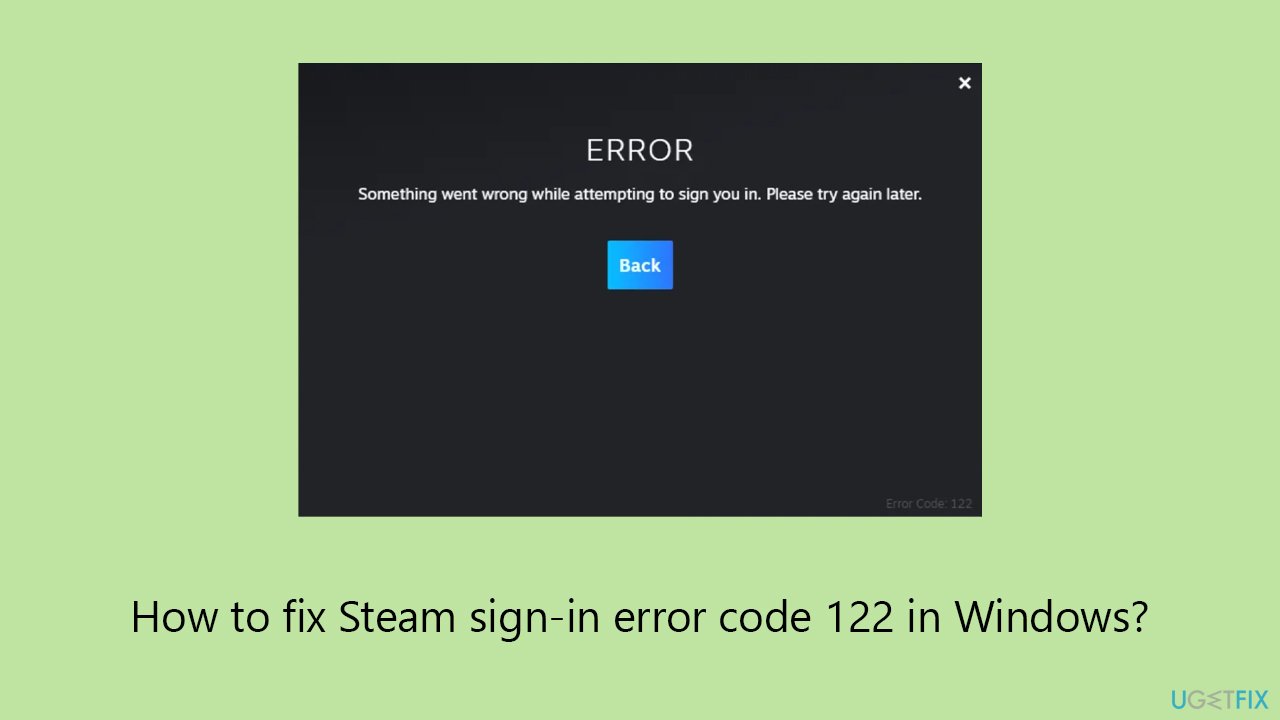
What causes How to fix Steam sign-in error code 122 in Windows?
- Incorrect time and date settings
- Network connectivity issues
- Corrupted Steam files
- Outdated Windows system files
Repairs Windows system files, removes malware, and restores a clean OS state — without reinstalling.
Something happened yesterday and I can no longer log into Steam - I get error code 122. Please help me with this since I can no longer access any of my games.
Steam is a widely used digital distribution platform for purchasing and playing video games. It offers users a plethora of options, including the ability to install and update games automatically, participate in the community, and directly play games. Despite its popularity and extensive user base, some individuals encounter difficulties when attempting to sign into their Steam accounts. A noteworthy problem is the Steam sign-in error code 122, which usually appears after a Windows operating system or Steam client upgrade.
Error code 122 on Steam often prevents users from signing into their accounts, disrupting their gaming experience. This problem typically arises after Steam or Windows has been updated, indicating a potential conflict or issue triggered by the update process. The root cause of this error is frequently associated with incorrect time and date settings on the user's computer. If the system's time and date are not accurately synchronized, Steam's servers may fail to authenticate the sign-in request, resulting in error code 122.
To address this issue, you should verify that your computer's time and date are correctly set. Ensuring accurate synchronization with an internet time server can often resolve the sign-in error. While incorrect time and date settings are common culprits, other factors may also contribute to the problem. These include network connectivity issues, corrupted Steam files, or outdated Windows system files. Exploring these areas may provide further insights into resolving the error.
A professional PC repair tool [d1] is recommended for a complete solution to any underlying Windows issues that could result in the Steam sign-in error number 122. Such solutions are intended to automatically discover and resolve a wide range of Windows issues, potentially speeding the resolution process by removing the need for intensive troubleshooting.
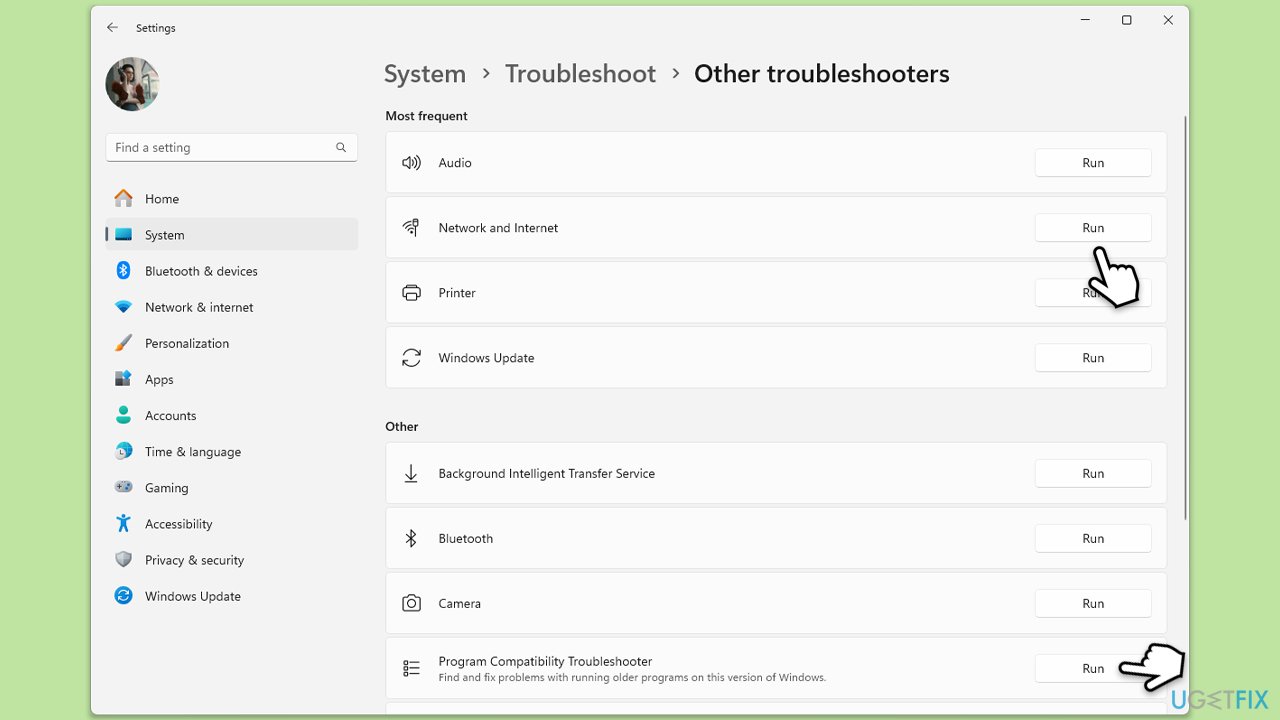
Fix 1. Run the troubleshooter
Windows includes a built-in troubleshooter that can automatically find and fix some common problems with your computer. Running this troubleshooter can help resolve issues preventing Steam from signing in, especially those related to network connectivity or system errors.
- Open Settings by pressing Win + I.
- Go to Update & Security or System > Troubleshoot.
- Select Additional troubleshooters/Other troubleshooters.
- Look for Internet Connections or Program Compatibility Troubleshooter and select it.
- Click Run the troubleshooter/Run and follow the on-screen instructions.
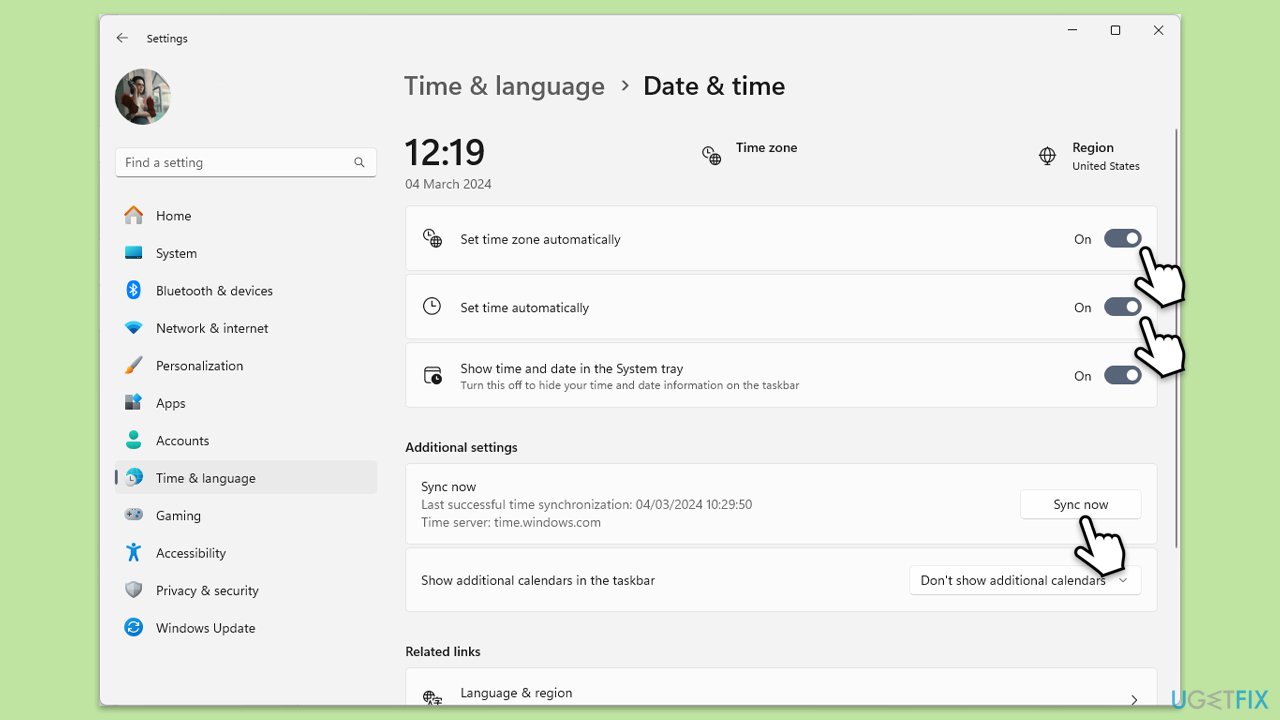
Fix 2. Sync your time and date settings automatically
Ensuring that your PC's time and date are accurate is crucial for many applications, including Steam. Syncing these settings automatically with an internet time server can help solve sign-in issues.
- Right-click on the clock in the Windows taskbar.
- Select Adjust date and time.
- Turn on the toggle for Set time zone automatically.
- Also, turn on Set time automatically if it's not already on.
- Click on Sync now under Additional settings.
Fix 3. Sync your time and date settings manually
If automatic syncing does not resolve the issue, setting your time and date manually ensures accuracy, which is essential for Steam's server authentication process.
- Right-click on the clock in the Windows taskbar.
- Select Adjust date and time.
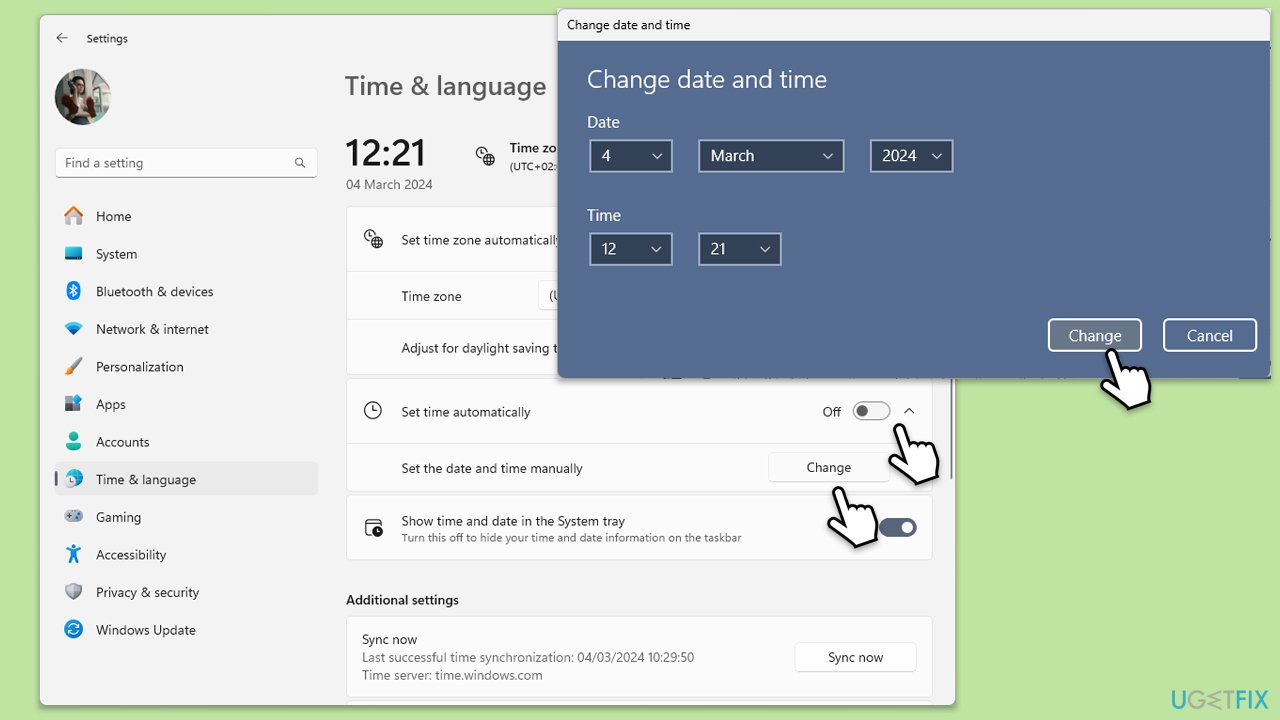
- Turn off the toggle for Set time automatically.
- Click on Change under Set the date and time manually.
- Adjust the date and time as needed and click Change to confirm.
Fix 4. Install the latest Windows update
Keeping your Windows up to date is vital for the security and smooth functioning of your system. Updates often include fixes for known issues that could be causing Steam to fail to sign in.
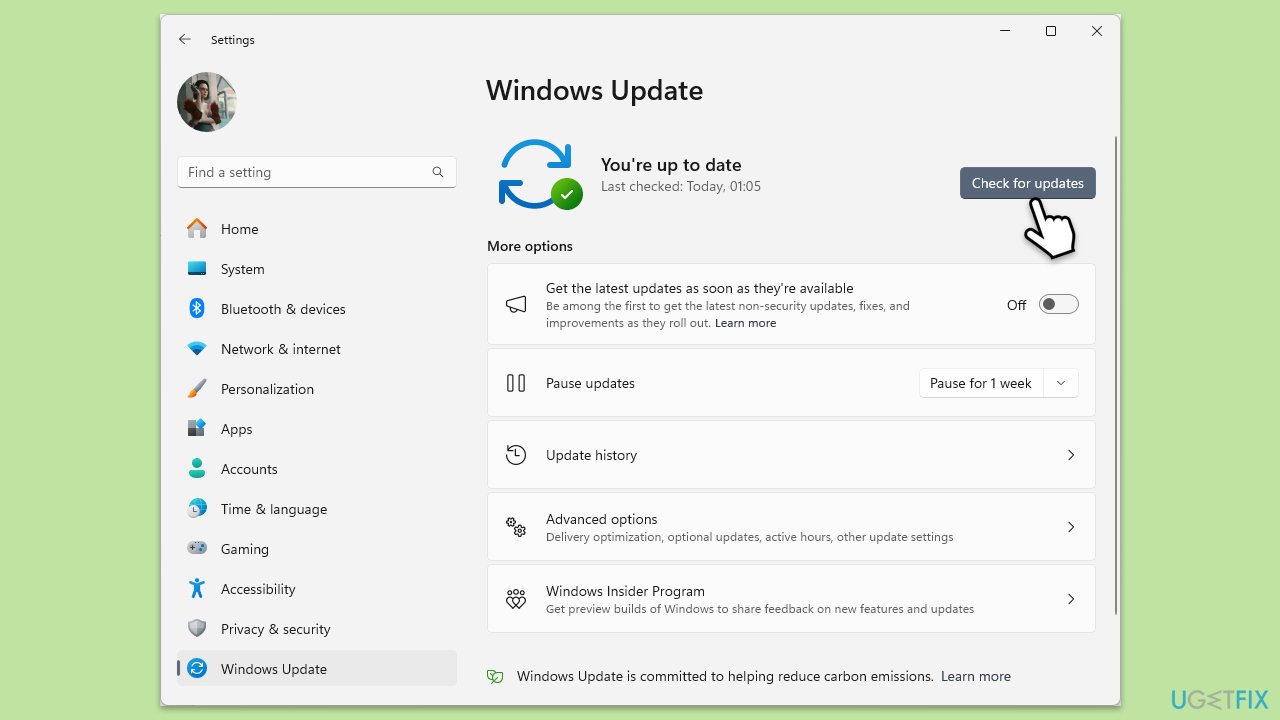
- Type Updates in Windows search and press Enter.
- In this window, click Check for updates.
- If optional updates are available, install them too.
- When everything is installed, restart your system.
Fix 5. Uninstall Windows update
Sometimes a recent Windows update might introduce issues with applications like Steam. Uninstalling the problematic update might resolve the sign-in error.
- Type Control Panel in Windows search and press Enter.
- Select Programs > Uninstall a program.
- Click on View installed updates on the left side of the window.
- Uninstall the most recent update.
- Proceed with on-screen instructions.
- Don't forget to pause the update.
- Install updates only once the issue is addressed by Microsoft.
Fix 6. Reinstall Steam
Reinstalling Steam can fix corrupted files and other issues by giving you a fresh start with the application. Ensure to back up your games to avoid losing any data.
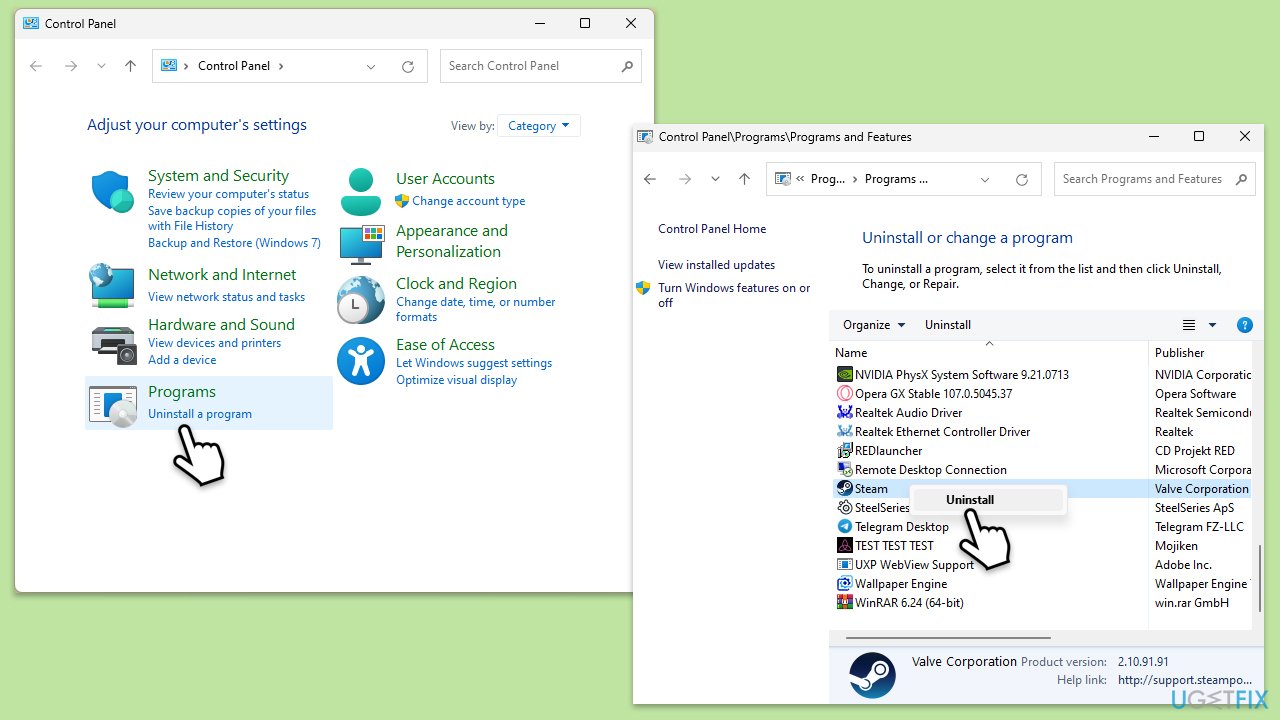
- Type Control Panel in Windows search and press Enter.
- Select Programs > Uninstall a program.
- Find Steam in the list and select Uninstall.
- Follow the prompts to remove Steam from your system.
- After uninstallation, restart your computer.
- Download the latest version of Steam from the official website.
- Run the installer and follow the instructions to install Steam.
Other topics that might be of interest to you:
Bottom line
To fix Steam sign-in error code 122, ensure your computer's time and date are correctly set, run the built-in troubleshooter, and consider using a professional PC repair tool. If these solutions do not resolve the issue, further investigation into your network settings and Steam installation may be necessary.
Frequently asked questions
Steam sign-in error code 122 typically indicates a network issue or a problem with the Steam servers. This can prevent users from accessing their accounts on Windows 10 or Windows 11.
To fix error code 122, try restarting your router, checking your firewall settings, or running Steam as an administrator on Windows 10 or 11.
Yes, clearing the Steam download cache can help resolve error code 122, as it may eliminate corrupted data that interferes with the sign-in process on Windows 10 or 11.




Report an issue
What's wrong with this guide? We review every report and update or remove content.
Report received — thank you. We'll review and fix it.
You need a free account to submit a report.
Be the first to comment