How to fix
Steam Store button missing or not working
on Windows
Resolve the Steam Store button issue on Windows 10 and 11 effortlessly. Follow our expert-tested tips for a seamless gaming experience. Fixed in minutes!


What causes How to fix Steam Store button missing or not working in Windows?
- Bug within the Steam app
- Network connectivity issues
- Corrupted cache files
- Application not updated
- Using a non-default skin
Repairs Windows system files, removes malware, and restores a clean OS state — without reinstalling.
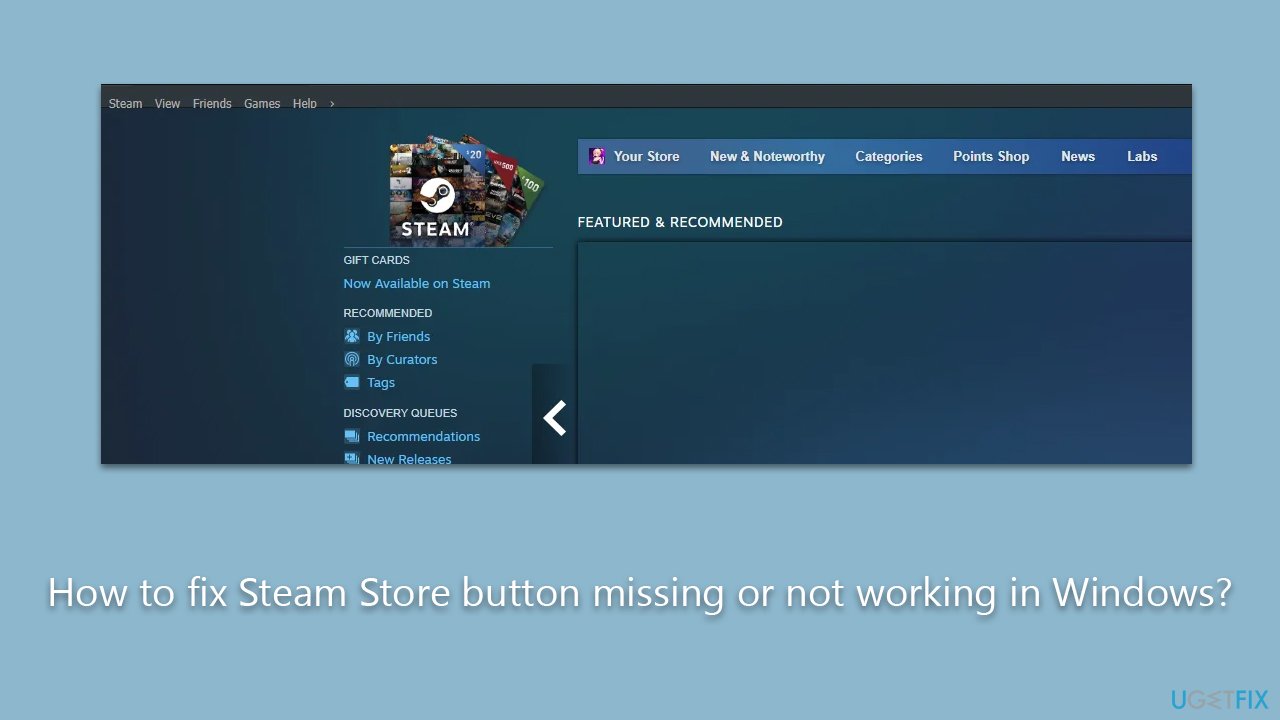
So, today, I opened Steam just like I usually do, and I noticed something strange - the front page was missing Store, Library, Profile, and other buttons that usually appear at the top. How do I fix this? I'm running Windows 10.
Steam is a popular digital distribution platform developed by Valve Corporation, primarily offering video games. Users can buy, download, and play games, communicate with friends, and even create and share content. It functions as both an online store and a social networking site, where game enthusiasts from all over the world connect.
Despite its widespread popularity and vast user base, Steam is not without its share of problems. Users often report a variety of issues, ranging from missing games post-purchase to failed transactions and network connection failures. These technical hitches can disrupt the gaming experience and often cause frustration among users.
One such issue that users have reported is the disappearance of the Store and other buttons on the front page. In other cases, these buttons are simply not working. This could make it very awkward to navigate the platform, purchase new games, or access various features. This issue has been a source of inconvenience for users, deterring the seamless experience that Steam usually provides.
The causes of the Store button missing problem are varied. It could be a bug within the Steam app itself, which usually gets resolved with updates from Valve. Network connectivity issues could also cause the buttons to disappear if the client fails to load the page correctly. Moreover, corrupted cache files on your device can lead to this issue. These files are stored to speed up the loading times of pages but can occasionally become corrupted, causing glitches in the user interface.
To resolve these issues, users can try various troubleshooting steps. Restarting the application, checking internet connectivity, opting out of Beta, choosing the default skin, and clearing the cache can sometimes fix the problem - we provide all the steps needed to address these issues below.
For Windows users, scanning the system using a tool like [d1] is recommended. This will check for underlying issues within the operating system that might be causing the problem. It can detect and rectify various problems, ensuring a smoother, more efficient gaming experience.
Method 1. Check Steam servers
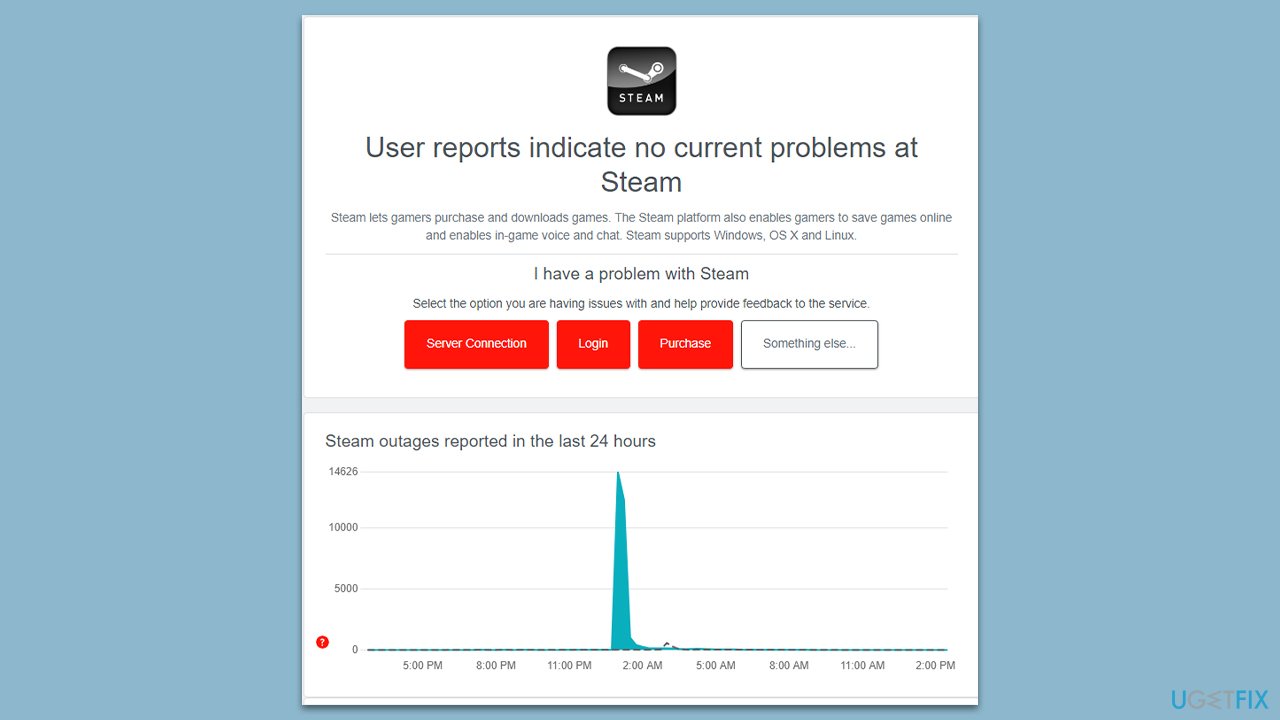
In many cases, users could not access Steam's interface elements due to servers having issues. If Steam's servers are experiencing high traffic or undergoing maintenance, it can lead to incomplete or erroneous loading of the user interface. The client-side application relies on these servers to load all necessary data and elements properly.
Therefore, during times of server instability or downtime, users may find certain elements, including key navigation buttons, absent from their interface. It's important to check Steam's server status during such instances, as these issues are usually temporary and resolved once the server conditions stabilize.
You can check resources such as Downdetector, a special Steam server status page, or even Steam's Twitter for information about issues with Steam servers.
Method 2. Restart Steam
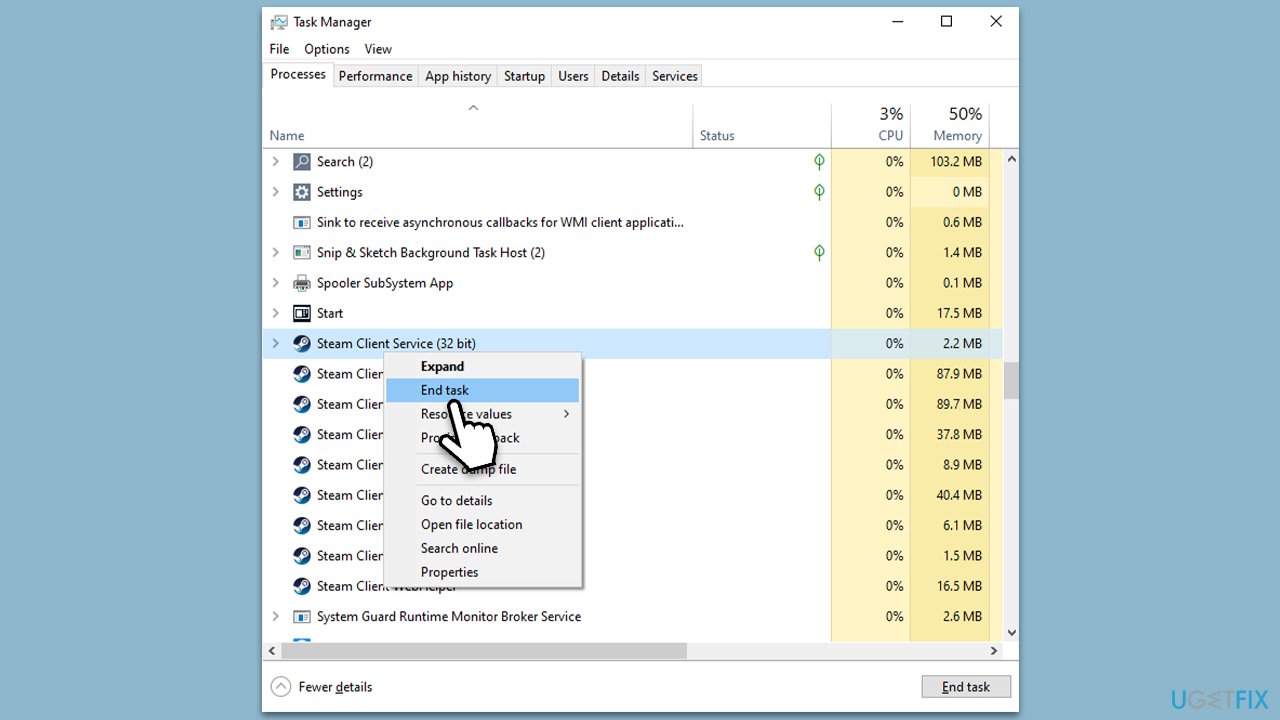
There are plenty of users who do not turn off Steam very often (along with their PCs) and keep the app running in the background all the time. In these instances, restarting Steam can help you resolve the Steam Store button missing. To ensure all the processes are shut down before starting it up, follow these steps:
- Press Ctrl + Shift + Esc to open the Task Manager.
- Find the Steam entry, right-click, and select End task.
- Check for Steam entries under processes, e.g., Steam Client Service and Steam WebHelper. Right-click and select End task as well.
- Now launch Steam once again and check if the problem persists.
Method 3. Update Steam
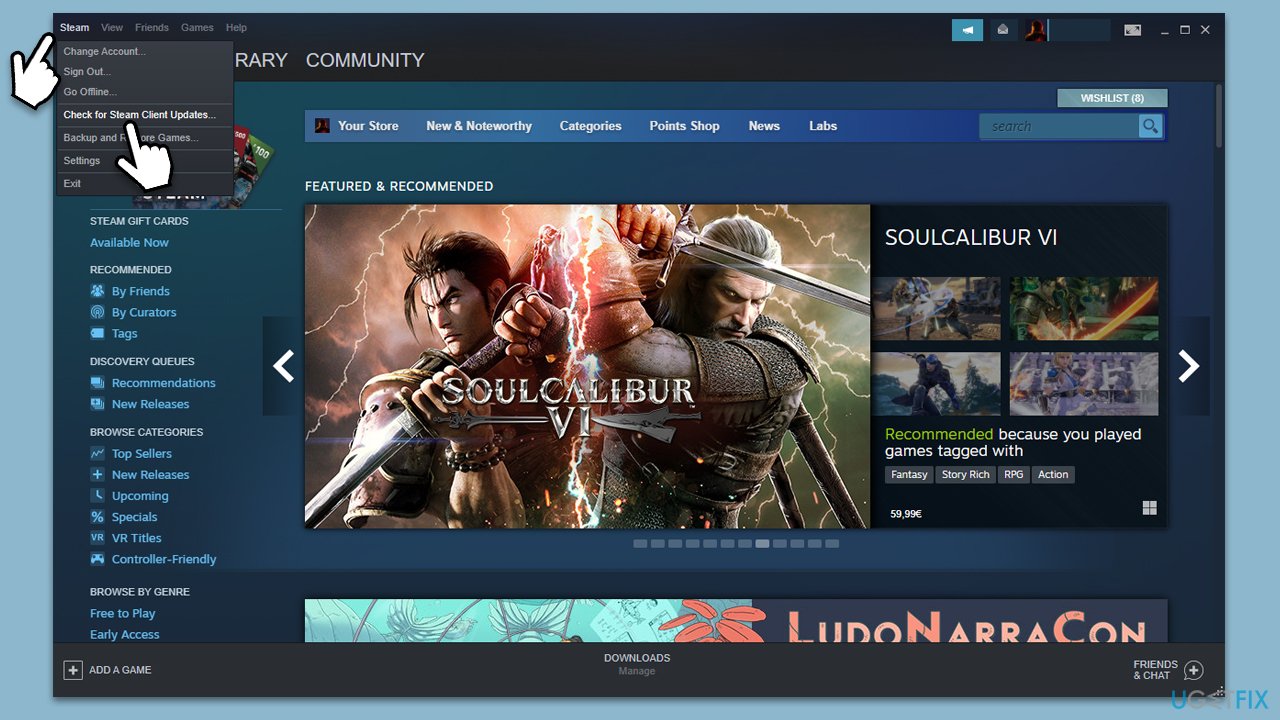
If you don't shut down Steam often, you might miss important updates. Follow these steps:
- Open Steam client.
- At the top-left corner of the window, click Steam and select Check for Steam Client Updates.
- Wait till all the updates are installed.
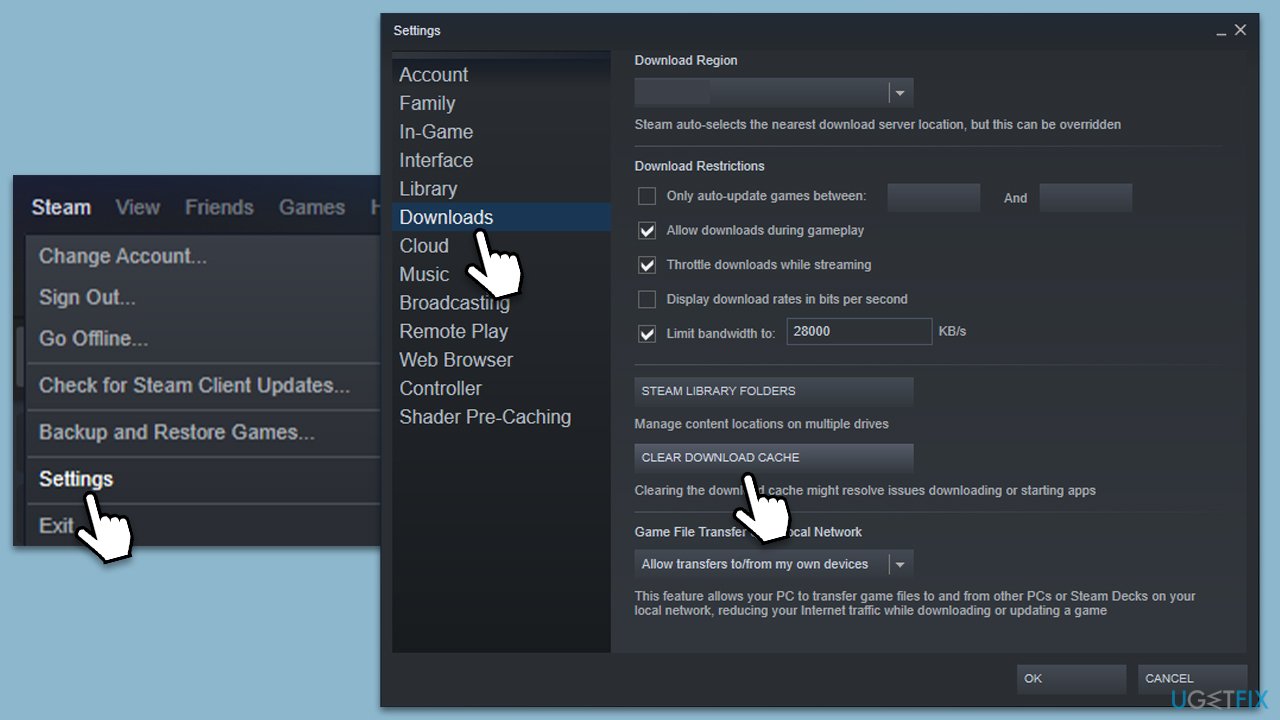
Method 4. Clean download cache
- Open Steam.
- Click Steam at the top-left corner and select Settings.
- Go to the Downloads section you can find on the left side.
- On the right side, click the Clear download cache button.
- Click OK and restart Steam.
Method 5. Opt out of Steam Beta
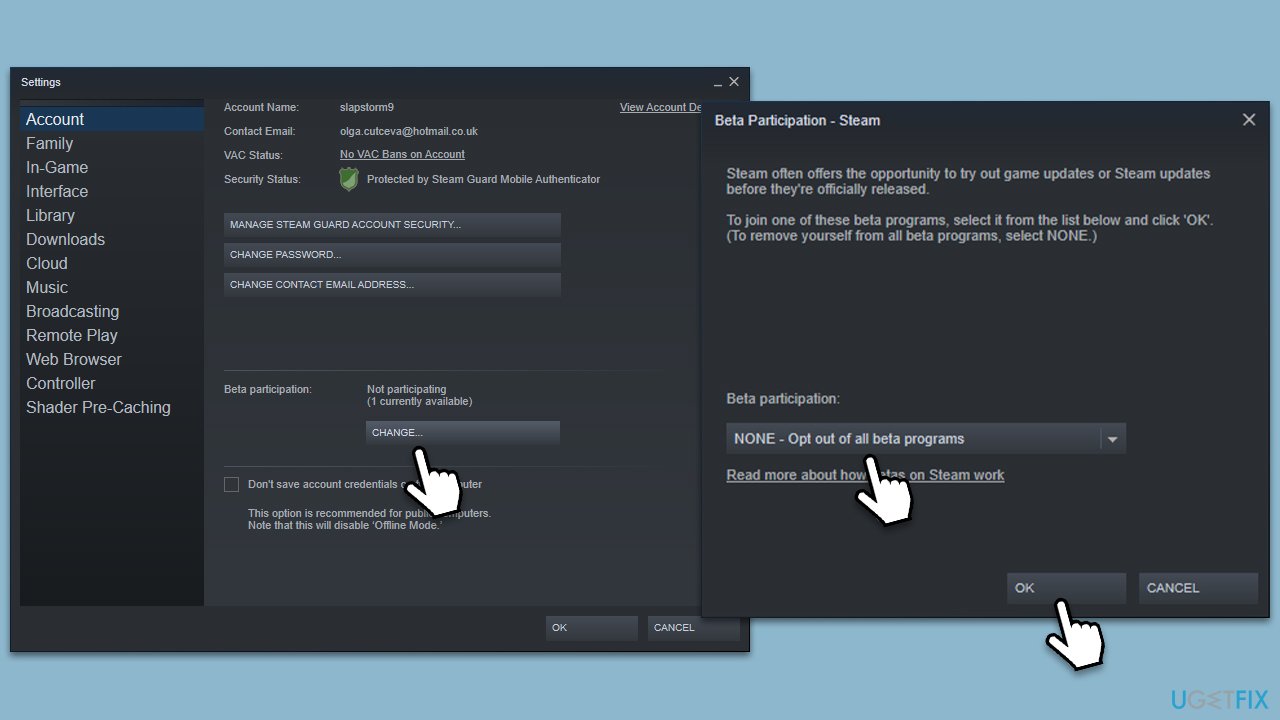
Some users said that participating in Steam Beta resulted in Store and other buttons missing. Here's how to opt out:
- Open Steam and go to Steam > Settings.
- Make sure the Account section on the left is selected.
- In the right pane, look for Beta participation section.
- Click Change.
- Select None from the drop-down menu and click OK.
- Restart the client.
Method 6. Select the default skin for Steam
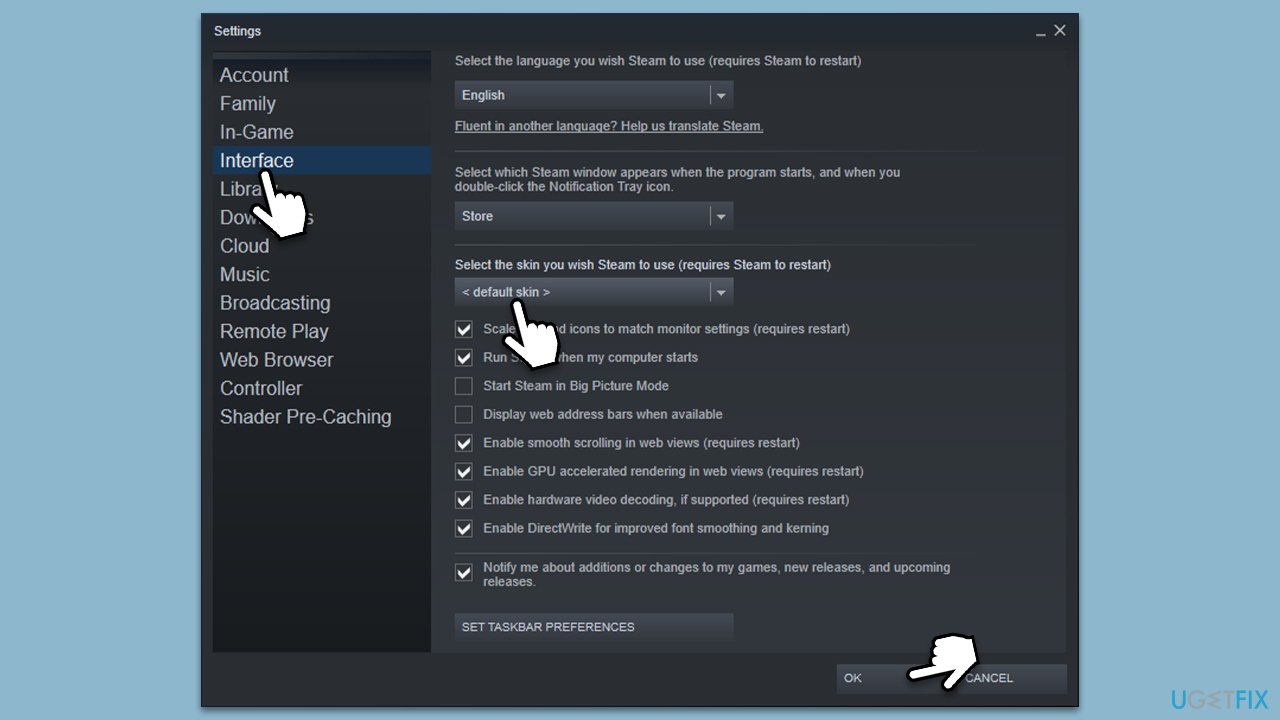
If you are using some special Steam skin, it might have messed up your UI after an update. You can switch to the default one until the problem is sorted by Steam:
- Open Steam.
- Go to Steam > Settings.
- Go to the Interface section on the left.
- Find the Select the skin you wish to use (requires to restart) section.
- Select Default skin from the drop-down menu under it.
- Click OK and restart Steam.
Method 7. Run Network troubleshooter
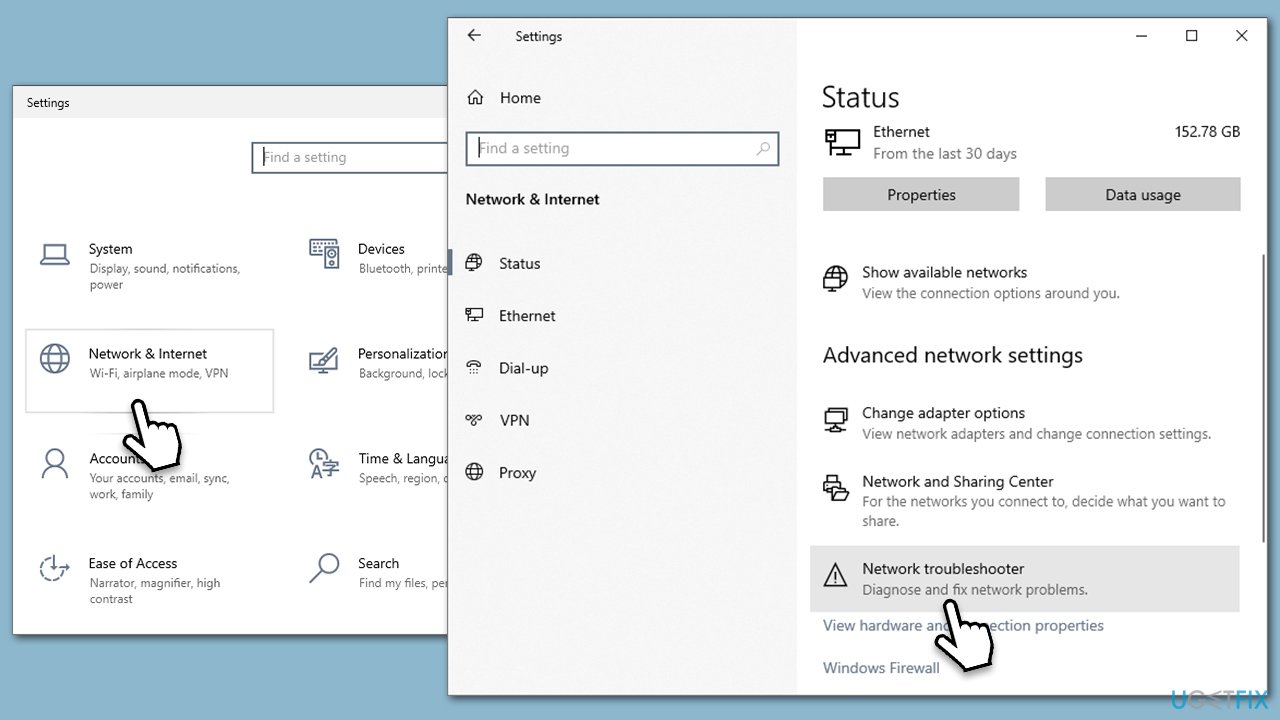
Connection problems could also be on your end, so run a network troubleshooter to resolve them:
- Right-click on Start and pick Settings.
- Go to Network & Internet section.
- On the right side, find the Advanced network settings section.
- Click Network troubleshooter and wait.
- The fixes should be automatically applied.
Bottom line
To fix the missing or not working Steam Store button, users can try restarting the application, checking their internet connectivity, opting out of Beta, choosing the default skin, and clearing the cache. If these steps do not resolve the issue, further troubleshooting may be necessary.
Frequently asked questions
Try restarting Steam and your computer, as this can often resolve temporary glitches. If the issue persists, consider verifying the integrity of the Steam files through the client settings.
Ensure that your Windows 11 is fully updated, as updates can resolve compatibility issues. Additionally, check your network connection and try disabling any VPNs or firewalls that may be blocking Steam.
Yes, you can reset Steam settings by navigating to the Steam settings menu and selecting 'Restore Steam Defaults.' This can help restore functionality to the Store button.




Report an issue
What's wrong with this guide? We review every report and update or remove content.
Report received — thank you. We'll review and fix it.
You need a free account to submit a report.
Be the first to comment