
How to fix Syspolicyd high CPU usage on Mac?
Prefer to fix it yourself? The manual steps follow.
On this page
Hello. I have no idea what this process is, but Syspolicyd causes the high CPU usage on Mac for me. It seems to start by itself with each reboot it causes my computer to run its fans, trying to cool down. I am afraid my Macbook might melt when the CPU comes to 100% and even more. Help!
Syspolicyd high CPU usage on Mac is the issue migrating through operating system versions for Mac, according to user reports and complaints online. This process was first introduced with macOS 10.7.3 via the Gatekeep feature. It has been expanded in functionality now. It assesses applications before running and handles authorization of leading KEXTs and tracking legacy applications that users launch.
With Mojave, the process is responsible for handling software notarization checks too. The process can run in the background when the program is launched and run for a few minutes at first, but the process should stop once all the assessing is done, and the user works on the machine normally, and the program has been launched properly.
Syspolicyd high CPU usage on Mac, in particular, might be a serious issue due to some bugs or security update issues. These upgrades that the machine receives can result in high CPU usage and the launch of various programs, so this process runs longer and uses more resources.
Sometimes third-party extensions, background startups, and launching extra apps at once can trigger this issue with high usage of resources. It can become a serious problem when the process is running all the time and on a high CPU. Generally, malware that is designed to infect Mac devices can also lead to Syspolicyd high CPU usage on Mac if the process itself is not even related to the machine but is malicious and masqueraded as a legitimate one.
These system applications can help clean the system from malicious or possibly dangerous applications and solve problems with corrupted files. It can indicate problems that lead to issues like this, so it might even help you fix this issue.
Sometimes this bug has a solution of restarting the machine and logging in, so the problem with Syspolicyd high CPU usage on Mac stops. Try that before doing anything with settings. Also, reconsider the circumstances because newly upgraded OS or installed applications can cause issue for you, and you just need to check those things first.
1. Force-quit processes
- Go to Go menu via Finder.
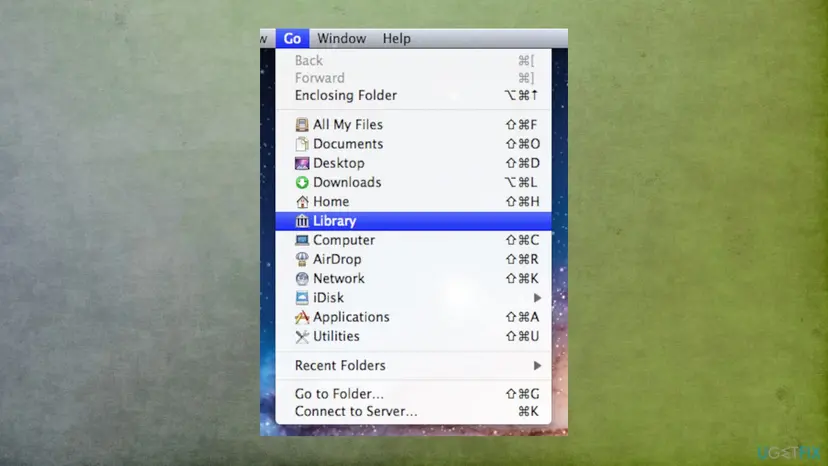
Syspolicyd high cpu usage on mac go menu - Choose Utilities.
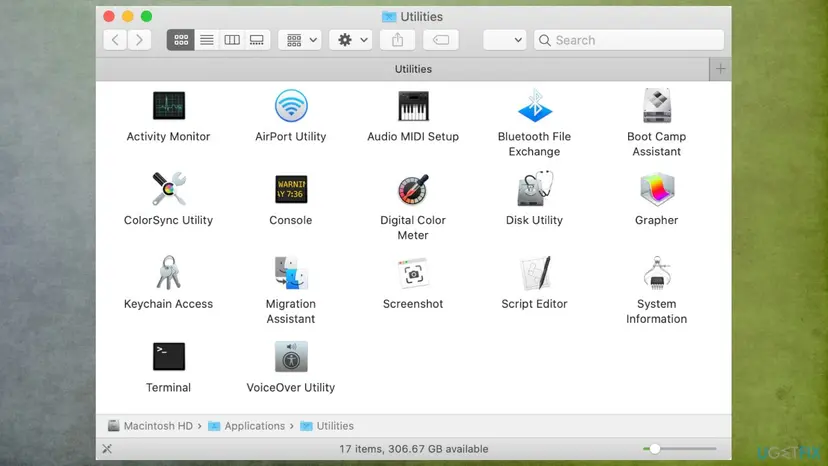
Syspolicyd high cpu usage on mac utilities - Go to the Activity monitor and tap the x icon at the top.
- Click Force Quit to close the app or process.
2. Update software
- Hit Apple at the top to open the menu.
- Open System Preferences.
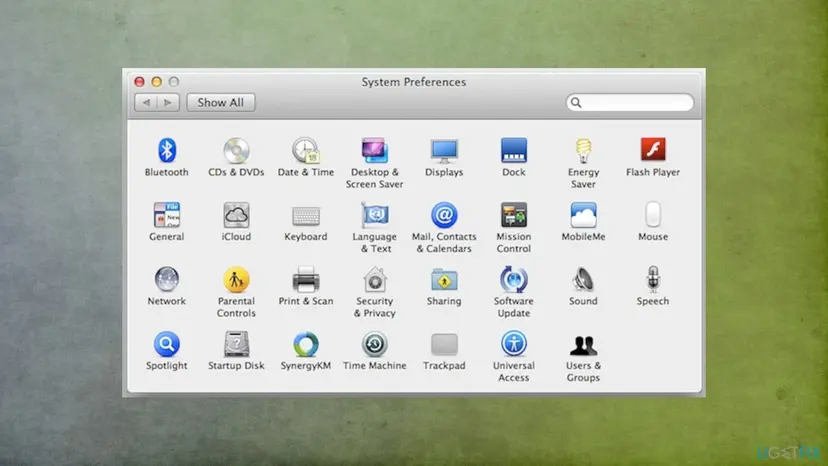
Syspolicyd high cpu usage on mac software preferences - Go to Software Update.
- Accept any available updates when suggested.
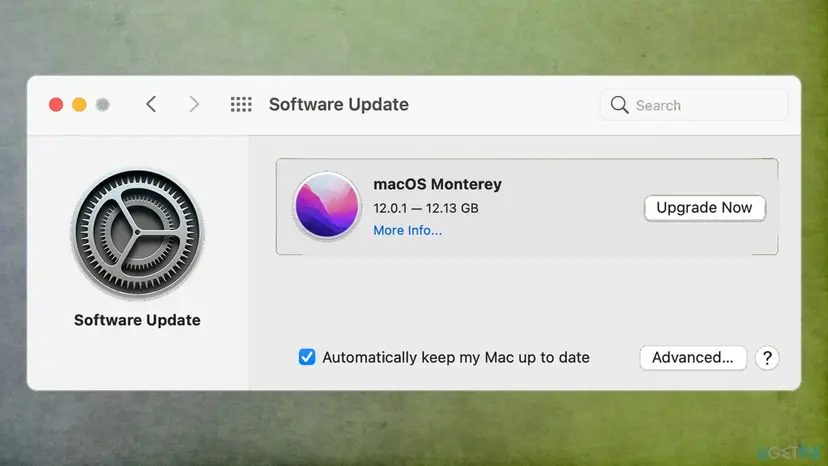
Syspolicyd high cpu usage on mac software updates - Ensure automatically keep my Mac up-to-date is ticked if applicable.
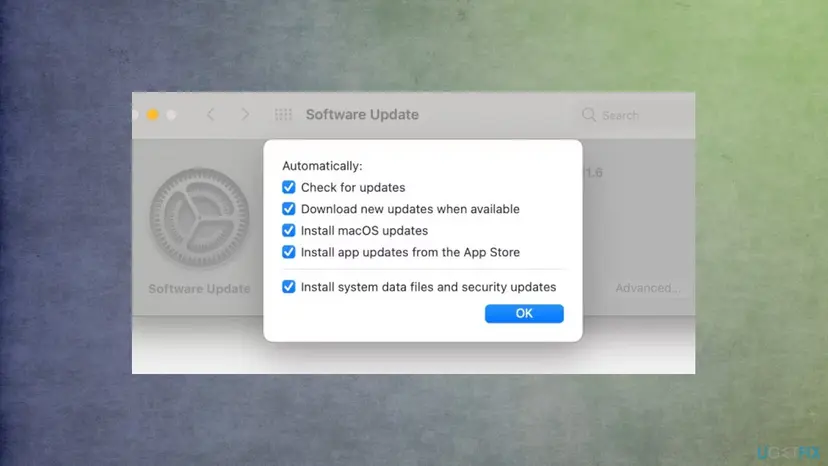
Syspolicyd high cpu usage on mac software update - Click Advanced for more specific update settings and change if needed.
3. Update applications
- Launch Applications.
- Go to App Store.
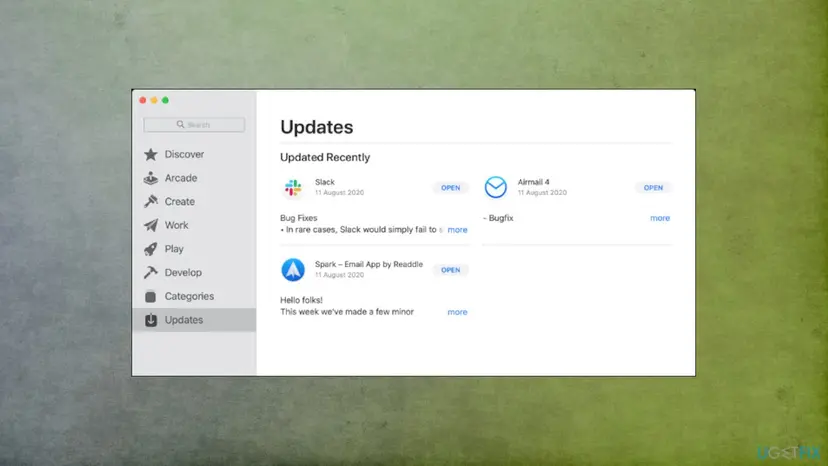
Syspolicyd high cpu usage on mac software app updates - Select Updates from the side menu.
- Update all relevant apps.
4. Reset SMC
The issue might occur after the update, and your system might become slow, besides running on a high CPU.
- Shut down your Mac and disconnect the power cord for up to 20 seconds.
- Reattach the power cord, and hold Shift, Option, Control, and Power keys for up to 10 seconds.
- Release all the keys and turn on your computer normally.
5. Reset PRAM/NVRAM
- Restart your Mac.
- As soon as you hear the startup chime, press Option + Command (⌘) + P + R keys together and hold them until the Mac restarts again.
Did this fix work?
One click, no account. It tells the next reader which guides are worth their time.
Questions and experiences: fix Syspolicyd high CPU usage on Mac
Still broken, or found a fix we did not cover? Ask here: members and our editors answer. Reading is open; writing needs a free account.
…