
How to Fix System Restore Error 0x80070005 on Windows 10?

Prefer to fix it yourself? The manual steps follow.
I can’t enable System Restore. A couple of days I’ve started encountering a BSOD during startup or random occasions. Two times I’ve lost important work due to that BSOD screen as I had to reboot my PC. I’ve initiated a Google search about this problem and found out that most people fixed it using a System Restore feature. Here’s another problem. When I tried to enable a system restore point, the process ended up with an error “System Restore did not complete successfully. Your computer’s system files and settings were not changed.” Error Code 0x80070005. It seems that my PC is a sack of bugs. Could you please recommend something?
System Restore Error 0x80070005 indicates a failure to complete the restore process on the affected computer. Usually, people encounter this message on Windows 7, 8, 8.1, and 10, excluding Windows XP and Vista. Likewise, this error prevents the users from restoring essential data on their computers.
System Restore is a legitimate Windows function which allows the users to get back the valuable information in case of malware, ransomware and another cyber threat attack. Thus, you should fix System Restore Error 0x80070005 if you want to ensure the safety of your data.
People can create System Restore Points and mark them with the specific date or another index. Consequently, if the system encounters any problems, for example after software or hardware installation, you can roll the system back. To do so follow this easy 4-step guide:
- Type Create a System Restore Point in the Windows Search and click on the search results.
- Then click on System Restore -> Next.
- Select the restore point and click Next.
- Wait while the system is being restored.
Unfortunately, very often System Restore fails with an error “System Restore did not complete successfully. Your computer’s system files and settings were not changed.” Error Code 0x80070005. The list of error codes accompanying the “System Restore did not complete successfully” message is long, but the 0x80070005 error seems to be one of the most common. The error message states the following:
System Restore did not complete successfully. Your computer's system files and settings were not changed.
Details:
System Restore could not access a file. This is probably because an anti-virus program is running on the computer. Temporarily disable your antivirus program and retry System Restore.An unspecified error occurred during System Restore. (0x80070005)
You can try System Restore again and choose a different restore point. If you continue to see this error, you can try an advanced recovery method.
You can fix System Restore Error 0x80070005 by following the instructions below. They are designed to be easy-to-use and help Windows users resolve issues as quickly as possible. Although, we strongly advise you to be cautious during the procedure as any mistakes can lead to computer damage.
Learn how to fix System Restore Error 0x80070005
The guide showing how to fix System Restore Error 0x80070005 below is effective if there are no viruses on your system only. Thus, before starting to resolve the problem, you should run a full system scan with a professional malware removal tool.
Keep in mind that, “System Restore did not complete successfully. Your computer’s system files and settings were not changed” is an error known for Windows community for many years.
Nevertheless, there are still many people who don’t know how to deal with 0x80070005 error and its variants. This particular error means that the System Restore feature has been disabled. Thus, to fix it, you should re-enable it.
This video will provide you with all information you need to get rid of this error:
[youtube QpKQzA4nf_w]
Method 1. Re-enable System Restore feature
- Press Windows key + R, type services.msc, and hit Enter.
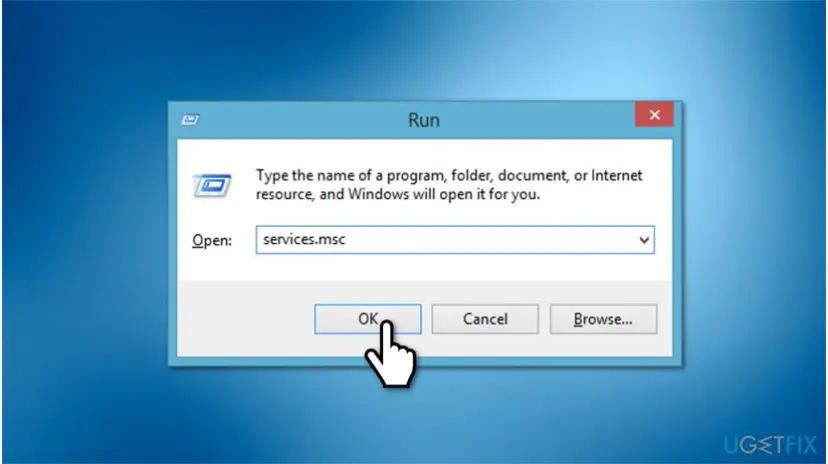
Run services msc to fix 0x80070005 error - Check if the Volume Shadow Copy & Task Scheduler & Microsoft Software Shadow Copy Provider Service is running.
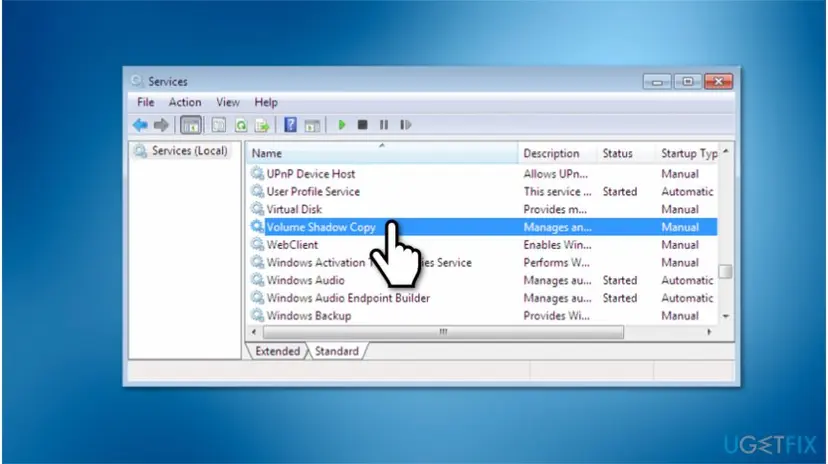
Start shadow volume copies to get rid of 0x80070005 error - If it’s not running, click on it and select Start.
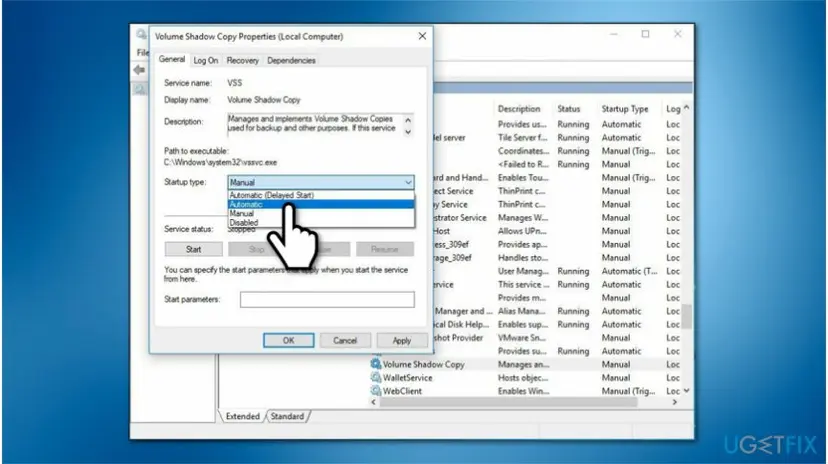
Fix 0x80070005 error by selecting startup type to automatic - Then set the Startup Type to Automatic.
Method 2. Repair system at boot
If this option did not help, try to repair the system at boot. For this purpose, we have prepared an additional guide showing how to fix “System Restore did not complete successfully” issue.
- Open Start menu and hover your mouse pointer over the Power button;
- Select Restart. Press Shift key repeatedly during the startup;
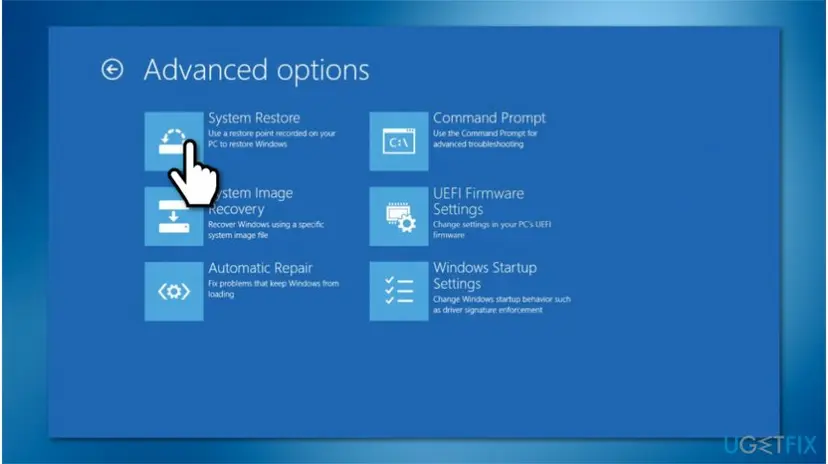
Re enable system restore function to eliminate 0x80070005 error - Select Advanced Options;
- Select System Restore and leave the system to perform the restore and boot up completely.
Did this fix work?
One click, no account. It tells the next reader which guides are worth their time.
Questions and experiences: Fix System Restore Error 0x80070005 on Windows 10
Still broken, or found a fix we did not cover? Ask here: members and our editors answer. Reading is open; writing needs a free account.
…