How to fix
“The application failed to initialize properly (0x0000142)” error
on Windows
Resolve the "Application failed to initialize properly (0x0000142)" error on Windows 10 and 11 easily. Expert-tested solutions await you!


What causes How to fix “The application failed to initialize properly (0x0000142)” error in Windows?
- Missing DLL files
- Corrupt DLL files
- Improper application initialization
- Issues with EXE files
- Intercommunication failure between applications
Repairs Windows system files, removes malware, and restores a clean OS state — without reinstalling.
When I launch any program, the error message appears saying “The application failed to initialize properly (0x0000142). Click OK to terminate the application.“ I am not good at repairing software issues myself so could you give me advice? Other options than Windows reinstallation are preferable.
"The application failed to initialize properly (0x0000142)" is an error that users may encounter when trying to launch programs on Windows 10 or another operating system version. The apps that are affected by this issue vary - users reported MS Office programs like Word[ref en-2] or Excel as well as video games like Grand Theft Auto.
In other cases, users might receive a different message along with this error code, which reads:
The application was unable to start correctly. Click OK to close the application
As evident, it is an application error (these can refer to many other error codes, including 0xc000007b, 0xc0000005, SearchProtocolHost.exe, and others), although the reason for it to appear can vary from machine to machine. There is no particular cause provided within the message, although the error code might help to pinpoint what the problem truly is.
In most cases, the reason for the 0x0000142 error to show up is the missing or corrupt DLL files. These Dynamic Link Library[ref en-1] files are universal, meaning that they are launched whenever they are required by apps or Windows itself. However, DLL files can not be launched without a "shell," for example, a EXE file.
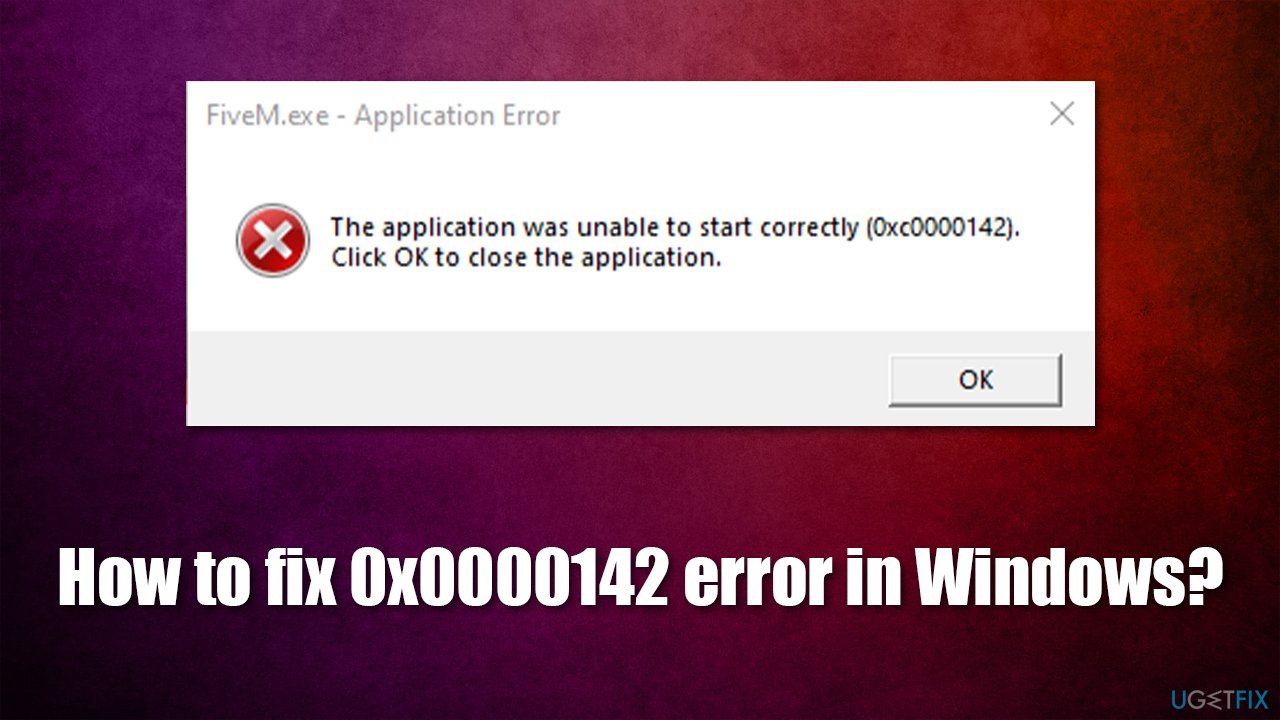
Dll files which are crucial in the intercommunication of different applications might have been damaged or failed to function properly due to various reasons. Therefore, finding an error 0x0000142 fix might not be easy, although it shouldn't cause you too much difficulties if you follow the instructions carefully we provide below.
Option 1. Use automatic repair tool
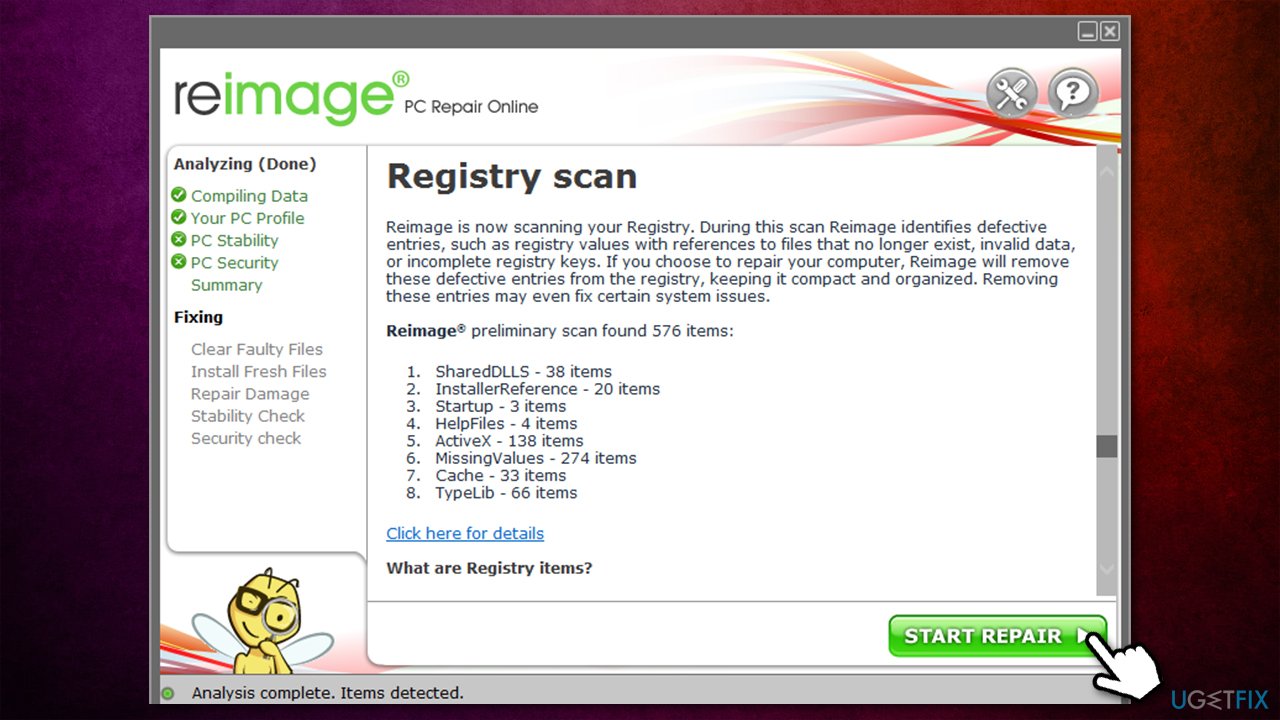
Since one of the main reasons for this issue to arise is a missing or corrupt .dll file, we strongly recommend you try using the [d1] repair tool. This unique software is capable of finding the file that is causing the error and replacing it with a brand new one automatically.
Based on this principle, the app is capable of not only fixing 0x0000142 automatically but also removing and already installed malware,[ref en-3] repairing Windows registry, cleaning junk files, and so much more. The most important thing is that you will not have to waste time troubleshooting your Windows issues.
Option 2. Repair Windows system files
- Type cmd in Windows search and look for Command Prompt
- Right-click on it and select Run as administrator
- In the new window, copy and paste the following command:
sfc /scannow
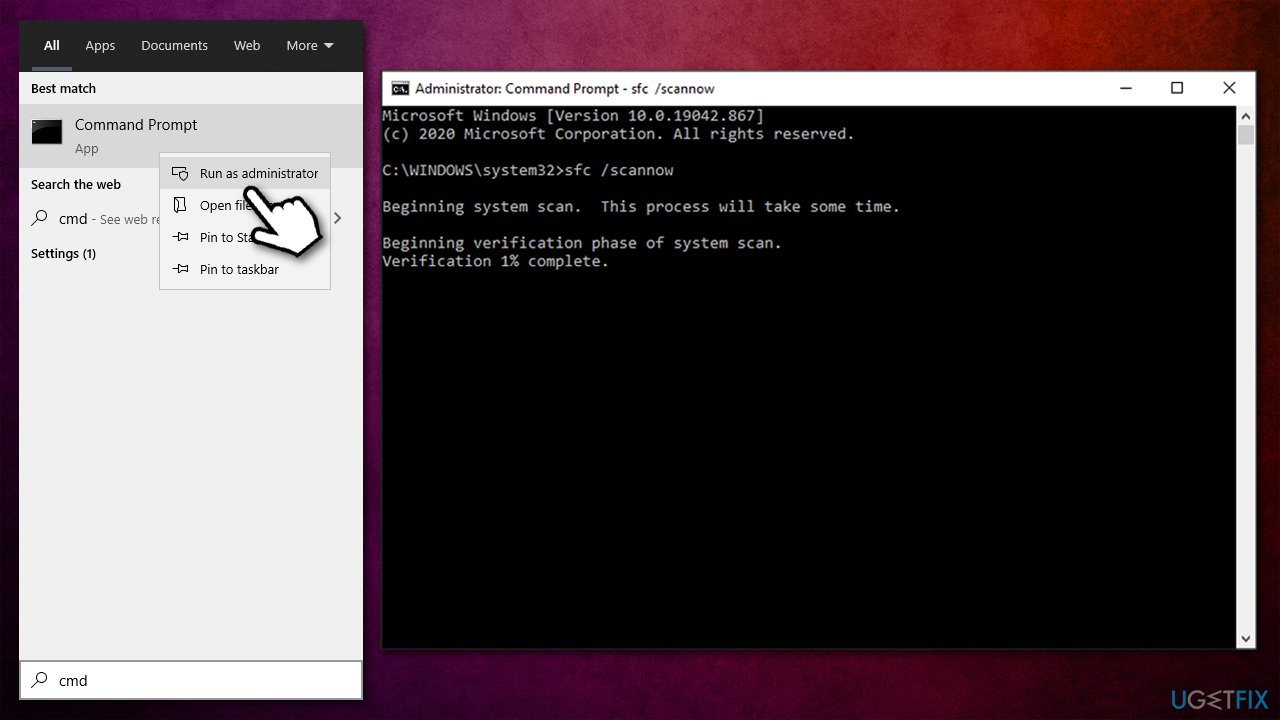
- Press Enter and wait till scan is finished
- Restart your PC once done.
If SFC scan was unable to repair Windows files, run DISM instead:
- Copy and paste the following commands, pressing Enter after each:
DISM.exe /Online /Cleanup-image /Scanhealth
DISM.exe /Online /Cleanup-image /Restorehealth
DISM.exe /online /cleanup-image /startcomponentcleanup - Restart your computer once done.
Option 3. Try Clean Boot
- Press Win + R on your keyboard, type msconfig and press Enter
- Go to Services tab and tick the Hide all Microsoft services box
- Click Disable all
- Navigate to Startup tab and click Open Task Manager
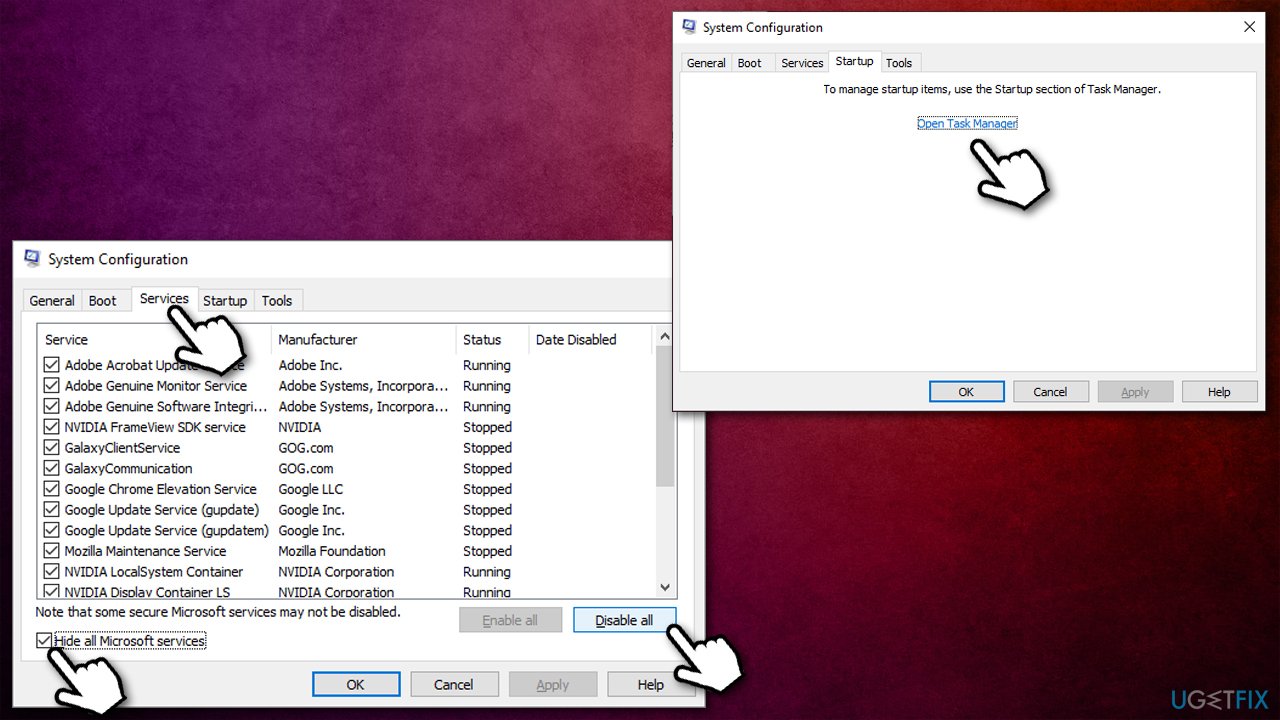
- Here, right-click on each of non-Windows entries and select Disable
- Close down the Task Manager
- Go to Boot tab and mark the Safe boot option
- Click Apply, OK, and restart your PC.
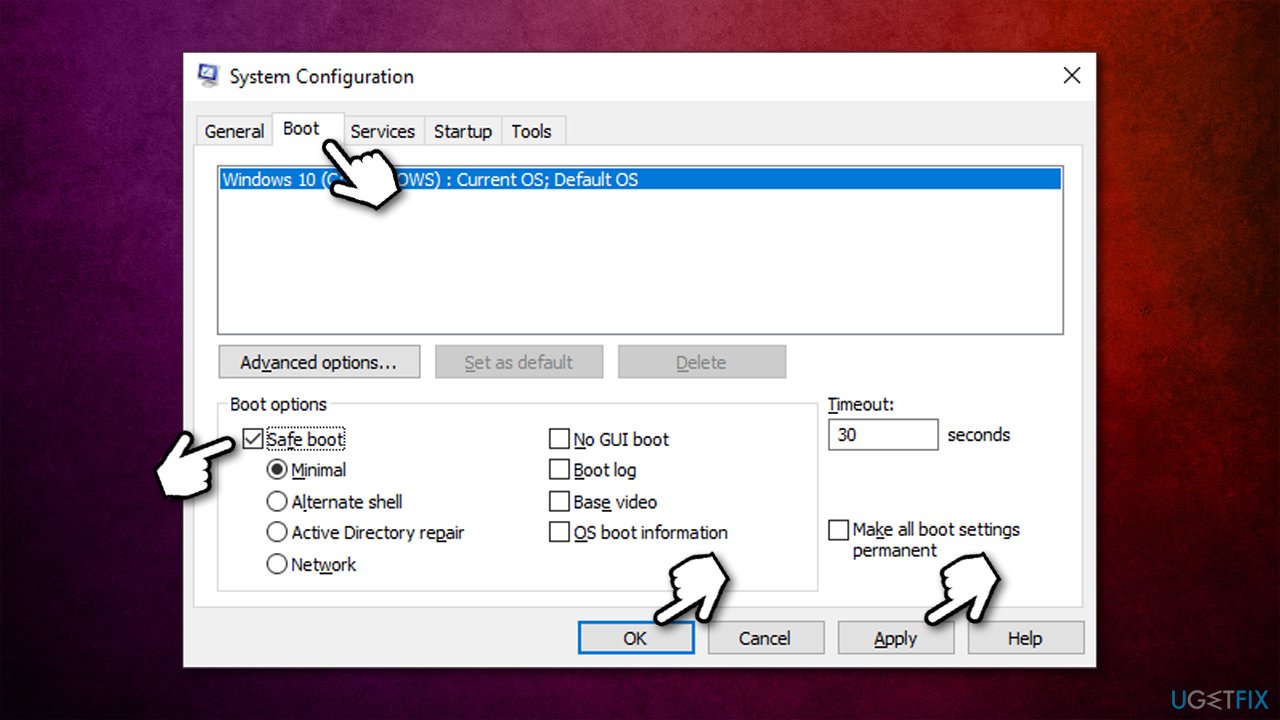
If your problem is resolved, it means that some third-party app is interfering with the program you want to launch. What you need to do is uninstall programs (starting from the most recent ones) and see which one is causing the error 0x0000142.
Option 4. Update Windows
Make sure all Windows updates are installed:
- Type Updates in Windows search and press Enter
- On the right side of the window, click Check for updates
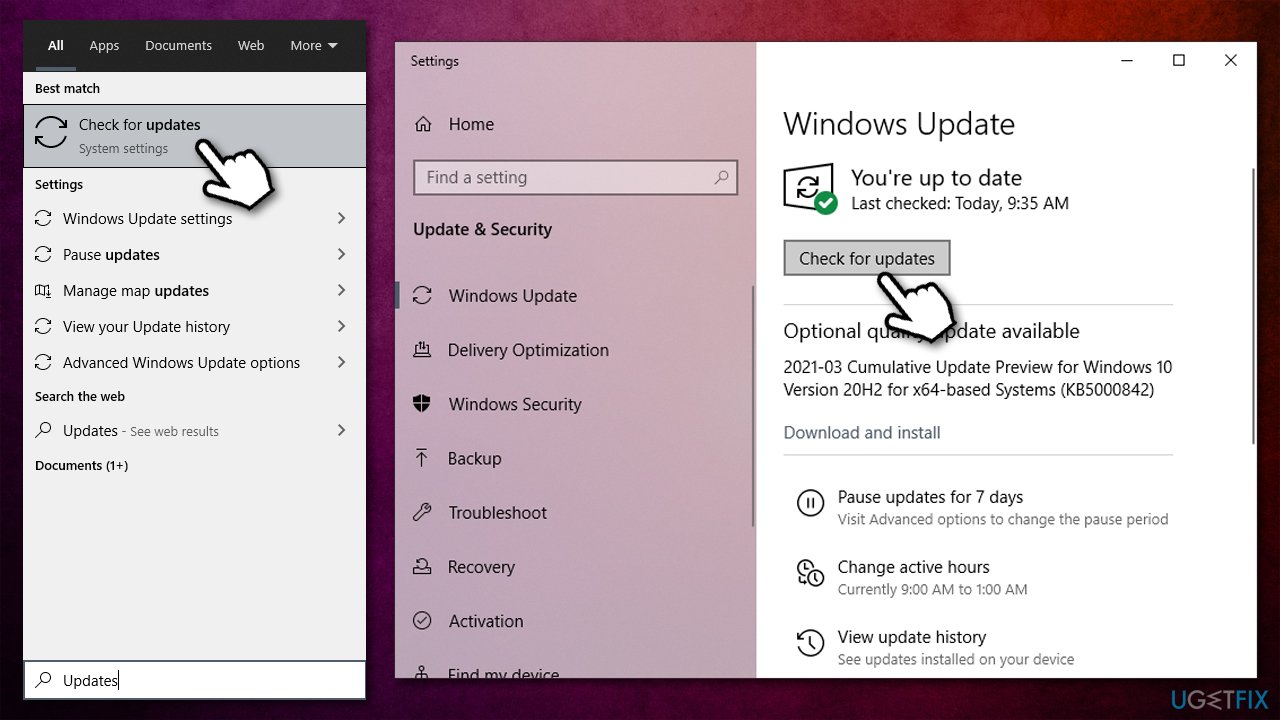
- Wait till Windows downloads and installs the newest updates
- Once done, reboot your computer.
Option 5. Fix the problem with Registry Editor
- Press Windows+R on your keyboard, type regedit and press Enter
- Once Registry Editor opens, navigate to the following location:
HKEY_LOCAL_MACHINE\\SOFTWARE\\Microsoft\\Windows NT\\CurrentVersion\\Windows
- On the right side of the window, you should see LoadAppInt_DLls - double-click it
- Here, set value of they key to 0 instead of 1 and click OK
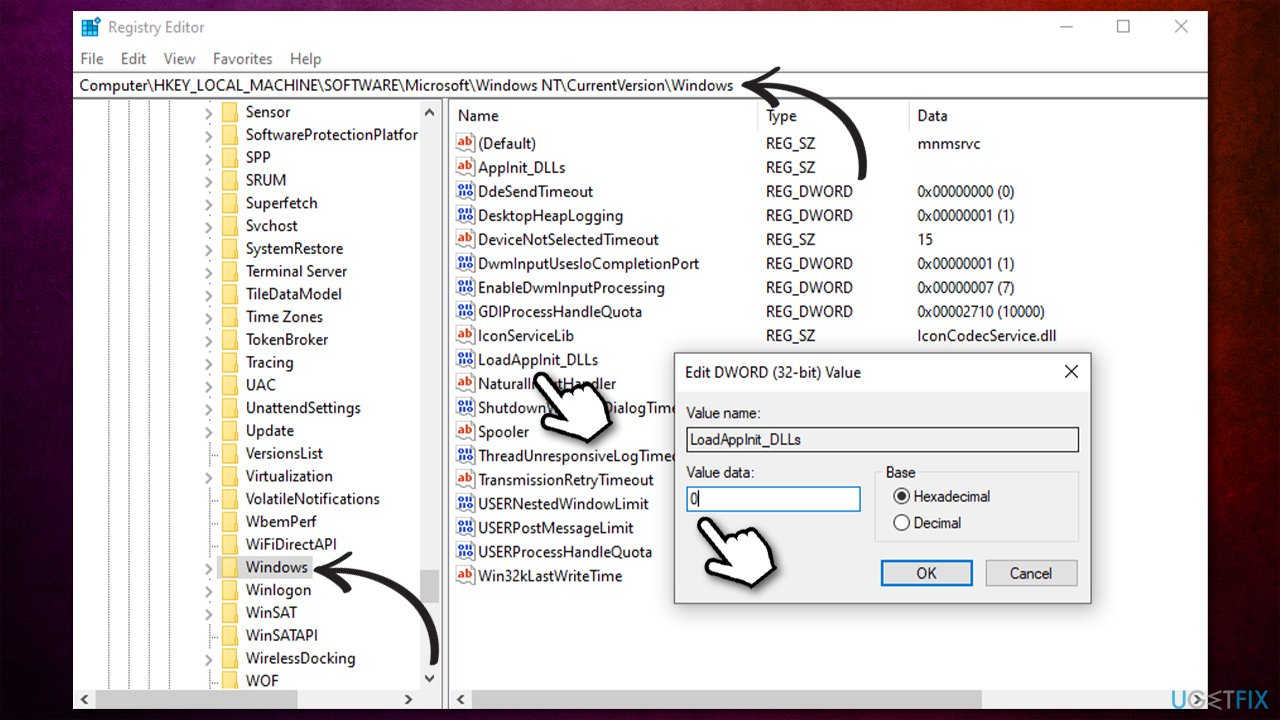
- Exit Registry Editor and try launching the program again.
Bottom line
To fix the 'The application failed to initialize properly (0x0000142)' error, you can use an automatic repair tool to find and replace missing or corrupt DLL files. If the issue persists after trying this fix, consider exploring other troubleshooting options or seeking professional assistance.
Frequently asked questions
The error code 0x0000142 indicates that an application failed to initialize properly, often due to issues with system files or application compatibility in Windows 10 or Windows 11.
You can fix the 0x0000142 error by running the application as an administrator, ensuring that all Windows updates are installed, or reinstalling the problematic application.
Yes, you can resolve the 0x0000142 error by using the System File Checker tool to repair corrupted system files or by performing a clean boot to troubleshoot startup issues.




Report an issue
What's wrong with this guide? We review every report and update or remove content.
Report received — thank you. We'll review and fix it.
You need a free account to submit a report.
Be the first to comment