How to fix
The Audio Service is not running
on Windows
Resolve the "Audio Service is not running" error on Windows 10/11 effortlessly. Get your sound back with expert-tested solutions that work fast!

What causes How to fix the Audio Service is not running?
- Audio service is disabled
- Corrupted audio drivers
- Windows updates causing conflicts
- Issues with sound settings
- Third-party software interference
Repairs Windows system files, removes malware, and restores a clean OS state — without reinstalling.
Hi, my computer stated the Audio service is not running message on the bottom corner. There is a red X on the speaker icon in the tray. Restarting may help but only for a brief period of time. Sometimes computer works without this message but, in most cases, I need to restart the system over and over again. That is annoying. Is there anything I can do to fix Audio service is not running error? Thanks!
The Audio Service is not running error is a fairly common issue on Windows devices. While the error is prevalent on older versions of the operating system such as Windows 7, Windows 10 users can also be affected by this issue. Many users were looking for solutions, and ways to fix Audio service is not running issue on various IT forums,[ref en-1] but not all of them managed to do so. In this article, we will try to help you with this.
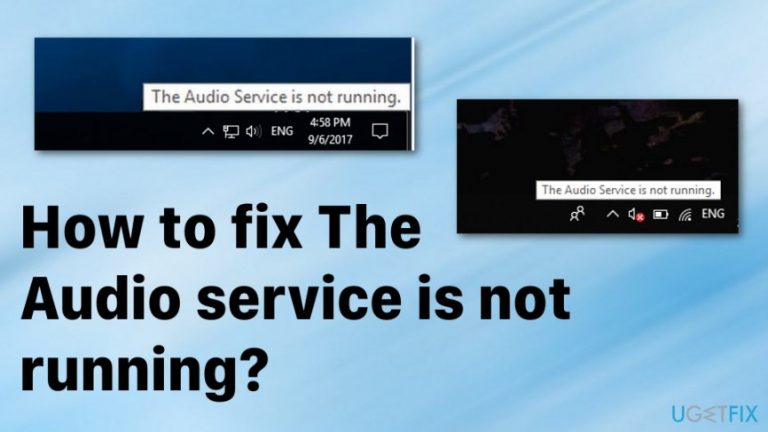
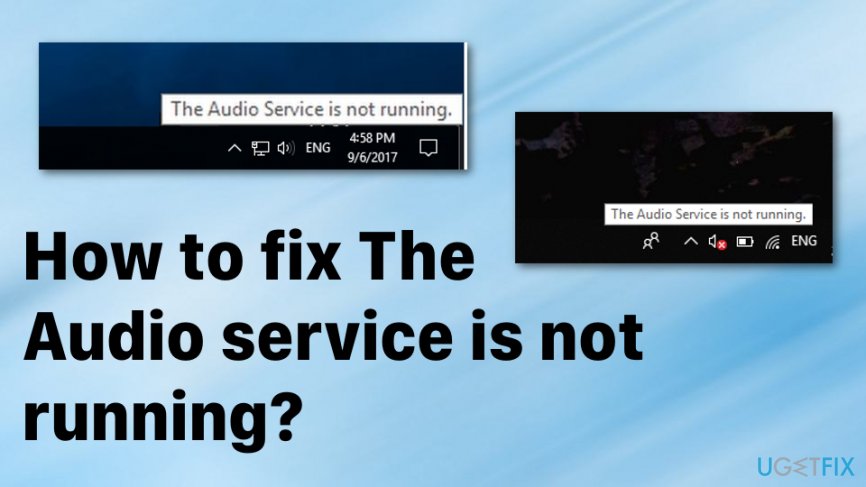
Users affected by this issue can see a small "X" icon in a red circle next to the sound icon in the bottom taskbar. By pointing the mouse over this icon, users would see the following popup message:
The Audio Service is not running
While the message says that the related service is not running, audio still can be played by the majority of those affected, regardless of speakers or headphones are used. While the issue is not critical as sounds can still be heard, users have to restart the PC each time they try to get rid of the annoying popup that shows up regularly, making it extremely inconvenient. Thus, finding the Audio service is not running error fix becomes relatively important.
Windows services[ref en-2] are integral parts of any operating system. They run in the background at all times, and some of them are set to be started automatically, while others can be disabled or initiated manually. Audio service should be running for the sound and other related potations to be successful in Windows 10 or another OS version.
The Audio Service is not running is directly related to the mentioned service being stopped due to some external reasons or failing to start when the computer is booted in the first place. Luckily, the error can be fixed permanently by applying the solutions we provide below.
How to fix Audio service is not running error?
There are many problems that can affect the sound on Windows machines. In some cases, users cannot hear anything when trying to play a video or listen to music. In other instances, users could not hear anything via Discord, speakers were crackling, or headphones were not working at all. Luckily, the Audio service not running issue still allows those affected to hear sounds, but still can be a huge problem due to the need to restart the computer each time the error shows up.
Also, you should note that the Audio service is not running error may be caused by other issues with the device or even cyber infection.[ref en-3] Thus, it is advisable to scan the machine with powerful anti-malware software to ensure that the PC is malware-free. Besides, the problem could also sometimes be fixed automatically with PC repair tools such as [d1] (it depends on your system configuration and the root cause of the error).
Increase and decrease the volume of your computer
This solution is one of the simplest ones - all you have to do is slide the volume bar. It can be done even though the red X is on the Sound icon, and the message about Audio service is not running is displayed.
- Click the speaker icon in the taskbar.
- When the volume slider is displayed, you can adjust the volume of your computer.
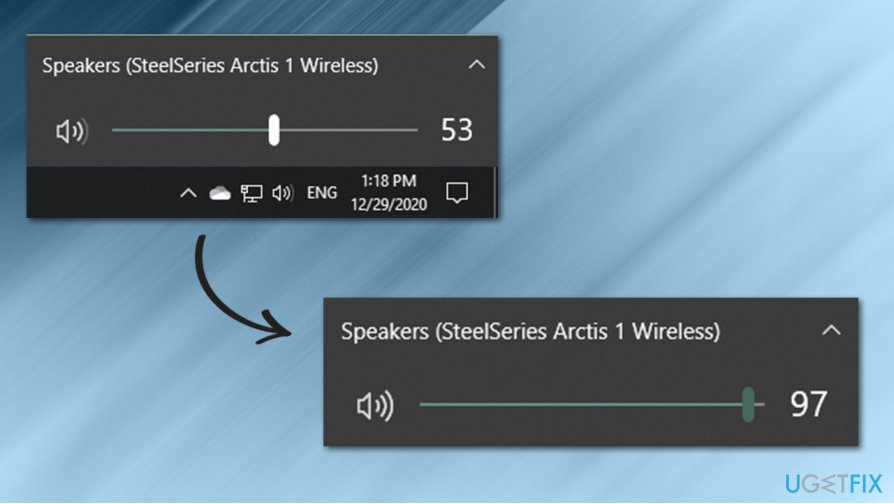
How to fix the audio service is not running adjust volume - Increase or decrease the volume even by the smallest amount and this should get rid of the red X on the icon and the message.
Restart the Windows Audio service
- Press the Windows key + R and launch the dialog window.
- Type services.msc and run.
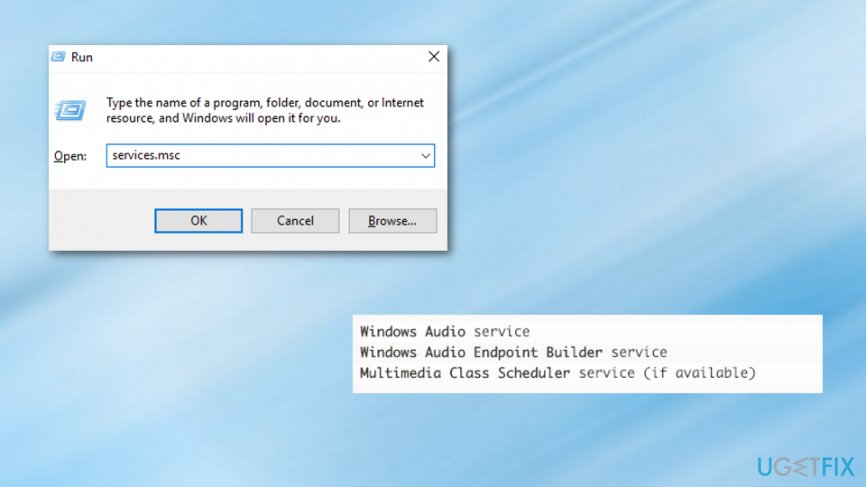
How to fix the audio service is not running services - Locate the following services one by one:
Windows Audio service
Windows Audio Endpoint Builder service
Multimedia Class Scheduler service (if available)
- Go to Properties by clicking the right mouse button on the mentioned service.
- When the window with settings appears set their Startup type to Automatic.
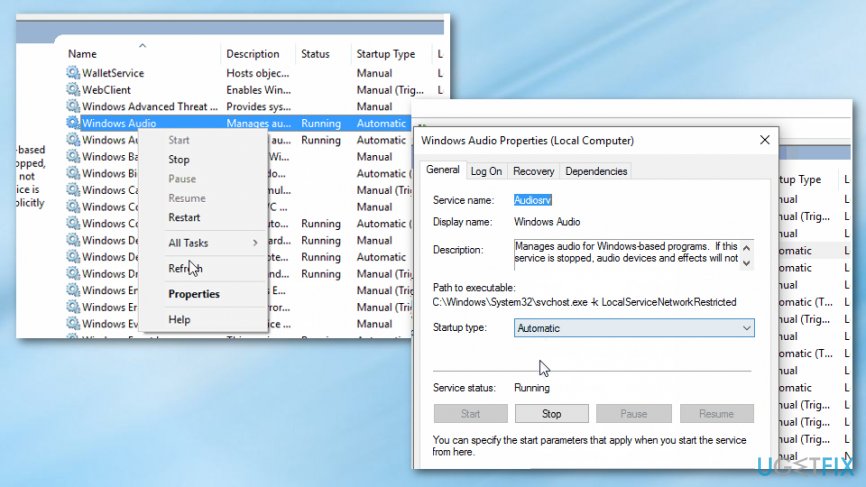
How to fix the audio service is not running services automatic - Click on the service again using the right button.
- Select Restart in the resulting context menu.
Run Windows Audio troubleshooter
Troubleshooters are great solutions for many problems that could arise while performing regular activities on a Windows computer. Since Audio service is not running error is related to sound, you should troubleshoot issues with Windows Audio Troubleshooter - it is surprisingly easy to use. Here's how:
- Right-click on Start button and pick Settings.
- Select Update & Security section.
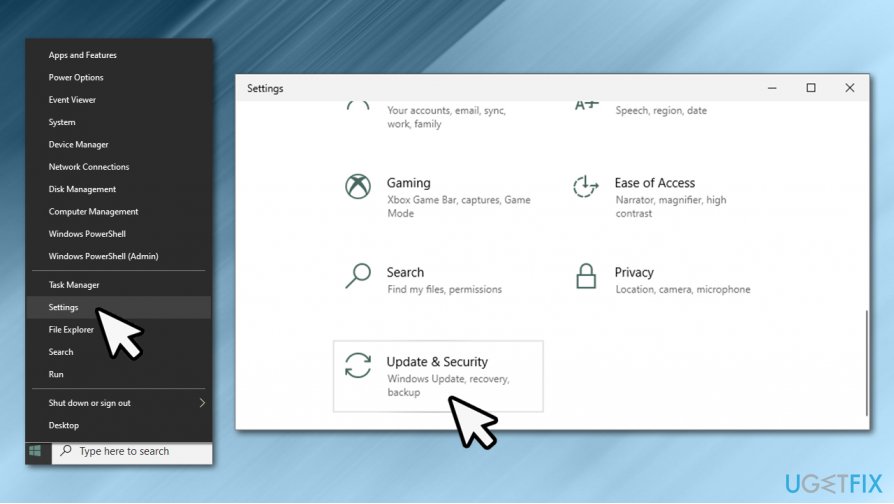
How to fix the audio service is not running access settings - Select Troubleshoot on the left side of the window.
- You will either see the list of troubleshooters on the left, or you need to click on Additional troubleshooters to view it (depends on your Windows version).
- From the list, pick Playing Audio, and select Run the troubleshooter.
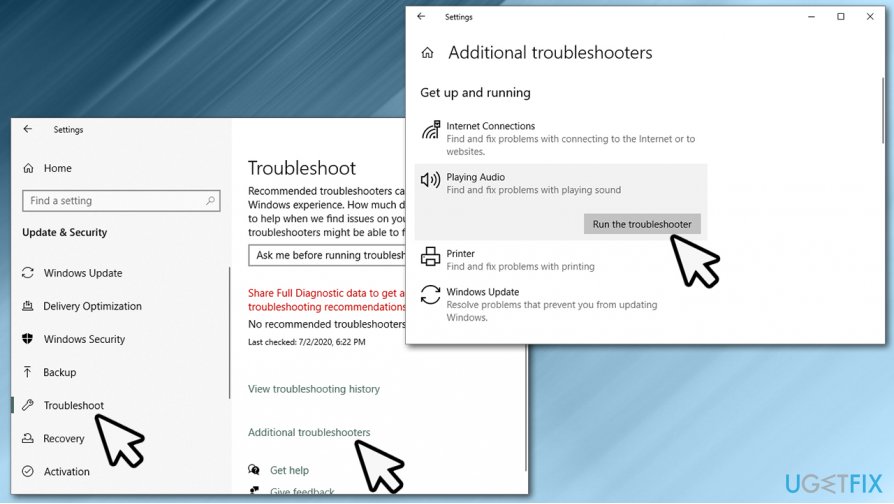
How to fix the audio service is not running run troubleshooter - Wait till process completes - Windows should attempt to fix issues automatically or point you at the right direction.
Update the audio drivers
You could try updating audio drivers via the Device Manager as follows:
- Right-click on Start and pick Device Manager.
- Find the Sound, video, and game controllers section and expand it.
- Right-click on each of the devices, and pick Update driver.
- Select Search automatically for drivers and wait.
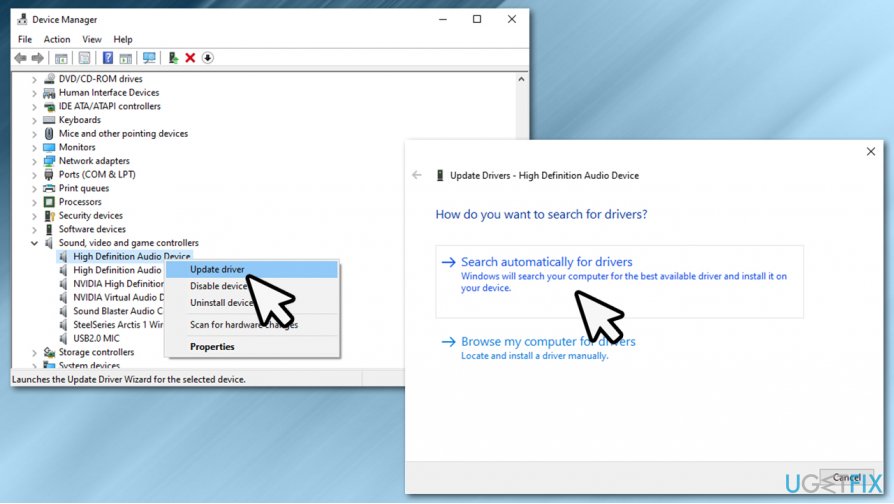
How to fix the audio service is not running update drivers - Reboot your computer.
Device drivers can often cause various problems within a Windows computer. Therefore, instead of updating each driver in regular intervals, we recommend using an automatic update tool, such as [rev id="DriverFix"]. It can backup your drivers automatically and update them with just a click of a button - no worries in the future.
Bottom line
To fix the Audio Service is not running error, you can try restarting the audio service, updating audio drivers, or checking sound settings. If these solutions do not resolve the issue, consider seeking further assistance or exploring additional troubleshooting methods.
Frequently asked questions
You can restart the Audio Service by opening the Services app, locating 'Windows Audio', right-clicking it, and selecting 'Restart'. Ensure that the service is set to 'Automatic' so it starts with Windows 10.
Try running the Audio Troubleshooter from the Settings app under 'System' > 'Sound' to automatically detect and resolve issues with the audio service.
Press Windows + R, type 'services.msc', find 'Windows Audio', right-click, and select 'Start' to manually initiate the Audio Service in both Windows 10 and Windows 11.




Report an issue
What's wrong with this guide? We review every report and update or remove content.
Report received — thank you. We'll review and fix it.
You need a free account to submit a report.
Be the first to comment