
How to fix "There has been an error" in Microsoft Store?

Prefer to fix it yourself? The manual steps follow.
7 methods in this guide
Hi, whenever I attempt to download a new app on Microsoft Store, I always get a "There has been an error" pop-up with the only option to Retry. Even if I retry the attempt, it always results in the same error. How do I fix it?
Microsoft Store is a digital marketplace for Microsoft products and services. It provides users with a convenient and comfortable way to purchase, download and install a variety of applications, games, and software. Using the Microsoft Store eliminates the need to visit third-party websites, which can sometimes be unreliable and potentially harmful.
Despite its usefulness, some users experience issues when using the app - "There has been an error" is just one of the errors that some encounter. It usually occurs when people are attempting to download new apps or update already installed ones. As mentioned, this can complicate things quite a bit because it may force users to resort to third-party sources, which is not always a secure practice.
While some of the Microsoft Store errors offer an error code (for example, 0x80070422, 0x803fb107, or 0x800704ec), this one does little to provide users with more detail and simply says that "There has been an error." Indeed, it might be difficult for users to start troubleshooting, especially when they never came across a Microsoft store error before.
There are numerous reasons why one might encounter "There has been an error" when they are trying to download or update apps via the Store. For example, corrupted cache files related to the update process in Windows might cause this or corrupted Store itself. In this case, resetting the app might resolve the situation.
We provide several solutions that should help you fix the "There has been an error" in Windows below.
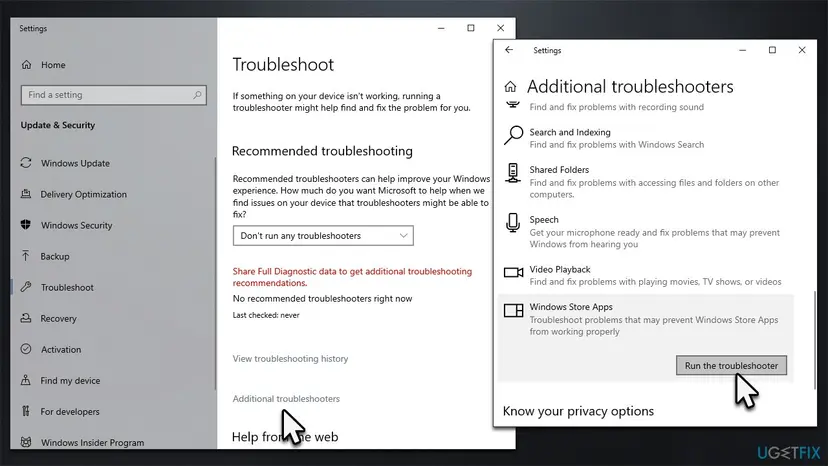
Fix 1. Run the troubleshooter
If you haven't done so, please run the troubleshooter.
- Type Troubleshoot in Windows search and hit Enter.
- Select Additional troubleshooters/Other troubleshooters.
- Scroll down to find the Windows Store Apps entry.
- Click Run the troubleshooter/Run.
- Wait until the scan finishes, apply the suggested fixes, and reboot your computer.
Fix 2. Reset Microsoft Store cache
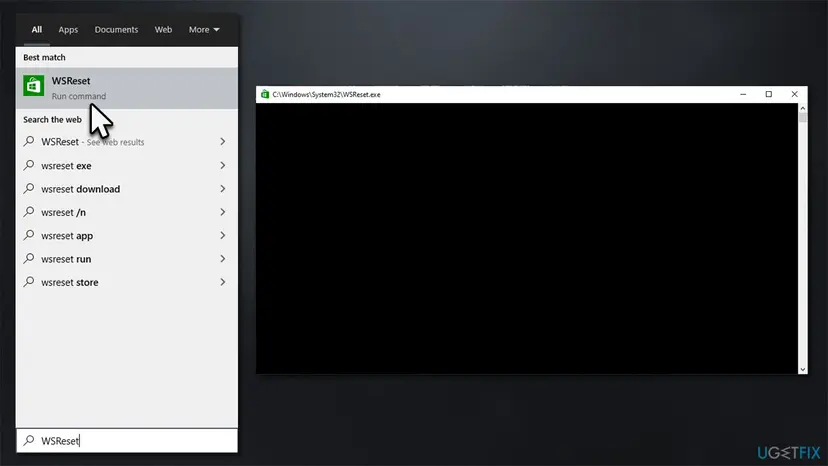
- Type wsreset.exe in Windows search, and press Enter.
- Wait till a black window shows up – do not close it.
- Once it's gone, Microsoft Store should restart.
- Try downloading or updating apps once more.
Fix 3. Run SFC and DISM
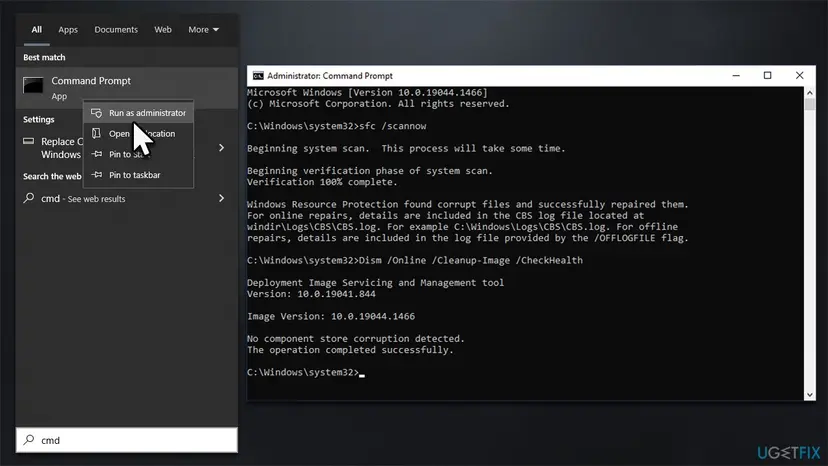
SFC and DISM can help you fix corrupted system files.
- To run an elevated Command Prompt, type in cmd in Windows search.
- Right-click the Command Prompt result and pick Run as administrator.
- When User Account Control (UAC) asks you whether you want to make changes, click Yes.
- Type this command and press Enter:
sfc /scannow - Wait for the scan to finish.
- Then, use the following commands, pressing Enter after each:
Dism /Online /Cleanup-Image /CheckHealth
Dism /Online /Cleanup-Image /ScanHealth
Dism /Online /Cleanup-Image /RestoreHealth - Close down Command Prompt and restart your device.
Fix 4. Check relevant services
A few Windows Services can cause Microsoft Store to fail to download new apps. Please follow these steps:
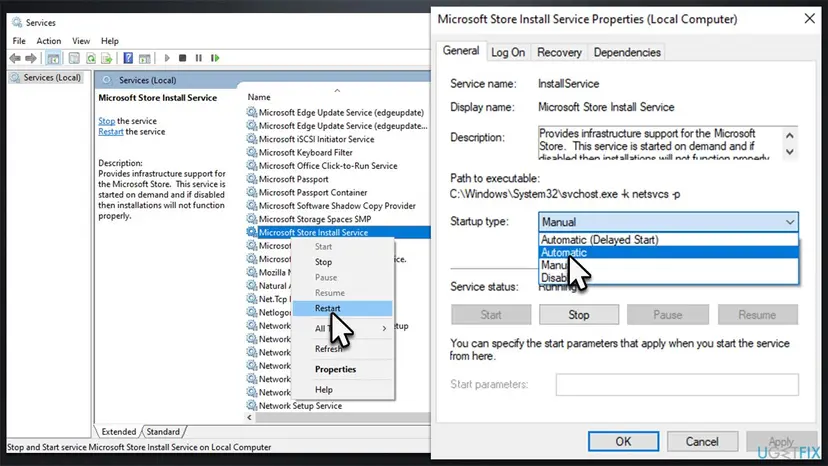
- Type Services in Windows search and hit Enter.
- In the Services window, scroll down to locate Microsoft Store Install Service.
- If it is already running, right-click and select Restart.
- If the service is not running, double-click it to open Properties.
- Here, locate Startup type section, click on the drop-down menu, and pick Automatic.
- Click Start, Apply, and OK.
- Do the same with Background Transfer Intelligence Service and Windows Update Service.
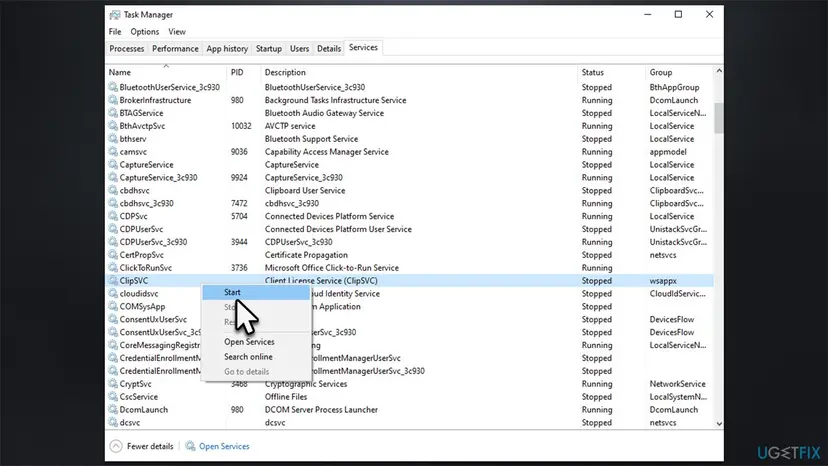
Fix 5. Make sure ClipSCV is running
- Press Ctrl + Shift + Esc to open the Task Manager.
- Click More details if needed.
- Go to Services tab.
- Find ClipSCV entry.
- If it is not running, right-click and select Start.
Fix 6. Repair or reset the app
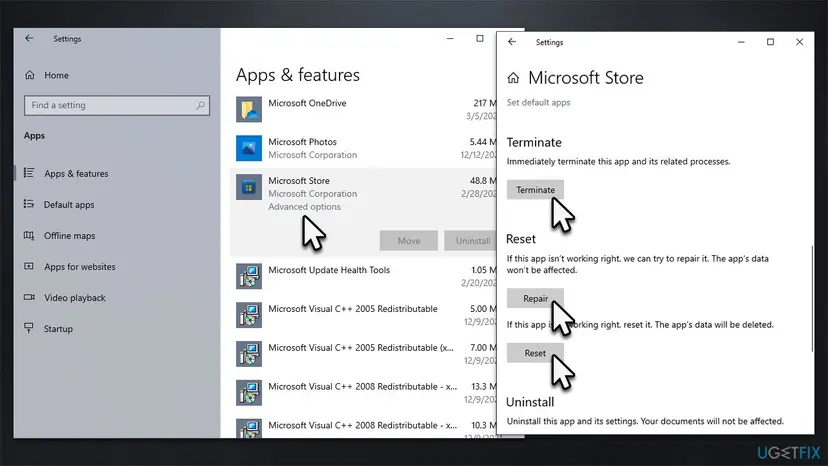
- Right-click on Start and pick Apps & Features.
- Scroll down to locate Microsoft Store and click Advanced options.
- Click Terminate and Repair.
- If that does not help, try the Reset option instead.
Fix 7. Reinstall Windows Store
- Close down Windows Store - make sure it is not running in the background.
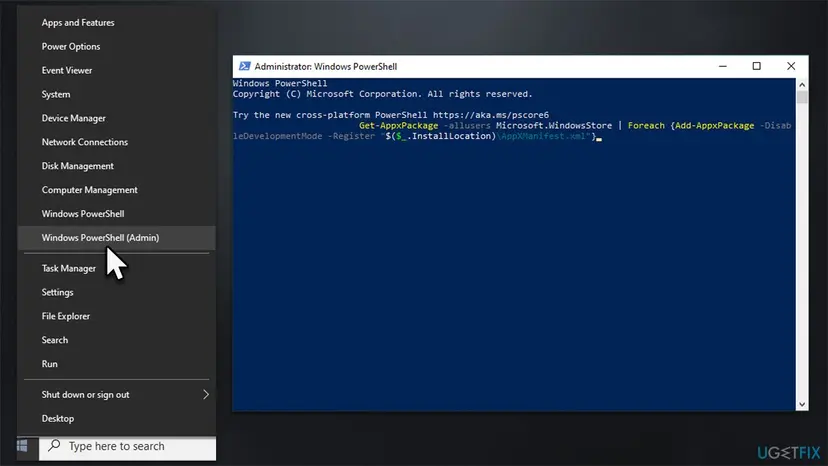
- Right-click on Start and select PowerShell (Admin).
- Paste the following command and press Enter:
Get-AppXPackage *Microsoft.WindowsStore* | Foreach {Add-AppxPackage -DisableDevelopmentMode -Register “$($_.InstallLocation)\AppXManifest.xml”} - Close Powershell.
Did this fix work?
One click, no account. It tells the next reader which guides are worth their time.
Questions and experiences: fix "There has been an error" in Microsoft Store
Still broken, or found a fix we did not cover? Ask here: members and our editors answer. Reading is open; writing needs a free account.
…