
How to fix "There is no TPM available. Please check BIOS settings" error in Windows?
Prefer to fix it yourself? The manual steps follow.
4 methods in this guide
Hello. Recently I started receiving the "There is no TPM available. Please check BIOS settings" error from Windows Security. How do I fix this?
Some people that use the Windows operating system, encounter the "There is no TPM available. Please check BIOS settings" error. A TPM (Trusted Platform Module) is used to improve the security of your PC. It's used by services like BitLocker drive encryption, Windows Hello, and others, to securely create and store cryptographic keys.
TPM also confirms that the operating system and firmware on your device are what they're supposed to be, and haven't been tampered with. If users receive this error, their system might be vulnerable. This issue should be fixed as soon as possible. In this guide, you will find 4 steps that should help you fix it.
Most of the time, the "There is no TPM available. Please check BIOS settings" error in Windows appears because TPM is disabled in the BIOS settings. It is also possible that the BIOS is missing updates. Keep in mind that manual troubleshooting might be a lengthy process.
It can fix most system errors, BSODs, corrupted files, and registry issues. Otherwise, follow the step-by-step instructions below.
Solution 1. Fix Corrupted System Files
Use Command Prompt commands to repair system file corruption:
- Open Command Prompt as administrator
- Use the following command and press Enter:
sfc /scannow
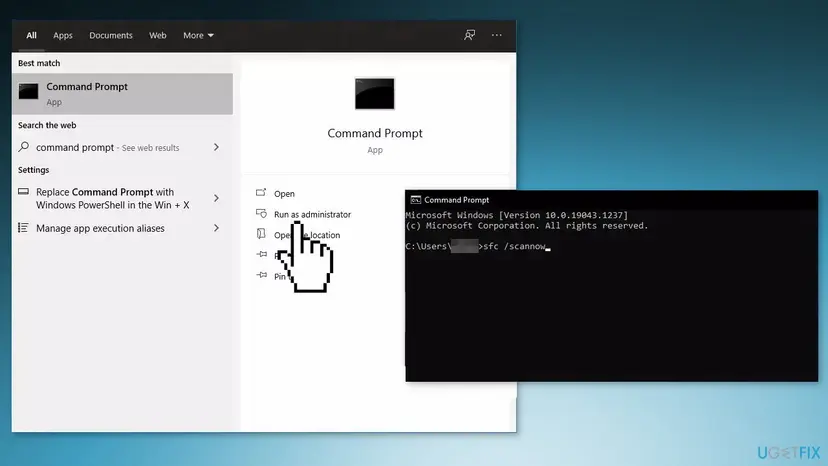
- Reboot your system
- If SFC returned an error, then use the following command lines, pressing Enter after each:
DISM /Online /Cleanup-Image /CheckHealth
DISM /Online /Cleanup-Image /ScanHealth
DISM /Online /Cleanup-Image /RestoreHealth
Solution 2. Enable TPM 2.0 in BIOS
- Restart your computer and press Delete button to enter BIOS
- Go to the Settings tab
- Use the keyword’s up/down keys to select the Miscellaneous option
- Expand Intel Platform Trust Technology(PTT) and select Enable
- Save settings and exit BIOS

For some other Gigabyte motherboards:
- Restart your computer and press Delete button to enter BIOS
- Go to the Peripherals tab
- Use the keyword’s up/down keys to select Trusted Computing option
- Expand Security Device Support and choose Enable
- Save settings and exit BIOS
Solution 3. Update BIOS
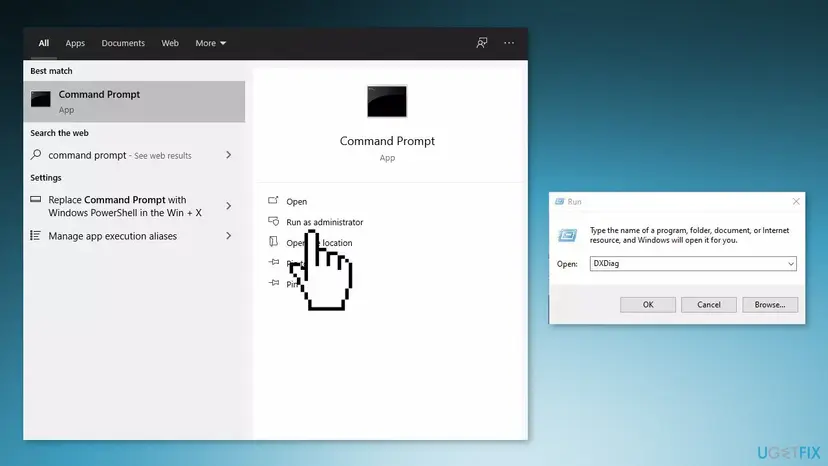
- Press Windows key + X and select Command Prompt (Admin)
- Type the wmic bios get smbiosbiosversion and hit Enter
- After this, you will see SMBIOSBIOSVersion and the BIOS version of your system
- Go to the System tab of the DxDiag tool and look for the BIOS section
- Go to the Website of your BIOS manufacturer
- Hover over the Support option and the website will display a drop-down menu
- Click on Support Home
- Scroll down to find the Downloads & Drivers option and click on it to open it
- Now, scroll down to find the BIOS category drivers and expand it
- Type System Information in the Start menu and open it
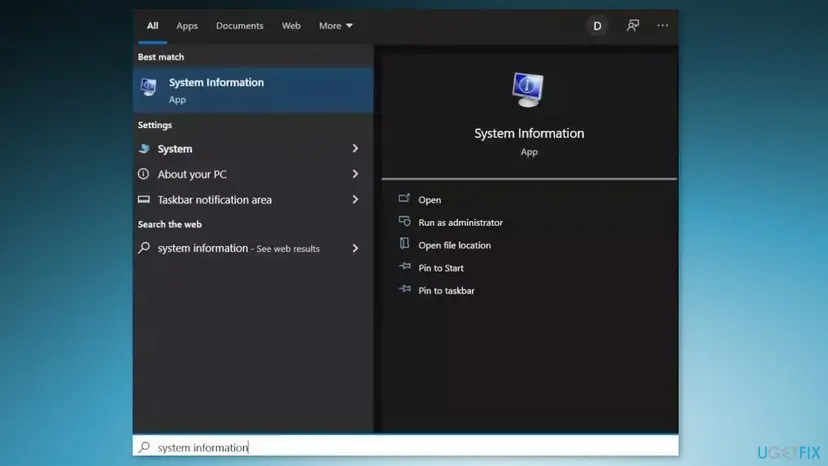
- Compare the BIOS Version/Date in the System Information with the version number specified on the official website
- Begin the downloading
- Once the download is complete, then double-click on the downloaded file
- Upon opening the file, the system will warn you that updating the BIOS process will reboot your system. Click on the OK button
- Next, the system will show you another information dialog, which indicates the current version of BIOS and the version you are installing. Click on the OK button again
- The system will begin the BIOS updating process
- Once the progress bar goes to 100%, you’ll see a black screen followed by the following screen
- After the updating procedure, the system will reboot normally
- Once the system has successfully rebooted, you can confirm that the latest BIOS version is installed
Solution 4. Clean Install Windows
- Go to the official Microsoft page to download Windows 11
- If you have Windows 10, download the Windows 10 Installation Media from Microsoft
- Select your product language from the Choose one dropdown, hit Confirm, then click 64-bit Download
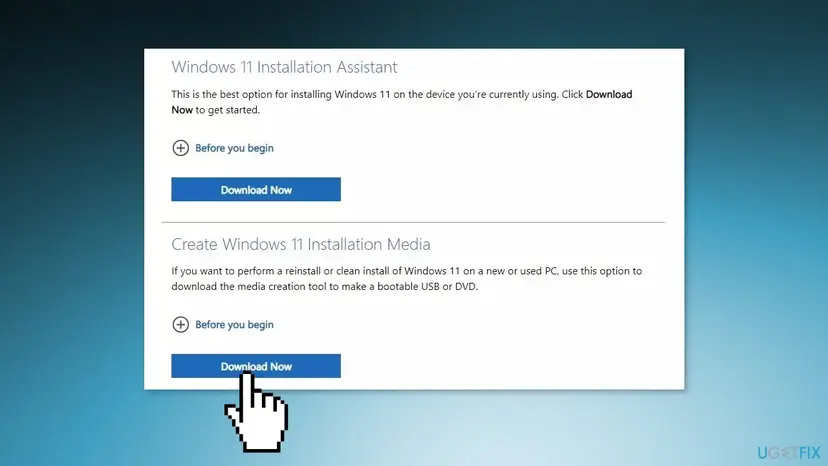
- When the .ISO file finishes downloading, right-click on it and pick Open with > Windows Explorer to mount the virtual disc, then double-click the setup file to begin the installation
- Follow the on-screen instructions
Did this fix work?
One click, no account. It tells the next reader which guides are worth their time.
Questions and experiences: fix "There is no TPM available. Please check BIOS settings" error in Windows
Still broken, or found a fix we did not cover? Ask here: members and our editors answer. Reading is open; writing needs a free account.
…