
How to fix "This device is locked by an Administrator" in Windows?

Prefer to fix it yourself? The manual steps follow.
4 methods in this guide
Hi, I accidentally locked my Windows PC remotely, and now I can't access it because I see the "This device is locked by an Administrator" message instead. Could you please advise on this matter?
"This device is locked by an Administrator" is a message that some users see whenever trying to log in to Windows. In most cases, this happens when people lock their systems remotely - usually via the Microsoft Account when using their phones or other devices. Most simply wanted to try the feature out or had done so completely by accident. The problem is now that they are unable to access Windows because of this.
"This device is locked by an Administrator" error can occur due to many reasons, although usually, it is caused by a corrupted or non-existent screensaver that is password-protected. To fix this, you will have to access your computer with the credentials of the account that last logged in.
In other cases, it might not be stated which account has logged in last and who has locked the computer. This time, you would have to force shut down your PC and perform similar steps as in the previous case.
Nonetheless, some users reported that they were unable to log in even after using the correct steps in this situation, and they still saw the same message when they tried. If that's the situation you found yourself in, there are several ways you can recover from the "This device is locked by an Administrator" login error - we provide the solutions below for all the situations.
When having persistent issues with Windows, it might be that the system is corrupted.
Method 1. Use the last login information
This solution should work for those who see a message claiming that the computer has been locked by an administrator or username. Here's what to do:
- When on the login screen, press CTRL + ALT + DEL on your keyboard.
- Now, type in the login credentials of the account that was last used for logging into the device.
- Unlock Computer dialog should then disappear.
- Then press CTRL + ALT + DEL again and log in normally.
Method 2. When no information of who locked computer is available
In some cases, the message might not mention who locked the computer. In this case, please follow these steps:
- Attempt to shut down the locked computer using the shutdown tool from the Microsoft Windows Resource Kit. Although the System Shutdown dialog box will appear on the locked computer, it will fail to restart after the shutdown timer expires, causing the Welcome to Windows dialog box to appear.
- To log on to the computer normally, press CTRL + ALT + DELETE before activating the screen saver.
- If you fail to log on using one of these methods, you must restart your computer before the screen-saver program starts.
Method 3. Force the use of administrator account
- In the Windows sign-in screen, press and hold the Shift key and click Power > Restart.
- After a computer restart, pick Troubleshoot option.
- Select Advanced options and click Command Prompt.
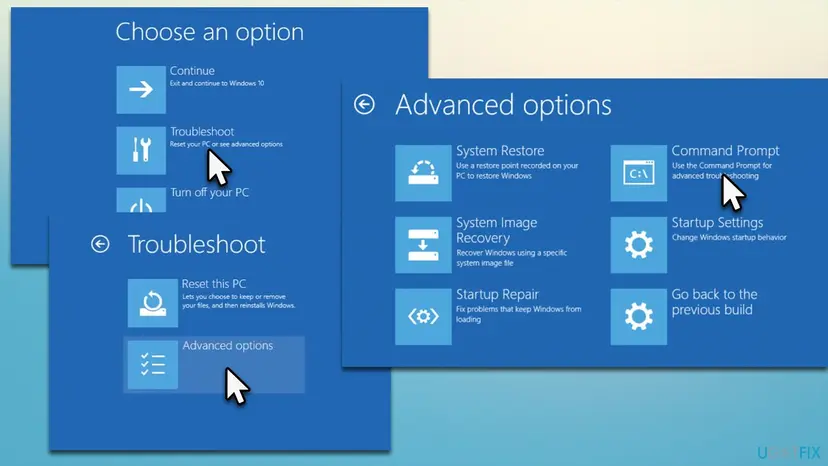
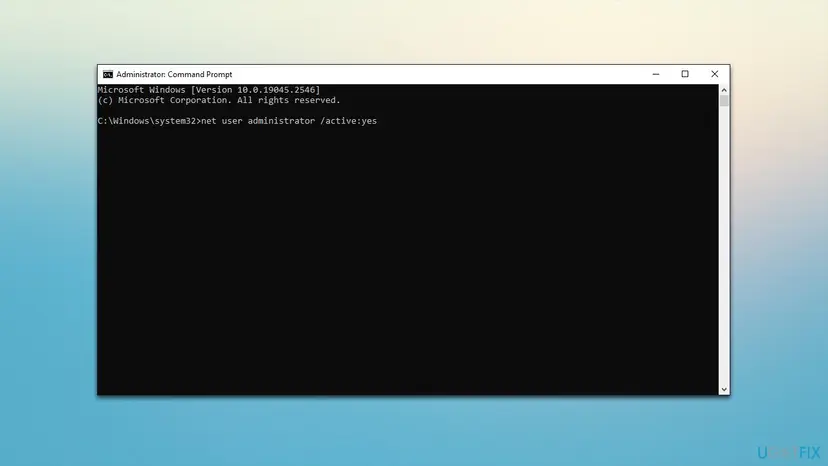
- In the new window, type in the following command and press Enter:
net user administrator /active:yes - Close down Command Prompt and go to the log-in screen, then press Continue.
- Use administrator account credentials to log back in.
Method 4. Use recovery options
Windows has built-in recovery options that you can try using under various circumstances, including when you can't log in due to the "This device is locked by an Administrator" message.
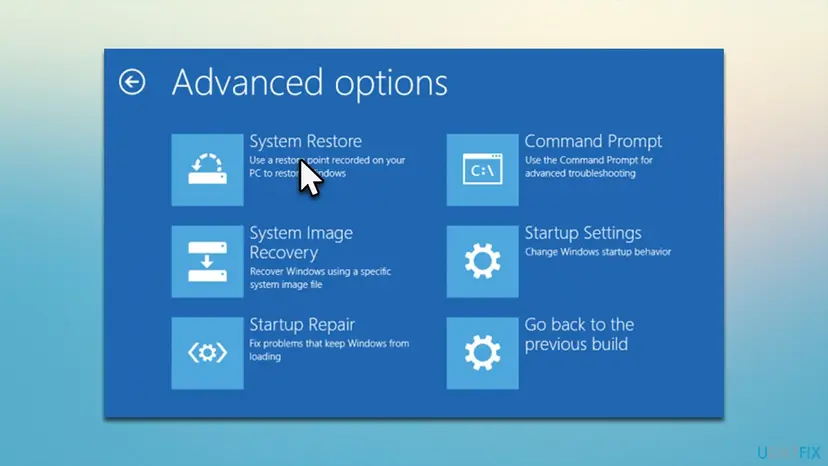
- Access the recovery environment as explained in the previous step.
- Go to Troubleshoot and select Advanced options.
- From here, there are a few options available, you should try them all:
System Restore
Startup Repair
Go back to the previous build (this one might not be available for everyone). - Try each of these options, starting with System Restore, and see if that helps to resolve the issue at hand.
Related topics:
Did this fix work?
One click, no account. It tells the next reader which guides are worth their time.
Questions and experiences: fix "This device is locked by an Administrator" in Windows
Still broken, or found a fix we did not cover? Ask here: members and our editors answer. Reading is open; writing needs a free account.
…