How to fix
Twitch audio delay
on Windows
Resolve Twitch audio delay on Windows 10 and 11 effortlessly. Quick fixes to enjoy seamless streaming, expert-tested and updated 2025.

What causes How to fix Twitch audio delay in Windows?
- Outdated graphics drivers
- Faulty audio drivers
- Web browser issues
- Enabled hardware acceleration
- Third-party audio drivers
- Enabled fast startup feature
Repairs Windows system files, removes malware, and restores a clean OS state — without reinstalling.
Hi, every time I attempt to watch somebody on Twitch, it lags - the audio and video are simply out of sync. This audio delay is not always present - sometimes, it works fine, but in most cases, the problems continue. Any ideas on what is going on?
Twitch, the popular live-streaming platform, has gained immense popularity among gamers, content creators, and viewers alike. It provides a platform for users to live stream and watch various content, including gaming, music, art, and more. However, like any other online platform, Twitch is not immune to issues, and some users have reported experiencing audio delays while watching streams, which can be very distracting.
Audio delay on Twitch can occur when the stream's audio fails to sync correctly with the video, resulting in an offset between what is being seen and what is being heard. This can disrupt the viewing experience and make it difficult to enjoy streamed content.
There can be various reasons for Twitch audio delay on Windows. One common cause is outdated or faulty graphics or audio drivers. Graphics and audio drivers are essential components for streaming content, and outdated or faulty drivers can cause synchronization issues, leading to audio delay.
Web browser issues can also be a factor in Twitch audio desync. Old and corrupted browser cache, cookies, and problematic extensions can interfere with the proper playback of audio on Twitch, resulting in a delay between the video and audio streams.
Enabled hardware acceleration, which uses the computer's hardware to accelerate the performance of web browsers, can also cause audio delay on Twitch. In some cases, third-party audio drivers or the enabled fast startup feature on Windows can also contribute to audio lag issues on Twitch.
If you are facing audio delay or out-of-sync issues on Twitch, there are several steps you can take to try and resolve the problem. First, try to refresh the page or restart your computer if you haven't done so yet. Running an automatic PC repair tool such as [d1] can also resolve issues with your Windows. Also, try uninstalling some of your browser extensions.
If the issue persists, you can try updating your graphics and audio drivers, clearing your browser cache and cookies, disabling hardware acceleration, or checking for third-party audio drivers that may conflict with Twitch. We explain how to perform these steps below.
Method 1. Disable hardware acceleration
Hardware acceleration in web browsers is a feature that utilizes a computer's hardware, such as the GPU, to offload some of the tasks typically handled by the CPU. This can result in smoother and faster performance when browsing websites that require graphics-intensive tasks, such as streaming videos or playing online games.
However, in some cases, it may be better to turn off hardware acceleration in web browsers. This is because hardware acceleration can sometimes cause issues, such as audio or video desync, graphics glitches, or crashes, especially when using older or incompatible hardware or outdated graphics drivers. Additionally, certain graphics-intensive websites or applications may not be fully optimized for hardware acceleration, which can lead to performance issues.
- Open Chrome and click 3 dots, then select Settings.
- On the left side, select System.
- Toggle Use hardware acceleration when available to the OFF position.
- Click the Relaunch button to apply changes.
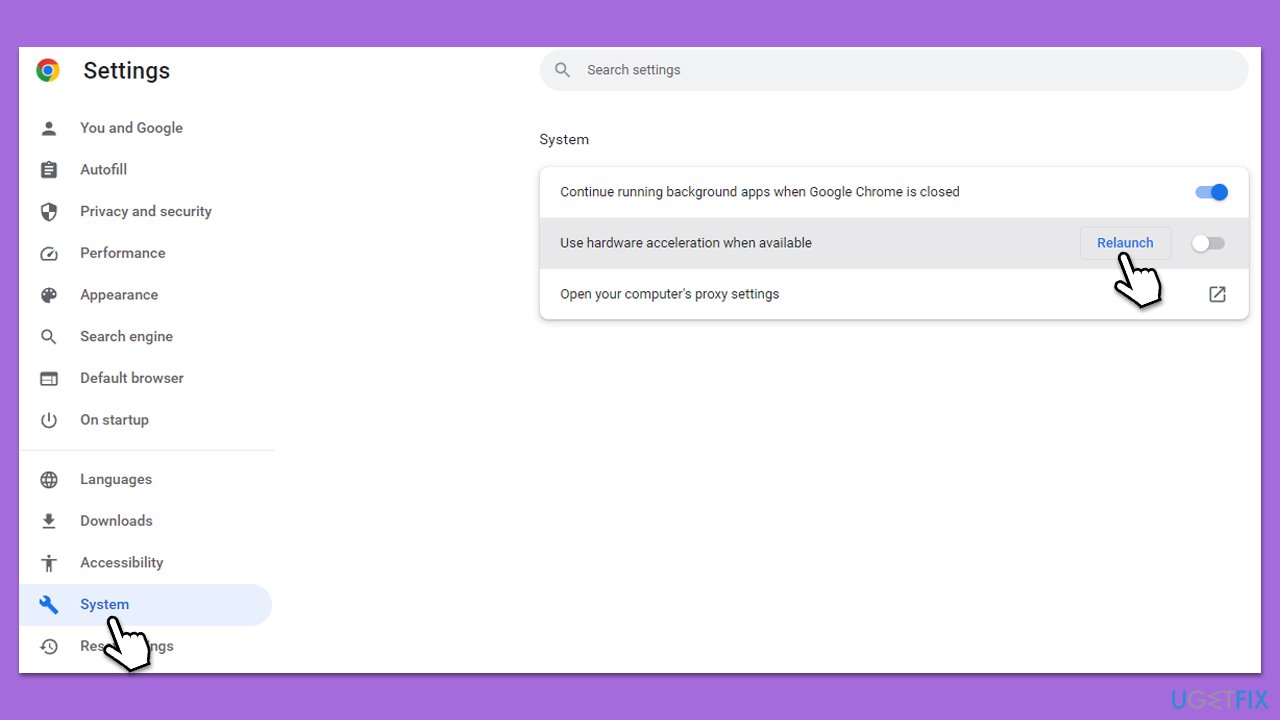
Note: if hardware acceleration was disabled, you should try enabling it instead.
Method 2. Disable Low Latency
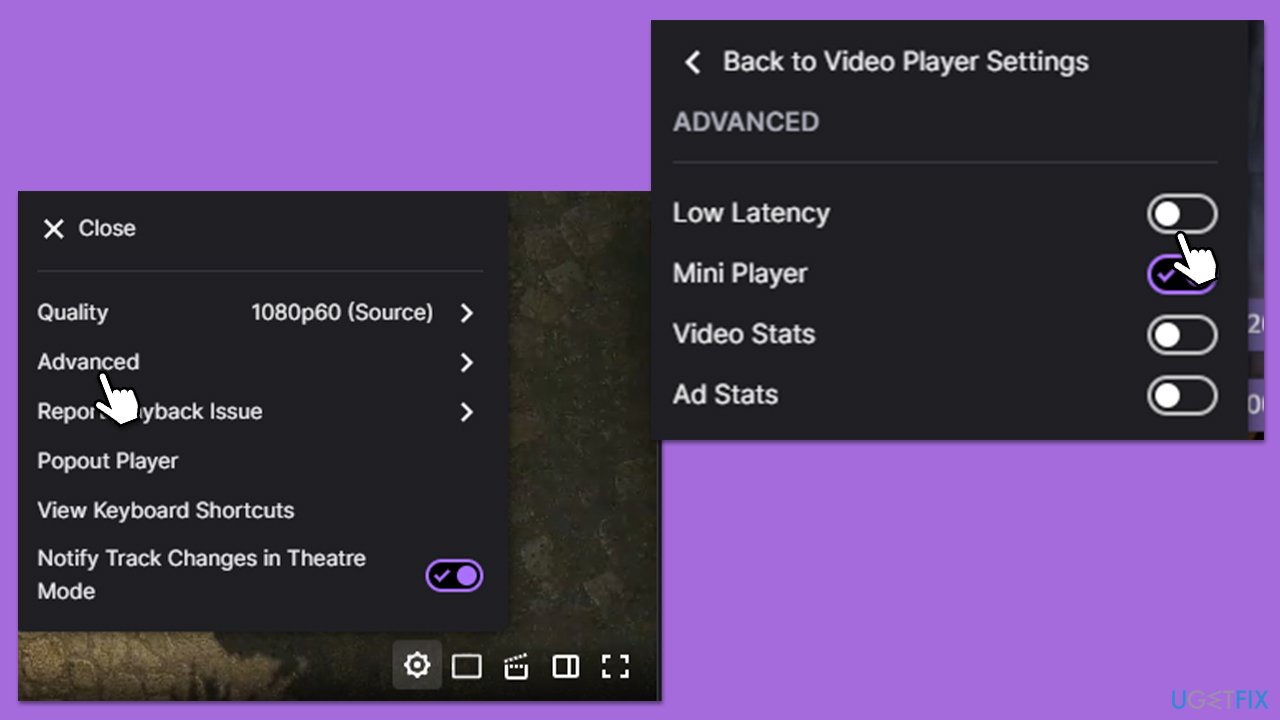
The low latency option is meant to improve the streaming quality, but some users said they started experiencing Twitch stuttering, lag, and audio delay. Thus, try disabling it as follows:
- Open Twitch and load up a stream of your choosing.
- At the bottom-right corner of the video, click on Settings (cogwheel).
- Select Advanced.
- Here, disable Low Latency by toggling the switch to the left.
Method 3. Clear browser cache and cookies
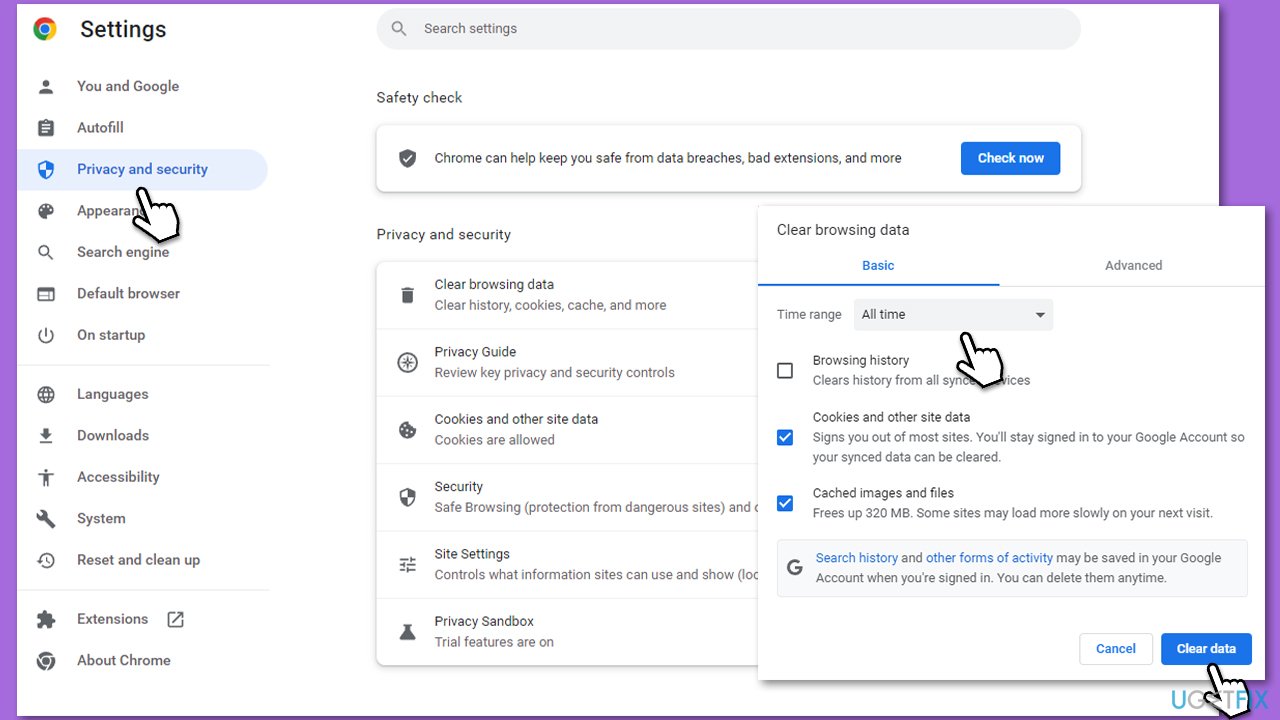
- Click on Menu and pick Settings.
- Under Privacy and security, select Clear browsing data.
- Under Time range, make sure to select All time.
- Select Browsing history, Cookies and other site data, as well as Cached images and files.
- Click Clear data.
Method 4. Update video and audio drivers
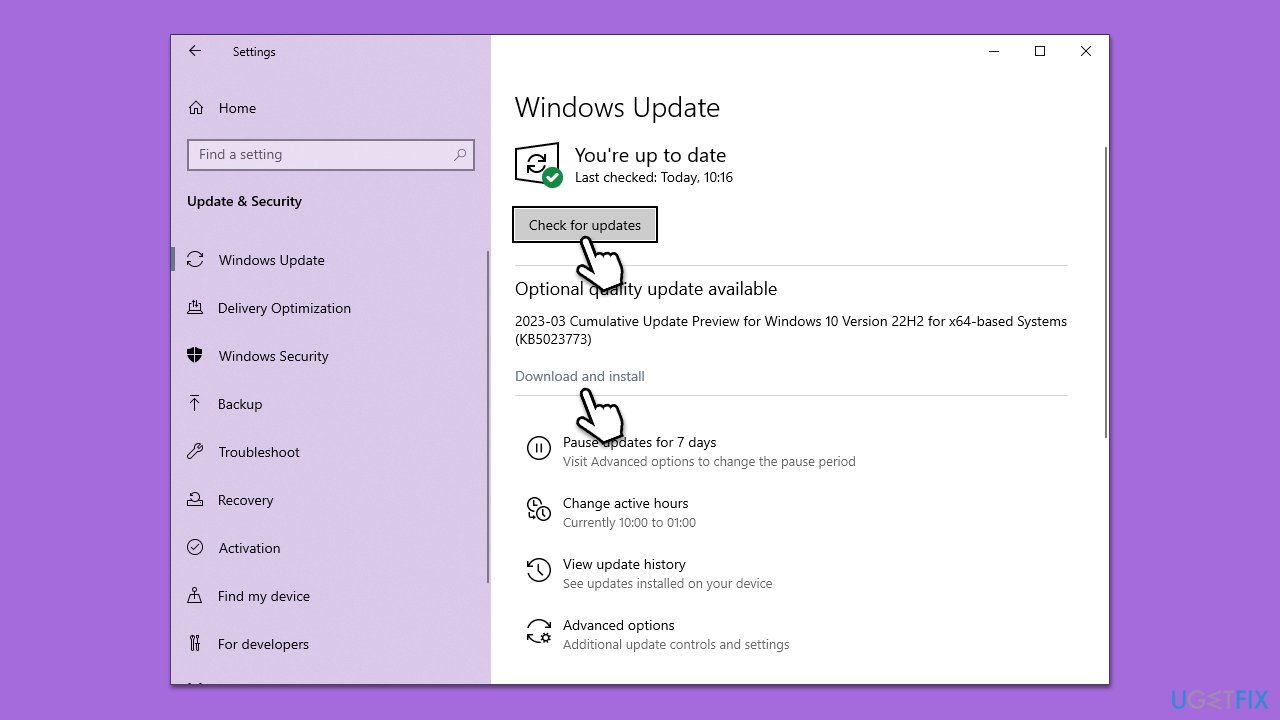
Outdated or corrupted drivers could cause Twitch syncing issues and audio lag. First, start by installing Windows updates, as they might also include driver updates.
- Type Updates in the Windows search field and press Enter.
- Here, click Check for updates.
- If optional updates are available, install them as well - this is where drivers are located.
- Restart your computer.
This may not be enough to update your GPU and audio drivers. You can either employ [revid="DriverFix"] automatic tool or visit the manufacturer's website to download and install drivers manually.
Method 5. Turn off Fast Startup
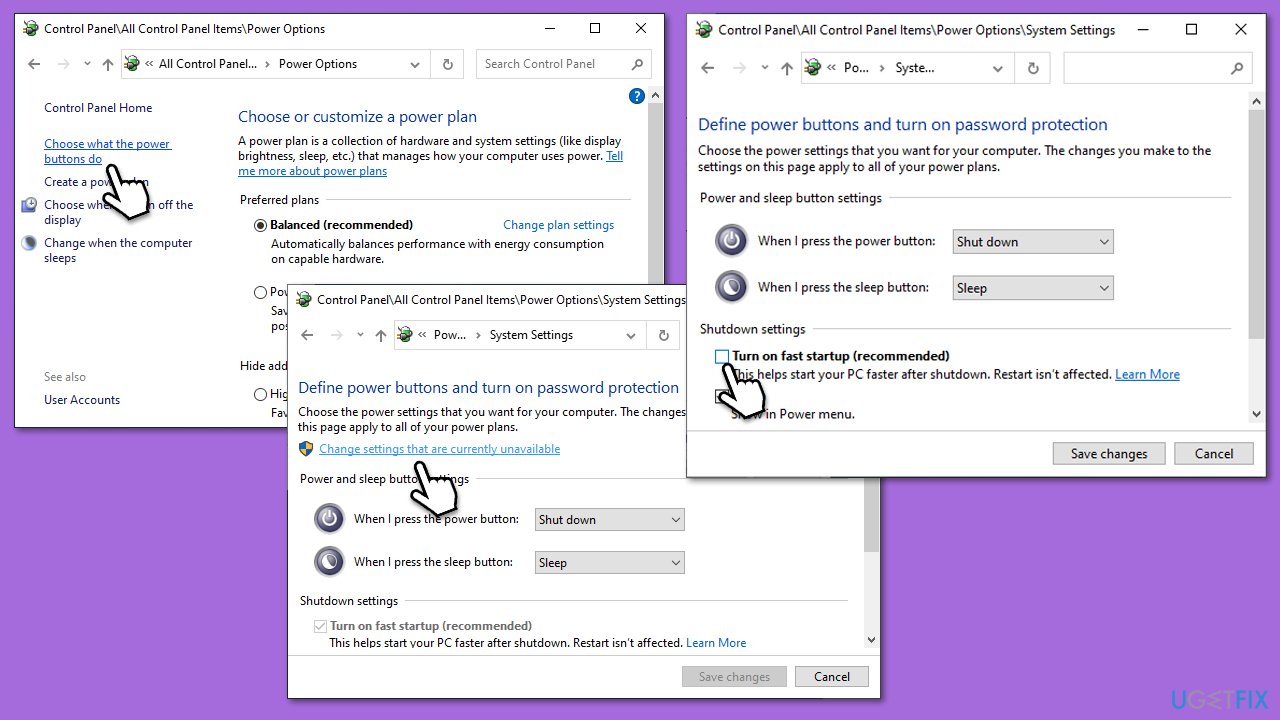
- Type Control Panel in Windows search and hit Enter.
- Select Small icons view and pick Power options.
- On the left side of the window, select Choose what the power buttons do
- Pick the Change settings that are currently unavailable option at the top
- Remove the tick from the Turn on fast startup (recommended) option and select Save changes.
Method 6. Check your internet connection
Use Network Troubleshooter to check whether your internet connection is stable:
- Right-click on Start and select Settings.
- Pick the Network & Internet section.
- On the right side, select the Advanced network settings section.
- Click Network troubleshooter and wait.
Other useful articles about Twitch:
Bottom line
To fix Twitch audio delay on Windows, you can refresh the page, restart your computer, or run an automatic PC repair tool. If these steps do not resolve the issue, consider updating your drivers or checking your browser settings.
Frequently asked questions
Common causes include network latency, incorrect audio settings, or outdated audio drivers. Ensuring all drivers are updated and settings are correctly configured can help resolve the issue.
You can access the audio settings in the Windows Control Panel or Sound settings, and ensure that the audio format matches what Twitch requires. Additionally, disabling audio enhancements may also help.
Yes, clearing the cache can resolve various streaming issues, including audio delays. You can do this by going to the Twitch settings and finding the option to clear the cache.




Report an issue
What's wrong with this guide? We review every report and update or remove content.
Report received — thank you. We'll review and fix it.
You need a free account to submit a report.
Be the first to comment