
How to fix unexpected error 0x8000FFFF in Windows?

Prefer to fix it yourself? The manual steps follow.
3 methods in this guide
Hello, I encountered an odd problem I hope you can help me with. I tried to download a game from Microsoft Store and returned an error 0x8000FFFF. Is there an issue with my PC or something else? Any help would be appreciated.
Windows error 0x8000FFFF is versatile - users encountered it under many different circumstances. Precisely due to this reason, it can be very difficult to know the root cause of the problem, although our team is here to help.
First of all, you should check what factor resulted in the error occurring and what exactly was happening during that time. Here are a few examples that could result in this outcome:
- You were downloading an app on Microsoft Store.
Users reported that they were unable to download or update apps via the Store due to the error. In this instance, you should run a troubleshooter, disable proxy, or reset Store's cache. - You were trying to create a new folder and access was denied.
This error type is also often referred to as "Catastrophic failure." People said that this error shows up when trying to create a new folder on a flash drive or in any location on Windows. This issue usually occurs due to incompatible third-party software, so clean boot is a good place to start. - You were running a troubleshooter.
A troubleshooter is an excellent tool that can help users resolve many issues. It is ironic it malfunctions - but these things happen. This instance is also usually related to third-party software - antivirus, to be precise. System file corruption can also result in an error occurring. - You were trying to update Windows.
Windows update errors are extremely common and can be caused by many internal and external issues, including malware infection, damaged update data packets, incorrect internet settings, and much more.
As evident, each of these instances requires a different approach when trying to resolve the error. This tool is also useful when dealing with Blue Screen or missing DLL errors, so it can be helpful in many ways for you in the future.
If you instead want to resolve the issue manually, we provide all the solutions that would help you fix the error below. Make sure you follow each of the steps carefully.
Fix 0x8000FFFF error in Microsoft Store
Microsoft Store is a welcomed addition in Windows 10, although it does not come without shortcomings. For example, we have previously discussed errors like 0x80070005, 0x80131500, or 0x00000194, so it is not the only issue surrounding this otherwise useful app. Check the solutions if you are experiencing the error on Microsoft Store:
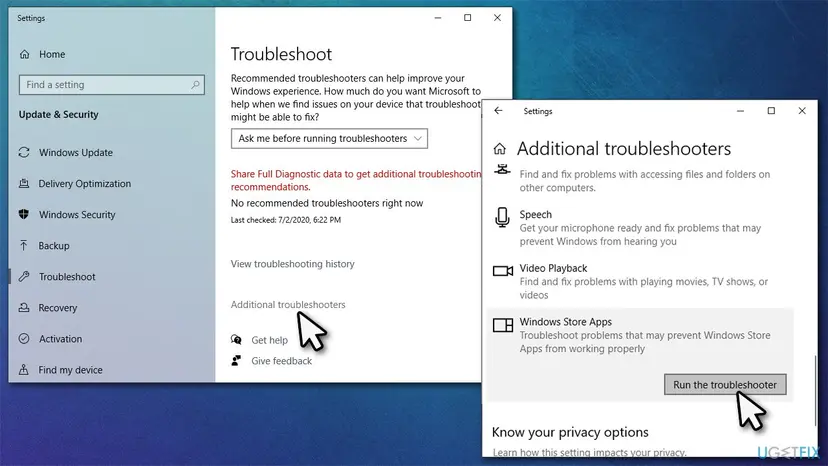
1. Run Windows Store Apps Troubleshooter
- Type Troubleshoot in Windows search and hit Enter
- Click Additional troubleshooters if you can't see them listed on the right
- Scroll down until you see Windows Store Apps
- Click this option and select Run the troubleshooter
- Wait till scan is complete, apply the suggested fixes and restart your machine.
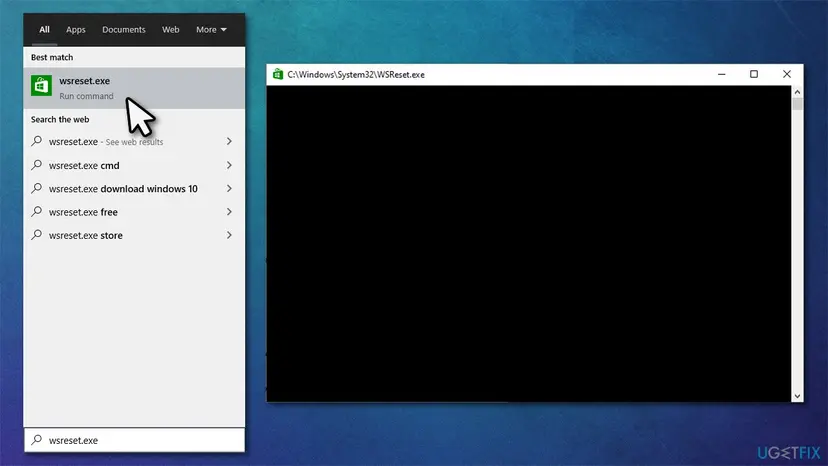
2. Reset app's cache
- In Windows search, type in wsreset.exe and hit Enter
- At this point, a black pop-up window will show up - do not close it
- Once the cache reset is complete, the Store will reopen.
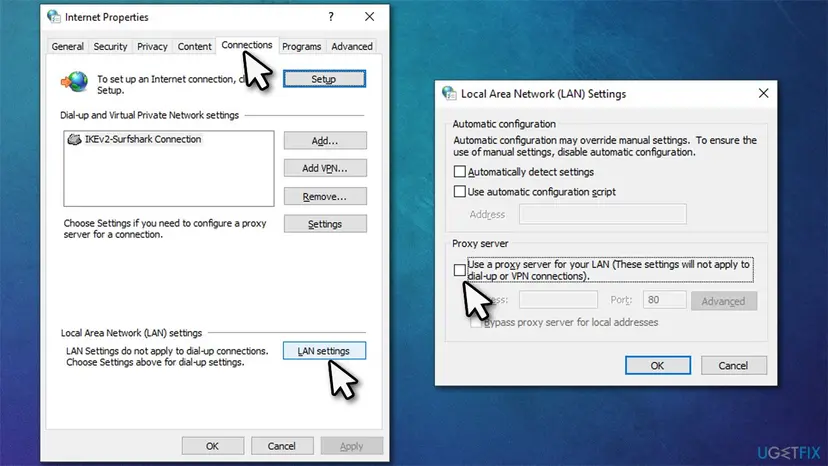
3. Disable proxy
- Type in inetcpl.cpl in Windows search and press Enter
- Go to Connections tab and select LAN Settings
- Untick the Use proxy server for your LAN checkbox
- Click OK.
You can find more detailed instructions and solutions in our dedicated article.
Fix 0x8000FFFF error when using Troubleshooter
Multiple users complained about not being able to run a troubleshooter (for example, Device and Hardware) due to this particular error. If that happens to you, try these steps to fix it:
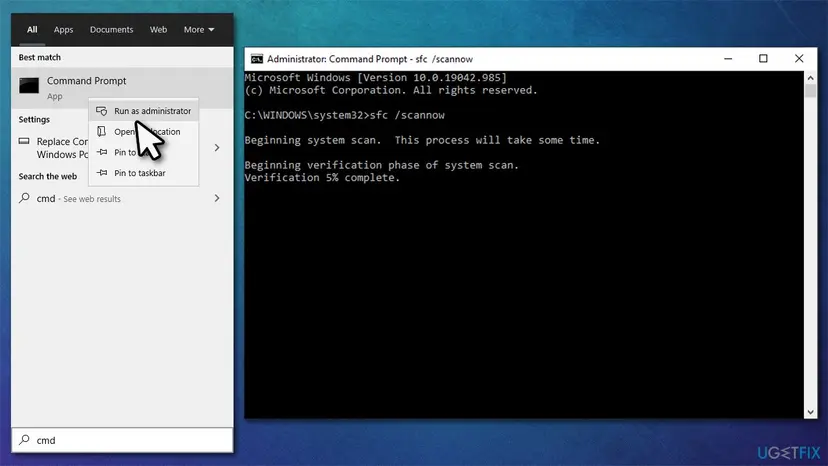
1. Run SFC and DISM
- Type cmd in Windows search
- Right-click on Command Prompt result and select Run as administrator
- Copy and paste this command and press Enter:
sfc /scannow - Wait till the scan is finished.
If SFC successfully managed to fix system file corruption, you should restart your PC. In case an error came up, you should run each of these commands in Command Prompt:
DISM /Online /Cleanup-Image /CheckHealth
DISM /Online /Cleanup-Image /ScanHealth
DISM /Online /Cleanup-Image /RestoreHealth
Once all of these commands are executed, restart your PC and see if that helped you resolve the problem.
2. Uninstall third-party security software
Security software can block certain data transfer processes in some cases. While you can try disabling anti-malware for this step, it is not likely to fix the error if it is indeed at fault. Instead, you should uninstall a third-party security app if you are using such. There is a list of special tools released by each of the security program developers you can use.
Fix Windows Update error 0x8000FFFF
Windows update errors can be particularly frustrating as you might be missing out on mandatory security patches or feature improvements. Here are a few solutions that could help you:
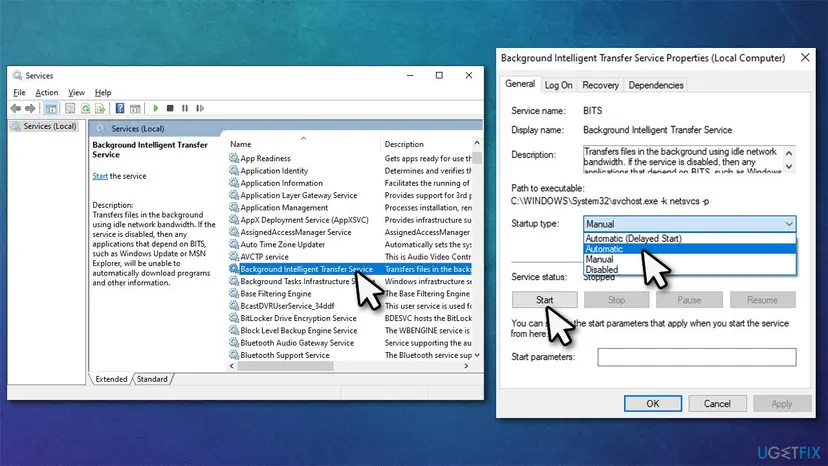
1. Restart BITS and Windows Update services
- Type Windows Services in the search bar and press Enter
- Find the Background Intelligent Transfer Service (BITS) and Windows Update Service
- If they are running already, right-click on each of the services and select Restart
- If the services are not running, double-click and select Automatic from the drop-down menu under the Startup type
- Now click Start, Apply, and OK.
2. Reset Windows Update components
- Open Command Prompt as administrator as explained above
- Copy and paste the following commands, pressing Enter after each:
net stop wuauserv
net stop cryptSvc
net stop bits
net stop msiserver - Press Win + E to open file explorer and navigate C:\\Windows\\System32\\catroot2 location - delete all the contents
- Now go to C:\\Windows\\SoftwareDistribution folder and delete all the contents inside as well
- Go back to Command Prompt and paste these command lines, pressing Enter each time:
- net start wuauserv
net start cryptSvc
net start bits
net start msiserver - Restart your computer.
If these solutions did not help, make sure you try running Windows Update troubleshooter and running SFC/DISM scans as we explained in previous steps.
Fix 0x8000FFFF: Catastrophic failure
Program compatibility issues are the likely cause of the Catastrophic failure error, so you should enable Clean Boot:
1. Use Clean Boot
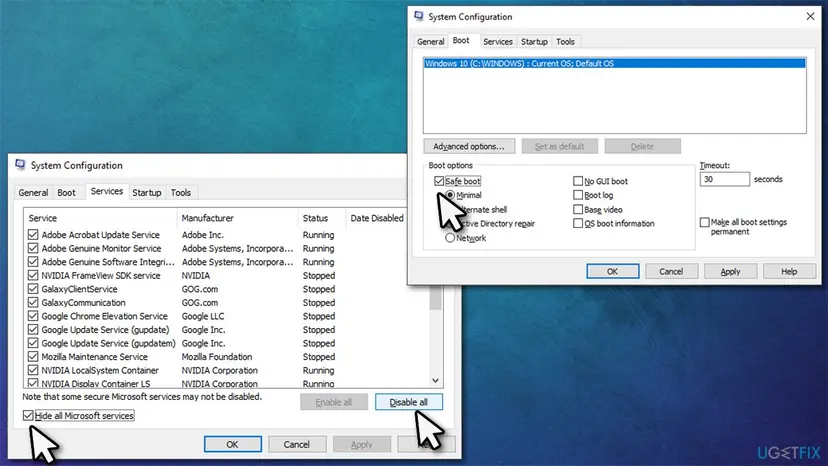
- Press Win + R on your keyboard, type msconfig and hit Enter
- Go to Services tab and tick the Hide all Microsoft services box, and click Disable all
- Now select the Startup tab and click Open Task Manager
- Here, right-click on each of non-Windows entries and pick Disable
- Close down the Task Manager
- Go to Boot tab and mark the Safe boot option
- Click Apply, OK, and restart your computer.
If the problem is resolved, you need to uninstall recently installed applications.
2. Use System Restore
If clean boot did not resolve your problem or you can't identify which program is causing issues, you should rely on System Restore to go back in time when the problem did not exist:
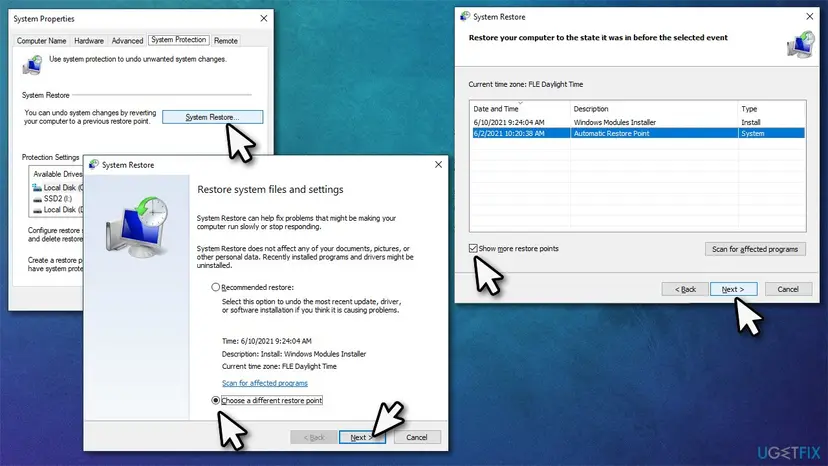
- Type in Create a System Restore Point in Windows search and hit Enter
- Click on System Restore
- Select Choose a different restore point (if available) and click Next
- Mark the Show more restore points checkbox
- Choose the date before you started experiencing the 0x80000FFFF: Catastrophic failure error
- Click Next and reboot the system as required.
Did this fix work?
One click, no account. It tells the next reader which guides are worth their time.
Questions and experiences: fix unexpected error 0x8000FFFF in Windows
Still broken, or found a fix we did not cover? Ask here: members and our editors answer. Reading is open; writing needs a free account.
…