How to fix
USB mouse not working
on Windows
Troubleshoot USB mouse issues in Windows 10 and 11 quickly. Get reliable fixes to enhance your experience and regain control—expert-tested solutions await!

What causes How to fix USB mouse not working in Windows?
- Outdated or incompatible drivers
- Conflicting software or settings
- Power-saving settings disabling USB ports
- Hardware-related problems with the mouse
- Malfunctioning buttons or damaged USB cable
Repairs Windows system files, removes malware, and restores a clean OS state — without reinstalling.
I am using a simple USB mouse for my daily tasks on Windows, and it suddenly stopped working. Any idea on what is going on here?
A mouse is a crucial input device that allows users to interact with their computers by navigating, selecting, and interacting with graphical user interfaces. There are various types of mice available, including optical, wireless, and trackpad, but the USB mouse is the most popular choice due to its ease of use and compatibility with a wide range of devices.
However, users often encounter issues with their USB mouse not working in Windows, which can be frustrating and impact their productivity. Sometimes, the issue arises after software installations, Windows updates, or other system changes. Other times, users may experience unexpected mouse failure, where their mice simply stop working one day without any apparent reason.
The causes for a USB mouse not working in Windows can be diverse. One common issue is outdated or incompatible drivers. Mouse drivers facilitate communication between the mouse and the operating system, and when they are outdated or incompatible, it can result in mouse malfunction. Users may need to update their mouse drivers from the manufacturer's website or through Windows Device Manager to resolve this issue.
Another potential cause could be conflicting software or settings. Certain power-saving settings in Windows may disable USB ports to conserve power, which can result in the USB mouse not working. To resolve this, you can check the power settings and disable any USB-related power-saving options if necessary.
Additionally, third-party mouse management tools or antivirus programs may conflict with the mouse's functioning. Disabling or uninstalling such software temporarily can help identify and resolve the issue.
Hardware-related problems with the mouse itself, such as malfunctioning buttons or a damaged USB cable, can also cause the USB mouse to stop working. Users can try using a different USB mouse or connecting the mouse to another computer to determine if the issue persists.
General checks to make
Note that many of the fixes are much easier to perform when you do have a working mouse. So if you have a backup mouse, use it for the troubleshooting steps below.
General bugs and temporary issues could cause the USB mouse to stop working on Windows. Thus, below we provide general fixes that you may or may not have tried yet.
- Restart your computer and see if this improves things.
- Try plugging your mouse into different USB slots - use 3.0 (blue port) instead of 2.0 (black port) and vice versa.
- Check for physical damage: make sure your keys are clicking, and the wire is not damaged.
- Scan your system with security software to ensure it's not the malware that is causing malfunction.
- Employ an automatic PC repair tool such as [d1] to fix any underlying Windows issues automatically.
Fix 1. Run hardware and devices troubleshooter
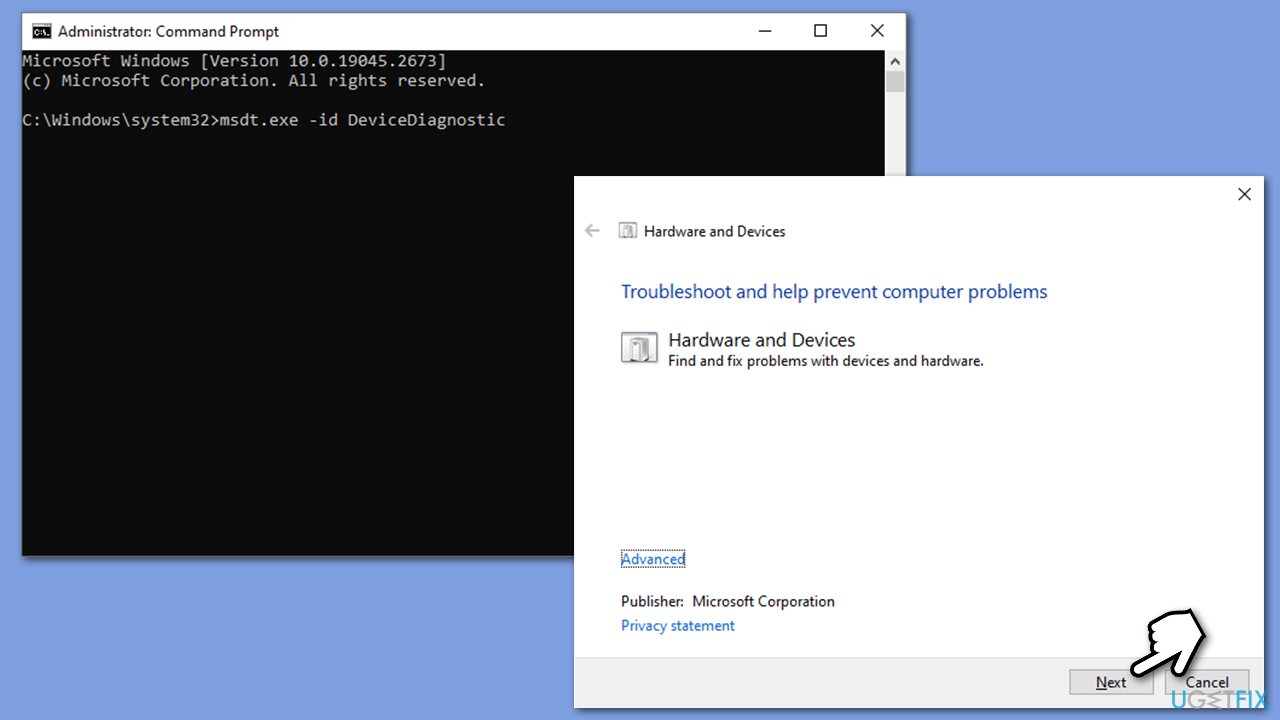
- Type cmd in Windows search.
- Right-click on the Command Prompt result and pick Run as administrator.
- Copy and paste the following command, pressing Enter after:
msdt.exe -id DeviceDiagnostic - Follow on-screen instructions to run the troubleshooter and apply the suggested fixes.
- Restart your PC.
Fix 2. Update your drivers
Drivers are an integral part of any hardware component or device connected to Windows. In this case, we recommend you update your USB and mouse drivers.
If you use a dedicated mouse from a vendor known to provide special software for your devices (for example, Logitech, Razer, Steelseries, etc.), you can update drivers using it. Alternatively, you can always rely on automatic driver updaters such as [rev id="DriverFix"]. You can also download drivers from your device manufacturer's website.
Fix 3. Reinstall drivers
If updating drivers did not work, you can try reinstalling drivers instead.
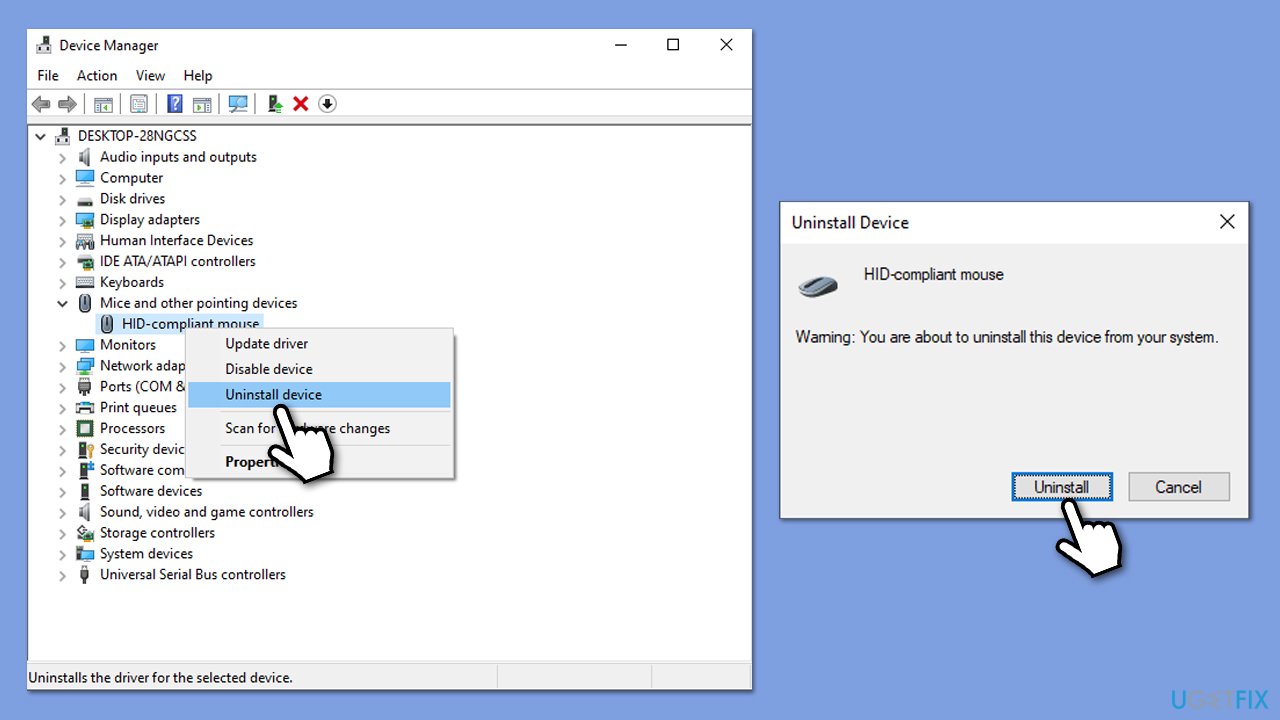
- Right-click on Start and pick Device Manager.
- When Device Manager opens, expand the relevant section, e.g., Universal Serial Bus controllers or Mice and other pointing devices.
- Right-click on your device and select Uninstall device.
- When the prompt comes up, confirm with Uninstall.
- Reboot your PC, and generic versions of drivers should be installed.
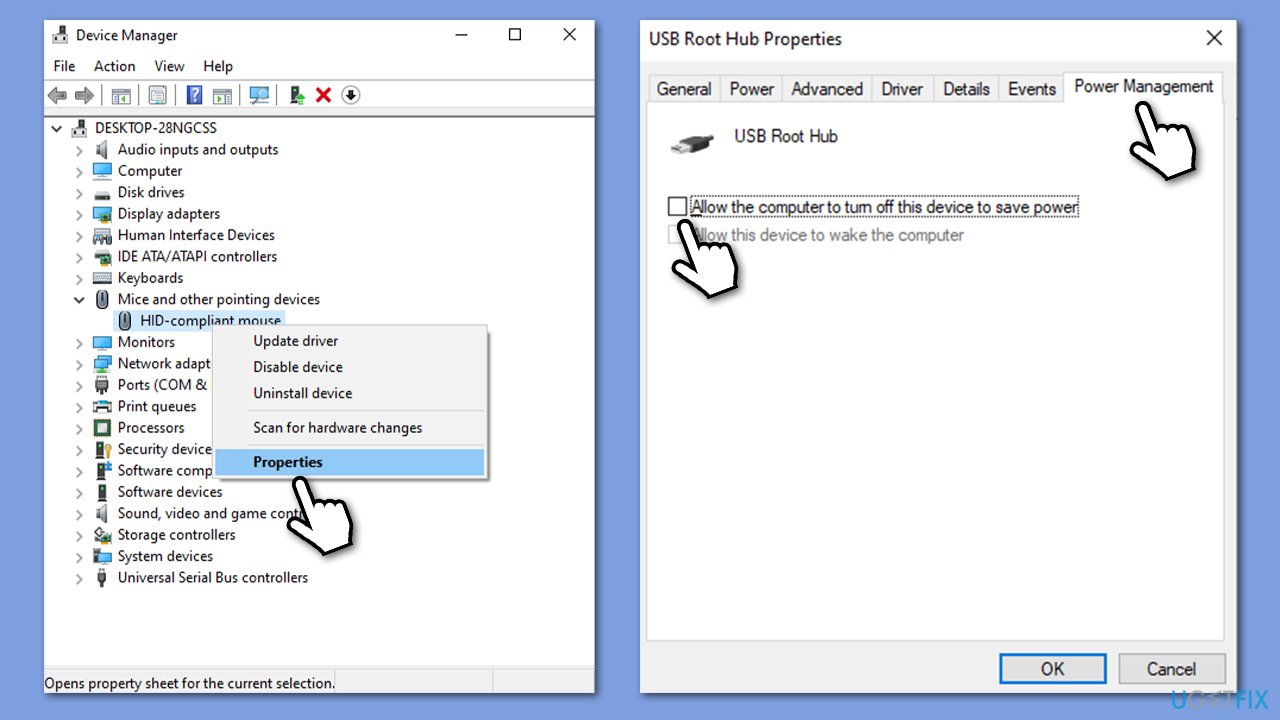
Fix 4. Disable Power Saving
- Right-click Start and pick Device Manager.
- Expand the Mice and other pointing devices section.
- Right-click on your mouse and pick Properties.
- Untick the Allow the computer to turn off this device to save power option.
- Click OK.
Fix 5. Try Clean Boot
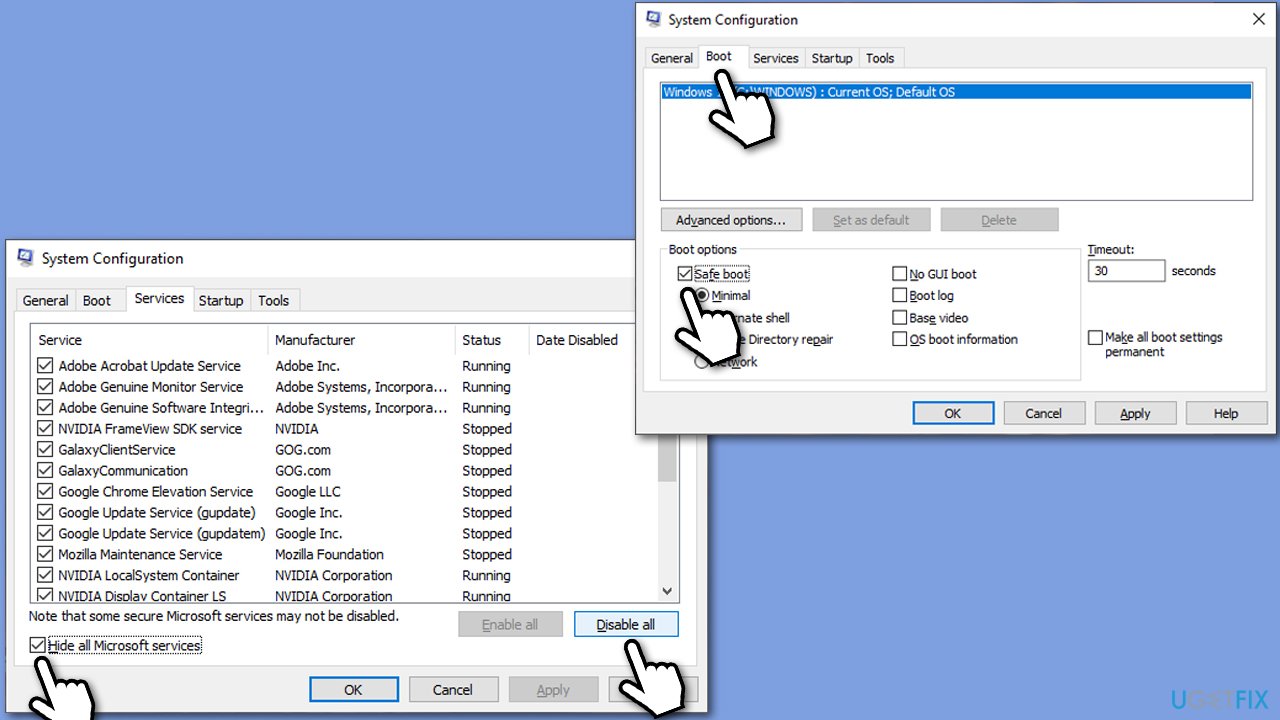
Clean Boot can let you identify conflicting and corrupt software that could cause your USB mouse stop working.
- Type msconfig in Windows search and press Enter.
- Pick the Services tab.
- Mark Hide all Microsoft services and select Disable all.
- Select the Startup tab and click Open Task Manager.
- In the Task Manager, right-click on each of the items and select Disable, then close the Task Manager.
- Go to the Boot tab, tick Safe Boot, then click Apply and OK.
Fix 6. Uninstall the recent Windows update
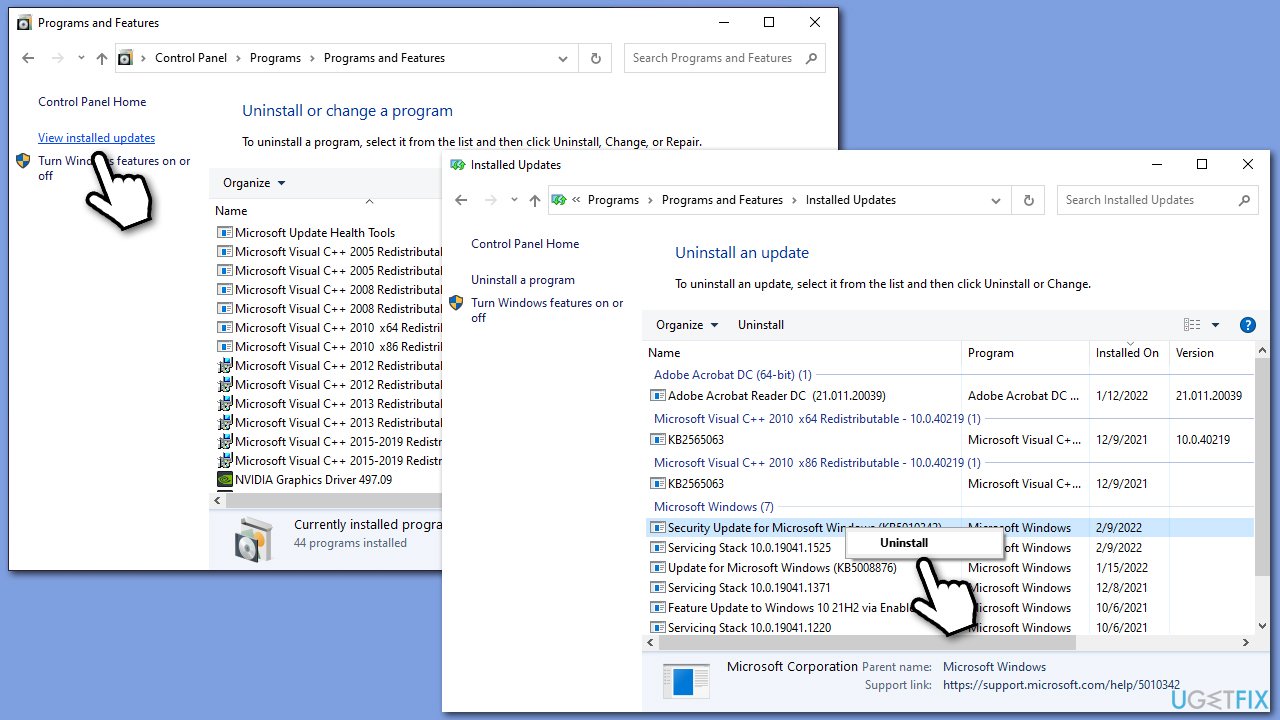
If problems started after installing the Windows update, you could try uninstalling it as follows:
- Type Control Panel in Windows search and press Enter.
- Navigate to Programs > Uninstall a program.
- Select View installed updates.
- From the list, uninstall the most recent Windows update (right-click > Uninstall).
- Type in Updates in Windows search and press Enter.
- Here, click the Pause updates for 7 days button (or if you are using Windows 11, you can customize the time you can pause the updates).
Related topics:
Bottom line
To fix a USB mouse not working in Windows, users can update mouse drivers, check power settings, and disable conflicting software. If the issue persists, testing the mouse on another computer or trying a different mouse can help determine the cause.
Frequently asked questions
First, try plugging the mouse into a different USB port or another computer to check if the issue is with the mouse itself. If it works elsewhere, update your USB drivers in Windows 10 via Device Manager.
You can run the Hardware and Devices troubleshooter by going to Settings > Update & Security > Troubleshoot > Additional troubleshooters. If the problem persists, consider disabling USB selective suspend in the power settings.
Sometimes, Windows updates can cause driver conflicts; check for updates to your mouse drivers or roll back recent updates if necessary. Ensure that your USB ports are functioning correctly and not disabled in Device Manager.




Report an issue
What's wrong with this guide? We review every report and update or remove content.
Report received — thank you. We'll review and fix it.
You need a free account to submit a report.
Be the first to comment