
How to fix VIDEO_SCHEDULER_INTERNAL_ERROR on Windows?

Prefer to fix it yourself? The manual steps follow.
5 methods in this guide
I’ve installed new RAM sticks and I had no problems at the start. However, for the past two weeks, I have been having frequent computer crashes with the error STOP Error 0x119: VIDEO_SCHEDULER_INTERNAL_ERROR keeps returning, forcing me to restart the PC. Is this error serious? Is it possible to fix it without the help of an IT technician?
Video Scheduler Internal Error is a Blue Screen of Death or a Stop error, and users often call it Video Scheduler Internal Error. Fatal system errors occur when Windows cannot operate safely any longer and needs to shut down. While in most cases users recover from a stop error after the system restart, a repeating BSOD can indicate a much more serious problem.
The error indicates a bug check value, which is 0x00000119. Therefore, if you try to initiate further research related to this BSOD, you should also look for Error 0x119. Video Scheduler Internal Error has mostly related to the video card and/or it's drivers or can occur after installing new hardware. Additionally, users are unable to fix Video Scheduler Internal Error if their hardware is failing.
Frequent Video Scheduler Internal Error might also occur due to RAM stick malfunction. If you hear various beeps when the error occurs, or when you are restarting your machine, it is highly likely that your RAM is corrupted and needs replacement.
While some users reported that Video Scheduler Internal Error occurs randomly and has no particular triggers, others noted that the BSOD appears after starting a specific program, e.g., a video game. Additionally, the frequency may vary from 15 minutes to up to two hours or more.
Nevertheless, before you proceed with replacing hardware, we suggest you try to fix VIDEO_SCHEDULER_INTERNAL_ERROR with the help of our detailed guide below.
PROTIP: please be aware that stop errors might be caused by malware or due to the corruption of system files.
Fix 1. Run all Windows updates to fix Video Scheduler Internal Error
New patches are vital for proper system operation and security. Therefore, make sure that Windows is up to date, as outdated systems might cause Video Scheduler Internal Error:
- Right-click on the Start button and choose Settings
- Click on Updates and security
- Proceed with Check for updates
- Once Windows updates are finished installing, restart your machine
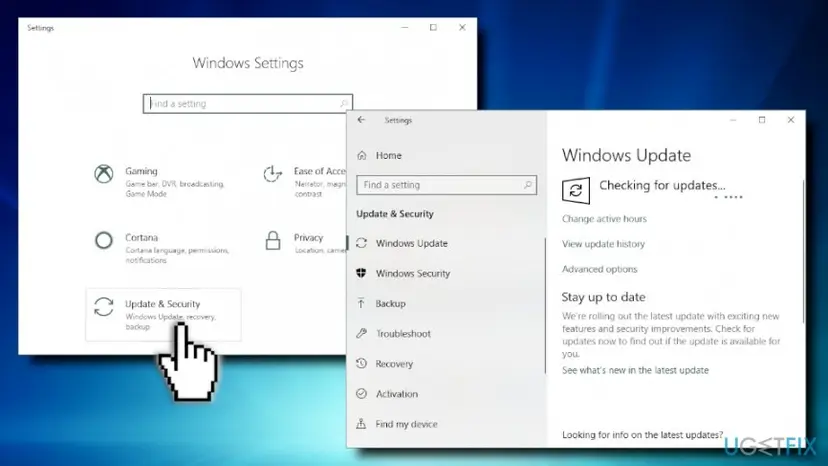
Video scheduler internal error update windows
Fix 2. Reinstall graphics card drivers
Because the most common reason for 0x119: Video Scheduler Internal Error is the graphics card drivers, it is best to uninstall them completely and then get new version installed. Please follow these steps:
- Right-click on Start on select Device Manager
- Expand Display adapters
- Right-click on the graphics card and press Uninstall device
- Mark Delete the driver software for this device and press Uninstall
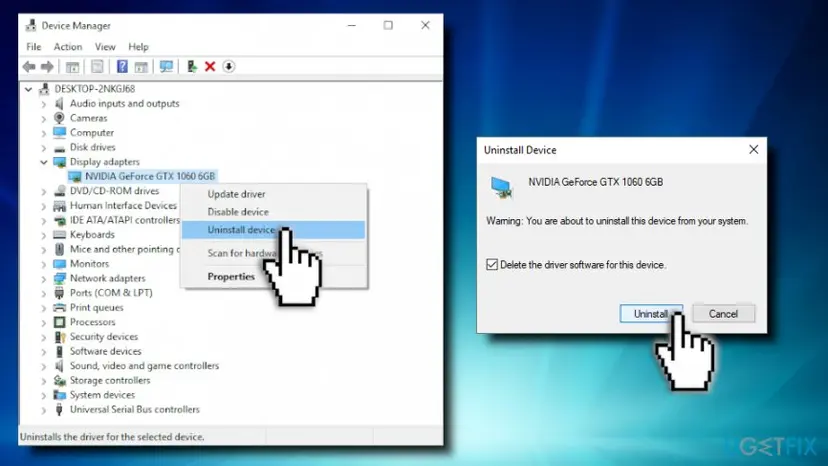
Video scheduler internal error reinstall drivers - Once the GPU driver is uninstalled, open Device Manager again
- Click on Scan for hardware changes
- Windows will automatically reinstall new drivers for your device
- Restart your PC
Fix 3. Disable hardware acceleration
This feature allows Chrome to use GPU for intensive video tasks. While it is beneficial for utilization and decreasing latency in some cases, it might cause various issues, for example, Video Scheduler Internal Error. To switch off hardware acceleration, follow these steps:
- Open Chrome and go to Menu > Settings > Advanced
- Locate System
- Untick Use hardware acceleration when available

Video scheduler internal error disable hardware acceleration
Fix 4. Run Windows scans to get rid of Video Scheduler Internal Error
Windows has various built-in tools available to check for various system errors. To run them you will have to access Command Prompt (Admin):
- Type cmd or Command Prompt into the search box and hit Enter
- In the newly opened window, type sfc /scannow and press Enter
- Wait till the scan finishes. Windows will repair any found errors automatically
If this did not help, you can try to check your disk for errors:
- Go to Command Prompt again
- Type in chkdsk /f /r and press Enter
- You will not be able to run Check disk immediately, as you need to restart your PC for that. Therefore, type in Y and press Enter
- Next time you restart your PC, Windows will perform a full disk check - beware that this process can last for hours
Fix 5. Change your Nvidia settings
- Open Nvidia Control panel
- Under 3D Settings, click on Adjust image settings with preview
- On the right pane, select Use my preference emphasizing and choose Performance
- Click Apply
- Next, go to Configure Surround, PhysX
- Under PhysX settings, pick Auto-select (recommended)
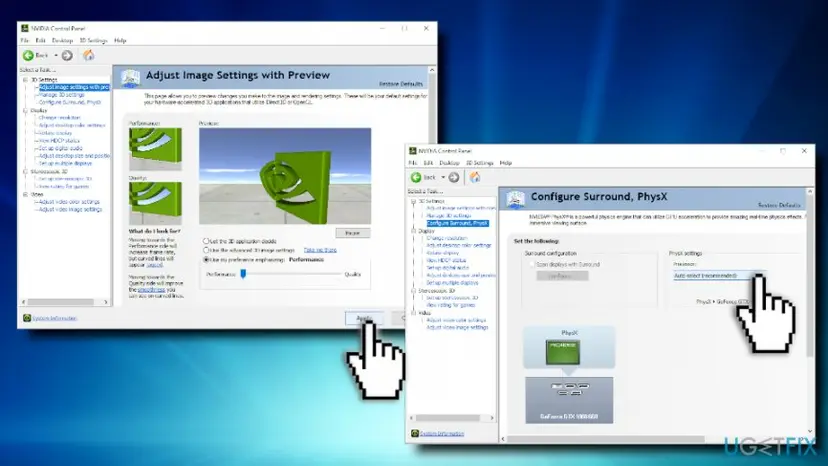
Video scheduler internal error adjust nvidia settings
Other solutions
If none of the above worked for you for the Video Scheduler Internal Error fix, you can try the following methods:
- Clean your machine from dust;
- Make sure your GPU is getting enough airflow;
- Check for hardware malfunction, especially that of the GPU. Many users said that their hardware is new; however, some equipment can be faulty, and in such a case you will have to return it for the replacement;
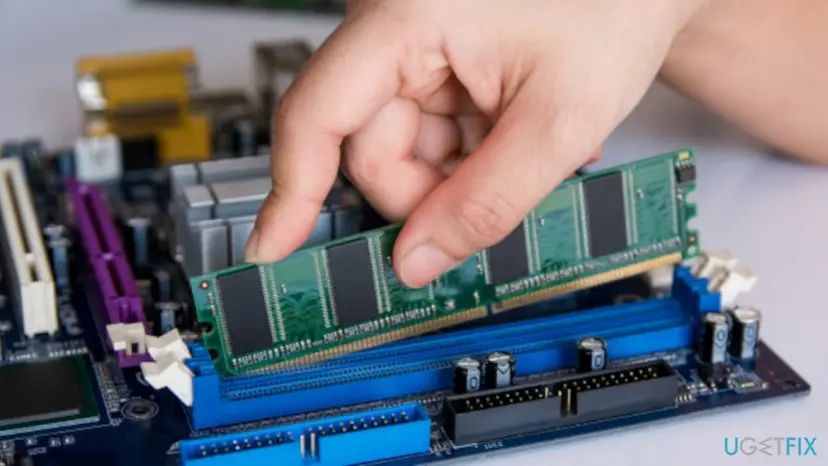
Video scheduler internal error replace faulty hardware - Undo all the changed you recently done to your PC, such as adding new hardware, installing programs, and similar;
- As a last resort, you can refresh or reinstall your Windows.
Did this fix work?
One click, no account. It tells the next reader which guides are worth their time.
Questions and experiences: fix VIDEO_SCHEDULER_INTERNAL_ERROR on Windows
Still broken, or found a fix we did not cover? Ask here: members and our editors answer. Reading is open; writing needs a free account.
…