How to fix
“Warning: Known issues with graphics driver” error
on Windows
Resolve the "Warning: Known issues with graphics driver" error in Windows 10 and 11 effortlessly. Expert-tested solutions for quick fixes.


What causes How to fix “Warning: Known issues with graphics driver” error in Windows?
- Outdated graphics driver
- Corrupted graphics driver
- Incompatible graphics driver
- Issues with the specific game or application
Repairs Windows system files, removes malware, and restores a clean OS state — without reinstalling.
Every single time I try to open Fortnite, I get an error message "Warning: Known issues with graphics driver. The installed version of the Nvidia graphics driver has known issue with D3D11. Please install the latest driver version or switch to a different rendering API." What should I do?
Drivers are essential software that allows your computer's operating system to communicate with hardware components like graphics cards, printers, and sound systems. Without the correct drivers, your computer might have trouble using these devices properly, which can lead to performance issues or hardware failures.
If you play games like Fortnite and Dead by Daylight or use graphic-intensive applications, you may have seen the "Warning: Known issues with graphics driver" error in Windows. This error usually appears when there's a problem with the installed graphics driver. The issue could be that the driver is outdated, corrupted, or incompatible with your system or the specific game you're trying to run.
This error can be frustrating because it often leads to poor performance, crashes, or the inability to launch your game or application. Fixing this issue quickly is important to keep your system running smoothly.
Here are some methods to resolve the "Warning: Known issues with graphics driver" error in Windows:
- Update your graphics driver
- Reinstall the graphics driver
- Roll back to a previous driver version
- Adjust game settings
- Check for Windows updates
If you're facing the "Warning: Known issues with graphics driver" error, these solutions should help you fix it and get back to gaming or using your applications. Detailed instructions for each solution can be found below the article.
Lastly, consider using a reliable PC repair app [d1] to address issues like corrupted files, DLL problems, and registry errors, ensuring your system runs smoothly.

Fix 1. Update your graphics driver
Outdated graphics drivers are a common cause of the "Warning: Known issues with graphics driver" error. Updating to the latest driver ensures compatibility with the latest games and applications, and fixes any bugs or issues that may be present in older versions.
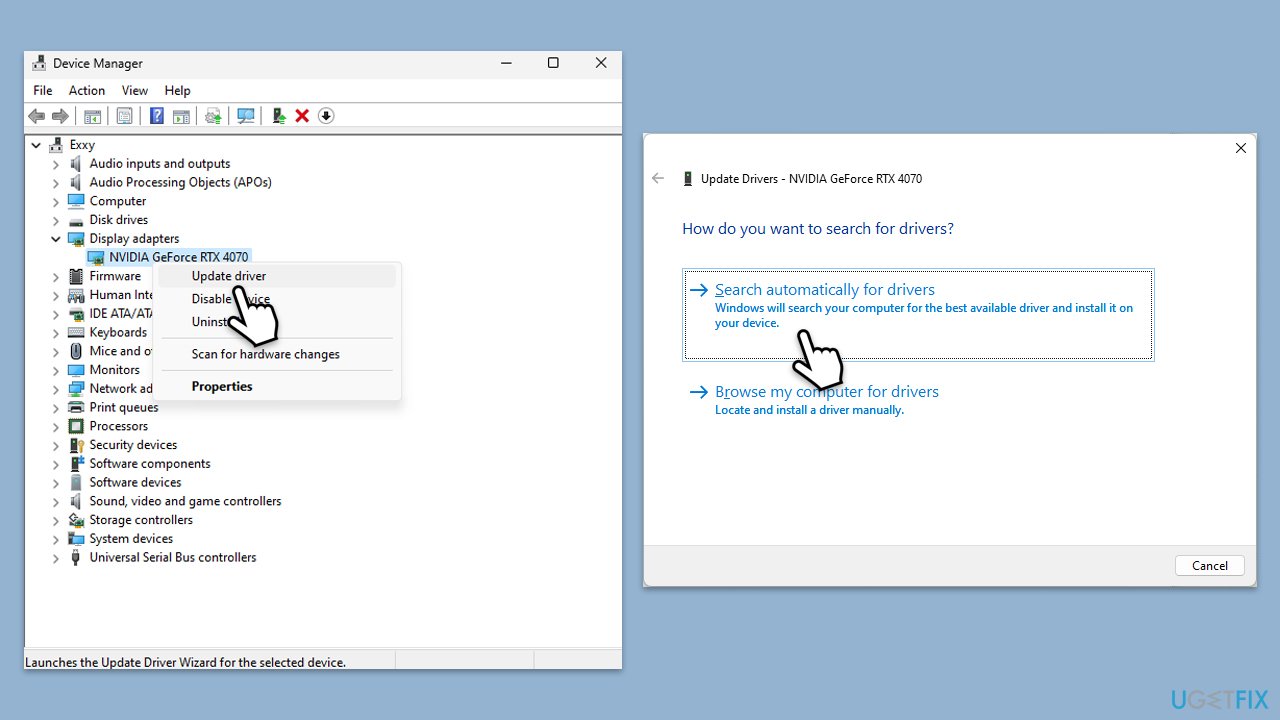
- Right-click on Start and pick Device Manager.
- In the Device Manager window, expand the Display adapters category to reveal your graphics card.
- Right-click on your graphics card and select Update driver.
- Choose the option to Search automatically for drivers. Windows will search for and install the latest drivers for your graphics card.
- Follow the on-screen instructions to complete the driver update process.
- After the update is finished, restart your computer.
- For a more hands-off approach, use an automatic driver updater such as [rev id="DriverFix"].
Fix 2. Reinstall the graphics driver
Sometimes, the current driver files might become corrupted, leading to issues. Reinstalling the graphics driver can refresh the files and solve the problem.
- Download DDU from the official website.
- Extract the compressed file, you should find the installer inside.
- Next, while holding the Shift button, click on Start > Restart.
- After a reboot, go to Troubleshooter > Advanced options > Startup settings > Restart.
- Press 4 or F4 to access Safe Mode.
- After a restart, go to the location where you downloaded DDU.
- Click on Display Driver Uninstaller.exe to open the program.
- Close the Options window.
- Under Device type, pick GPU from the drop-down menu.
- Click Clean and restart.
- Your PC will reboot.
- Once done, use one of the methods described above to install the newest GPU drivers.

Fix 3. Roll back to a previous driver version
If the error began after a recent driver update, it might be due to a bug in the new version. Rolling back to a previous, stable version of the driver can resolve the issue.
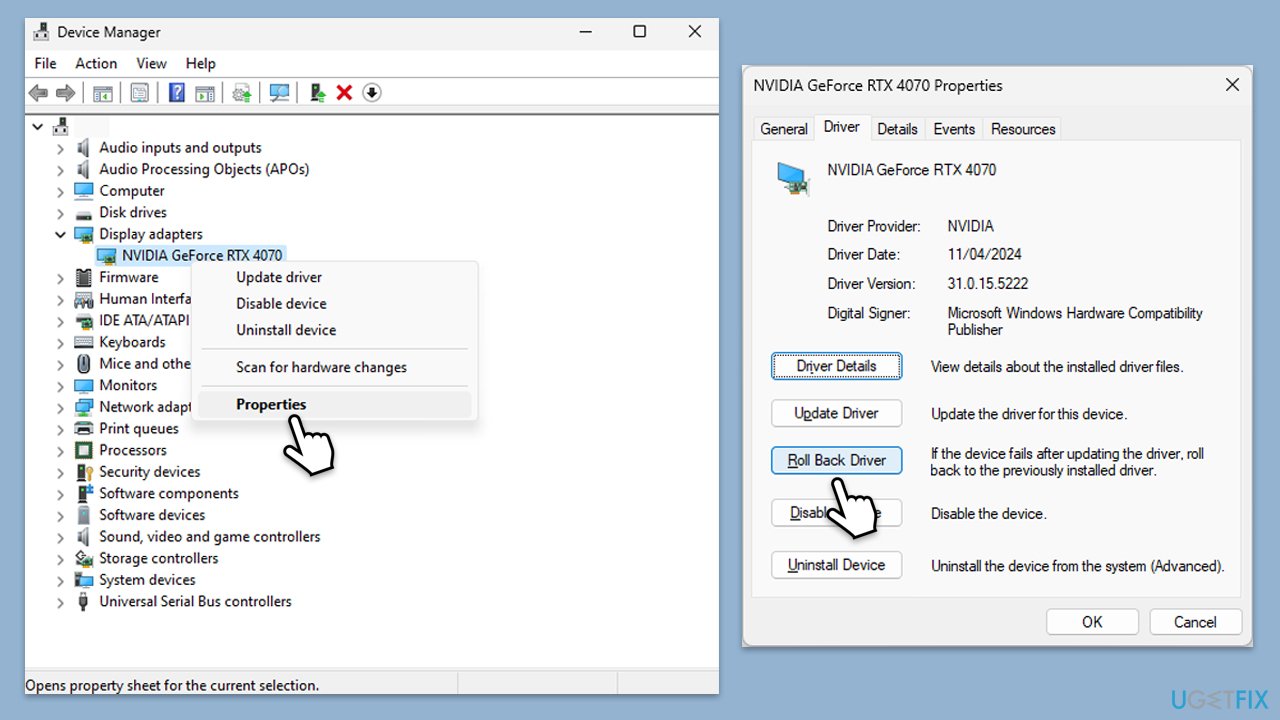
- Right-click on the Start button and select Device Manager from the menu.
- Expand the Display adapters section.
- Right-click on your graphics card and select Properties.
- Go to the Driver tab at the top.
- Here, you will see an option to Roll Back Driver.
- Click it and follow the on-screen instructions to finish the process.
- If Roll Back Driver option is grayed out for you, please check our guide on how to roll back Nvidia drivers in an alternative way.
Fix 4. Adjust game settings
High game settings can put a lot of stress on your graphics card, sometimes leading to the error. Lowering these settings can reduce the load and prevent issues.
- Open the game that is causing the error.
- Go to the game's settings menu.
- Reduce the resolution to a lower setting.
- Lower the graphics quality (e.g., from high to medium or low).
- Disable features like V-Sync, anti-aliasing, or motion blur if available.
- Save changes and restart the game.
Fix 5. Check for Windows updates
Compatibility issues between your operating system and the graphics driver can cause errors. Keeping Windows up-to-date can fix these issues by providing necessary patches and improvements.
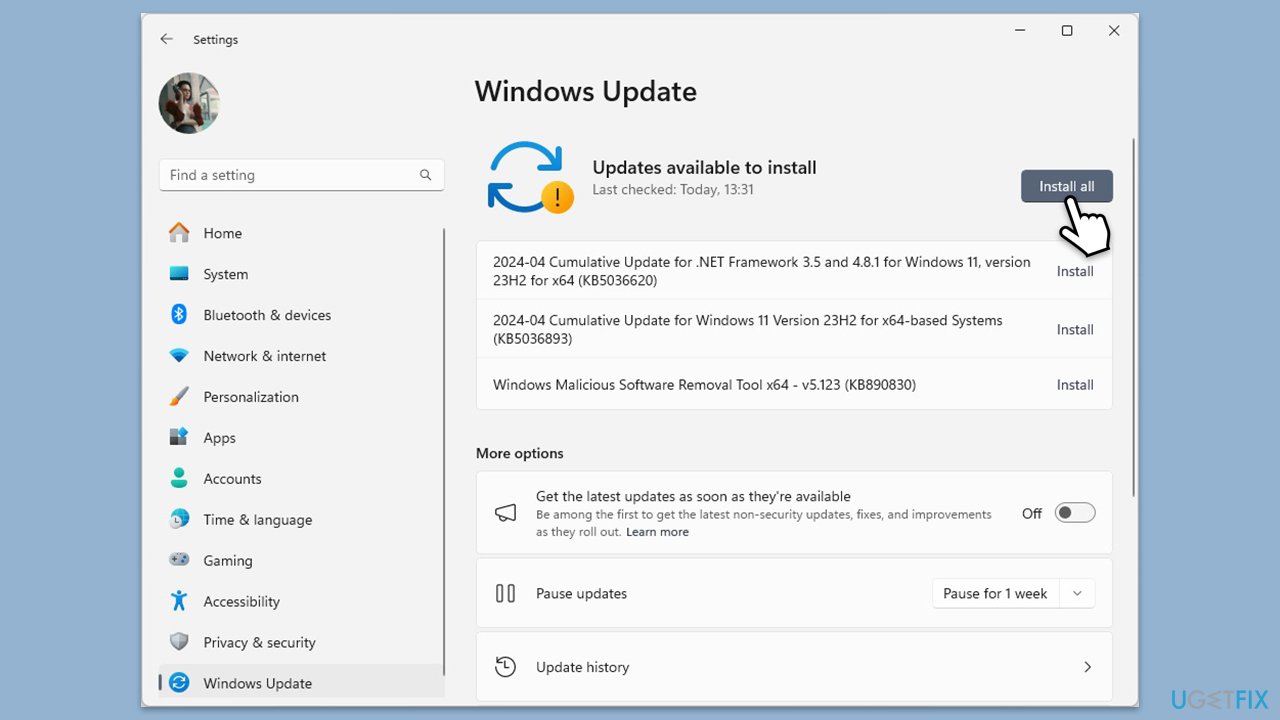
- Type Updates in the Windows search bar and press Enter.
- The new window will open and you should be notified about available updates - click Install all.
- If none are available, click Check for updates, and they should be installed automatically.
- Don't forget to install all the available optional updates.
- When done, restart your computer.
Bottom line
To resolve the 'Warning: Known issues with graphics driver' error, you can update your graphics driver, reinstall it, roll back to a previous version, adjust game settings, or check for Windows updates. If none of these solutions work, consider using a reliable PC repair app to address underlying system issues.
Frequently asked questions
This error typically occurs due to compatibility issues between the graphics driver and the operating system, often after a Windows update or driver installation.
To fix this error, try updating your graphics driver through Device Manager or by downloading the latest version from the manufacturer's website.
Yes, rolling back to a previous version of the graphics driver can resolve the warning if the current version is causing compatibility issues.




Report an issue
What's wrong with this guide? We review every report and update or remove content.
Report received — thank you. We'll review and fix it.
You need a free account to submit a report.
Be the first to comment