
How to Fix We Can’t Sign Into Your Account Error on Windows?
Prefer to fix it yourself? The manual steps follow.
5 methods in this guide
- Methods to Fix We Can’t Sign Into Your Account Error
- Option 1. Create a Temporary Profile and install Windows updates
- Option 2. Sign into Microsoft account using web browser
- Option 3. Check if "We can’t sign into your account" is not a scam
- Option 4. Solve the problem with Command Prompt
- Option 5. Use Registry Editor to regain access to your account
HELP!!! For some reason, I can't sign into my Microsoft account. When I try to sign into my account, I receive a message that says "We can't sign into your account. This problem might get fixed by signing out of your account and then signing back in." I can’t use my personal files, docs, and everything that is in there.
Why? Please tell me how to fix this issue ASAP.
We can’t Sign Into Your Account error message informs about a problem that prevents you from signing into your user profile. Usually, Windows then creates a temporary one and allows the user to sign in to it.
The error message says that the issue can often be fixed by signing out of your account and then signing back in, but if this method doesn't solve the problem, you might need to apply an advanced fix.
The problem with the We can’t sign into your account error first occurred along with the release of Windows Anniversary Update. All of a sudden, Windows 10 locks you out of your account by delivering a pop-up window, which simply states the fact that Windows can’t sign in.
The error occurs during the boot up phase when you click on your account’s logo and enter a password (if you are using it). The message reads:
We can't sign into your account.
This problem can often be fixed by signing out of your account and then signing back in.
If you don't sign out now, any files you create or changes you make will be lost.
Unfortunately, but an exact reason for We can’t sign into your account error is not clear. It is assumed that it may be triggered by user profile mix up, registries, corrupted files or malware. However, it does not seem to be a very serious issue. However, don’t lose hope and try the fixes that we provide below.
We are sure that it will help you to fix We can’t sign into your account without any difficulties. However, the cause of such error might not be Windows anniversary update entirely. In that case, you will find alternatives methods to solve the problem.
Methods to Fix We Can’t Sign Into Your Account Error
A number of people who experienced a locked desktop by We can’t sign into your account error issue reported that they were able to access their accounts after rebooting their PCs several times in a row.
However, this fix is a temporary one, so sooner or later you will receive the error message again. Luckily, you can fix it permanently by doing the following:
Option 1. Create a Temporary Profile and install Windows updates
- Turn on your PC and wait until the Windows booting screen shows up.
- As soon as it appears, press Restart button.
- After that, select Troubleshoot and then click Advanced Options.
- Opt for Startup Settings and press F4 to open Safe Mode.
- Then wait until your PC restarts and boots into Safe Mode.
- Wait until your computer loads and then press Windows key and press R at once.
- Type regedit in the box and click Enter to open Registry Editor.
- Here you should go to the following:
HKEY_LOCAL_MACHINE\\SOFTWARE\\Microsoft\\Windows NT\\CurrentVersion\\ProfileList.
- Expand ProfileList and you will see a few subfolders named by values starting S-1-5-XX (XX could be any number).
- You have to select the one that has the ProfileImagePath key set to the system profile path.
- Click twice on the RefCount key and change its value to 0 from 1 and click OK.
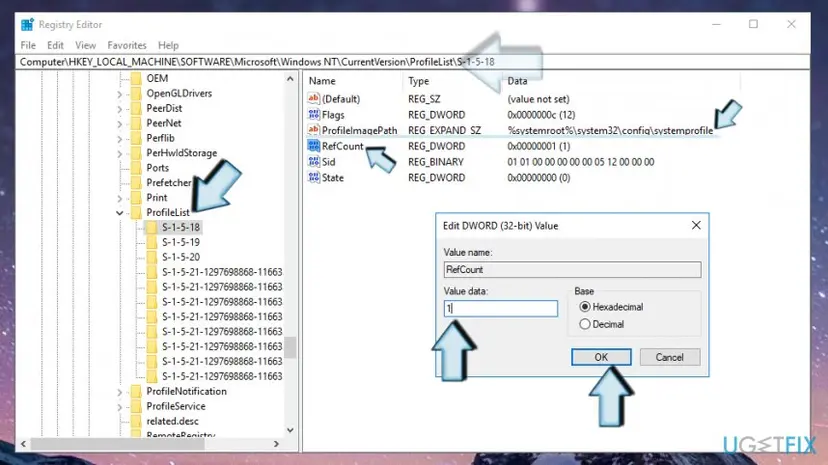
Adjust refcount key value in windows registry - Close everything and restart your PC.
Install Windows updates
- When your computer fully boots, Navigate to Settings App → Select Updates & Security → Windows Updates.
- Select Check for Updates option and wait until the system scans for available options.
- As soon as you get the list with all Windows updates that you are recommended installing, click Run the Updates.
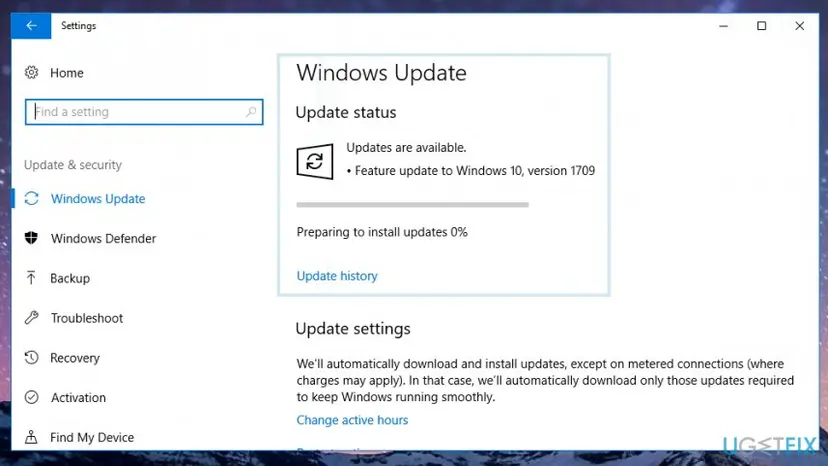
Install windows updates - After all updates are installed, reboot your PC.
Option 2. Sign into Microsoft account using web browser
One of users who experienced this issue suggested a method that helped him fix the "Can't sign into your account" error.
Step 1. Log into a temporary profile.
- Once you're logged in withe the temporary profile, go to C:\\Users\\ and find the folder that belongs to your profile. Create a copy of it.
- Then open your browser and navigate to Microsoft account login page. Sign into the Microsoft account that you're having problems with.
- Log out of Windows OS and log back in.
If the annoying error message still appears on the screen, leave it on the screen (don't close it!) and do the following:
- Click on Windows icon in the lower left corner of the screen (Start menu) and use right mouse button to click on your Account icon. If you can't find it here, you will see Shut down or sign out option. Click on it and then select Sign Out from the menu.
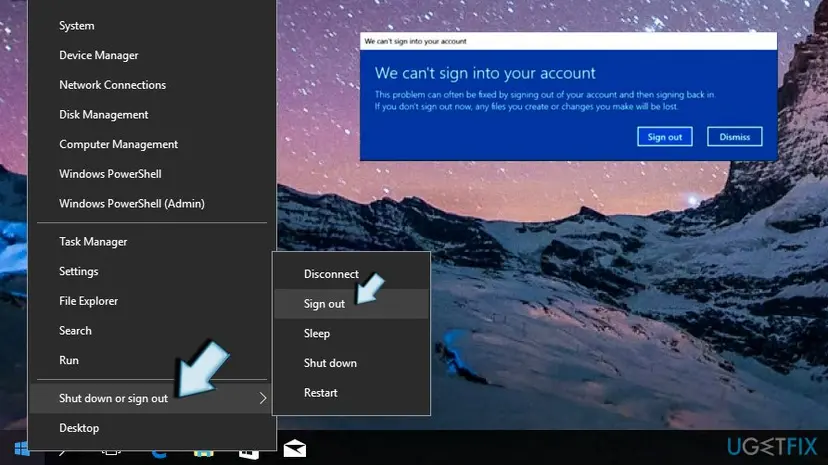
Sign out of windows - Log back into the computer.
Option 3. Check if "We can’t sign into your account" is not a scam
If you notice additional links to remote-control applications such as Team Viewer or LogMeIn and see an indicated phone number, it might be a tech support scam. Before that, enter Safe Mode or Safe Mode with Networking if you need to install the program.
Method 1.
- Press the Power button at the Windows login screen. Now press and hold Shift and click Restart.
- Opt for Troubleshoot → Advanced options → Startup Settings and finally press Restart.
- Once your computer becomes active, select Enable Safe Mode or Safe Mode with Networking in Startup Settings window.
Method 2.
- Press Windows key + R to launch Run prompt. Enter msconfig and if required, type Administrator's password to access System Configuration panel.
- Here, select Boot tab and then check Safe boot option. If you plan to remove the malware while in Safe Mode, but you do not have a security software to do it, select Safe Boot (Network) option.
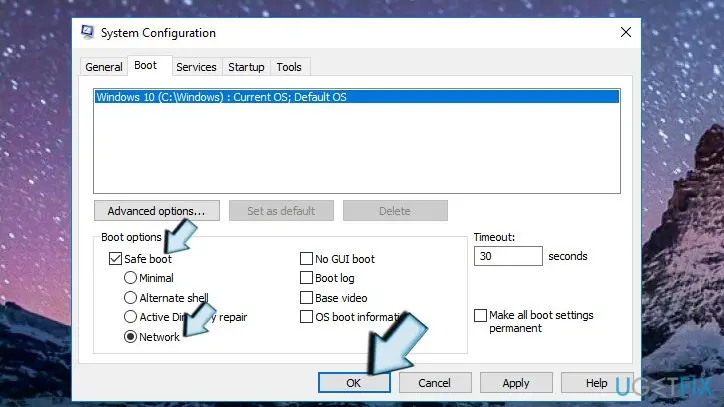
System configuration safe boot - Hit Apply and OK.
Now you will be able to access the computer. This method will not help you remove all possible malicious files but it will help you solve the problem activating other functions. To remove malware, use one of the anti-spyware or anti-malware programs we recommended earlier.
Option 4. Solve the problem with Command Prompt
- Use the first option to boot into Safe Mode, but in the options list, choose Enable Safe Mode with Command Prompt.
- Follow these commands consecutively. Click Enter after each one.
- net user /add useraccountname mypassword
- net localgroup administrators useraccountname /add
- net share concfg*C:\\\\/grant:useraccountname,full
- net user useraccountname
Option 5. Use Registry Editor to regain access to your account
- Click Windows key+R, type regedit, and launch Registry Editor.
- Go to the following path:
HKEY_USERS\\.DEFAULT\\Software\\Microsoft\\IdentityCRL\\StoredIdentities
- In the location, find your account, right-click on it, and delete it.
- Now close Registry Editor, and head to Settings -> Accounts.
- Add your account again.
Either of these methods will assist you in regaining access to your account. In case these methods did not help you solve the issue, corrupted registry entries might be the cause. Then you might need to install the operating system again.
If you discovered a new method that helped you to fix the Can't sign into your account issue, please do not hesitate and share it with others in the comment section below.
Did this fix work?
One click, no account. It tells the next reader which guides are worth their time.
Questions and experiences: Fix We Can’t Sign Into Your Account Error on Windows
Still broken, or found a fix we did not cover? Ask here: members and our editors answer. Reading is open; writing needs a free account.
…