How to fix
WHEA_UNCORRECTABLE_ERROR
on Windows
Resolve the WHEA_UNCORRECTABLE_ERROR on Windows 10 quickly and effectively. Get expert-tested solutions to fix issues and restore your system stability.


What causes How to fix WHEA_UNCORRECTABLE_ERROR on Windows 10?
- Damaged hardware
- Incompatible hardware
- Faulty hard disk
- Defective processor
- Malfunctioning graphics card
Repairs Windows system files, removes malware, and restores a clean OS state — without reinstalling.
The latest Windows 10 update has brought some errors on my computer. Now, every couple of minutes, WHEA_UNCORRECTABLE_ERROR pops up, forcing me to reboot the computer. After the reboot, everything seems fine for a while, but then the PC crashes again with the same error. What is the best way to fix it, and is there something that can be done about it?
WHEA_UNCORRECTABLE_ERROR, also known as Error Code 0x00000124, is a serious system malfunction that signals that your computer may be in a critical state. This error is a Blue Screen of Death, which interrupts all work on a Windows computer and makes it restart immediately.
This error has been reported on various Windows operating systems but is the most prevalent on 10/8. Some users claim that they have not had this error before, and it only started occurring after updating the operating system to the newest Windows version.
The relationship between these two processes has not been confirmed, but there is no surprise that the system alterations often trigger various errors. Nevertheless, there might be a variety of other reasons behind it.
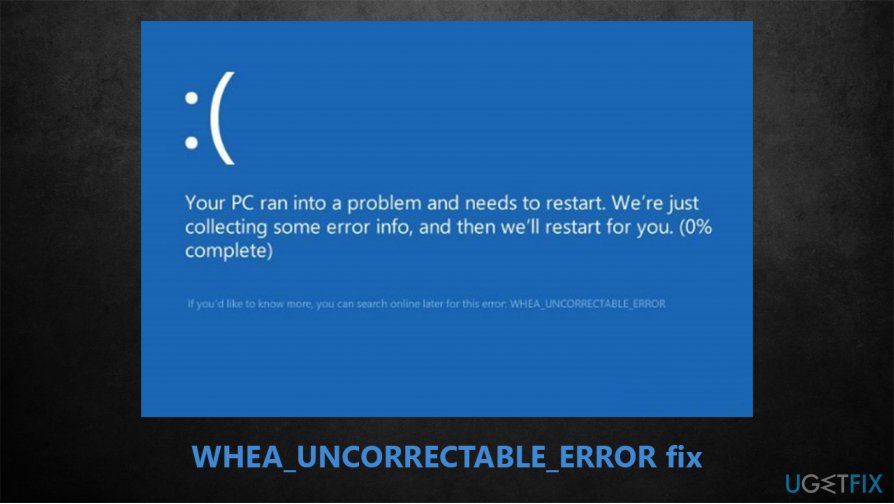
Users receive this error abruptly, and they see the following message on the blue background:
Your PC ran into a problem and needs to restart. We're just collecting some error info, and then we'll restart for you. (0% complete)
If you'd like to know more, you can search online later for this error: WHEA_UNCORRECTABLE_ERROR
The error code, however, does not provide much insight on why it occurred or what needs to be done in order to fix WHEA UNCORRECTABLE ERROR. Probably the main cause of the issue is the damaged hardware. This means that you may see this BSOD when your hard disk, processor, or graphics card is damaged physically or software-wise.
Say you obtain a new graphic card to play a new computer game, but this card exceeds your computer capacities. Naturally, you will be immediately informed to change this computer component to a more compatible one.
However, incompatible or failing hardware are not the only reasons why you might be facing this BSOD. Other reasons for the WHEA_UNCORRECTABLE_ERROR include:
- Incompatible drivers[ref en-1] installed on the system
- Corrupt Windows registry files
- Damaged or missing Windows system files
- Uncalculated system overclocking.
Therefore, below we provide several solutions for each and every one of these scenarios. Depending on your particular computer configuration and other factors, you might have to try several fixes before it would work for you.
Solution 1. Run a system repair tool
While power users can easily troubleshoot issues easily, there are plenty of those that are less PC savvy. Therefore, we highly advise you to try running [d1] as the first solution to any BSOD[ref en-3] error, be it WHEA UNCORRECTABLE ERROR, UNEXPECTED STORE EXCEPTION, DPC WATCHDOG VIOLATION, or another stop error. This software can automatically find and fix underlying issues on a Windows device and is especially effective when the reason for the error is corrupted system files or damaged registry.[ref en-2]
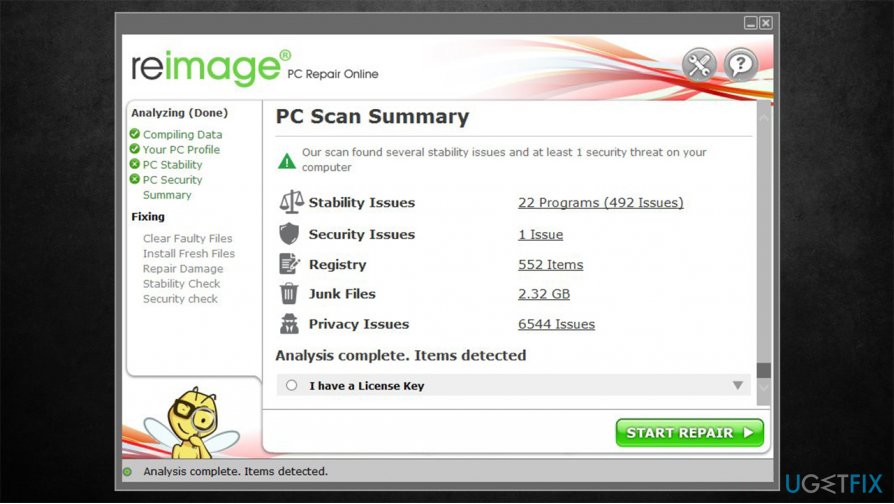
The repair tool is also useful if you want a quick solution and are unwilling to spend time finding the cause of the error in the first place. In other words, it case serve you as a time saver. Also, consider that the software can help you solve many technical issues that you could run into while using your PC in the future.
Solution 2. Reinstall incompatible drivers
One of the main reasons for WHEA_UNCORRECTABLE_ERROR is incompatible drivers. You can reinstall them manually:
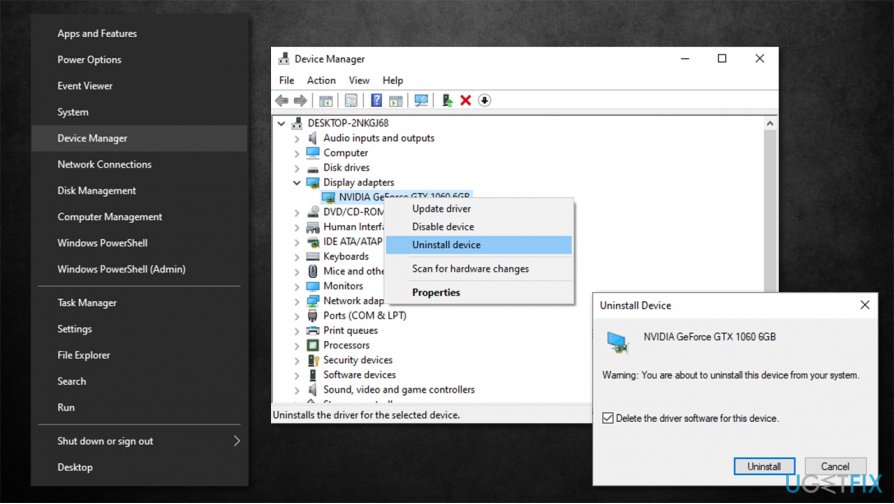
- Right-click on Start and pick Device Manager
- Now you need to find incompatible drivers
- Click on each of the sections and look for yellow exclamation mark
- Right-click on the item in question and select Uninstall device
- In the next prompt, tick the Delete the driver software for this device checkmark
- Click Uninstall
- Reboot the PC.
If you are unwilling to meddle with drivers, you can employ automatic solutions that would do the job for you. We recommend installing [rev id="DriverFix"] and performing a full scan. The app will point at incorrectly installed drivers and find legitimate ones automatically. No trouble, and no time-wasting. Besides, it will ensure that your drivers are up-to-date, reducing the probability of future driver-related issues on a Windows PC.
Solution 3. Run SFC and DISM tools
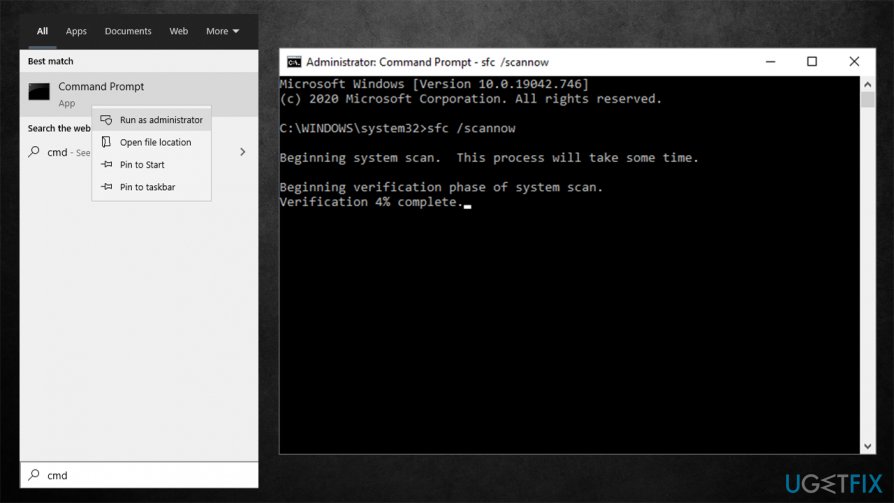
- Type in cmd in Windows search
- Right-click on Command Prompt and select Run as administrator
- Type in the following command, pressing Enter after:
sfc /scannow
- Wait till the process finishes and reboot the PC
- If SFC did not help, run DISM
- Open Command Prompt with administrator's rights once again, type in the following commands and press Enter:
DISM /Online /Cleanup-Image /ScanHealth
DISM /Online /Cleanup-Image /RestoreHealth
Solution 4. Make sure your PC is stored in the right conditions
If you are technically more proficient, you can also consider dusting your machine to ensure all the connectors are clean and well-adjusted. Another tip considering the hardware is to keep the computer properly cooled. Make sure all the vents are open and away from heat sources. It also helps to keep the computer case on a solid surface, such as a wooden floor (avoid carpets) or the table.
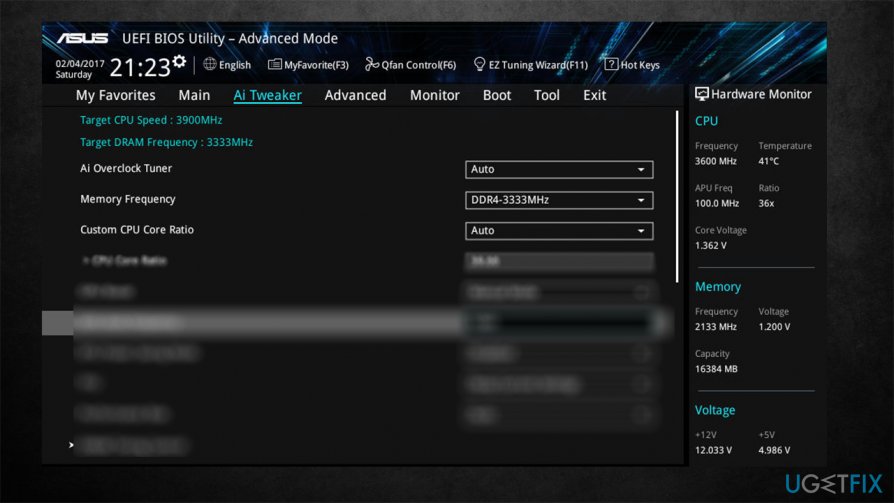
Solution 5. Reset your BIOS settings to remove overclocking
If some of the computer components are modified to run faster than it was originally designed to, this may cause it to overheat and, consequently, trigger the WHEA_UNCORRECTABLE_ERROR. The easiest way to stop all the overclocking on your computer is by resetting BIOS. Here's how (note that BIOS are different for many PCs so the step-by-step might not be accurate for you, although it can serve you as a guide on how to do it):
- Reboot your PC and start pressing F8, F10, F2, Del, Esc or another button (depends on your motherboard manufacturer) on your keyboard to access BIOS menu
- Now you need to find Overclocking section - this can be typically found under Advanced, Voltage, Performance, or similar menus
- Look for Default or Auto settings under Overclocking
- Confirm and reboot your PC.
Solution 6. Reinstall Windows
While this might sound scary, reinstalling Windows 10 is a really easy and straightforward process now that Microsoft has provided special tools for it. There are also plenty of options that you could choose on the way. And yes, you can reinstall Windows without losing your files. If you want more details, please check the How to reset Windows 10 to factory settings article.
Bottom line
To fix the WHEA_UNCORRECTABLE_ERROR, consider checking and replacing damaged hardware components, ensuring compatibility of new parts, and running diagnostics on your hard disk and processor. If these steps do not resolve the issue, further investigation into software conflicts or seeking professional help may be necessary.
Frequently asked questions
This error is typically caused by hardware issues, such as faulty RAM, overheating components, or corrupt drivers. It can also be triggered by overclocking or incompatible hardware configurations.
Start by checking your hardware connections and running a memory diagnostic tool. Additionally, updating your drivers and ensuring your system is free from overheating can help resolve the issue.
Disabling this error is not recommended as it can mask underlying hardware problems, potentially leading to data loss or further system instability. It's best to address the root cause of the error instead.




Report an issue
What's wrong with this guide? We review every report and update or remove content.
Report received — thank you. We'll review and fix it.
You need a free account to submit a report.
Be the first to comment