
How to Fix Windows 10 Media Creation Tool Error 0x80070456 - 0xA0019?

Prefer to fix it yourself? The manual steps follow.
Hello. I tried to use the Windows 10 Media Creation Tool to create a bootable USB flash drive, but in vain. The file is successfully downloaded, but fails in the middle of the file transferring to the USB. Each time the process ends up with the following error message: “Something went wrong ... 0x80070456 - 0xA0019.”
“Something went wrong ... 0x80070456 - 0xA0019” is a Windows 10 Media Creation Tool bug. The tool is a small program that can be used for downloading and executing Windows 10 ISO file, which can further be used for Windows 10 installation DVD or USB. Media Creation tool download does not require having a product key.
It can be used for Windows 10 upgrade or clean install. The tool lets to create bootable DVD or USB drive with the OS setup, which, in addition to upgrading or clean installing, may also help to fix fatal system errors. To download the Windows 10 Media Creation tool, you will have to open the official Microsoft’s website.
Unfortunately, the Media Creation Tool may sometimes fail to download or transfer files into the CD, DVD or USB drive. Few people reported the 0x80070456 - 0xA0019 error code, which shows up in the middle of Windows 10 Media Creation files transfer into the external drive (CD, DVD, USB).
In most of the cases, the error is triggered by corrupted files of the current Windows system drive. Therefore, to fix 0x80070456 - 0xA0019 error, try removing $windows.~WS and $windows.~BT folders. The instructions down below will explain how to do that in details.
Fixing Windows 10 Media Creation Tool Error 0x80070456 - 0xA0019
First of all, make sure that the external storage device you use for Media Creation Tool install has at least 8 GB of free space. Although Microsoft indicates that the tool requires not less than 4 GB free space, the whole composition of files may be larger than 4 GB and the insufficient storage, even the least a couple of MB, may trigger the 0x80070456 - 0xA0019 error. If there are no problems with the external drive’s storage, try to reset the Media Creation Tool.
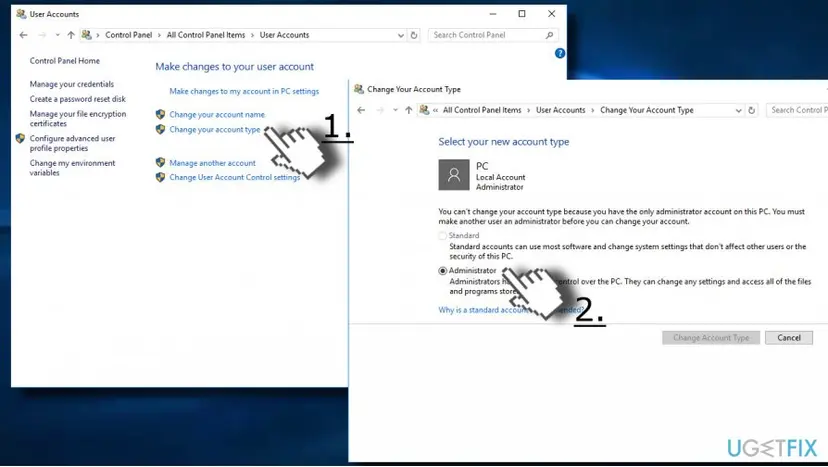
- Log on to the system with the administrative privileges. If you don’t know what is the type of your account, navigate to Control Panel -> User Accounts -> Change your account type.
- Here the type of your account should be Administrator. If it turns out that you are currently using a Local account, switch to the Administrator.
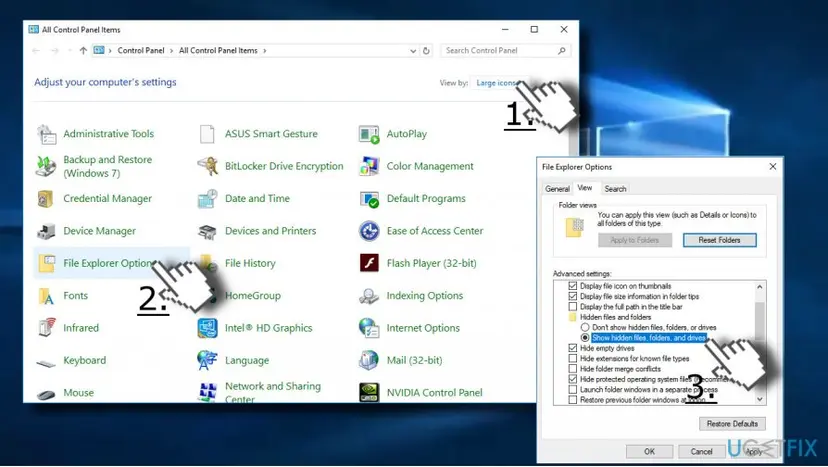
- Now open Control Panel again. You can do so by tying Control Panel in Windows Search.
- Select Large Icons or Small Icons option at the top-right corner of the screen.
- Open File Explorer Options and click View.
- Find Hidden files and folders option and select Show hidden files, folders and drives.
- Now close File Explorer Options and open My Computer or This PC.
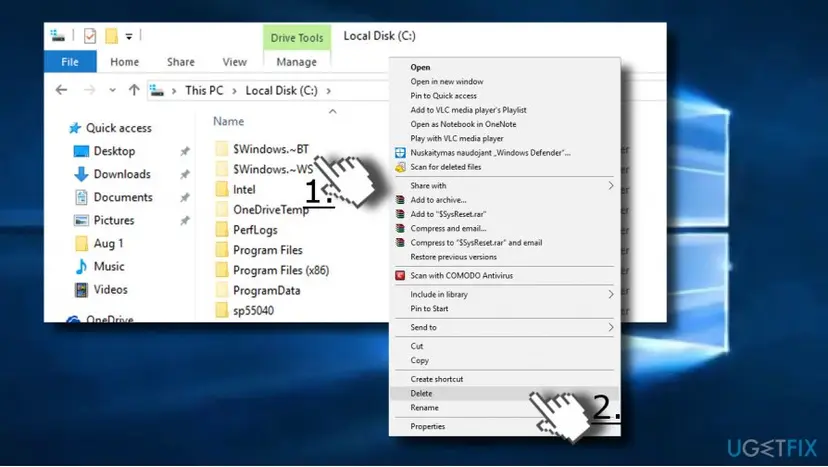
- Open the root drive of the system (usually C: drive).
- Delete $windows.~WS and $windows.~BT folders.
- Close the File Explorer.
- Finally, open Windows Search and type Disc Cleanup. The tool will remove temporary files, which may be damaged.
- After all, re-install Windows 10 Media Creation Tool and check if it can successfully be installed into the external storage.
Did this fix work?
One click, no account. It tells the next reader which guides are worth their time.
Questions and experiences: Fix Windows 10 Media Creation Tool Error 0x80070456 - 0xA0019
Still broken, or found a fix we did not cover? Ask here: members and our editors answer. Reading is open; writing needs a free account.
…